# Account Statement WHMCS Addon
# Description
### PUQ Account Statement module **[WHMCS](https://puqcloud.com/link.php?id=77)**
##### [Order now](https://puqcloud.com/whmcs-addon-puq-account-statement.php) | [Download](https://download.puqcloud.com/WHMCS/addons/PUQ_WHMCS-Account-Statement/) | [Community](https://community.puqcloud.com/)
## PUQ Account Statement — WHMCS Addon
**PUQ Account Statement** is an addon module for WHMCS that generates comprehensive financial statements for clients. It consolidates invoices, transactions, and credits into detailed account statements with PDF and CSV export, scheduled automatic generation, bulk processing, and client area self-service access.
- - - - - -
## Key Features
- **Statement Generation** — generate detailed financial statements for any client with customizable date ranges and filters
- **Clear Outstanding Balance** — the closing balance shows exactly how much the client owes (negative = owed) and ties out with the Debit/Credit columns; Account Credit is shown as a separate figure
- **Multilingual Statements** — PDF, preview, and CSV are generated in the client's own language (falling back to system language, then English), translated across 26 languages
- **WHMCS Date Format** — statement dates follow your WHMCS Global Date Format
- **Multiple Export Formats** — export statements as PDF or CSV files
- **Customizable PDF Templates** — choose from multiple PDF layouts (Classic, Modern, Detailed) in Portrait or Landscape orientation
- **PDF Style Editor** — customize typography, colors, display options, header/footer text, and custom CSS
- **Saved Statements Archive** — save generated statements for future reference with search and filter capabilities
- **Bulk Generation** — generate statements for multiple clients at once, filtered by client group, country, or unpaid invoices
- **Scheduled Generation** — automate statement generation with configurable schedules (daily, weekly, monthly, quarterly, yearly), including automated "All Unpaid Invoices" recurring reminders across all years
- **Client Area Access** — allow clients to view, generate, and download their own statements
- **Email Delivery** — send statements to clients via email with PDF attachment using customizable WHMCS email templates
- **Public Shareable Links** — generate expiring public links to share statements externally
- **Aging Report** — include overdue invoice aging analysis in statements
- **Invoice Filtering** — filter by payment status (paid, unpaid, refunded), payment methods, and product groups
- **Transaction & Credit Tracking** — include transactions and credit entries in statements
- **Quick Period Selection** — one-click date range presets (This Month, Last Month, This Year, Last Year, All Time)
- **Database Schema Verification** — built-in maintenance tool to inspect and non-destructively upgrade module tables and columns
- **Dashboard** — overview with key metrics, quick generate, recent statements, and upcoming schedules
- **License system** — online/offline license verification with graceful degradation (dashboard remains accessible without a license)
- **Multilingual interface** — admin and client area available in 26 languages
- - - - - -
## System Requirements
Requirement
Minimum
**WHMCS**
8.x+, 9.x+
**PHP**
7.4, 8.1, 8.2, 8.3, 8.4
**ionCube Loader**
v15+
- - - - - -
## Module Components
Component
Type
Directory
Addon Module
`puq_account_statement`
`modules/addons/puq_account_statement/`
- - - - - -
## Links
- **Product page:** [https://puqcloud.com/whmcs-addon-puq-account-statement.php](https://puqcloud.com/whmcs-addon-puq-account-statement.php)
- **Documentation:** [https://doc.puq.info/books/account-statement-whmcs-addon](https://doc.puq.info/books/account-statement-whmcs-addon)
- **Support:** [https://puqcloud.com/submitticket.php](https://puqcloud.com/submitticket.php?step=2&deptid=1)
- **Community:** [https://community.puqcloud.com/](https://community.puqcloud.com/)
- - - - - -
## Screenshots
### Admin Area — Dashboard
*02-dashboard.png*
### Admin Area — Generate Statement
*03-generate.png*
### Client Area — Statement Overview
*11-client-area.png*# Changelog
### PUQ Account Statement module **[WHMCS](https://puqcloud.com/link.php?id=77)**
##### [Order now](https://puqcloud.com/whmcs-addon-puq-account-statement.php) | [Download](https://download.puqcloud.com/WHMCS/addons/PUQ_WHMCS-Account-Statement/) | [Community](https://community.puqcloud.com/)
## v4.0.0 — 2026-09-18
### Major Architecture & Compatibility Upgrade
- **Universal ionCube Loader v15 Support:** Fully encoded with the latest ionCube 15 compiler, guaranteeing seamless execution across PHP 7.4, 8.1, 8.2, 8.3, and 8.4 environments.
- **Unencoded Hooks Architecture (v4.0.0 Standard):** Refactored `hooks.php` into an open, unencoded entrypoint delegating to `lib/puqAccountStatementHooks.php` with robust `\Throwable` error isolation and module logging.
- **WHMCS 8.x & WHMCS 9+ Compatibility:** Modernized database queries and hook registrations for complete compatibility with current and upcoming WHMCS releases.
- **Performance & Reliability Improvements:** Streamlined cron scheduling, automated statement cleanup, and client summary tab rendering.
### New Features & Enhancements
- **"All Unpaid Invoices" Period Selection in Schedules:** Added automated "All Unpaid Invoices" (`all_unpaid`) period option in Schedules. The module automatically scans all unpaid and overdue invoices across all years (from `1970-01-01` to current date), ensuring outstanding balances from prior or future years (2025, 2026, 2027+) are never missed.
- **Automated Empty Statement Suppression:** When generating or scheduling statements targeting unpaid invoices, the module automatically skips clients with zero unpaid balances, preventing blank emails from being sent.
- **Interactive Database Verification Tool:** Added a "Check and Update Database Schema" maintenance tool in Module Settings to non-destructively inspect tables and automatically add missing columns during upgrades.
- **"All Time" Quick Period Preset:** Added "All Time" period button in Manual Generation and Bulk Generation to instantly select the full history from account inception to current date.
- **In-Memory Email Attachment Delivery:** Enhanced bulk statement email delivery by handing PDF attachments directly in-memory to the WHMCS mail pipeline via `EmailPreSend`, preventing dropped attachments on shared filesystems.
- **Localized WHMCS System Descriptions:** Automated localization for native WHMCS transaction and credit descriptions (e.g. `Invoice Payment`, `Credit Applied to Invoice`, `Credit Removed`, `Reason: Order status changed to Cancelled`, `Overpayment`, `Mass Invoice Payment Credit for Invoice`).
- **Complete 26-Language Localization:** Added translations for all new schedule and database maintenance strings across all 26 supported language files.
- **Template Scanner Refinement:** PDF template discovery now ignores draft and hidden files starting with `_` or `.` (e.g. `_classic.tpl`), avoiding duplicate or confusing template selections.
- **Documentation Fixes & Updated Screenshots:** Corrected BookStack canonical documentation links and updated administrative screenshots for Schedule Editor and Settings.
- - - - - -
## v1.2 — 2026-06-05
**The clarity update.** Your customers now see, at a glance, *exactly how much they owe* — in their own language and in your date format.
### New Features
- **Real outstanding balance.** The Closing Balance now reflects what the customer actually owes (negative = owed), and it ties out perfectly with the Debit and Credit columns of the statement. No more confusing `$0.00` closing balances when there are unpaid invoices.
- **Account Credit shown separately.** Statements now display both the client's **Account Credit** and the **amount owed**, so the two are never mixed up.
- **Carry-forward opening balance.** The Open Balance now includes outstanding invoices from before the statement period — perfect for statements that start mid-history.
- **Multilingual statements.** PDF, on-screen preview, and CSV exports are now generated in the **client's own language**, with automatic fallback to your system language and then English. Fully translated across **25 languages**.
- **"Show Open Balance" setting.** Hide the Open Balance line entirely if you only want to show the amount owed.
### Improvements
- **Dates follow your WHMCS Global Date Format.** Statement dates now respect the format configured in WHMCS (e.g. `DD/MM/YYYY`) instead of a fixed format.
- **Smarter client search.** The admin client search now matches **first name + last name** together (in any order), as well as company, email, or client ID.
- **Client area language.** The client area now displays in the logged-in customer's own language.
- **CSV summary fixed & expanded.** The CSV summary section now shows correct values (including Account Credit and amount owed) and is included with emailed/attached exports.
### Bug Fixes
- Fixed the running-balance column in the **Detailed** PDF template (it previously never updated and used the wrong sign).
- Fixed mixed-language output where the statement preview and PDF stayed in English regardless of the selected language.
- - - - - -
## v1.1 — 2026-02-25
### Bug Fixes
- Fixed "Call to undefined function puq\_account\_statement\_LoadLang()" error on customer profile page
### Improvements
- All monetary values now consistently display with 2 decimal places (e.g., `0.00`, `5.10` instead of `0` or `5.1`)
- Removed currency symbol from the Total column in statements for uniform formatting with Debit and Credit columns
### New Features
- Added "Show Payment Method" setting to control visibility of the Payment Method column in statements
- When disabled, the Payment Method column is hidden across all views: admin preview, PDF exports, and CSV exports
- - - - - -
## v1.0 — 2026-02-18
First release.
### New Features
- Statement generation for individual clients with customizable date ranges
- Invoice filtering by status: Paid, Unpaid, Refunded
- Transaction and credit entry inclusion in statements
- Payment method and product group filtering
- Quick period presets: This Month, Last Month, This Year, Last Year
- PDF export with multiple templates: Classic, Modern, Detailed (Portrait & Landscape)
- CSV export for data analysis
- PDF Style editor: typography, colors, display options, header/footer text, custom CSS
- Saved statements archive with search, filter, and pagination
- Bulk generation for multiple clients with progress tracking
- Client filters for bulk: All Clients, By Client Group, By Country, With Unpaid Invoices
- Scheduled automatic statement generation (Daily, Weekly, Monthly, Quarterly, Yearly)
- Schedule management: create, edit, toggle, run now, delete
- Client area self-service: view, generate, and download statements
- Client area configurable permissions: PDF download, CSV download
- Email delivery with PDF attachment using WHMCS email templates
- Public shareable links with configurable expiry
- Aging report for overdue invoice analysis
- Dashboard with key metrics, quick generate, recent statements, upcoming schedules
- Auto-cleanup of old saved statements
- Configurable per-page pagination
- Add to Billing Menu option for client area
- AJAX-based interface with loading spinners on all actions
- License verification system with online/offline modes
- Dashboard accessible without active license, other pages restricted
- Error logging via WHMCS `logModuleCall`
- English language interface# Installation and configuration
PUQ Account Statement module WHMCS Order now — Download — Community This chapter covers the installation, updating, and basic configuration of the PUQ Account Statement module.
# WHMCS Module Installation and Update
### PUQ Account Statement module **[WHMCS](https://puqcloud.com/link.php?id=77)**
##### [Order now](https://puqcloud.com/whmcs-addon-puq-account-statement.php) | [Download](https://download.puqcloud.com/WHMCS/addons/PUQ_WHMCS-Account-Statement/) | [Community](https://community.puqcloud.com/)
## System Requirements
| Requirement | Minimum |
|-------------|------------------|
| WHMCS | 8.x or higher |
| PHP | 7.4, 8.1, 8.2, 8.3, 8.4 |
| ionCube Loader | v15+ |
> **Note:** The module is encrypted with ionCube. Ensure that the correct ionCube Loader version is active on your web server.
---
## Download
The module can be ordered and downloaded from PUQ Cloud:
- **Order Module:** [https://puqcloud.com/whmcs-addon-puq-account-statement.php](https://puqcloud.com/whmcs-addon-puq-account-statement.php)
- **Documentation:** [https://doc.puq.info/books/account-statement-whmcs-addon](https://doc.puq.info/books/account-statement-whmcs-addon)
- **All Versions / Download:** [https://download.puqcloud.com/WHMCS/addons/PUQ_WHMCS-Account-Statement/](https://download.puqcloud.com/WHMCS/addons/PUQ_WHMCS-Account-Statement/)
- **Support:** [https://puqcloud.com/submitticket.php?step=2&deptid=1](https://puqcloud.com/submitticket.php?step=2&deptid=1)
- **Community:** [https://community.puqcloud.com/](https://community.puqcloud.com/)
- **Direct download link for the latest version:**
```bash
wget https://download.puqcloud.com/WHMCS/addons/PUQ_WHMCS-Account-Statement/PUQ_WHMCS-Account-Statement-latest.zip
```
> All versions can be found at this link:
> [https://download.puqcloud.com/WHMCS/addons/PUQ_WHMCS-Account-Statement/](https://download.puqcloud.com/WHMCS/addons/PUQ_WHMCS-Account-Statement/)
---
## Installation
### Step 1: Unzip the Archive
On your WHMCS server (or locally):
```bash
unzip PUQ_WHMCS-Account-Statement-latest.zip
```
### Step 2: Copy the Module Files
Copy the extracted module directory directly to your WHMCS directory:
```bash
# For addon modules:
cp -r PUQ_WHMCS-Account-Statement/puq_account_statement /var/www/html/whmcs/modules/addons/
```
### Step 3: Activate and Configure the Addon Module
1. Log in to the WHMCS admin area.
2. Navigate to **System Settings > Addon Modules** (or **Setup > Addon Modules** in older WHMCS versions).
3. Find **PUQ Account Statement** in the list and click **Activate**.
4. Click **Configure**, enter your **License Key**, and select the admin groups allowed to access the module.
5. Click **Save Changes**.
---
## File Structure
Structure of files after a successful installation:
```
whmcs/
└── modules/
└── addons/
└── puq_account_statement/ # Module files
```
---
## Update Procedure
To update the module to a newer version:
1. **Deactivate** the addon module in **Setup > Addon Modules** (System Settings > Addon Modules).
2. Make a backup of your WHMCS files and database.
3. Download the latest version archive.
4. Extract the ZIP and overwrite the existing files in the `modules/` directories.
5. **Reactivate** the addon module in **Setup > Addon Modules** (this will trigger database migrations). All settings and client data are safe during this process.
# Activation and permissions
### PUQ Account Statement module **[WHMCS](https://puqcloud.com/link.php?id=77)**
##### [Order now](https://puqcloud.com/whmcs-addon-puq-account-statement.php) | [Download](https://download.puqcloud.com/WHMCS/addons/PUQ_WHMCS-Account-Statement/) | [Community](https://community.puqcloud.com/)
To activate the module and set up permissions, follow these steps:
1. Log in to your WHMCS Admin Area.
2. Navigate to **System Settings > Addon Modules** (or **Setup > Addon Modules** in older WHMCS versions).
3. Locate **PUQ Account Statement** in the list and click **Activate**.
4. Once activated, click **Configure** next to the module name.
5. In the configuration panel:
- Enter your **License key** (provided upon purchase).
- Under **Access Control**, select the administrative role groups (e.g., Full Administrator, Support) that are permitted to access and manage this module.
6. Click **Save Changes**.

*01-addon-config-license.png*
# Admin Area
PUQ Account Statement module WHMCS Order now — Download — Community This chapter describes all management actions and configurations available in the WHMCS admin area for the PUQ Account Statement module.
# Admin Area Overview
### PUQ Account Statement module **[WHMCS](https://puqcloud.com/link.php?id=77)**
##### [Order now](https://puqcloud.com/whmcs-addon-puq-account-statement.php) | [Download](https://download.puqcloud.com/WHMCS/addons/PUQ_WHMCS-Account-Statement/) | [Community](https://community.puqcloud.com/)
This page provides an overview of the administrative interface and actions available to administrators.
## Accessing the Admin Area
To access the admin area of the module:
1. Log in to your WHMCS Admin Area.
2. Navigate to **Addons > PUQ Account Statement**
## Management Actions
The admin interface allows performing the following actions:
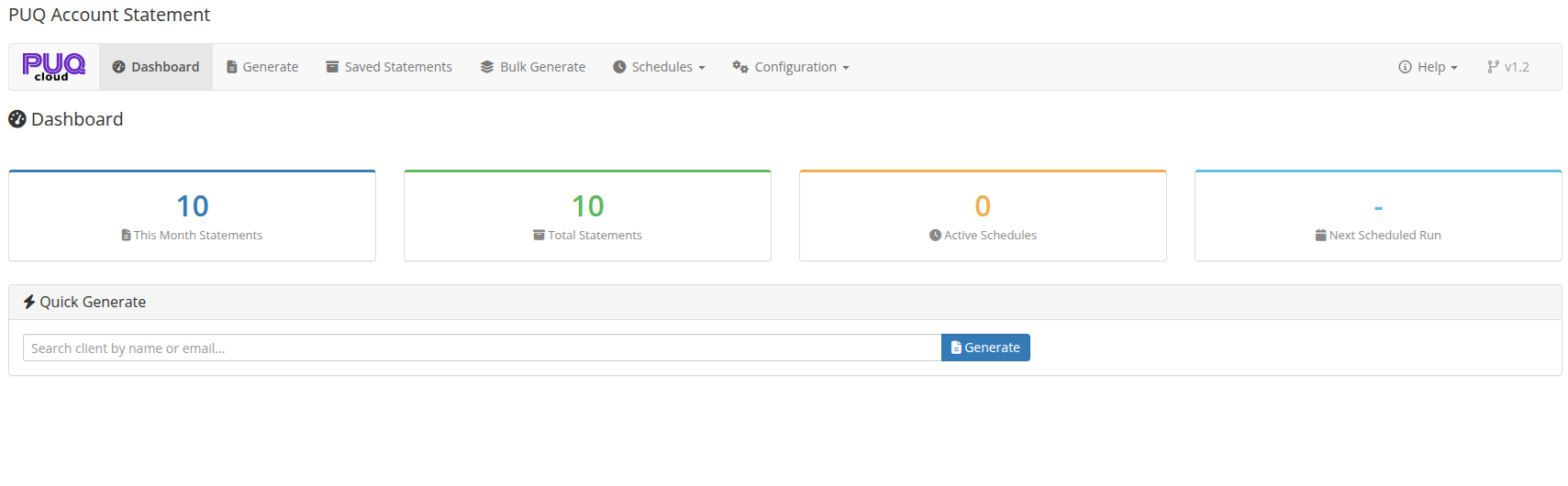
- **Dashboard**: View overall statistics, quick generate statement and upcoming schedules.
- **Generate Statement**: Create a statement for a specific client with a date range.
- **Saved Statements**: View and download previously generated statements.
- **Bulk Generate**: Generate statements for multiple clients at once.
- **Schedules**: Configure automated statement generation.
- **PDF Style**: Customize the visual appearance of the PDF statements.
## Settings
Explain settings and tools:
- **General Settings**: Configure company details, email templates, and other global options.
- **Access Control**: Configure which administrator groups have access.
## Screenshot
*02-dashboard.png*
# Dashboard
### PUQ Account Statement module **[WHMCS](https://puqcloud.com/link.php?id=77)**
##### [Order now](https://puqcloud.com/whmcs-addon-puq-account-statement.php) | [Download](https://download.puqcloud.com/WHMCS/addons/PUQ_WHMCS-Account-Statement/) | [Community](https://community.puqcloud.com/)
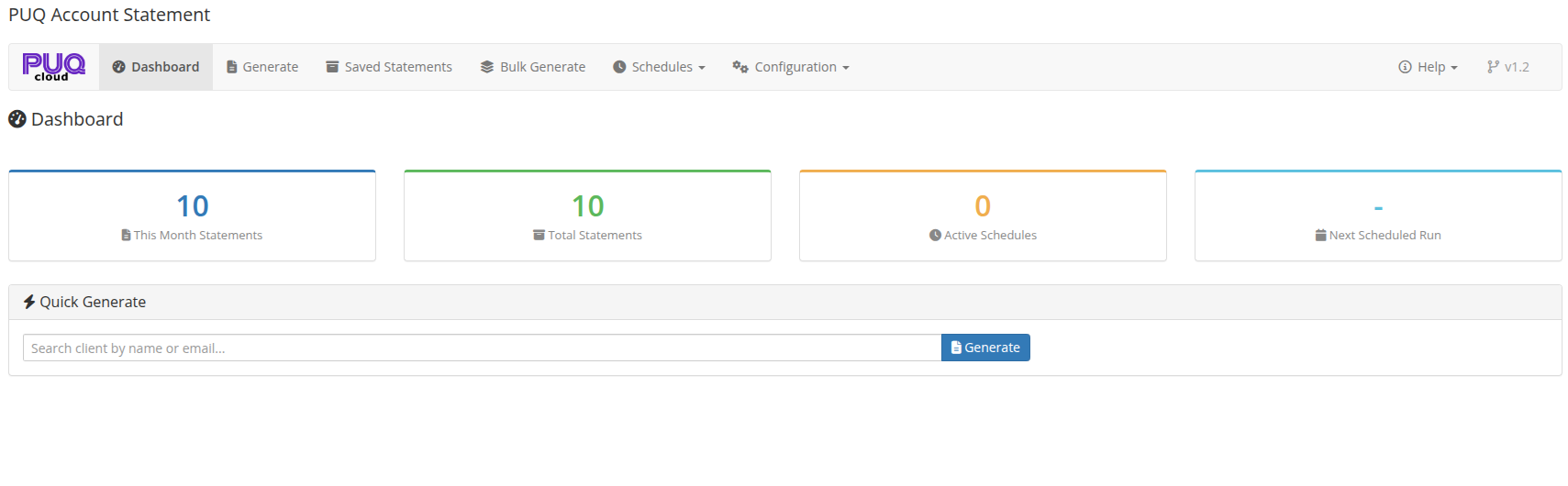
The Dashboard is the home page of the module, available at: **Addons** > **PUQ Account Statement** > **Dashboard**
It provides a complete overview of your statement activity — key metrics, quick generation, recent statements, and upcoming schedules.
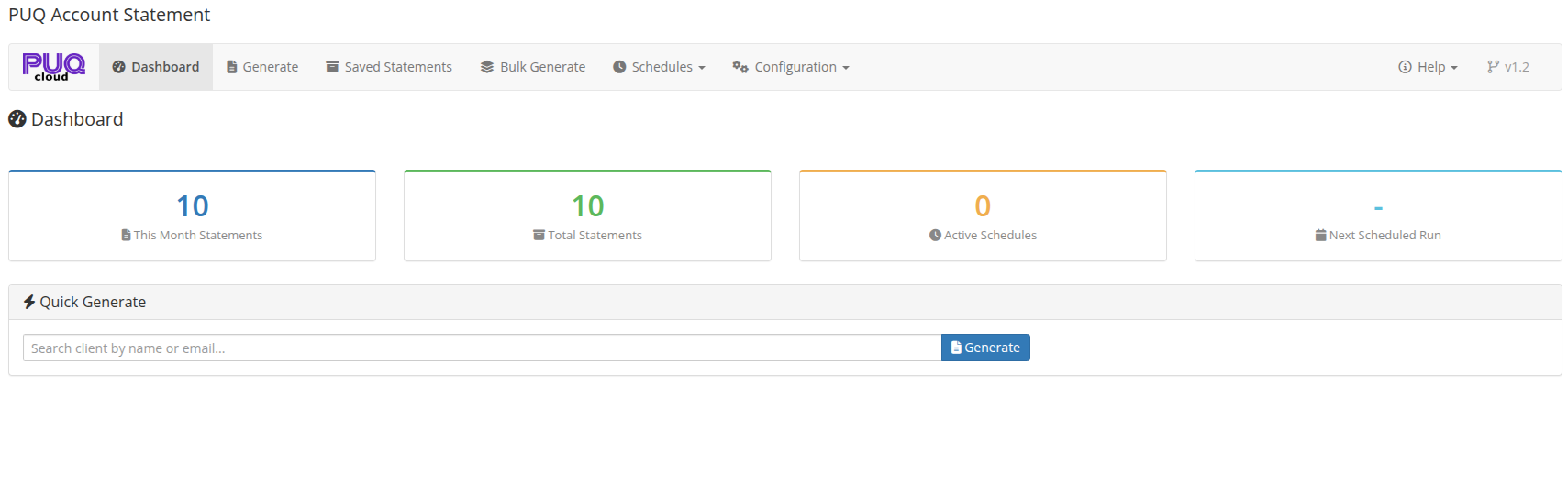
*02-dashboard.png*
---
## Key Metrics
The top section displays summary cards with color-coded borders:
| Metric | Description |
|--------|-------------|
| **This Month Statements** | Number of statements generated in the current month |
| **Total Statements** | Total number of saved statements in the archive |
| **Active Schedules** | Number of currently active automatic schedules |
| **Next Scheduled Run** | Date and time of the next scheduled statement generation |
---
## Quick Generate
A search panel for quickly generating a statement for a specific client:
1. Start typing a client name or email in the search field
2. Select the client from the dropdown results (powered by Select2 with AJAX search)
3. Click **Generate** to navigate to the Generate page with the client pre-selected
---
## Recent Statements
A table showing the 10 most recently generated statements:
| Column | Description |
|--------|-------------|
| **Date** | When the statement was generated |
| **Client** | Client full name |
| **Period** | Statement date range (from — to) |
| **Generated By** | How the statement was created: manual, schedule, or bulk |
| **Actions** | **View** button to open the saved statement |
---
## Upcoming Schedules
A table showing up to 5 active schedules with their next run times:
| Column | Description |
|--------|-------------|
| **Name** | Schedule name |
| **Frequency** | How often it runs (Daily, Weekly, Monthly, Quarterly, Yearly) |
| **Next Run** | Date and time of the next execution |
| **Status** | Badge: **Active** (green) or **Inactive** (gray) |
# Generate Statement
### PUQ Account Statement module **[WHMCS](https://puqcloud.com/link.php?id=77)**
##### [Order now](https://puqcloud.com/whmcs-addon-puq-account-statement.php) | [Download](https://download.puqcloud.com/WHMCS/addons/PUQ_WHMCS-Account-Statement/) | [Community](https://community.puqcloud.com/)
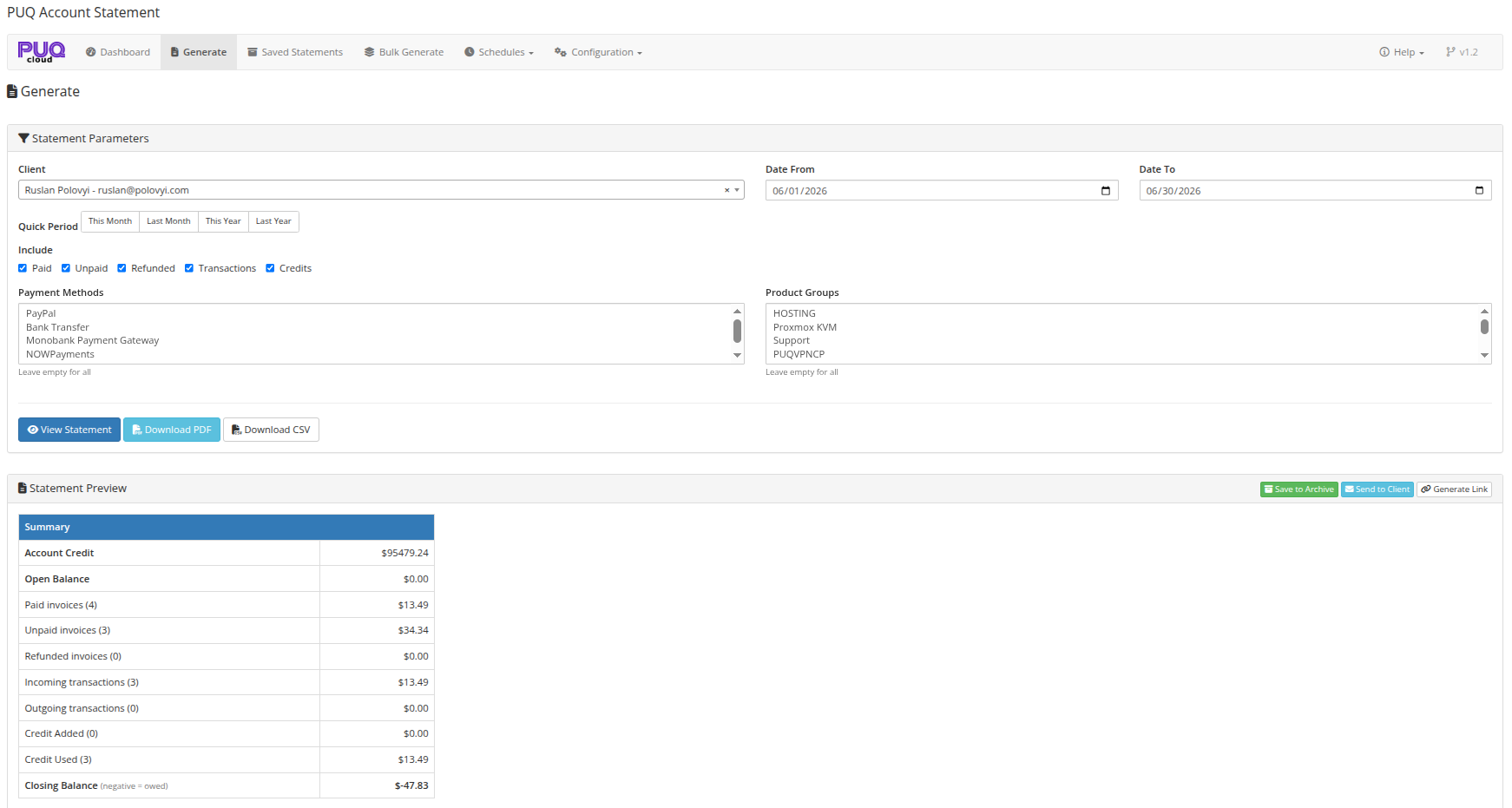
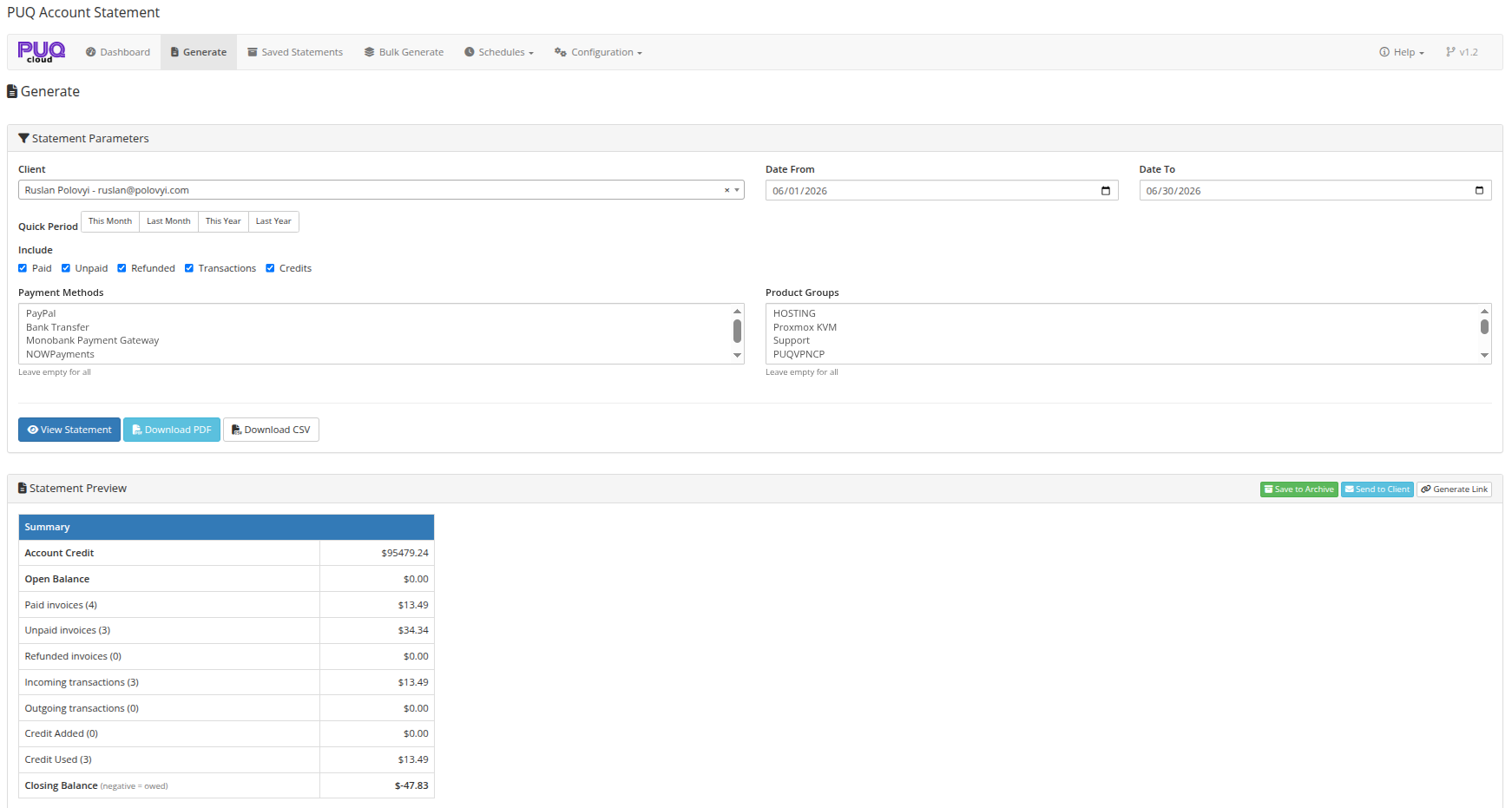
The Generate page is available at: **Addons** > **PUQ Account Statement** > **Generate**
This is the main page for creating individual account statements for a specific client.
*03-generate.png*
---
## Generate from a Client's Profile
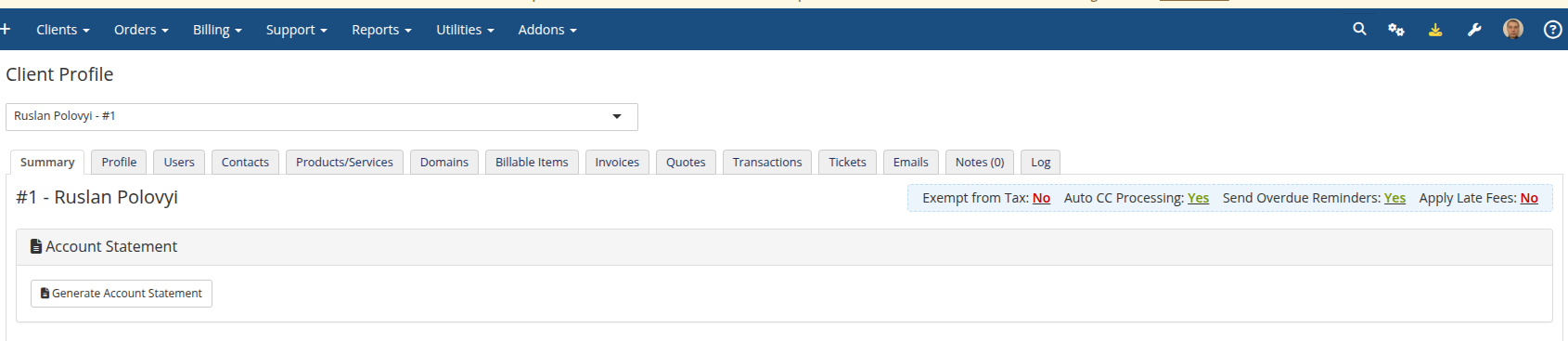
You can also start a statement directly from a client's profile. Open **Clients** > select a client, and on the **Summary** tab use the **Account Statement** panel and click **Generate Account Statement**. This opens the Generate page with the client pre-selected.
*21-admin-client-profile.png*
---
## Statement Parameters
### Client Selection
Use the search field to find a client by **first name, last name (or both together), company, email, or client ID**. The field uses Select2 with AJAX search — start typing to see results. Searching a full name such as "John Smith" matches first name + last name in any order.
> **Tip:** You can navigate here from the Dashboard's Quick Generate feature, which pre-selects the client.
### Date Range
Set the date range for the statement using:
- **Date From / Date To** — manual date inputs
- **Quick Period** buttons — one-click presets:
- **This Month** — first to last day of current month
- **Last Month** — first to last day of previous month
- **This Year** — January 1 to December 31 of current year
- **Last Year** — January 1 to December 31 of previous year
- **All Time** — entire history from account inception (from `1970-01-01` to current date)
### Include Options
Select which financial data to include in the statement:
| Option | Description |
|--------|-------------|
| **Paid** | Include paid invoices |
| **Unpaid** | Include unpaid/outstanding invoices |
| **Refunded** | Include refunded invoices |
| **Transactions** | Include payment transactions |
| **Credits** | Include credit entries |
### Advanced Filters
| Filter | Description |
|--------|-------------|
| **Payment Methods** | Filter invoices by payment gateway (multi-select). Leave empty for all |
| **Product Groups** | Filter invoices by product group (multi-select). Leave empty for all |
---
## Actions
### View Statement
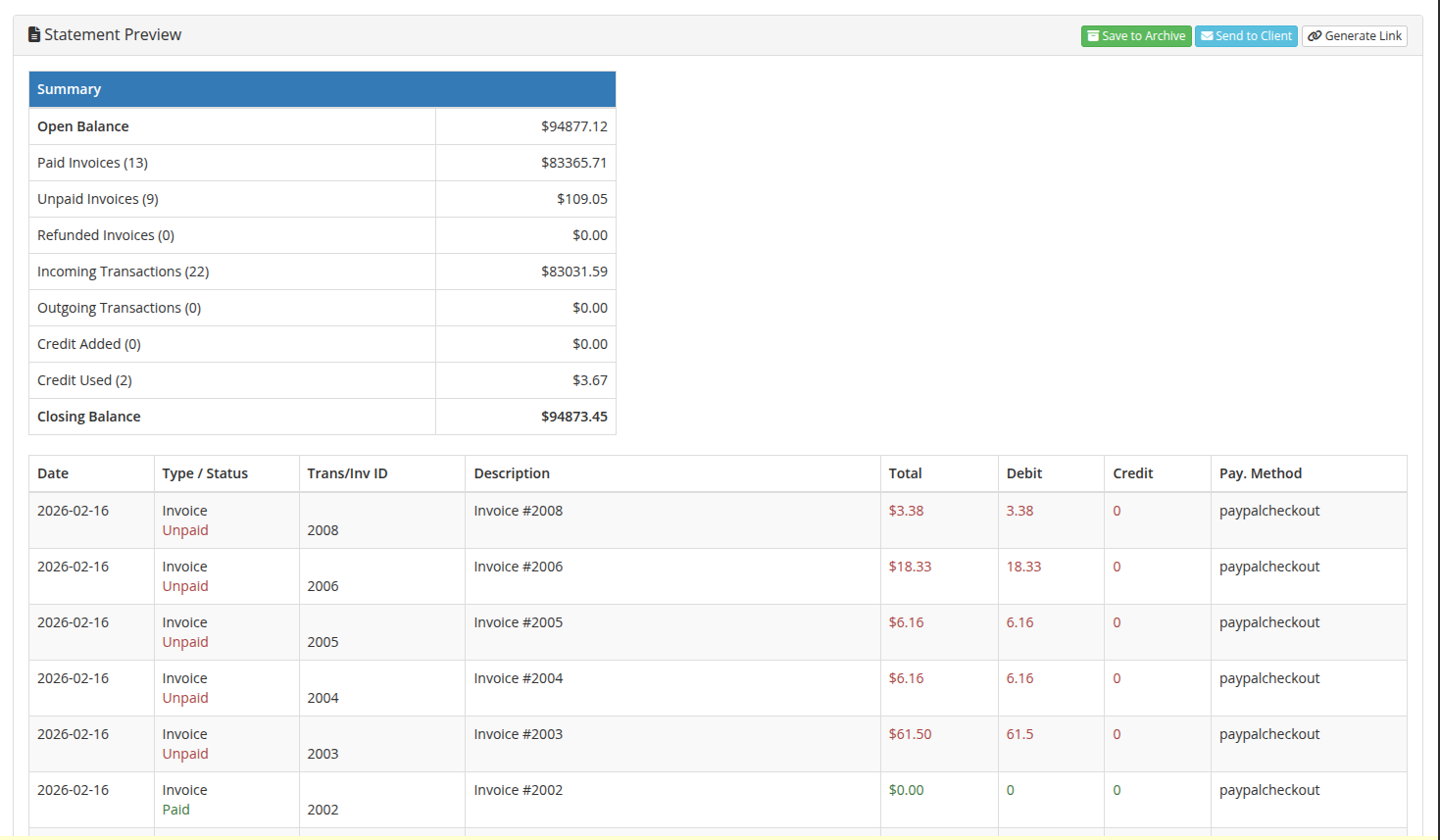
Click **View Statement** to generate and display the statement preview inline on the page. The preview shows the rendered HTML statement with all sections.
> **Reading the balance:** The summary shows two distinct figures — **Account Credit** (the credit available on the client's WHMCS account) and the **Closing Balance**, which is the outstanding amount. A negative Closing Balance means the client owes that amount, and it always ties out with the Debit and Credit columns. The **Open Balance** line carries forward any unpaid invoices from before the statement period and can be hidden via *Settings → Show Open Balance*.
> **Language & dates:** Statements (preview, PDF, and CSV) are generated in the **client's own language** when available — falling back to the system language, then English. Dates follow your **WHMCS Global Date Format**.
### Download PDF
Click **Download PDF** to generate and download the statement as a PDF file. The PDF uses the template configured in the Settings page.
### Download CSV
Click **Download CSV** to generate and download the statement data as a CSV file for import into spreadsheets or accounting software.
---
## Statement Preview Actions
After viewing a statement, additional action buttons appear in the preview header:
| Action | Description |
|--------|-------------|
| **Save to Archive** | Save the statement to the saved statements archive for future reference |
| **Send to Client** | Send the statement to the client via email with PDF attachment |
| **Generate Link** | Generate a public shareable link (copied to clipboard automatically) |
*04-generate-preview.png*
# Saved Statements
### PUQ Account Statement module **[WHMCS](https://puqcloud.com/link.php?id=77)**
##### [Order now](https://puqcloud.com/whmcs-addon-puq-account-statement.php) | [Download](https://download.puqcloud.com/WHMCS/addons/PUQ_WHMCS-Account-Statement/) | [Community](https://community.puqcloud.com/)
The Saved Statements page is available at: **Addons** > **PUQ Account Statement** > **Saved Statements**
This page shows all previously saved account statements with filtering, pagination, and management tools.
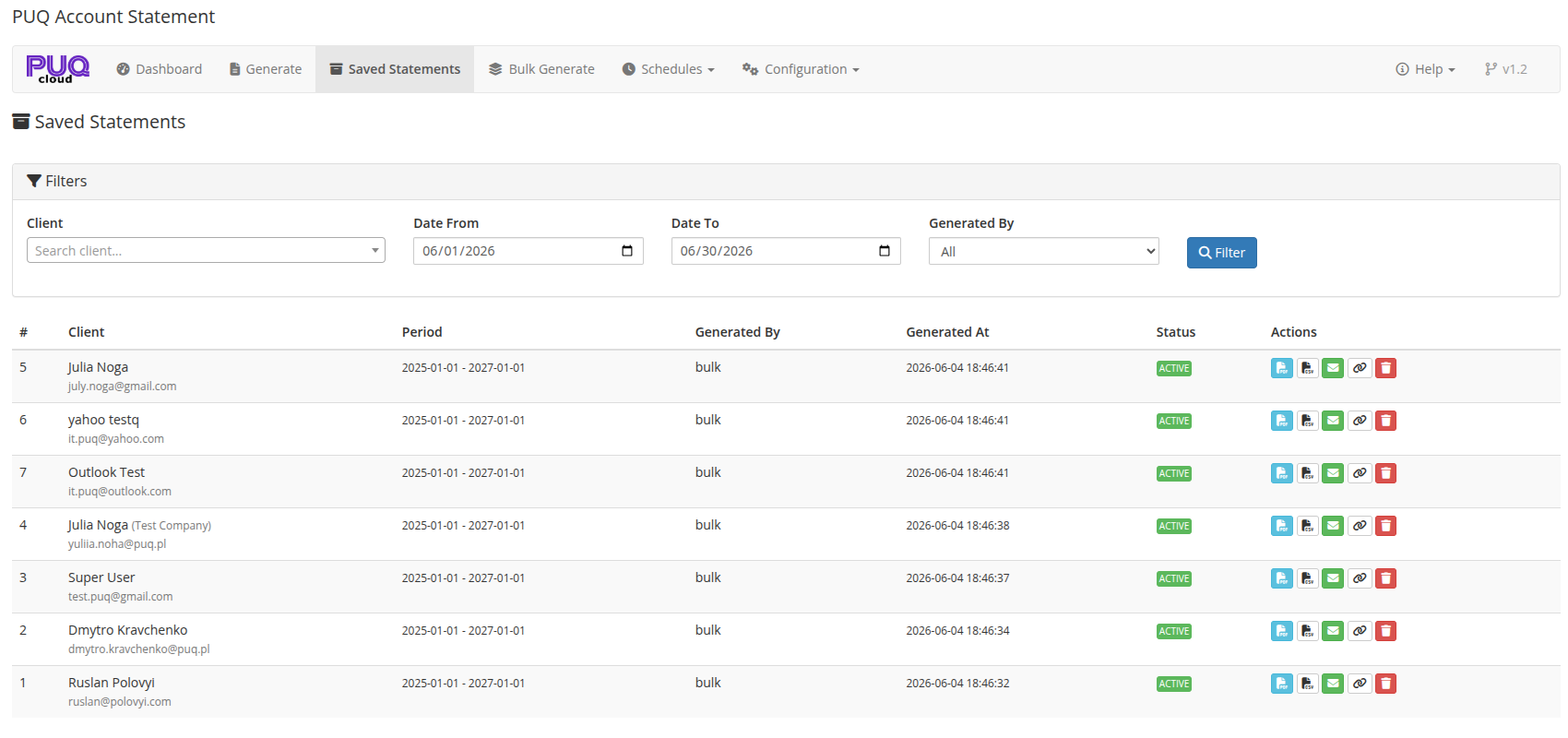
*05-saved-statements.png*
---
## Filters
The top panel provides search and filter options:
| Filter | Description |
|--------|-------------|
| **Client** | Search for a specific client by name or email (Select2 AJAX search) |
| **Date From** | Filter statements created from this date |
| **Date To** | Filter statements created up to this date |
| **Generated By** | Filter by generation method: All, Manual, Schedule, or Bulk |
Click **Filter** to apply the filters and reload the results.
---
## Statements Table
The main table lists saved statements with the following columns:
| Column | Description |
|--------|-------------|
| **#** | Statement ID |
| **Client** | Client name, company name, and email |
| **Period** | Statement date range (from — to) |
| **Generated By** | How the statement was created: manual, schedule, or bulk |
| **Generated At** | Timestamp when the statement was generated |
| **Status** | Badge: **Active** (green) or expired status |
| **Actions** | Action buttons (see below) |
---
## Actions Per Statement
Each statement row has the following action buttons:
| Button | Icon | Description |
|--------|------|-------------|
| **PDF** | file-pdf | Download/view the statement as PDF (opens in new tab) |
| **CSV** | file-csv | Download the statement data as CSV |
| **Send** | envelope | Send the statement to the client via email with PDF attachment |
| **Copy Link** | link | Generate a public shareable link and copy it to clipboard |
| **Delete** | trash | Delete the saved statement (requires confirmation) |
---
## Pagination
When there are more statements than the configured per-page limit (default: 25), pagination controls appear at the bottom of the table with page numbers and previous/next navigation.
---
## Auto-Cleanup
Saved statements can be automatically deleted after a configurable number of days. This is set in **Settings** > **Auto Cleanup Days**. Set to 0 to disable auto-cleanup.
# Bulk Generate
### PUQ Account Statement module **[WHMCS](https://puqcloud.com/link.php?id=77)**
##### [Order now](https://puqcloud.com/whmcs-addon-puq-account-statement.php) | [Download](https://download.puqcloud.com/WHMCS/addons/PUQ_WHMCS-Account-Statement/) | [Community](https://community.puqcloud.com/)
The Bulk Generate page is available at: **Addons** > **PUQ Account Statement** > **Bulk Generate**
This page allows you to generate statements for multiple clients at once with a single operation.
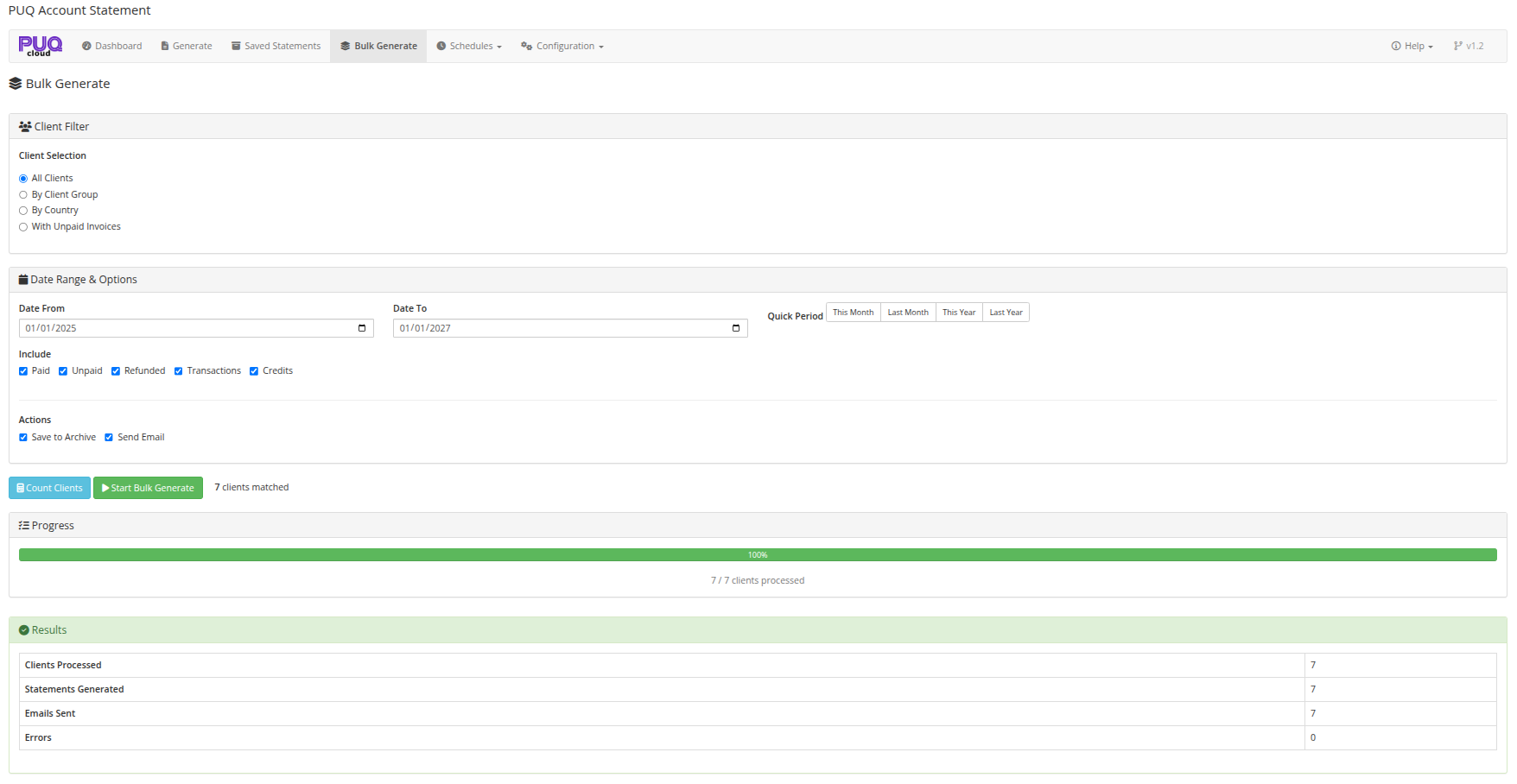
*06-bulk-generate.png*
---
## Client Filter
Choose which clients to generate statements for:
| Option | Description |
|--------|-------------|
| **All Clients** | Generate for every client in the system |
| **By Client Group** | Filter by WHMCS client group (dropdown appears for selection) |
| **By Country** | Filter by client country (dropdown appears for selection) |
| **With Unpaid Invoices** | Only clients that have outstanding unpaid invoices |
When selecting **By Client Group** or **By Country**, a dropdown field appears to select the specific group or country.
---
## Date Range & Options
### Date Range
Set the statement period using:
- **Date From / Date To** — manual date inputs
- **Quick Period** buttons — same presets as the Generate page (This Month, Last Month, This Year, Last Year, All Time)
The default period is set to **Last Month**.
### Include Options
Same checkboxes as the Generate page:
- Paid, Unpaid, Refunded, Transactions, Credits
### Actions
Choose what to do with each generated statement:
| Action | Description |
|--------|-------------|
| **Save to Archive** | Save each statement to the saved statements archive (checked by default) |
| **Send Email** | Send each statement to the respective client via email with PDF attachment |
---
## Workflow
### Step 1: Count Clients
Click **Count Clients** to see how many clients match your filter criteria. The result appears next to the button (e.g., "**42** clients matched").
### Step 2: Start Bulk Generate
After counting, the **Start Bulk Generate** button becomes enabled. Click it and confirm the operation.
### Step 3: Monitor Progress
A progress bar appears showing:
- Visual progress bar with percentage
- Text counter: "X / Y clients processed"
The bulk operation processes clients in batches of 10 for optimal performance and to avoid timeouts.
### Step 4: Review Results
After completion, a results panel shows:
| Metric | Description |
|--------|-------------|
| **Clients Processed** | Total number of clients processed |
| **Statements Generated** | Number of statements successfully created |
| **Emails Sent** | Number of emails sent (if email option was enabled) |
| **Errors** | Number of errors encountered during processing |
# Schedules
### PUQ Account Statement module **[WHMCS](https://puqcloud.com/link.php?id=77)**
##### [Order now](https://puqcloud.com/whmcs-addon-puq-account-statement.php) | [Download](https://download.puqcloud.com/WHMCS/addons/PUQ_WHMCS-Account-Statement/) | [Community](https://community.puqcloud.com/)
The Schedules page is available at: **Addons** > **PUQ Account Statement** > **Schedules** > **All Schedules**
This page manages automated statement generation schedules. Schedules run automatically via WHMCS cron.
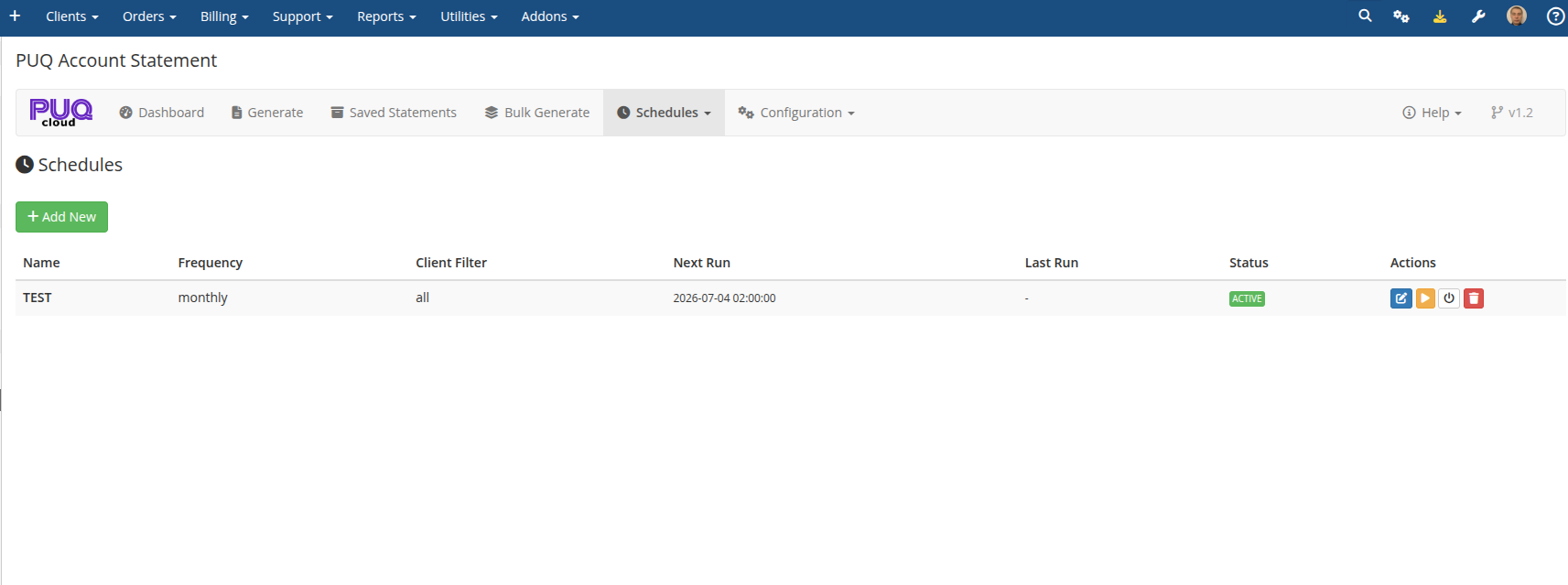
*07-schedules.png*
---
## Schedules Table
The table lists all configured schedules with the following columns:
| Column | Description |
|--------|-------------|
| **Name** | Schedule name for identification |
| **Frequency** | How often it runs: Daily, Weekly, Monthly, Quarterly, Yearly |
| **Client Filter** | Target clients: All, By Group, By Country, or With Unpaid Invoices |
| **Next Run** | Date and time of the next scheduled execution |
| **Last Run** | Date and time of the most recent execution |
| **Status** | Badge: **Active** (green) or **Inactive** (gray) |
| **Actions** | Action buttons (see below) |
---
## Actions Per Schedule
| Button | Icon | Description |
|--------|------|-------------|
| **Edit** | edit | Open the schedule editor to modify settings |
| **Run Now** | play | Execute the schedule immediately without waiting for the next scheduled time |
| **Toggle** | power-off | Enable or disable the schedule |
| **Delete** | trash | Delete the schedule (requires confirmation) |
---
## Creating a New Schedule
Click the **Add New** button at the top or go to **Schedules** > **Add Schedule** in the navigation menu.
See the [Schedule Editor](https://doc.puq.info/books/account-statement-whmcs-addon/page/schedule-editor) page for details on configuring a schedule.
---
## Sending All Outstanding Unpaid Invoices
To configure a recurring schedule that automatically sends statements with **all unpaid invoices** (regardless of the year the invoice was issued):
1. Click **Add New** (or edit an existing schedule).
2. In **General Settings**:
- Enter a **Name** (e.g., `Weekly Outstanding Invoices Reminder`).
- Select your desired **Frequency** (e.g., `Weekly` or `Monthly`).
- Select **Period Type** as **All Unpaid Invoices** (or **All Time**).
3. In **Client Filter**:
- Select **With Unpaid Invoices**. This ensures only clients with unpaid balances are selected.
4. In **Include Options**:
- Check **Unpaid** only.
- Uncheck **Paid**, **Refunded**, **Transactions**, and **Credits** so the statement focuses strictly on the unpaid balance and does not include historical paid items.
5. In **Output**:
- Check **Send Email** (and optionally **Save to Archive**).
6. Click **Save Schedule**.
> [!TIP]
> When using **All Unpaid Invoices**, the module inspects all invoices from `1970-01-01` to the current date, ensuring unpaid invoices from prior years (2025, 2026, 2027, etc.) are never missed. If a client has zero unpaid invoices, the module automatically skips them and does not send empty emails.
---
## How Schedules Work
Schedules are executed by the WHMCS cron job. When a schedule's next run time is reached:
1. The module identifies matching clients based on the schedule's client filter
2. For each client, a statement is generated for the configured period
3. Depending on the schedule's output settings, statements are saved to archive and/or emailed to clients
4. The schedule's next run time is updated based on its frequency
5. Execution details are logged for reference
# Schedule Editor
### PUQ Account Statement module **[WHMCS](https://puqcloud.com/link.php?id=77)**
##### [Order now](https://puqcloud.com/whmcs-addon-puq-account-statement.php) | [Download](https://download.puqcloud.com/WHMCS/addons/PUQ_WHMCS-Account-Statement/) | [Community](https://community.puqcloud.com/)
The Schedule Editor page is available at: **Addons** > **PUQ Account Statement** > **Schedules** > **Add Schedule** (or click **Edit** on an existing schedule)
This page allows you to create or edit an automated statement generation schedule.
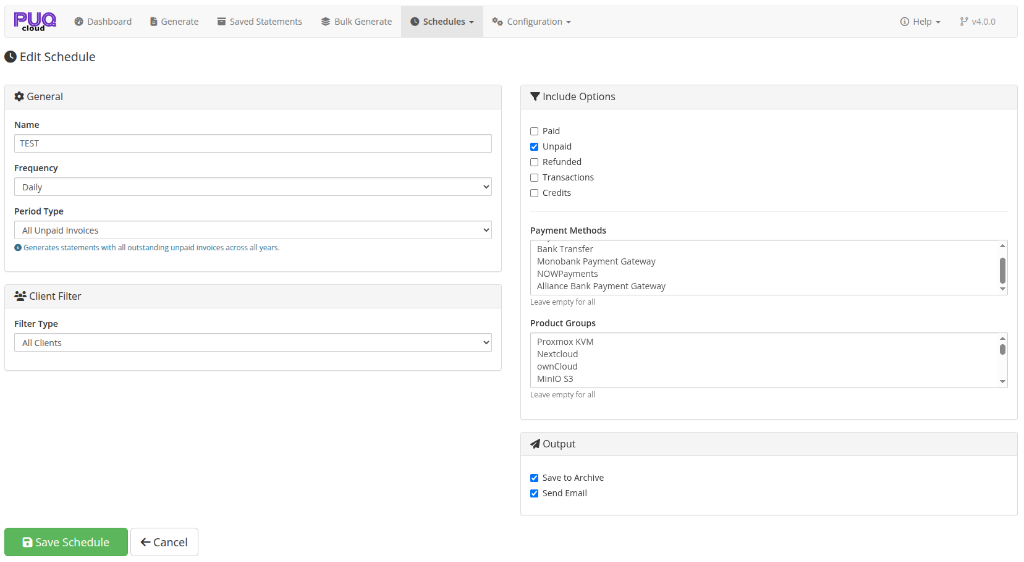
*08-schedule-edit.png*
---
## General Settings
| Setting | Description |
|---------|-------------|
| **Name** | A descriptive name for the schedule (e.g., "Monthly Client Statements") |
| **Frequency** | How often the schedule runs: Daily, Weekly, Monthly, Quarterly, Yearly |
| **Period Type** | What period the statement covers: Last Week, Last Month, Last Quarter, Last Year, All Time, or All Unpaid Invoices |
> [!TIP]
> **All Unpaid Invoices Period Type:**
> Choosing **All Unpaid Invoices** sets the statement to cover all unpaid and overdue invoices regardless of when they were issued (from `1970-01-01` to current date). This ensures clients with unpaid invoices from any prior or current year (e.g., 2025, 2026, 2027) will see all their outstanding balances in one clean statement. Pair this with the **With Unpaid Invoices** client filter and check only **Unpaid** under **Include Options**.
---
## Client Filter
Choose which clients receive statements when the schedule runs:
| Filter | Description |
|--------|-------------|
| **All Clients** | Generate for every client |
| **By Client Group** | Only clients in a specific WHMCS client group |
| **By Country** | Only clients from a specific country |
| **With Unpaid Invoices** | Only clients with outstanding invoices |
When selecting **By Client Group** or **By Country**, a text field appears to enter the filter value.
---
## Include Options
Configure what financial data to include in the generated statements:
- **Paid** — include paid invoices
- **Unpaid** — include unpaid invoices
- **Refunded** — include refunded invoices
- **Transactions** — include payment transactions
- **Credits** — include credit entries
### Advanced Filters
| Filter | Description |
|--------|-------------|
| **Payment Methods** | Only include invoices paid via specific gateways (multi-select, leave empty for all) |
| **Product Groups** | Only include invoices for specific product groups (multi-select, leave empty for all) |
---
## Output
Configure what happens with each generated statement:
| Option | Description |
|--------|-------------|
| **Save to Archive** | Save the statement to the saved statements archive (checked by default) |
| **Send Email** | Send the statement to the client via email with PDF attachment |
---
## Saving
Click **Save Schedule** to create or update the schedule. After saving a new schedule, the page reloads with the schedule ID in the URL for future editing.
Click **Cancel** to return to the schedules list without saving.
# PDF Style
### PUQ Account Statement module **[WHMCS](https://puqcloud.com/link.php?id=77)**
##### [Order now](https://puqcloud.com/whmcs-addon-puq-account-statement.php) | [Download](https://download.puqcloud.com/WHMCS/addons/PUQ_WHMCS-Account-Statement/) | [Community](https://community.puqcloud.com/)
The PDF Style page is available at: **Addons** > **PUQ Account Statement** > **Configuration** > **PDF Style**
This page allows you to customize the appearance and content of generated PDF statements.
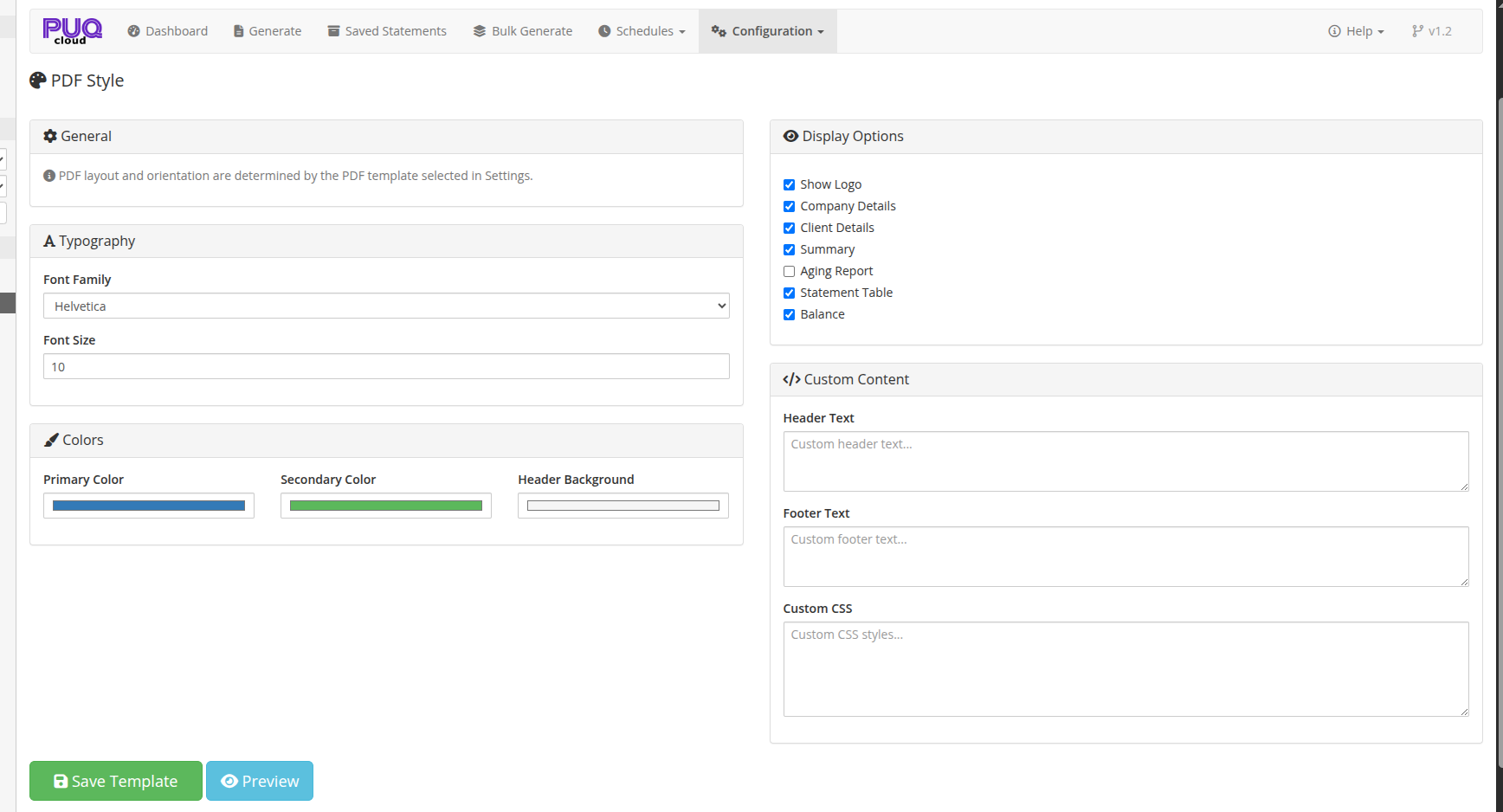
*09-pdf-style.png*
---
## General
An informational note that PDF layout and orientation are determined by the PDF template selected in the Settings page. The Style editor controls visual appearance within the selected template.
---
## Typography
| Setting | Description |
|---------|-------------|
| **Font Family** | Choose the PDF font: Helvetica, Times, Courier, DejaVu Sans, Free Serif |
| **Font Size** | Base font size in points (6–24, default: 10) |
> **Tip:** Use **DejaVu Sans** or **Free Serif** for full Unicode character support (Cyrillic, Asian characters, etc.).
---
## Colors
| Setting | Description |
|---------|-------------|
| **Primary Color** | Main color used for headings, table headers, and accents (default: #337ab7) |
| **Secondary Color** | Secondary color for subtitles and less prominent text (default: #555555) |
| **Header Background** | Background color for table header rows (default: #f5f5f5) |
---
## Display Options
Toggle which sections appear in the generated PDF:
| Option | Description |
|--------|-------------|
| **Show Logo** | Display the company logo at the top of the statement |
| **Company Details** | Show company name, address, and contact information |
| **Client Details** | Show client name, address, and contact information |
| **Summary** | Show the financial summary section (totals for invoices, transactions, credits) |
| **Aging Report** | Show the aging report section for overdue invoice analysis |
| **Statement Table** | Show the detailed statement table with individual line items |
| **Balance** | Show the running balance and final balance totals |
---
## Custom Content
| Setting | Description |
|---------|-------------|
| **Header Text** | Custom text displayed at the top of the statement (below the logo/company info) |
| **Footer Text** | Custom text displayed at the bottom of the statement |
| **Custom CSS** | Additional CSS styles applied to the PDF. Use for fine-tuning fonts, spacing, borders, etc. |
---
## Preview
Click the **Preview** button to generate a sample PDF with the current (unsaved) settings. This opens the PDF in a new browser tab so you can review changes before saving.
> **Note:** The preview uses current unsaved settings, allowing you to experiment without affecting live statements.
---
## Saving
Click **Save Template** to save all style settings. These settings apply globally to all PDF statements generated by the module.
---
## PDF Template Examples
The module includes several built-in PDF templates. The template is selected in **Settings** > **PDF Template**.
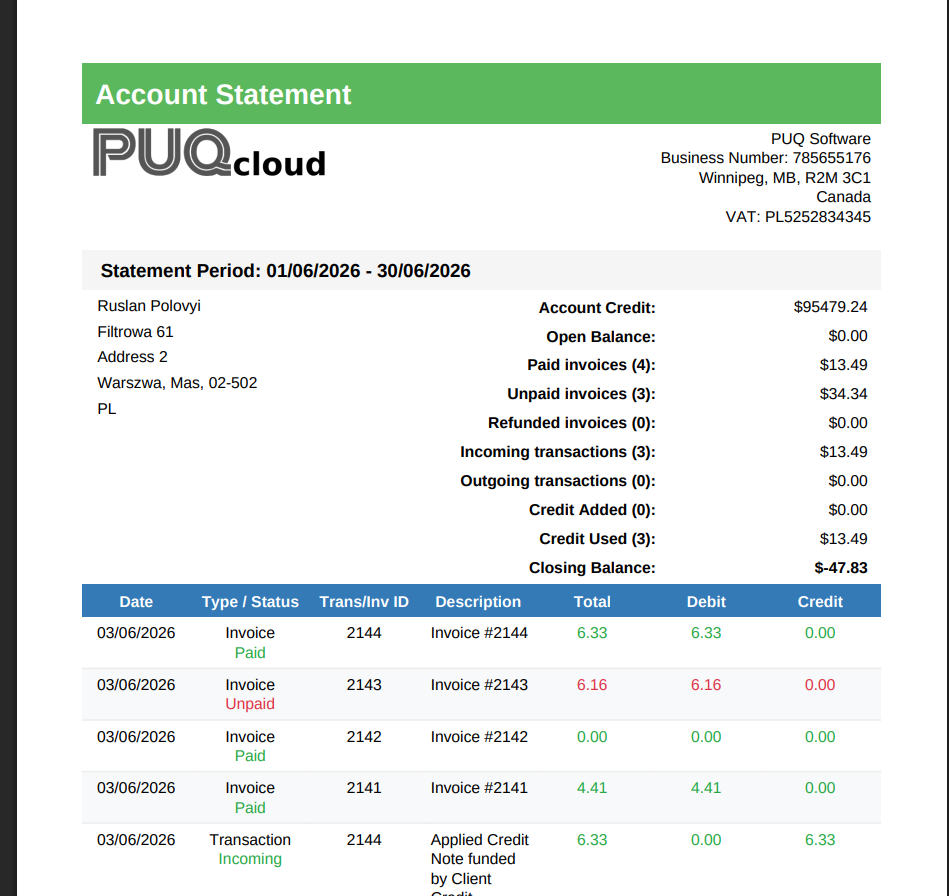
### Classic (Portrait)
Traditional bank statement layout with bordered table and alternating rows.
*12-pdf-classic.png*
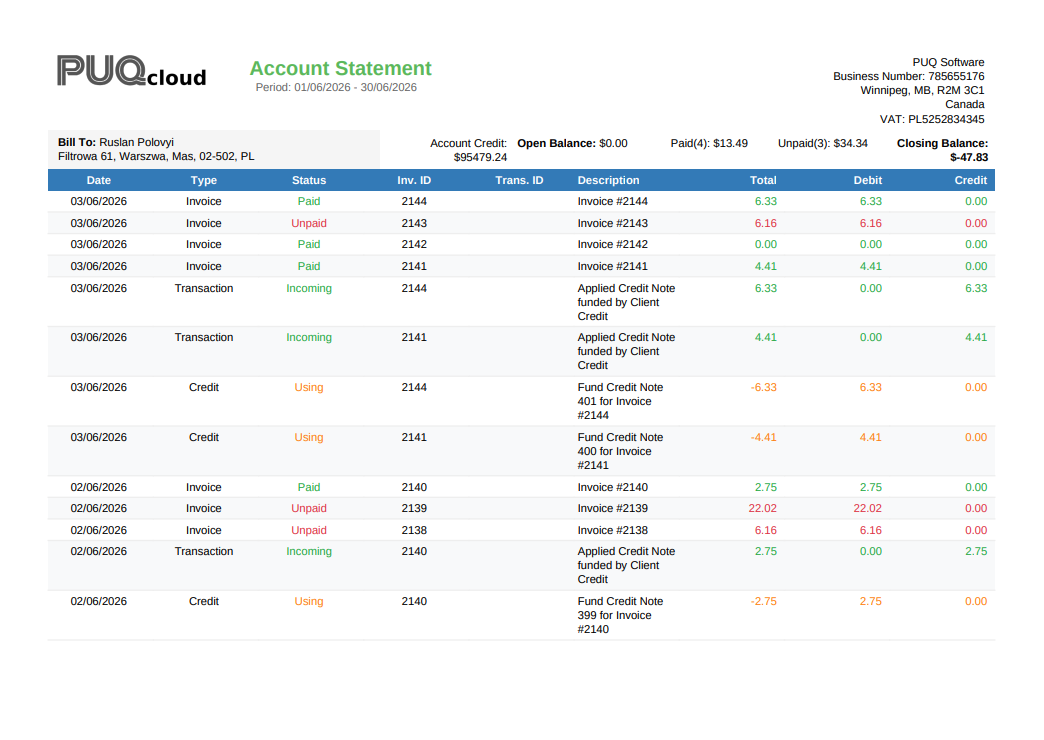
### Classic (Landscape)
Same classic layout in landscape orientation, showing more columns.
*13-pdf-classic-landscape.png*
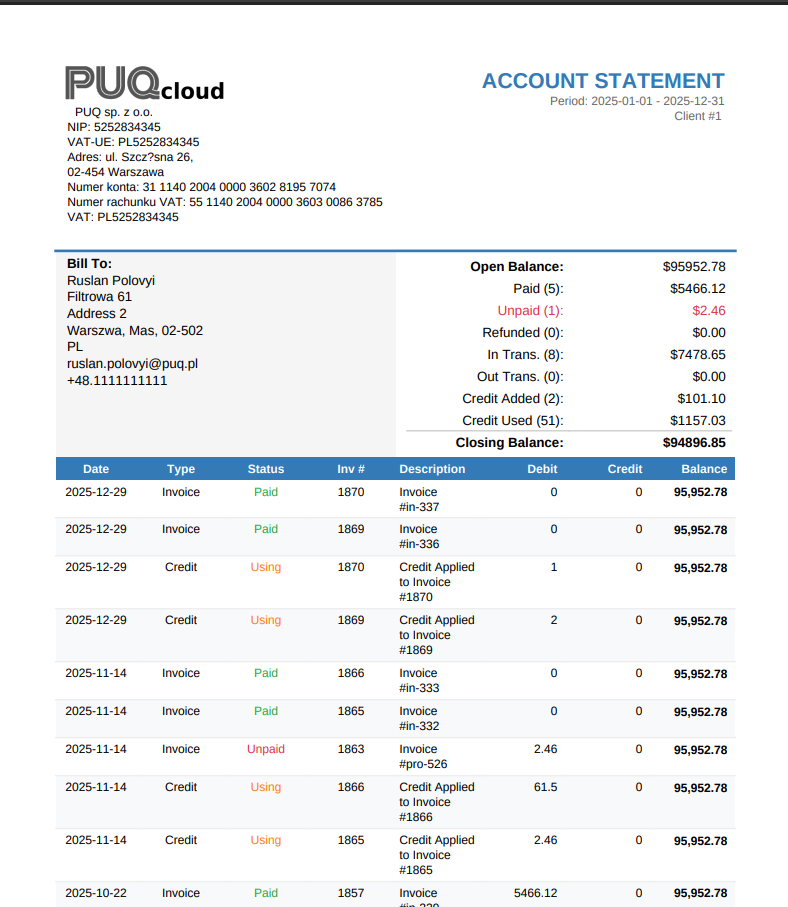
### Modern (Portrait)
Clean modern design with color-coded summary cards and running balance column.
*14-pdf-modern.png*
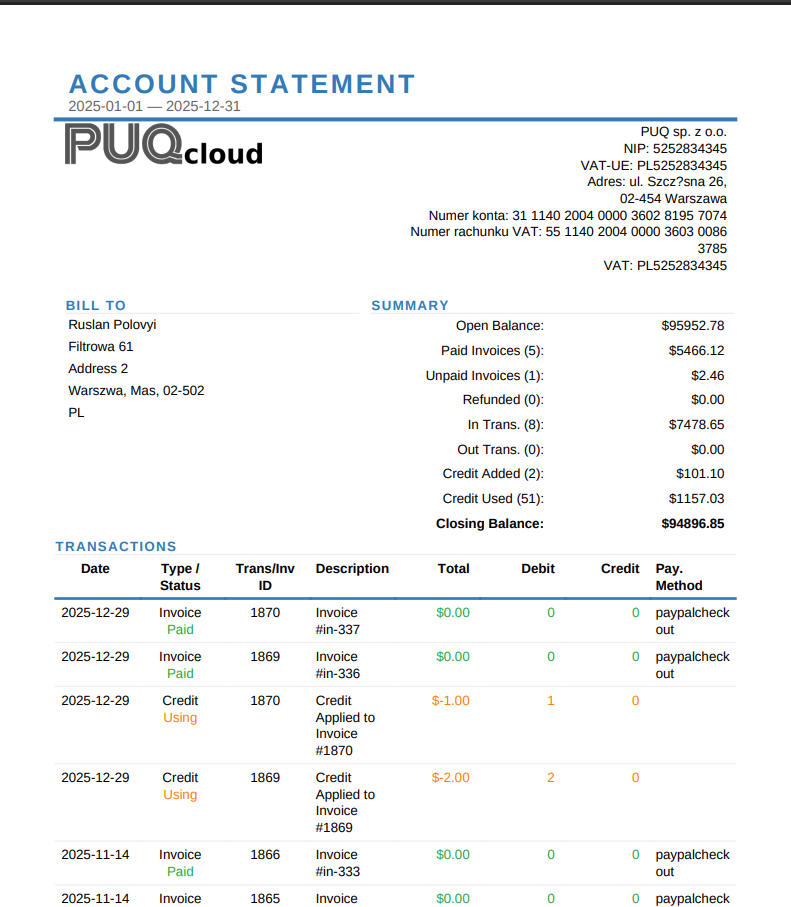
### Detailed (Portrait)
Comprehensive layout with full company details, client information, and detailed transaction table.
*15-pdf-detailed.png*
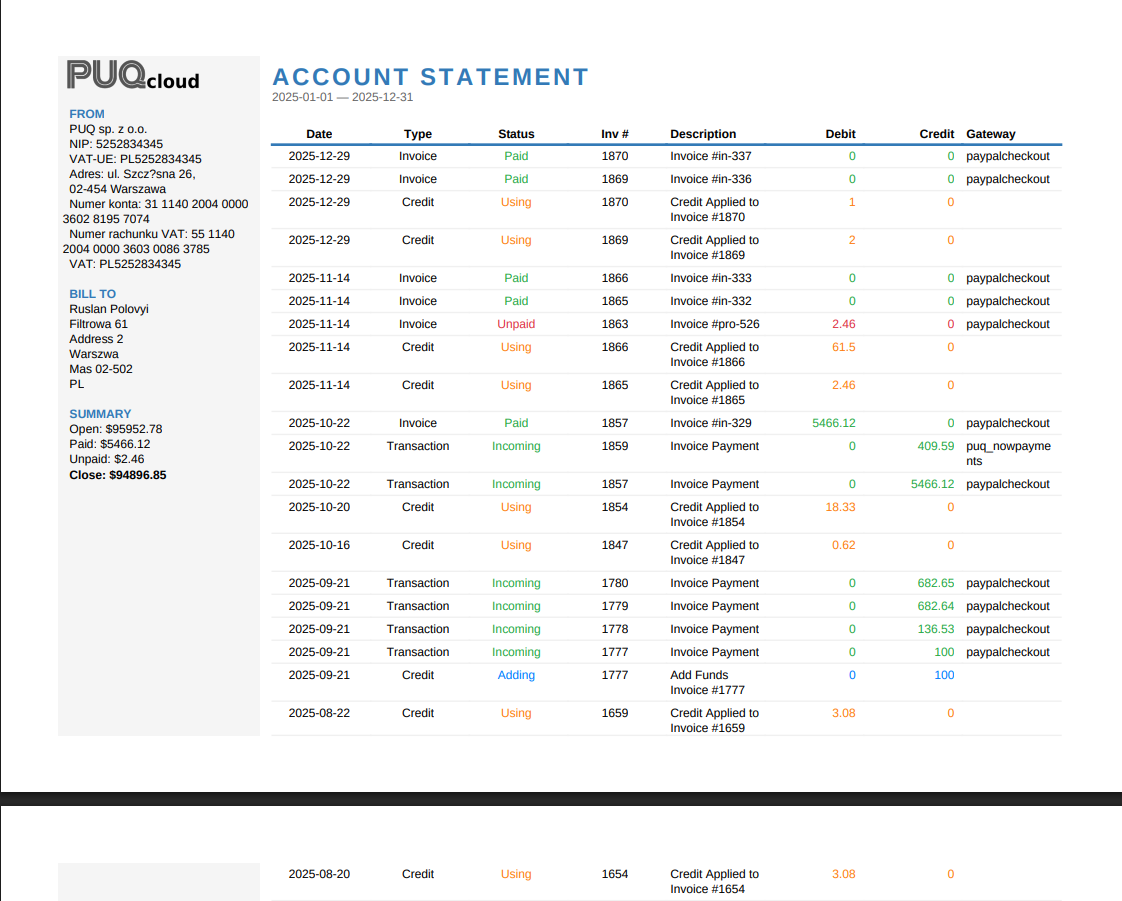
### Modern (Landscape)
Modern layout in landscape orientation with expanded column space.
*16-pdf-modern-landscape.png*
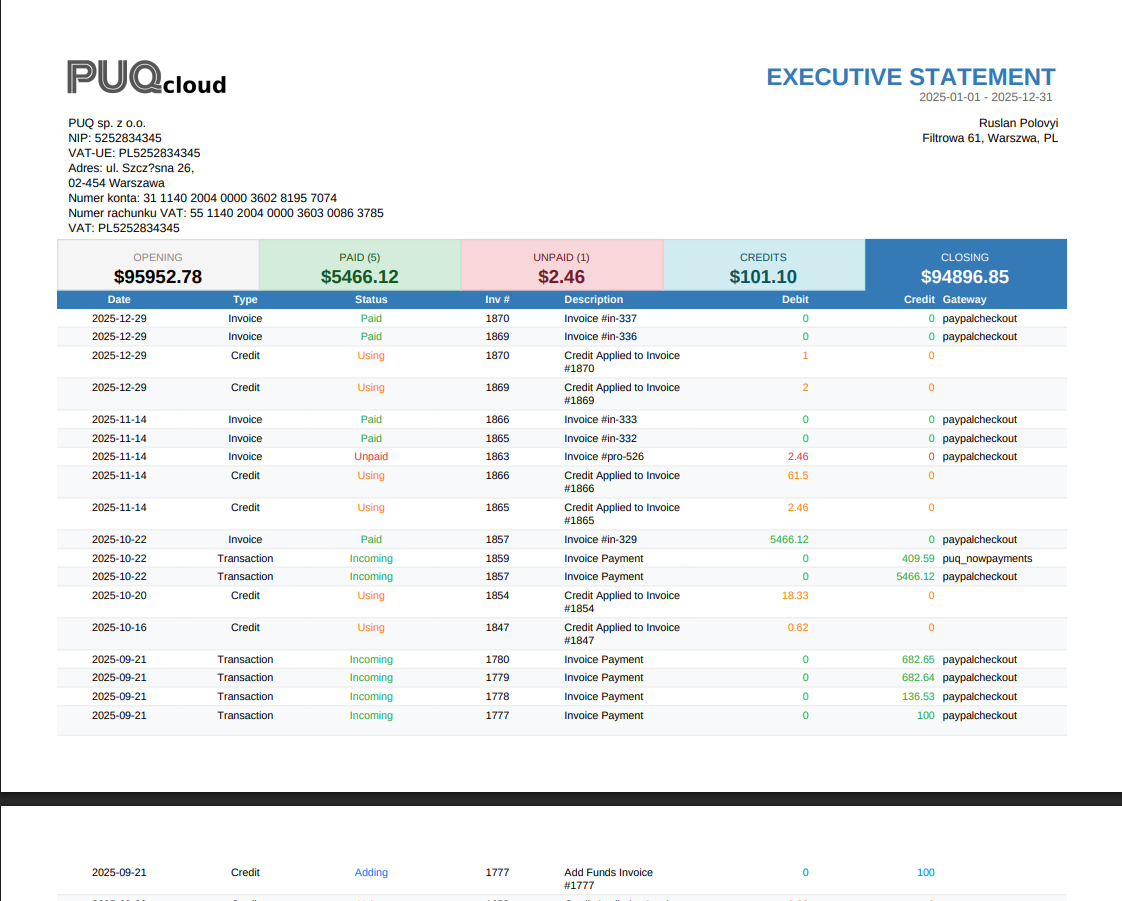
### Summary (Landscape)
Executive summary format with color-coded totals and compact transaction table.
*17-pdf-summary-landscape.png*
---
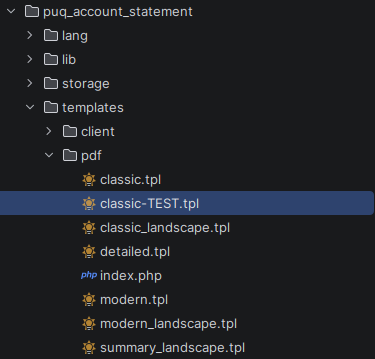
## Custom PDF Templates
You can create custom PDF templates by adding `.tpl` files to the `templates/pdf/` directory.
*18-pdf-templates-tree.png*
Each template file must start with a PHP comment header that defines its metadata:
```php
**PDF Template** dropdown.
# Settings
### PUQ Account Statement module **[WHMCS](https://puqcloud.com/link.php?id=77)**
##### [Order now](https://puqcloud.com/whmcs-addon-puq-account-statement.php) | [Download](https://download.puqcloud.com/WHMCS/addons/PUQ_WHMCS-Account-Statement/) | [Community](https://community.puqcloud.com/)
The Settings page is available at: **Addons** > **PUQ Account Statement** > **Configuration** > **Settings**
This page controls the module's global settings including client area access, defaults, PDF template selection, email configuration, and advanced options.
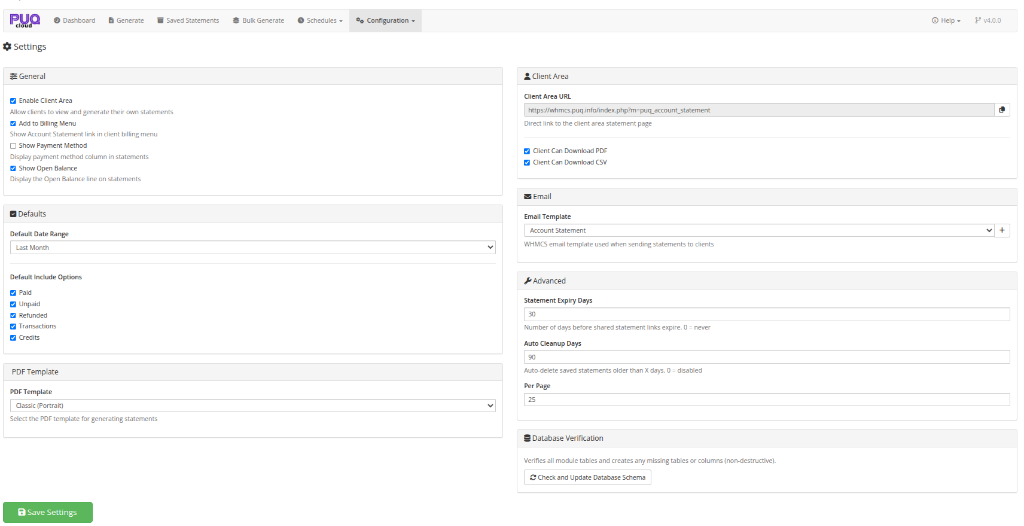
*10-settings.png*
---
## General
| Setting | Description |
|---------|-------------|
| **Enable Client Area** | Allow clients to access the Account Statement page in the client area |
| **Add to Billing Menu** | Show an "Account Statement" link in the client area billing navigation menu |
| **Show Payment Method** | Show the payment method / gateway column in statements (admin preview, PDF, and CSV). Disable to hide it everywhere |
| **Show Open Balance** | Show the Open Balance line on statements. Disable to show only the Account Credit and Closing (amount owed) figures |
---
## Defaults
### Default Date Range
Set the default date range preset that is used when a client opens the statement page:
| Option | Period |
|--------|--------|
| **This Month** | First to last day of the current month |
| **Last Month** | First to last day of the previous month |
| **This Quarter** | First day of current quarter to today |
| **Last Quarter** | First to last day of the previous quarter |
| **This Year** | January 1 to December 31 of current year |
| **Last Year** | January 1 to December 31 of previous year |
### Default Include Options
Set which financial data types are included by default when generating statements:
- Paid
- Unpaid
- Refunded
- Transactions
- Credits
---
## PDF Template
| Setting | Description |
|---------|-------------|
| **PDF Template** | Select the PDF layout template for generating statements. Available templates include Classic, Modern, Detailed — in Portrait or Landscape orientation |
The dropdown is dynamically populated from template files in the `templates/pdf/` directory. Each option shows the template name and orientation.
---
## Client Area
| Setting | Description |
|---------|-------------|
| **Client Area URL** | The direct link to the client area statement page (read-only, with copy button) |
| **Client Can Download PDF** | Allow clients to download PDF versions of their statements |
| **Client Can Download CSV** | Allow clients to download CSV versions of their statements |
---
## Email
| Setting | Description |
|---------|-------------|
| **Email Template** | Select which WHMCS email template to use when sending statements to clients |
| **Create (+)** | Click the + button to create the default "Account Statement" email template in WHMCS if it doesn't exist yet |
The dropdown is populated with all available WHMCS General email templates.
### Email Example
When a statement is sent to a client (manually, via bulk, or via schedule), they receive an email with a PDF attachment and a summary of the statement:
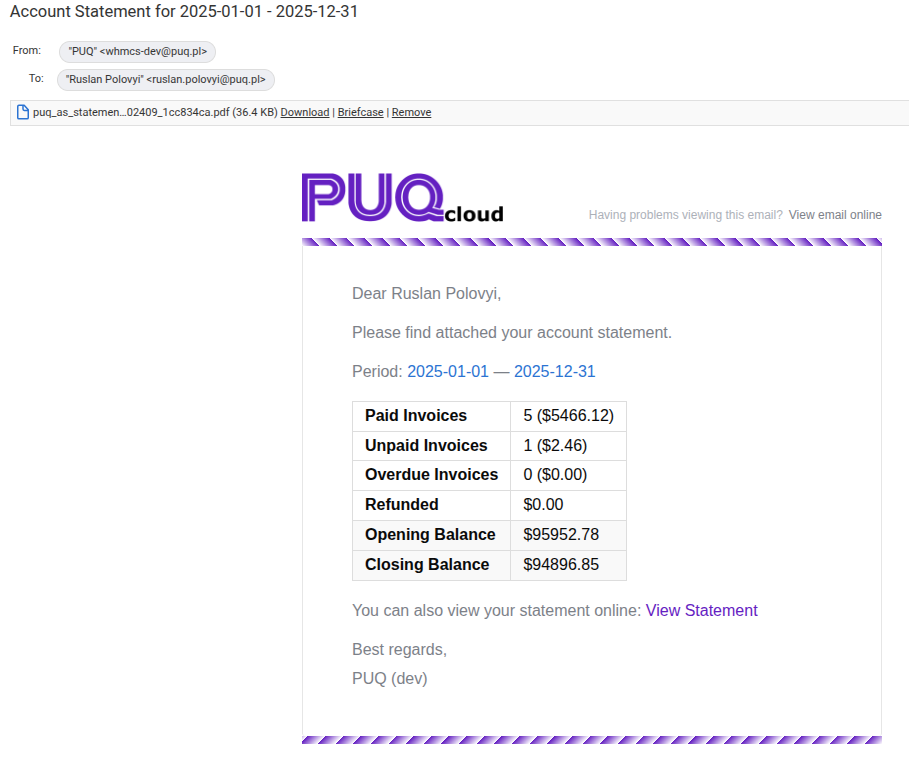
*20-email-statement.png*
The email includes:
- PDF statement as attachment
- Statement period
- Summary table with paid/unpaid invoices, credits, account credit, and the closing balance (amount owed)
- Link to view the statement online
---
## Advanced
| Setting | Description |
|---------|-------------|
| **Statement Expiry Days** | Number of days before shared statement links expire. Set to 0 for links that never expire (default: 30) |
| **Auto Cleanup Days** | Automatically delete saved statements older than this many days. Set to 0 to disable auto-cleanup (default: 90) |
| **Per Page** | Number of records per page in statement lists (5–100, default: 25) |
---
## Database Verification
The module provides an automated database maintenance and verification tool.
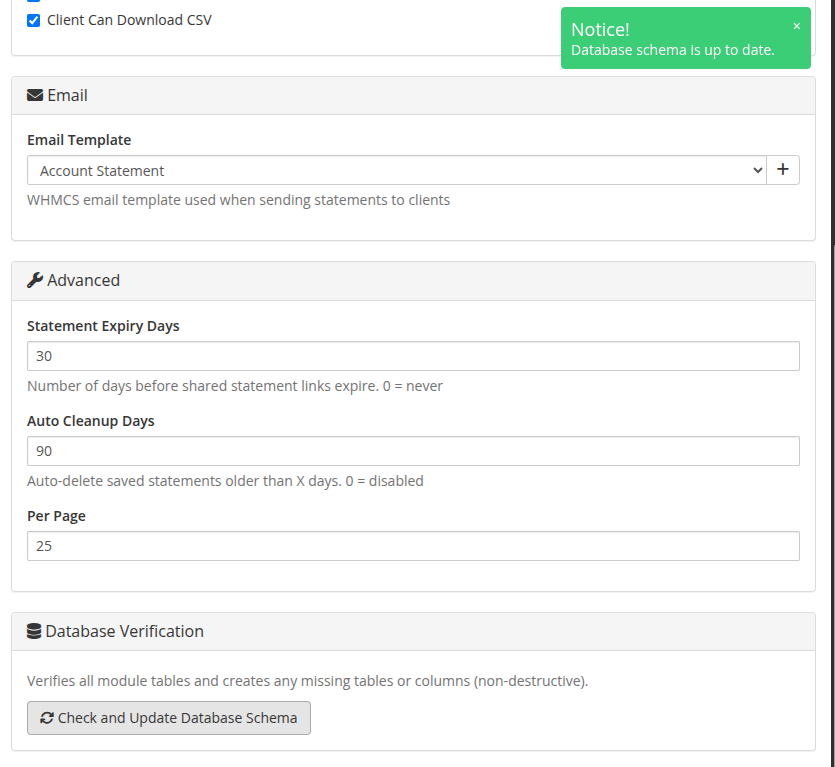
*24-database-verification.png*
| Action | Description |
|--------|-------------|
| **Check and Update Database Schema** | Non-destructively inspects all module database tables (`puq_acc_st_settings`, `puq_acc_st_statements`, `puq_acc_st_schedules`, `puq_acc_st_templates`, `puq_license`) and automatically creates any missing tables or columns. Useful after upgrading module files to ensure new database columns are properly added without data loss. |
---
## Saving
Click **Save Settings** to save all configuration changes.
# Client Area
PUQ Account Statement module WHMCS Order now — Download — Community This chapter details the features and actions available to clients in the WHMCS client area for generating and viewing account statements.
# Client Area Overview
### PUQ Account Statement module **[WHMCS](https://puqcloud.com/link.php?id=77)**
##### [Order now](https://puqcloud.com/whmcs-addon-puq-account-statement.php) | [Download](https://download.puqcloud.com/WHMCS/addons/PUQ_WHMCS-Account-Statement/) | [Community](https://community.puqcloud.com/)
This page describes the client area interface and actions available to active service clients.
## Accessing the Client Area
Clients can access the module control panel via:
1. Logging into the client area dashboard.
2. Navigating to **Billing > Account Statement**.
## Client Actions
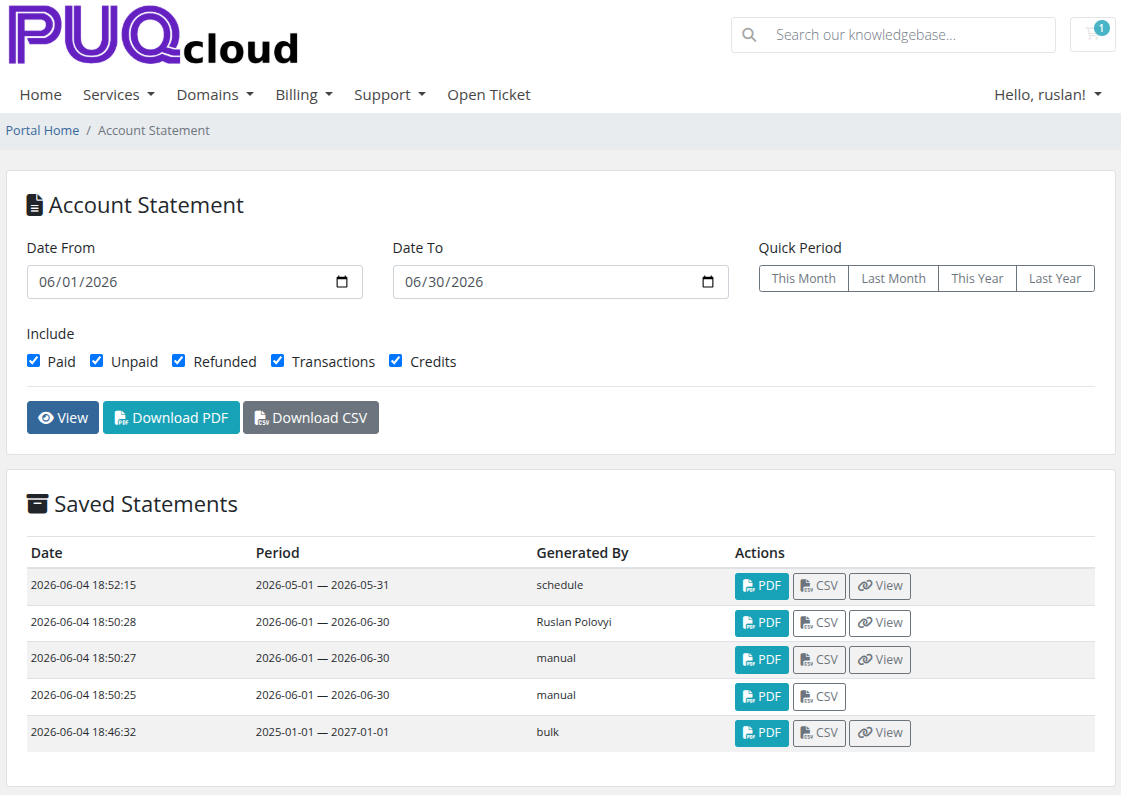
Within the control area, clients can:
- **View Statements**: See a list of their previously generated statements.
- **Generate Statement**: Generate a new statement for a specific date range.
- **Download PDF/CSV**: Export the statements.
## Screenshot
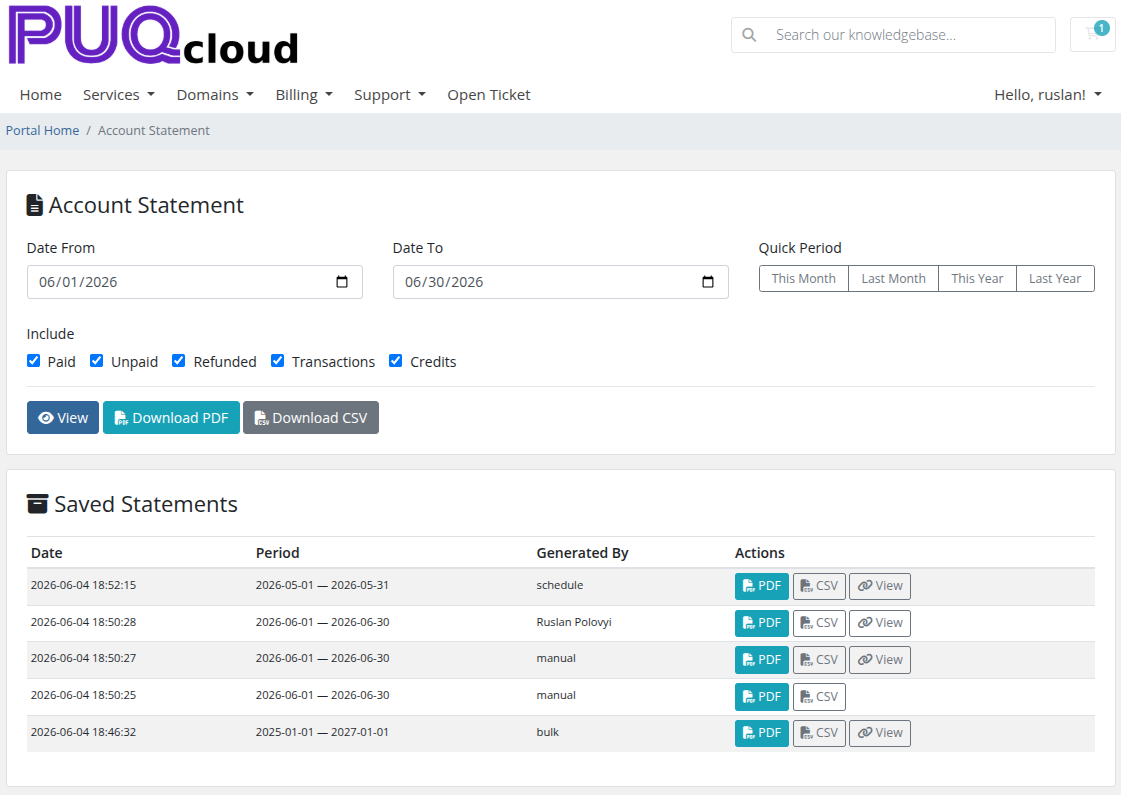
*11-client-area.png*
# Client Area
### PUQ Account Statement module **[WHMCS](https://puqcloud.com/link.php?id=77)**
##### [Order now](https://puqcloud.com/whmcs-addon-puq-account-statement.php) | [Download](https://download.puqcloud.com/WHMCS/addons/PUQ_WHMCS-Account-Statement/) | [Community](https://community.puqcloud.com/)
This page describes the client-facing Account Statement functionality available in the WHMCS client area.
---
## Accessing the Client Area Page
Clients can access their Account Statement page in two ways:
1. **Direct URL** — navigate to `https://your-whmcs.com/index.php?m=puq_account_statement`
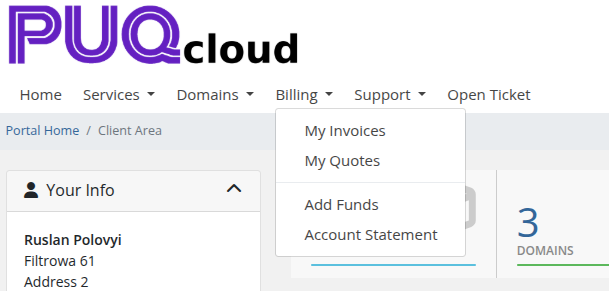
2. **Billing Menu** — if "Add to Billing Menu" is enabled in Settings, a link appears in the client area billing navigation
> **Note:** The client area page is only available when "Enable Client Area" is checked in the module Settings.
When "Add to Billing Menu" is enabled, clients reach the page from **Billing** > **Account Statement** in the client area navigation:
*22-client-billing-menu.png*
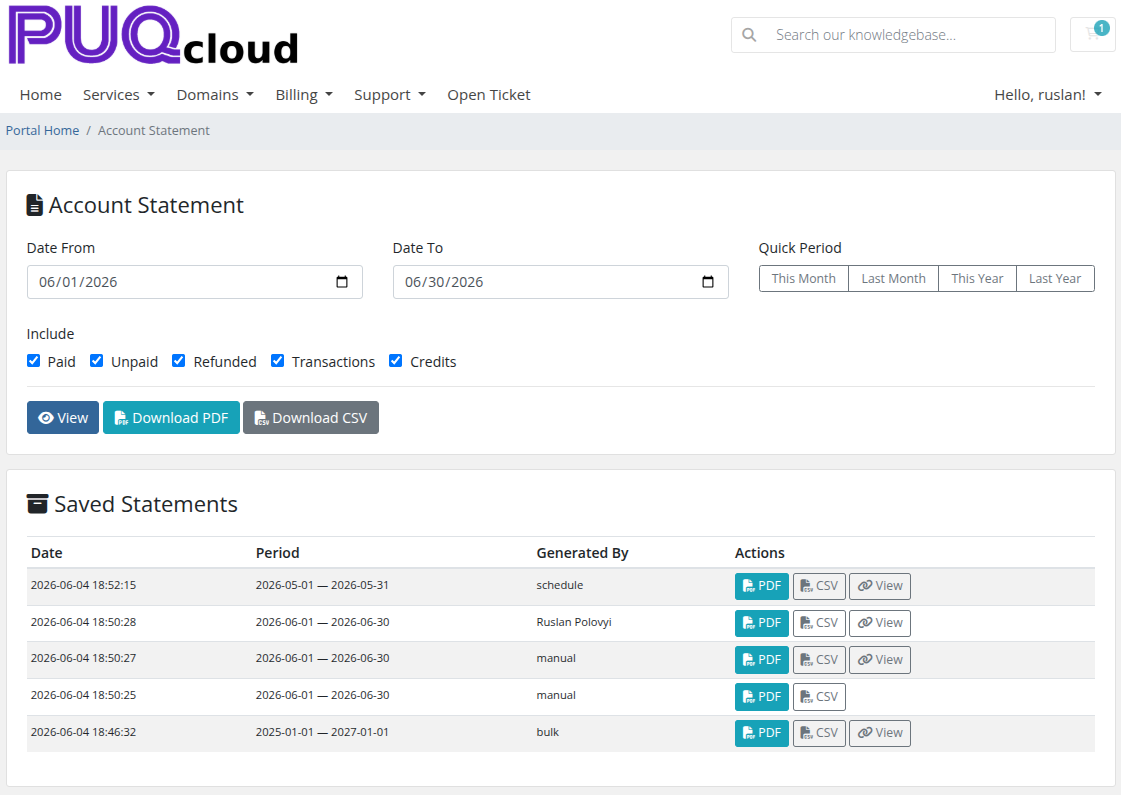
*11-client-area.png*
---
## Generate Statement
The top section allows clients to generate their own account statements:
### Date Range
- **Date From / Date To** — manual date pickers
- **Quick Period** buttons — one-click presets: This Month, Last Month, This Year, Last Year
### Include Options
Checkboxes to select what financial data to include:
- Paid, Unpaid, Refunded, Transactions, Credits
### Action Buttons
| Button | Description | Visibility |
|--------|-------------|------------|
| **View** | Generate and display the statement preview inline | Always visible |
| **Download PDF** | Download the statement as a PDF file | Only if "Client Can Download PDF" is enabled in Settings |
| **Download CSV** | Download the statement data as a CSV file | Only if "Client Can Download CSV" is enabled in Settings |
---
## Statement Preview
After clicking **View**, the generated statement is displayed inline below the form. The preview shows the same rendered HTML statement that administrators see.
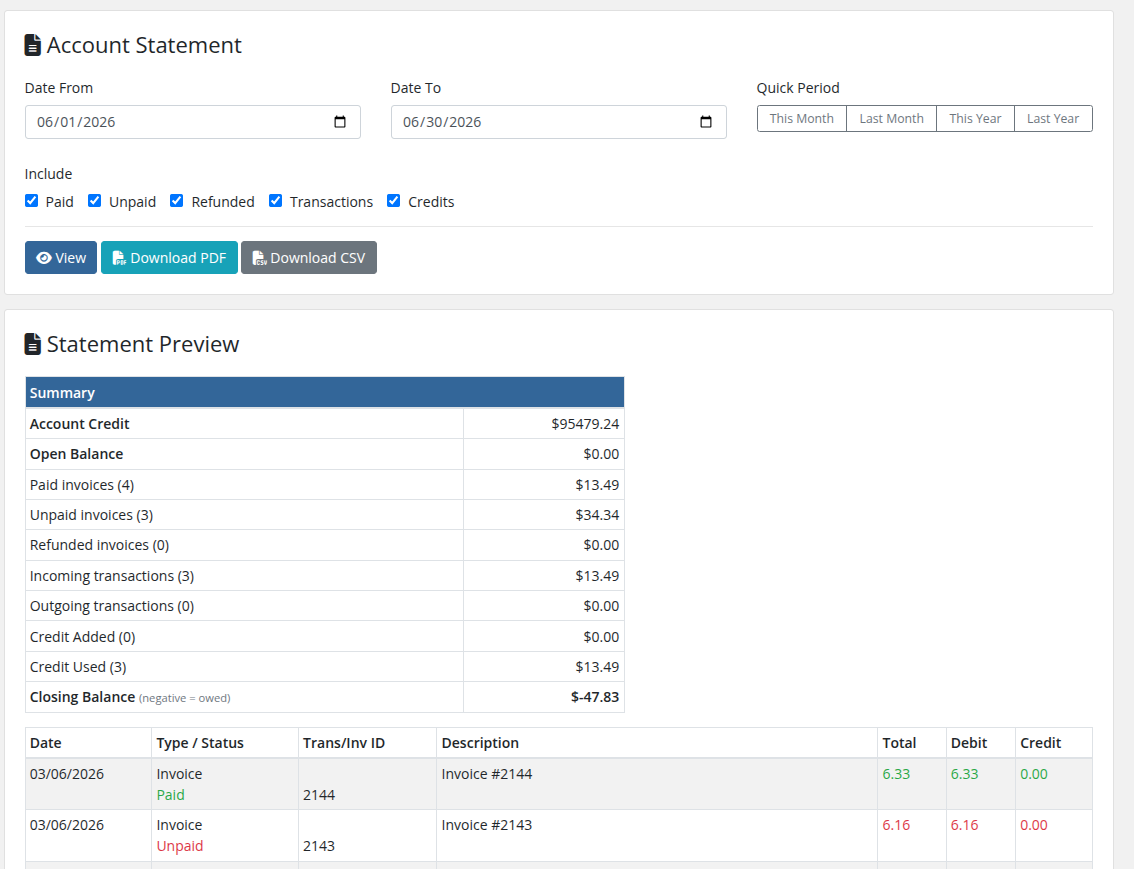
*23-client-area-preview.png*
---
## Saved Statements
The bottom section shows the client's previously saved statements (generated by admin, schedule, or bulk operations):
| Column | Description |
|--------|-------------|
| **Date** | When the statement was generated |
| **Period** | Statement date range (from — to) |
| **Generated By** | How the statement was created: manual, schedule, or bulk |
| **Actions** | Download buttons and view link |
### Actions Per Saved Statement
| Button | Description | Visibility |
|--------|-------------|------------|
| **PDF** | Download the statement as PDF | Always visible |
| **CSV** | Download the statement as CSV | Only if "Client Can Download CSV" is enabled |
| **View** | Open the statement via public link (if available) | Only if statement has an access hash |
### Pagination
When there are multiple pages of saved statements, pagination controls appear below the table with page numbers and previous/next navigation.
---
## Important Notes
- Clients can only see their own statements — all requests are filtered by the logged-in client's ID
- The client area uses Bootstrap 4 styling (WHMCS client area) rather than Bootstrap 3 (admin area)
- Download buttons (PDF/CSV) respect the permission settings configured in the admin Settings page
- The statement is generated with the client's configured currency