# Snippet Editor
### Code Snippets addon **[WHMCS](https://puqcloud.com/link.php?id=77)**
##### [Order now](https://puqcloud.com/store/whmcs-addon-modules) | [Download](https://download.puqcloud.com/WHMCS/addons/PUQ_WHMCS-Code-Snippets/) | [FAQ](https://community.puqcloud.com/)
The Snippet Editor is available at: **Addons** > **PUQ Code Snippets** > **Snippets** > **Add New** or **Edit**
This page is where you create and edit code snippets. It provides a full-featured code editor and all targeting options in a single, organized view.
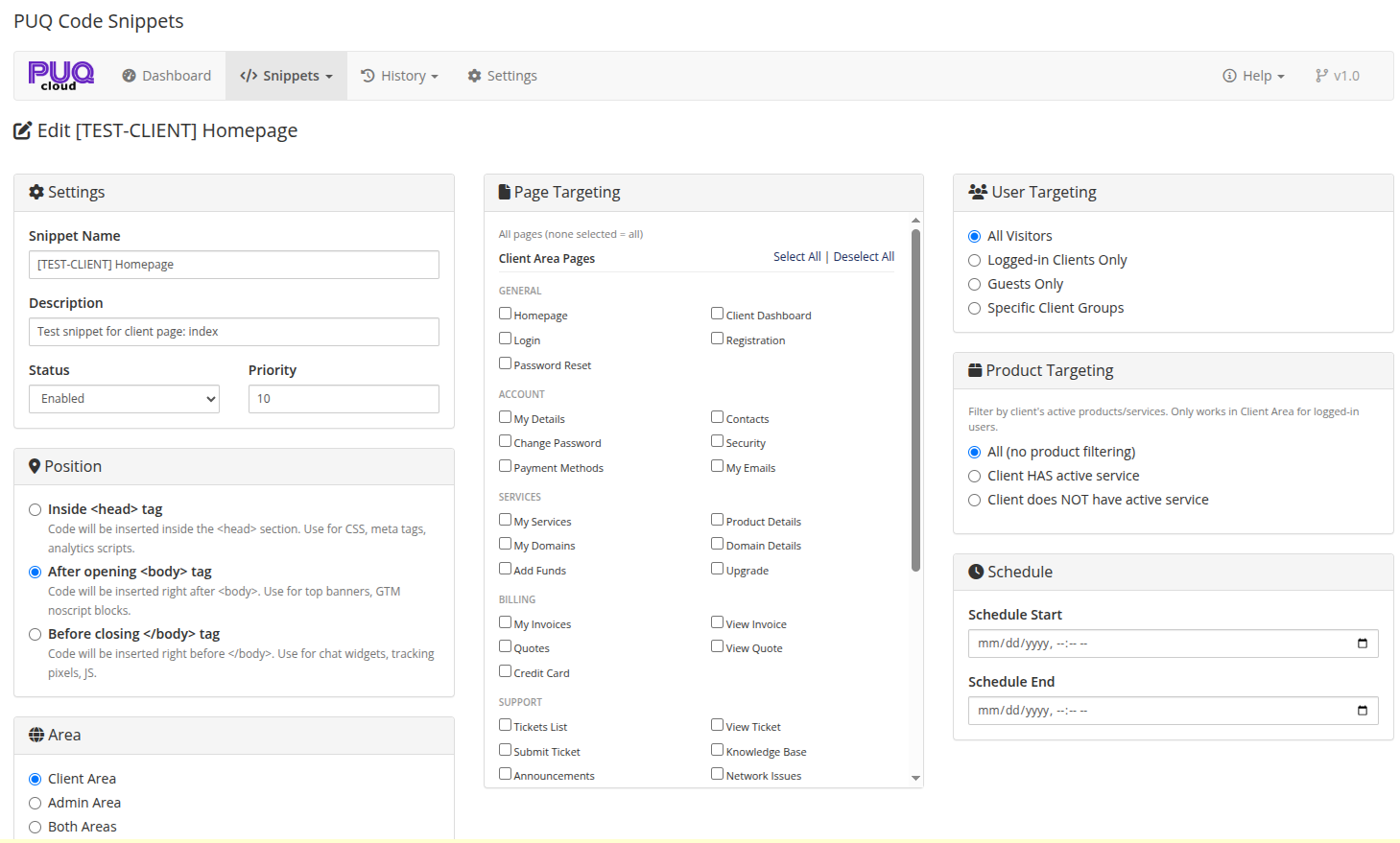
*04-snippet-editor-top.png*
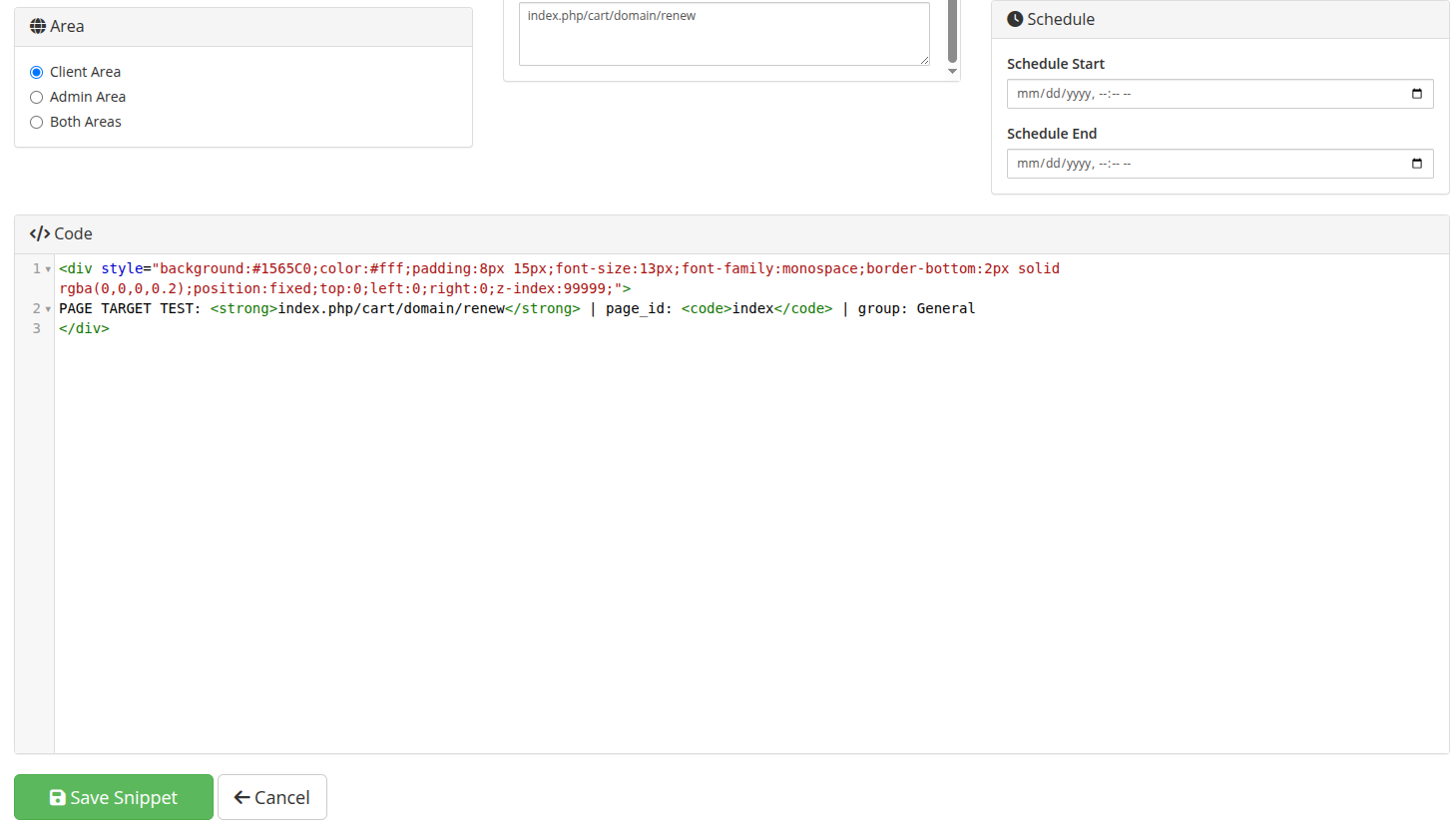
*05-snippet-editor-bottom.png*
---
## Page Layout
The editor is organized in three columns with the code editor below:
| Column | Sections |
|--------|----------|
| **Left** | Settings, Position, Area |
| **Middle** | Page Targeting |
| **Right** | User Targeting, Product Targeting, Schedule |
| **Bottom** | Code Editor (full width) |
---
## Settings
| Field | Description |
|-------|-------------|
| **Snippet Name** | A descriptive name for the snippet (required) |
| **Description** | Optional description for reference |
| **Status** | Enabled or Disabled |
| **Priority** | Numeric value — lower numbers are rendered first (default: 0) |
---
## Position
Choose where the code is injected on the page:
| Position | Description | Best For |
|----------|-------------|----------|
| **Inside <head> tag** | Inserted inside the `` section | CSS, meta tags, analytics scripts, SEO tags |
| **After opening <body> tag** | Inserted right after `` | Top banners, GTM noscript blocks, cookie consent |
| **Before closing </body> tag** | Inserted right before `` | Chat widgets, tracking pixels, JavaScript |
---
## Area
Choose which WHMCS area the snippet targets:
| Area | Description |
|------|-------------|
| **Client Area** | Only visible on client-facing pages (storefront, client portal) |
| **Admin Area** | Only visible in the admin panel |
| **Both Areas** | Visible on both client and admin pages |
> When **Admin Area** is selected, the User Targeting and Product Targeting panels are hidden since admin users are always authenticated.
---
## Page Targeting
By default, a snippet is rendered on **all pages** in the selected area. To restrict it to specific pages, check the pages you want.
> **Rule:** None selected = all pages. Any selection = only those pages.
### Client Area Pages
Organized by groups:
| Group | Pages |
|-------|-------|
| **General** | Homepage, Client Dashboard, Login, Registration, Password Reset |
| **Account** | My Details, Contacts, Change Password, Security, Payment Methods, My Emails |
| **Services** | My Services, Product Details, My Domains, Domain Details, Add Funds, Upgrade |
| **Billing** | My Invoices, View Invoice, Quotes, View Quote, Credit Card |
| **Support** | Tickets List, View Ticket, Submit Ticket, Knowledge Base, Announcements, Network Issues |
| **Shopping** | Cart / Order Form, Cart Checkout, Cart Addons, Domain Checker |
| **Other** | Contact Us, Server Status, Downloads, Affiliates, Mass Domain Mgmt |
### Admin Area Pages
Organized by groups:
| Group | Pages |
|-------|-------|
| **Dashboard** | Dashboard, Search, System Health |
| **Clients** | Clients List, Client Summary, Client Profile, Client Contacts, Client (route) |
| **Client Management** | Products/Services, Domains, Client Invoices, Client Credits, Client Emails, Client Notes, Activity Log, Billable Items, Client Quotes, Client Transactions |
| **Billing** | Orders, Invoices, Transactions, Quotes, Billable Items, Billing (route) |
| **Support** | Support Tickets, View Ticket, Predefined Replies, Escalations |
| **Setup / Config** | General Settings, Products Setup, Addon Modules, Administrators, Servers, Registrars, Automation, Payment Gateways, Setup (route) |
| **Utilities / Logs** | Utilities, Module Log, Logs (route) |
Use the **Select All** / **Deselect All** links at the top of each section to quickly check or uncheck all pages.
### Custom URL Patterns
For pages not covered by the checkboxes, use the **Custom URL Patterns** textarea at the bottom of the Page Targeting panel.
Enter one pattern per line. The snippet fires if the request URL **contains** the pattern string.
**Examples:**
```
/billing/invoice
configauto.php
/client/1/tickets
/store/web-hosting
```
This works for both Client Area and Admin Area URLs, including WHMCS friendly URLs and admin route-based URLs.
---
## User Targeting
Control who sees the snippet (only visible when area is Client Area or Both):
| Option | Description |
|--------|-------------|
| **All Visitors** | Everyone — logged-in clients and guests |
| **Logged-in Clients Only** | Only authenticated clients |
| **Guests Only** | Only unauthenticated visitors |
| **Specific Client Groups** | Only clients belonging to selected WHMCS client groups |
When **Specific Client Groups** is selected, a multi-select dropdown appears with all client groups from WHMCS. Hold Ctrl/Cmd to select multiple groups.
---
## Product Targeting
Show or hide the snippet based on the client's active products/services (only visible when area is Client Area or Both):
| Option | Description |
|--------|-------------|
| **All (no product filtering)** | No product-based filtering applied |
| **Client HAS active service** | Show only to clients who have an active or suspended service for the selected products |
| **Client does NOT have active service** | Show only to clients who do NOT have the selected products |
When a product filter is selected, a multi-select dropdown appears with all products from WHMCS, organized by product group.
> **Note:** Product targeting only works for logged-in clients in the Client Area. Guests are treated as "not having" any product.
---
## Schedule
Set a time range for the snippet to be active:
| Field | Description |
|-------|-------------|
| **Schedule Start** | The snippet will not render before this date/time |
| **Schedule End** | The snippet will stop rendering after this date/time |
Leave both fields empty for the snippet to be active at all times (as long as its status is Enabled).
**Use cases:**
- Promotional banner visible only during Black Friday week
- Maintenance notice shown for a specific time window
- Seasonal holiday greeting
---
## Code Editor
The code editor uses **CodeMirror 5** with full HTML/CSS/JavaScript support.
### Editor Features
- **Syntax highlighting** for HTML, CSS, and JavaScript (htmlmixed mode)
- **Line numbers** for easy reference
- **Code folding** — collapse/expand HTML tags and code blocks
- **Auto-close tags** — automatically closes HTML tags
- **Auto-close brackets** — automatically closes `()`, `[]`, `{}`
- **Tag matching** — highlights matching opening/closing tags
- **Search & replace** — press Ctrl+F to search, Ctrl+H to replace
- **Selection highlighting** — highlights all occurrences of the selected text
- **Configurable theme** — change the editor theme in [Settings](08-settings.md)
### What Code Can You Inject?
You can inject any valid HTML, including:
```html
Special offer! Use code SAVE20 for 20% off.
```
> **Warning:** Be careful with the code you inject. Malicious or broken code can break your WHMCS pages. Always test snippets in a development environment first. Use the kill switch if something goes wrong.