
Accounting systems
Adding the WHMCS System
Installed Commitment Forecaster module, although it is installed in WHMCS, retrieves data through the API mechanism and not through direct references to the database.
Only the data on income invoices is downloaded from WHMCS. FV numbers, dates, and numeric values are taken. This data is only used to report the total value of revenues. Contractors' data is not collected and contractors between WHMCS and Commitment Forecaster are not compared in any way.
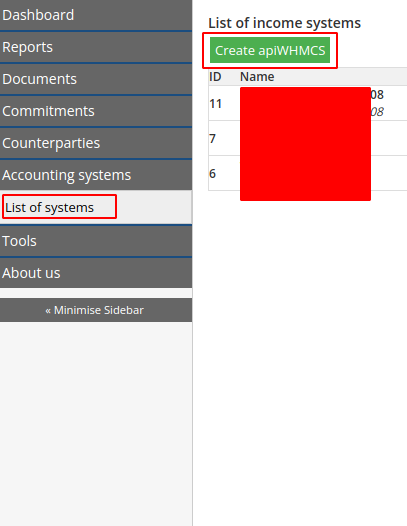
Go to the "Accounting Systems" menu item and click "List of systems".
Then click the "Create apiWHMCS" button
Connection details
After creating the connection, you need to enter the connection details.
- Name
- Description
- URL (link to the API of the WHMCS system. Https: //XXX.XXX.XX/includes/api.php)
- Username (API user Identifier)
- Password (API user password Secret)
- Step (Number of invoices that will be synced for each sync step)
- Automatic synchronization (It is necessary to check the box for the automatic synchronization of invoices once a day, the synchronization follows all daily WHMCS cron tasks)
- Exchange rate (Specify the exchange rate if the currency is not the same as in the system. Set it to 1 if the currency is the same as in the system)
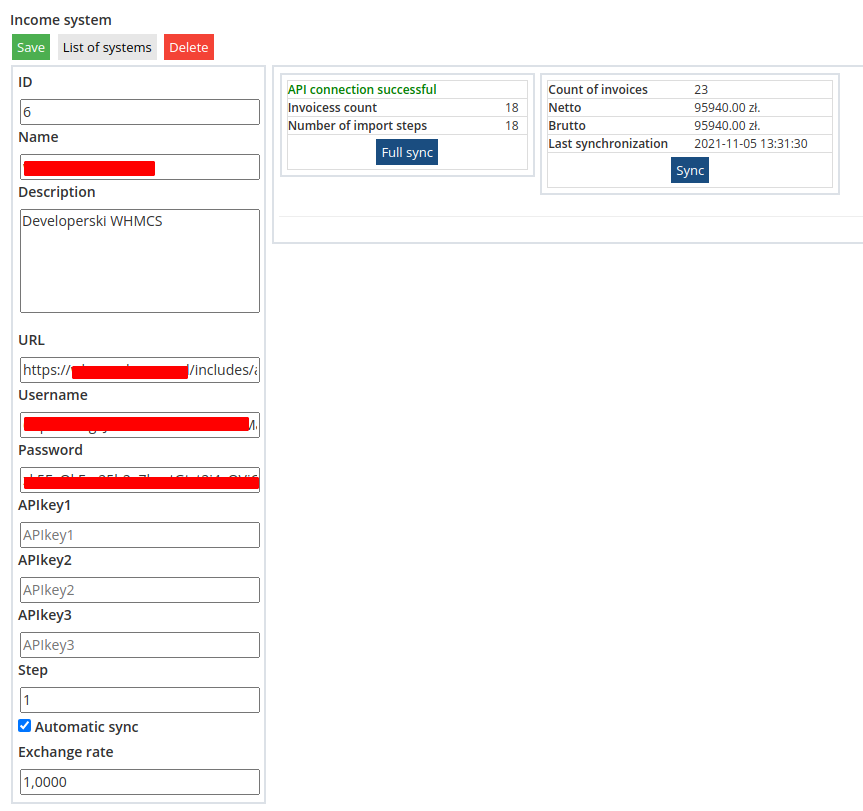
You must click the Save button to save the changes.
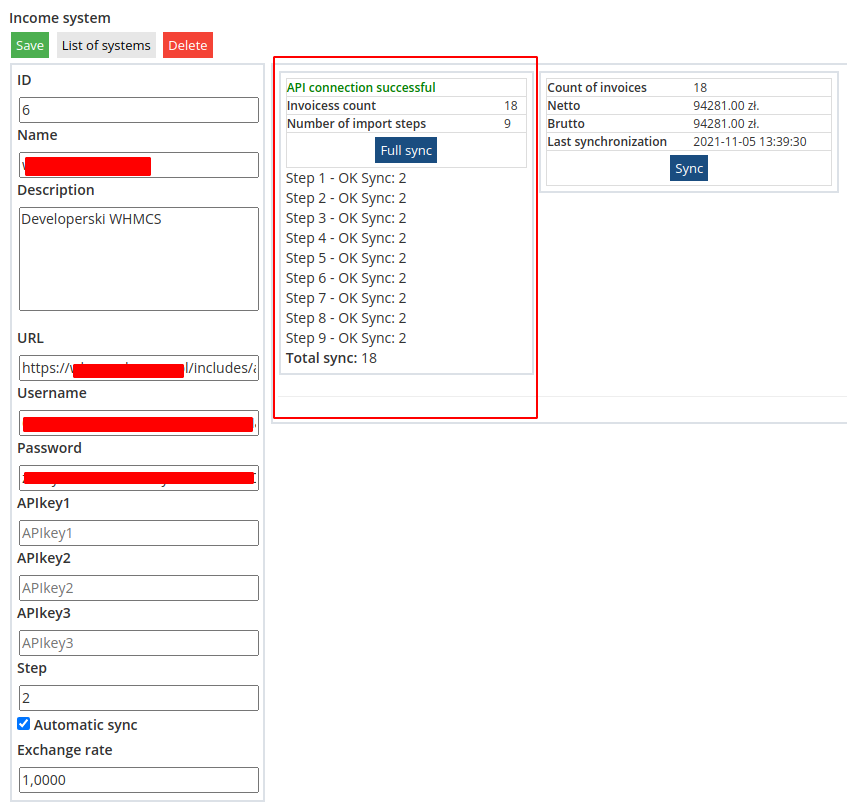
Sync/Full Sync
Full synchronization means that all invoices of the selected system will be completely synchronized.
Synchronization takes place step by step.
The number of steps depends on the number of invoices in the accounting system and the number of the STEP parameter.
Sync means that the missing invoices will be synchronized in the selected system.
Creating an API user in WHMCS
In order to be able to exchange information between the Commitment Forecaster and WHMCS, access to the API must be created.
Adding a new API access
1. Log in as an administrator to the WHMCS system.
System Settings -> Administrator Users2. Add a new user
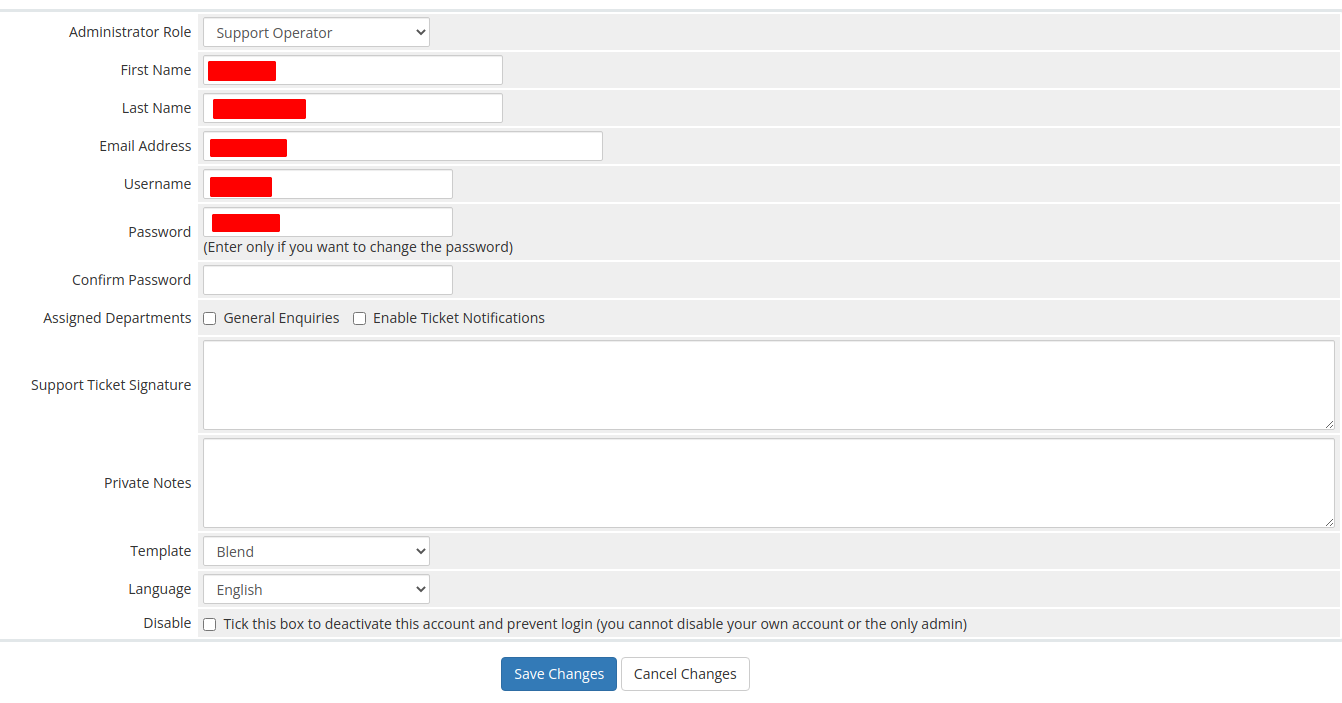
3. Move to:
System Settings -> Manage API Credentials -> APIQ RolesCreate a new role and select only BILLING -> GETInvoices
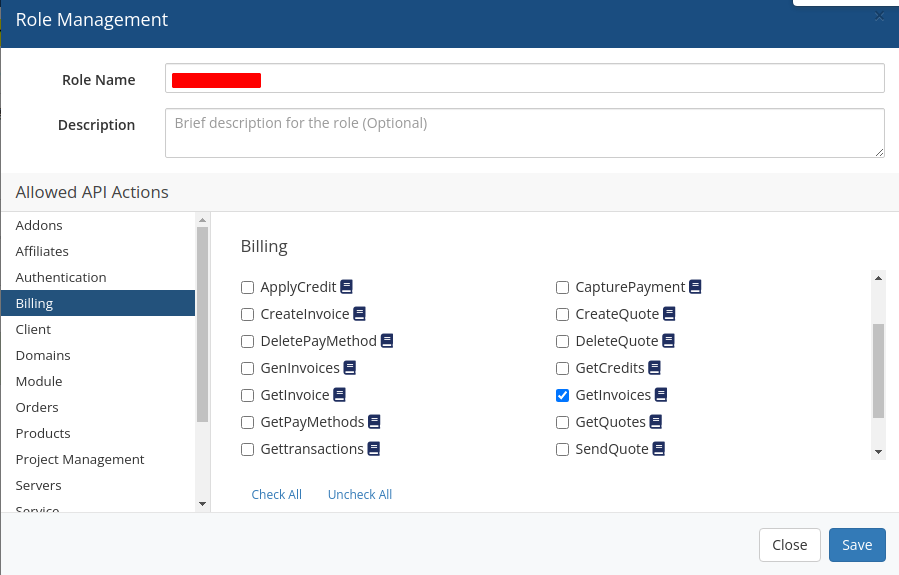
4. Move to:
System Settings -> Manage API Credentials -> API Credentials5. Create your API credentials 
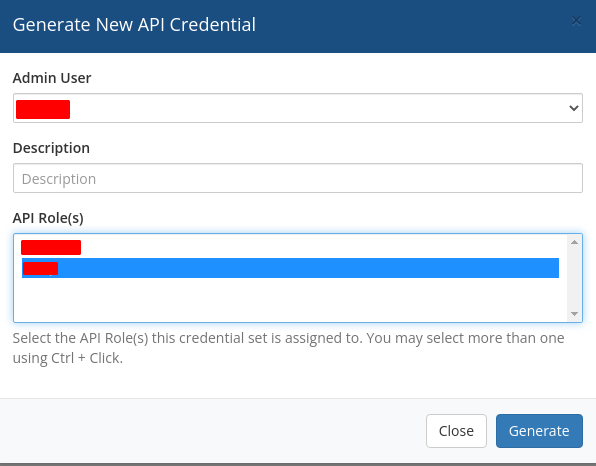
Select the previously created user and API role
Press the "Generate" button
6. Write the data they need to connect to apiWHMCS Identifier Secret
Access to WHMCS from IP number
Then you should allow access to the IP address of the server with the module installed in the WHMCS system
Move to:
System Settings -> General Settings -> SecurityAdd the IP address of the server with the module installed to the API IP Access Restriction list
