The project was created as an inside project, but with a professional approach. The project is entirely financed by **PUQ sp.z o.o.** [https://puq.pl/](https://puq.pl/)
***The project needs your support to function and develop further.*** *If you wish to help in the development of the project, be it financially, content-wise, translating, writing / proofreading documentation or in any other way, let us know cf@puq.info*
- - - - - - - - - - - - **The main purpose** of the module is to collect documents in PDF format, correctly describe documents (contracts, invoices) in the context of contractors and obligations towards partners. Based on the entered data and imported invoices from the WHMCS system (also many WHMCS systems at the same time), WHMCS generates in a readable form reports and forecasts on the company's finances. **To save files**, the module uses a connection to the WebDAV server, which means that the files are not physically stored on the WHMCS server and will be available even after removing the module.The system requires use and has been fully tested with NEXTCLOUD, a recognized opensource software. You can use your own Nextcloud installation or use our free solution available at this link: [https://crm.puq.pl/store/za-darmo](https://crm.puq.pl/store/za-darmo)
**The module uses the API** connection to WHMCS to synchronize invoices. This means that the module can be installed not on the WHMCS production server, but e.g. on the developer's server, which in no case will affect the functionality of this module. It is also possible to combine several WHMCS systems to synchronize invoices.The module creates the necessary tables in the WHMCS database and only uses them in its work. It does not use any other WHMCS tables.
The module sends data to the project server only for the installation code, which is generated during installation for statistical purposes. In response, the servers provide data about the new version and important information displayed in the module's dashbord Panel.
The module supports multilingualism. The language settings can be changed in the WHMCS user configuration. **Available languages:** English, Polish, Russian. ## Definitions **Counterparty (contractor)** - an object in the system, means a natural or legal person who is a party to an agreement or invoice. Data for classifications in the system. - Company name - VAT number **Documents** - PDF files in unclassified form and their classification (invoice, contract, contract annex) **Commitments** - an object in the system that characterizes a group of costs incurred in relation to the contractor on the basis of an agreement and / or invoices. Data for classifications in the system: - Commitment name - Start date (The value is calculated from invoices or contracts) - End date (The value is calculated from invoices or contracts) - Indefinite time (The value is calculated from the contract or set manually) #### Commitment as the basis for the organization of documents The commitment is to group invoices and/or to link them to an appropriate contract. ##### Assumption 1 You can Map only one contract and invoices for the duration of the contract. In this case, the parameters of the obligation (Start Date, End Date, Indefinite Time) are derived from the contract parameters. ##### Assumption 2 In the absence of an agreement, mapping only invoices related to the contractor. In this case, the commitment parameters are taken from the linked invoices where: - The start date is the date of the oldest invoice, - The end date is the date of the most recent invoice. If you select **indefinite time**, End date is the date of the latest invoice + 12 months. ##### Global assumption Each invoice is to be mapped with a commitment.**Attention!!!** Only one counterparty's invoices can be mapped to a commitment.
**Accounting systems -** A system that has a set of income invoices and can be exported. **-apiWHMCS:** any WHMCS system with properly configured API.# How to start using # Requirements Installed and correctly configured **WHMCS**Module tested on **WHMCS** 8.1 version
**NextCloud** server account with **WebDAV** access - this module works properly only with **NextCloud,** for now**.**The system requires use and has been fully tested with NEXTCLOUD, a recognized opensource software. You can use your own Nextcloud installation or use our free solution available at this link: https://crm.puq.pl/store/za-darmo
For the correct operation of the module, PHP parameters are required: ```shell PHP >= 7.2 file_uploads On post_max_size 80M ;(Be guided by the size of the PDF files) upload_max_filesize 80M ;(Be guided by the size of the PDF files) max_file_uploads 40 ``` # Installation At this stage, the module does not include a standalone installer.The installation consists in uploading the module files to the appropriate addons directory in the WHMCS installation and then activating the plug-in.
Installation requires basic knowledge. If you are a WHMCS user and you do not have access to the server where WHMCS is installed, you will not be able to install the module.Access to the server terminal with WHMCS installation or the ability to upload files via FTP is required.
Attention!!! We remind you - for the correct operation of the module you need a WebDAV server / account from NextCloud. Failure to do so makes it impossible to use the system.
PDF files are stored on the **NextCloud** server and cataloged by type and date of the document (date entered in the document, example: date of invoice receipt) To **install** the module, copy the module folder to the WHMCS **"modules/addons"** folder. ```shell git clone https://github.com/PUQ-sp-z-o-o/puq_commitments_forecaster.git cp -r puq_commitments_forecaster WHMCS_DIR/modules/addons ``` or ```shell wget https://cf.puq.info/whmcs-module/puq_cf_WHMCS-latest.tar.gz tar -xzvf puq_cf_WHMCS-latest.tar.gz cp -r puq_commitments_forecaster WHMCS_DIR/modules/addons/ ``` # Activation In the WHMCS administrator panel, browse to: ```shell System Settings -> Addons Modules ``` Activate the module by clicking the **"Activate"** button in the **"Commitments forecaster"** module. [](https://doc.puq.info/uploads/images/gallery/2021-11/L642021-11-03-16-43.png) Activating the module automatically creates tables in the WHMCS database with the prefix **"puq\_"** # Deactivation **Attention!!!** Deactivating a module automatically deletes the tables in the database associated with that module. In the WHMCS administrator panel, browse to: ``` System Settings -> Addons Modules ``` Deactivate the module by clicking the **"Deactivate"** button in the **"Commitments forecaster"** module. [](https://doc.puq.info/uploads/images/gallery/2021-11/pN02021-11-03-16-44.png) # Configuration of module parameters In the WHMCS administrator panel, browse to: ``` System Settings -> Addons Modules -> Commitments forecaster ``` Click the **"Configure"** button [](https://doc.puq.info/uploads/images/gallery/2021-11/pN02021-11-03-16-44.png) Enter your NextCloud server login details: **WebDAV URL HTTPS://** - {SERVER}/remote.php/dav/files/{USER}/ **Note:** link without **"https: //"** and at the end **"/"** **WebDAV user** **WebDAV password** **Access Control -** select the user groups that must have access to the module. [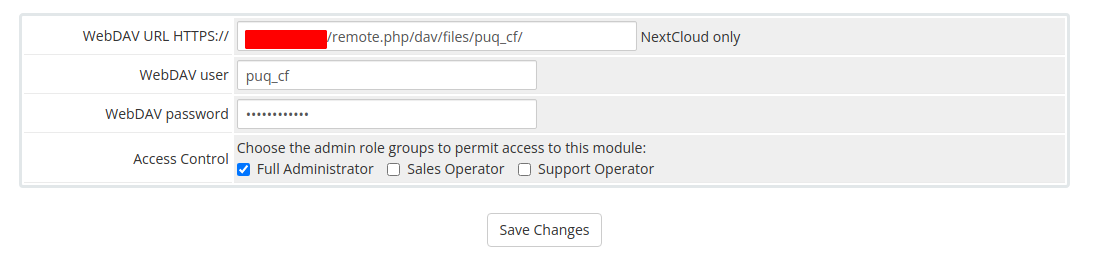](https://doc.puq.info/uploads/images/gallery/2021-11/BUU2021-11-03-16-47.png) After entering all the data, click the "Save Changes" button # Counterparties # Add counterparty To add a counterparty go to the menu item **"Counterparties"** and click on **"Add counterparty"**. [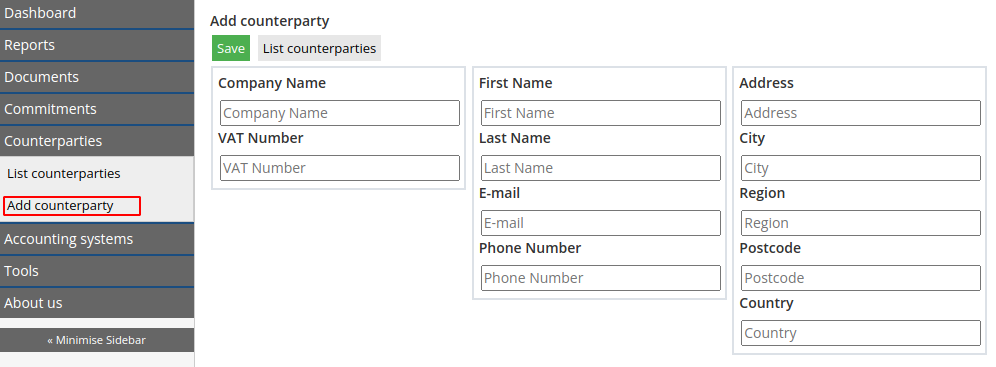](https://doc.puq.info/uploads/images/gallery/2021-11/XMK2021-11-04-19-12.png) After completing the form, click the **"Save"** button**Attention!** After the contractor has been created, it will not be possible to change the "**Company name**" nor "**NIP**" number. If for some reason the contractor has changed its name and tax identification number, it is **necessary** to create a new contractor in the system.
# Edit counterparty To view a list of all contractors, go to the **"Counterparties"** menu and click **"List counterparties"**. Clicking on the counterparty will open a form with information about the counterparty, as well as the possibility of changing his data. [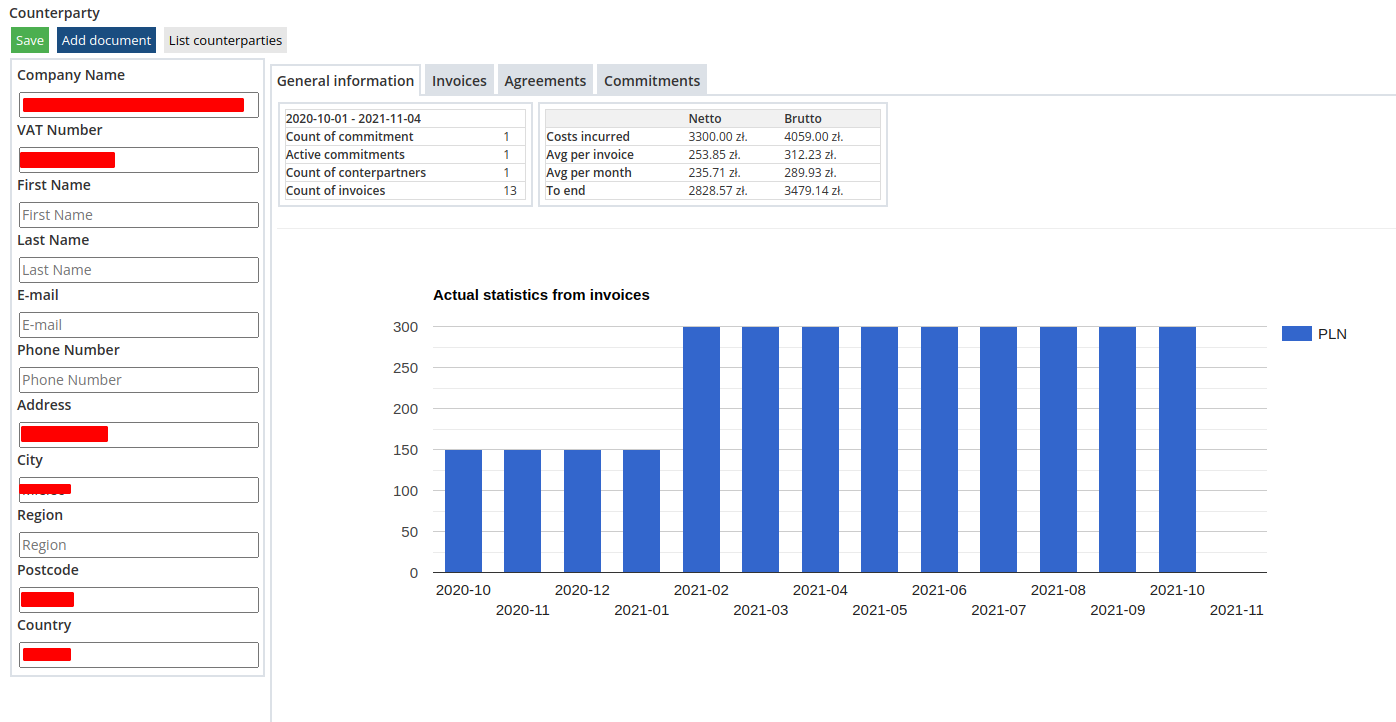](https://doc.puq.info/uploads/images/gallery/2021-11/UY32021-11-04-19-23.png) After completing the form, click the **"Save"** button**Attention!** After the contractor has been created, it will not be possible to change the "**Company name**" nor "**NIP**" number. If for some reason the contractor has changed its name and tax identification number, it is **necessary** to create a new contractor in the system.
# Information contained in the counterparty's profile. The counterparty profile contains information such as: - Number of invoices - Number of active commitments - Financial information - Invoice statistics chart - etc. [](https://doc.puq.info/uploads/images/gallery/2021-11/UY32021-11-04-19-23.png) ##### Invoice list [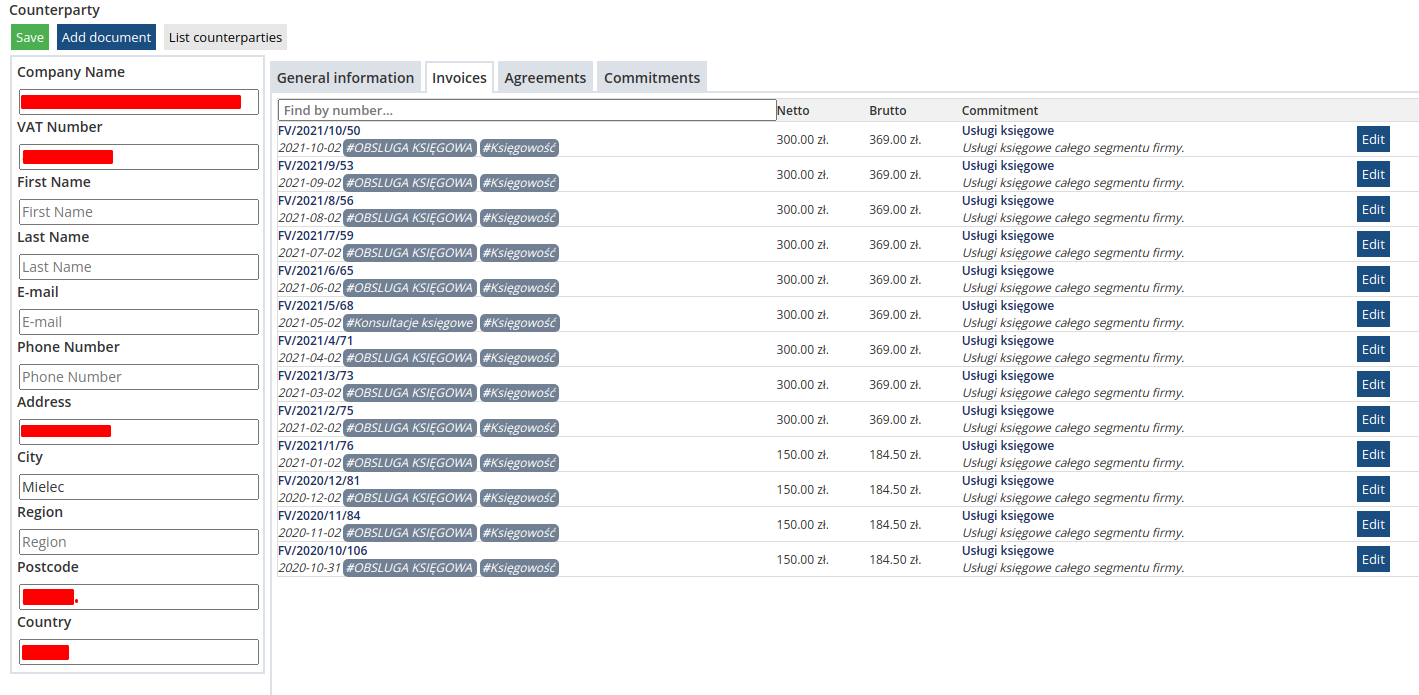](https://doc.puq.info/uploads/images/gallery/2021-11/yQ02021-11-04-19-34.png) ##### Agreemets list [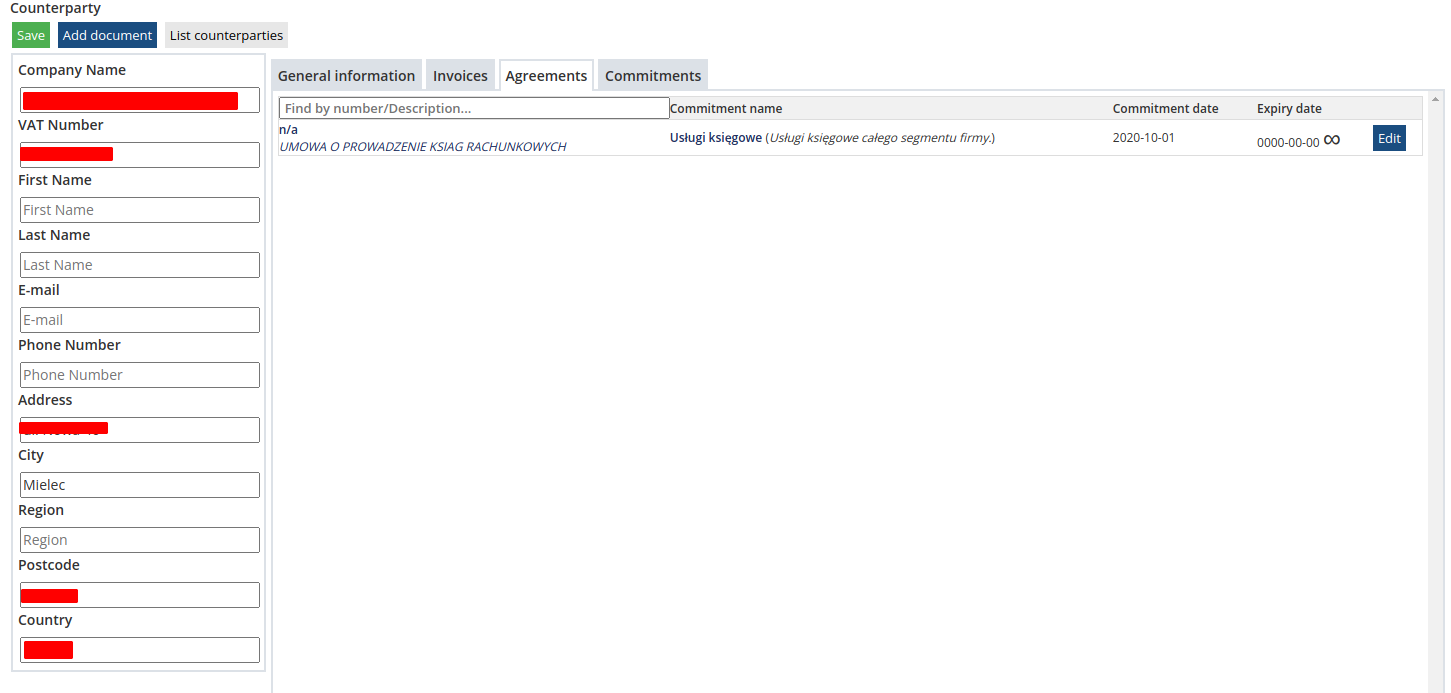](https://doc.puq.info/uploads/images/gallery/2021-11/Nw52021-11-04-19-35.png) ##### List of commitments [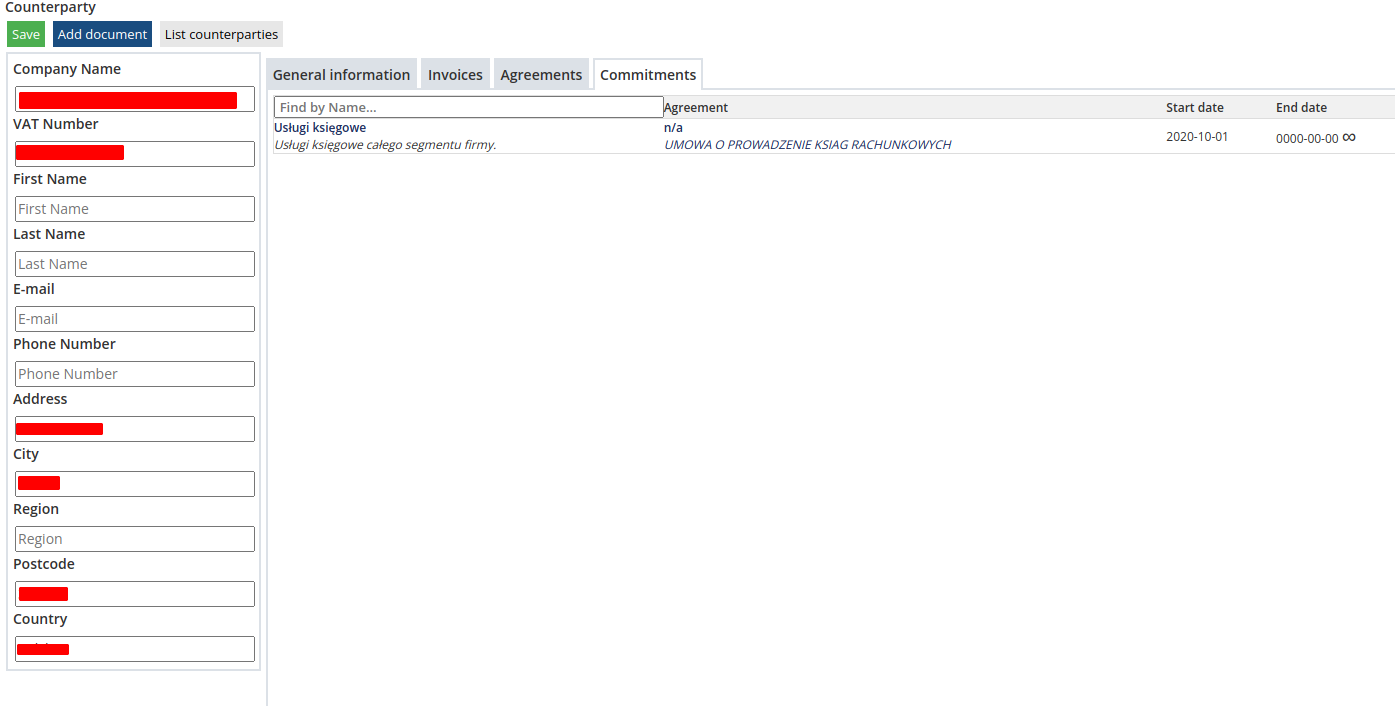](https://doc.puq.info/uploads/images/gallery/2021-11/M0o2021-11-04-19-38.png) # Commitments # Adding a commitment To add a liability, go to the **"Commitments"** menu item and click **"Add commitment"**. [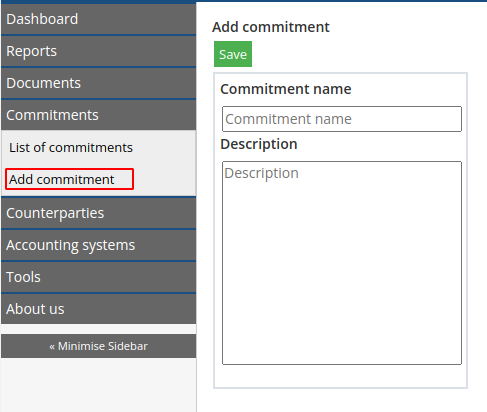](https://doc.puq.info/uploads/images/gallery/2021-11/aV82021-11-04-19-44.png) After completing the form, click the **"Save"** button. # Edit the commitment To view a list of all obligations, go to the **"Commitments"** menu and click **"List of commitments"**. By clicking on the commitment, a form will open with information about the commitment, as well as the possibility of changing the data. [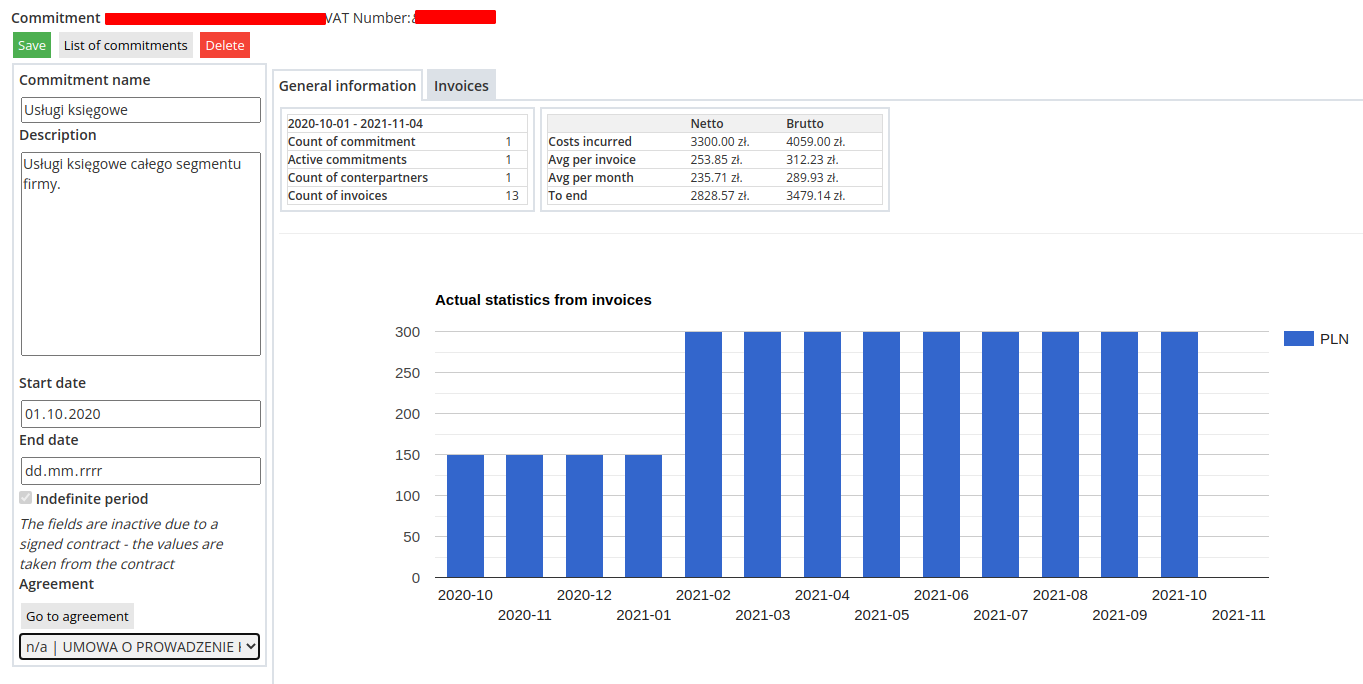](https://doc.puq.info/uploads/images/gallery/2021-11/mAE2021-11-04-19-52.png) After completing the form, click the **"Save"** button # Documents # Adding a document Documents can be added in several ways: 1. We can use the [bulk upload](https://doc.puq.info/books/en-whmcs-cf-manual/page/bulk-pdf-upload "Bulk PDF upload") option and upload a few or a dozen files at once as unclassified documents to describe them correctly later 2. add directly from the contractor's window.Documents that are not classified and await classification in the "List of unclassified" tabs are not processed by the system in any way and are not included in summaries and reports. Deleting them in no way affects the values stored in the system.
The document must be attached to the contractor to be analyzed by the system and be visible in reports and other summaries.
Go to the **"Documents"** menu item and click **"Add Document"**. Select the required counterparty from the list of counterparty and click the "**Add document"** button. [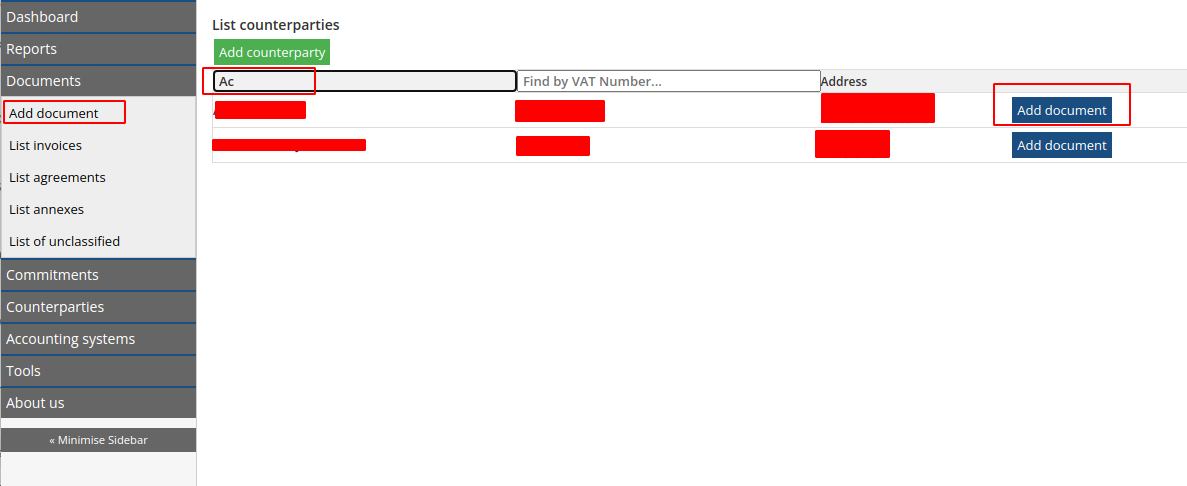](https://doc.puq.info/uploads/images/gallery/2021-11/kol2021-11-05-10-20.png) Then you need to select the file and classify it. Finally, you have to click the **"Save"** button. [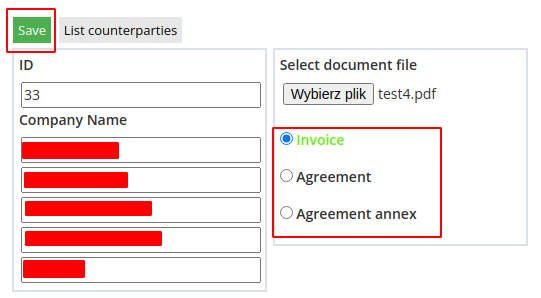](https://doc.puq.info/uploads/images/gallery/2021-11/Ysz2021-11-05-10-23.png) # Bulk PDF upload The system enables the batch upload of PDF files to the system. Mass file upload helps in everyday work with the system. Please keep in mind 2 things:Documents that are not classified and await classification in the "List of unclassified" tabs are not processed by the system in any way and are not included in summaries and reports. Deleting them in no way affects the values stored in the system.
The document must be attached to the contractor to be analyzed by the system and be visible in reports and other summaries.
To use this functionality: Go to the **"Documents"** menu item and click **"List of unclassified"**. [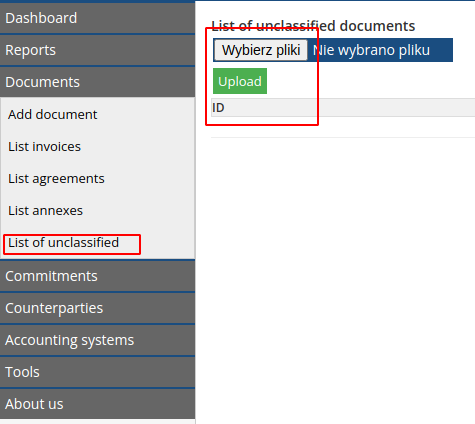](https://doc.puq.info/uploads/images/gallery/2021-11/qfF2021-11-05-09-04.png) Then press **"Select Files"**. In the window that will open, select the required files and confirm your selection. Then hit the **"Upload"** button The files are automatically uploaded to the system. [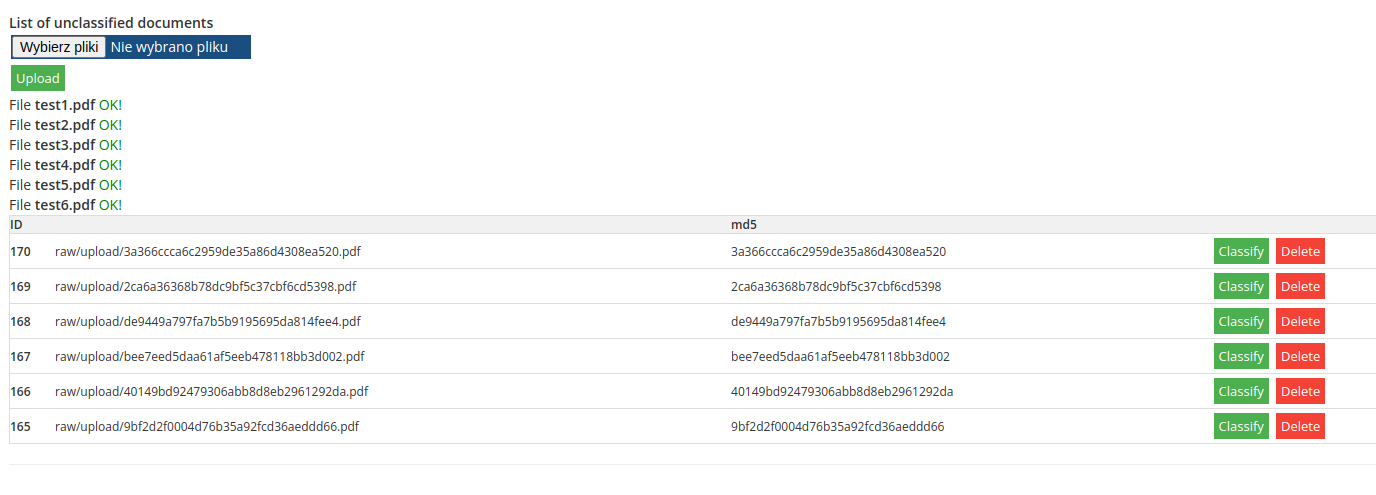](https://doc.puq.info/uploads/images/gallery/2021-11/wdJ2021-11-05-09-36.png)**Attention!** If the file already exists in the system, the system will not allow it to be uploaded.
[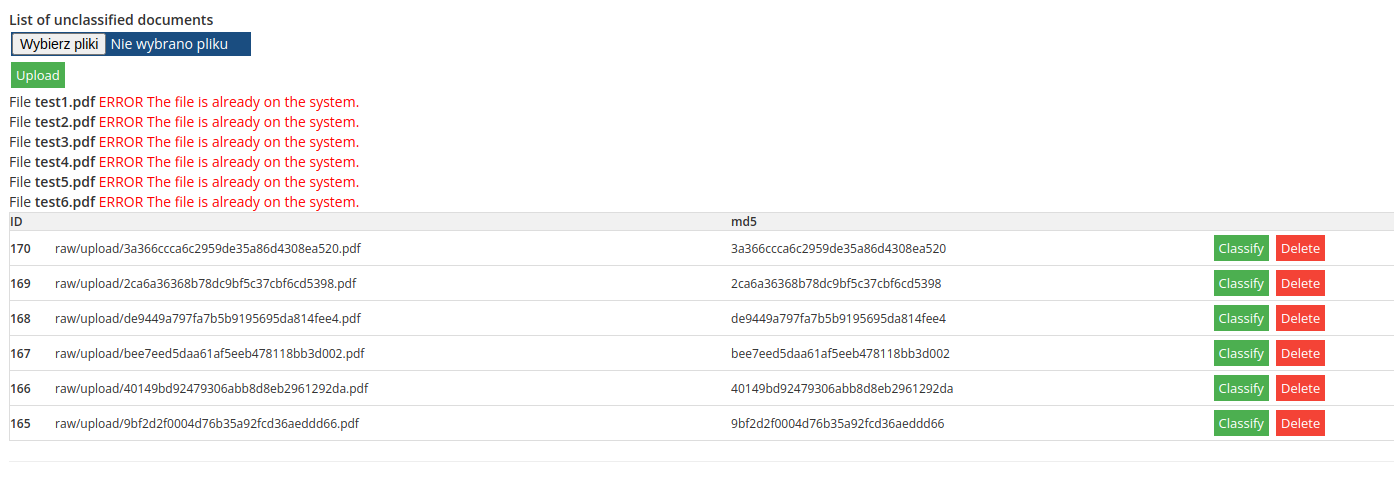](https://doc.puq.info/uploads/images/gallery/2021-11/5572021-11-05-09-38.png) # Classification of PDF files Go to the **"Documents"** menu item and click **"List of unclassified"**. Go to the viewing mode by clicking the **"Classify"** button. You can use the **Next** and **Previous** buttons to move from file to file. [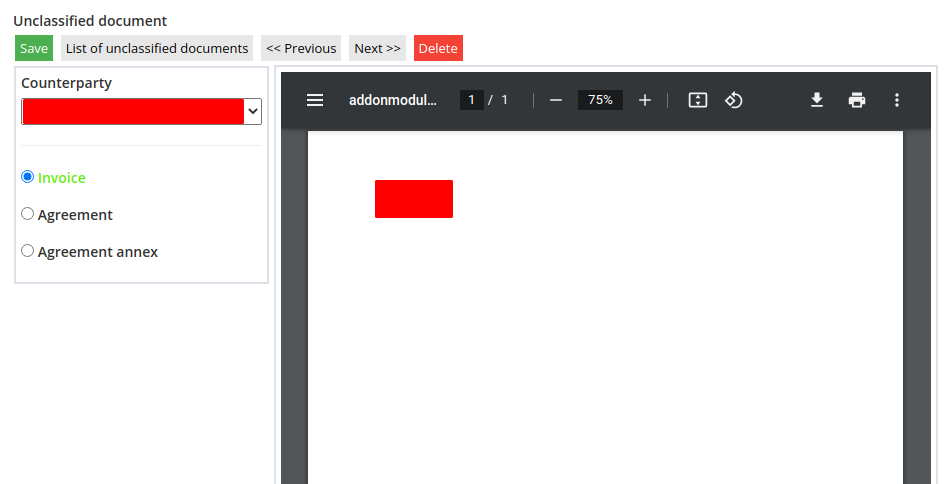](https://doc.puq.info/uploads/images/gallery/2021-11/RC22021-11-05-09-54.png) In order to classify a document, select the counterparty and the type of document. Then click the **"Save"** button. ##### Document types There are currently 3 types of documents: 1. [invoice](https://doc.puq.info/books/en-whmcs-cf-manual/page/viewingediting-an-invoice "Viewing/Editing an Invoice") 2. [agreement](https://doc.puq.info/books/en-whmcs-cf-manual/page/viewingediting-the-agreement "Viewing/Editing the Agreement") 3. [annex](https://doc.puq.info/books/en-whmcs-cf-manual/page/viewingediting-an-annex-to-the-agreement "Viewing/Editing an annex to the Agreement") (used to correct / overwrite contract parameters) # Viewing/Editing the Agreement Go to the **"Documents"** menu item and click **"Agreement list"**. Use the date buttons to select a sort date. After selecting the desired agreement, click on the agreement number or the edit button. [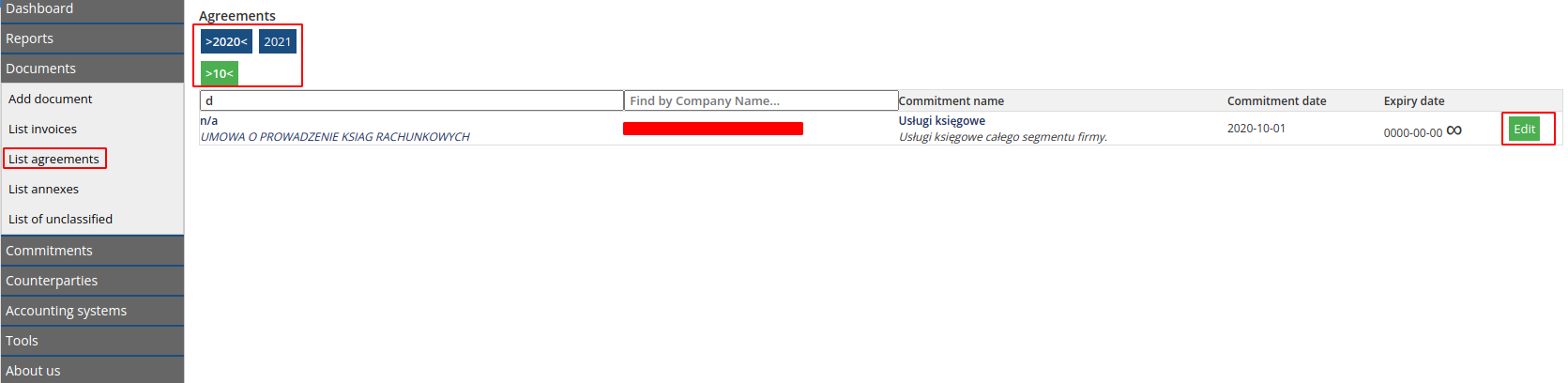](https://doc.puq.info/uploads/images/gallery/2021-11/ytQ2021-11-05-10-59.png) A preview of the document will open and its data can be edited. - Number (Document number, if any) - Description - Conclusion date (Date of signing the document) - Commitment date (Date on which the subject of the contract comes into force) - Expiry date (Date until which the subject of the contract is valid) - Notice period (notice period in days) - Indefinite period (Select this option if the contract is signed for an indefinite period or becomes indefinite after its expiry) [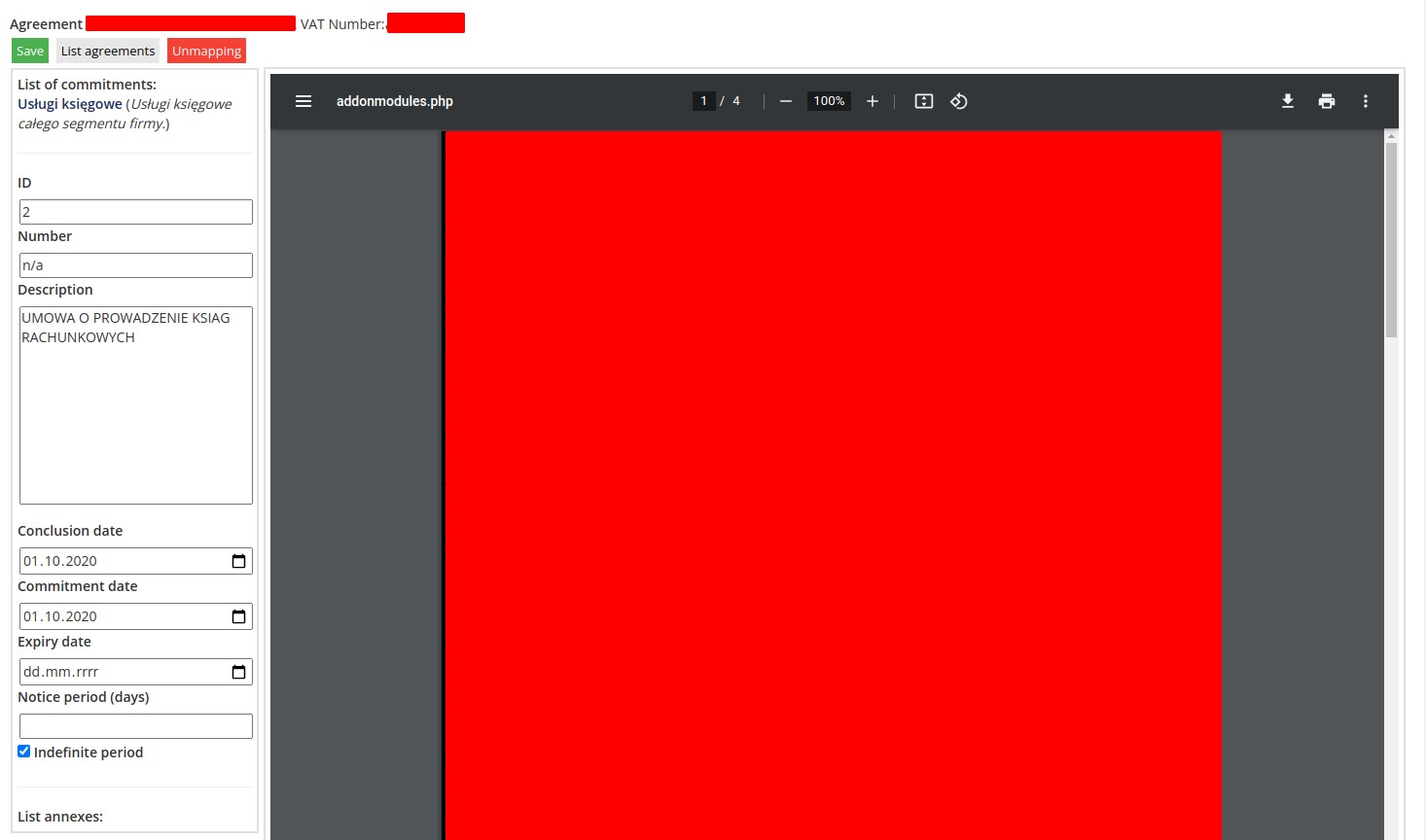](https://doc.puq.info/uploads/images/gallery/2021-11/awv2021-11-05-11-01.png) To save the changes, you must click the **"Save"** button. # Viewing/Editing an Invoice Go to the **"Documents"** menu item and click **"List invoices"**. Use the date buttons to select a sort date. After selecting the required invoice, click on the invoice number or the **"Edit"** button. [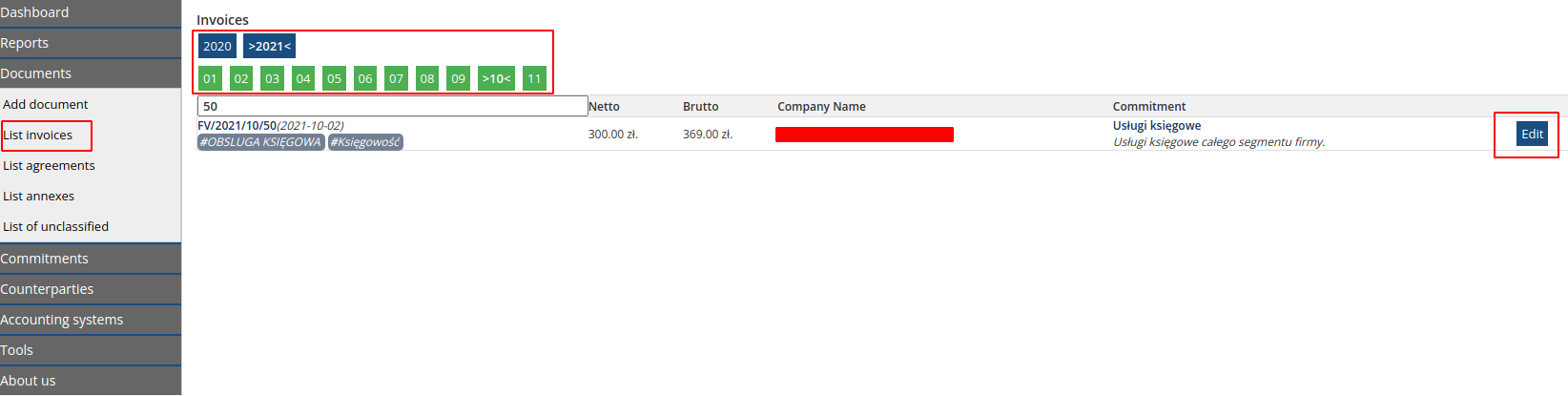](https://doc.puq.info/uploads/images/gallery/2021-11/6KY2021-11-05-11-23.png) A preview of the document will open and its data can be edited. - Number (Document number) - Netto, Brutto, VAT (Actual invoice data) - Document Date (Invoice issue date, actual invoice data) - Receipt Date (Date when the document was actually delivered) - Tags (Words or phrases that will help in the future in finding an invoice. For example: laptop, computer technology, office, Warsaw) [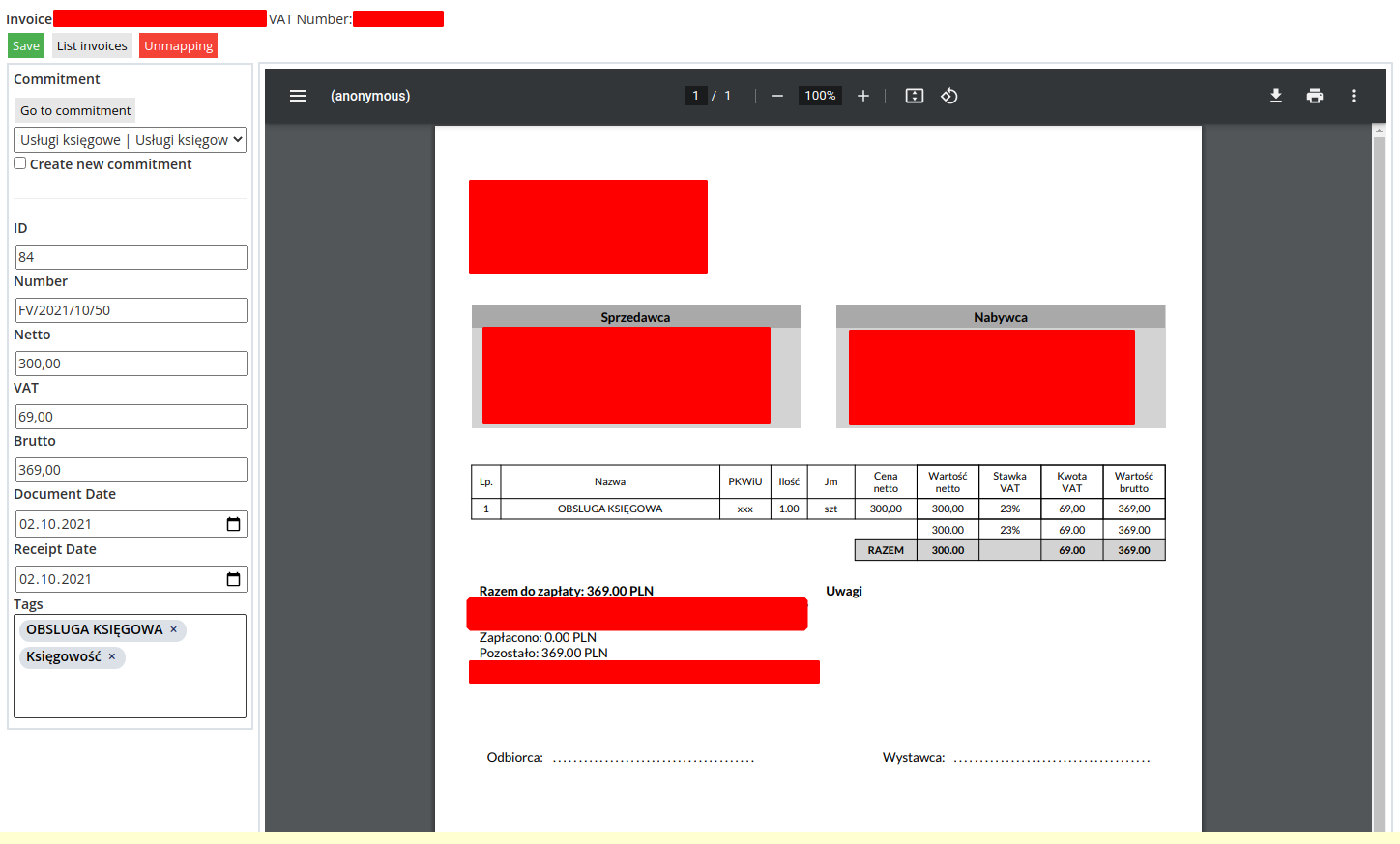](https://doc.puq.info/uploads/images/gallery/2021-11/Z4V2021-11-05-11-27.png) To save the changes, you must click the **"Save"** button. # Viewing/Editing an annex to the Agreement The annex is used to change the terms of the contract without editing the contract itself and helps to maintain the proper hierarchy of documents in line with reality. Go to the **"Documents"** menu item and click **"List annexes"**. After selecting the required annex, click on the number or the **"Edit"** button. [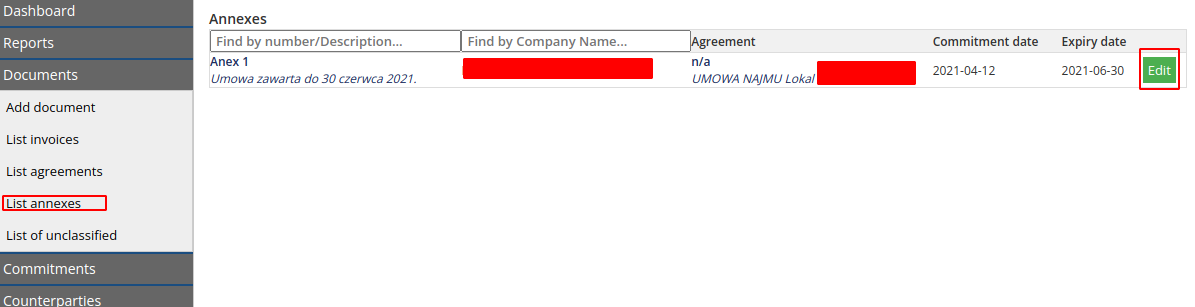](https://doc.puq.info/uploads/images/gallery/2021-11/q3S2021-11-05-12-57.png) A preview of the document will open and its data can be edited. - Agreement (Select the agreement to which the annex belongs) - Number (Document number, if any) - Description - Conclusion date (Date of signing the document) - Commitment date (Date from which the subject of the annex comes into force) - Change the contract - check the box if the annex changes the terms of the agreement, such as: - Agreement expiry date (Date until which the subject of the agreement is valid) - Agreement notice period (Agreement notice period in days) - Agreement for an indefinite period (Select this option if the contract is indefinite or becomes indefinite after its expiry)If you select the "Change contract" option, the annex will practically overwrite the contract values.
[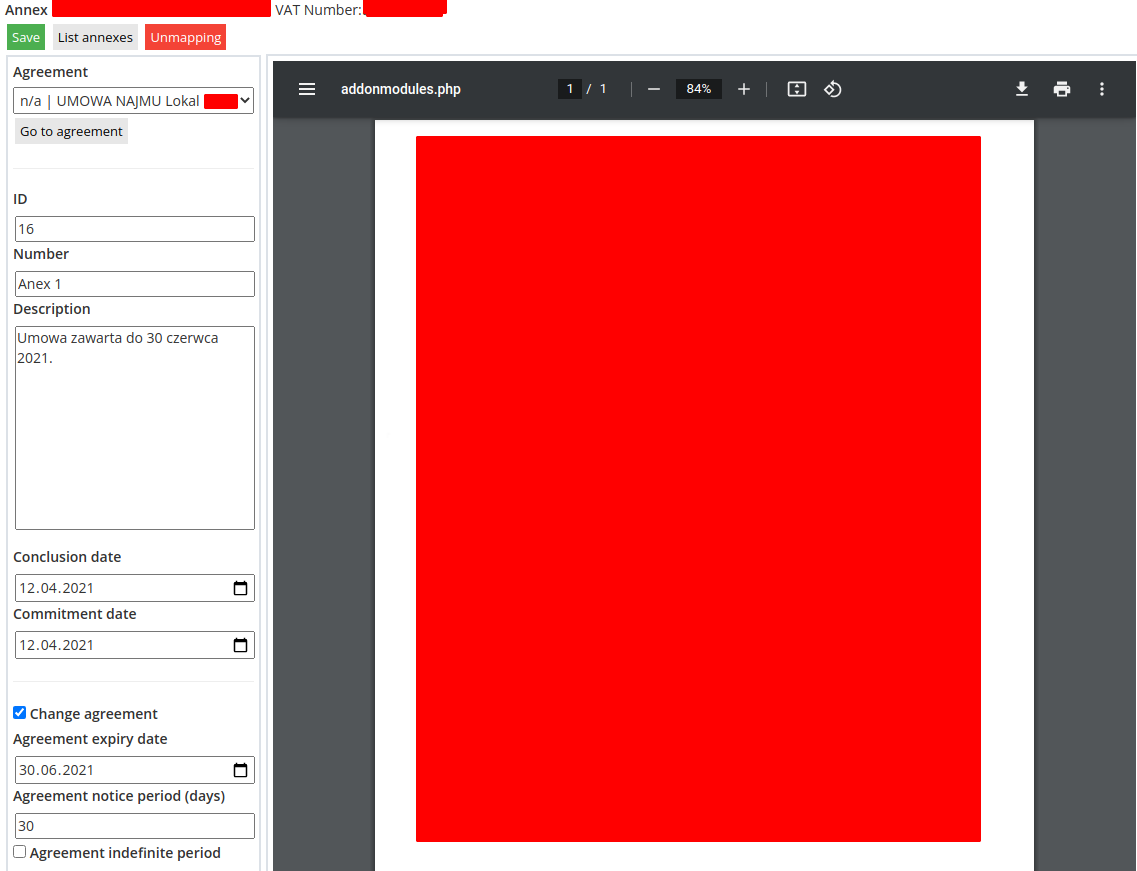](https://doc.puq.info/uploads/images/gallery/2021-11/EU52021-11-05-13-01.png) To save the changes, you must click the **"Save"** button. # Unmapping documents If for some reason it is necessary to move the document to an unclassified state, for example, if the document has been incorrectly classified, we have this option in the system. To **unmap** a document, make sure the document has no dependencies: - Relationship Invoice -> Commitment - Relationship Agreement -> Commitment - Relationship Agreement -> Agreement annex. Find the document you want to move to an unclassified state. Open its Viewing/Editing. Click the **"Unmap"** button Then confirm the action by clicking the **"OK"** button [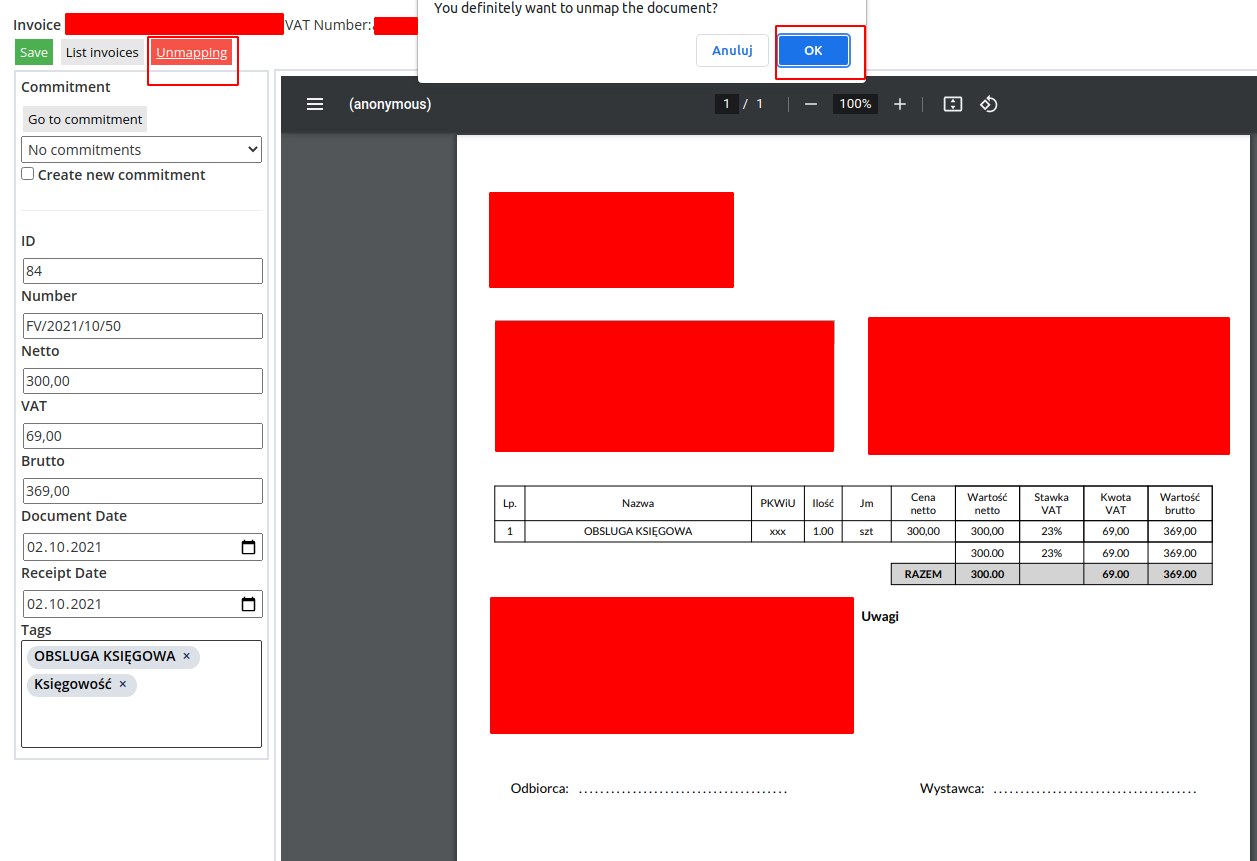](https://doc.puq.info/uploads/images/gallery/2021-11/5vH2021-11-05-12-01.png) After a document is successfully unmapped, the document enters the unclassified state. It will be in the menu item **"Documents"** -> **"List of unclassified"**. # Deleting PDF files To delete a PDF file, you must Go to the **"Documents"** menu item and click **"List of unclassified"**. On the file you want to delete, click the **"Delete"** button Then confirm the action by clicking the **"OK"** button [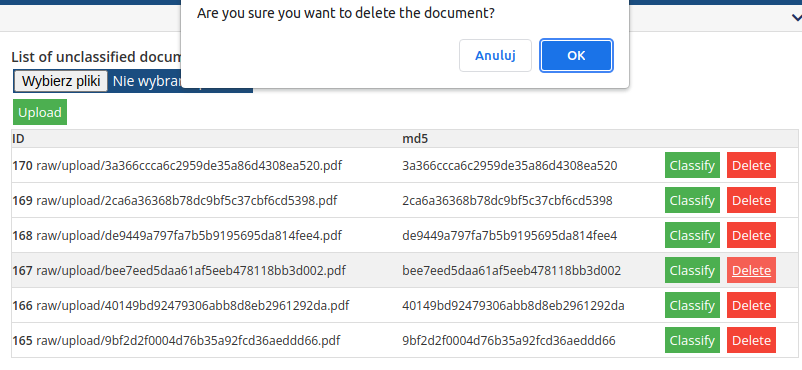](https://doc.puq.info/uploads/images/gallery/2021-11/PKH2021-11-05-09-50.png) It is also possible to delete a file from the preview mode. Go to the viewing mode by clicking the **"Classify"** button. You can use the **"Next"** and **"Previous"** buttons to move from file to file. On the file you want to delete, click the **"Delete"** button. [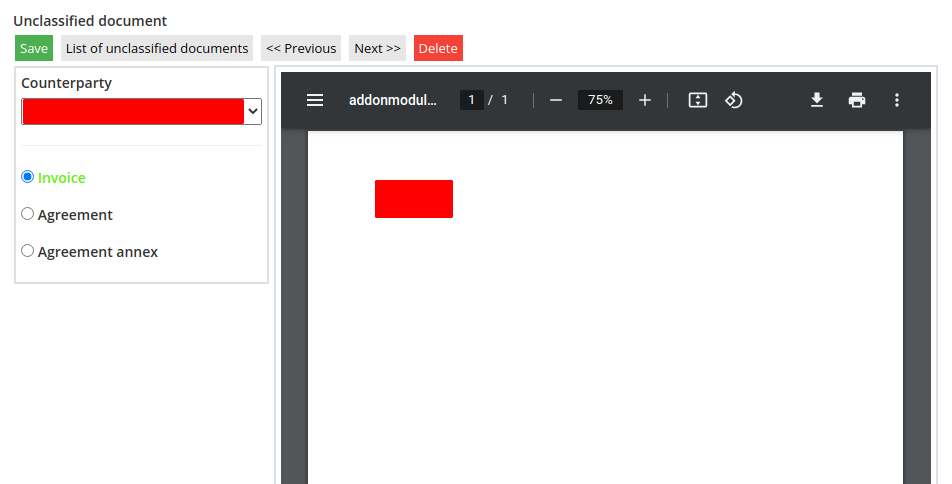](https://doc.puq.info/uploads/images/gallery/2021-11/RBb2021-11-05-09-54.png) Then confirm the action by clicking the **"OK"** button # Accounting systems # Adding the WHMCS System Installed Commitment Forecaster module, although it is installed in WHMCS, retrieves data through the API mechanism and not through direct references to the database.Only the data on income invoices is downloaded from WHMCS. FV numbers, dates, and numeric values are taken. This data is only used to report the total value of revenues. Contractors' data is not collected and contractors between WHMCS and Commitment Forecaster are not compared in any way.
Go to the **"Accounting Systems"** menu item and click **"List of systems"**. Then click the **"Create apiWHMCS"** button [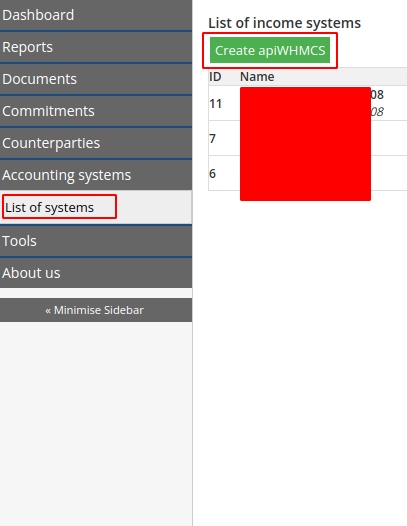](https://doc.puq.info/uploads/images/gallery/2021-11/TJX2021-11-05-13-13.png) ##### Connection details After creating the connection, you need to enter the connection details. - Name - Description - URL (link to the API of the WHMCS system. Https: //XXX.XXX.XX/includes/api.php) - Username (API user **Identifier**) - Password (API user password **Secret**) - Step (Number of invoices that will be synced for each sync step) - Automatic synchronization (It is necessary to check the box for the automatic synchronization of invoices once a day, the synchronization follows all daily WHMCS cron tasks) - Exchange rate (Specify the exchange rate if the currency is not the same as in the system. Set it to 1 if the currency is the same as in the system) [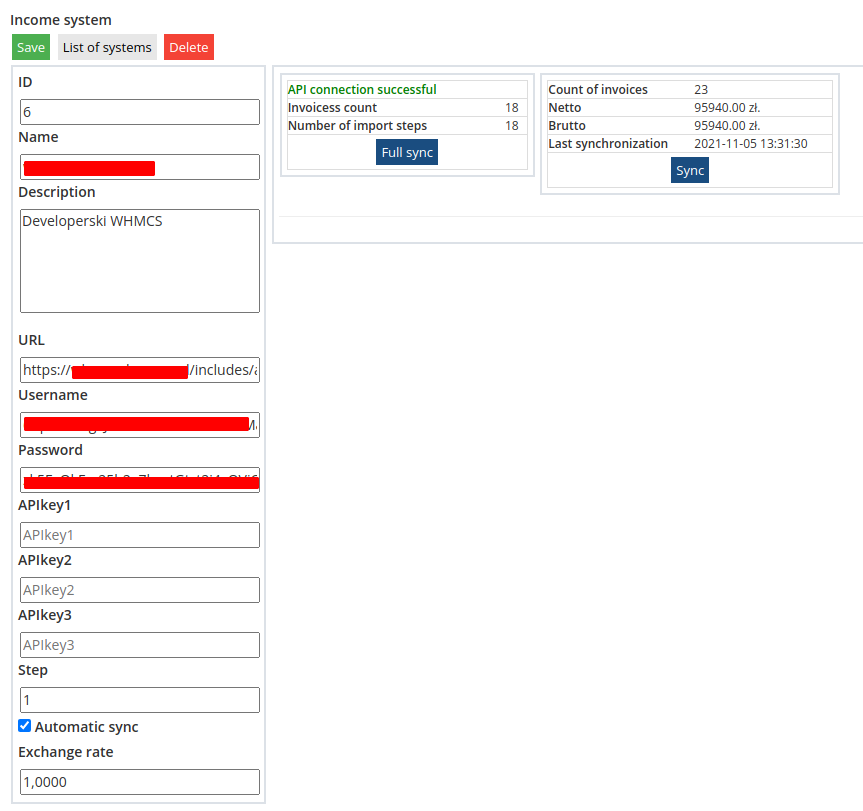](https://doc.puq.info/uploads/images/gallery/2021-11/MS22021-11-05-13-32.png) You must click the **Save button** to save the changes. # Sync/Full Sync **Full synchronization** means that all invoices of the selected system will be completely synchronized. Synchronization takes place step by step. The number of steps depends on the number of invoices in the accounting system and the number of the STEP parameter. **Sync** means that the missing invoices will be synchronized in the selected system. [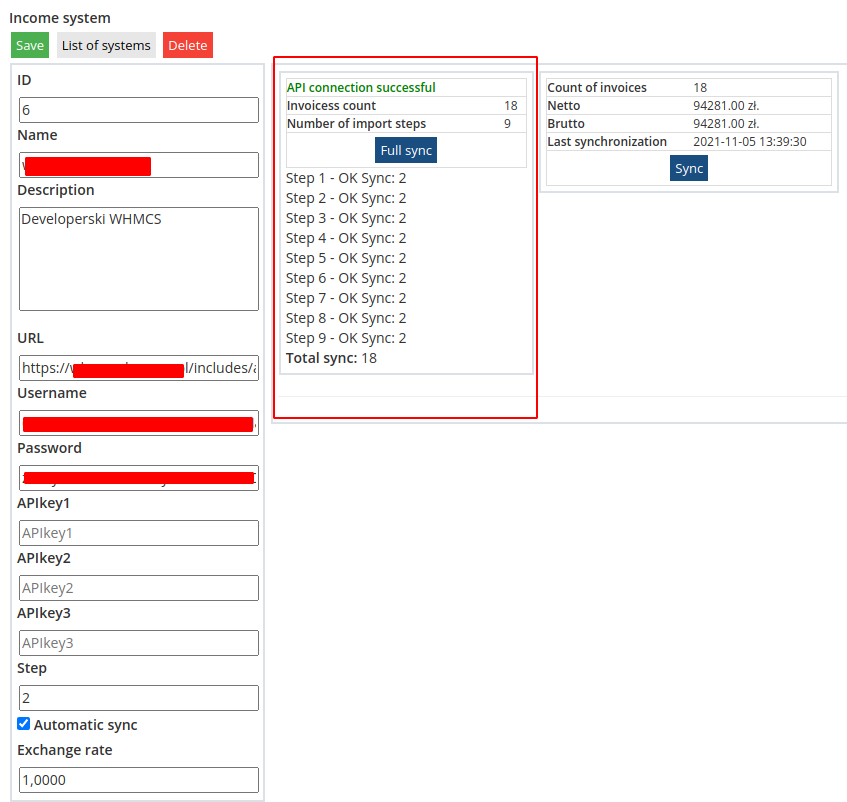](https://doc.puq.info/uploads/images/gallery/2021-11/YcH2021-11-05-13-40.png) # Creating an API user in WHMCS In order to be able to exchange information between the Commitment Forecaster and WHMCS, access to the API must be created. ##### Adding a new API access 1\. Log in as an administrator to the WHMCS system. ``` System Settings -> Administrator Users ``` 2\. Add a new user [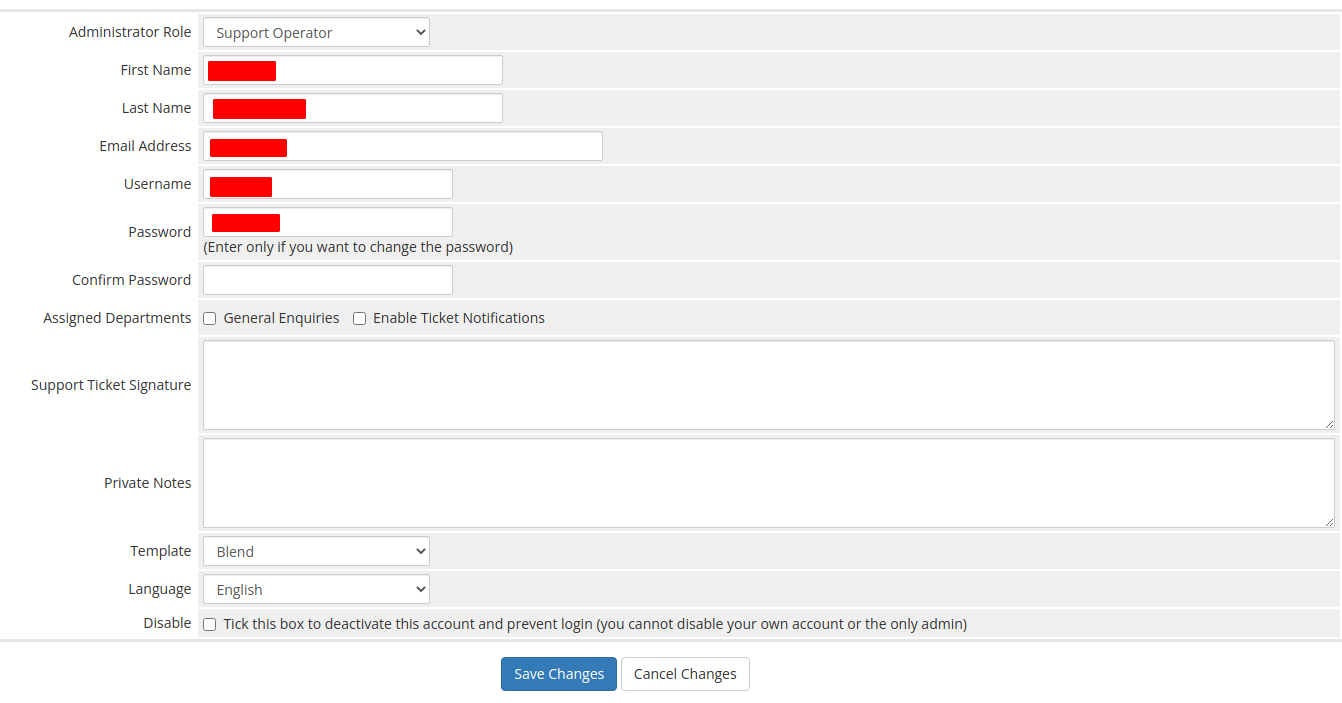](https://doc.puq.info/uploads/images/gallery/2021-11/0id2021-11-05-13-59.png) 3\. Move to: ``` System Settings -> Manage API Credentials -> APIQ Roles ``` Create a new role and select only **BILLING -> GETInvoices** [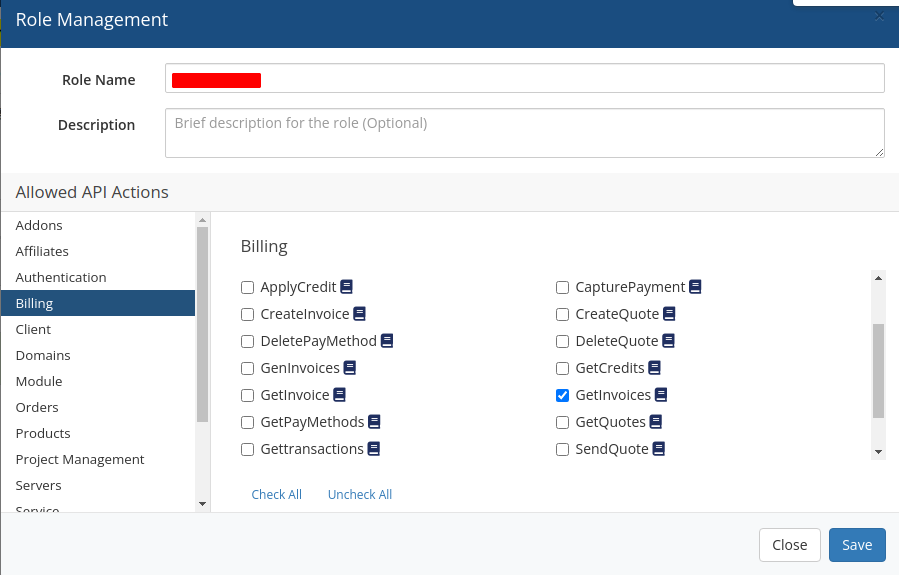](https://doc.puq.info/uploads/images/gallery/2021-11/65E2021-11-05-14-03.png) 4\. Move to: ``` System Settings -> Manage API Credentials -> API Credentials ``` 5\. Create your API credentials [](https://doc.puq.info/uploads/images/gallery/2021-11/Z8Q2021-11-05-14-06.png) [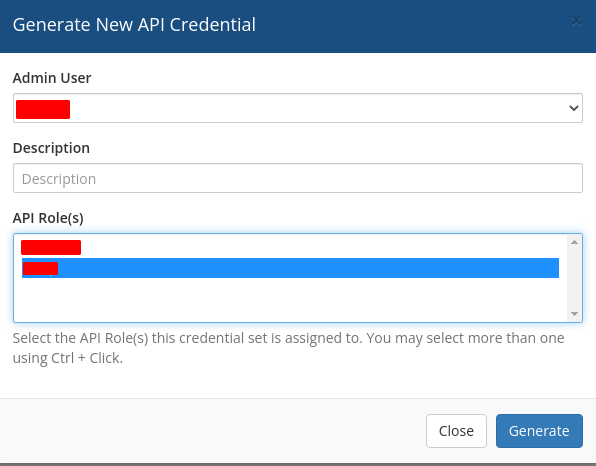](https://doc.puq.info/uploads/images/gallery/2021-11/BZt2021-11-05-14-07.png) Select the previously created user and API role Press the **"Generate"** button 6\. Write the data they need to connect to apiWHMCS Identifier Secret ##### ##### Access to WHMCS from IP number Then you should allow access to the IP address of the server with the module installed in the WHMCS system Move to: ``` System Settings -> General Settings -> Security ``` Add the IP address of the server with the module installed to the **API IP Access Restriction list** [](https://doc.puq.info/uploads/images/gallery/2021-11/yY62021-11-05-14-23.png) # Tools # Reindex commitment dates A commitment in the system has parameters such as a **start date,** **end date,** **indefinite period**. These parameters also change due to the related invoices. The entire process is automated and takes place automatically during each daily WHMCS crontab job. ##### For the purpose of compulsory synchronization of commitment terms. Go to the **"Tools"** menu item and click **"Reindex commitment dates"**. The indexing process will begin immediately after you make your selection. As a result, a table with all commitments and new parameters will appear. Items with **"0"** means that the parameter has not been changed. [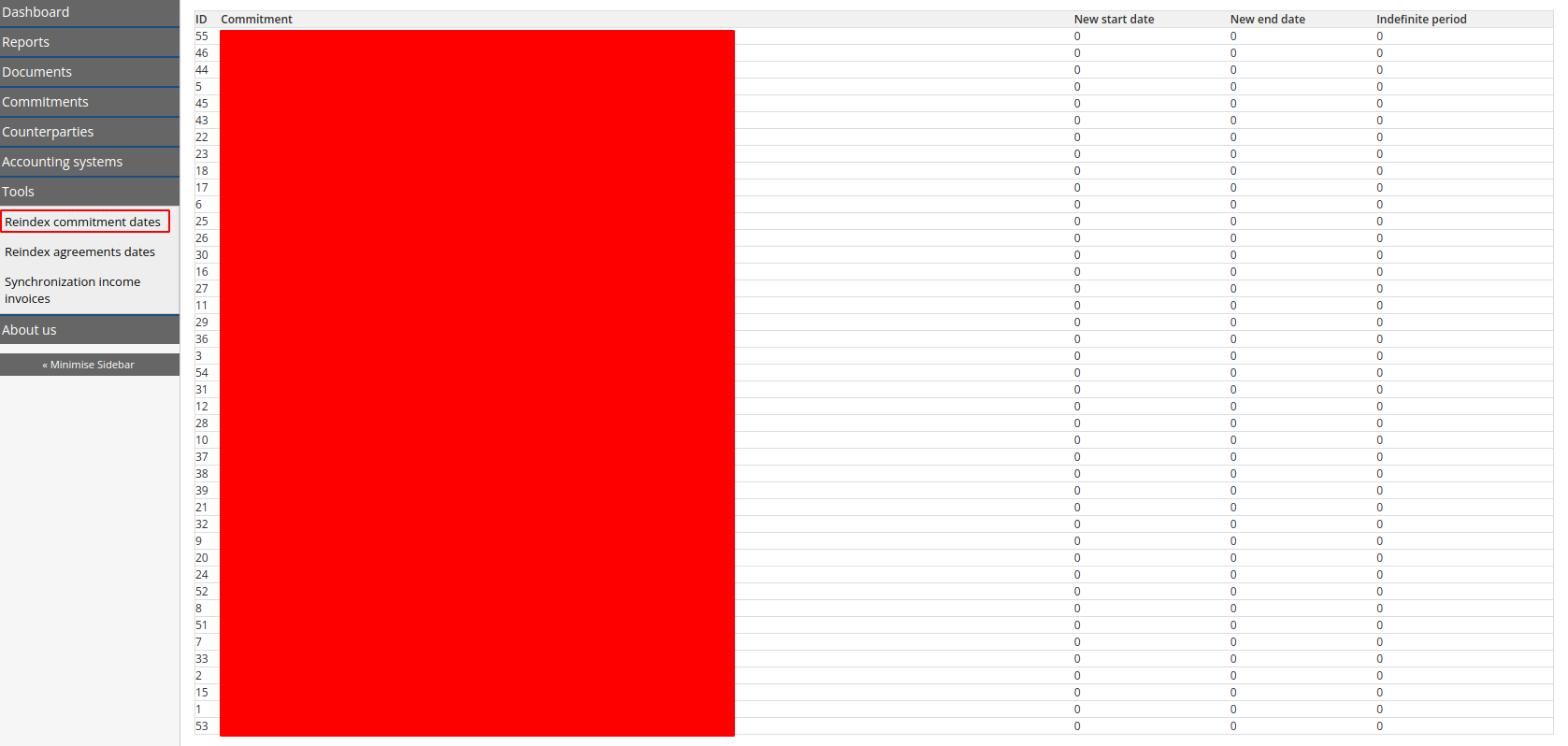](https://doc.puq.info/uploads/images/gallery/2021-11/FUa2021-11-06-10-59.png) # Reindex agreements dates In the system, the parameters of the contract, such as **Commitment Date**, **Expiry Date**, **Notice Period**, **Indefinite Period**, can be changed with another document, e.g. an annex to the contract. The entire process is automated and takes place automatically during each daily WHMCS crontab job. For the compulsory indexing of contract dates. Go to the **"Tools"** menu item and click "Reindex agreements dates". As a result, a table appears with all the annexes that changed the parameters of the contract and the new parameters. [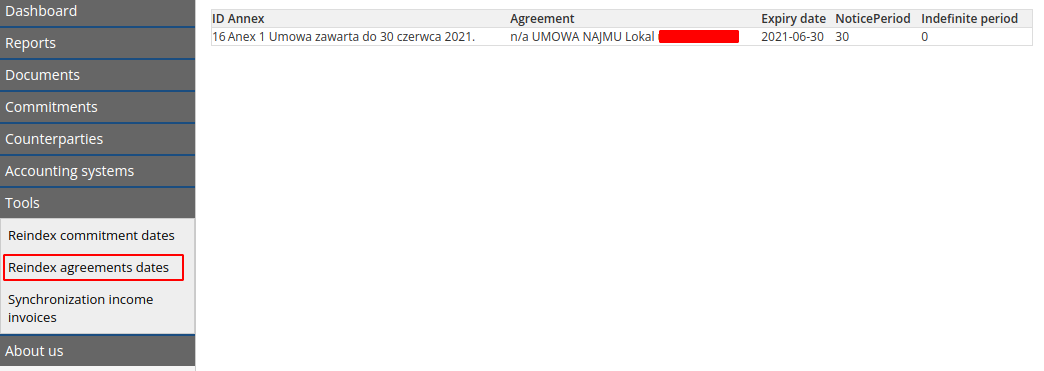](https://doc.puq.info/uploads/images/gallery/2021-11/2Ge2021-11-06-11-23.png) # Synchronization income invoices Income invoices are automatically synchronized during each daily WHMCS crontab job. For the purpose of compulsory synchronization of income invoices. Go to the **"Tools"** menu item and click **"Synchronization income invoices"**. As a result, a table with all accounting systems and synchronization parameters will appear [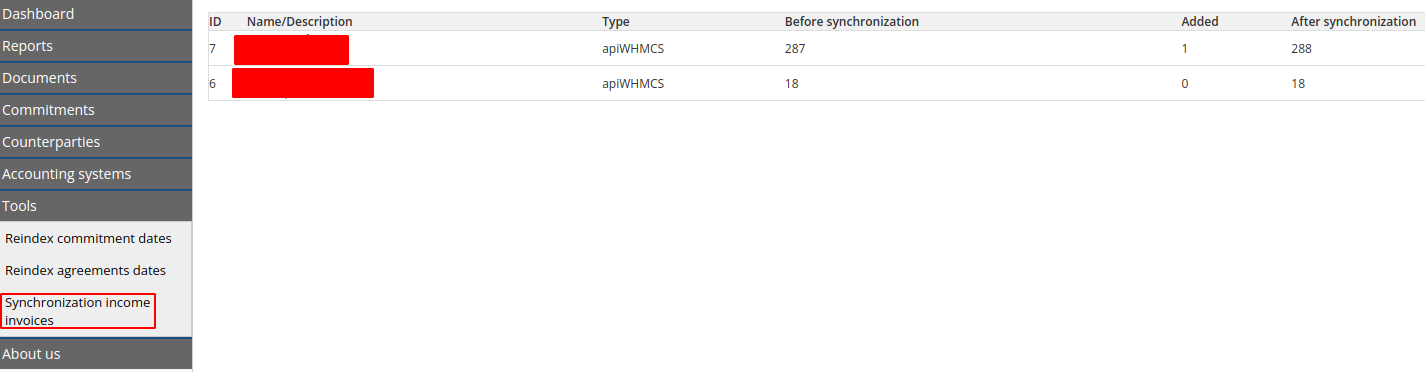](https://doc.puq.info/uploads/images/gallery/2021-11/7mo2021-11-06-11-22.png) # About us The project was created as an amateur, but with a professional approach. The project is entirely financed by **PUQ sp.z o.o.** [https://puq.pl/](https://puq.pl/) If you would like to help, with the development of the project, financially or in any other way, please let us know**Ruslan Polovyi** Concept, PHP, CSS **language:** english,poland,russian [](https://www.facebook.com/ruslan.polovyi)[](https://linkedin.com/in/ruslan-polovyi-ab44341b8/)
**Piotr Esse** Concept Colors [](https://www.facebook.com/piotr.esse.3)[](https://linkedin.com/in/piotr-esse-5312a0/)
- - - - - - Developed by: **PUQ sp. z o.o.** Company site: **[https://puq.pl/](https://puq.pl/)** **[](https://puq.pl/)[](https://www.facebook.com/PUQ-100280452476198/)[](https://www.linkedin.com/company/puq-privacy-protection/)[](https://www.instagram.com/puq.pl/)[](https://github.com/PUQ-sp-z-o-o)**