**Module is coded ionCube v13**
Supported php version: - php 7.4 WHMCS 8.11.0 - - php 8.1 WHMCS 8.11.0 + - php 8.2 WHMCS 8.11.0 +To install and update a module, you must perform one and the same action.
##### 1. Download the latest version of the module. PHP 8.2 ```Powershell wget http://download.puqcloud.com/WHMCS/servers/PUQ_WHMCS-Digital-Product/php82/PUQ_WHMCS-Digital-Product-latest.zip ``` PHP 8.1 ```Powershell wget http://download.puqcloud.com/WHMCS/servers/PUQ_WHMCS-Digital-Product/php81/PUQ_WHMCS-Digital-Product-latest.zip ``` PHP 7.4 ```Powershell wget http://download.puqcloud.com/WHMCS/servers/PUQ_WHMCS-Digital-Product/php74/PUQ_WHMCS-Digital-Product-latest.zip ```All versions are available via link: [http://download.puqcloud.com/WHMCS/servers/PUQ\_WHMCS-Digital-Product](http://download.puqcloud.com/WHMCS/servers/PUQ_WHMCS-Digital-Product)
##### 2. Unzip the archive with the module. ```Powershell unzip PUQ_WHMCS-Digital-Product-latest.zip ``` ##### 3. Copy and Replace "puqDigitalProduct" to "WHMCS\_WEB\_DIR/modules/servers/" ##### 4. Create new server Nextcloud in WHMCS (System Settings->Products/Services->Servers) ``` System Settings->Servers->Add New Server ``` - Enter the correct **Name** and **Hostname** [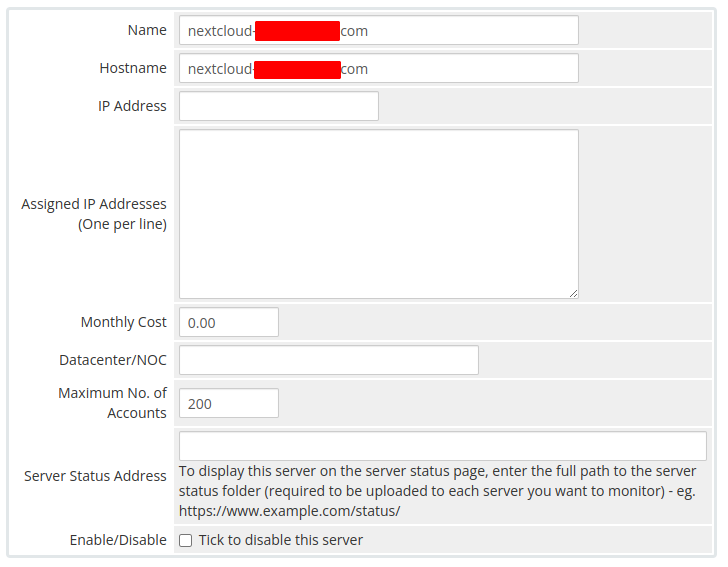](https://doc.puq.info/uploads/images/gallery/2022-08/image-1660026866233.png) - In the **Server Details** section, select the "**PUQ Digital Product**" module and enter the correct **username** and **password** for the **Nextcloud web interface**. - To check, click the **"Test connection"** button [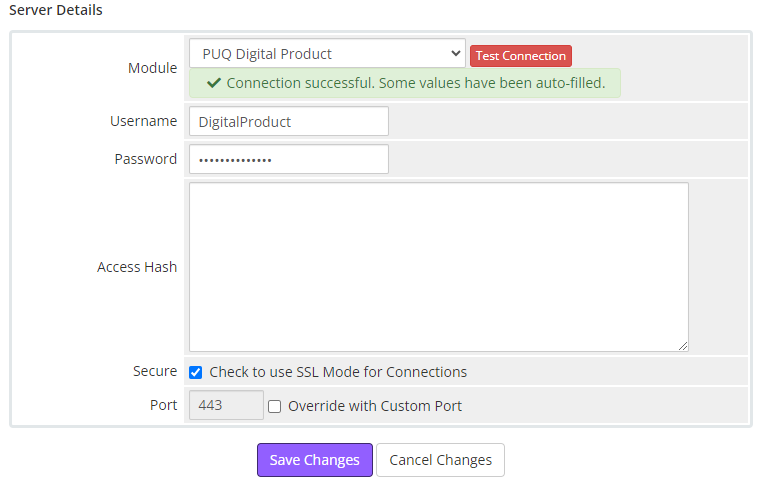](https://doc.puq.info/uploads/images/gallery/2024-06/image-1717987505178.png) ##### 5. Create a new Products/Services ``` System Settings->Products/Services->Create a New Product ``` In the **Module settings** section, select the **"PUQ Digital Product"** module [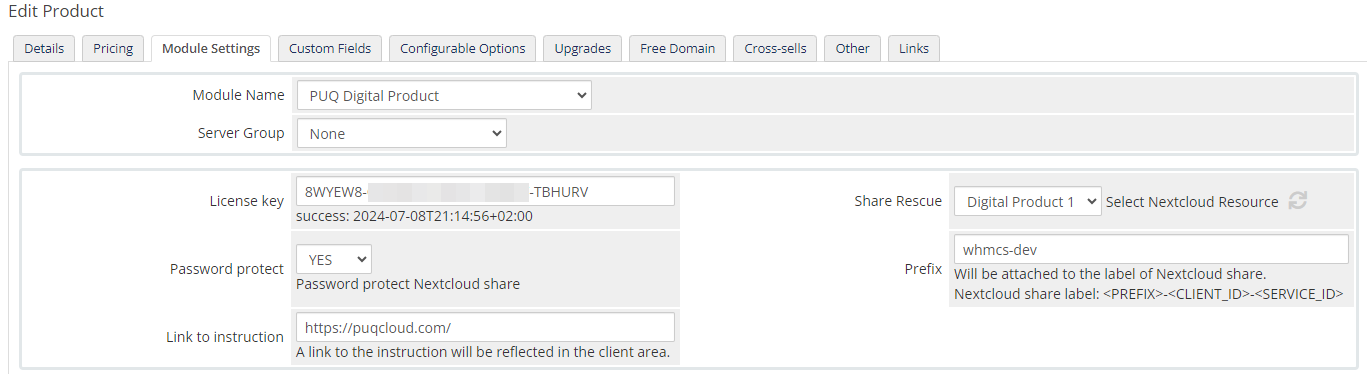](https://doc.puq.info/uploads/images/gallery/2024-06/image-1717987670250.png) - **License key:** A pre-purchased license key for the **"PUQ Digital Product"** module. For the module to work correctly, the key must be active - **Share Rescue:** Select the folder on the Nextcloud server that you offer as a Digital Product for downloading by the client after payment - **Password protect:** If you want to protect the client's individual share with a password then select YES - **Prefix:** The prefix is required to identify the client's shared link. An entry with the structure <PREFIX>-<CLIENT\_ID>-<SERVICE\_ID> will be added to the description of the shared link on the nextcloud server to facilitate searching if necessary - **Link to instruction:** Link to the instruction, if filled out, it will be reflected in the client area