# Management Media account
### Emby Family module **[WHMCS](https://puqcloud.com/link.php?id=77)**
##### [Order now](https://puqcloud.com/whmcs-module-emby-family.php) | [Download](https://download.puqcloud.com/WHMCS/servers/PUQ_WHMCS-Emby-Family/) | [FAQ](https://faq.puqcloud.com/)
[](https://doc.puq.info/uploads/images/gallery/2024-05/image-1714759971511.png)
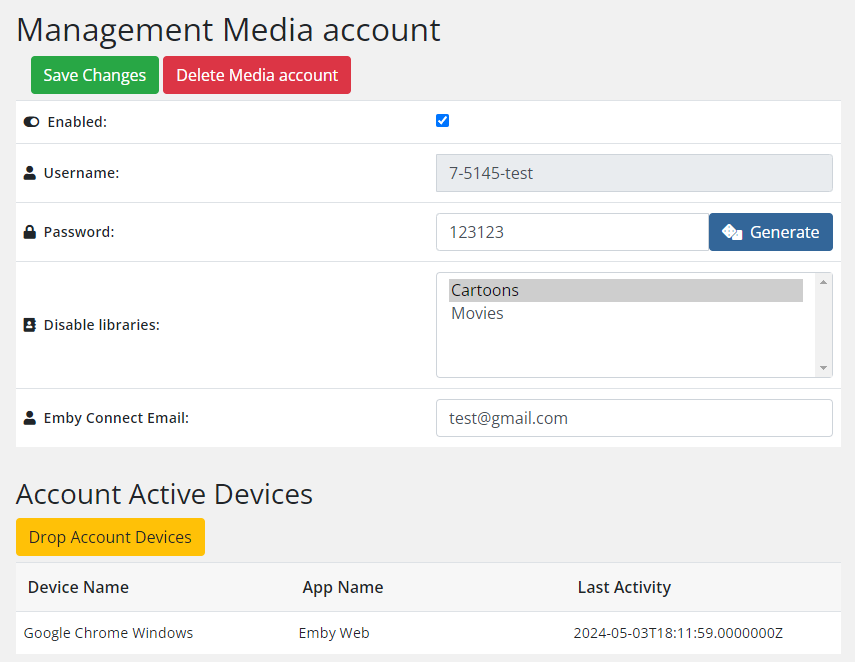
**Enabled** - Update account status.
**Username** - Set a media account username. It consists of the username of the main account and a unique name for this media account.
**Password** - Write a password for registering the media account, or generate one by clicking Generate.
**Disable libraries** - Here are all the libraries available to the main account. If you want to restrict access for this media account to any of the libraries, simply select that library.
Press **Ctrl** to select multiple libraries.
Press **Shift+Ctrl** from top to bottom of list to select all libraries.
**Emby Connect Email** - add an Emby Connect Username for media account
If you leave the field empty, Emby Connect will be disabled.
Register the email in **[Emby Connect](https://emby.media/connect.html).**
One Emby Connect username can only be linked to one Emby account.
#### Media account active devices
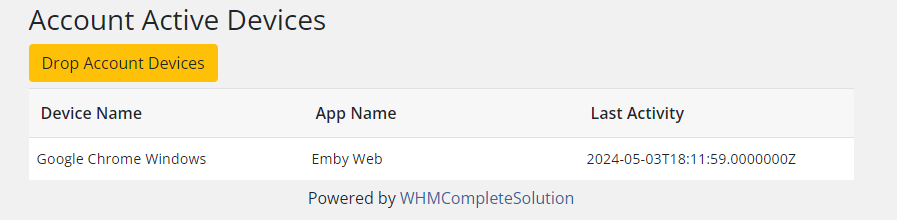
Here is a list of active devices for this account.
Press "Drop Account Devices" to sign out from the devices.
[](https://doc.puq.info/uploads/images/gallery/2024-05/image-1714762807159.png)