For the correct operation of the module, a pre-prepared Emby installation is required (the module does not assist in the installation of the Emby server and assumes that such installation is ready for operation through API.) Module use Emby API to manage clients account.
We have prepared a detailed installation manual for the module, including all the steps needed to implement the module, including the preparation of the Emby server, including all installation steps such as PHP, Emby , SSL certificates etc.
**Requirements:** WISECP: v3.1.5+, php: v8.x, Ioncube: V12+ Emby: v4.7+
### Functions: - Auto create and deploy client account - The module uses only the API to manage the accounts - Module supports multilingualism **(Arabic, Bosnian, Czech, German, Greek, English, Spanish, Persian, French, Hungarian, Indonesian, Italian, Georgian, Latvian, Dutch, Polish, Portuguese, Romanian, Ukrainian)** - The module shows all user info: enabled user libraries, active devices etc. - Link to instructions for setting up the service in the client area. - Emby Connect Integration: Seamlessly access media accounts across different devices and platforms using Emby Connect functionality. ### Available options in the admin panel: - Create users - Suspend users - Terminate users - Unsuspend users - Change users password - Change Package - Drop all devices - API connection status - List of active devices - List of enabled user libraries ### Available options in the client panel: - List of active devices - List of enabled user libraries - Drop all devices - Change the Emby user password - Add/Manage Emby Connect account ##### Screenshot of the client area [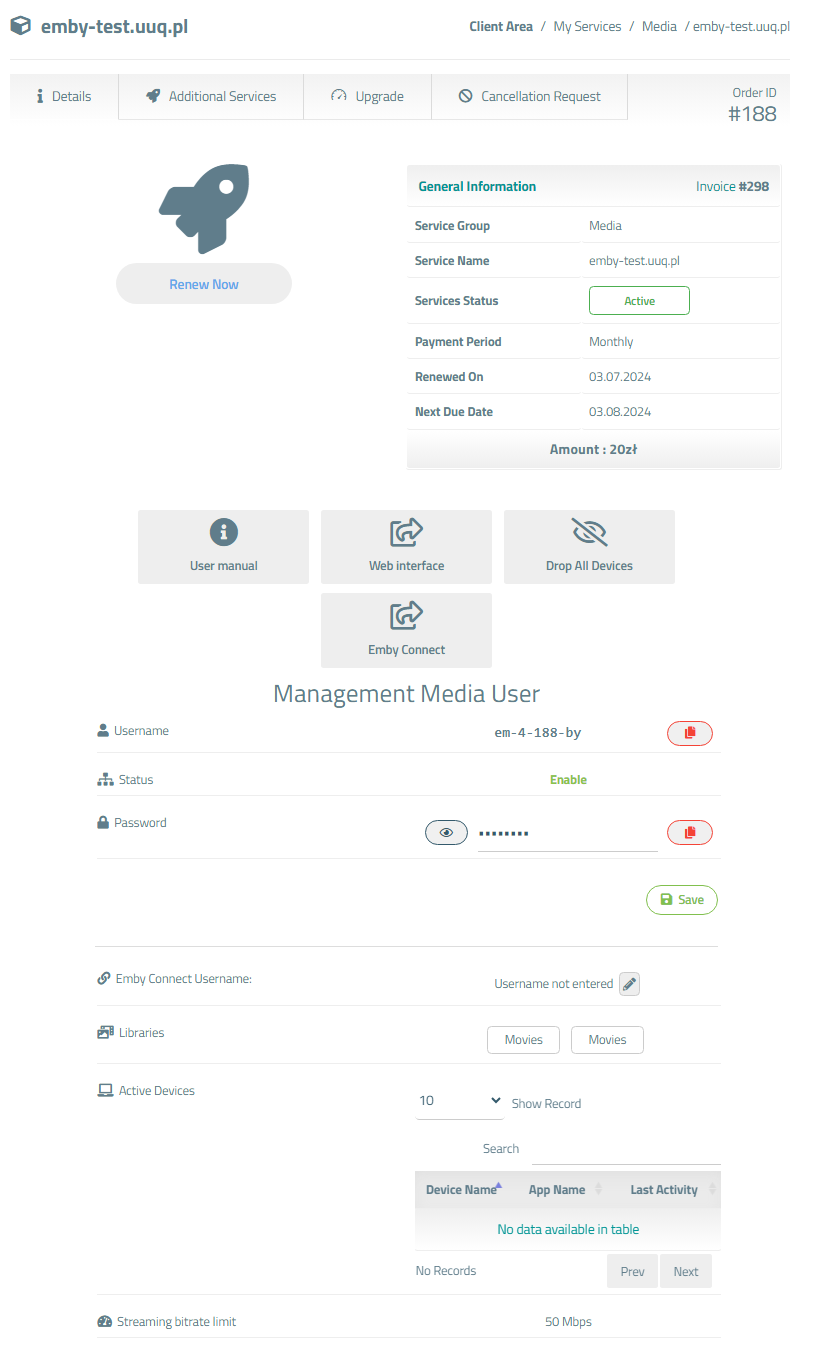](https://doc.puq.info/uploads/images/gallery/2024-07/emby-clientarea.png) ##### Screenshot of the Admin area [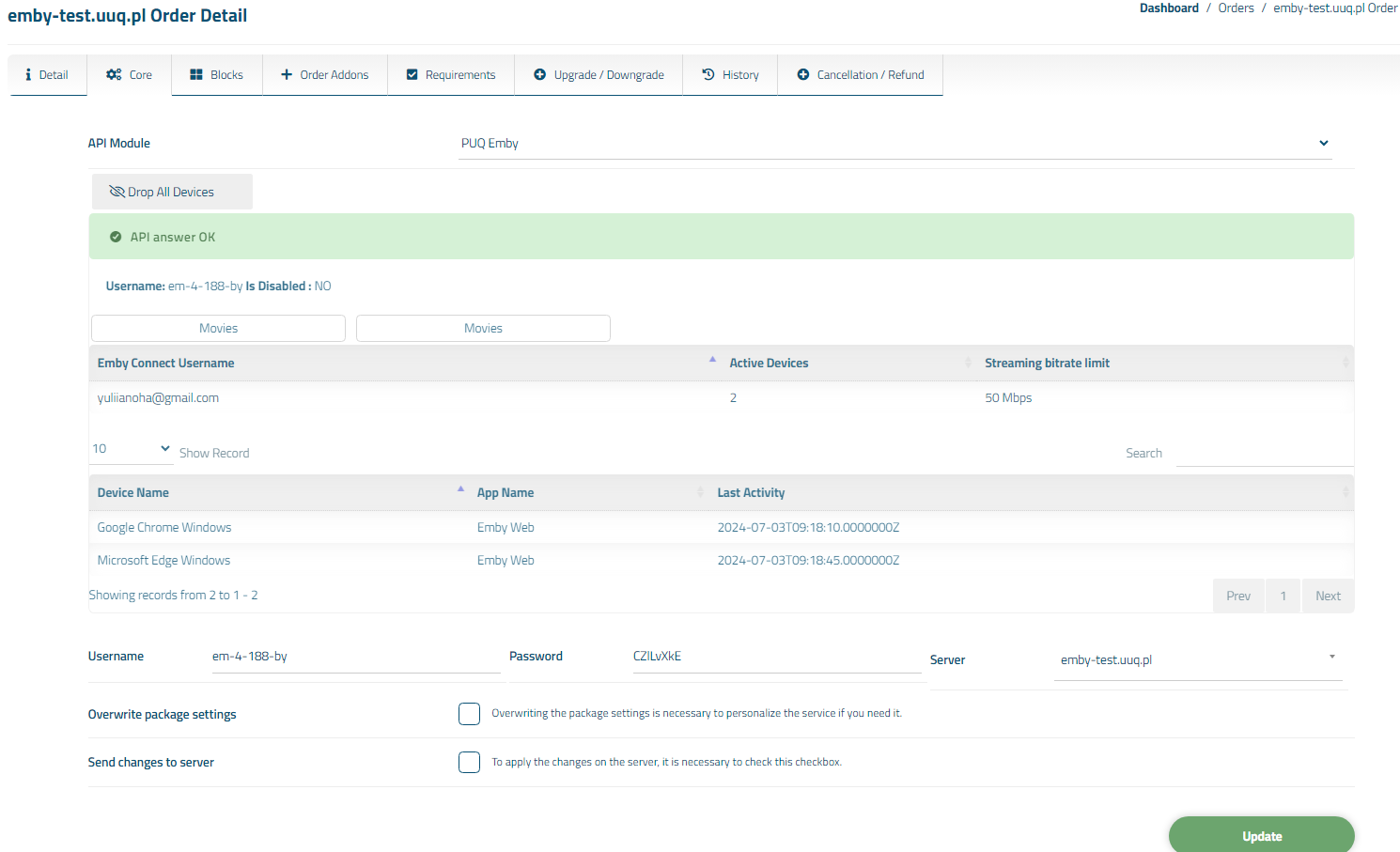](https://doc.puq.info/uploads/images/gallery/2024-07/emby-adminarea.png)# Changelog ### Emby module **[WISECP](https://puqcloud.com/link.php?id=78)** ##### [Order now](https://puqcloud.com/index.php?rp=/store/wisecp-module-emby) | [Download](https://download.puqcloud.com/WISECP/Product/PUQ_WISECP-Emby/) | [FAQ](https://faq.puqcloud.com/) ##### v1.2 Released 04-07-2024 \- Added the capability to link an Emby Connect Username to the account. \- Introduced a new tab for managing Emby Connect Username in the Client Area. \- Client area more adapted for mobile version \- Buttons for copying login and password have been added to the client area \- Optimized. - - - - - - ##### v1.1 Released 15-02-2024 \- Introduced a "Show" button for displaying service passwords in the Client Area. \- Fixed a bug with some cases where it was not possible to delete the server \- Improved security - - - - - - ##### v1.0 Released 27-12-2023 First version# Installation and configuration guide # Setup (install/update) ### Emby module **[WISECP](https://puqcloud.com/link.php?id=78)** ##### [Order now](https://puqcloud.com/index.php?rp=/store/wisecp-module-emby) | [Download](https://download.puqcloud.com/WISECP/Product/PUQ_WISECP-Emby/) | [FAQ](https://faq.puqcloud.com/)To install and update a module, you must perform one and the same action.
##### ##### 1. Download the latest version of the module. ```Powershell wget http://download.puqcloud.com/WISECP/Product/PUQ_WISECP-Emby/PUQ_WISECP-Emby-latest.zip ```All versions are available: [https://download.puqcloud.com/WISECP/Product/PUQ\_WISECP-Emby/](https://download.puqcloud.com/WISECP/Product/PUQ_WISECP-Emby/)
##### ##### 2. Unzip the archive with the module. ```Powershell unzip PUQ_WISECP-Emby-latest.zip ``` ##### ##### 3. Copy and Replace "puqEmby" from "PUQ\_WISECP-Emby" to "WISECP\_WEB\_DIR/coremio/modules/Product/" # License Activation ### Emby module **[WISECP](https://puqcloud.com/link.php?id=78)** ##### [Order now](https://puqcloud.com/index.php?rp=/store/wisecp-module-emby) | [Download](https://download.puqcloud.com/WISECP/Product/PUQ_WISECP-Emby/) | [FAQ](https://faq.puqcloud.com/) ##### 1. Log in to the administrative area of your **[WISECP](https://puqcloud.com/link.php?id=78)**. ##### 2. Go to module configuration. ``` Services -> Service Management -> Module Settings -> Other -> All Modules -> PUQ Emby ``` [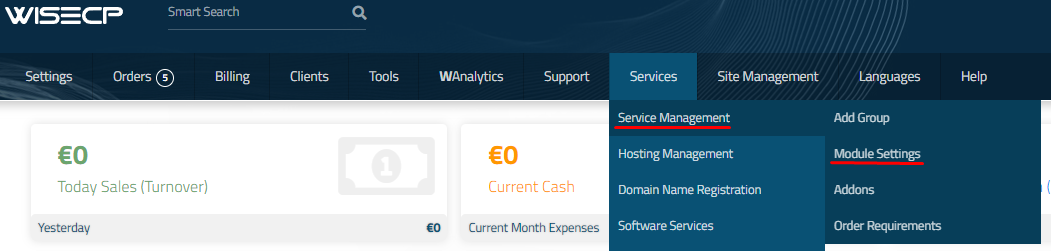](https://doc.puq.info/uploads/images/gallery/2023-11/image-1700485721333.png) [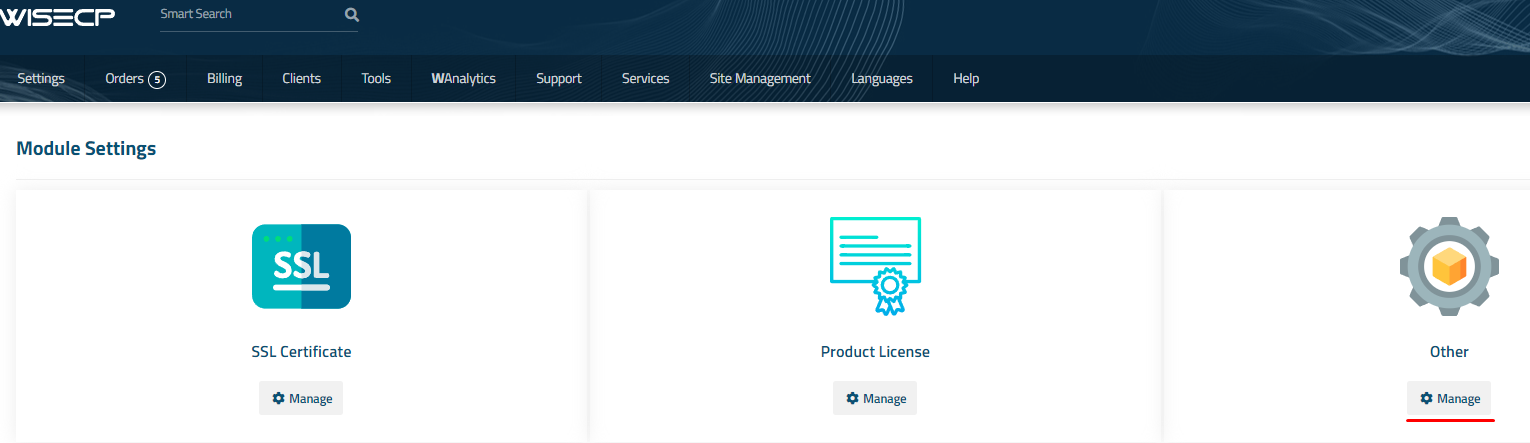](https://doc.puq.info/uploads/images/gallery/2023-11/image-1700485726951.png) [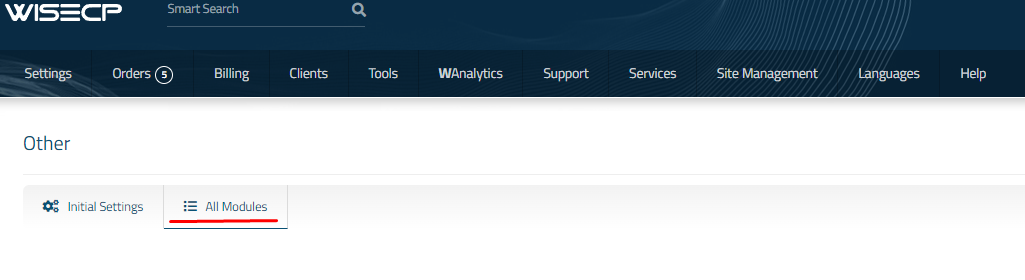](https://doc.puq.info/uploads/images/gallery/2023-11/image-1700485737918.png) [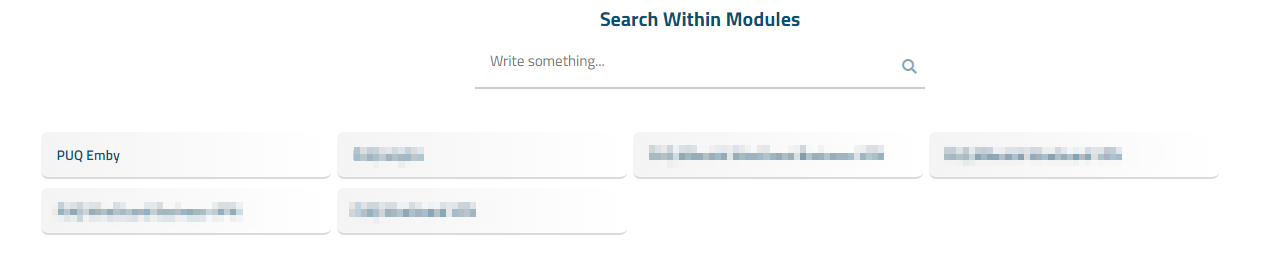](https://doc.puq.info/uploads/images/gallery/2023-11/xpR1.png) [](https://doc.puq.info/uploads/images/gallery/2023-11/KyT2.png) # Setup guide: Emby setup ### Emby module **[WISECP](https://puqcloud.com/link.php?id=78)** ##### [Order now](https://puqcloud.com/index.php?rp=/store/wisecp-module-emby) | [Download](https://download.puqcloud.com/WISECP/Product/PUQ_WISECP-Emby/) | [FAQ](https://faq.puqcloud.com/) #### 1. Install Emby on your server To simplify deployment and help automate this for as many users as possible, we provide a BASH script to handle repo installation as well as installing Emby. All you need to do is run this command on your system ``` wget https://github.com/MediaBrowser/Emby.Releases/releases/download/4.7.14.0/emby-server-deb_4.7.14.0_amd64.deb ``` ``` dpkg -i emby-server-deb_4.7.14.0_amd64.deb ``` #### 2. SSL certificate generation: ``` sudo apt install nginx certbot python3-certbot-nginx ``` ``` sudo certbot --nginx --agree-tos --redirect --hsts --staple-ocsp --email YOUR_EMAIL -d DOMAIN_NAME ``` ``` echo "0 0 * * * root certbot renew --quiet --no-self-upgrade --post-hook 'systemctl reload nginx'" | sudo tee -a /etc/cron.d/renew_certbot ``` #### 3. Configure nginx from a subdomain Create a file named nginx.conf. ``` cd /etc/nginx/conf.d/ nano nginx.conf ``` Then, insert the following text, replacing DOMAIN\_NAME with your domain. ```Nginx # Uncomment the commented sections after you have acquired a SSL Certificate server { listen 80; #listen [::]:80; server_name DOMAIN_NAME; # Uncomment to redirect HTTP to HTTPS return 302 https://$host$request_uri; } server { listen 443 ssl http2; #listen [::]:443 ssl http2; server_name DOMAIN_NAME; ## The default `client_max_body_size` is 1M, this might not be enough for some posters, etc. client_max_body_size 20M; # use a variable to store the upstream proxy # in this example we are using a hostname which is resolved via DNS # (if you aren't using DNS remove the resolver line and change the variable to point to an IP address e.g `set $emby 127.0.0.1`) set $emby 127.0.0.1; resolver 127.0.0.1 valid=30; ssl_certificate /etc/letsencrypt/live/DOMAIN_NAME/fullchain.pem; ssl_certificate_key /etc/letsencrypt/live/DOMAIN_NAME/privkey.pem; include /etc/letsencrypt/options-ssl-nginx.conf; ssl_dhparam /etc/letsencrypt/ssl-dhparams.pem; add_header Strict-Transport-Security "max-age=31536000" always; ssl_trusted_certificate /etc/letsencrypt/live/DOMAIN_NAME/chain.pem; ssl_stapling on; ssl_stapling_verify on; # Security / XSS Mitigation Headers # NOTE: X-Frame-Options may cause issues with the webOS app add_header X-Frame-Options "SAMEORIGIN"; add_header X-XSS-Protection "0"; # Do NOT enable. This is obsolete/dangerous add_header X-Content-Type-Options "nosniff"; # COOP/COEP. Disable if you use external plugins/images/assets add_header Cross-Origin-Opener-Policy "same-origin" always; add_header Cross-Origin-Embedder-Policy "require-corp" always; add_header Cross-Origin-Resource-Policy "same-origin" always; # Permissions policy. May cause issues on some clients add_header Permissions-Policy "accelerometer=(), ambient-light-sensor=(), battery=(), bluetooth=(), camera=(), clipboard-read=(), display-capture=(), document-domain=(), encrypted-media=(), gamepad=(), geolocation=(), gyroscope=(), hid=(), idle-detection=(), interest-cohort=(), keyboard-map=(), local-fonts=(), magnetometer=(), microphone=(), payment=(), publickey-credentials-get=(), serial=(), sync-xhr=(), usb=(), xr-spatial-tracking=()" always; # Tell browsers to use per-origin process isolation add_header Origin-Agent-Cluster "?1" always; # Content Security Policy # See: https://developer.mozilla.org/en-US/docs/Web/HTTP/CSP # Enforces https content and restricts JS/CSS to origin # External Javascript (such as cast_sender.js for Chromecast) must be whitelisted. # NOTE: The default CSP headers may cause issues with the webOS app #add_header Content-Security-Policy "default-src https: data: blob: http://image.tmdb.org; style-src 'self' 'unsafe-inline'; script-src 'self' 'unsafe-inline' https://www.gstatic.com https://www.youtube.com blob:; worker-src 'self' blob:; connect-src 'self'; object-src 'none'; frame-ancestors 'self'"; location = / { return 302 http://$host/web/; #return 302 https://$host/web/; } location / { # Proxy main Emby traffic proxy_pass http://$emby:8096; proxy_set_header Host $host; proxy_set_header X-Real-IP $remote_addr; proxy_set_header X-Forwarded-For $proxy_add_x_forwarded_for; proxy_set_header X-Forwarded-Proto $scheme; proxy_set_header X-Forwarded-Protocol $scheme; proxy_set_header X-Forwarded-Host $http_host; # Disable buffering when the nginx proxy gets very resource heavy upon streaming proxy_buffering off; } # location block for /web - This is purely for aesthetics so /web/#!/ works instead of having to go to /web/index.html/#!/ location = /web/ { # Proxy main Emby traffic proxy_pass http://$emby:8096/web/index.html; proxy_set_header Host $host; proxy_set_header X-Real-IP $remote_addr; proxy_set_header X-Forwarded-For $proxy_add_x_forwarded_for; proxy_set_header X-Forwarded-Proto $scheme; proxy_set_header X-Forwarded-Protocol $scheme; proxy_set_header X-Forwarded-Host $http_host; } location /socket { # Proxy Emby Websockets traffic proxy_pass http://$emby:8096; proxy_http_version 1.1; proxy_set_header Upgrade $http_upgrade; proxy_set_header Connection "upgrade"; proxy_set_header Host $host; proxy_set_header X-Real-IP $remote_addr; proxy_set_header X-Forwarded-For $proxy_add_x_forwarded_for; proxy_set_header X-Forwarded-Proto $scheme; proxy_set_header X-Forwarded-Protocol $scheme; proxy_set_header X-Forwarded-Host $http_host; } } ``` #### Restarting nginx ``` sudo service nginx restart ``` # Add server (Emby server) ### Emby module **[WISECP](https://puqcloud.com/link.php?id=78)** ##### [Order now](https://puqcloud.com/index.php?rp=/store/wisecp-module-emby) | [Download](https://download.puqcloud.com/WISECP/Product/PUQ_WISECP-Emby/) | [FAQ](https://faq.puqcloud.com/) ##### 1. Log in to the administrative area of your **[WISECP](https://puqcloud.com/link.php?id=78)**. ##### 2. Go to module configuration. ``` Services -> Service Management -> Module Settings -> Other -> All Modules -> PUQ Emby ``` [](https://doc.puq.info/uploads/images/gallery/2023-11/image-1700485721333.png) [](https://doc.puq.info/uploads/images/gallery/2023-11/image-1700485726951.png) [](https://doc.puq.info/uploads/images/gallery/2023-11/image-1700485737918.png) [](https://doc.puq.info/uploads/images/gallery/2023-11/xpR1.png) ##### 3. In the opened page, click the '**Add Server**' button. [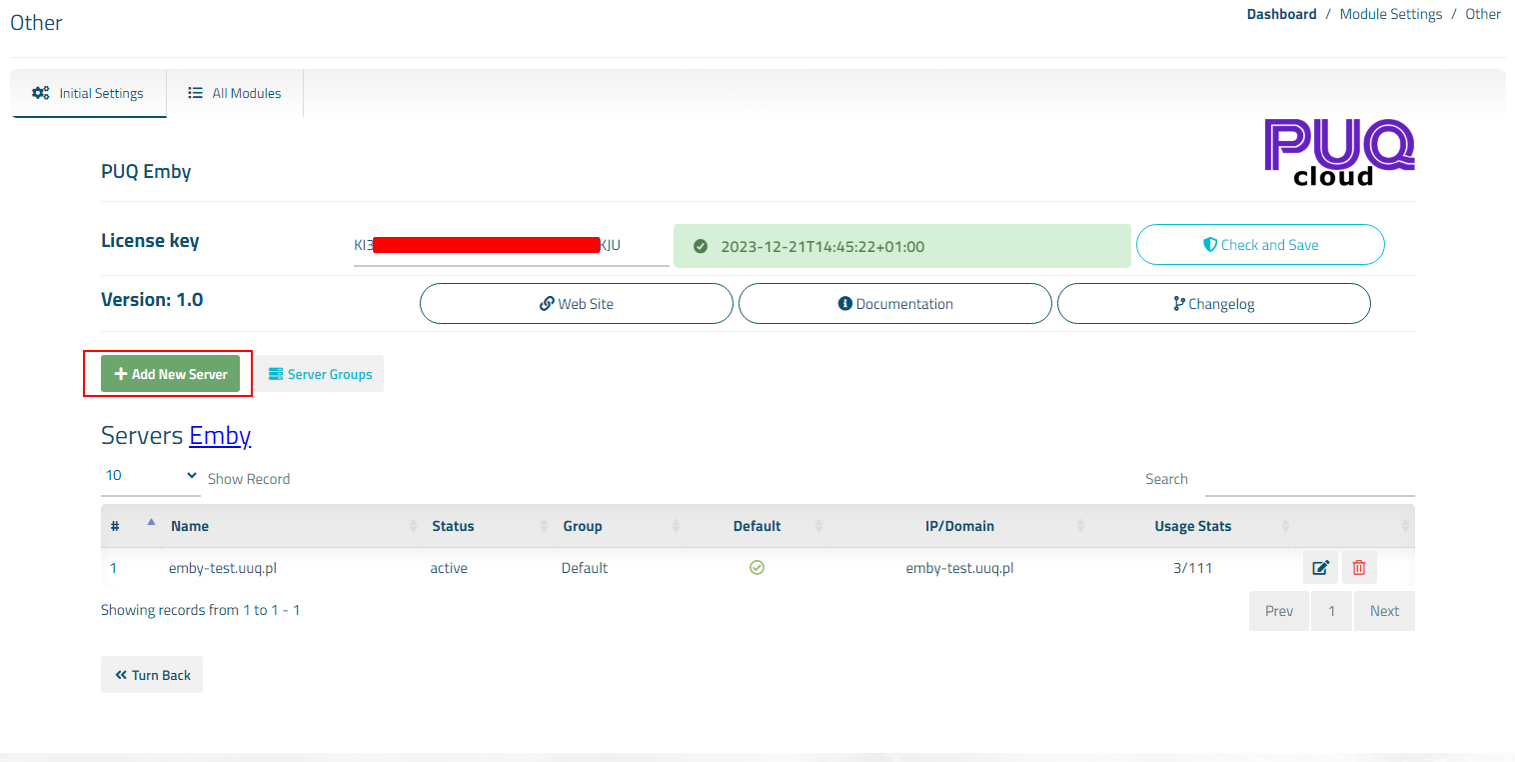](https://doc.puq.info/uploads/images/gallery/2023-11/7oj3.png) ##### ##### 4. On the opened page, enter all the necessary information: - **Name**: Displayed name of the server. - **Maximum Number of Accounts**: The number of services that can be on this server. - **Server Group**: Optionally, choose the server group. - **IP Address or Domain**: The address of the Emby server you are connecting to. - **Username:** is the username for the account on [Emby](https://emby.media/). - **Password:** is the password for the account on [Emby](https://emby.media/). - **Access Hash**: API key that you created in the previous step on the Emby server. - Check the **SSL** box if you want to use SSL-encrypted connection. If necessary, specify the port and perform a connection test. [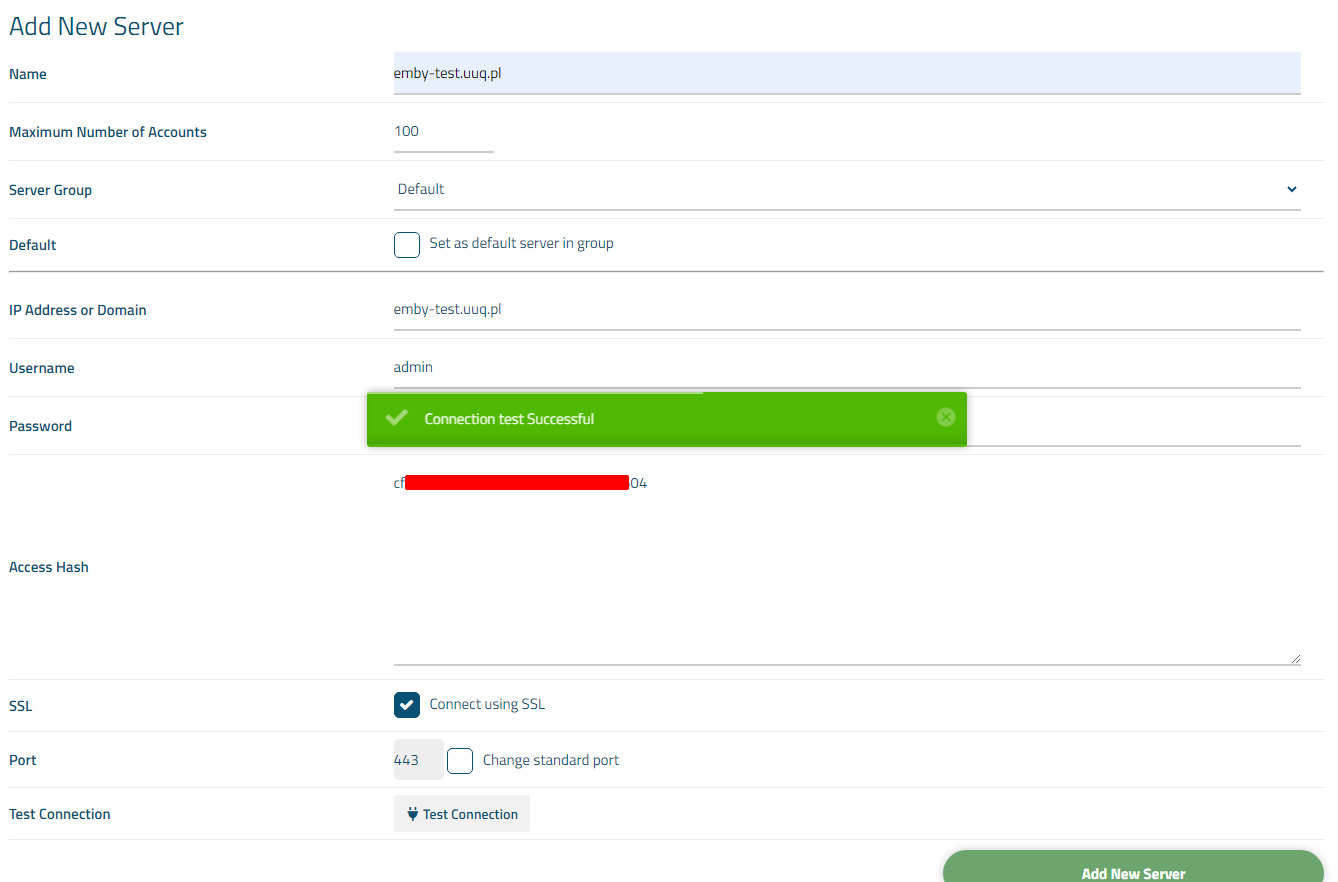](https://doc.puq.info/uploads/images/gallery/2023-11/Luj4.png) # Service configuration ### Emby module **[WISECP](https://puqcloud.com/link.php?id=78)** ##### [Order now](https://puqcloud.com/index.php?rp=/store/wisecp-module-emby) | [Download](https://download.puqcloud.com/WISECP/Product/PUQ_WISECP-Emby/) | [FAQ](https://faq.puqcloud.com/)If you do not have a **Service Group** where you want to place the new service, you need to create a new **Service Group**
##### 1. Log in to the administrative area of your **[WISECP](https://puqcloud.com/link.php?id=78)**. ##### 2. Create New Service Group Go to ``` Services -> Service Management -> Add Group ``` [](https://doc.puq.info/uploads/images/gallery/2023-11/32b5.png) Enter all the necessary data and click the '**Create Group**' button. [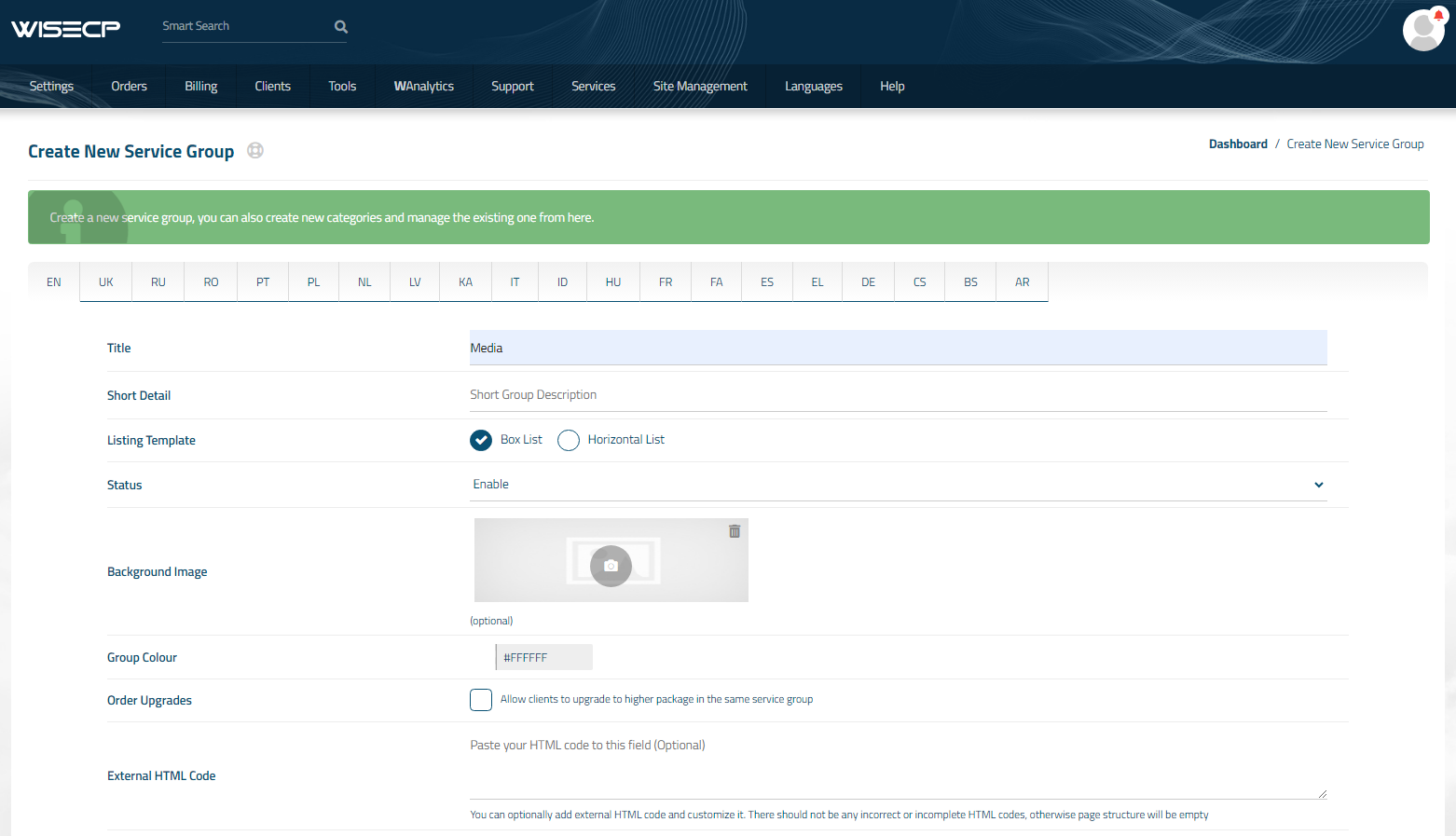](https://doc.puq.info/uploads/images/gallery/2023-11/yDd6.png) ##### 3. Adding a New Service Go to ``` Services -> our service group where you need to add the new service. ``` [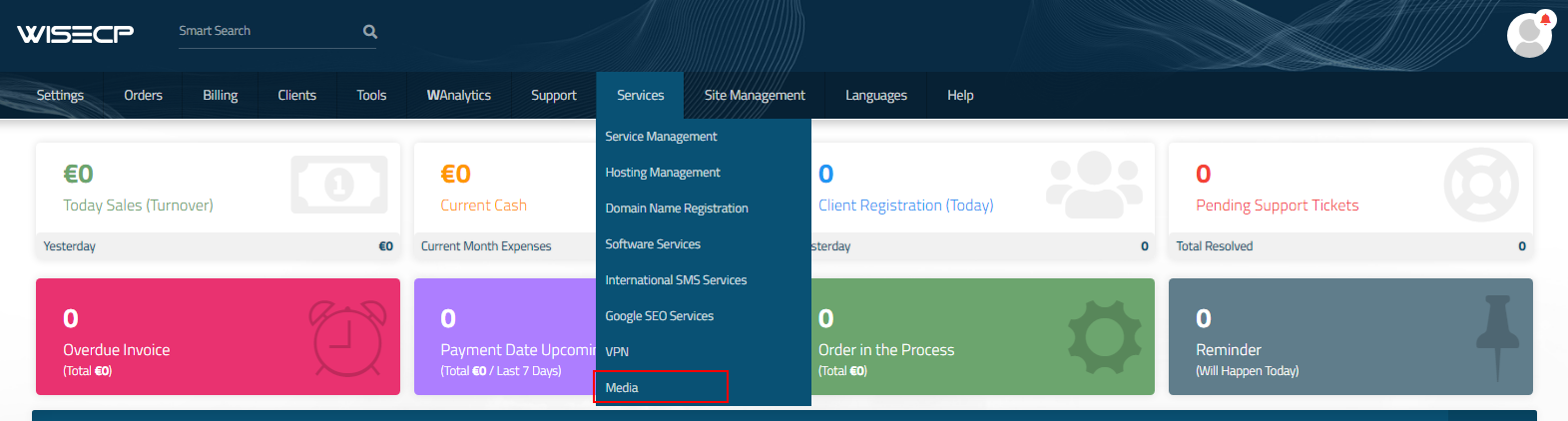](https://doc.puq.info/uploads/images/gallery/2023-11/Shg7.png) In the opened window, click the '**Create New Service**' button. [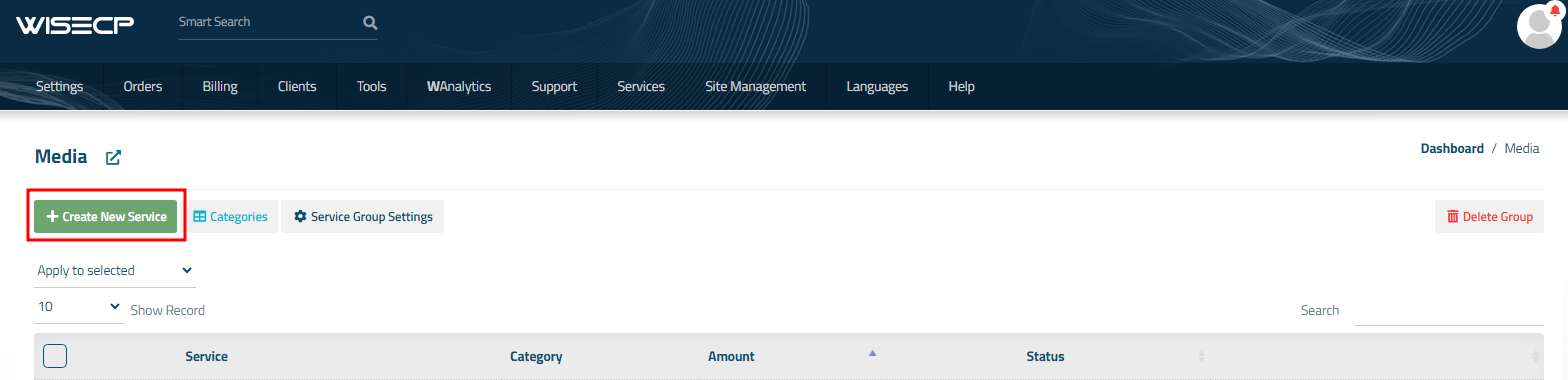](https://doc.puq.info/uploads/images/gallery/2023-11/auQ8.png) On the opened page, enter all the necessary details for your new service and navigate to the '**Core**' tab. Select the '**PUQ Emby**' module from the drop-down list of modules. [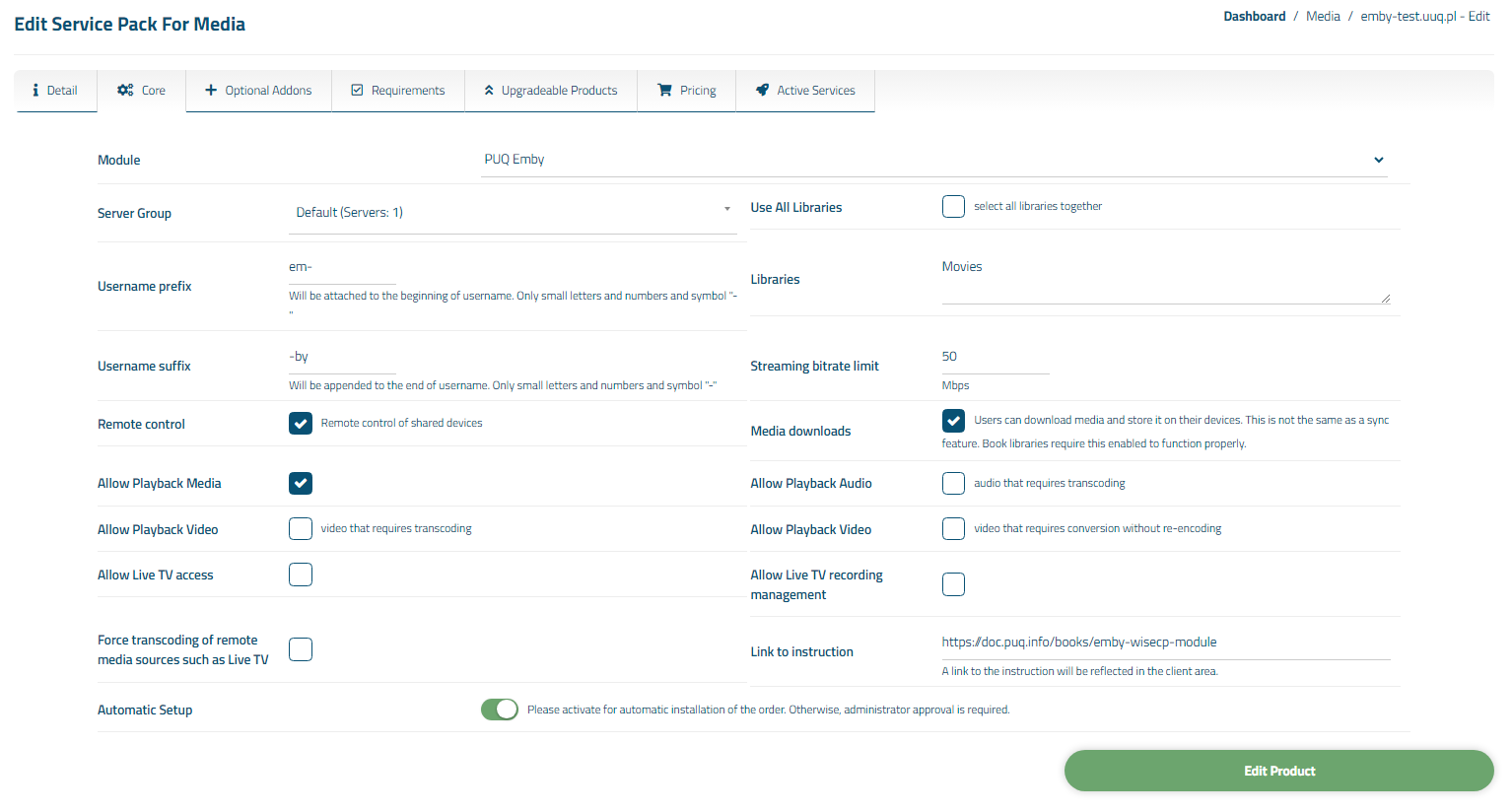](https://doc.puq.info/uploads/images/gallery/2023-11/jwl9.png) ##### 4. Fill in the configuration options according to your preferences. ##### Libraries:If you leave the field empty, Emby Connect will be disabled.
Register the email in **[Emby Connect](https://emby.media/connect.html).**
One Emby Connect username can only be linked to one Emby account.
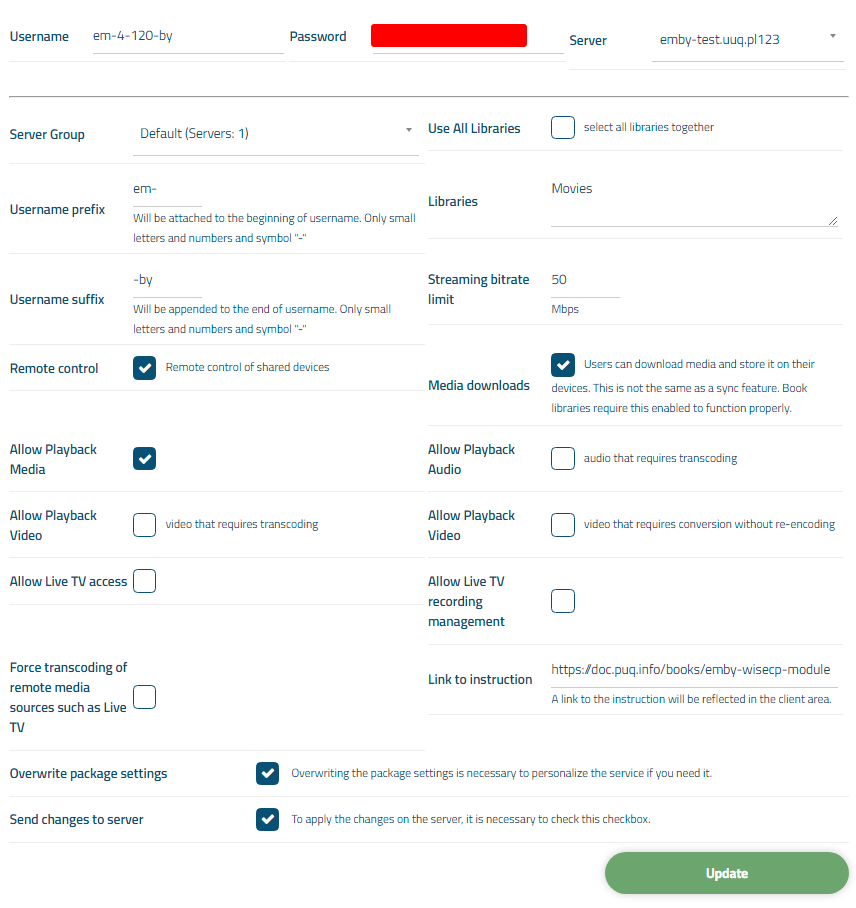
[](https://doc.puq.info/uploads/images/gallery/2024-07/image-1720004547241.png) [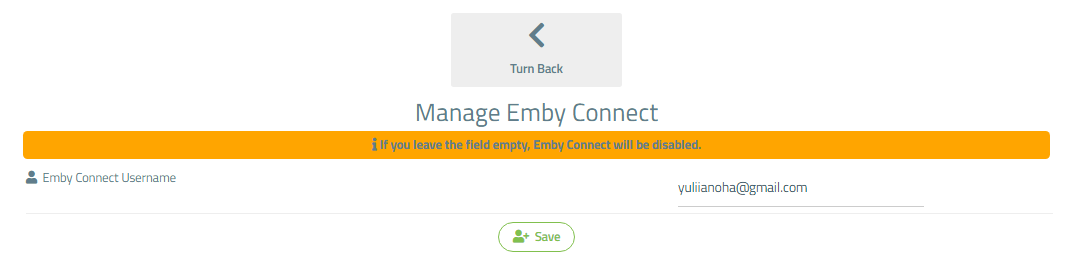](https://doc.puq.info/uploads/images/gallery/2024-07/image-1720004578016.png) # Admin Area # Order Detail ### Emby module **[WISECP](https://puqcloud.com/link.php?id=78)** ##### [Order now](https://puqcloud.com/index.php?rp=/store/wisecp-module-emby) | [Download](https://download.puqcloud.com/WISECP/Product/PUQ_WISECP-Emby/) | [FAQ](https://faq.puqcloud.com/) ##### Navigate to the service you want to manage, then go to the '**Core**' tab. [](https://doc.puq.info/uploads/images/gallery/2024-07/emby-adminarea.png) In the opened tab, you have a view of the online status of the service. The available online information includes: - Connection status to the API - Information about the Emby account on the **Emby** server - Information about the account Also, below are fields with the client's personal data. You can also individually override package options for the client by checking the '**Overwrite package settings**' box.After modifying the configuration options, check the '**Send changes to server**' box to save the data to the [Emby](https://emby.media/) server.
[](https://doc.puq.info/uploads/images/gallery/2023-11/GXq13.png)