Attention! Requires a properly configured DNS zone for HestiaCP to properly obtain a certificate.
- Enabling and disabling redirect to HTTPS (Enable SSL Force / Disable SSL Force)Attention! Will only work if you have an SSL certificate.
- List of aliases with the ability to delete each - Dropdown list of available backend templates on the server 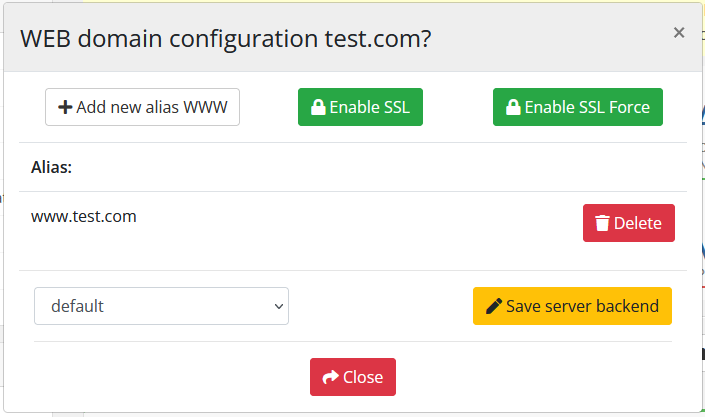Attention! Web domains are the main setting. When creating a new web domain, a DNS zone will be created as well as a Mail domain. Also, if you delete the Web domain, the DNS zone of this domain will be deleted as well as the Mail domain. It also works when Suspend / Unsuspend.
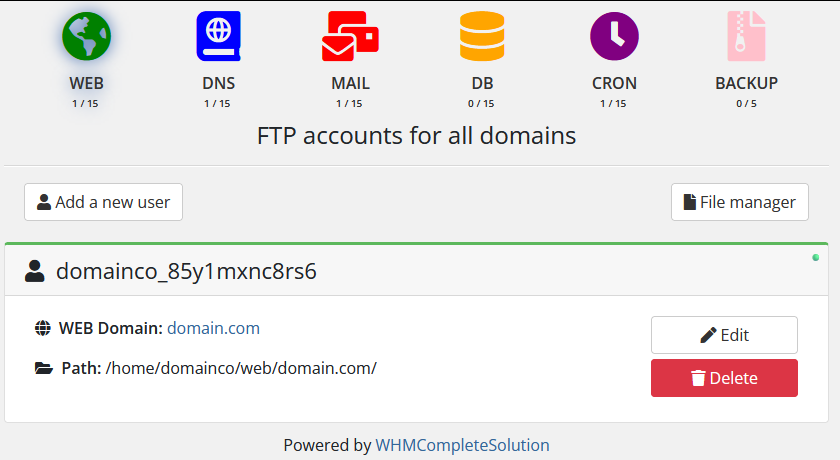
#### WEB domain suspend After clicking on the button, confirmation of the action is available in a pop-up window. [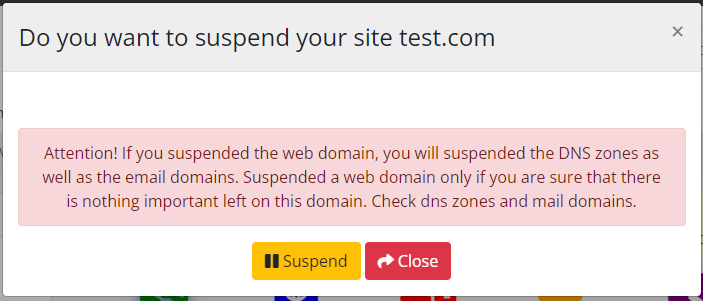](https://doc.puq.info/uploads/images/gallery/2023-04/image-1681290093240.png) #### WEB domain unsuspend After clicking on the button, confirmation of the action is available in a pop-up window. [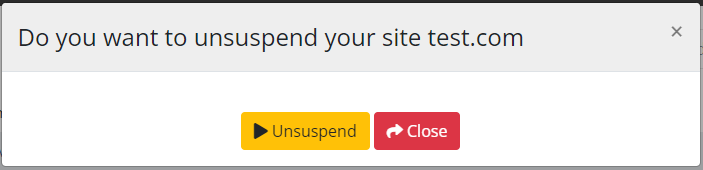](https://doc.puq.info/uploads/images/gallery/2023-04/image-1681290127006.png) #### WEB domain delete After clicking on the button, confirmation of the action is available in a pop-up window. [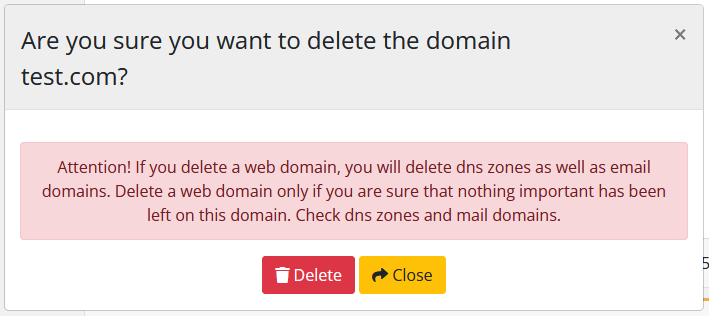](https://doc.puq.info/uploads/images/gallery/2022-10/image-1666685943210.png) # FTP user management section ### HestiaCP module **[WHMCS](https://puqcloud.com/link.php?id=77)** ##### [Order now](https://puqcloud.com/whmcs-module-hestiacp.php) | [Download](https://download.puqcloud.com/WHMCS/servers/PUQ_WHMCS-HestiaCP/) | [FAQ](https://faq.puqcloud.com/) #### 1. Simple configuration of FTP users The end client, having entered the FTP user management section of the client panel, has access to the following information and parameters: - Navigation bar and status information on each card. - Button to go to add a new user - Button to go to File manager - Cards with information about each FTP user - Username - Domain name status to which this user is associated in the system HestiaCP is suspended or not suspended (Active)[](https://doc.puq.info/uploads/images/gallery/2023-03/image-1678190073107.png) - The domain name to which this user is associated - Link to go to the site - Link to access users settings for a specific domain - IP Address - Buttons for managing FTP user - Edit - DeleteAttention! If the WEB domain is suspended, users of the domain name will also be suspended.
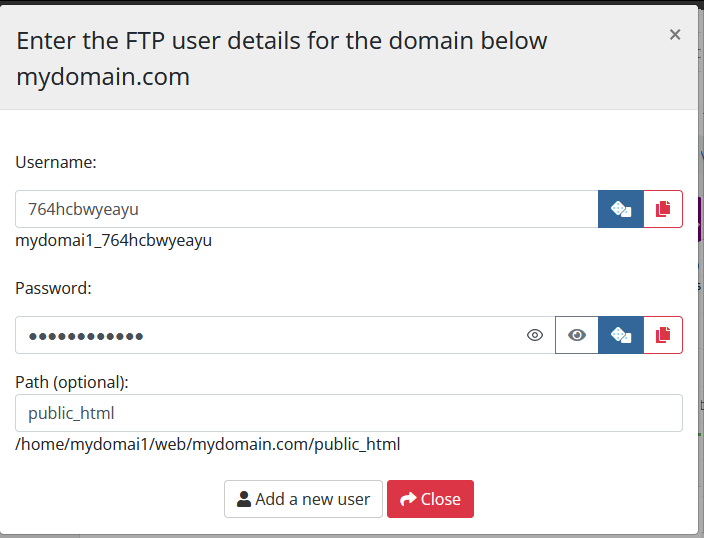
[](https://doc.puq.info/uploads/images/gallery/2024-03/image-1710848707303.png) ##### Adding a new FTP user After clicking on the button in the pop-up window, you must select the domain name to which you want to add a new FTP user. The username and password will be randomly generated. [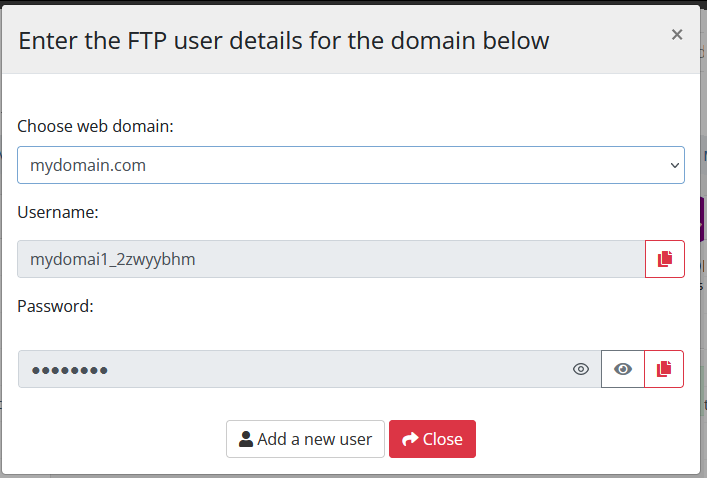](https://doc.puq.info/uploads/images/gallery/2024-07/image-1719922565687.png) ##### FTP user editing After clicking on the button, the following configuration is available in the pop-up window: [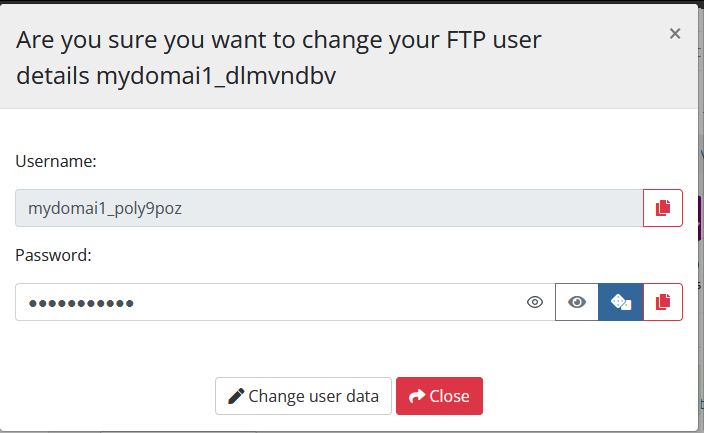](https://doc.puq.info/uploads/images/gallery/2024-07/image-1719922599107.png) ##### FTP user delete After clicking on the button, confirmation of the action is available in a pop-up window. [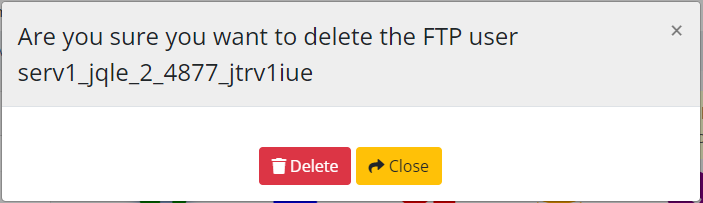](https://doc.puq.info/uploads/images/gallery/2023-04/image-1681290366731.png) #### 2. For each domain User FTP Configuration The section that displays FTP users for each domain has a little more settings and options. In this section, it is possible to enter a username and password, as well as specify the target folder to which this FTP user will have access. The end client, having entered the FTP user management advanced section of the client panel, has access to the following information and parameters: - Navigation bar and status information on each card. - Button to go to add a new user - Cards with information about each FTP user - Username - The domain name to which this user is associated - Destination folder path for user - Edit - Delete [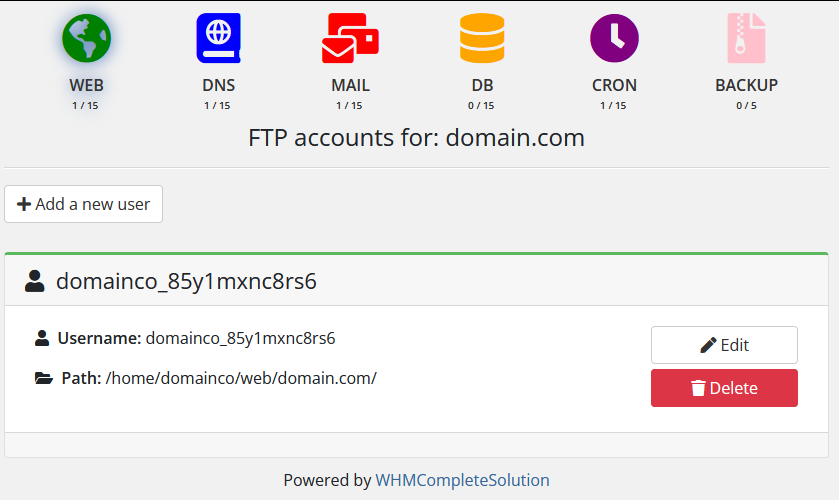](https://doc.puq.info/uploads/images/gallery/2024-03/image-1710848792977.png) ##### Adding a new FTP user (Advanced) After clicking on the button in the pop-up window, you must enter the username and password, as well as specify the final path (optional).Attention! If the folder does not exist, the user will not be able to connect to the system, so the entered path is checked for compliance, and if the path is not found, the user will be deleted immediately after the creation attempt.
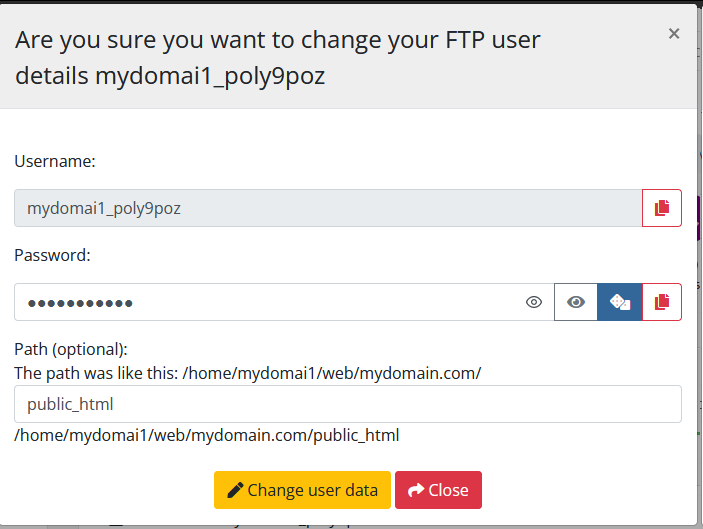
[](https://doc.puq.info/uploads/images/gallery/2024-07/image-1719922712350.png) ##### FTP user editing (Advanced) After clicking on the button, the following configuration is available in the pop-up window: - Password change - Change of pathAttention! If the path is not found, then the folder path for the user will be automatically reset to the root of the domain.
[](https://doc.puq.info/uploads/images/gallery/2024-07/image-1719922678646.png) ##### FTP user delete (Advanced) After clicking on the button, confirmation of the action is available in a pop-up window. [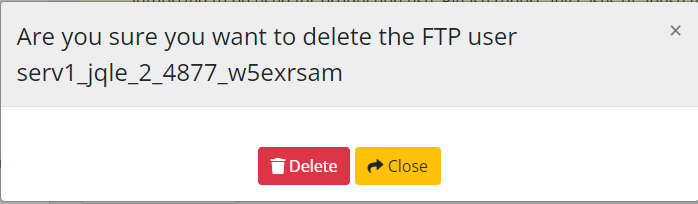](https://doc.puq.info/uploads/images/gallery/2023-04/image-1681290494496.png) # DNS section ### HestiaCP module **[WHMCS](https://puqcloud.com/link.php?id=77)** ##### [Order now](https://puqcloud.com/whmcs-module-hestiacp.php) | [Download](https://download.puqcloud.com/WHMCS/servers/PUQ_WHMCS-HestiaCP/) | [FAQ](https://faq.puqcloud.com/) The end client, having entered the DNS section of the client panel, has access to the following information and parameters: - Navigation bar and status information on each card. - Button to go to add a new domain - Button to go to FTP user management - Cards with information about the client's WEB domains - DNS zone name - DNS zone status in the system HestiaCP is suspended or not suspended (Active)[](https://doc.puq.info/uploads/images/gallery/2023-03/image-1678190199431.png) - IP Address - SOA - TTL - Number of records in the domain zone - Expiration Date - Time and date the entry was created - Buttons for managing DNS zone - Button to go to the page with domain zone records - Edit - Suspend / Unsuspend - Delete [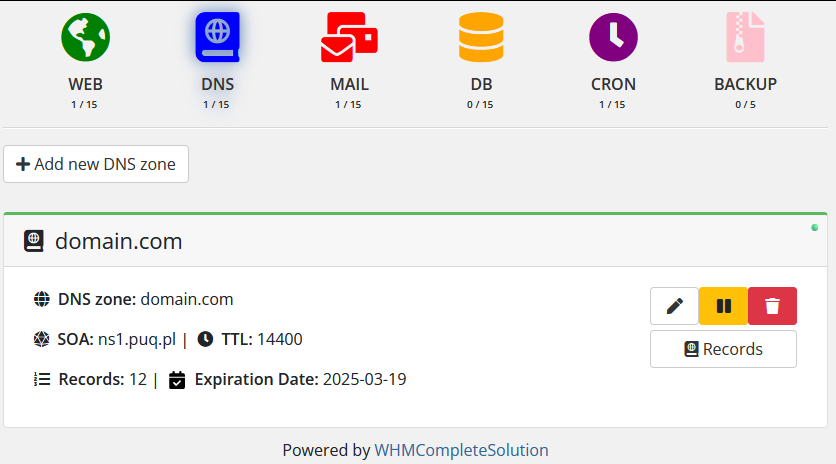](https://doc.puq.info/uploads/images/gallery/2024-03/image-1710848844533.png) #### Adding a new DNS zone After clicking on the button in the pop-up window, you must enter the name of the domain for which you want to create a domain zone, IP Address, Nameservers (up to 10). [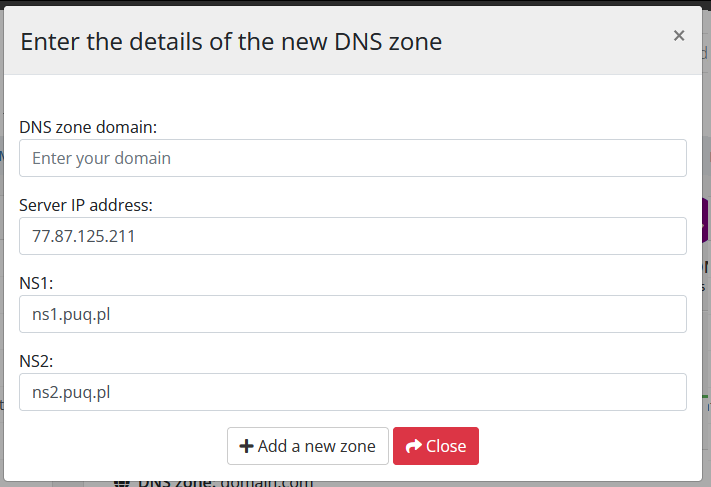](https://doc.puq.info/uploads/images/gallery/2024-03/image-1710848866958.png) #### DNS zone editing After clicking on the button, the following configuration is available in the pop-up window: - IP Address - SOA - TTL - Expiration Date [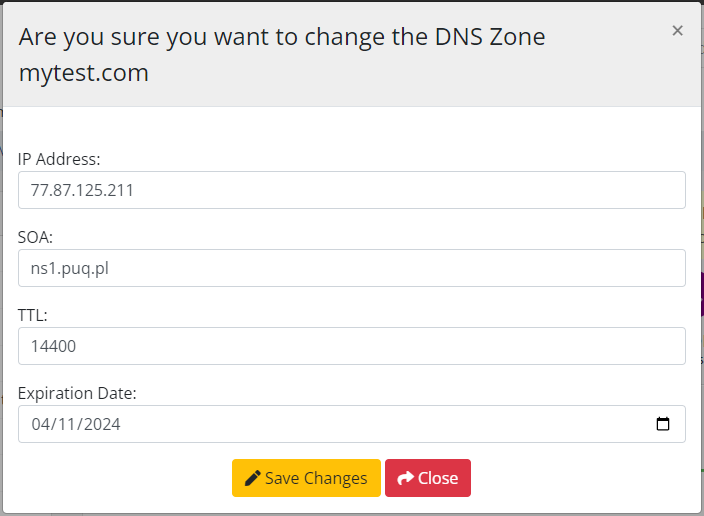](https://doc.puq.info/uploads/images/gallery/2023-04/image-1681293785505.png) #### DNS zone suspend After clicking on the button, confirmation of the action is available in a pop-up window. [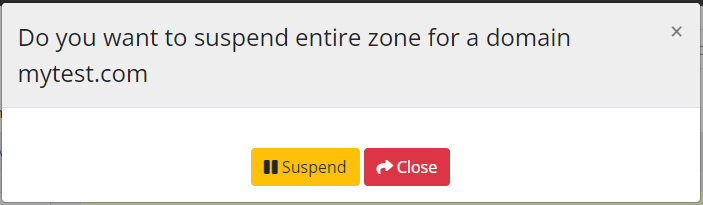](https://doc.puq.info/uploads/images/gallery/2023-04/image-1681293809928.png) #### DNS zone unsuspend After clicking on the button, confirmation of the action is available in a pop-up window. [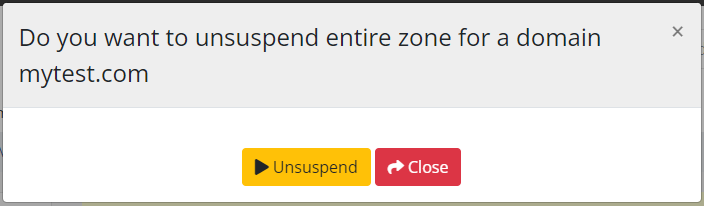](https://doc.puq.info/uploads/images/gallery/2023-04/image-1681293832417.png) #### DNS zone delete After clicking on the button, confirmation of the action is available in a pop-up window. [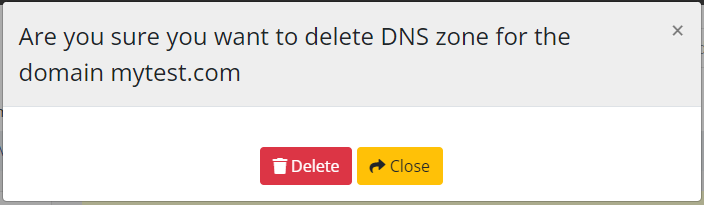](https://doc.puq.info/uploads/images/gallery/2023-04/image-1681293847126.png)If when creating domain zones you see: **Error: DNS\_RECORDS limit is reached :: upgrade user package**. This means that a limit has been set. When setting limits, take into account the number of standard DNS records, by default this value is 15 records.
# DNS Records section ### HestiaCP module **[WHMCS](https://puqcloud.com/link.php?id=77)** ##### [Order now](https://puqcloud.com/whmcs-module-hestiacp.php) | [Download](https://download.puqcloud.com/WHMCS/servers/PUQ_WHMCS-HestiaCP/) | [FAQ](https://faq.puqcloud.com/) The end client, having entered the DNS Records section of the client panel, has access to the following information and parameters: - Navigation bar and status information on each card. - Button to go to add a new DNS record - Cards with information about the client's DNS records - Record - DNS record status in the system HestiaCP is suspended or not suspended (Active)[](https://doc.puq.info/uploads/images/gallery/2023-03/image-1678196214392.png) - Value - Type - TTL - Time and date the entry was created - Buttons for managing DNS record - Edit - Suspend / Unsuspend - Delete [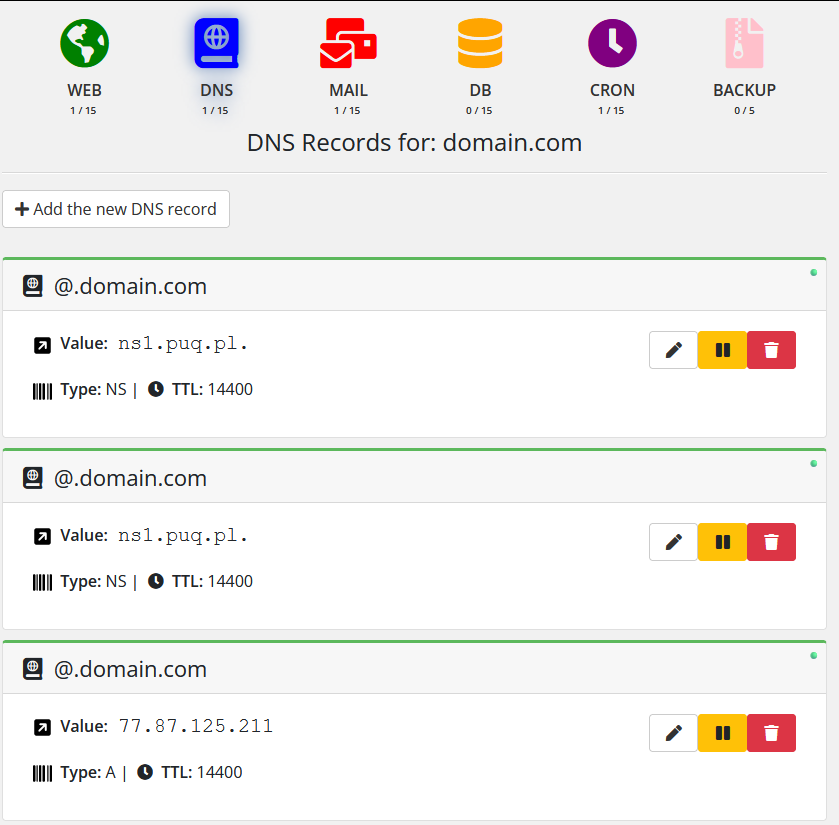](https://doc.puq.info/uploads/images/gallery/2024-03/image-1710849105933.png) #### Adding a new DNS record After clicking on the button in the pop-up window, you must enter the record, type, value that you want to add. [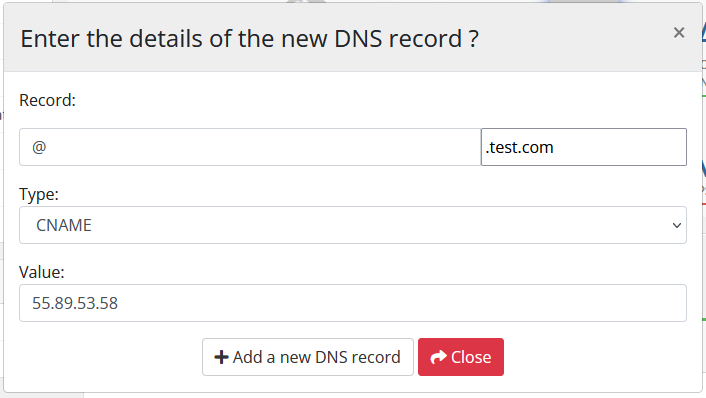](https://doc.puq.info/uploads/images/gallery/2022-10/image-1666650461502.png) #### DNS record editing After clicking on the button, the following configuration is available in the pop-up window: - Record - Type - Value - TTL [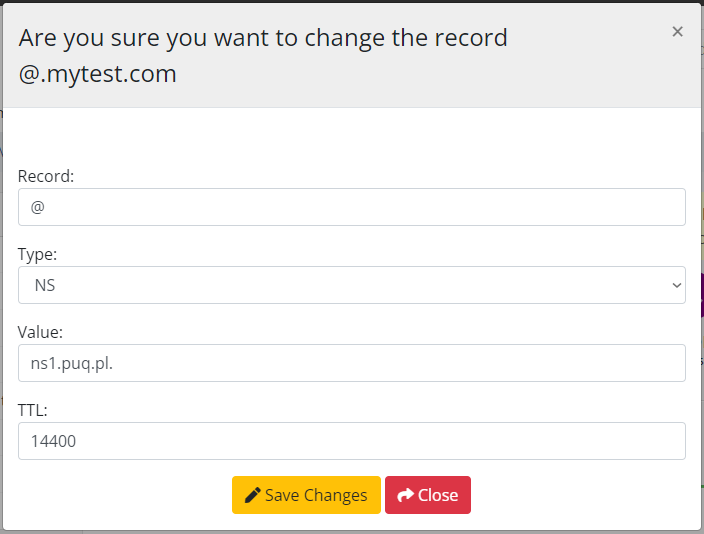](https://doc.puq.info/uploads/images/gallery/2023-04/image-1681293917312.png) #### DNS record suspend After clicking on the button, confirmation of the action is available in a pop-up window. [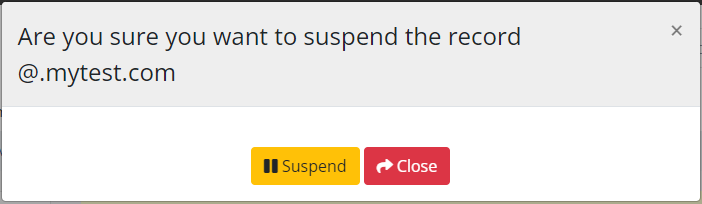](https://doc.puq.info/uploads/images/gallery/2023-04/image-1681293944673.png) #### DNS record unsuspend After clicking on the button, confirmation of the action is available in a pop-up window. [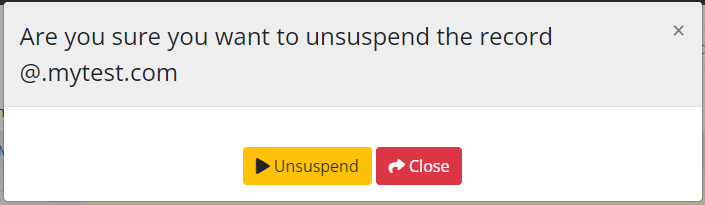](https://doc.puq.info/uploads/images/gallery/2023-04/image-1681293963874.png) #### DNS record delete After clicking on the button, confirmation of the action is available in a pop-up window. [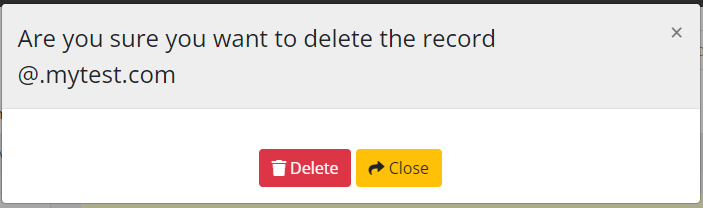](https://doc.puq.info/uploads/images/gallery/2023-04/image-1681293986473.png) # MAIL section ### HestiaCP module **[WHMCS](https://puqcloud.com/link.php?id=77)** ##### [Order now](https://puqcloud.com/whmcs-module-hestiacp.php) | [Download](https://download.puqcloud.com/WHMCS/servers/PUQ_WHMCS-HestiaCP/) | [FAQ](https://faq.puqcloud.com/) The end client, having entered the MAIL section of the client panel, has access to the following information and parameters: - Navigation bar and status information on each card. - Button to go to add a new mail domain - Cards with information about the client's mail domains - Mail domain name - Button to go to WebMail - SSL certificate status [ ](https://doc.puq.info/uploads/images/gallery/2023-04/image-1681294060547.png) - Mail domain name status in the system HestiaCP is suspended or not suspended (Active)[](https://doc.puq.info/uploads/images/gallery/2023-03/image-1678190330222.png) - Number of email accounts in the domain - Antivirus - Antispam - Reject Spam - DKIM - Disk Space (Size) - Time and date the entry was created - Buttons for managing mail domain - Button to go to the domain mail account management page - Edit - Suspend / Unsuspend - Delete [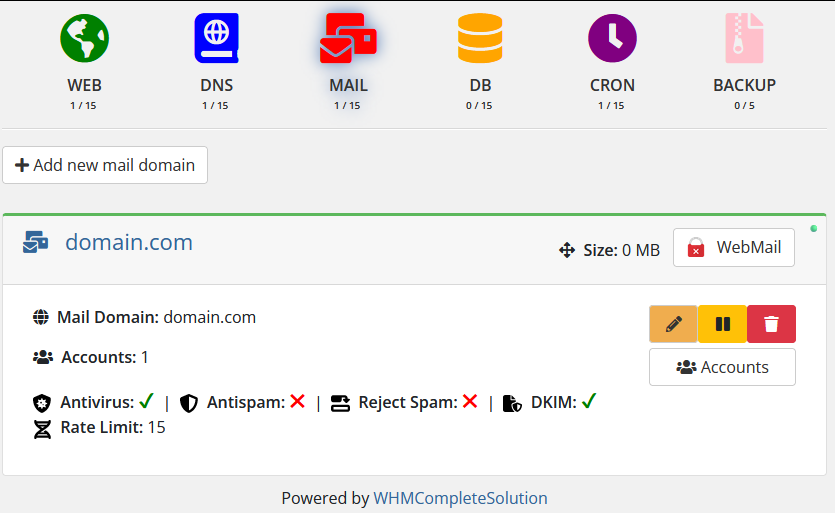](https://doc.puq.info/uploads/images/gallery/2024-03/image-1710849229957.png) #### Adding a new mail domain After clicking on the button in the pop-up window, you must enter the name of the email domain you want to add, as well as set additional parameters. [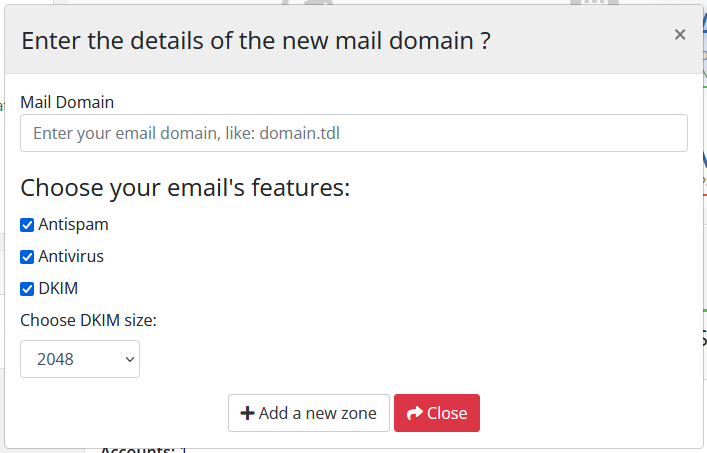](https://doc.puq.info/uploads/images/gallery/2022-10/image-1666684972298.png) #### Mail domain editing After clicking on the button, the following configuration is available in the pop-up window: - Let's Encrypt certificate generation and delete (Enable SSL / Disable SSL)Attention! Requires a properly configured DNS zone for HestiaCP to properly obtain a certificate.
- Antispam - Antivirus - DKIM - Reject Spam - Catch-All Email - Configure SMTP relay [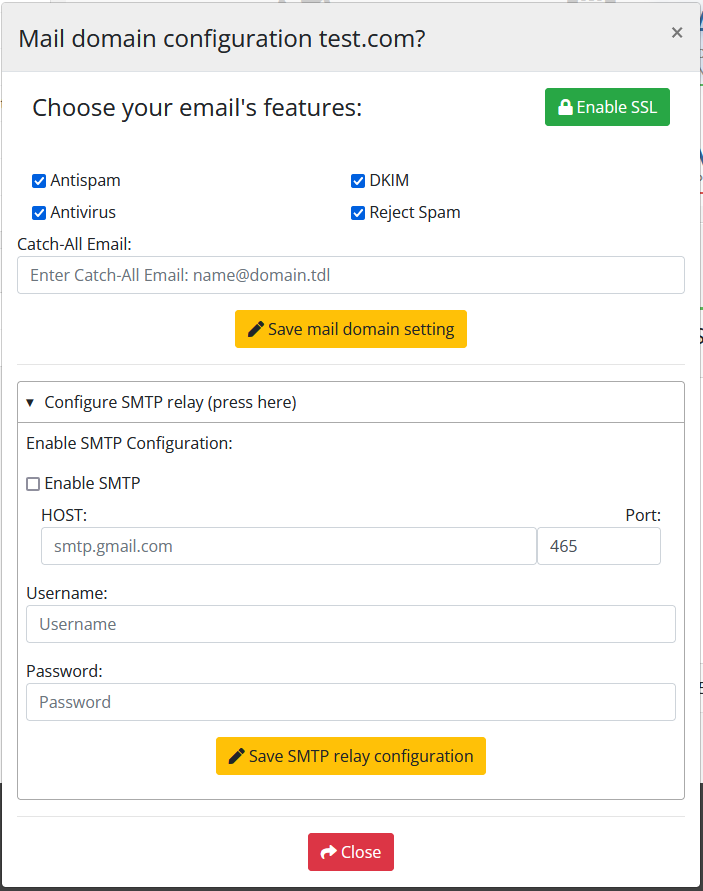](https://doc.puq.info/uploads/images/gallery/2022-10/image-1666685204842.png) #### Mail domain suspend After clicking on the button, confirmation of the action is available in a pop-up window. [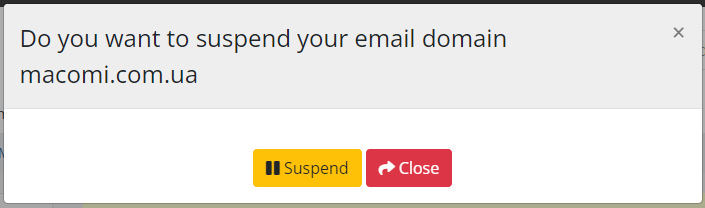](https://doc.puq.info/uploads/images/gallery/2023-04/image-1681294170906.png) #### Mail domain unsuspend After clicking on the button, confirmation of the action is available in a pop-up window. [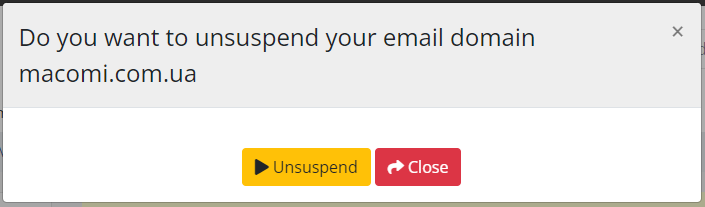](https://doc.puq.info/uploads/images/gallery/2023-04/image-1681294144349.png) #### Mail domain suspend delete After clicking on the button, confirmation of the action is available in a pop-up window. [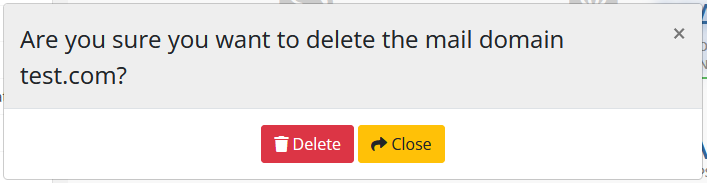](https://doc.puq.info/uploads/images/gallery/2022-10/image-1666685460394.png) # MAIL Account section ### HestiaCP module **[WHMCS](https://puqcloud.com/link.php?id=77)** ##### [Order now](https://puqcloud.com/whmcs-module-hestiacp.php) | [Download](https://download.puqcloud.com/WHMCS/servers/PUQ_WHMCS-HestiaCP/) | [FAQ](https://faq.puqcloud.com/) The end client, having entered the MAIL account section of the client panel, has access to the following information and parameters: - Navigation bar and status information on each card. - Button to go to add a new mail account - Button to go to show domain settings for client connection - Cards with information about the client's mail account - Mail account name - Mail account name status in the system HestiaCP is suspended or not suspended (Active)[](https://doc.puq.info/uploads/images/gallery/2023-03/image-1678190330222.png) - Additional account information - Buttons for managing mail account - Edit - Suspend / Unsuspend - Delete [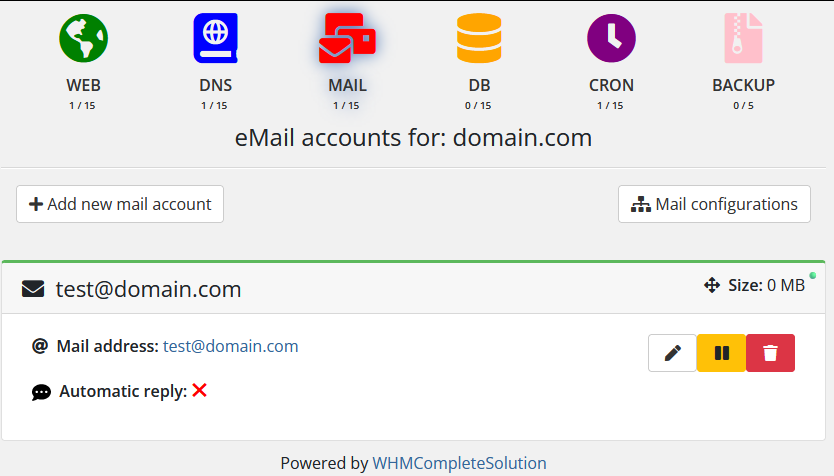](https://doc.puq.info/uploads/images/gallery/2024-03/image-1710849428687.png) #### Adding a new mail account After clicking on the button in the pop-up window, you must enter the name of the email domain you want to add, as well as set additional parameters. [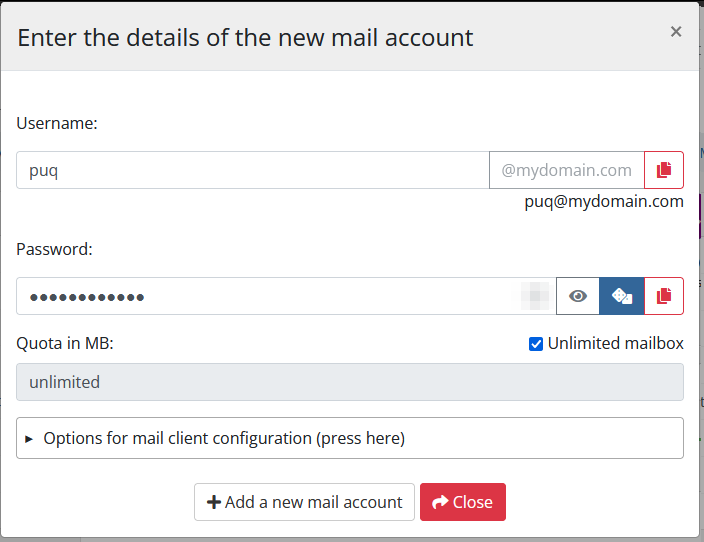](https://doc.puq.info/uploads/images/gallery/2024-07/image-1719922881276.png) #### Mail account editing After clicking on the button, the following configuration is available in the pop-up window: - Forward to...for e-mail account - Aliases for e-mail account - Add auto reply for [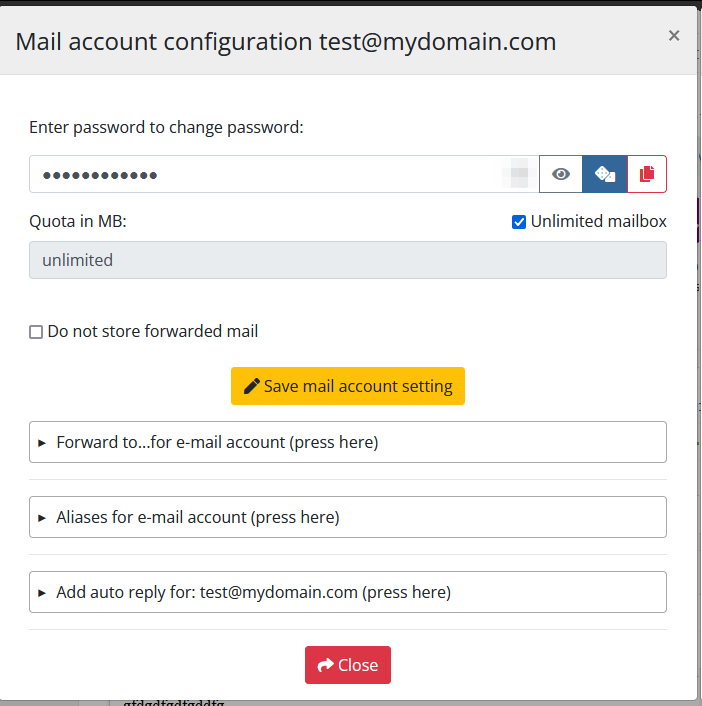](https://doc.puq.info/uploads/images/gallery/2024-07/image-1719922922054.png) #### Mail account suspend After clicking on the button, confirmation of the action is available in a pop-up window. [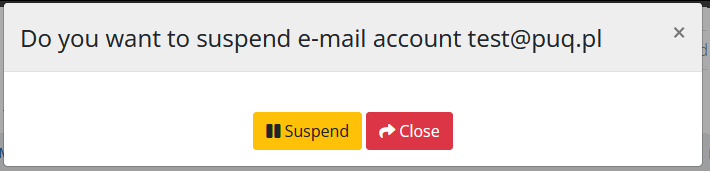](https://doc.puq.info/uploads/images/gallery/2024-03/image-1710852921866.png) #### Mail account unsuspend After clicking on the button, confirmation of the action is available in a pop-up window. [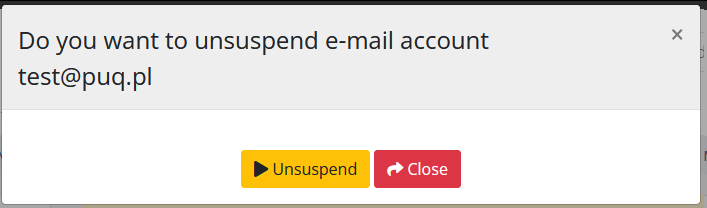](https://doc.puq.info/uploads/images/gallery/2024-03/image-1710852939122.png) #### Mail account suspend delete After clicking on the button, confirmation of the action is available in a pop-up window. [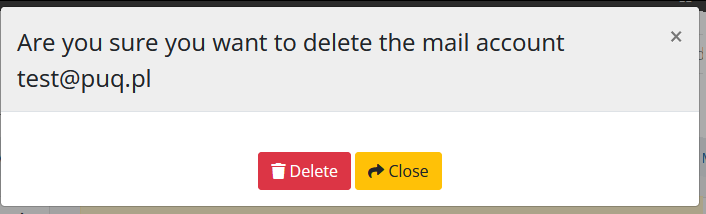](https://doc.puq.info/uploads/images/gallery/2024-03/image-1710852897783.png) # DB section ### HestiaCP module **[WHMCS](https://puqcloud.com/link.php?id=77)** ##### [Order now](https://puqcloud.com/whmcs-module-hestiacp.php) | [Download](https://download.puqcloud.com/WHMCS/servers/PUQ_WHMCS-HestiaCP/) | [FAQ](https://faq.puqcloud.com/) The end client, having entered the DB section of the client panel, has access to the following information and parameters: - Navigation bar and status information on each card. - Button to go to add a new database - Button to go to phpPgAdmin / phpMyAdmin - Cards with information about the client's databases - Database name - Database status in the system HestiaCP is suspended or not suspended (Active)[](https://doc.puq.info/uploads/images/gallery/2023-03/image-1678190390971.png) - Username - Type - Charset - Host - Disk Space (Size) - Time and date the entry was created - Buttons for managing database - Edit - Suspend / Unsuspend - Delete [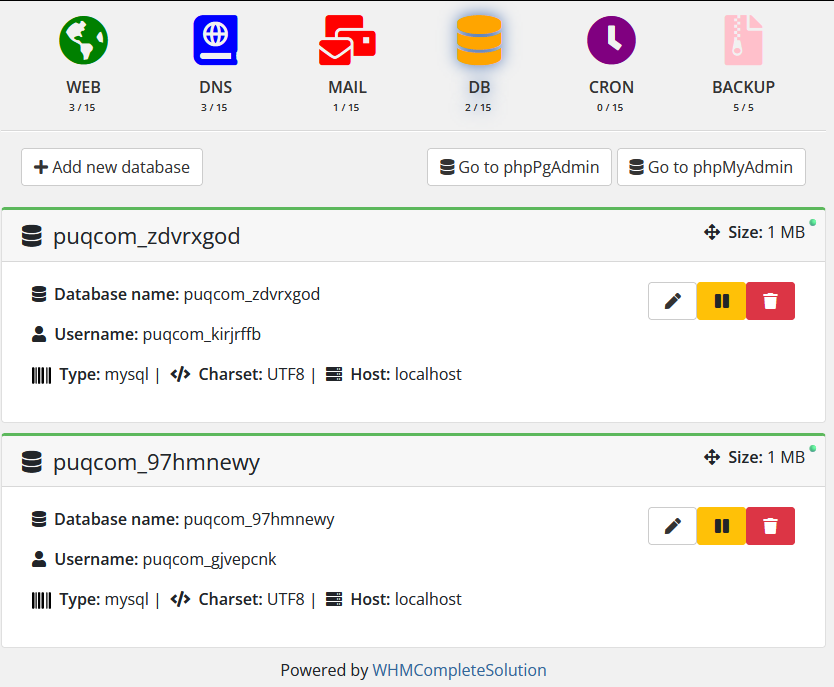](https://doc.puq.info/uploads/images/gallery/2024-03/image-1710852989011.png) #### Adding a new database After clicking on the button, a pop-up window will offer random data to create a database, as well as the user has the opportunity to enter their own values in the advanced section. [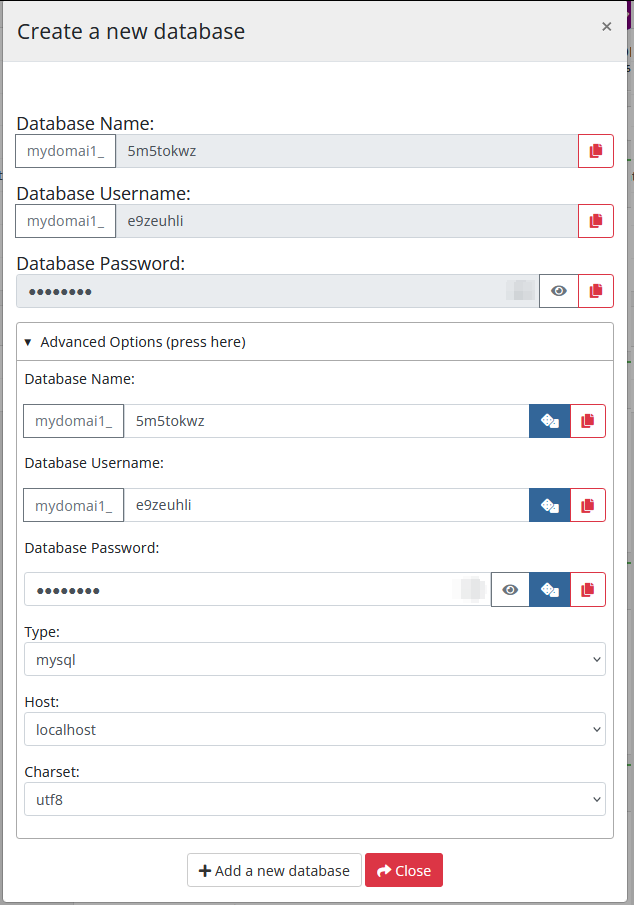](https://doc.puq.info/uploads/images/gallery/2024-07/image-1719923002500.png) #### Database editing After clicking on the button, the following configuration is available in the pop-up window: - Database Username - Database Password [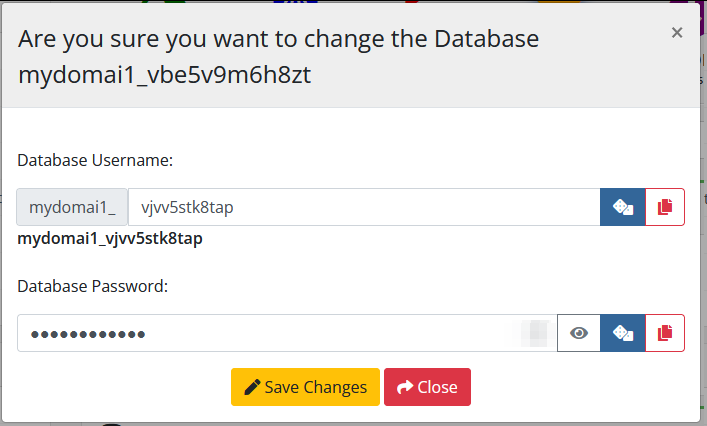](https://doc.puq.info/uploads/images/gallery/2024-07/image-1719923039958.png) #### Database suspend After clicking on the button, confirmation of the action is available in a pop-up window. [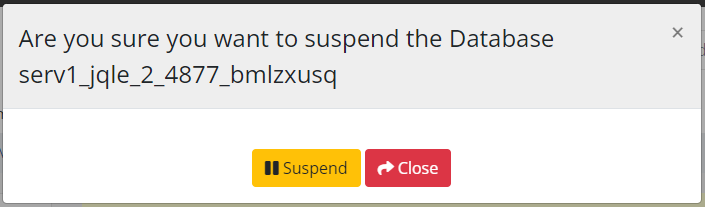](https://doc.puq.info/uploads/images/gallery/2023-04/image-1681294244422.png) #### Database unsuspend After clicking on the button, confirmation of the action is available in a pop-up window. [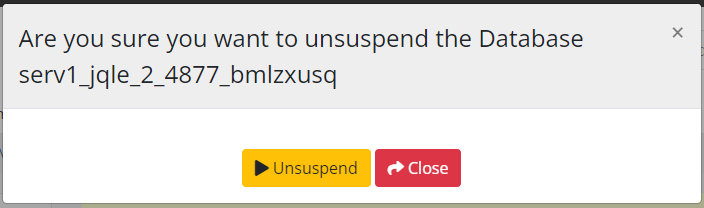](https://doc.puq.info/uploads/images/gallery/2023-04/image-1681294265978.png) #### Database delete After clicking on the button, confirmation of the action is available in a pop-up window. [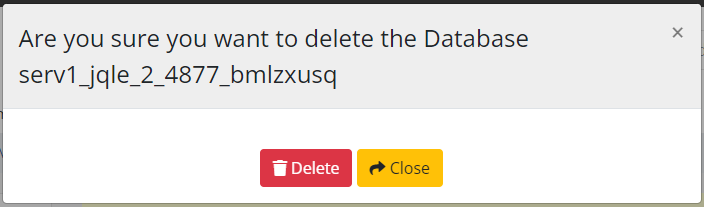](https://doc.puq.info/uploads/images/gallery/2023-04/image-1681294283455.png) # Cron Job section ### HestiaCP module **[WHMCS](https://puqcloud.com/link.php?id=77)** ##### [Order now](https://puqcloud.com/whmcs-module-hestiacp.php) | [Download](https://download.puqcloud.com/WHMCS/servers/PUQ_WHMCS-HestiaCP/) | [FAQ](https://faq.puqcloud.com/) The end client, having entered the MAIL section of the client panel, has access to the following information and parameters: - Navigation bar and status information on each card. - Button to go to add a new Cron Job - Cards with information about the client's Cron Jobs - Cron Job number - Cron Job status in the system HestiaCP is suspended or not suspended (Active)[](https://doc.puq.info/uploads/images/gallery/2023-03/image-1678190467849.png) - Command - Minute - Hour - Day - Month - Day of Week - Time and date the entry was created - Buttons for managing Cron Jobs - Edit - Suspend / Unsuspend - Delete [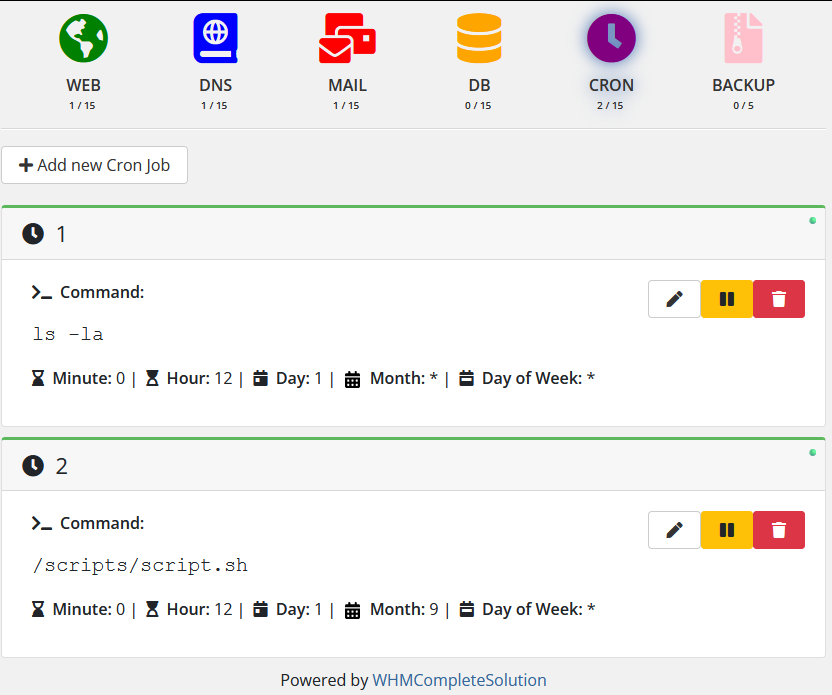](https://doc.puq.info/uploads/images/gallery/2024-03/image-1710853143228.png) #### Adding a new Cron Job After clicking on the button in the pop-up window, you must enter the command to be executed, as well as the time interval, to facilitate the execution of the action, a convenient generator is provided. [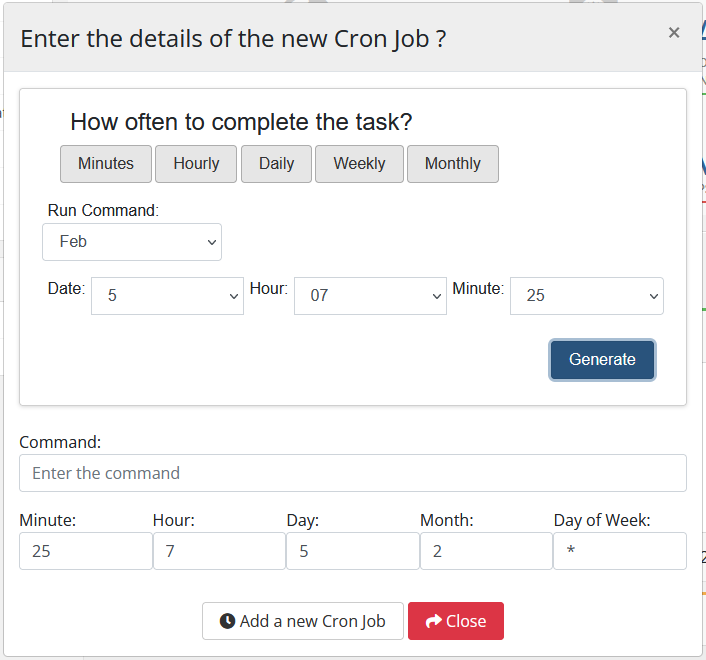](https://doc.puq.info/uploads/images/gallery/2022-10/image-1666690340332.png) #### Cron Job editing After clicking on the button, the following configuration is available in the pop-up window: - Scheduled Task Generator - Command - Minute - Hour - Day - Month - Day of Week [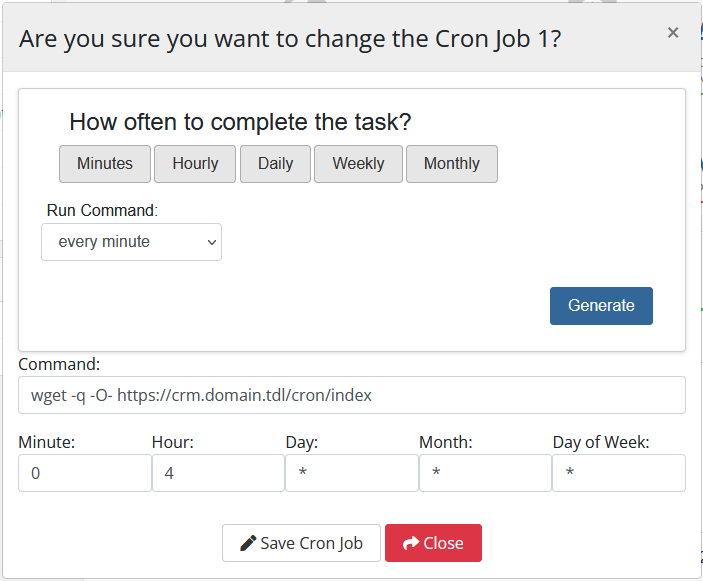](https://doc.puq.info/uploads/images/gallery/2022-10/image-1666690583514.png) #### Cron Job suspend After clicking on the button, confirmation of the action is available in a pop-up window. [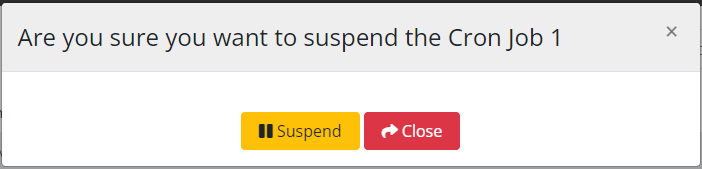](https://doc.puq.info/uploads/images/gallery/2023-04/image-1681289857618.png) #### Cron Job unsuspend After clicking on the button, confirmation of the action is available in a pop-up window. [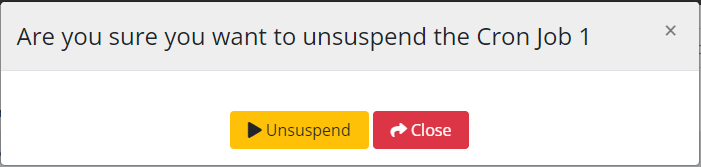](https://doc.puq.info/uploads/images/gallery/2023-04/image-1681289882285.png) #### Cron Job delete After clicking on the button, confirmation of the action is available in a pop-up window. [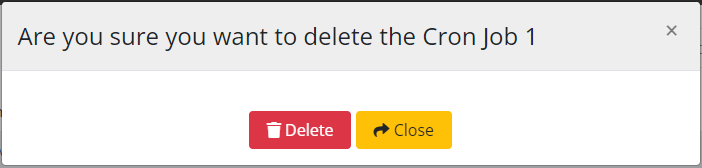](https://doc.puq.info/uploads/images/gallery/2023-04/image-1681289906071.png) # BACKUP section ### HestiaCP module **[WHMCS](https://puqcloud.com/link.php?id=77)** ##### [Order now](https://puqcloud.com/whmcs-module-hestiacp.php) | [Download](https://download.puqcloud.com/WHMCS/servers/PUQ_WHMCS-HestiaCP/) | [FAQ](https://faq.puqcloud.com/) The end client, having entered the BACKUP section of the client panel, has access to the following information and parameters: - Navigation bar and status information on each card. - Button to go to add a new backup - Cards with information about the client's backups - Backup name - User directories - Web sites - DNS zones - Databases - Disk Space (Size) - Time and date the entry was created - Buttons for managing backups - Download - Restore - Delete [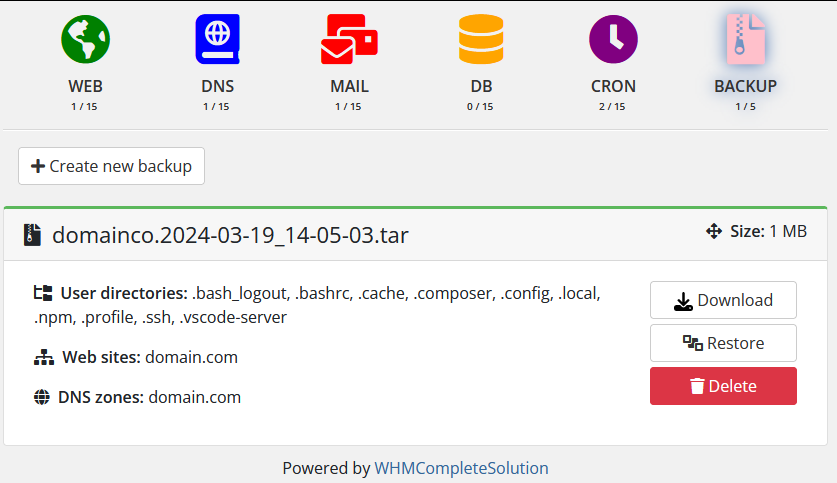](https://doc.puq.info/uploads/images/gallery/2024-03/image-1710853677001.png) #### Adding a new backup After clicking on the button, confirmation of the action is available in a pop-up window. [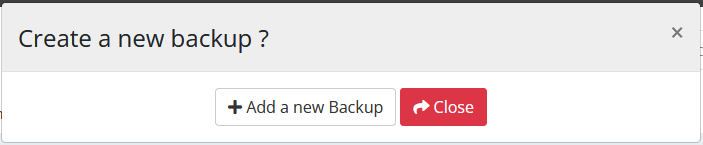](https://doc.puq.info/uploads/images/gallery/2022-10/image-1666691227889.png) #### Backup restore After clicking on the button, confirmation of the action is available in a pop-up window. [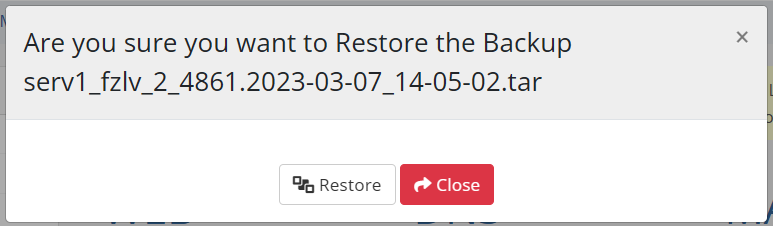](https://doc.puq.info/uploads/images/gallery/2023-03/image-1678190765909.png) #### Backup delete After clicking on the button, confirmation of the action is available in a pop-up window. [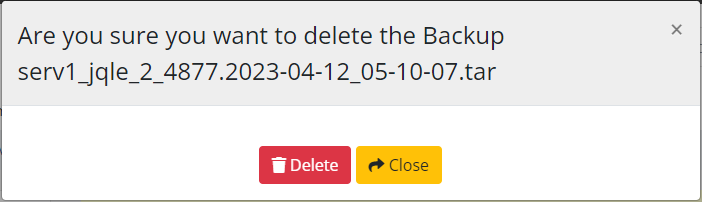](https://doc.puq.info/uploads/images/gallery/2023-04/image-1681289965432.png)