Attention! If the WEB domain is suspended, users of the domain name will also be suspended.
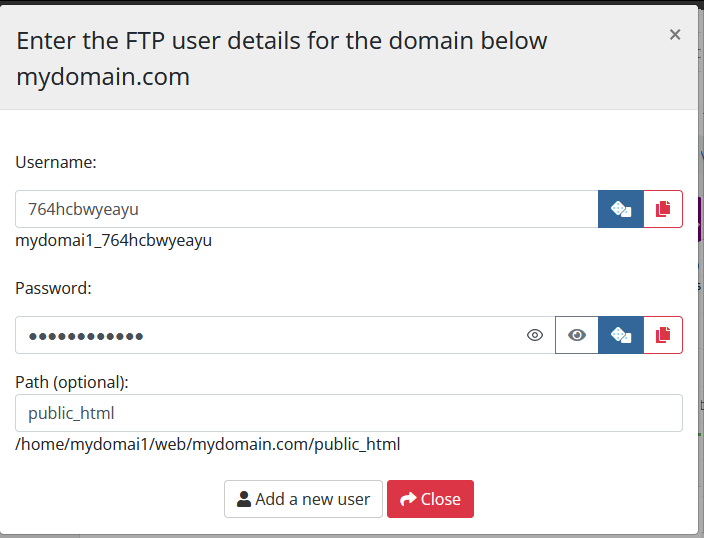
[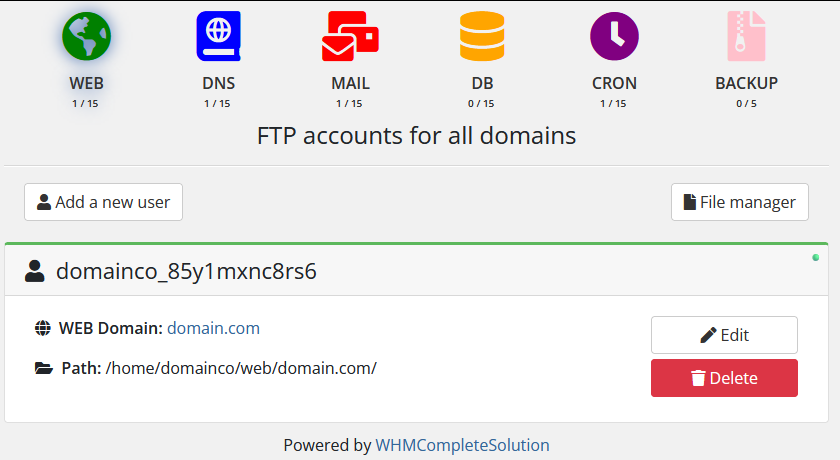](https://doc.puq.info/uploads/images/gallery/2024-03/image-1710848707303.png) ##### Adding a new FTP user After clicking on the button in the pop-up window, you must select the domain name to which you want to add a new FTP user. The username and password will be randomly generated. [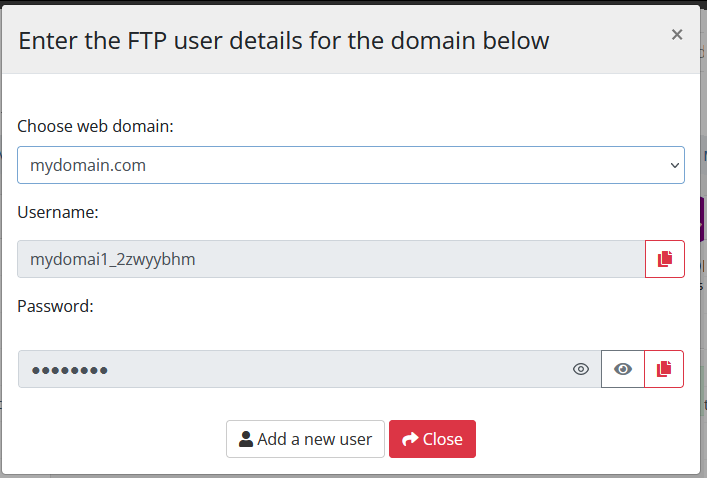](https://doc.puq.info/uploads/images/gallery/2024-07/image-1719922565687.png) ##### FTP user editing After clicking on the button, the following configuration is available in the pop-up window: [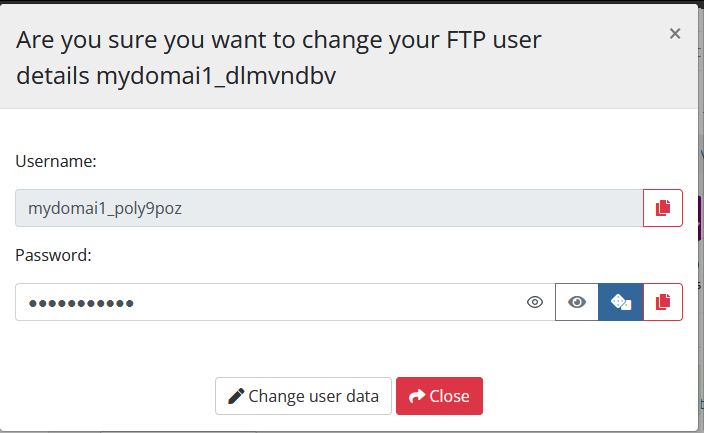](https://doc.puq.info/uploads/images/gallery/2024-07/image-1719922599107.png) ##### FTP user delete After clicking on the button, confirmation of the action is available in a pop-up window. [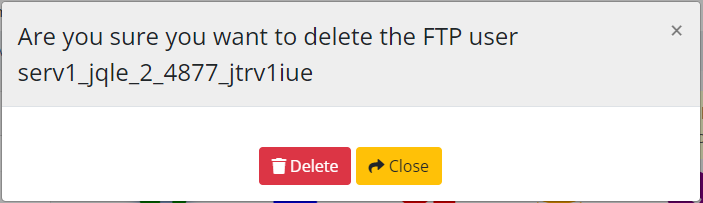](https://doc.puq.info/uploads/images/gallery/2023-04/image-1681290366731.png) #### 2. For each domain User FTP Configuration The section that displays FTP users for each domain has a little more settings and options. In this section, it is possible to enter a username and password, as well as specify the target folder to which this FTP user will have access. The end client, having entered the FTP user management advanced section of the client panel, has access to the following information and parameters: - Navigation bar and status information on each card. - Button to go to add a new user - Cards with information about each FTP user - Username - The domain name to which this user is associated - Destination folder path for user - Edit - Delete [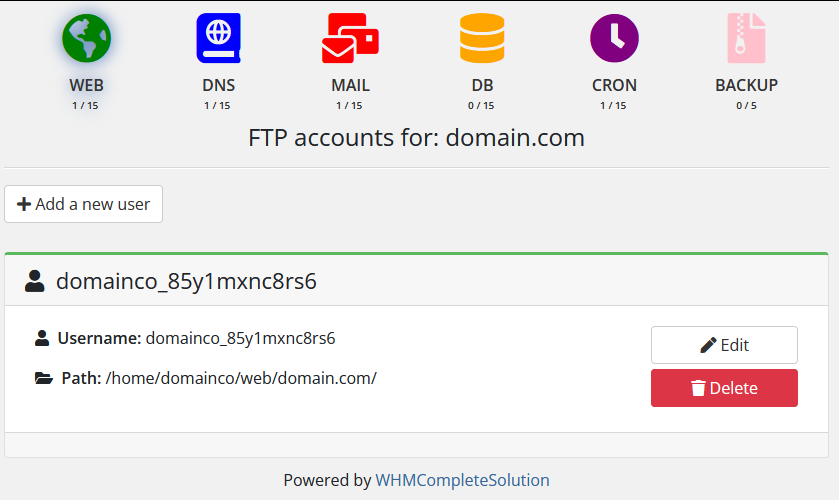](https://doc.puq.info/uploads/images/gallery/2024-03/image-1710848792977.png) ##### Adding a new FTP user (Advanced) After clicking on the button in the pop-up window, you must enter the username and password, as well as specify the final path (optional).Attention! If the folder does not exist, the user will not be able to connect to the system, so the entered path is checked for compliance, and if the path is not found, the user will be deleted immediately after the creation attempt.
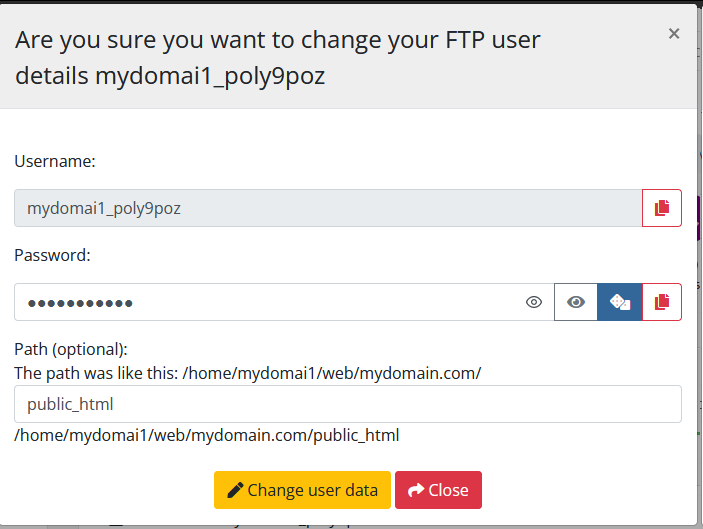
[](https://doc.puq.info/uploads/images/gallery/2024-07/image-1719922712350.png) ##### FTP user editing (Advanced) After clicking on the button, the following configuration is available in the pop-up window: - Password change - Change of pathAttention! If the path is not found, then the folder path for the user will be automatically reset to the root of the domain.
[](https://doc.puq.info/uploads/images/gallery/2024-07/image-1719922678646.png) ##### FTP user delete (Advanced) After clicking on the button, confirmation of the action is available in a pop-up window. [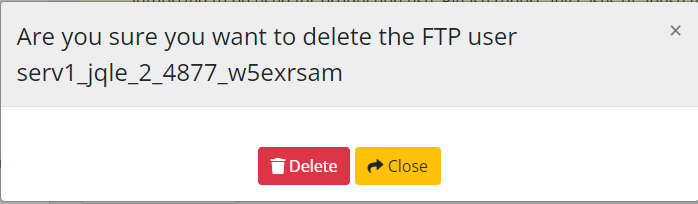](https://doc.puq.info/uploads/images/gallery/2023-04/image-1681290494496.png)