# WEB section
### HestiaCP module **[WHMCS](https://puqcloud.com/link.php?id=77)**
##### [Order now](https://puqcloud.com/whmcs-module-hestiacp.php) | [Download](https://download.puqcloud.com/WHMCS/servers/PUQ_WHMCS-HestiaCP/) | [FAQ](https://faq.puqcloud.com/)
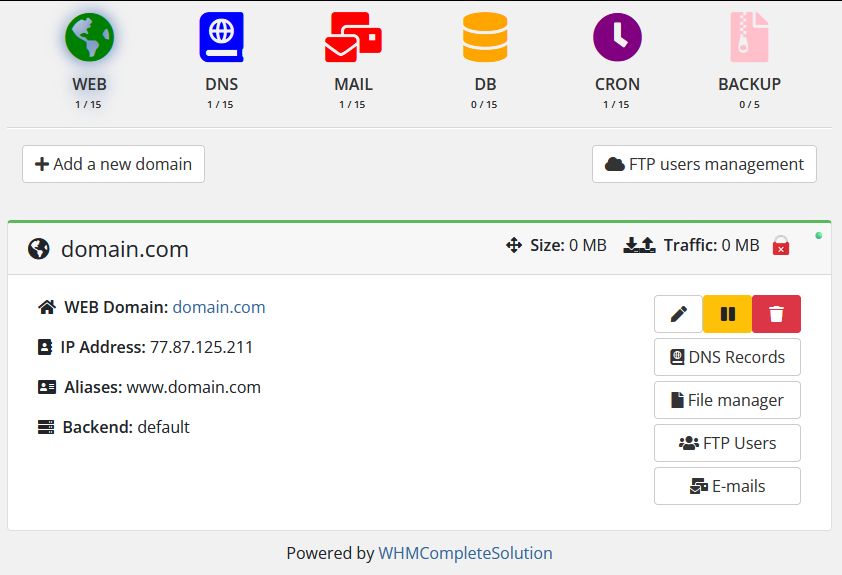
The end client, having entered the WEB section of the client panel, has access to the following information and parameters:
- Navigation bar and status information on each card.
- Button to go to add a new domain
- Button to go to FTP user management
- Cards with information about the client's WEB domains
- Domain name
- SSL certificate status [](https://doc.puq.info/uploads/images/gallery/2023-04/image-1681293696912.png)
- Domain name status in the system HestiaCP is suspended or not suspended (Active)[](https://doc.puq.info/uploads/images/gallery/2023-03/image-1678190018521.png)
- IP Address
- Aliases
- Backend
- Disk Space (Size)
- Bandwidth (Traffic)
- Button to go to domain DNS zone settings
- Button to go to the root of the site (if you have enabled and configured the file manager)
- Button to go to the mail domain management section
- Buttons for managing WEB domain
- Edit
- Suspend / Unsuspend
- Delete
[](https://doc.puq.info/uploads/images/gallery/2024-03/image-1710848433739.png)
#### Adding a new WEB domain
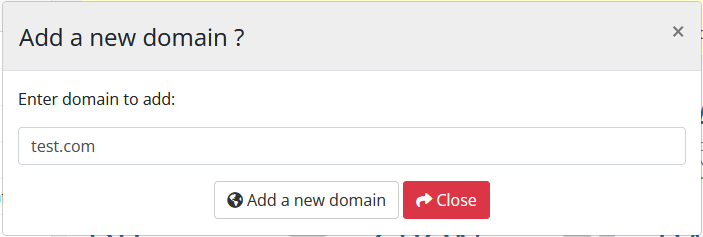
After clicking on the button in the pop-up window, you must enter the name of the domain that you want to add. DNS Zones and Mail Domain will also be created
[](https://doc.puq.info/uploads/images/gallery/2022-10/image-1666617427556.png)
#### WEB domain editing
After clicking on the button, the following configuration is available in the pop-up window:
- Adding a WWW Alias
- Let's Encrypt certificate generation and delete (Enable SSL / Disable SSL)
Attention! Requires a properly configured DNS zone for HestiaCP to properly obtain a certificate.
- Enabling and disabling redirect to HTTPS (Enable SSL Force / Disable SSL Force) Attention! Will only work if you have an SSL certificate.
- List of aliases with the ability to delete each
- Dropdown list of available backend templates on the server
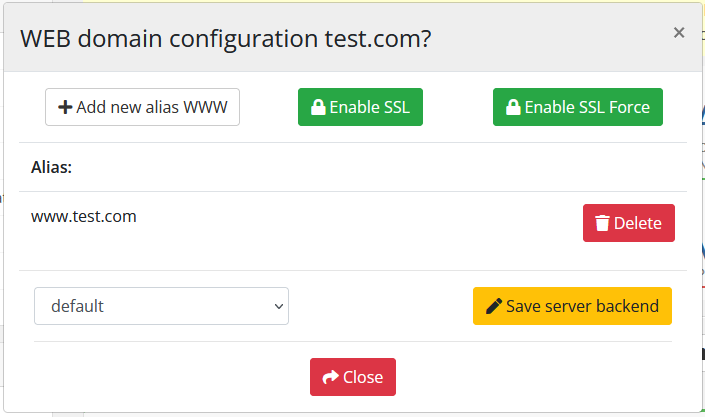
Attention! Web domains are the main setting. When creating a new web domain, a DNS zone will be created as well as a Mail domain. Also, if you delete the Web domain, the DNS zone of this domain will be deleted as well as the Mail domain. It also works when Suspend / Unsuspend.
#### WEB domain suspend
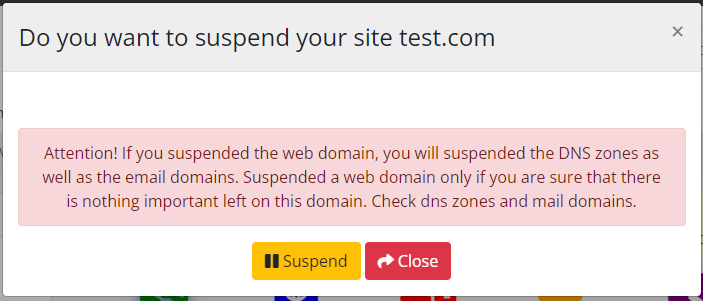
After clicking on the button, confirmation of the action is available in a pop-up window.
[](https://doc.puq.info/uploads/images/gallery/2023-04/image-1681290093240.png)
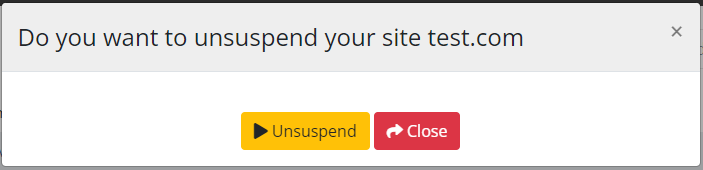
#### WEB domain unsuspend
After clicking on the button, confirmation of the action is available in a pop-up window.
[](https://doc.puq.info/uploads/images/gallery/2023-04/image-1681290127006.png)
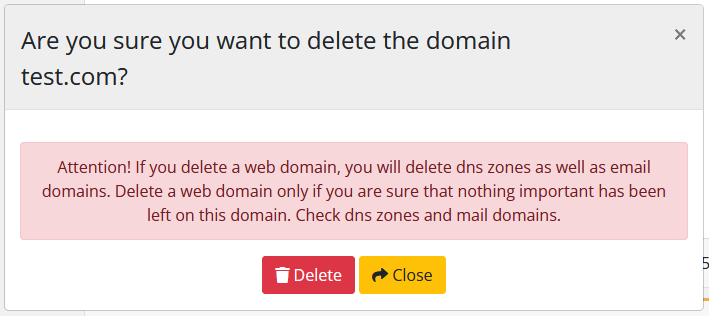
#### WEB domain delete
After clicking on the button, confirmation of the action is available in a pop-up window.
[](https://doc.puq.info/uploads/images/gallery/2022-10/image-1666685943210.png)