Admin Area
Product Information
Hetzner Datacenter module WHMCS
Order now | Download | FAQ
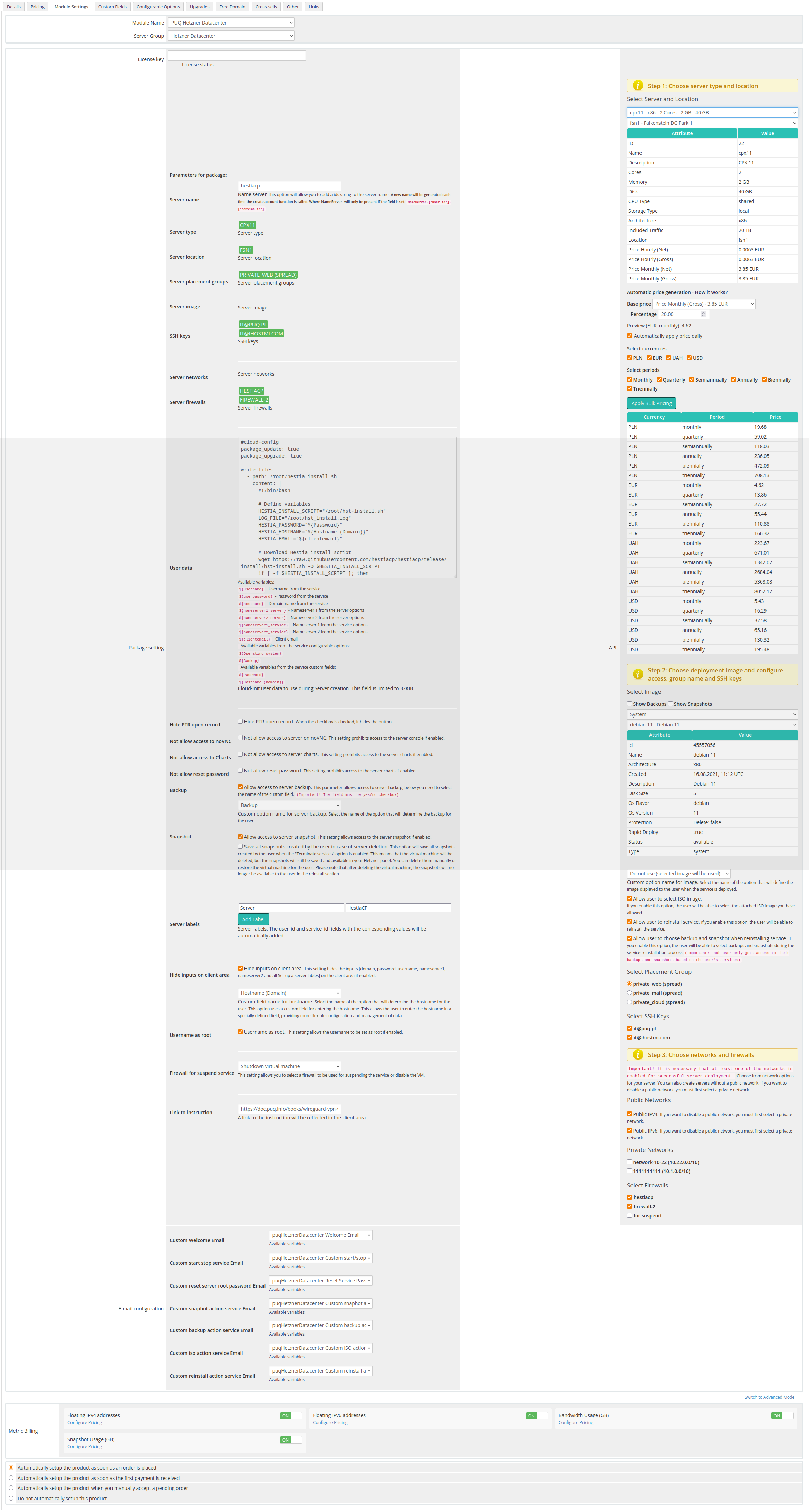
The "Product Information" section is a comprehensive dashboard that provides administrators with detailed information and control over a specific product or service associated with a user's account. This interface is critical for managing and troubleshooting the product, as well as for making configuration changes.
Key Elements:
-
Order Information:
- Order #: Displays the order number and provides a link to view the full order details.
- Product/Service: Specifies the name of the product or service (e.g., "Hetzner product").
- Server: Indicates the data center or server instance where the product is hosted.
-
User and Server Details:
- Hostname: The hostname assigned to the server.
- Dedicated IP: The public IP address assigned to the server.
- Username: The username associated with the server's access credentials.
- Password: The password field shows the encrypted password or a placeholder for the server’s access credentials.
- Status: The current status of the service (e.g., "Active").
- Assigned IPs: Lists both IPv4 and IPv6 addresses assigned to the server.
- Nameserver 1 & 2: The nameservers associated with the product.
- Operating System: The operating system installed on the server (e.g., "debian-11").
- Backup Option: Indicates whether the backup feature is enabled or disabled (in this case, "Yes").
-
Billing and Subscription Details:
- Registration Date: The date when the product or service was registered.
- Quantity: The quantity of the product or service being managed.
- First Payment Amount: The initial payment made for the service.
- Recurring Amount: The recurring cost associated with the service.
- Next Due Date: The next billing date for the service.
- Termination Date: If applicable, the date when the service is scheduled to be terminated.
- Billing Cycle: Indicates the billing cycle for the service (e.g., "Free").
- Payment Method: The payment method used for the service (e.g., "PayPal").
- Promotion Code: Displays any promotion code applied to the service.
-
Module Commands:
- API Connection Status: Displays the status of the API connection, which is necessary for managing the product through automated scripts or external systems. (e.g., "API answer OK").
- Commands: Provides buttons for creating, suspending, unsuspending, terminating the service, changing the package, and sending a custom welcome email.
-
Server Status:
- This section provides real-time status information about the server:
- Start/Stop: Indicates whether the server is running or stopped.
- CPU, RAM, and Disk Usage: Displays the resource usage statistics for the server.
- Datacenter: Indicates the data center location.
- Public Network IPs: Shows the public IPv4 and IPv6 addresses assigned to the server.
- Public Network DNS PTR: Displays the PTR record for reverse DNS.
- This section provides real-time status information about the server:
-
Metric Statistics:
- This section shows various usage metrics and their statuses, including:
- Floating IPv4/IPv6 addresses: Whether these are enabled and their current usage.
- Bandwidth Usage: The amount of bandwidth used.
- Snapshot Usage: The amount of disk space used by snapshots.
- A Refresh Now button allows updating the metrics to display the latest data.
- This section shows various usage metrics and their statuses, including:
-
Addons and Additional Information:
- Addons: Lists any additional services or features associated with the product.
- Hostname (Domain): Displays the domain associated with the product.
- Password: Shows the password or its placeholder.
- Subscription ID: Identifies the subscription tied to the service.
- Override Auto-Suspend: Allows the administrator to prevent the service from being automatically suspended.
- Auto-Terminate End of Cycle: Provides an option to terminate the service at the end of its billing cycle.
- Admin Notes: Allows the administrator to add any notes or information relevant to the management of the service.
-
Save or Cancel Changes:
- Save Changes: A purple button to save any changes made in this section.
- Cancel Changes: Allows the administrator to discard any modifications and revert to the previous settings.
IP Address Logging. The system now includes a mechanism that automatically tracks and logs all IP address changes. Every time a new IP address is added or an existing one is removed, a note is automatically added to the Admin Notes section. This note includes the date, time, and details of the IP changes. This feature ensures that all changes are documented for easy reference and auditing.
Product configuration in WHMCS
Hetzner Datacenter module WHMCS
Order now | Download | FAQ
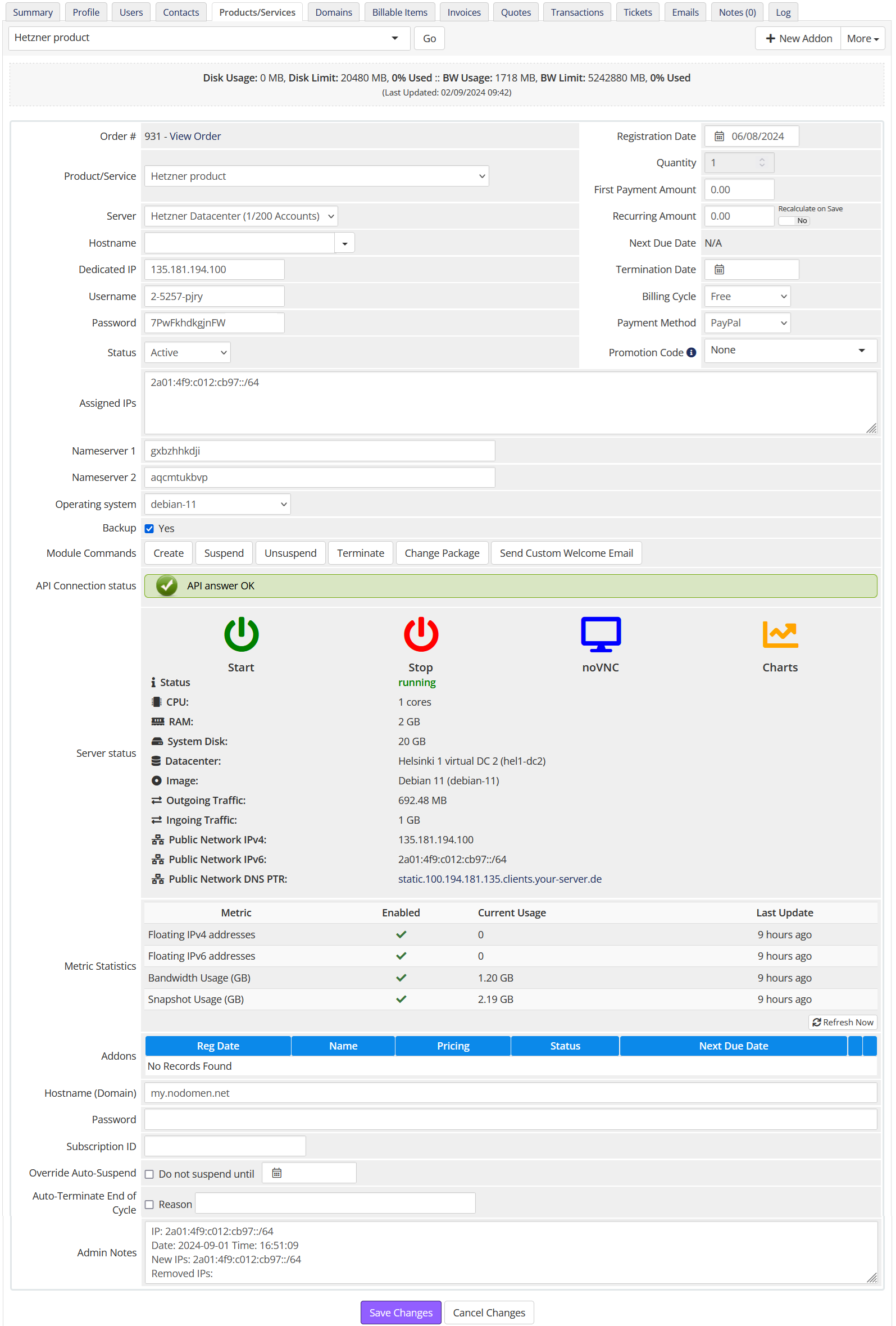
License key: A pre-purchased license key for the "PUQ Hetzner Datacenter" module. For the module to work correctly, the key must be active.
Server name: This option allows you to add a prefix string to the server name. A new name will be generated each time the create account function is called. The NameServer will be present only if the field is set: NameServer-[*user_id*]-[*service_id*].
Server type: The type of server to be deployed. Selected from the available server types provided by Hetzner. This field is automatically populated based on your selection in Select Server and Location.
Server location: The physical location of the server. Selected from the available locations provided by Hetzner. This field is automatically populated based on your selection in Select Server and Location.
Server placement groups: Controls how the server should be grouped within the data center. This field is automatically populated based on your selection in Select Placement Group.
Server image: The operating system image to be used for the server. Automatically populated based on the selection in Select Image.
SSH keys: Keys used for accessing the server. Multiple keys can be added. Auto-populated based on the selection in Select SSH Keys.
Server networks: Networks to which the server will be connected. Auto-populated based on your selection in Private Networks.
Server firewalls: Firewall rules to be applied to the server. Select from predefined rules or create custom ones. Auto-populated based on the selection in Select Firewalls.
User data: Custom user data used during server creation (e.g., cloud-init). Field limit: 32KB.
Package setting: Additional settings for the package:
- Hide PTR open record: Hides the PTR control button in the client area.
- Not allow access to server on VNC/NC: Prohibits access to the server console.
- Not allow access to Charts: Hides server resource charts.
- Not allow reset password: Disables the password reset action for the service.
- Backup: Allows access to server backups. Select the name of the custom field (default: Backup).
- Snapshot: Allows access to server snapshots.
- Server labels: Adds labels to the server;
user_idandservice_idare added automatically. - Hide inputs on client area: Hides inputs (domain, password, username, nameserver1/2) and sets server label(s) in the client area.
- Firewall for suspend service: Select a firewall profile used when suspending the service (or disable the VM).
- Link to instruction: A documentation link displayed in the client area.
- Username as root: Use
rootas the administrative username (otherwise the image default is used).
Automatic Pricing & Rounding (UI)
The right-hand panel contains a live pricing tool for bulk price management. It keeps UI and backend pricing fully consistent.
- Base price (Net/Gross): Displays the Hetzner base price. Choose Net or Gross as a starting point.
- Percentage margin: Enter the markup applied to the Hetzner base price.
- Select currencies: Bulk-select one or more currencies for which prices will be generated.
- Select periods: Bulk-select billing cycles (Monthly, Quarterly, Semi-Annually, Annually, Biennially).
- Preview table: Prices recalculate instantly when Base price or Percentage changes.
- Apply Bulk Pricing: Updates or creates missing
tblpricingrows for the selected currencies and periods. - Automatically apply price daily: Enables daily synchronization via cron using the saved configuration.
- Rounding policy: Always round up according to ISO-4217 minor units (0/2/3 decimals). Monthly price is rounded first, then multiplied by the period factor and rounded again. The JS preview and server-side logic are identical.
- Currency source: Uses Hetzner Cloud API
/pricing.currency(no hard-coded EUR). Server JSON responses follow currency precision. - Expanded dropdown descriptions: Server selectors show name – architecture – cores – memory – disk for clarity.
Bulk pricing settings are persisted per product in available_servers_input (Base64 JSON) and merged safely without overwriting unrelated saved fields.
Daily Cron automation
- DailyCronJob respects the saved bulk pricing configuration.
- Fetches the latest Hetzner base price once per run and applies it to all selected currencies and periods.
- Creates missing
tblpricingrows and logs detailed status for each action (with trace identifiers in Module Log).
Admin Tools for Stock Management
- Clear and Reset: Restores
stockcontrolandqtyvalues in product configuration from the saved record. - restore_saved_stockcontrol (AJAX): Restores data from storage and removes the old entry. Logged states: input, not_found, updated_product, deleted_saved, done, error.
API Settings
Please pay attention to the order of filling in the API Settings section. Different locations expose different networks; some networks are not available in specific locations.
Select Server and Location: Choose the server type and location from the available options provided by Hetzner.
Select Image: Choose the operating system image for the server from the available options provided by Hetzner.
You can deploy services from your backups or snapshots to pre-configure solutions for clients.
Custom option name for image: Specify a custom option name for the server image if needed.
Custom option name for image is evaluated only during initial deployment. Pass the image name you want to use for server creation.
Allow user to select ISO image: Enable this option to allow users to select an ISO image.
Allow user to reinstall service: Enable this option to allow users to reinstall the service from the client area.
Allow user to choose backup and snapshot when reinstalling service: Enable this to let users select a backup/snapshot for reinstall.
When enabled, users can browse their snapshots and backups and reinstall the system directly from a chosen snapshot or backup.
Select Placement Group: Choose the placement group for the server from the available options provided by Hetzner.
Select SSH Keys: Choose the SSH keys used to access the server.
Public Networks: Configure public networking (enable/disable public IPv4 and IPv6).
If you turn off public networks, you must attach at least one private network.
Private Networks: Configure the private networks attached to the server.
Select Firewalls: Choose firewall rules to be applied to the server.
Email configuration:
Use pre-built templates to notify users about common actions:
- Custom Welcome Email
- Custom start stop service Email
- Custom reset server password Email
- Custom snapshot action Email
- Custom backup action Email
- Custom ISO action Email
- Custom reinstall action service Email
Metric Billing:
- Floating IPv4 addresses: Configure pricing for floating IPv4 addresses.
- Floating IPv6 addresses: Configure pricing for floating IPv6 addresses.
- Bandwidth Usage (GB): Configure pricing for bandwidth usage.
- Snapshot Usage (GB): Configure pricing for snapshot storage/usage.