If you do not have a **Service Group** where you want to place the new service, you need to create a new **Service Group**
##### 1. Log in to the administrative area of your **[WISECP](https://puqcloud.com/link.php?id=78)**. ##### 2. Create New Service Group Go to ``` Services -> Service Management -> Add Group ``` [](https://doc.puq.info/uploads/images/gallery/2023-11/32b5.png) Enter all the necessary data and click the '**Create Group**' button. [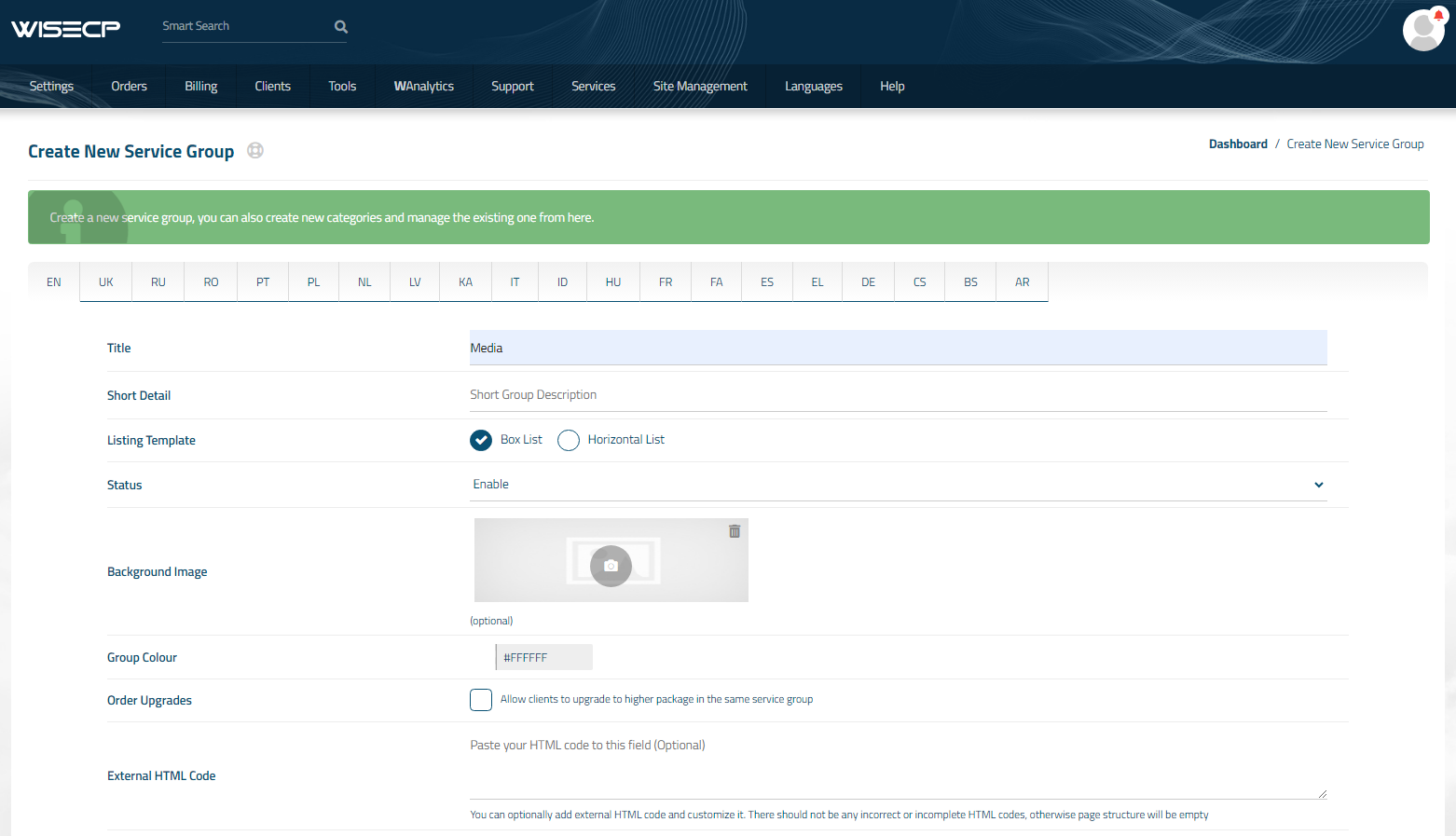](https://doc.puq.info/uploads/images/gallery/2023-11/yDd6.png) ##### 3. Adding a New Service Go to ``` Services -> our service group where you need to add the new service. ``` [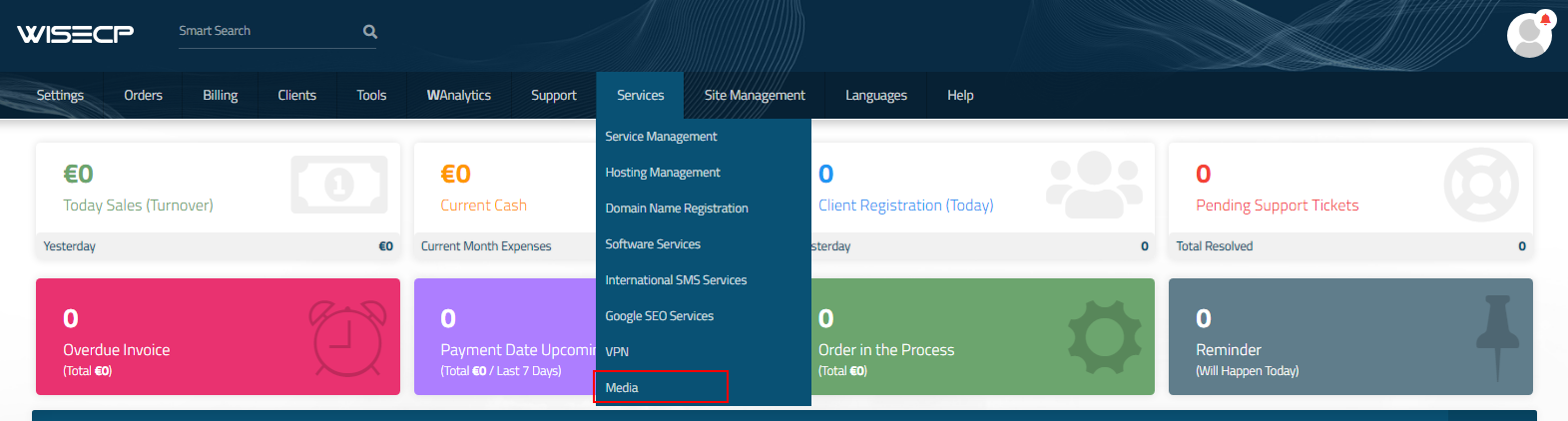](https://doc.puq.info/uploads/images/gallery/2023-11/Shg7.png) In the opened window, click the '**Create New Service**' button. [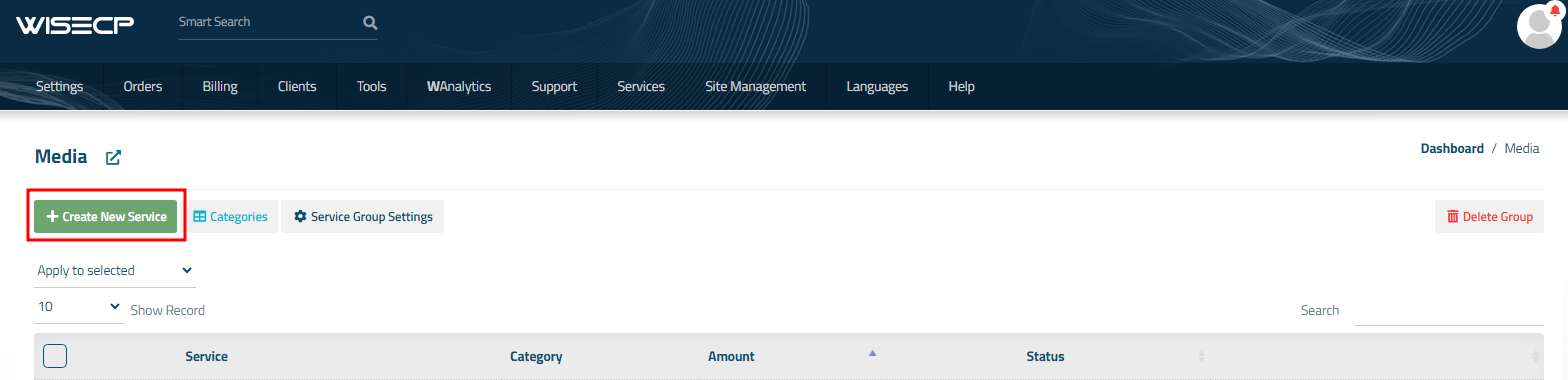](https://doc.puq.info/uploads/images/gallery/2023-11/auQ8.png) On the opened page, enter all the necessary details for your new service and navigate to the '**Core**' tab. Select the '**PUQ Jellyfin Family**' module from the drop-down list of modules. [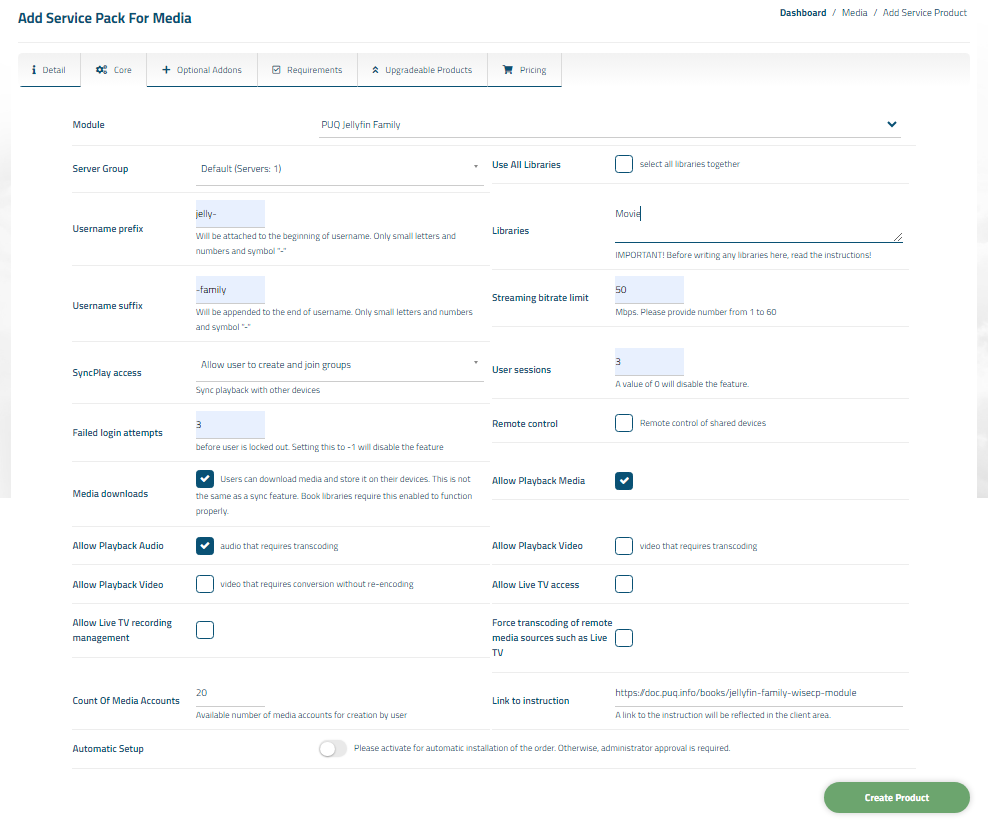](https://doc.puq.info/uploads/images/gallery/2024-10/image-1728560429954.png) ##### 4. Fill in the configuration options according to your preferences. ##### Libraries: - **Use All Libraries**: Choosing all of libraries from your Jellyfin server - **Libraries**: The libraries you want to make available to customers of this product. **(IMPORTANT! Start a new line for each new library)** Example: "Movies Beginner`s Programming Course Comedy" **IMPORTANT!** If you have a folder named "-", please enter it not as the first one or rename it. If you don't want any folder to be accessible, type "-". ##### User Configuration: - **Streaming bitrate limit:** An optional per-stream bitrate limit for all out of network devices. This is useful to prevent devices from requesting a higher bitrate than your internet connection can handle. This may result in increased CPU load on your server in order to transcode videos on the fly to a lower bitrate. - **SyncPlay access:** The SyncPlay feature enables to sync playback with other devices. Select the level of access this user has to the SyncPlay - **Remote control:** Remote control of shared devices (DLNA devices are considered shared until a user begins controlling them) - **Media downloads:** Users can download media and store it on their devices. This is not the same as a sync feature. Book libraries require this enabled to function properly. - **User sessions:** Set the maximum number of simultaneous user sessions.