# Setup guide: WHMCS setup

### Jellyfin module **[WHMCS](https://puqcloud.com/link.php?id=77)** 

#####  [Order now](https://puqcloud.com/whmcs-module-jellyfin.php) | [Download](https://download.puqcloud.com/WHMCS/servers/PUQ_WHMCS-Jellyfin/) | [FAQ](https://faq.puqcloud.com/)

##### 1. Download the latest version of the module.

PHP 8.1

```Powershell
wget http://download.puqcloud.com/WHMCS/servers/PUQ_WHMCS-Jellyfin/PUQ_WHMCS-Jellyfin-latest.zip
```

PHP 7.4

```Powershell
wget http://download.puqcloud.com/WHMCS/servers/PUQ_WHMCS-Jellyfin/php74/PUQ_WHMCS-Jellyfin-latest.zip
```

<p class="callout info">All versions are available via link: [http://download.puqcloud.com/WHMCS/servers/PUQ\_WHMCS-Jellyfin/](http://download.puqcloud.com/WHMCS/servers/PUQ_WHMCS-Jellyfin/)</p>

##### 2. Unzip the archive with the module.

```Powershell
unzip PUQ_WHMCS-Jellyfin-latest.zip
```

##### 3. Copy "puqJellyfin" to "WHMCS\_WEB\_DIR/modules/servers/"

##### 4. Create new server Jellyfin in WHMCS (System Settings-&gt;Products/Services-&gt;Servers)

```
System Settings->Servers->Add New Server
```

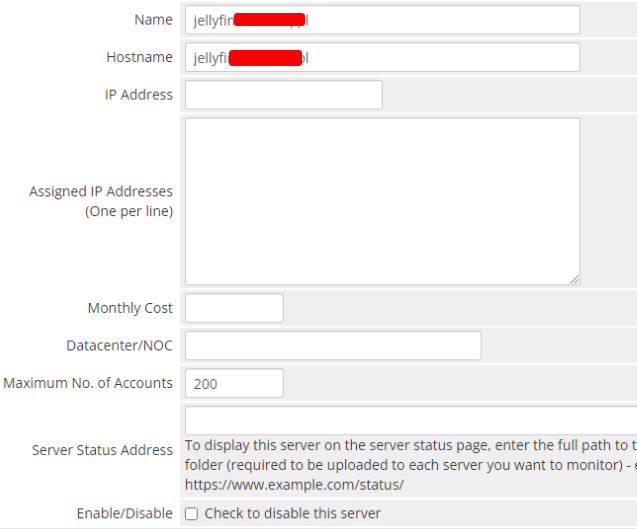
- Enter the correct **Name** and **Hostname**

[![2023-11-02_14-40.png](https://doc.puq.info/uploads/images/gallery/2023-11/scaled-1680-/2023-11-02-14-40.png)](https://doc.puq.info/uploads/images/gallery/2023-11/2023-11-02-14-40.png)
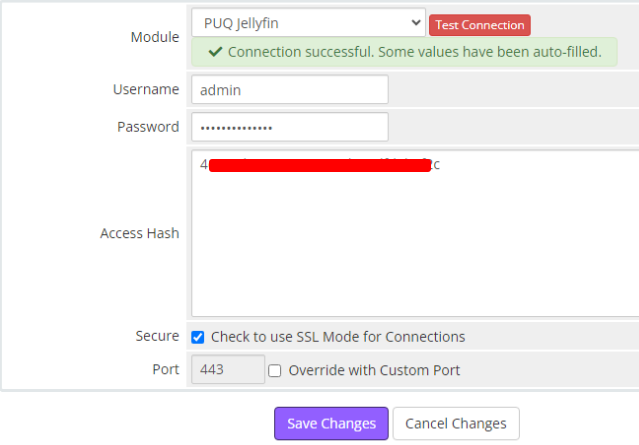
- In the **Server Details** section, select the "**PUQ Jellyfin**" module and enter the correct **username**, **password** and **access hash (API key)** for the **Jellyfin web interface**.
- To check, click the **"Test connection"** button

[![2023-11-02_14-40_1.png](https://doc.puq.info/uploads/images/gallery/2023-11/scaled-1680-/2023-11-02-14-40-1.png)](https://doc.puq.info/uploads/images/gallery/2023-11/2023-11-02-14-40-1.png)
##### 5. Create a new Products/Services

```
System Settings->Products/Services->Create a New Product
```

In the **Module settings** section, select the **"PUQ Jellyfin"** module

[![2.png](https://doc.puq.info/uploads/images/gallery/2025-10/scaled-1680-/Zeh2.png)](https://doc.puq.info/uploads/images/gallery/2025-10/Zeh2.png)
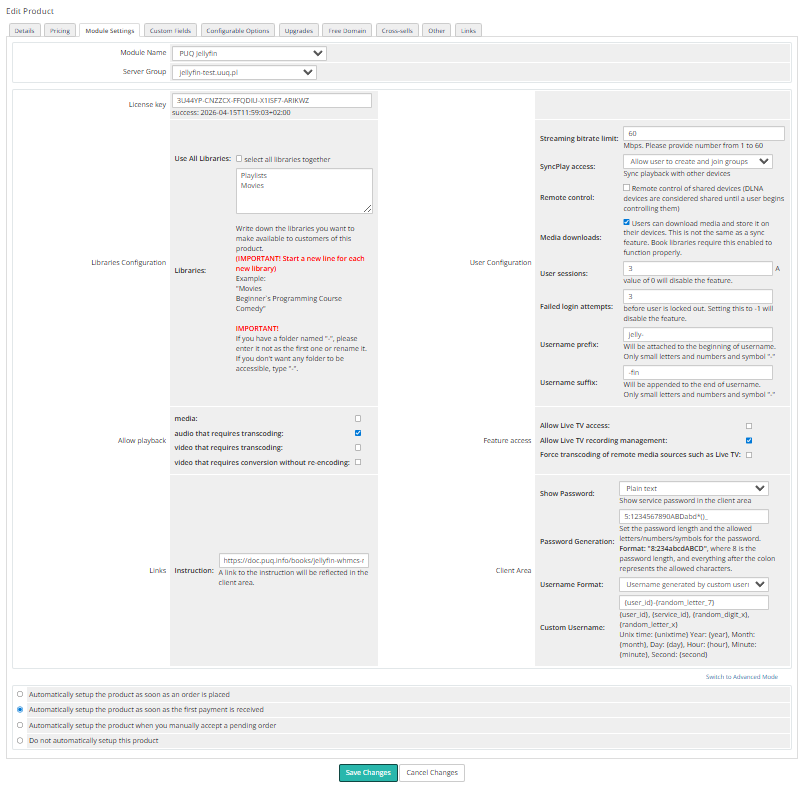
- **License key:** A pre-purchased license key for the **"PUQ Jellyfin"** module. For the module to work correctly, the key must be active

##### Libraries:

- **Use All Libraries**: Choosing all of libraries from your Jellyfin server
- **Libraries**: The libraries you want to make available to customers of this product.  
    <span style="color: #ff0000;"> **(IMPORTANT! Start a new line for each new library)**</span>  
    Example:  
    "Movies  
    Beginner`s Programming Course  
    Comedy"  
    <span style="color: #ff0000;"> **IMPORTANT!** </span>If you have a folder named "-", please enter it not as the first one or rename it.  
    If you don't want any folder to be accessible, type "-".

##### <span style="font-size: 1.4em; font-weight: 400;">User Configuration:</span>

- **Streaming bitrate limit:** An optional per-stream bitrate limit for all out of network devices. This is useful to prevent devices from requesting a higher bitrate than your internet connection can handle. This may result in increased CPU load on your server in order to transcode videos on the fly to a lower bitrate.
- **SyncPlay access:** The SyncPlay feature enables to sync playback with other devices. Select the level of access this user has to the SyncPlay
- **Remote control:** Remote control of shared devices (DLNA devices are considered shared until a user begins controlling them)
- **Media downloads:** Users can download media and store it on their devices. This is not the same as a sync feature. Book libraries require this enabled to function properly.
- **User sessions:** Set the maximum number of simultaneous user sessions. <div>A value of 0 will disable the feature.</div>
- ****Failed login attempts:**** Determine how many incorrect login tries can be made before lockout occurs. <div>A value of zero means inheriting the default of three tries for normal users and five for administrators. Setting this to -1 will disable the feature.</div>
- **Username prefix/Username suffix:** Necessary in order to generate a username for the service, in the format: **prefix&lt;client\_id&gt;-&lt;service\_id&gt;suffix**

##### Allow playback (Restricting access to transcoding may cause playback failures in clients due to unsupported media formats)

- **media**
- **audio that requires transcoding**
- **video that requires transcoding**
- **video that requires conversion without re-encoding**

##### Feature access:

- **Allow Live TV access**
- **Allow Live TV recording management**
- **Force transcoding of remote media sources such as Live TV**

##### Links

- **Link to instruction:** Link to the instruction, if filled out, it will be reflected in the client area

##### Client Area

- **Show Password** – Show the service password in the client area.
- **Password Generation** – Set the password length and the allowed letters/numbers/symbols for the password.  
    Format: `"8:234abcdABCD"`, where `8` is the password length, and everything after the colon represents the allowed characters.
- **Username Format** – Define the format for username generation:
    
    
    - - **Standard** – prefix-client\_id-service\_id-suffix
        - **Custom** – username generated by a custom rule
- **Custom Username** – Set a rule for generating a custom username.