# WireGuard Clients configuring
# WireGuard Official clients
### Mikrotik WireGuard Business-VPN module **[WISECP](https://puqcloud.com/link.php?id=78)**
##### [Order now](https://puqcloud.com/index.php?rp=/store/wisecp-module-mikrotik-wireguard-business-vpn) | [Download](https://download.puqcloud.com/WISECP/Product/PUQ_WISECP-Mikrotik-WireGuard-Business-VPN/) | [FAQ](https://faq.puqcloud.com/)
##### [](https://www.wireguard.com/ "https://www.wireguard.com/")
#### You can download from the [https://www.wireguard.com/install/](https://www.wireguard.com/install/)
Please always download latest versions. The following list is intended as a general direction only.
- - - - - -
#### Windows \[7, 8.1, 10, 11, 2008R2, 2012R2, 2016, 2019, 2022 – v0.5.3\]
[Download Windows Installer](https://download.wireguard.com/windows-client/wireguard-installer.exe)
[Browse MSIs](https://download.wireguard.com/windows-client/)
- - - - - -
#### macOS \[[app store](https://itunes.apple.com/us/app/wireguard/id1451685025?ls=1&mt=12) – v1.0.15\]
[Download from App Store](https://itunes.apple.com/us/app/wireguard/id1451685025?ls=1&mt=12)
- - - - - -
#### Android \[[play store](https://play.google.com/store/apps/details?id=com.wireguard.android) – vunknown – out of date & [f-droid](https://f-droid.org/en/packages/com.wireguard.android/) – v1.0.20220516\]
[Download from Play Store](https://play.google.com/store/apps/details?id=com.wireguard.android)
[Download from F-Droid](https://f-droid.org/en/packages/com.wireguard.android/)
- - - - - -
#### iOS \[[app store](https://itunes.apple.com/us/app/wireguard/id1441195209?ls=1&mt=8) – v1.0.15\]
[Download from App Store](https://itunes.apple.com/us/app/wireguard/id1441195209?ls=1&mt=8)
- - - - - -
#### Debian/Ubuntu
```
$ sudo apt install wireguard
```
- - - - - -
# Mikrotik WireGuard client configuration
### Mikrotik WireGuard Business-VPN module **[WISECP](https://puqcloud.com/link.php?id=78)**
##### [Order now](https://puqcloud.com/index.php?rp=/store/wisecp-module-mikrotik-wireguard-business-vpn) | [Download](https://download.puqcloud.com/WISECP/Product/PUQ_WISECP-Mikrotik-WireGuard-Business-VPN/) | [FAQ](https://faq.puqcloud.com/)
##### Make sure you have an up to date **routerOS** system.
Version must be at least: 7.6
```
[admin@VPN-CLIENT] > system package print
Columns: NAME, VERSION
# NAME VERSION
0 routeros 7.6
```
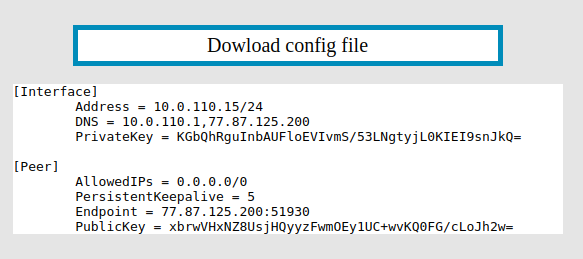
##### Open a single-use shipment on the **WireGuard** section for the client's configuration request
[](https://doc.puq.info/uploads/images/gallery/2022-12/image-1671100595697.png)
##### Login to **Mikrotik** via Winbox
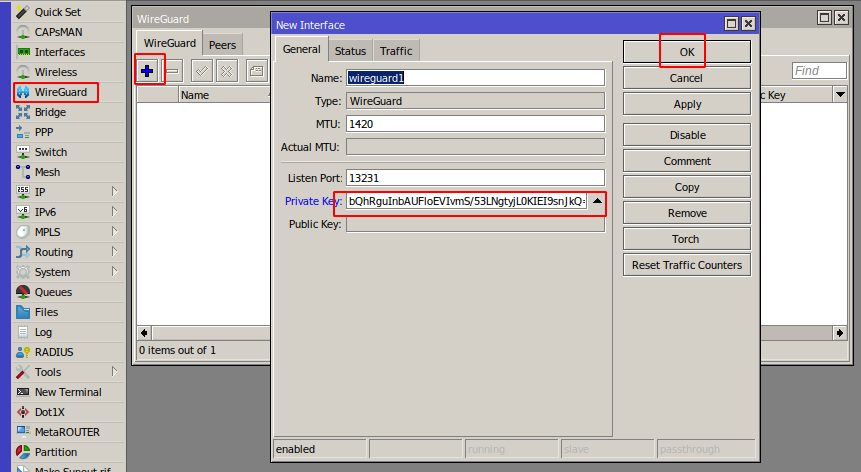
Click on the menu item **WireGuard** In the window that opens, in the **WireGuard** tab, click the plus to add a new **WireGuard** interface
[](https://doc.puq.info/uploads/images/gallery/2022-12/image-1671100789370.png)
Copy the private key from the text configuration from the **\[Interface\]** section to the **PrivateKey** field in the **WireGuard** interface settings in **Mikrotik**
Click **OK** to create the interface
[](https://doc.puq.info/uploads/images/gallery/2022-12/image-1671101049703.png)
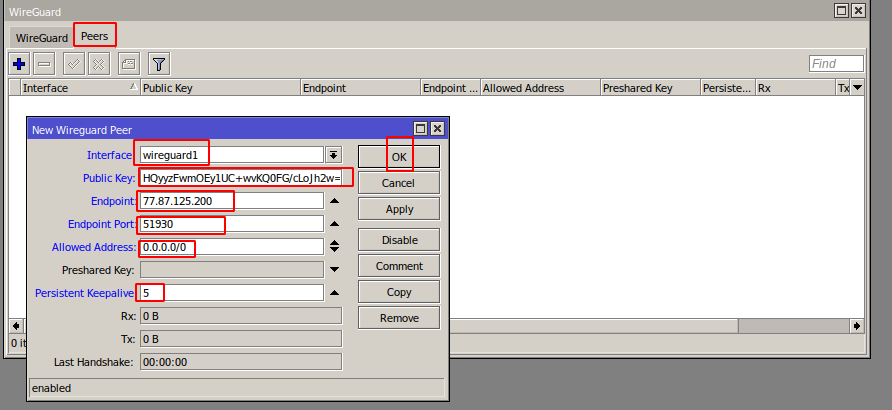
Go to the peers tab.
Click plus to add a new peer
[](https://doc.puq.info/uploads/images/gallery/2022-12/image-1671101223879.png)
**Interface** - Select the previously created **WireGuard** interface
**Public key** - Copy the public key from the text configuration from the **\[Peer\]** section to the Public key field
**Endpoint** - Copy the server **address** from the text configuration from the **\[Peer\]** section to the endpoint field
**Endpoint Port -** Copy the server **port** from the text configuration from the **\[Peer\]** section to the Endpoint Port field
**Allowed Address -** Copy **AllowedIPs** from the text configuration from the **\[Peer\]** section to the Allowed Address field
**Persistent Keepalive -** Copy the **PersistentKeepalive** from the text configuration from the **\[Peer\]** section to the Persistent Keepalive field
Click **OK** to create a peer
[](https://doc.puq.info/uploads/images/gallery/2022-12/image-1671101662963.png)
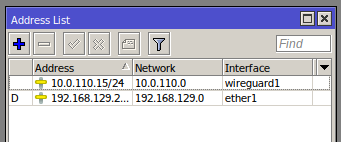
##### In order to have communication with the server, you need to set the address on the **WireGuard** interface
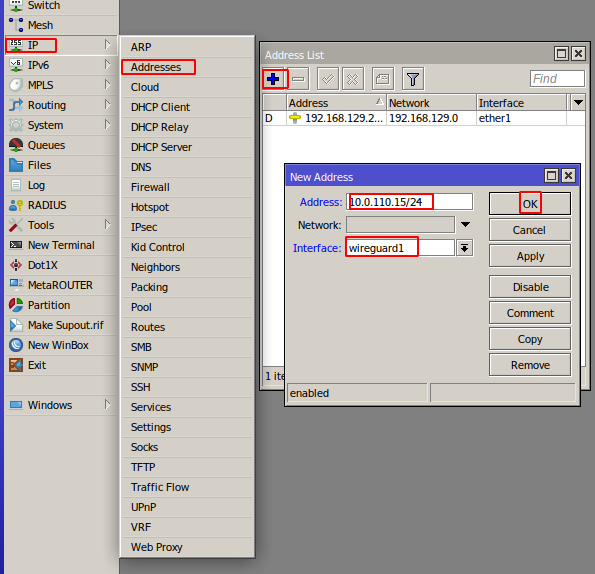
Go to the menu item **IP->Addresses** In the window that opens, click the plus to assign an IP address to the WireGuard interface
[](https://doc.puq.info/uploads/images/gallery/2022-12/image-1671101826333.png)
**Addresse -** Copy the Address from the text configuration from the **\[Interface\]** section to the Address field
**Interface** - Select the previously created **WireGuard** interface
Press the OK button to confirm
[](https://doc.puq.info/uploads/images/gallery/2022-12/image-1671102046038.png)
You also need to configure the traffic routes you need at your discretion.