# Mikrotik WireGuard Business-VPN WISECP module

# Description

### Mikrotik WireGuard Business-VPN module **[WISECP](https://puqcloud.com/link.php?id=78)** 

##### [Order now](https://puqcloud.com/index.php?rp=/store/wisecp-module-mikrotik-wireguard-business-vpn) | [Download](https://download.puqcloud.com/WISECP/Product/PUQ_WISECP-Mikrotik-WireGuard-Business-VPN/) | [FAQ](https://faq.puqcloud.com/)

**The MikroTik WireGuard Business-VPN module is designed to offer a customizable Virtual Private Network service for business clients who possess the capability to independently manage their VPN accounts.**

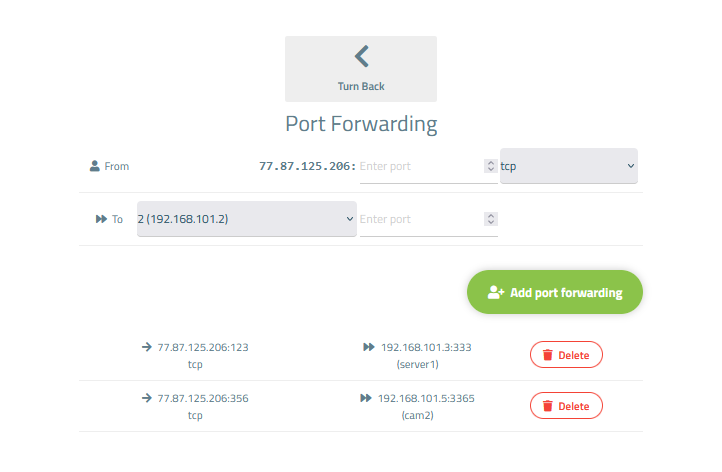
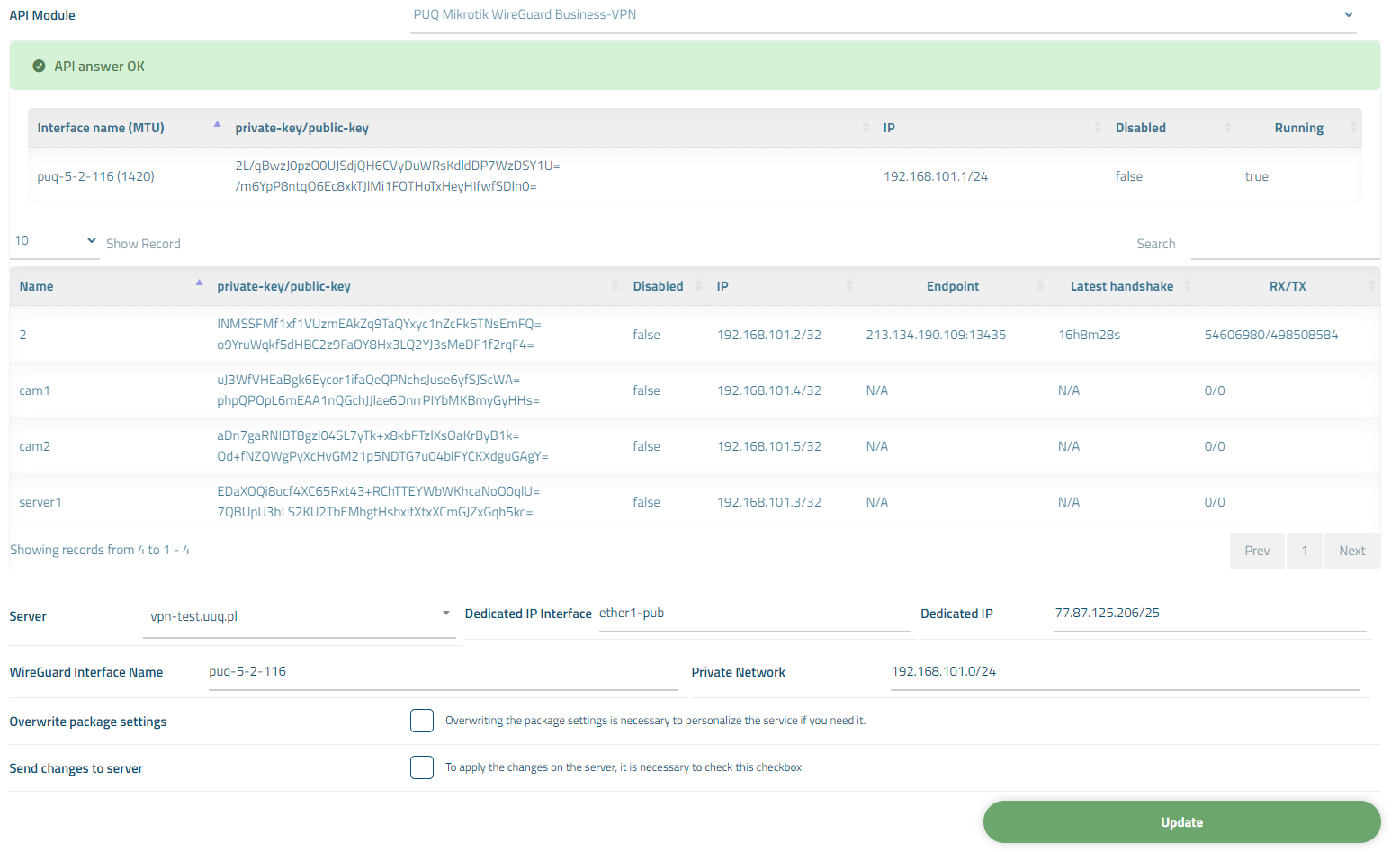
**At its core, the module provides the end customer with a group of VPN account entries that the client can control. This includes the ability to add, remove, block, and perform port forwarding on these accounts. All accounts are situated within a unified network and share a common external IP address. Moreover, there is a feature that allows internal traffic to be routed among these accounts.**

**This innovative system empowers the end client to establish corporate private networks for their own customers. With the flexibility to manage VPN accounts and the added functionality of internal traffic forwarding, businesses can tailor their VPN service to meet the specific needs of their clientele.**

<p class="callout info">**Requirements**  
WISECP: v3.1.5+, php: v8.x, Ioncube: V12+  
MikroTik: v7+</p>

##### Supports protocols:

- WireGuard

##### Module Functions:

- Auto create and deploy VPN account/accounts
- Suspend/Unsuspend/Delete/Change Package
- Port forwarding
- Requires a [MikroTik](https://mikrotik.com/) device or [MikroTik](https://mikrotik.com/) CHR.
- Possibility to set Bandwidth speed limits per client VPN account
- Module supports multilingualism (**Arabic, Azerbaijani, Catalan, Chinese, Croatian, Czech, Danish, Dutch, English, Estonian, Farsi, French, German, Hebrew, Hungarian, Italian, Macedonian, Norwegian, Polish, Romanian, Russian, Spanish, Swedish, Turkish, Ukrainian**)
- Link to instructions for setting up the service in the client area.
- Mechanism for working with servers and server groups

##### Available options in the admin panel:

- Create users
- Suspend users
- Unsuspend users
- Delete users
- Change Package
- VPN connection status

##### Available options in the client panel:

- Links in the form of buttons to the instruction and VPN clients
- General information about the service
- Option to download WireGuard configuration as a file
- QR code for WireGuard configuration
- VPN connection status

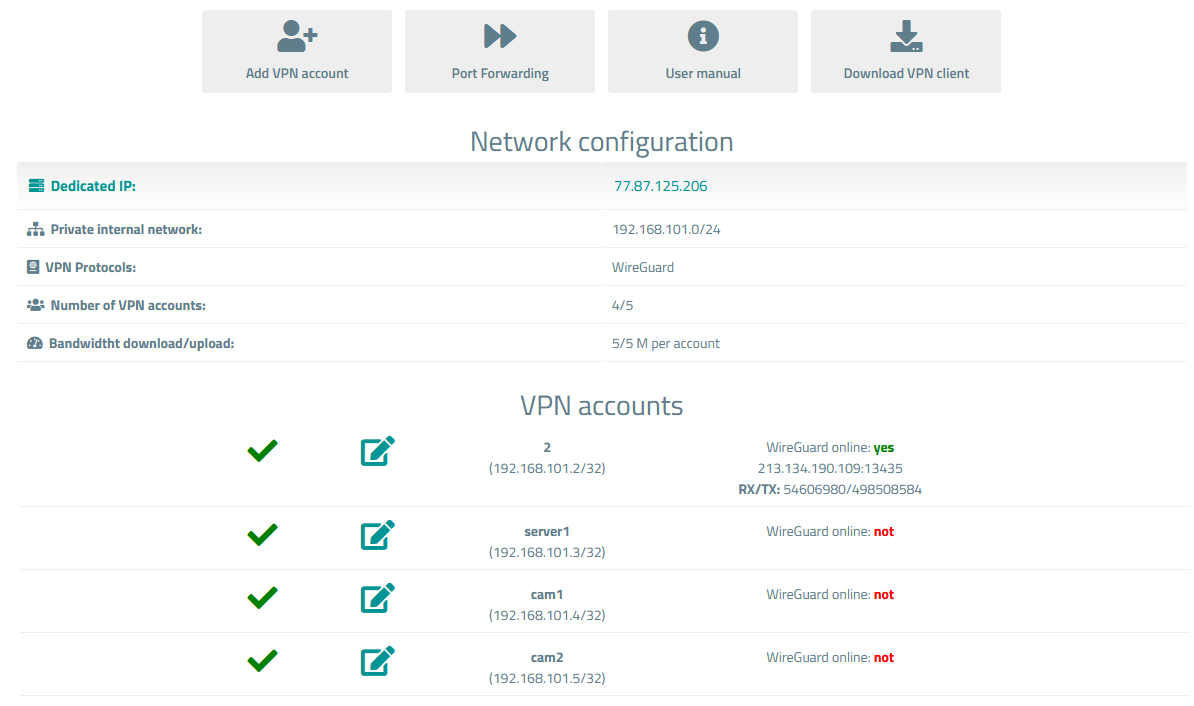
##### Screenshot of the client area

[![image-1700922685060.png](https://doc.puq.info/uploads/images/gallery/2023-11/scaled-1680-/image-1700922685060.png)](https://doc.puq.info/uploads/images/gallery/2023-11/image-1700922685060.png)
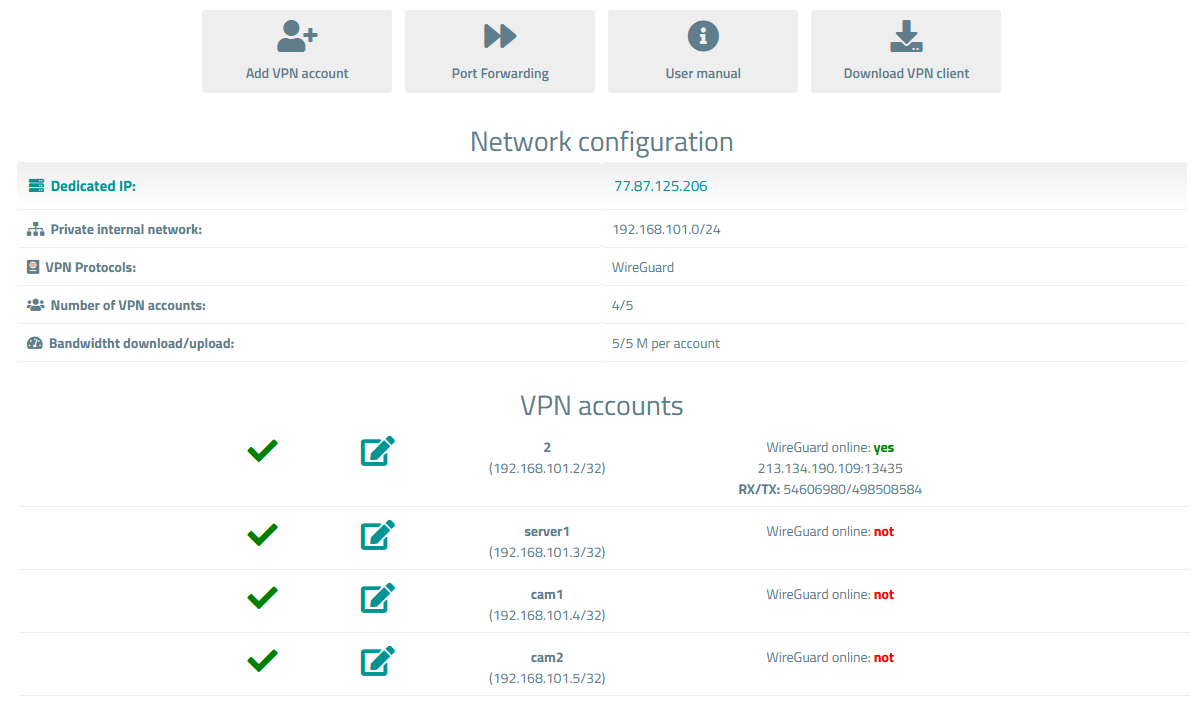
[![image-1700922690995.png](https://doc.puq.info/uploads/images/gallery/2023-11/scaled-1680-/image-1700922690995.png)](https://doc.puq.info/uploads/images/gallery/2023-11/image-1700922690995.png)
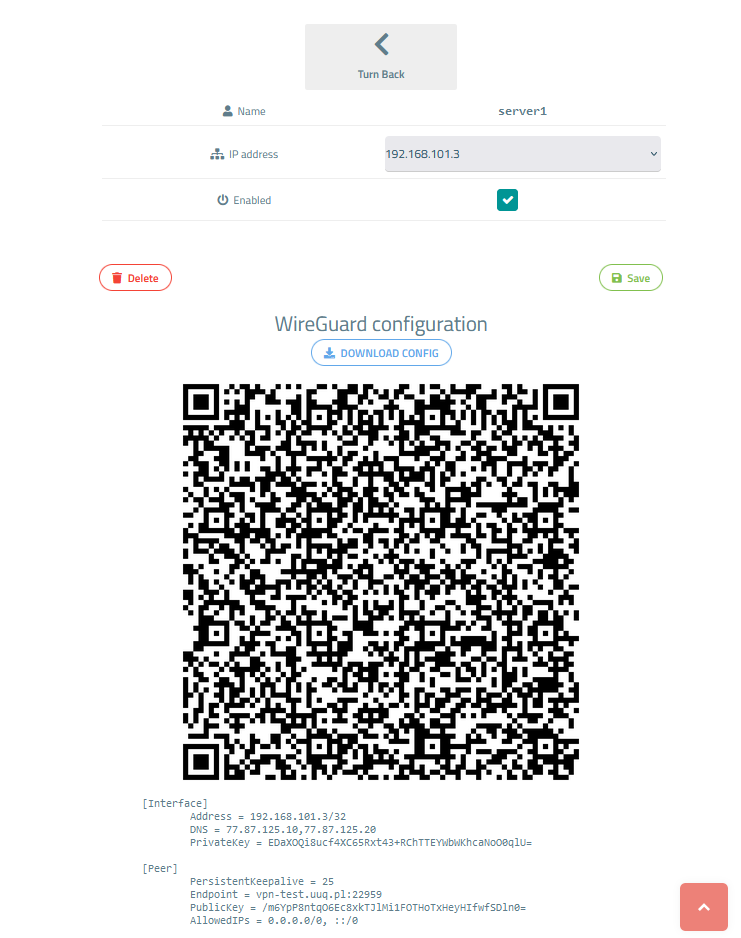
[![image-1700922706424.png](https://doc.puq.info/uploads/images/gallery/2023-11/scaled-1680-/image-1700922706424.png)](https://doc.puq.info/uploads/images/gallery/2023-11/image-1700922706424.png)
##### Screenshot of the Admin area

[![image-1700922768869.png](https://doc.puq.info/uploads/images/gallery/2023-11/scaled-1680-/image-1700922768869.png)](https://doc.puq.info/uploads/images/gallery/2023-11/image-1700922768869.png)
<div id="bkmrk--4"><div></div></div># Changelog

### Mikrotik WireGuard Business-VPN module **[WISECP](https://puqcloud.com/link.php?id=78)** 

##### [Order now](https://puqcloud.com/index.php?rp=/store/wisecp-module-mikrotik-wireguard-business-vpn) | [Download](https://download.puqcloud.com/WISECP/Product/PUQ_WISECP-Mikrotik-WireGuard-Business-VPN/) | [FAQ](https://faq.puqcloud.com/)

##### v1.2 Released 16-03-2025

\- Fixed a bug with incorrect distribution of IP addresses

- - - - - -

##### v1.1 Released 15-02-2024

\- Fixed a bug with some cases where it was not possible to delete the server  
\- Improved security

- - - - - -

##### v1.0 Released 06-12-2023

First version# Installation and configuration guide


# Setup (install/update)

### Mikrotik WireGuard Business-VPN module **[WISECP](https://puqcloud.com/link.php?id=78)** 

##### [Order now](https://puqcloud.com/index.php?rp=/store/wisecp-module-mikrotik-wireguard-business-vpn) | [Download](https://download.puqcloud.com/WISECP/Product/PUQ_WISECP-Mikrotik-WireGuard-Business-VPN/) | [FAQ](https://faq.puqcloud.com/)

<p class="callout info">To install and update a module, you must perform one and the same action.</p>

#####  

##### 1. Download the latest version of the module.

```Powershell
wget https://download.puqcloud.com/WISECP/Product/PUQ_WISECP-Mikrotik-WireGuard-Business-VPN/php81/PUQ_WISECP-Mikrotik-WireGuard-Business-VPN-latest.zip
```

<p class="callout info">All versions are available: [https://download.puqcloud.com/WISECP/Product/PUQ\_WISECP-Mikrotik-WireGuard-Business-VPN/](https://download.puqcloud.com/WISECP/Product/PUQ_WISECP-Mikrotik-WireGuard-Business-VPN/)</p>

#####  

##### 2. Unzip the archive with the module.

```Powershell
unzip PUQ_WISECP-Mikrotik-WireGuard-VPN-latest.zip
```

#####  

##### 3. Copy and Replace "puqMikrotikWireGuardBusinessVPN" from "PUQ\_WISECP-Mikrotik-WireGuard-Business-VPN" to "WISECP\_WEB\_DIR/coremio/modules/Product/"

# License Activation

### Mikrotik WireGuard Business-VPN module **[WISECP](https://puqcloud.com/link.php?id=78)** 

##### [Order now](https://puqcloud.com/index.php?rp=/store/wisecp-module-mikrotik-wireguard-business-vpn) | [Download](https://download.puqcloud.com/WISECP/Product/PUQ_WISECP-Mikrotik-WireGuard-Business-VPN/) | [FAQ](https://faq.puqcloud.com/)

##### 1. Log in to the administrative area of your **[WISECP](https://puqcloud.com/link.php?id=78)**.

#####   
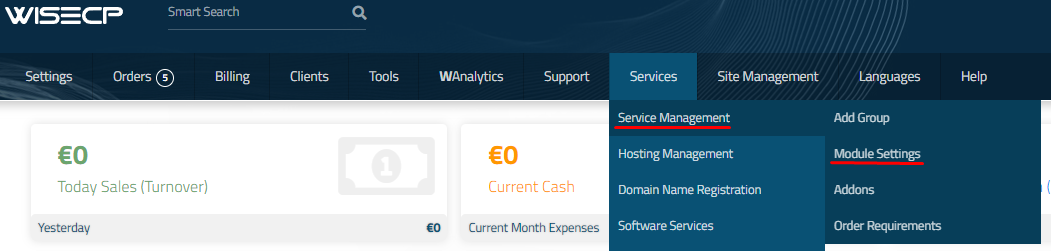
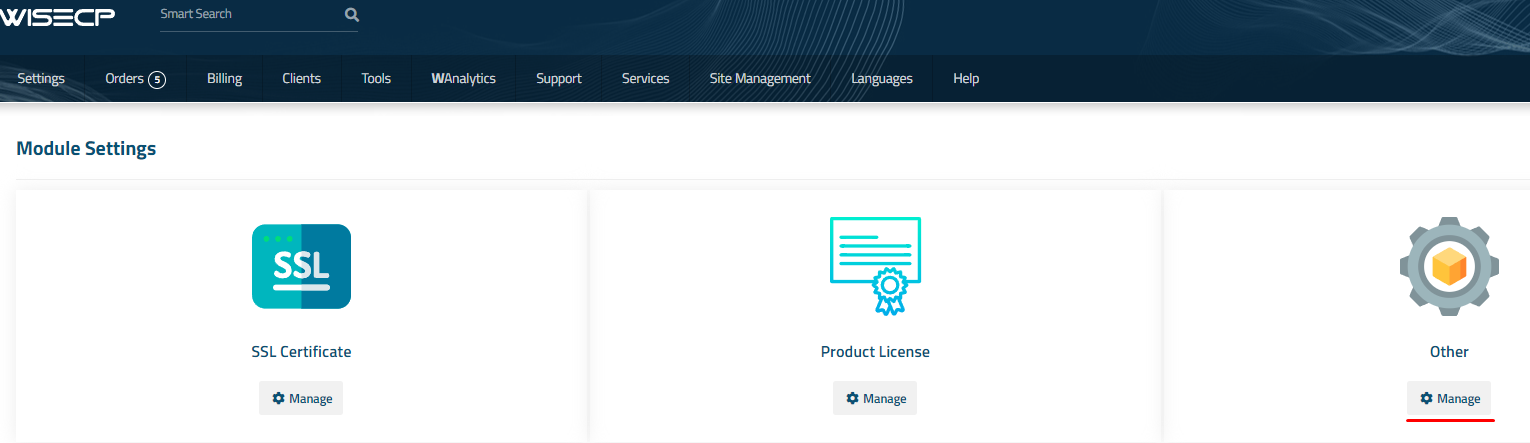
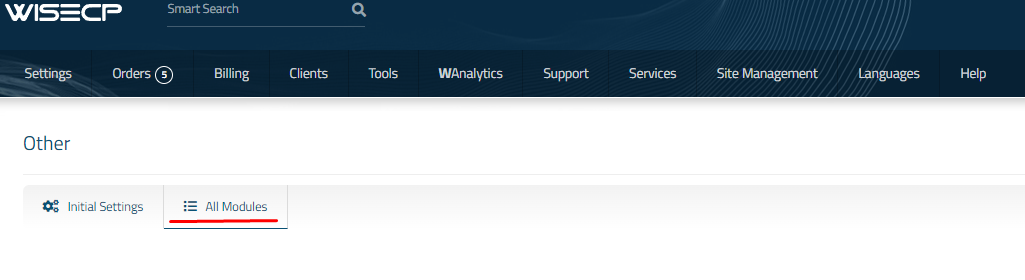
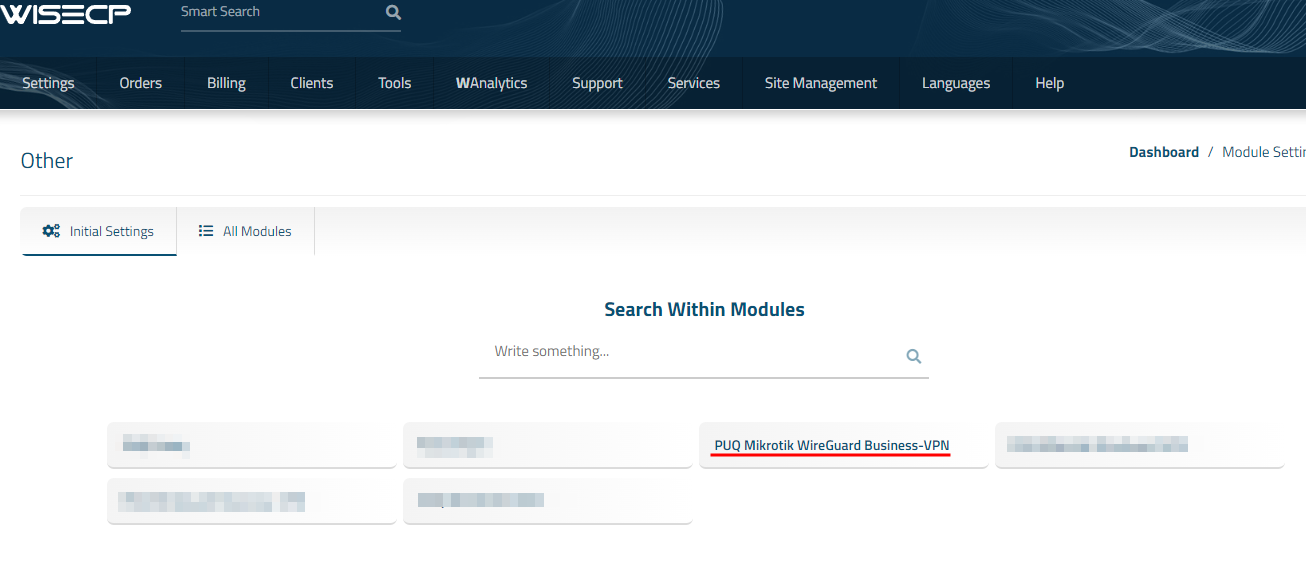
2. Go to module configuration.

```
Services -> Service Management -> Module Settings -> Other -> All Modules -> PUQ Mikrotik WireGuard Business-VPN
```

[![image-1700485721333.png](https://doc.puq.info/uploads/images/gallery/2023-11/scaled-1680-/image-1700485721333.png)](https://doc.puq.info/uploads/images/gallery/2023-11/image-1700485721333.png)
[![image-1700485726951.png](https://doc.puq.info/uploads/images/gallery/2023-11/scaled-1680-/image-1700485726951.png)](https://doc.puq.info/uploads/images/gallery/2023-11/image-1700485726951.png)
[![image-1700485737918.png](https://doc.puq.info/uploads/images/gallery/2023-11/scaled-1680-/image-1700485737918.png)](https://doc.puq.info/uploads/images/gallery/2023-11/image-1700485737918.png)
[![image-1700923806126.png](https://doc.puq.info/uploads/images/gallery/2023-11/scaled-1680-/image-1700923806126.png)](https://doc.puq.info/uploads/images/gallery/2023-11/image-1700923806126.png)
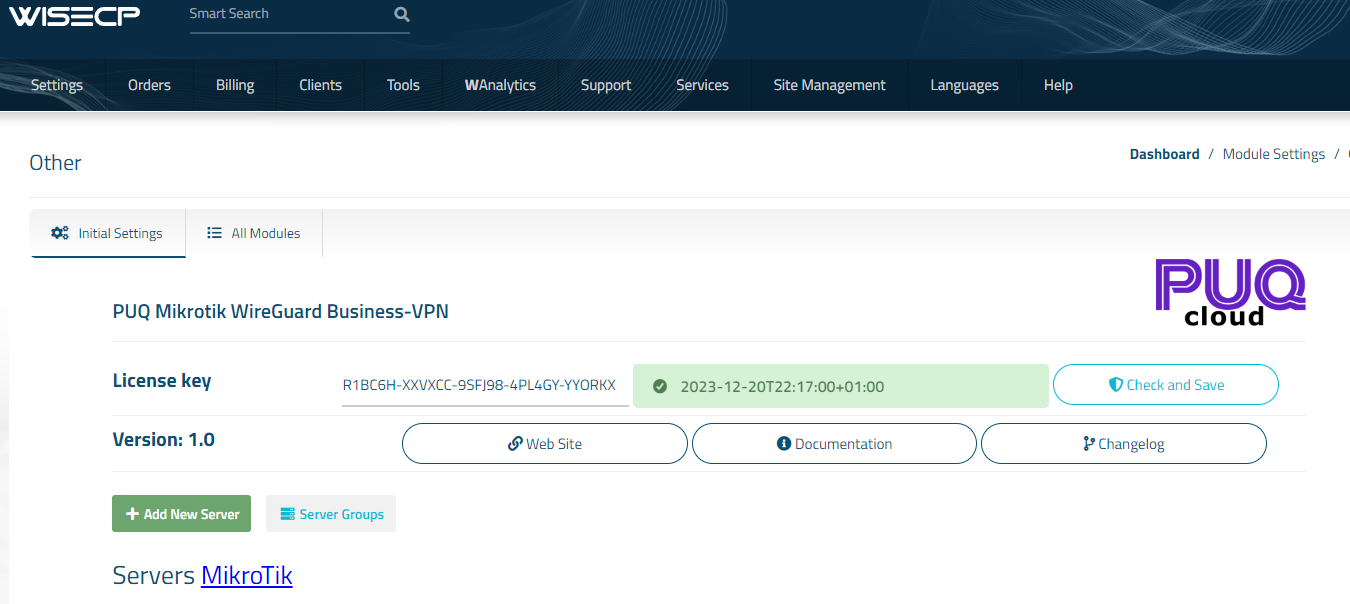
##### 3. On the open page, enter the purchased license key for this product and click the '**Check and Save**' button to validate the key and save it.

[![image-1700923838633.png](https://doc.puq.info/uploads/images/gallery/2023-11/scaled-1680-/image-1700923838633.png)](https://doc.puq.info/uploads/images/gallery/2023-11/image-1700923838633.png)
# Mikrotik preparation and configuration

### Mikrotik WireGuard Business-VPN module **[WISECP](https://puqcloud.com/link.php?id=78)** 

##### [Order now](https://puqcloud.com/index.php?rp=/store/wisecp-module-mikrotik-wireguard-business-vpn) | [Download](https://download.puqcloud.com/WISECP/Product/PUQ_WISECP-Mikrotik-WireGuard-Business-VPN/) | [FAQ](https://faq.puqcloud.com/)

<p class="callout info align-center">Note: **Enter the following commands one by one and wait for the command to complete.**</p>

##### Check RouterOS version

<p class="callout warning">**Make sure that the version of RouterOS is 7+**</p>

```shell
system/package/print 
```

#####  

##### Enabling HTTPS Create your own root CA on your router

```
/certificate
add name=LocalCA common-name=LocalCA key-usage=key-cert-sign,crl-sign
```

#####  

##### Sign the newly created CA certificate

```
/certificate
sign LocalCA
```

##### Create a new certificate for Webfig (non-root certificate)

<p class="callout info">Note: as common-name=XXX.XXX.XXX.XXX You enter public IP adddress of the router.</p>

```
/certificate
add name=Webfig common-name=XXX.XXX.XXX.XXX
```

#####  

##### Sign the newly created certificate for Webfig

```
/certificate
sign Webfig ca=LocalCA 
```

#####  

##### Enable SSL (*www-ssl)* and specify to use the newly created certificate for Webfig

```
/ip service
set www-ssl certificate=Webfig disabled=no
```

#####  

##### Enable api-ssl and specify to use the newly created certificate for Webfig

```
 /ip service 
 set api-ssl certificate=Webfig disabled=no 
```

# Add server (Mikrotik) in WISECP

### Mikrotik WireGuard Business-VPN module **[WISECP](https://puqcloud.com/link.php?id=78)** 

##### [Order now](https://puqcloud.com/index.php?rp=/store/wisecp-module-mikrotik-wireguard-business-vpn) | [Download](https://download.puqcloud.com/WISECP/Product/PUQ_WISECP-Mikrotik-WireGuard-Business-VPN/) | [FAQ](https://faq.puqcloud.com/)

##### 1. Log in to the administrative area of your **[WISECP](https://puqcloud.com/link.php?id=78)**.

#####   
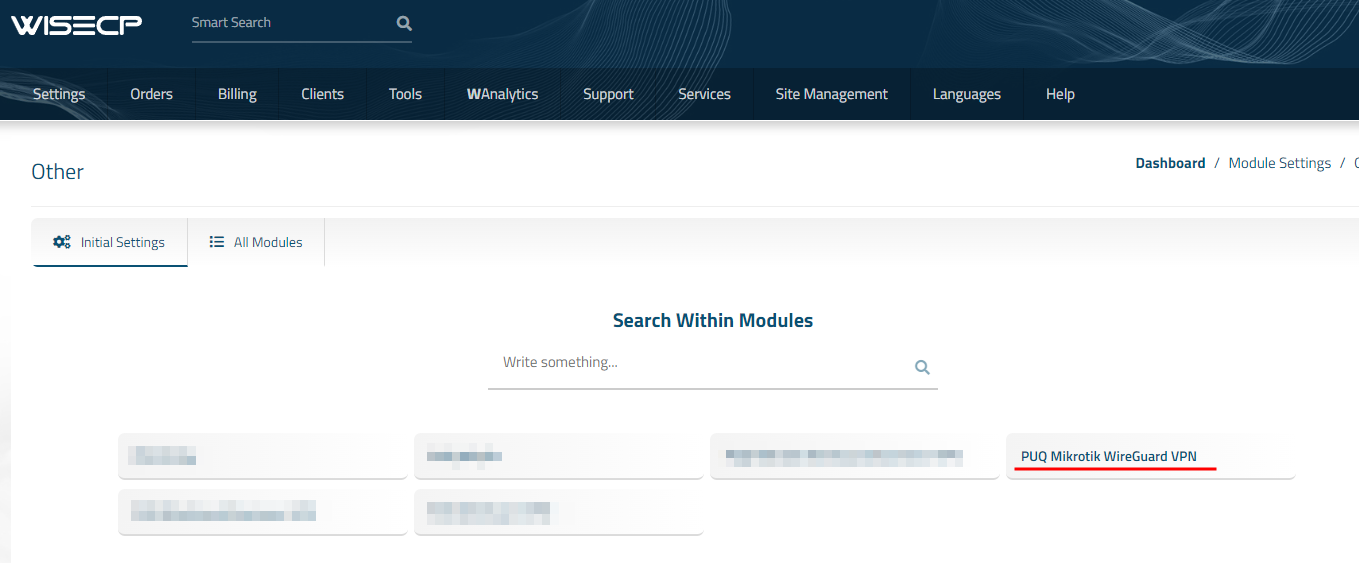
2. Go to module configuration.

```
Services -> Service Management -> Module Settings -> Other -> All Modules -> PUQ Mikrotik WireGuard Business-VPN
```

[![image-1700485721333.png](https://doc.puq.info/uploads/images/gallery/2023-11/scaled-1680-/image-1700485721333.png)](https://doc.puq.info/uploads/images/gallery/2023-11/image-1700485721333.png)

[![image-1700485726951.png](https://doc.puq.info/uploads/images/gallery/2023-11/scaled-1680-/image-1700485726951.png)](https://doc.puq.info/uploads/images/gallery/2023-11/image-1700485726951.png)

[![image-1700485737918.png](https://doc.puq.info/uploads/images/gallery/2023-11/scaled-1680-/image-1700485737918.png)](https://doc.puq.info/uploads/images/gallery/2023-11/image-1700485737918.png)

[![image-1700908237215.png](https://doc.puq.info/uploads/images/gallery/2023-11/scaled-1680-/image-1700908237215.png)](https://doc.puq.info/uploads/images/gallery/2023-11/image-1700908237215.png)
#####  

##### 3. In the opened page, click the '**Add Server**' button.

[![image-1700924292215.png](https://doc.puq.info/uploads/images/gallery/2023-11/scaled-1680-/image-1700924292215.png)](https://doc.puq.info/uploads/images/gallery/2023-11/image-1700924292215.png)
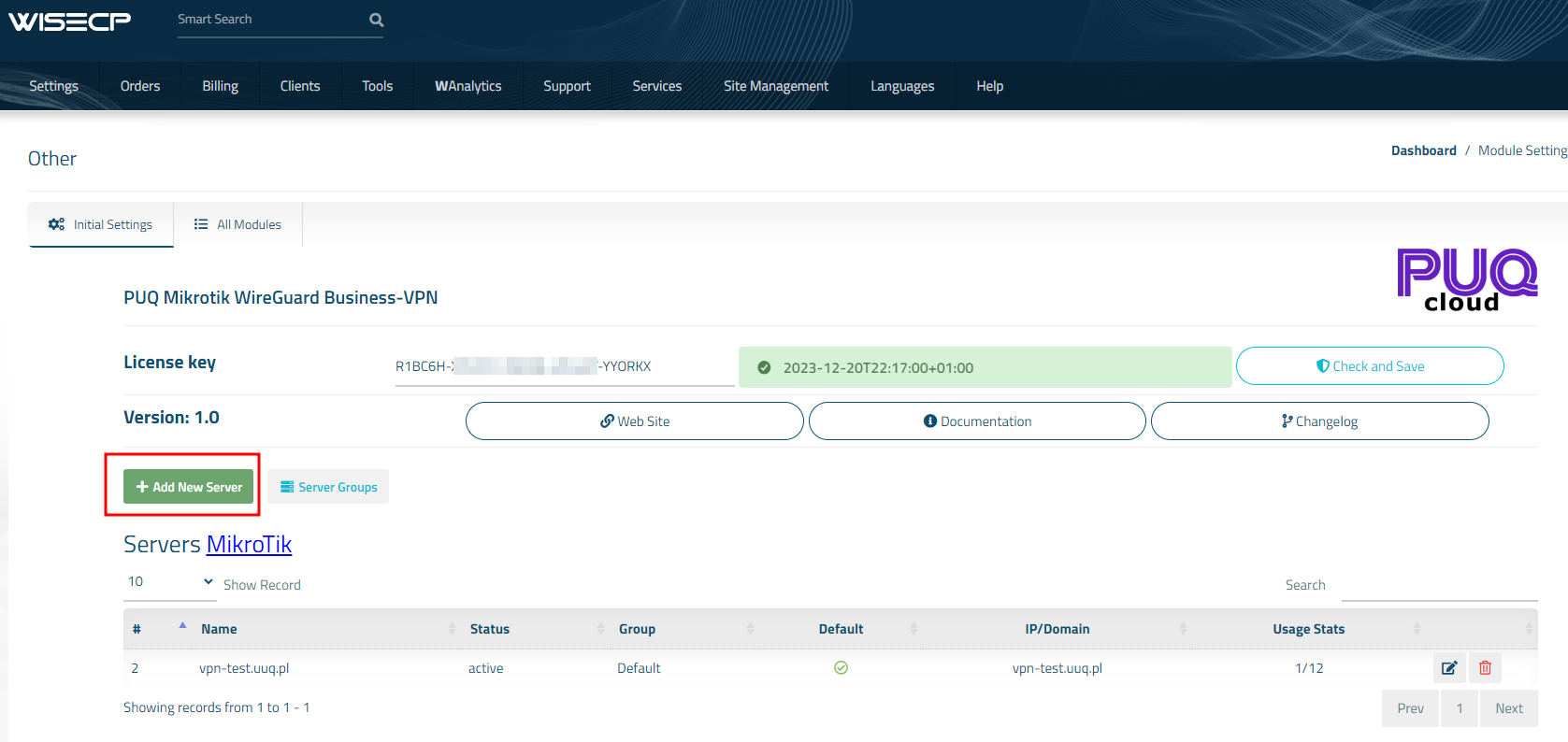
##### 4. On the opened page, enter all the necessary information:

- **Name**: Displayed name of the server.
- **Maximum Number of Accounts**: The number of services that can be on this server.
- **Server Group**: Optionally, choose the server group.
- **DNS 1 and DNS 2**: are DNS servers that will be specified in the configuration of WireGuard clients.
- **Assigned IP Addresses**: a list of Interface fot public IP, Public IP, Private Net that will be assigned to WireGuard VPN clients, with each address on a new line. Format: <div><div>```
    <interface>|<public_ip>/<mask>|<private_network>/<mask>
    ```
    
    </div></div>
- **IP Address or Domain**: The address of the [MikroTik](https://mikrotik.com/) router you are connecting to.
- **Username:** is the username for the account on [MikroTik](https://mikrotik.com/).
- **Password:** is the password for the account on [MikroTik](https://mikrotik.com/).
- Check the **SSL** box if you want to use SSL-encrypted connection. If necessary, specify the port and perform a connection test.

[![image-1700924467454.png](https://doc.puq.info/uploads/images/gallery/2023-11/scaled-1680-/image-1700924467454.png)](https://doc.puq.info/uploads/images/gallery/2023-11/image-1700924467454.png)

# Service/Product configuration

### Mikrotik WireGuard Business-VPN module **[WISECP](https://puqcloud.com/link.php?id=78)** 

##### [Order now](https://puqcloud.com/index.php?rp=/store/wisecp-module-mikrotik-wireguard-business-vpn) | [Download](https://download.puqcloud.com/WISECP/Product/PUQ_WISECP-Mikrotik-WireGuard-Business-VPN/) | [FAQ](https://faq.puqcloud.com/)

<p class="callout info">If you do not have a **Service Group** where you want to place the new service, you need to create a new **Service Group**</p>

##### 1. Log in to the administrative area of your **[WISECP](https://puqcloud.com/link.php?id=78)**.

##### 2. Create New Service Group

  
Go to

```
Services -> Service Management -> Add Group
```

[![image-1700487270737.png](https://doc.puq.info/uploads/images/gallery/2023-11/scaled-1680-/image-1700487270737.png)](https://doc.puq.info/uploads/images/gallery/2023-11/image-1700487270737.png)
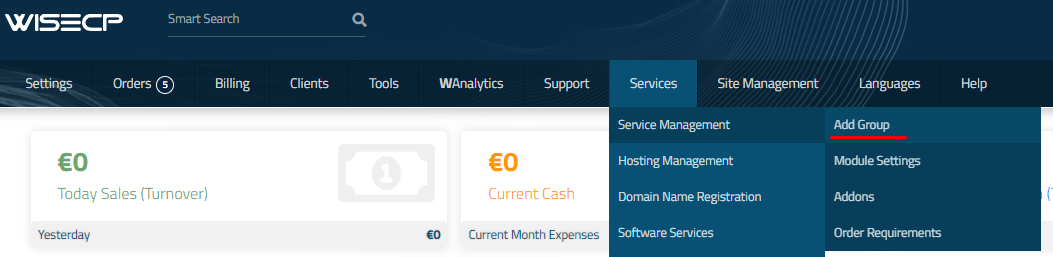
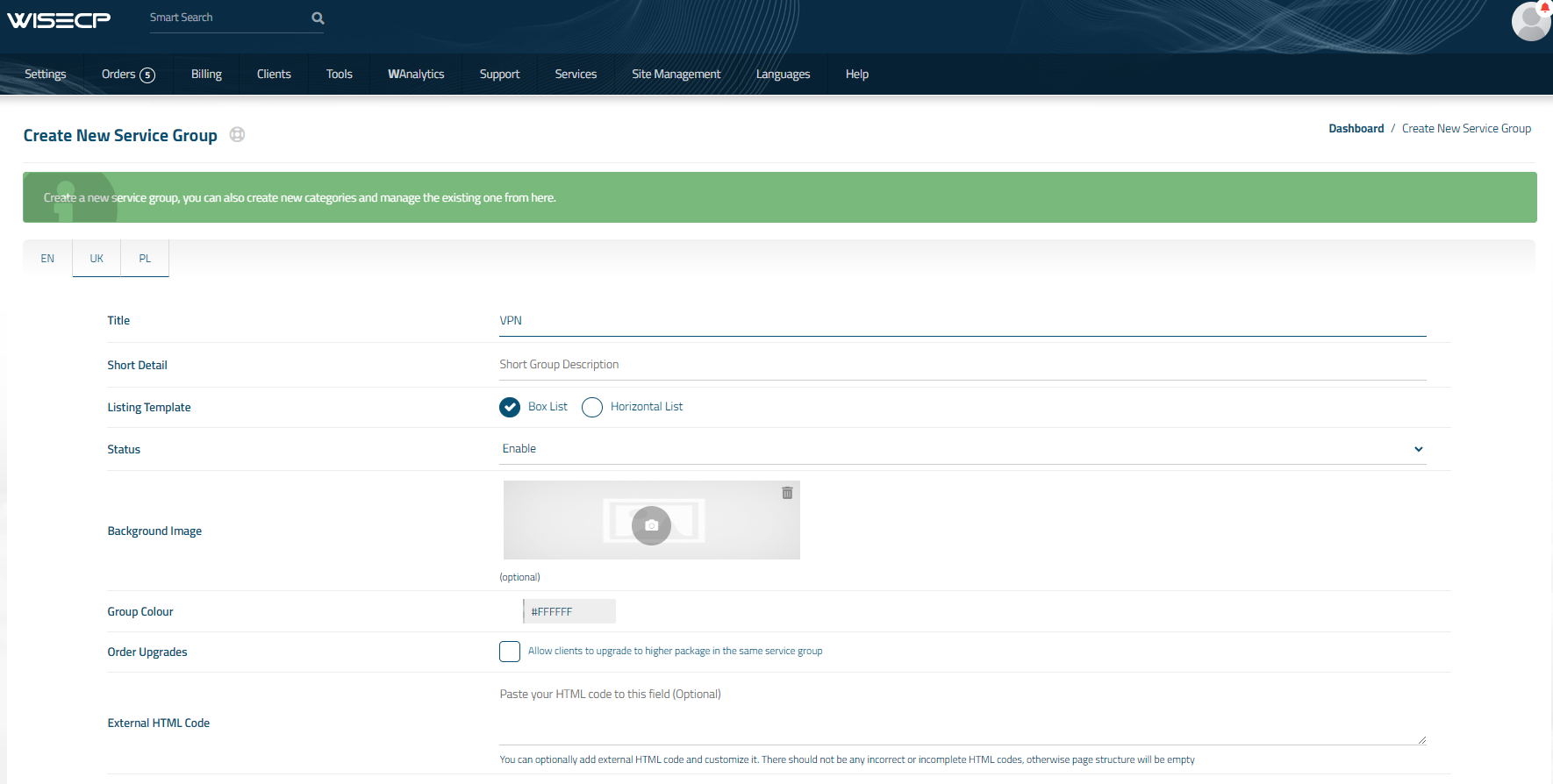
Enter all the necessary data and click the '**Create Group**' button.  
[![image-1700487384497.png](https://doc.puq.info/uploads/images/gallery/2023-11/scaled-1680-/image-1700487384497.png)](https://doc.puq.info/uploads/images/gallery/2023-11/image-1700487384497.png)
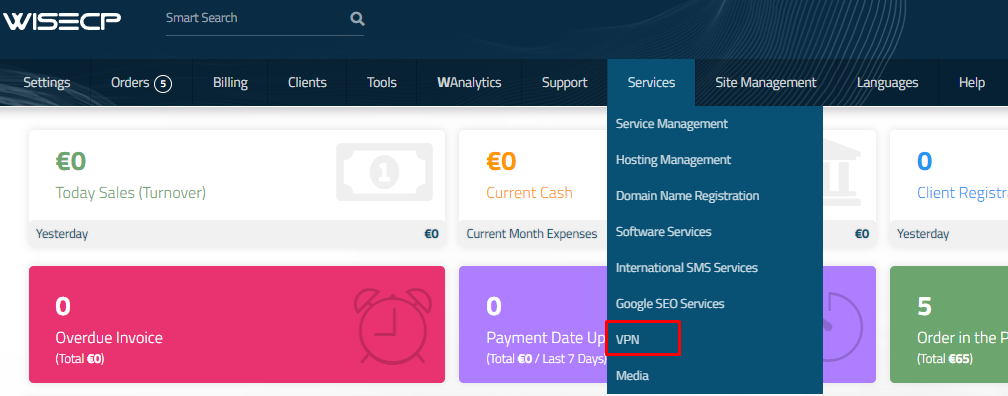
##### 3. Adding a New Service  


Go to

```
Services -> our service group where you need to add the new service.
```

[![image-1700487595449.png](https://doc.puq.info/uploads/images/gallery/2023-11/scaled-1680-/image-1700487595449.png)](https://doc.puq.info/uploads/images/gallery/2023-11/image-1700487595449.png)
In the opened window, click the '**Create New Service**' button.

[![image-1700487653237.png](https://doc.puq.info/uploads/images/gallery/2023-11/scaled-1680-/image-1700487653237.png)](https://doc.puq.info/uploads/images/gallery/2023-11/image-1700487653237.png)
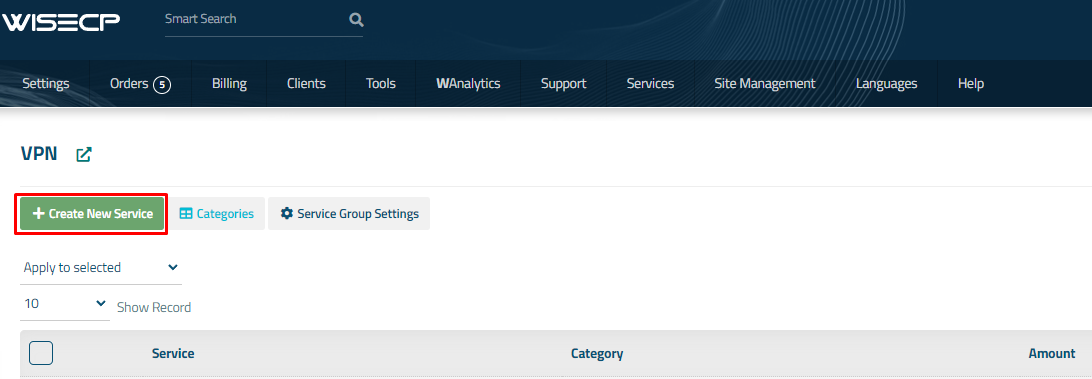
On the opened page, enter all the necessary details for your new service and navigate to the '**Core**' tab.  
  
Select the '**PUQ Mikrotik WireGuard Business-VPN**' module from the drop-down list of modules.

[![image-1700924994747.png](https://doc.puq.info/uploads/images/gallery/2023-11/scaled-1680-/image-1700924994747.png)](https://doc.puq.info/uploads/images/gallery/2023-11/image-1700924994747.png)
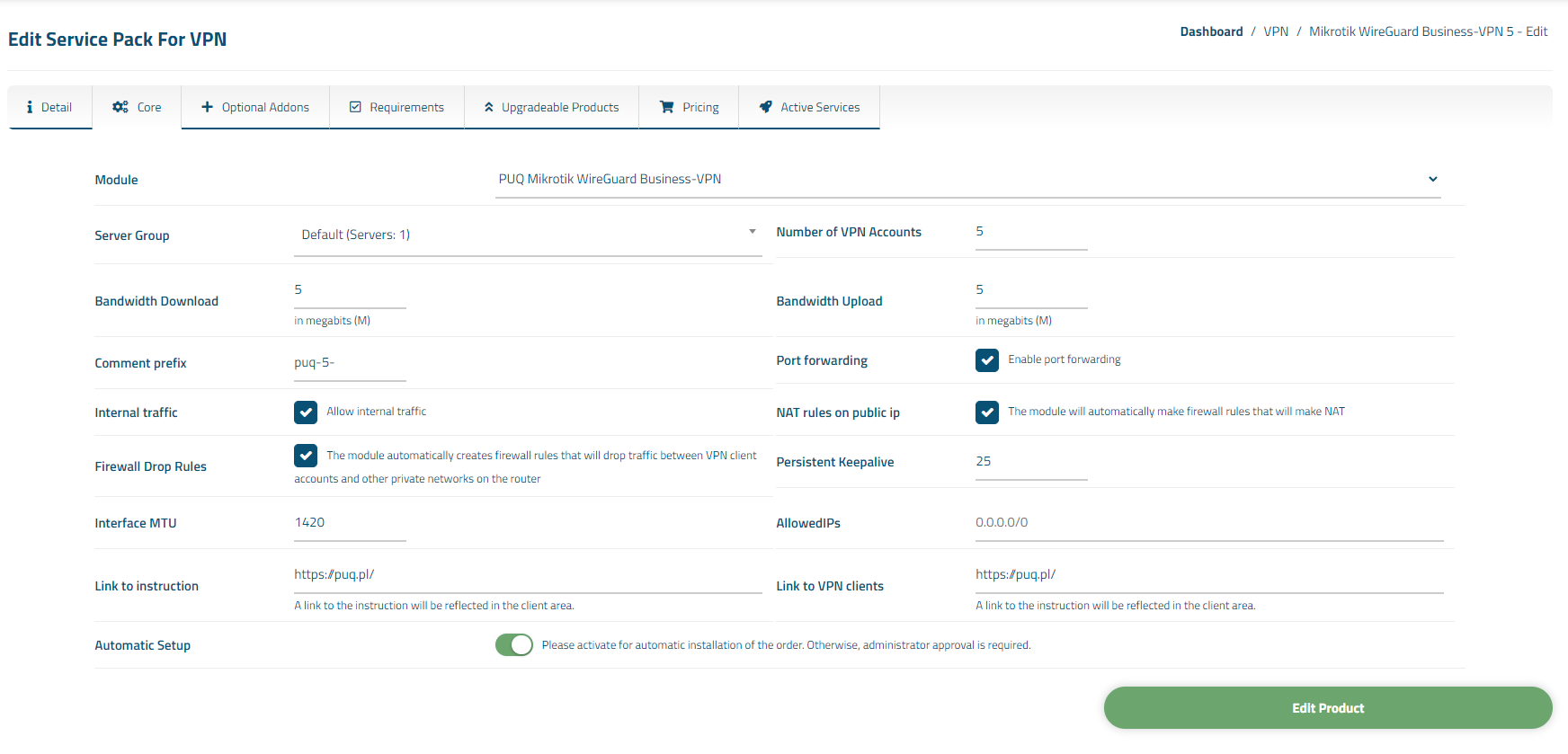
##### 4. Fill in the configuration options according to your preferences.

- **Server Group** is the group of servers from which a server will be chosen for provisioning the service
- **Number of VPN Accounts:** the quantity of VPN user accounts a client can create within this package
- **Bandwidth Download** and **Bandwidth Upload** represent the connection speed that will be restricted by these parameters, in megabits per second, respectively.
- **Comment Prefix** will be added at the comment in **[MikroTik](https://mikrotik.com/)**
- **Port Forwarding:** If the checkbox is selected, it means the client will have the ability to redirect ports from the main public address to internal addresses.
- **Internal Traffic**: If the checkbox is selected, it indicates that internal traffic between VPN clients of the client will be allowed.
- **NAT Rules on Public IP**: If the checkbox is selected, firewall rules, specifically NAT (Network Address Translation) to the public IP address, will be created during the service deployment.
- **Persistent Keepalive**/**AllowedIPs:** parameters of configuration WireGuard clients
- **Interface MTU**: This parameter will be set during the creation of the WireGuard interface.
    
    <div><form class="stretch mx-2 flex flex-row gap-3 last:mb-2 md:mx-4 md:last:mb-6 lg:mx-auto lg:max-w-2xl xl:max-w-3xl"></form></div>
- **Link to Instruction** Provide the link to the instruction for the service, and it will be displayed in the client area as a separate button
- **Link to VPN Clients** Provide the link to the page for downloading VPN clients for the service, and it will be displayed in the client area as a separate button

# WireGuard Clients configuring


# WireGuard Official clients

### Mikrotik WireGuard Business-VPN module **[WISECP](https://puqcloud.com/link.php?id=78)** 

##### [Order now](https://puqcloud.com/index.php?rp=/store/wisecp-module-mikrotik-wireguard-business-vpn) | [Download](https://download.puqcloud.com/WISECP/Product/PUQ_WISECP-Mikrotik-WireGuard-Business-VPN/) | [FAQ](https://faq.puqcloud.com/)

##### [![image-1668783561800.png](https://doc.puq.info/uploads/images/gallery/2022-11/scaled-1680-/image-1668783561800.png)](https://www.wireguard.com/ "https://www.wireguard.com/")

#### You can download from the [https://www.wireguard.com/install/](https://www.wireguard.com/install/)

Please always download latest versions. The following list is intended as a general direction only.

- - - - - -

#### Windows <small>\[7, 8.1, 10, 11, 2008R2, 2012R2, 2016, 2019, 2022<span class="distro-status" data-distro="windowsdl" data-package="win"> – v<span class="distro-status-uptodate">0.5.3</span></span>\]</small>

[Download Windows Installer](https://download.wireguard.com/windows-client/wireguard-installer.exe)  
<small>[Browse MSIs](https://download.wireguard.com/windows-client/)</small>

- - - - - -

#### macOS <small>\[[app store](https://itunes.apple.com/us/app/wireguard/id1451685025?ls=1&mt=12)<span class="distro-status" data-distro="macos" data-package="apple"> – v<span class="distro-status-uptodate">1.0.15</span></span>\]</small>

[Download from App Store](https://itunes.apple.com/us/app/wireguard/id1451685025?ls=1&mt=12)

- - - - - -

#### Android <small>\[[play store](https://play.google.com/store/apps/details?id=com.wireguard.android)<span class="distro-status" data-distro="playstore" data-package="apk"> – v<span class="distro-status-outofdate">unknown – out of date</span></span> &amp; [f-droid](https://f-droid.org/en/packages/com.wireguard.android/)<span class="distro-status" data-distro="fdroid" data-package="apk"> – v<span class="distro-status-uptodate">1.0.20220516</span></span>\]</small>

[Download from Play Store](https://play.google.com/store/apps/details?id=com.wireguard.android)  
<small>[Download from F-Droid](https://f-droid.org/en/packages/com.wireguard.android/)</small>

- - - - - -

#### iOS <small>\[[app store](https://itunes.apple.com/us/app/wireguard/id1441195209?ls=1&mt=8)<span class="distro-status" data-distro="ios" data-package="apple"> – v<span class="distro-status-uptodate">1.0.15</span></span>\]</small>

[Download from App Store](https://itunes.apple.com/us/app/wireguard/id1441195209?ls=1&mt=8)

- - - - - -

#### Debian/Ubuntu

<div id="bkmrk-%24-sudo-apt-install-w">```
$ sudo apt install wireguard

```

</div>- - - - - -

# Mikrotik WireGuard client configuration

### Mikrotik WireGuard Business-VPN module **[WISECP](https://puqcloud.com/link.php?id=78)** 

##### [Order now](https://puqcloud.com/index.php?rp=/store/wisecp-module-mikrotik-wireguard-business-vpn) | [Download](https://download.puqcloud.com/WISECP/Product/PUQ_WISECP-Mikrotik-WireGuard-Business-VPN/) | [FAQ](https://faq.puqcloud.com/)

##### Make sure you have an up to date **routerOS** system.

Version must be at least: 7.6

```
[admin@VPN-CLIENT] > system package print 
Columns: NAME, VERSION
# NAME      VERSION
0 routeros  7.6    
```

##### Open a single-use shipment on the **WireGuard** section for the client's configuration request

[![image-1671100595697.png](https://doc.puq.info/uploads/images/gallery/2022-12/scaled-1680-/image-1671100595697.png)](https://doc.puq.info/uploads/images/gallery/2022-12/image-1671100595697.png)

##### Login to **Mikrotik** via Winbox

Click on the menu item **WireGuard** In the window that opens, in the **WireGuard** tab, click the plus to add a new **WireGuard** interface

[![image-1671100789370.png](https://doc.puq.info/uploads/images/gallery/2022-12/scaled-1680-/image-1671100789370.png)](https://doc.puq.info/uploads/images/gallery/2022-12/image-1671100789370.png)

Copy the private key from the text configuration from the **\[Interface\]** section to the **PrivateKey** field in the **WireGuard** interface settings in **Mikrotik**

Click **OK** to create the interface

[![image-1671101049703.png](https://doc.puq.info/uploads/images/gallery/2022-12/scaled-1680-/image-1671101049703.png)](https://doc.puq.info/uploads/images/gallery/2022-12/image-1671101049703.png)

Go to the peers tab.  
Click plus to add a new peer

[![image-1671101223879.png](https://doc.puq.info/uploads/images/gallery/2022-12/scaled-1680-/image-1671101223879.png)](https://doc.puq.info/uploads/images/gallery/2022-12/image-1671101223879.png)

**Interface** - Select the previously created **WireGuard** interface

**Public key** - Copy the public key from the text configuration from the **\[Peer\]** section to the Public key field

**Endpoint** - Copy the server **address** from the text configuration from the **\[Peer\]** section to the endpoint field

**Endpoint Port -** Copy the server **port** from the text configuration from the **\[Peer\]** section to the Endpoint Port field

**Allowed Address -** Copy **AllowedIPs** from the text configuration from the **\[Peer\]** section to the Allowed Address field

**Persistent Keepalive -** Copy the **PersistentKeepalive** from the text configuration from the **\[Peer\]** section to the Persistent Keepalive field

Click **OK** to create a peer

[![image-1671101662963.png](https://doc.puq.info/uploads/images/gallery/2022-12/scaled-1680-/image-1671101662963.png)](https://doc.puq.info/uploads/images/gallery/2022-12/image-1671101662963.png)

##### In order to have communication with the server, you need to set the address on the **WireGuard** interface

Go to the menu item **IP-&gt;Addresses** In the window that opens, click the plus to assign an IP address to the WireGuard interface

[![image-1671101826333.png](https://doc.puq.info/uploads/images/gallery/2022-12/scaled-1680-/image-1671101826333.png)](https://doc.puq.info/uploads/images/gallery/2022-12/image-1671101826333.png)

**Addresse -** Copy the Address from the text configuration from the **\[Interface\]** section to the Address field

**Interface** - Select the previously created **WireGuard** interface

Press the OK button to confirm

[![image-1671102046038.png](https://doc.puq.info/uploads/images/gallery/2022-12/scaled-1680-/image-1671102046038.png)](https://doc.puq.info/uploads/images/gallery/2022-12/image-1671102046038.png)

<p class="callout info">You also need to configure the traffic routes you need at your discretion.</p>

# Admin Area


# Order Detail

### Mikrotik WireGuard Business-VPN module **[WISECP](https://puqcloud.com/link.php?id=78)** 

##### [Order now](https://puqcloud.com/index.php?rp=/store/wisecp-module-mikrotik-wireguard-business-vpn) | [Download](https://download.puqcloud.com/WISECP/Product/PUQ_WISECP-Mikrotik-WireGuard-Business-VPN/) | [FAQ](https://faq.puqcloud.com/)

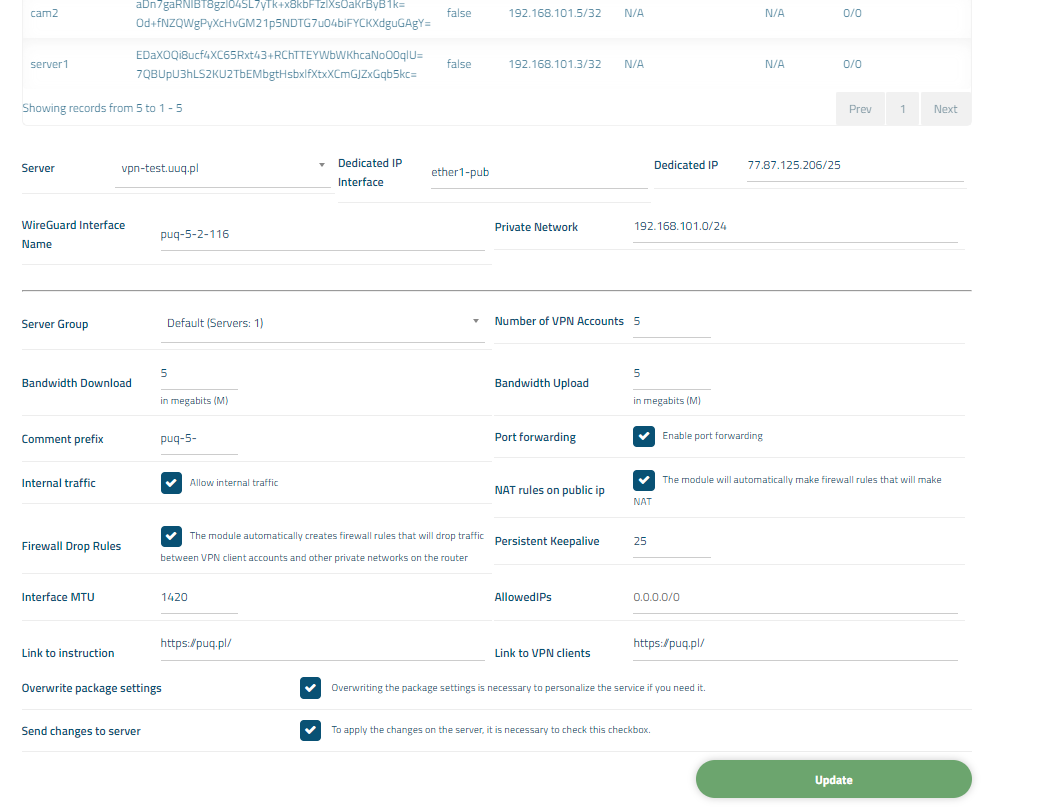
##### Navigate to the service you want to manage, then go to the '**Core**' tab.

[![image-1700928964135.png](https://doc.puq.info/uploads/images/gallery/2023-11/scaled-1680-/image-1700928964135.png)](https://doc.puq.info/uploads/images/gallery/2023-11/image-1700928964135.png)
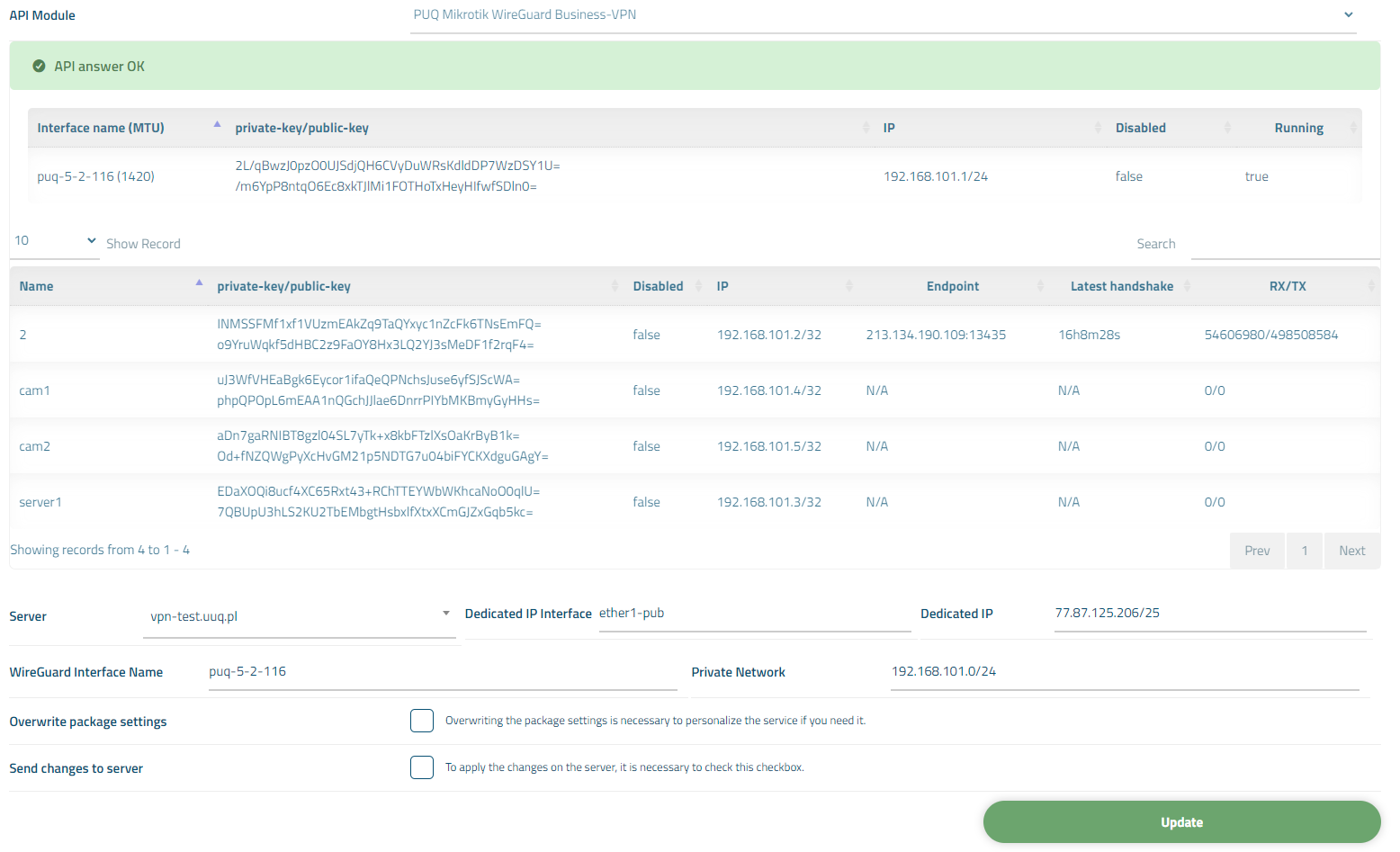
In the opened tab, you have a view of the online status of the service. The available online information includes:

- Connection status to the API
- Information about the VPN account on the **[MikroTik](https://mikrotik.com/)** router
- Information about the account

Also, below are fields with the client's personal data.  
  
You can also individually override package options for the client by checking the '**Overwrite package settings**' box.

<p class="callout success">After modifying the configuration options, check the '**Send changes to server**' box to save the data to the [**MikroTik** ](https://mikrotik.com/)server.</p>

[![image-1700929130269.png](https://doc.puq.info/uploads/images/gallery/2023-11/scaled-1680-/image-1700929130269.png)](https://doc.puq.info/uploads/images/gallery/2023-11/image-1700929130269.png)

# Client Area


# Product Home Screen

### Mikrotik WireGuard Business-VPN module **[WISECP](https://puqcloud.com/link.php?id=78)** 

##### [Order now](https://puqcloud.com/index.php?rp=/store/wisecp-module-mikrotik-wireguard-business-vpn) | [Download](https://download.puqcloud.com/WISECP/Product/PUQ_WISECP-Mikrotik-WireGuard-Business-VPN/) | [FAQ](https://faq.puqcloud.com/)

##### Available options in the client panel:

- VPN Account Creation Button
    
    <div><form class="stretch mx-2 flex flex-row gap-3 last:mb-2 md:mx-4 md:last:mb-6 lg:mx-auto lg:max-w-2xl xl:max-w-3xl"></form></div>
- Port Forwarding Management Button
    
    <div><form class="stretch mx-2 flex flex-row gap-3 last:mb-2 md:mx-4 md:last:mb-6 lg:mx-auto lg:max-w-2xl xl:max-w-3xl"></form></div>
- Links in the form of buttons to the instruction and VPN clients
- General information about the service
- List of VPN Users Encrypted by the Client with Status and Edit Button
    
    <div><form class="stretch mx-2 flex flex-row gap-3 last:mb-2 md:mx-4 md:last:mb-6 lg:mx-auto lg:max-w-2xl xl:max-w-3xl"><div><div></div></div></form></div>

##### Screenshot of the client area

[![image-1700926025317.png](https://doc.puq.info/uploads/images/gallery/2023-11/scaled-1680-/image-1700926025317.png)](https://doc.puq.info/uploads/images/gallery/2023-11/image-1700926025317.png)

<div id="bkmrk--0"><div></div></div>

# Add VPN account

### Mikrotik WireGuard Business-VPN module **[WISECP](https://puqcloud.com/link.php?id=78)** 

##### [Order now](https://puqcloud.com/index.php?rp=/store/wisecp-module-mikrotik-wireguard-business-vpn) | [Download](https://download.puqcloud.com/WISECP/Product/PUQ_WISECP-Mikrotik-WireGuard-Business-VPN/) | [FAQ](https://faq.puqcloud.com/)

To create a new VPN account, you need to click on the **"Add VPN Account"** button on the main screen of the product.

[![image-1700926595587.png](https://doc.puq.info/uploads/images/gallery/2023-11/scaled-1680-/image-1700926595587.png)](https://doc.puq.info/uploads/images/gallery/2023-11/image-1700926595587.png)

In the opened window, you need to enter the account name for identification, as well as select an IP address for the account that the account will use. Don't forget to click the **"Add VPN Account"** button.

[![image-1700926729715.png](https://doc.puq.info/uploads/images/gallery/2023-11/scaled-1680-/image-1700926729715.png)](https://doc.puq.info/uploads/images/gallery/2023-11/image-1700926729715.png)

# Port Forwarding

### Mikrotik WireGuard Business-VPN module **[WISECP](https://puqcloud.com/link.php?id=78)** 

##### [Order now](https://puqcloud.com/index.php?rp=/store/wisecp-module-mikrotik-wireguard-business-vpn) | [Download](https://download.puqcloud.com/WISECP/Product/PUQ_WISECP-Mikrotik-WireGuard-Business-VPN/) | [FAQ](https://faq.puqcloud.com/)

To access the port forwarding settings, you need to click on the **"Port Forwarding"** button on the main screen of the product.

[![image-1700926797237.png](https://doc.puq.info/uploads/images/gallery/2023-11/scaled-1680-/image-1700926797237.png)](https://doc.puq.info/uploads/images/gallery/2023-11/image-1700926797237.png)

To create a new port forwarding rule, enter the port you want to forward, select the protocol, choose the VPN account from the dropdown list to which the port will be forwarded, and enter the port to which the forwarding will occur. After filling in the details, press the **"Add Port Forwarding"** button.

[![image-1700926871159.png](https://doc.puq.info/uploads/images/gallery/2023-11/scaled-1680-/image-1700926871159.png)](https://doc.puq.info/uploads/images/gallery/2023-11/image-1700926871159.png)

To delete an existing rule, you need to click the "**Delete**" button next to the rule you want to remove.