If you do not have a **Service Group** where you want to place the new service, you need to create a new **Service Group**
##### 1. Log in to the administrative area of your **[WISECP](https://puqcloud.com/link.php?id=78)**. ##### 2. Create New Service Group Go to ``` Services -> Service Management -> Add Group ``` [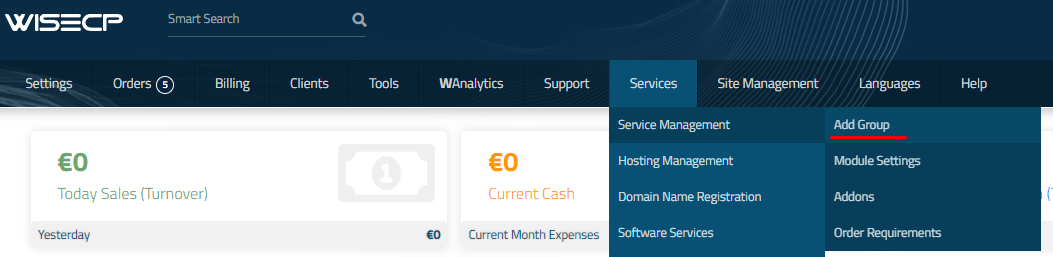](https://doc.puq.info/uploads/images/gallery/2023-11/image-1700487270737.png) Enter all the necessary data and click the '**Create Group**' button. [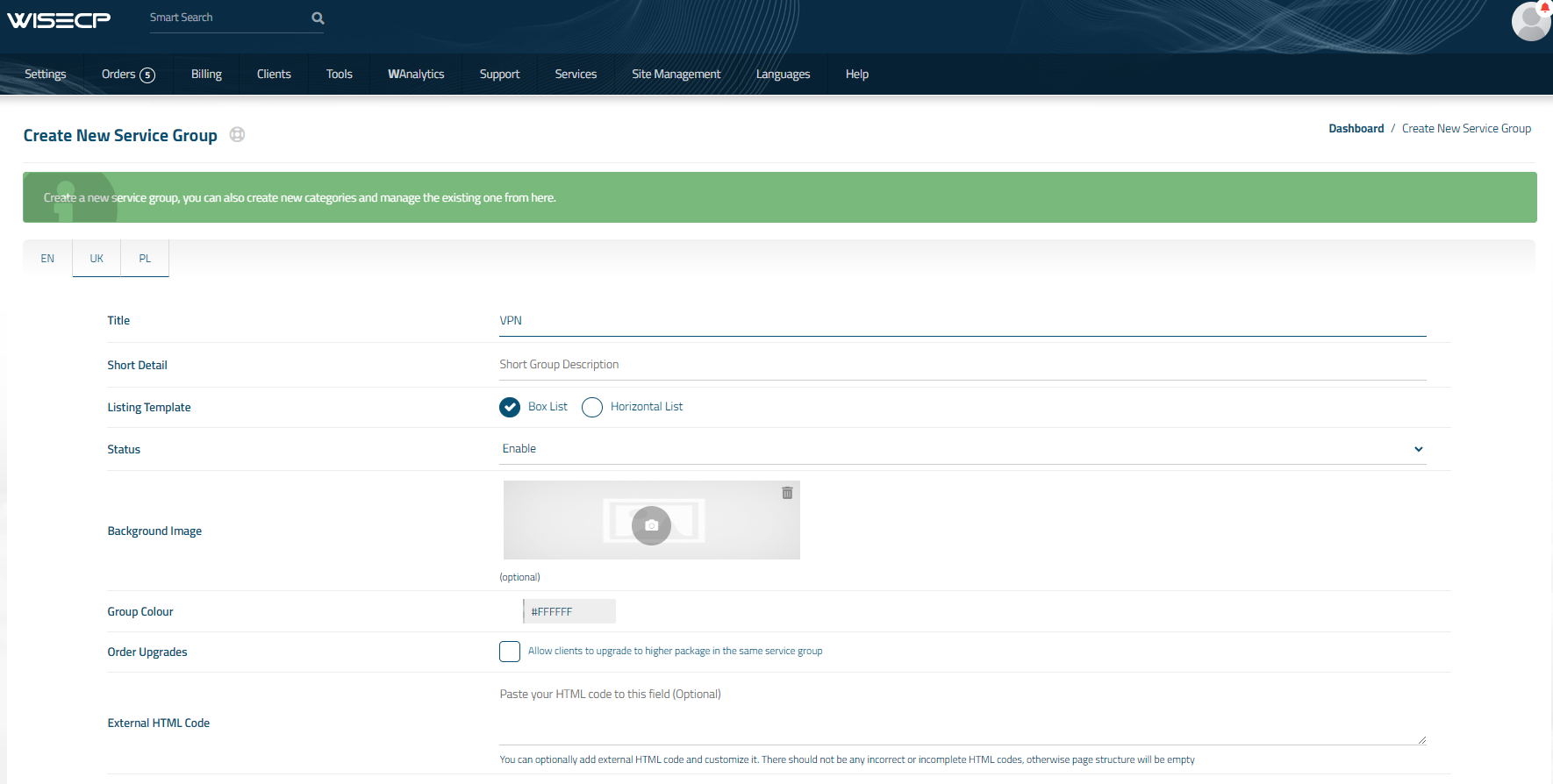](https://doc.puq.info/uploads/images/gallery/2023-11/image-1700487384497.png) ##### 3. Adding a New Service Go to ``` Services -> our service group where you need to add the new service. ``` [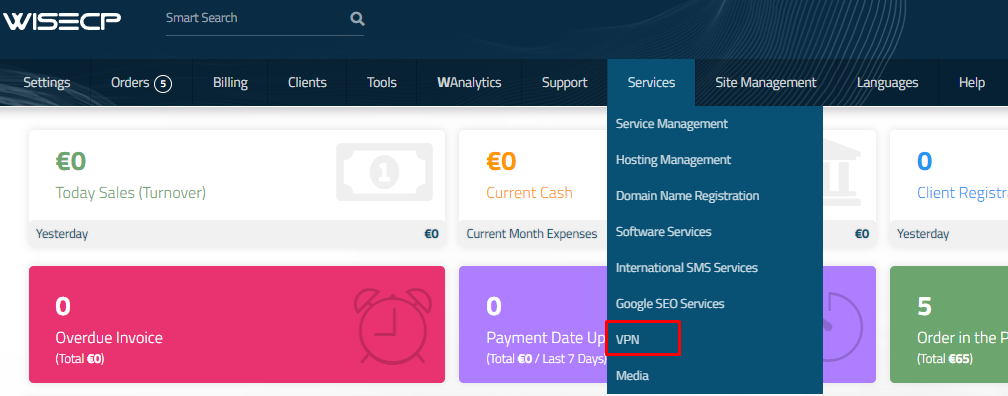](https://doc.puq.info/uploads/images/gallery/2023-11/image-1700487595449.png) In the opened window, click the '**Create New Service**' button. [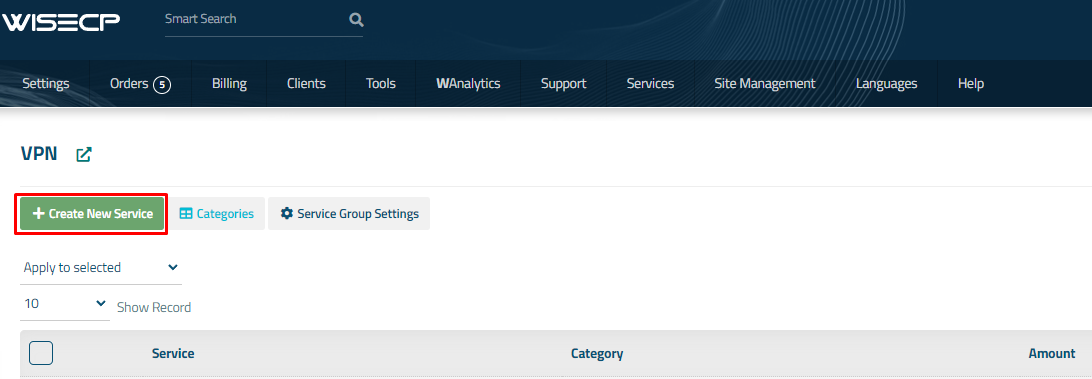](https://doc.puq.info/uploads/images/gallery/2023-11/image-1700487653237.png) On the opened page, enter all the necessary details for your new service and navigate to the '**Core**' tab. Select the '**PUQ Mikrotik WireGuard Business-VPN**' module from the drop-down list of modules. [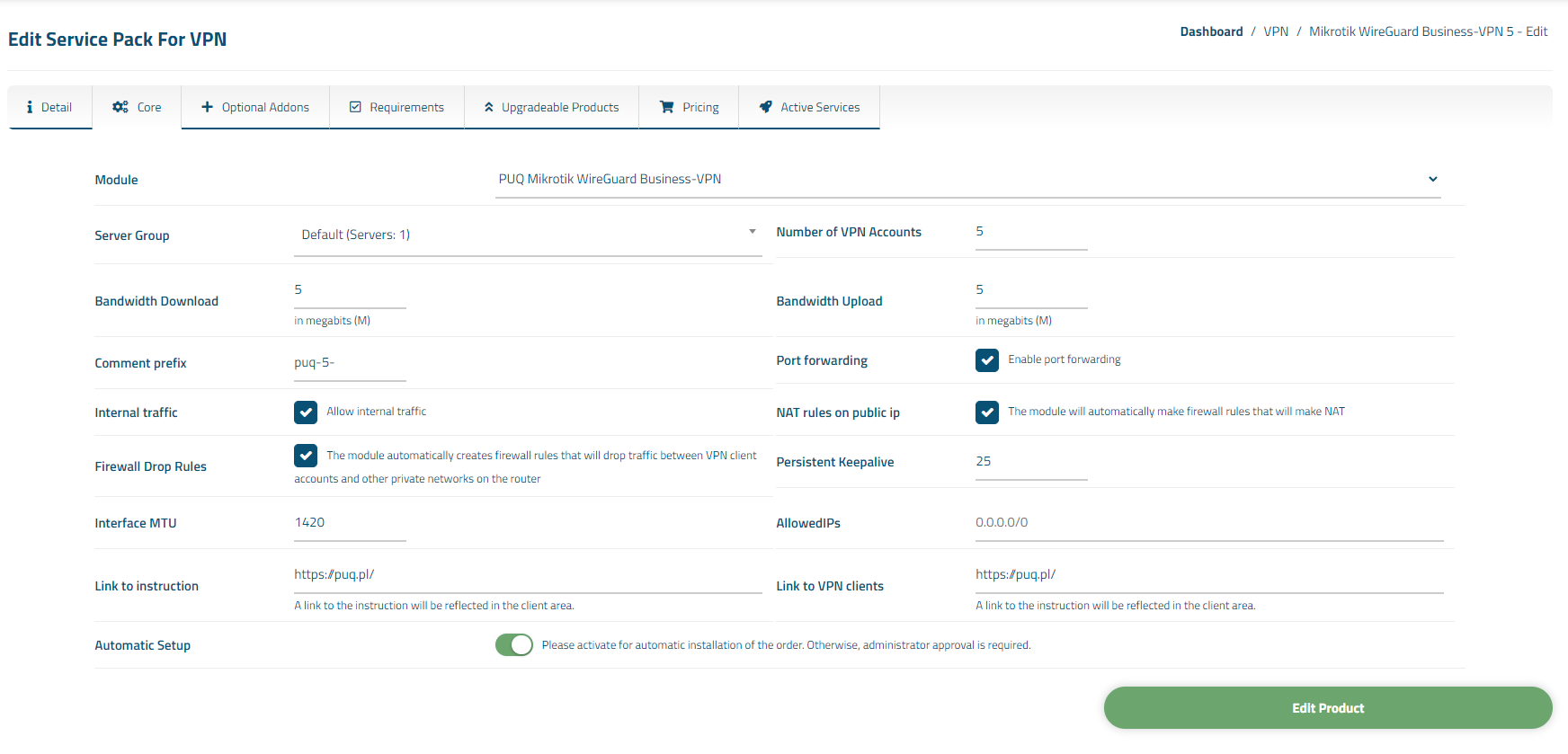](https://doc.puq.info/uploads/images/gallery/2023-11/image-1700924994747.png) ##### 4. Fill in the configuration options according to your preferences. - **Server Group** is the group of servers from which a server will be chosen for provisioning the service - **Number of VPN Accounts:** the quantity of VPN user accounts a client can create within this package - **Bandwidth Download** and **Bandwidth Upload** represent the connection speed that will be restricted by these parameters, in megabits per second, respectively. - **Comment Prefix** will be added at the comment in **[MikroTik](https://mikrotik.com/)** - **Port Forwarding:** If the checkbox is selected, it means the client will have the ability to redirect ports from the main public address to internal addresses. - **Internal Traffic**: If the checkbox is selected, it indicates that internal traffic between VPN clients of the client will be allowed. - **NAT Rules on Public IP**: If the checkbox is selected, firewall rules, specifically NAT (Network Address Translation) to the public IP address, will be created during the service deployment. - **Persistent Keepalive**/**AllowedIPs:** parameters of configuration WireGuard clients - **Interface MTU**: This parameter will be set during the creation of the WireGuard interface. - **Link to Instruction** Provide the link to the instruction for the service, and it will be displayed in the client area as a separate button - **Link to VPN Clients** Provide the link to the page for downloading VPN clients for the service, and it will be displayed in the client area as a separate button