# Mikrotik WireGuard VPN WISECP module

# Description

### Mikrotik WireGuard VPN module **[WISECP](https://puqcloud.com/link.php?id=78)** 

##### [Order now](https://puqcloud.com/index.php?rp=/store/wisecp-module-mikrotik-wireguard-vpn) | [Download](https://download.puqcloud.com/WISECP/Product/PUQ_WISECP-Mikrotik-WireGuard-VPN/) | [FAQ](https://faq.puqcloud.com/)

#### The Mikrotik WireGuard VPN module provides the ability to sell the Virtual Private Network service to customers.

<p class="callout info">**Requirements**  
WISECP: v3.1.5+, php: v8.x, Ioncube: V12+  
MikroTik: v7+</p>

##### Supports protocols:

- WireGuard

##### Module Functions:

- Auto create and deploy VPN account/accounts
- Suspend/Unsuspend/Delete/Change Package
- Requires a [MikroTik](https://mikrotik.com/) device or [MikroTik](https://mikrotik.com/) CHR.
- Possibility to set Bandwidth speed limits
- Module supports multilingualism (**Arabic, Bosnian, Czech, German, Greek, English, Spanish, Persian, French, Hungarian, Indonesian, Italian, Georgian, Latvian, Dutch, Polish, Portuguese, Romanian, Ukrainian**)
- Link to instructions for setting up the service in the client area.
- Mechanism for working with servers and server groups

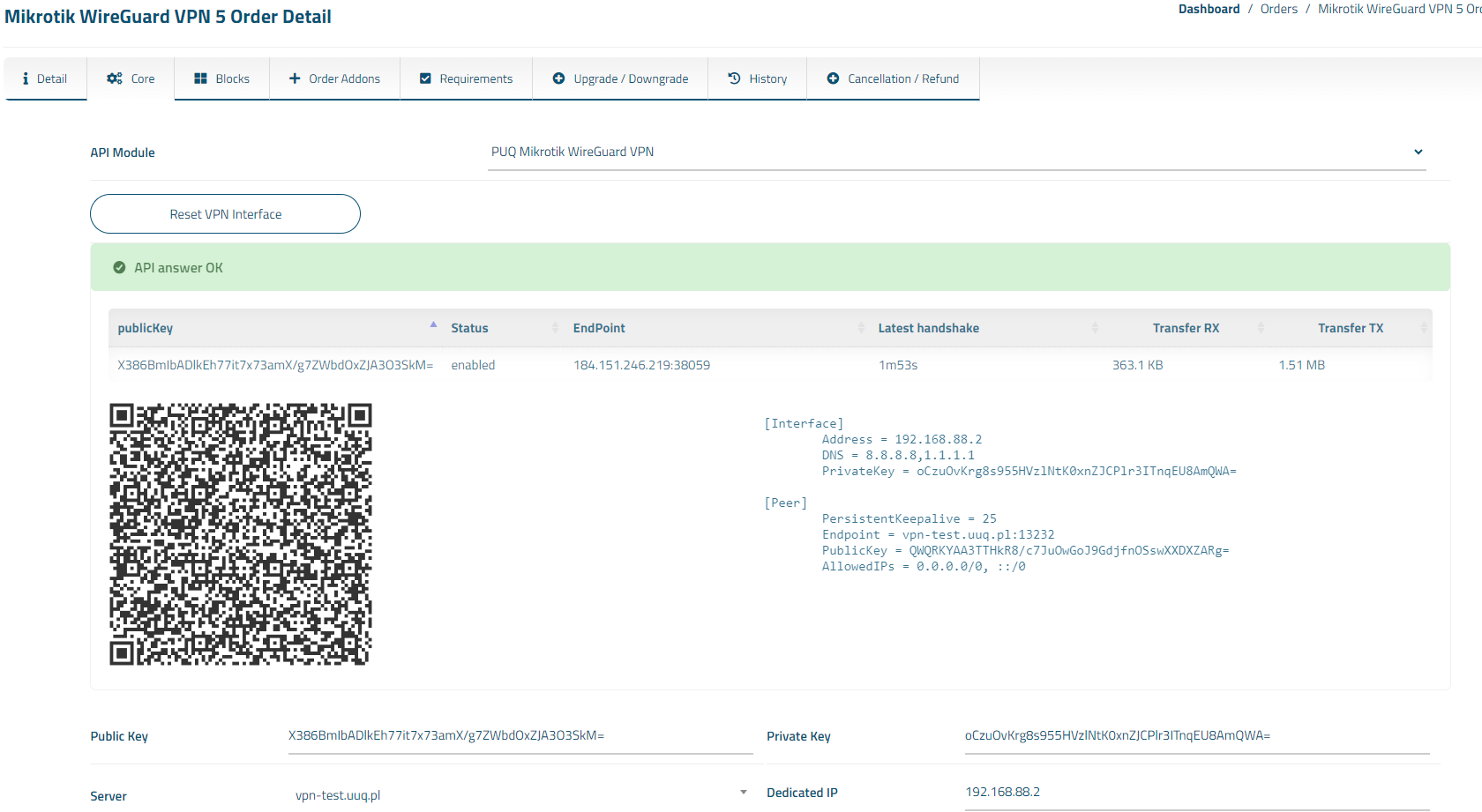
##### Available options in the admin panel:

- Create users
- Suspend users
- Unsuspend users
- Delete users
- Change Package
- VPN connection status
- VPN interface reboot function (to reset a frozen connection)
- Text and QR code configuration types

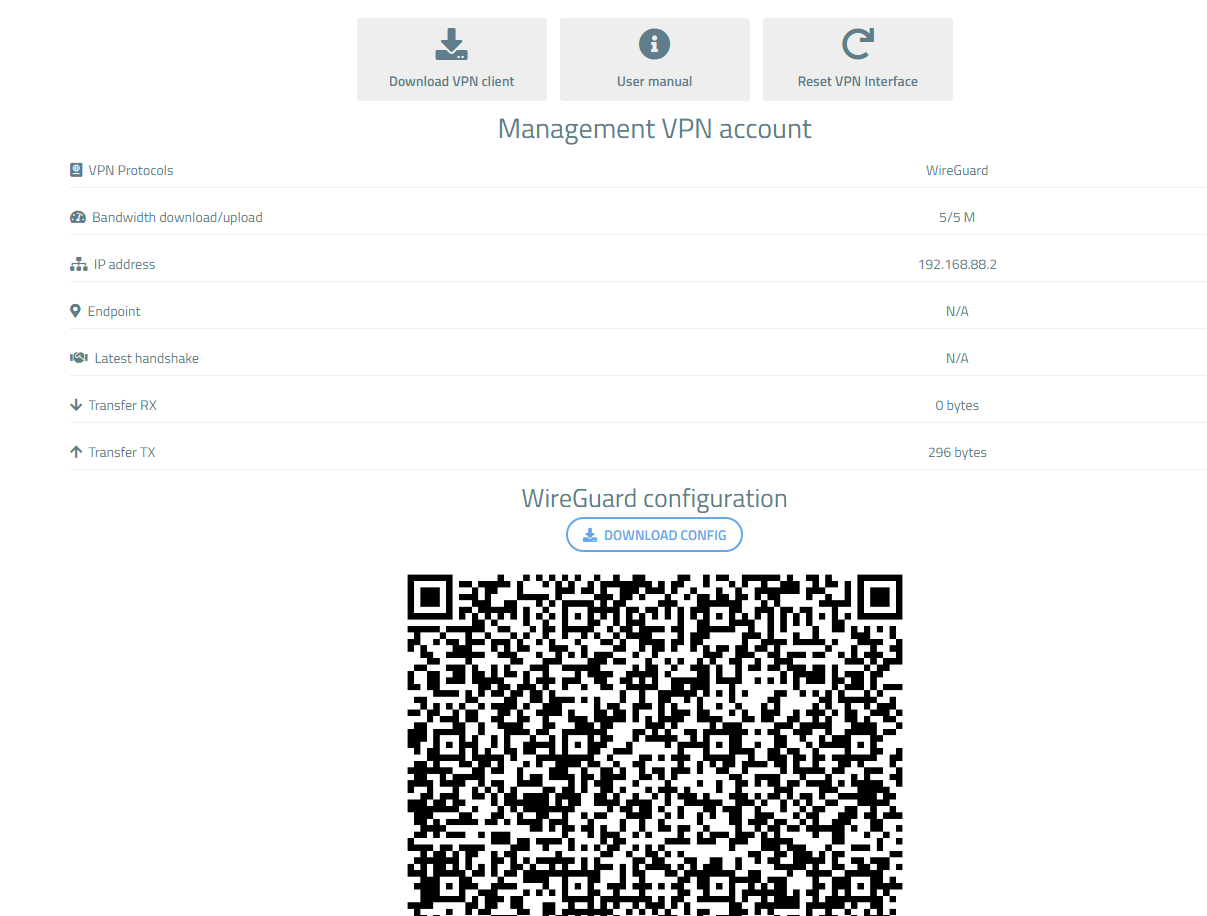
##### Available options in the client panel:

- Links in the form of buttons to the instruction and VPN clients
- General information about the service
- Option to download WireGuard configuration as a file
- QR code for WireGuard configuration
- VPN connection status
- Text and QR code configuration types
- VPN interface reboot function (to reset a frozen connection)

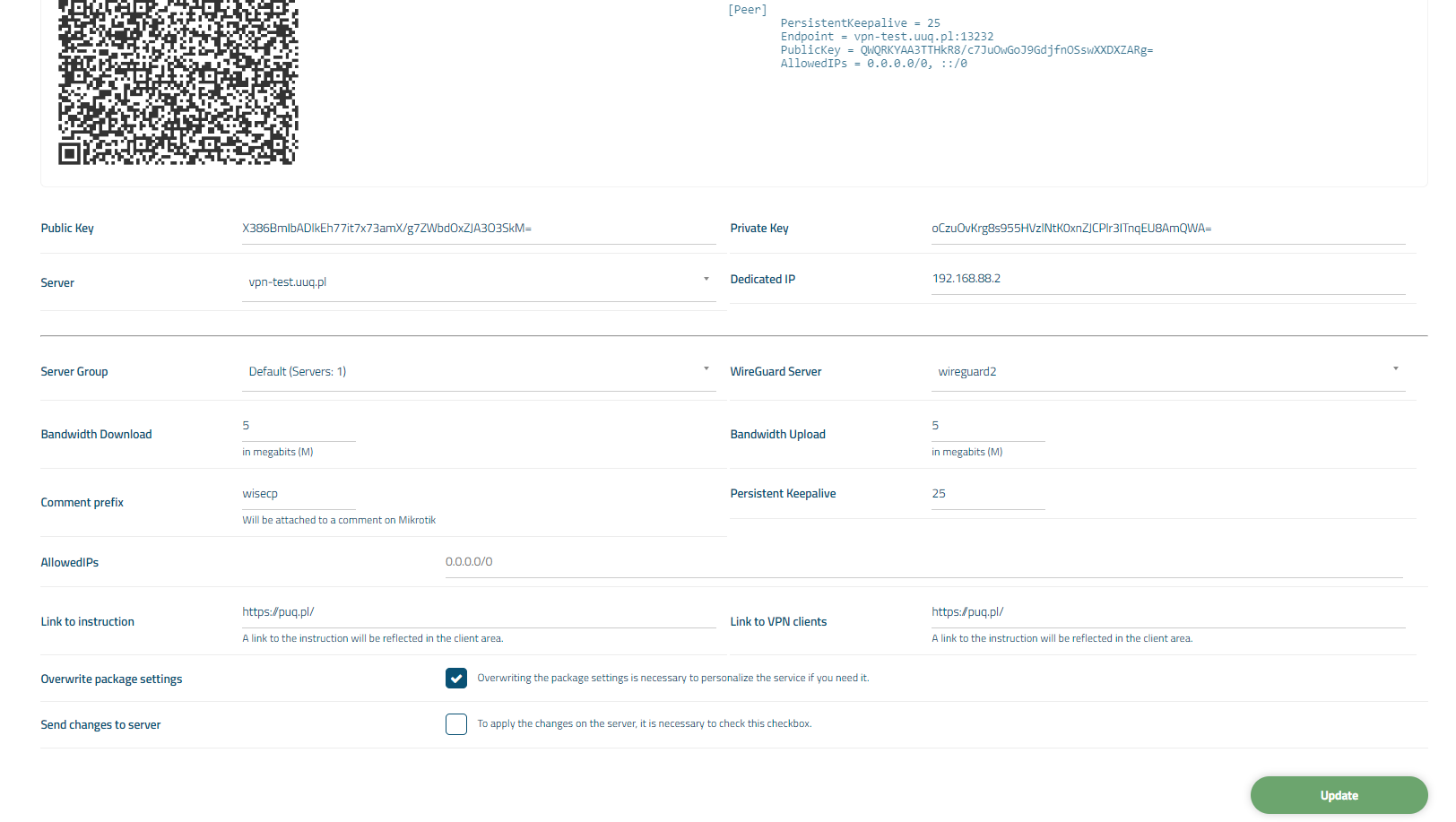
##### Screenshot of the client area

[![image-1718682339563.png](https://doc.puq.info/uploads/images/gallery/2024-06/scaled-1680-/image-1718682339563.png)](https://doc.puq.info/uploads/images/gallery/2024-06/image-1718682339563.png)
##### Screenshot of the Admin area

[![image-1718682375882.png](https://doc.puq.info/uploads/images/gallery/2024-06/scaled-1680-/image-1718682375882.png)](https://doc.puq.info/uploads/images/gallery/2024-06/image-1718682375882.png)
<div id="bkmrk--1"><div></div></div><div id="bkmrk--2"><div></div></div># Changelog

### Mikrotik WireGuard VPN module **[WISECP](https://puqcloud.com/link.php?id=78)** 

##### [Order now](https://puqcloud.com/index.php?rp=/store/wisecp-module-mikrotik-wireguard-vpn) | [Download](https://download.puqcloud.com/WISECP/Product/PUQ_WISECP-Mikrotik-WireGuard-VPN/) | [FAQ](https://faq.puqcloud.com/)

##### v1.3 Released 26-03-2025

1. Added the ability to display MTU in the configuration file
2. Added the ability to delete tabs in the configuration file

- - - - - -

##### v1.2 Released 17-06-2024

1. Added VPN interface reboot function (to reset a frozen connection)
2. Improved adaptation to the mobile version of the client area
3. Some changes in translations

- - - - - -

##### v1.1 Released 15-02-2024

 1. Fixed a bug with some cases where it was not possible to delete the server  
 2. Improved security

- - - - - -

##### v1.0 Released 06-12-2023

First version

<div id="bkmrk--2"><div></div></div># Installation and configuration guide


# Setup (install/update)

### Mikrotik WireGuard VPN module **[WISECP](https://puqcloud.com/link.php?id=78)** 

##### [Order now](https://puqcloud.com/index.php?rp=/store/wisecp-module-mikrotik-wireguard-vpn) | [Download](https://download.puqcloud.com/WISECP/Product/PUQ_WISECP-Mikrotik-WireGuard-VPN/) | [FAQ](https://faq.puqcloud.com/)

<p class="callout info">To install and update a module, you must perform one and the same action.</p>

#####  

##### 1. Download the latest version of the module.

```Powershell
wget https://download.puqcloud.com/WISECP/Product/PUQ_WISECP-Mikrotik-WireGuard-VPN/php81/PUQ_WISECP-Mikrotik-WireGuard-VPN-latest.zip
```

<p class="callout info">All versions are available: [https://download.puqcloud.com/WISECP/Product/PUQ\_WISECP-Mikrotik-WireGuard-VPN/](https://download.puqcloud.com/WISECP/Product/PUQ_WISECP-Mikrotik-WireGuard-VPN/)</p>

#####  

##### 2. Unzip the archive with the module.

```Powershell
unzip PUQ_WISECP-Mikrotik-WireGuard-VPN-latest.zip
```

#####  

##### 3. Copy and Replace "puqMikrotikWireGuardVPN" from "PUQ\_WISECP-Mikrotik-WireGuard-VPN" to "WISECP\_WEB\_DIR/coremio/modules/Product/"

# License Activation

### Mikrotik WireGuard VPN module **[WISECP](https://puqcloud.com/link.php?id=78)** 

##### [Order now](https://puqcloud.com/index.php?rp=/store/wisecp-module-mikrotik-wireguard-vpn) | [Download](https://download.puqcloud.com/WISECP/Product/PUQ_WISECP-Mikrotik-WireGuard-VPN/) | [FAQ](https://faq.puqcloud.com/)

##### 1. Log in to the administrative area of your **[WISECP](https://puqcloud.com/link.php?id=78)**.

#####   
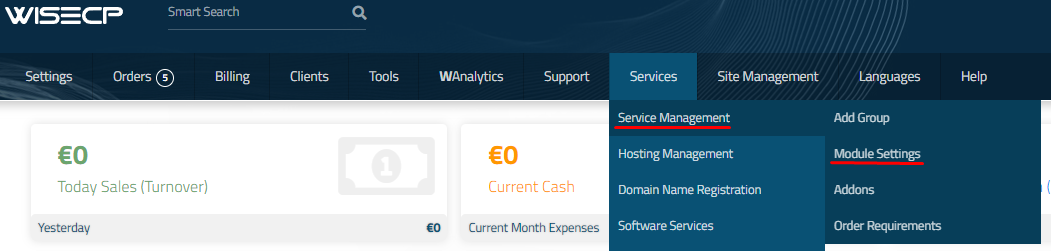
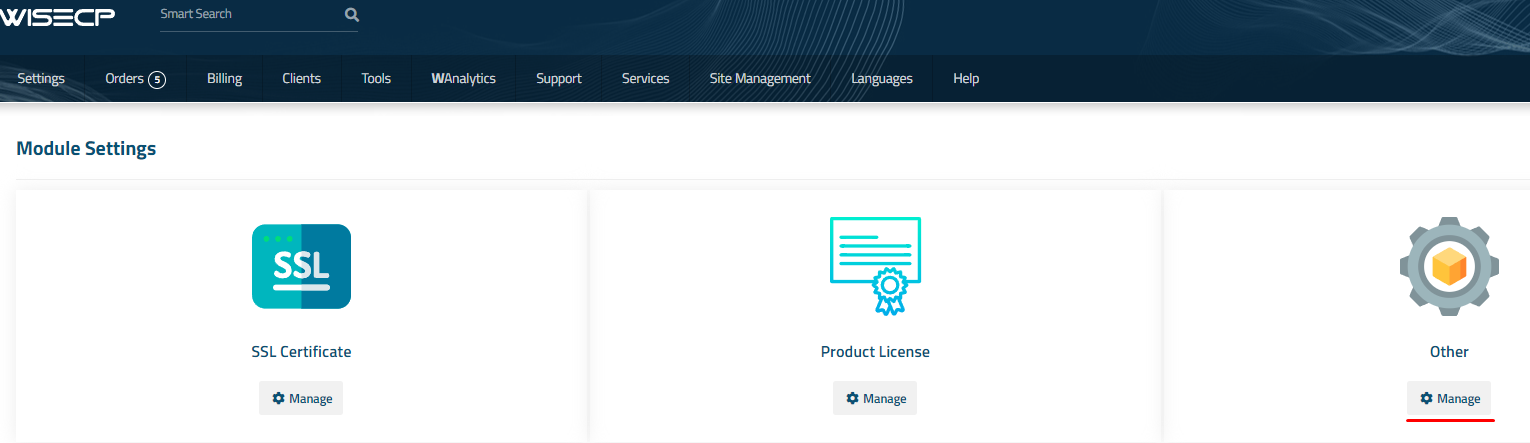
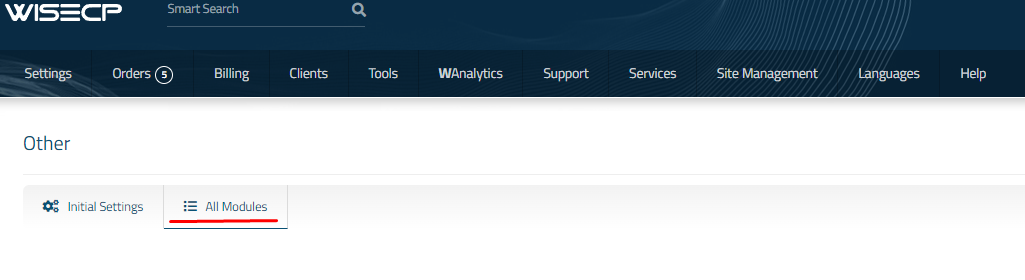
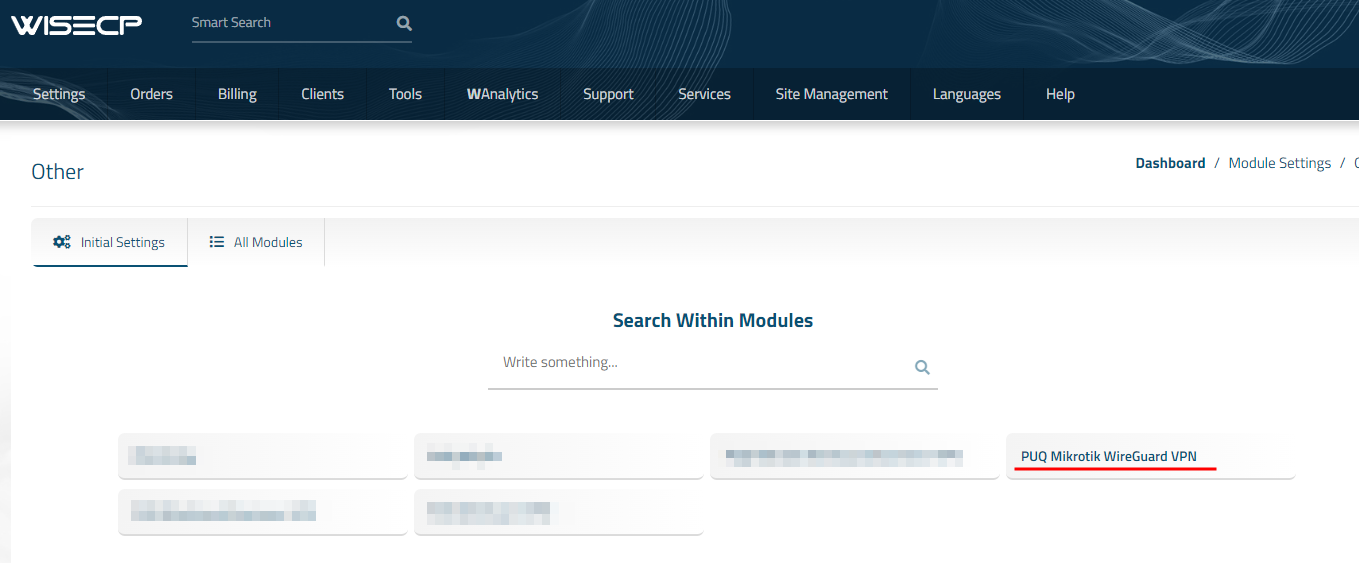
2. Go to module configuration.

```
Services -> Service Management -> Module Settings -> Other -> All Modules -> PUQ Mikrotik WireGuard VPN
```

[![image-1700485721333.png](https://doc.puq.info/uploads/images/gallery/2023-11/scaled-1680-/image-1700485721333.png)](https://doc.puq.info/uploads/images/gallery/2023-11/image-1700485721333.png)
[![image-1700485726951.png](https://doc.puq.info/uploads/images/gallery/2023-11/scaled-1680-/image-1700485726951.png)](https://doc.puq.info/uploads/images/gallery/2023-11/image-1700485726951.png)
[![image-1700485737918.png](https://doc.puq.info/uploads/images/gallery/2023-11/scaled-1680-/image-1700485737918.png)](https://doc.puq.info/uploads/images/gallery/2023-11/image-1700485737918.png)
[![image-1700908237215.png](https://doc.puq.info/uploads/images/gallery/2023-11/scaled-1680-/image-1700908237215.png)](https://doc.puq.info/uploads/images/gallery/2023-11/image-1700908237215.png)
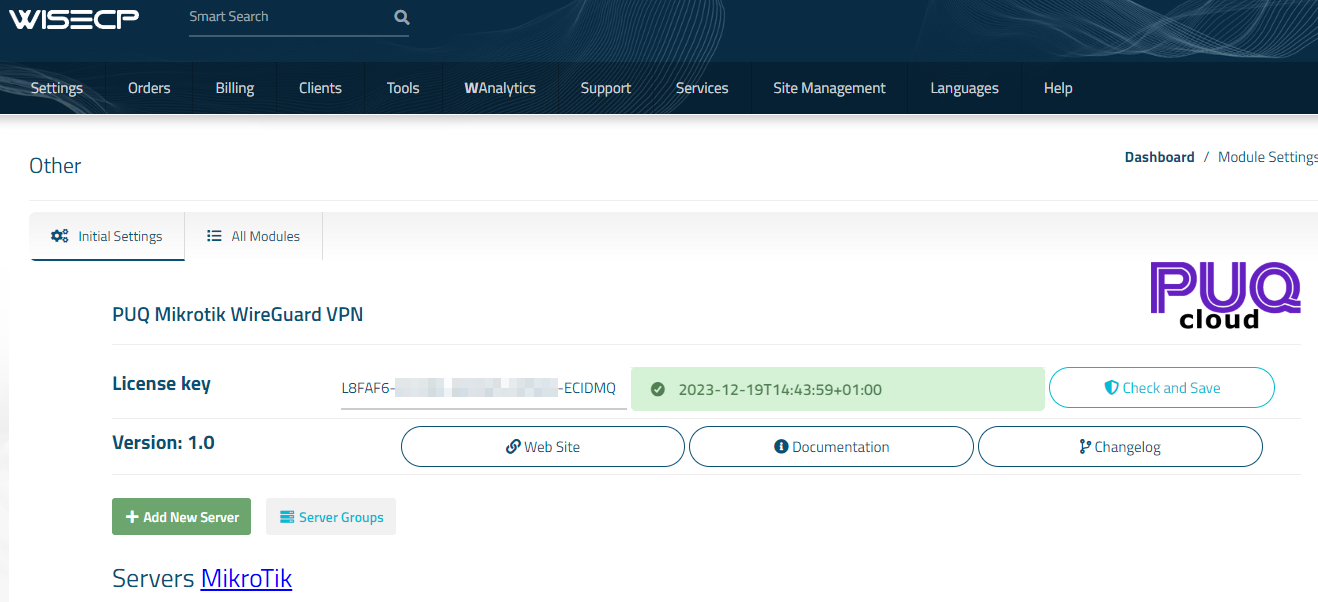
##### 3. On the open page, enter the purchased license key for this product and click the '**Check and Save**' button to validate the key and save it.

[![image-1700908330652.png](https://doc.puq.info/uploads/images/gallery/2023-11/scaled-1680-/image-1700908330652.png)](https://doc.puq.info/uploads/images/gallery/2023-11/image-1700908330652.png)
#####  

# Mikrotik preparation and configuration

### Mikrotik WireGuard VPN module **[WISECP](https://puqcloud.com/link.php?id=78)** 

##### [Order now](https://puqcloud.com/index.php?rp=/store/wisecp-module-mikrotik-wireguard-vpn) | [Download](https://download.puqcloud.com/WISECP/Product/PUQ_WISECP-Mikrotik-WireGuard-VPN/) | [FAQ](https://faq.puqcloud.com/)

<p class="callout info align-center">Note: **Enter the following commands one by one and wait for the command to complete.**</p>

##### Check RouterOS version

<p class="callout warning">**Make sure that the version of RouterOS is 7+**</p>

```shell
system/package/print 
```

#####  

##### Enabling HTTPS Create your own root CA on your router

```
/certificate
add name=LocalCA common-name=LocalCA key-usage=key-cert-sign,crl-sign
```

#####  

##### Sign the newly created CA certificate

```
/certificate
sign LocalCA
```

##### Create a new certificate for Webfig (non-root certificate)

<p class="callout info">Note: as common-name=XXX.XXX.XXX.XXX You enter public IP adddress of the router.</p>

```
/certificate
add name=Webfig common-name=XXX.XXX.XXX.XXX
```

#####  

##### Sign the newly created certificate for Webfig

```
/certificate
sign Webfig ca=LocalCA 
```

#####  

##### Enable SSL (*www-ssl)* and specify to use the newly created certificate for Webfig

```
/ip service
set www-ssl certificate=Webfig disabled=no
```

#####  

##### Enable api-ssl and specify to use the newly created certificate for Webfig

```
 /ip service 
 set api-ssl certificate=Webfig disabled=no 
```

#####  

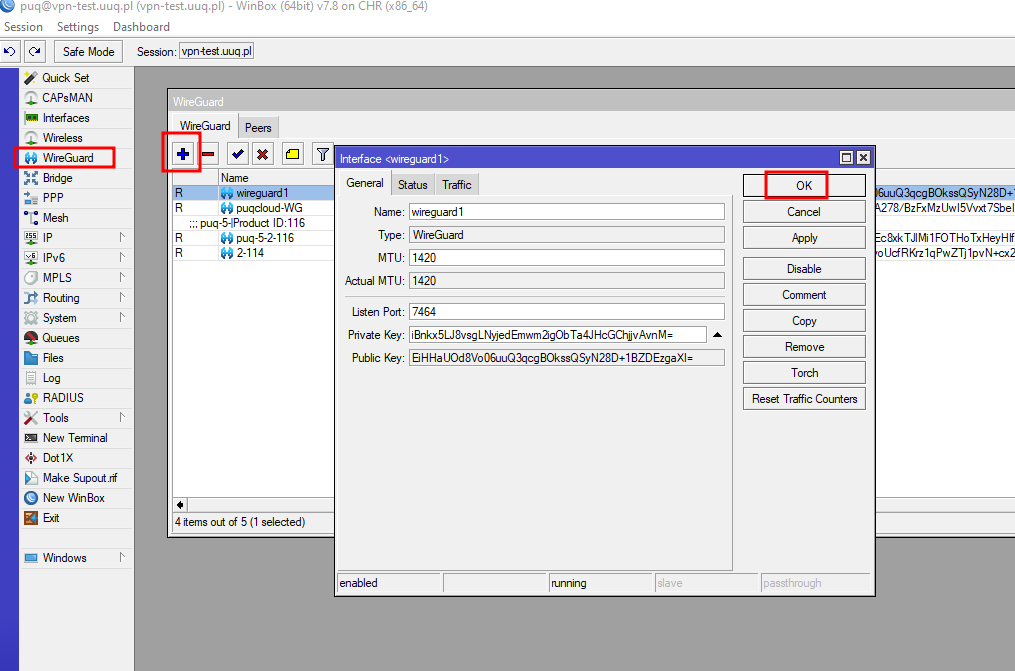
##### Enable WireGuard VPN server

[![image-1700908664667.png](https://doc.puq.info/uploads/images/gallery/2023-11/scaled-1680-/image-1700908664667.png)](https://doc.puq.info/uploads/images/gallery/2023-11/image-1700908664667.png)
#####   
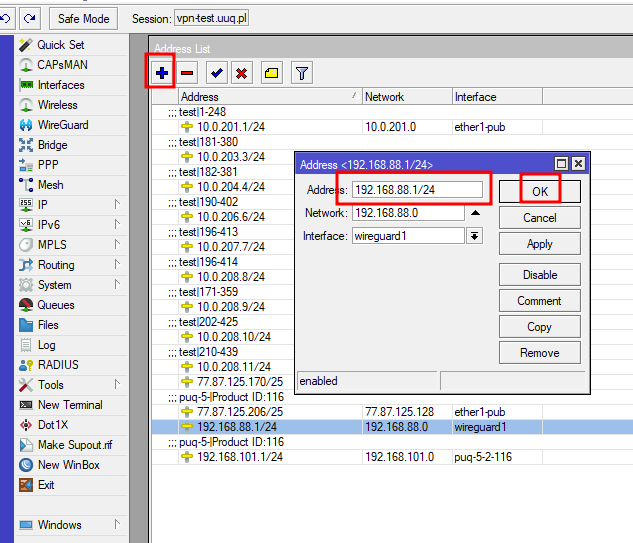
Add IP address on Wireguard interface

[![image-1700908821470.png](https://doc.puq.info/uploads/images/gallery/2023-11/scaled-1680-/image-1700908821470.png)](https://doc.puq.info/uploads/images/gallery/2023-11/image-1700908821470.png)
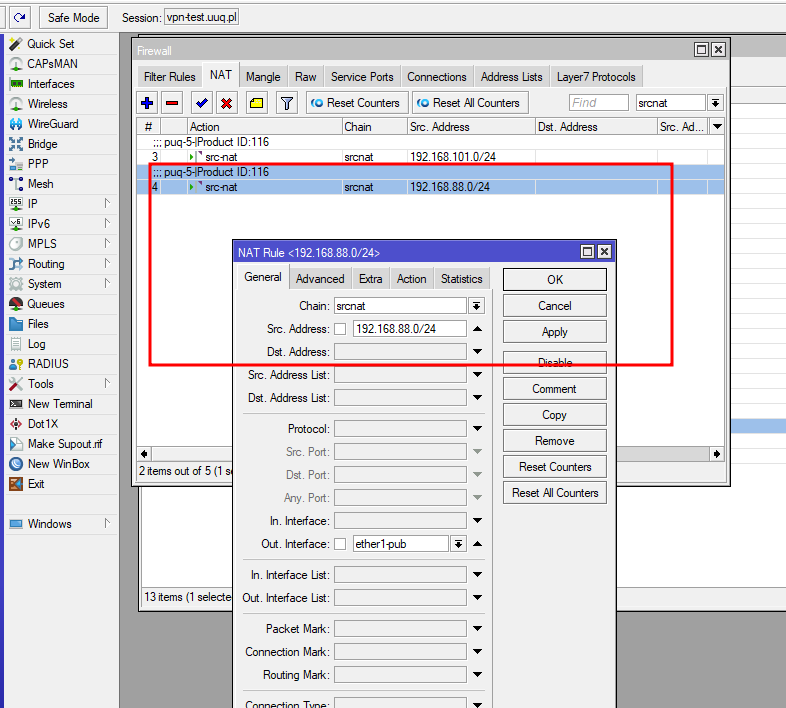
##### Configuring NAT rules on the firewall

[![image-1700908941106.png](https://doc.puq.info/uploads/images/gallery/2023-11/scaled-1680-/image-1700908941106.png)](https://doc.puq.info/uploads/images/gallery/2023-11/image-1700908941106.png)
# Add server (Mikrotik) in WISECP

### Mikrotik WireGuard VPN module **[WISECP](https://puqcloud.com/link.php?id=78)** 

##### [Order now](https://puqcloud.com/index.php?rp=/store/wisecp-module-mikrotik-wireguard-vpn) | [Download](https://download.puqcloud.com/WISECP/Product/PUQ_WISECP-Mikrotik-WireGuard-VPN/) | [FAQ](https://faq.puqcloud.com/)

##### 1. Log in to the administrative area of your **[WISECP](https://puqcloud.com/link.php?id=78)**.

#####   
2. Go to module configuration.

```
Services -> Service Management -> Module Settings -> Other -> All Modules -> PUQ Mikrotik WireGuard VPN
```

[![image-1700485721333.png](https://doc.puq.info/uploads/images/gallery/2023-11/scaled-1680-/image-1700485721333.png)](https://doc.puq.info/uploads/images/gallery/2023-11/image-1700485721333.png)

[![image-1700485726951.png](https://doc.puq.info/uploads/images/gallery/2023-11/scaled-1680-/image-1700485726951.png)](https://doc.puq.info/uploads/images/gallery/2023-11/image-1700485726951.png)

[![image-1700485737918.png](https://doc.puq.info/uploads/images/gallery/2023-11/scaled-1680-/image-1700485737918.png)](https://doc.puq.info/uploads/images/gallery/2023-11/image-1700485737918.png)

[![image-1700908237215.png](https://doc.puq.info/uploads/images/gallery/2023-11/scaled-1680-/image-1700908237215.png)](https://doc.puq.info/uploads/images/gallery/2023-11/image-1700908237215.png)

#####  

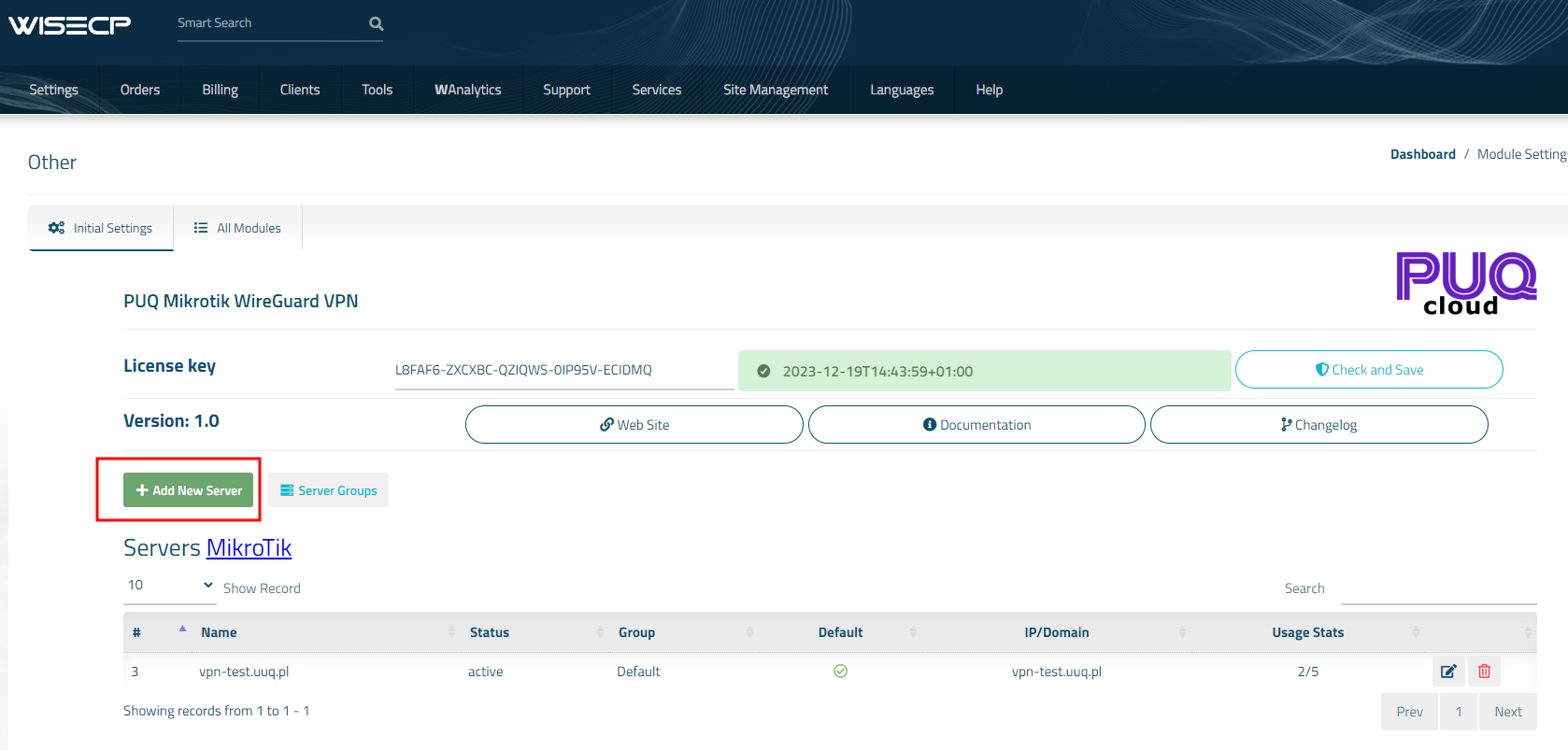
##### 3. In the opened page, click the '**Add Server**' button.

[![image-1700912374796.png](https://doc.puq.info/uploads/images/gallery/2023-11/scaled-1680-/image-1700912374796.png)](https://doc.puq.info/uploads/images/gallery/2023-11/image-1700912374796.png)
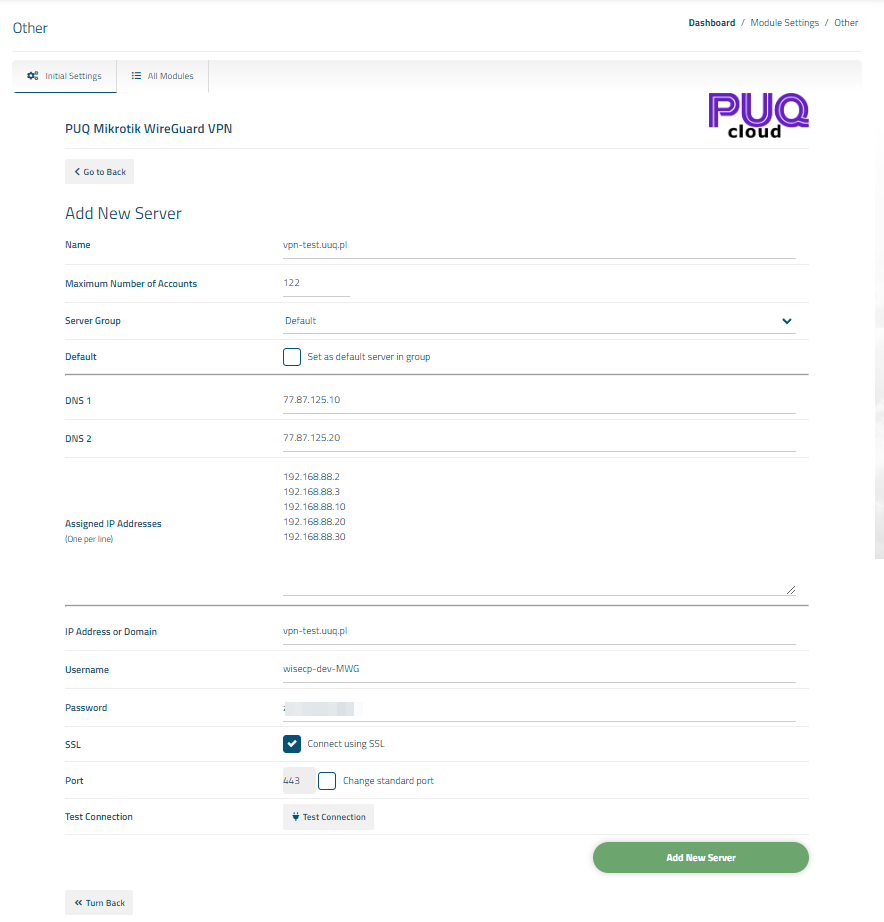
##### 4. On the opened page, enter all the necessary information:

- **Name**: Displayed name of the server.
- **Maximum Number of Accounts**: The number of services that can be on this server.
- **Server Group**: Optionally, choose the server group.
- **DNS 1 and DNS 2**: are DNS servers that will be specified in the configuration of WireGuard clients.
- **Assigned IP Addresses**: a list of IP addresses that will be assigned to WireGuard VPN clients, with each address on a new line.
- **IP Address or Domain**: The address of the [MikroTik](https://mikrotik.com/) router you are connecting to.
- **Username:** is the username for the account on [MikroTik](https://mikrotik.com/).
- **Password:** is the password for the account on [MikroTik](https://mikrotik.com/).
- Check the **SSL** box if you want to use SSL-encrypted connection. If necessary, specify the port and perform a connection test.

[![image-1700912532762.png](https://doc.puq.info/uploads/images/gallery/2023-11/scaled-1680-/image-1700912532762.png)](https://doc.puq.info/uploads/images/gallery/2023-11/image-1700912532762.png)
#####  

<div id="bkmrk--5"><div></div></div>

# Service/Product configuration

### Mikrotik WireGuard VPN module **[WISECP](https://puqcloud.com/link.php?id=78)** 

##### [Order now](https://puqcloud.com/index.php?rp=/store/wisecp-module-mikrotik-wireguard-vpn) | [Download](https://download.puqcloud.com/WISECP/Product/PUQ_WISECP-Mikrotik-WireGuard-VPN/) | [FAQ](https://faq.puqcloud.com/)

<p class="callout info">If you do not have a **Service Group** where you want to place the new service, you need to create a new **Service Group**</p>

##### 1. Log in to the administrative area of your **[WISECP](https://puqcloud.com/link.php?id=78)**.

##### 2. Create New Service Group

  
Go to

```
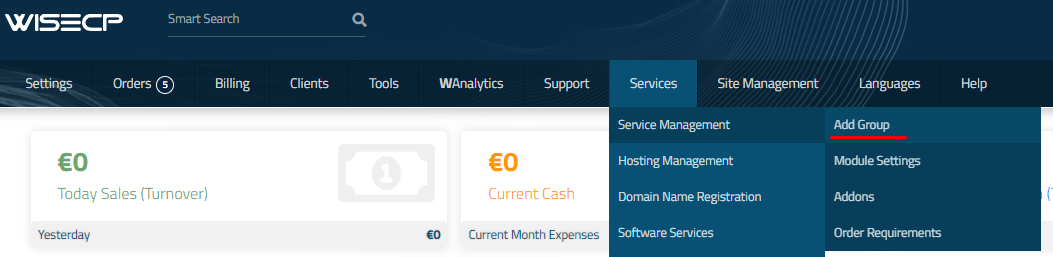
Services -> Service Management -> Add Group
```

[![image-1700487270737.png](https://doc.puq.info/uploads/images/gallery/2023-11/scaled-1680-/image-1700487270737.png)](https://doc.puq.info/uploads/images/gallery/2023-11/image-1700487270737.png)
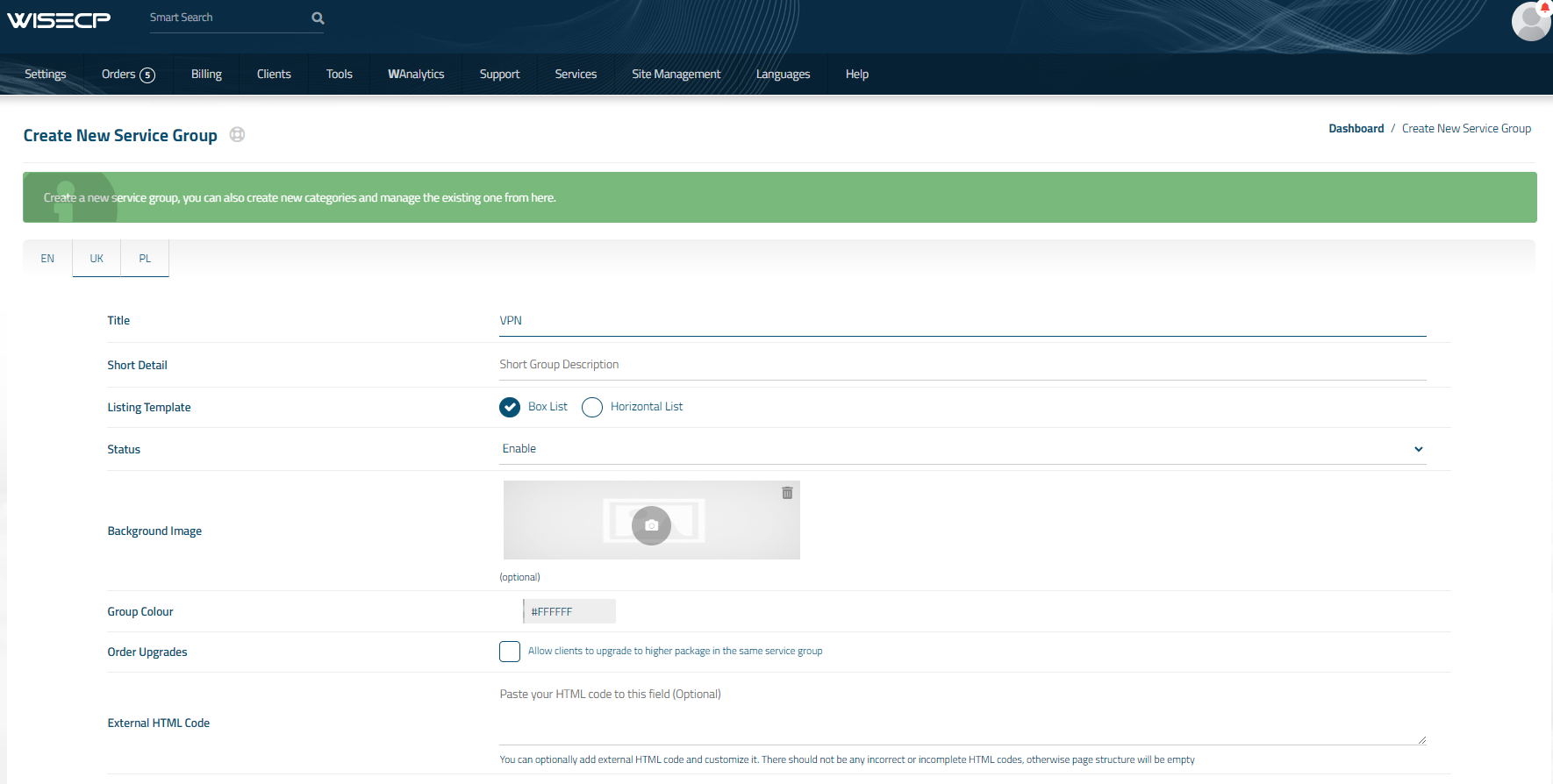
Enter all the necessary data and click the '**Create Group**' button.  
[![image-1700487384497.png](https://doc.puq.info/uploads/images/gallery/2023-11/scaled-1680-/image-1700487384497.png)](https://doc.puq.info/uploads/images/gallery/2023-11/image-1700487384497.png)
##### 3. Adding a New Service  


Go to

```
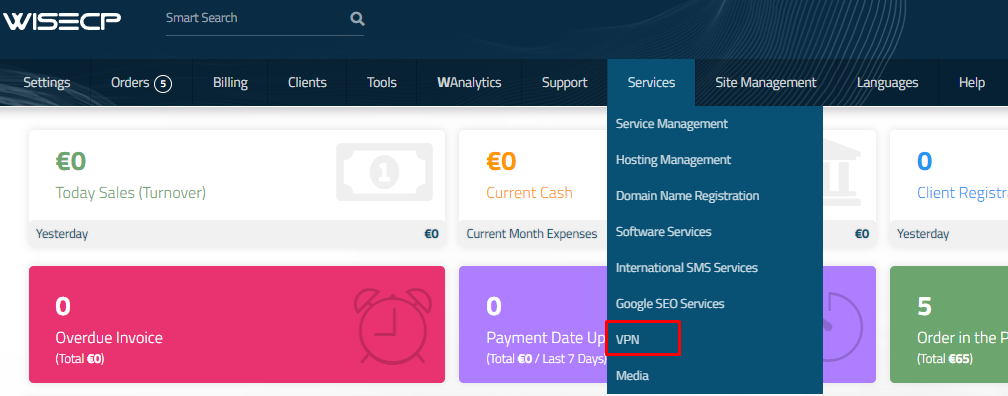
Services -> our service group where you need to add the new service.
```

[![image-1700487595449.png](https://doc.puq.info/uploads/images/gallery/2023-11/scaled-1680-/image-1700487595449.png)](https://doc.puq.info/uploads/images/gallery/2023-11/image-1700487595449.png)
In the opened window, click the '**Create New Service**' button.

[![image-1700487653237.png](https://doc.puq.info/uploads/images/gallery/2023-11/scaled-1680-/image-1700487653237.png)](https://doc.puq.info/uploads/images/gallery/2023-11/image-1700487653237.png)
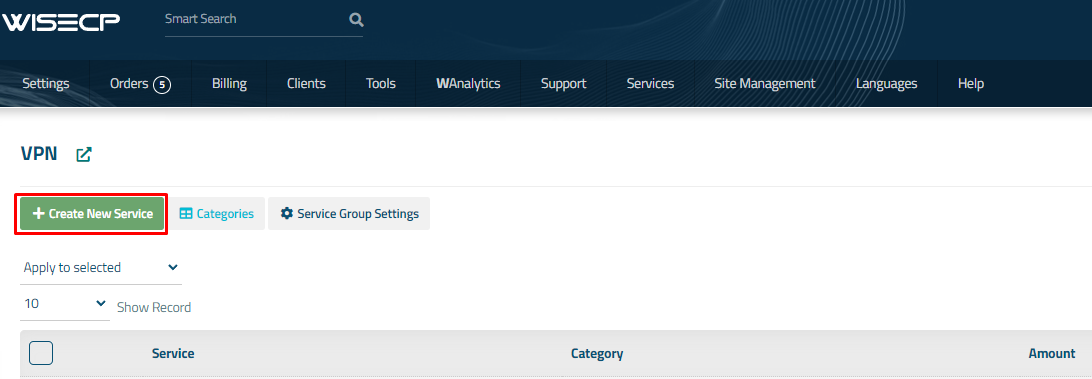
On the opened page, enter all the necessary details for your new service and navigate to the '**Core**' tab.  
  
Select the '**PUQ Mikrotik WireGuard VPN**' module from the drop-down list of modules.

[![image-1743016508078.png](https://doc.puq.info/uploads/images/gallery/2025-03/scaled-1680-/image-1743016508078.png)](https://doc.puq.info/uploads/images/gallery/2025-03/image-1743016508078.png)
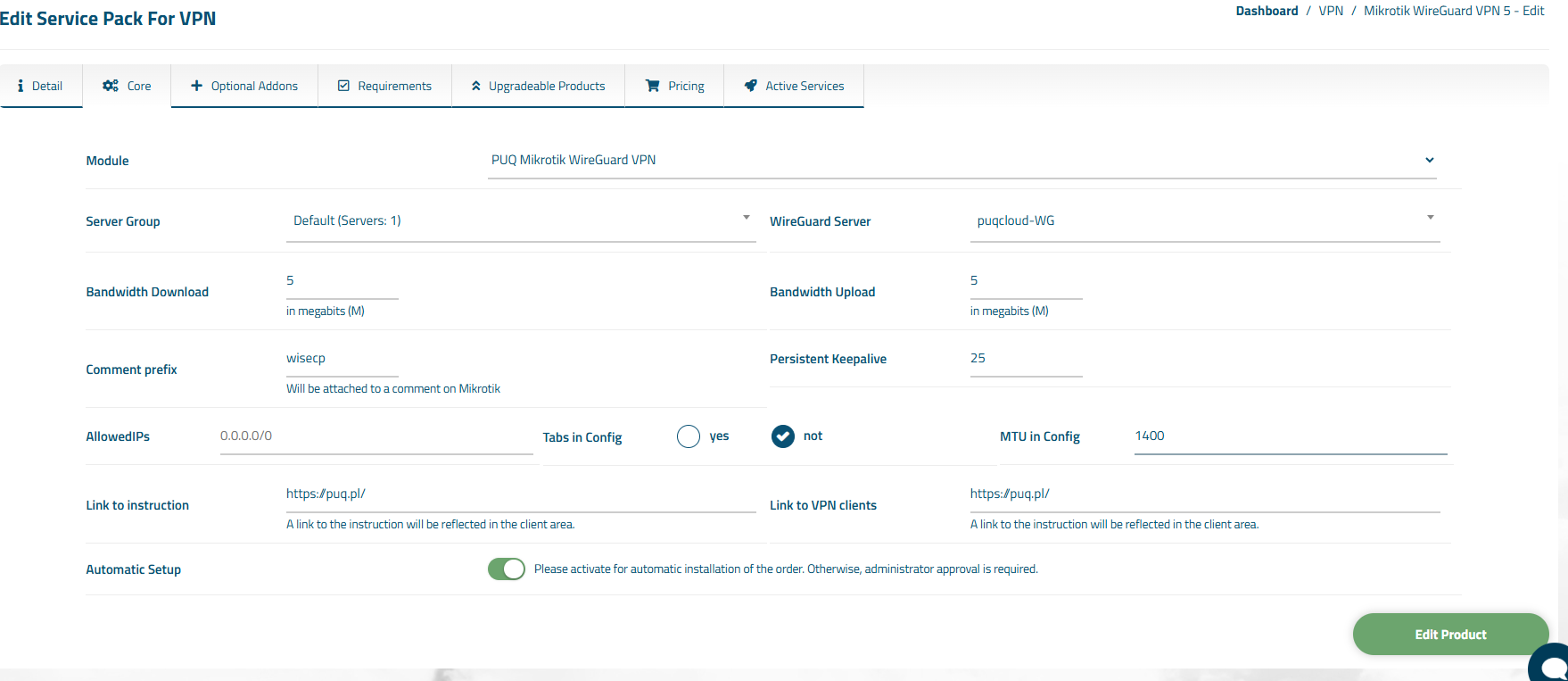
##### 4. Fill in the configuration options according to your preferences.

- **Server Group** is the group of servers from which a server will be chosen for provisioning the service
- **WireGuard Server** is the name of the **WireGuard** server that was created in **[MikroTik](https://mikrotik.com/)**

<p class="callout warning">**Attention:**   
The **WireGuard Server field** is updated only after saving or adding the service.   
You will need to revisit this section to select the **WireGuard Server** and save the service.   
Additionally, the **WireGuard Server** must be created on all servers within the group.</p>

- **Bandwidth Download** and **Bandwidth Upload** represent the connection speed that will be restricted by these parameters, in megabits per second, respectively.
- **Comment Prefix** will be added at the comment in **[MikroTik](https://mikrotik.com/)**
- **Persistent Keepalive** and **AllowedIPs:** parameters of configuration WireGuard clients
- **Tabs in Config -** Configuration file format with tabs or not
- **MTU in Config -**Display MTU in config file
- **Link to Instruction** Provide the link to the instruction for the service, and it will be displayed in the client area as a separate button
- **Link to VPN Clients** Provide the link to the page for downloading VPN clients for the service, and it will be displayed in the client area as a separate button
- <div>**Automatic Setup** Please activate for automatic installation of the order. Otherwise, administrator approval is required.</div>

# WireGuard Clients configuring


# WireGuard Official clients

### Mikrotik WireGuard VPN module **[WISECP](https://puqcloud.com/link.php?id=78)** 

##### [Order now](https://puqcloud.com/index.php?rp=/store/wisecp-module-mikrotik-wireguard-vpn) | [Download](https://download.puqcloud.com/WISECP/Product/PUQ_WISECP-Mikrotik-WireGuard-VPN/) | [FAQ](https://faq.puqcloud.com/)

#####   
[![image-1668783561800.png](https://doc.puq.info/uploads/images/gallery/2022-11/scaled-1680-/image-1668783561800.png)](https://www.wireguard.com/ "https://www.wireguard.com/")

#### You can download from the [https://www.wireguard.com/install/](https://www.wireguard.com/install/)

Please always download latest versions. The following list is intended as a general direction only.

- - - - - -

#### Windows <small>\[7, 8.1, 10, 11, 2008R2, 2012R2, 2016, 2019, 2022<span class="distro-status" data-distro="windowsdl" data-package="win"> – v<span class="distro-status-uptodate">0.5.3</span></span>\]</small>

[Download Windows Installer](https://download.wireguard.com/windows-client/wireguard-installer.exe)  
<small>[Browse MSIs](https://download.wireguard.com/windows-client/)</small>

- - - - - -

#### macOS <small>\[[app store](https://itunes.apple.com/us/app/wireguard/id1451685025?ls=1&mt=12)<span class="distro-status" data-distro="macos" data-package="apple"> – v<span class="distro-status-uptodate">1.0.15</span></span>\]</small>

[Download from App Store](https://itunes.apple.com/us/app/wireguard/id1451685025?ls=1&mt=12)

- - - - - -

#### Android <small>\[[play store](https://play.google.com/store/apps/details?id=com.wireguard.android)<span class="distro-status" data-distro="playstore" data-package="apk"> – v<span class="distro-status-outofdate">unknown – out of date</span></span> &amp; [f-droid](https://f-droid.org/en/packages/com.wireguard.android/)<span class="distro-status" data-distro="fdroid" data-package="apk"> – v<span class="distro-status-uptodate">1.0.20220516</span></span>\]</small>

[Download from Play Store](https://play.google.com/store/apps/details?id=com.wireguard.android)  
<small>[Download from F-Droid](https://f-droid.org/en/packages/com.wireguard.android/)</small>

- - - - - -

#### iOS <small>\[[app store](https://itunes.apple.com/us/app/wireguard/id1441195209?ls=1&mt=8)<span class="distro-status" data-distro="ios" data-package="apple"> – v<span class="distro-status-uptodate">1.0.15</span></span>\]</small>

[Download from App Store](https://itunes.apple.com/us/app/wireguard/id1441195209?ls=1&mt=8)

- - - - - -

#### Debian/Ubuntu

<div id="bkmrk-%24-sudo-apt-install-w">```
$ sudo apt install wireguard

```

</div>- - - - - -

# Mikrotik WireGuard client configuration

### Mikrotik WireGuard VPN module **[WISECP](https://puqcloud.com/link.php?id=78)** 

##### [Order now](https://puqcloud.com/index.php?rp=/store/wisecp-module-mikrotik-wireguard-vpn) | [Download](https://download.puqcloud.com/WISECP/Product/PUQ_WISECP-Mikrotik-WireGuard-VPN/) | [FAQ](https://faq.puqcloud.com/)

##### Make sure you have an up to date **routerOS** system.

Version must be at least: 7.6

```
[admin@VPN-CLIENT] > system package print 
Columns: NAME, VERSION
# NAME      VERSION
0 routeros  7.6    
```

##### Open a single-use shipment on the **WireGuard** section for the client's configuration request

[![image-1671100595697.png](https://doc.puq.info/uploads/images/gallery/2022-12/scaled-1680-/image-1671100595697.png)](https://doc.puq.info/uploads/images/gallery/2022-12/image-1671100595697.png)

##### Login to **Mikrotik** via Winbox

Click on the menu item **WireGuard** In the window that opens, in the **WireGuard** tab, click the plus to add a new **WireGuard** interface

[![image-1671100789370.png](https://doc.puq.info/uploads/images/gallery/2022-12/scaled-1680-/image-1671100789370.png)](https://doc.puq.info/uploads/images/gallery/2022-12/image-1671100789370.png)

Copy the private key from the text configuration from the **\[Interface\]** section to the **PrivateKey** field in the **WireGuard** interface settings in **Mikrotik**

Click **OK** to create the interface

[![image-1671101049703.png](https://doc.puq.info/uploads/images/gallery/2022-12/scaled-1680-/image-1671101049703.png)](https://doc.puq.info/uploads/images/gallery/2022-12/image-1671101049703.png)

Go to the peers tab.  
Click plus to add a new peer

[![image-1671101223879.png](https://doc.puq.info/uploads/images/gallery/2022-12/scaled-1680-/image-1671101223879.png)](https://doc.puq.info/uploads/images/gallery/2022-12/image-1671101223879.png)

**Interface** - Select the previously created **WireGuard** interface

**Public key** - Copy the public key from the text configuration from the **\[Peer\]** section to the Public key field

**Endpoint** - Copy the server **address** from the text configuration from the **\[Peer\]** section to the endpoint field

**Endpoint Port -** Copy the server **port** from the text configuration from the **\[Peer\]** section to the Endpoint Port field

**Allowed Address -** Copy **AllowedIPs** from the text configuration from the **\[Peer\]** section to the Allowed Address field

**Persistent Keepalive -** Copy the **PersistentKeepalive** from the text configuration from the **\[Peer\]** section to the Persistent Keepalive field

Click **OK** to create a peer

[![image-1671101662963.png](https://doc.puq.info/uploads/images/gallery/2022-12/scaled-1680-/image-1671101662963.png)](https://doc.puq.info/uploads/images/gallery/2022-12/image-1671101662963.png)

##### In order to have communication with the server, you need to set the address on the **WireGuard** interface

Go to the menu item **IP-&gt;Addresses** In the window that opens, click the plus to assign an IP address to the WireGuard interface

[![image-1671101826333.png](https://doc.puq.info/uploads/images/gallery/2022-12/scaled-1680-/image-1671101826333.png)](https://doc.puq.info/uploads/images/gallery/2022-12/image-1671101826333.png)

**Addresse -** Copy the Address from the text configuration from the **\[Interface\]** section to the Address field

**Interface** - Select the previously created **WireGuard** interface

Press the OK button to confirm

[![image-1671102046038.png](https://doc.puq.info/uploads/images/gallery/2022-12/scaled-1680-/image-1671102046038.png)](https://doc.puq.info/uploads/images/gallery/2022-12/image-1671102046038.png)

<p class="callout info">You also need to configure the traffic routes you need at your discretion.</p>

# Client Area


# Product Home Screen

### Mikrotik WireGuard VPN module **[WISECP](https://puqcloud.com/link.php?id=78)** 

##### [Order now](https://puqcloud.com/index.php?rp=/store/wisecp-module-mikrotik-wireguard-vpn) | [Download](https://download.puqcloud.com/WISECP/Product/PUQ_WISECP-Mikrotik-WireGuard-VPN/) | [FAQ](https://faq.puqcloud.com/)

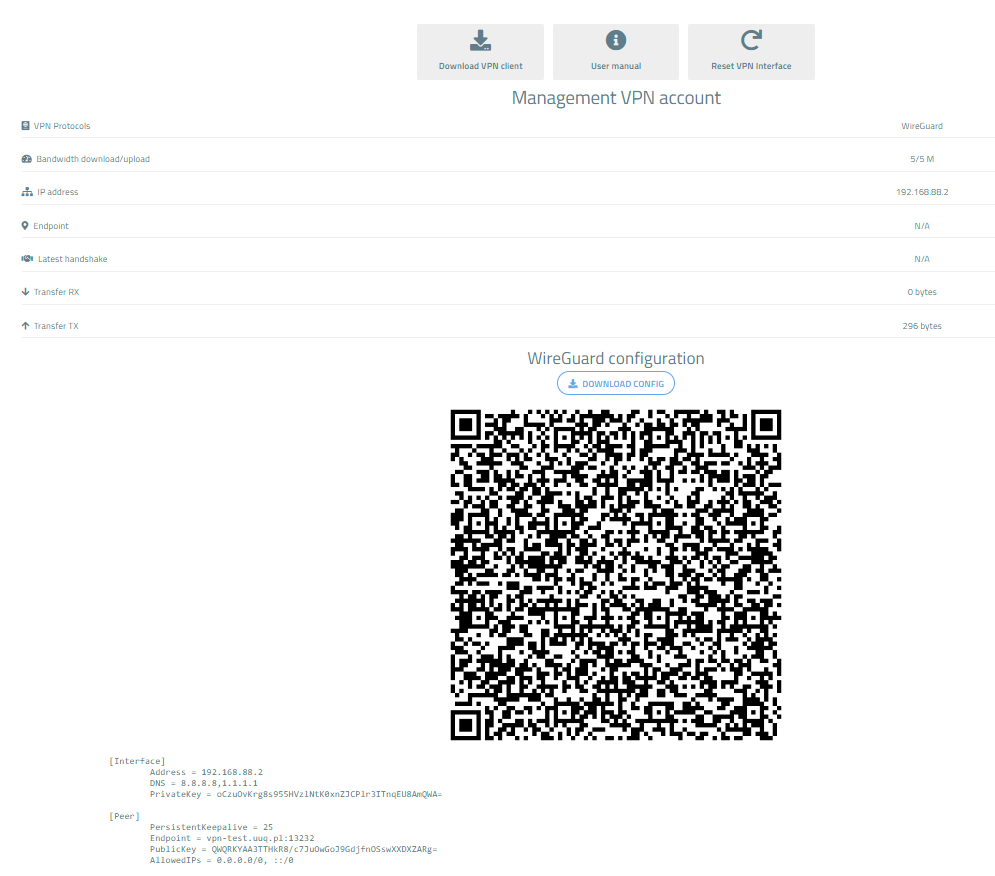
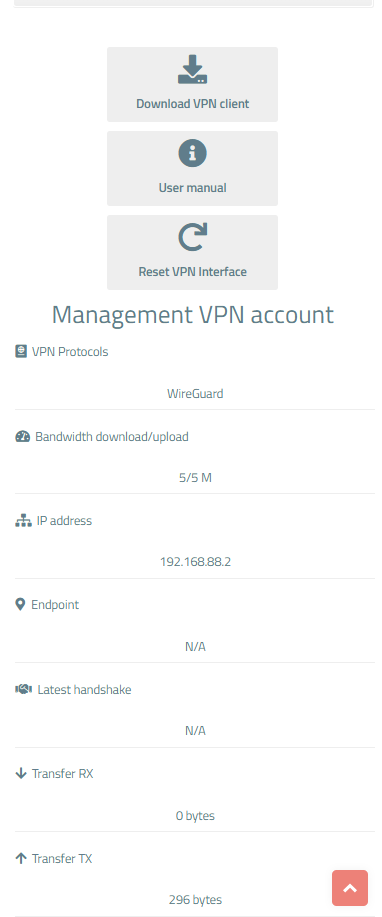
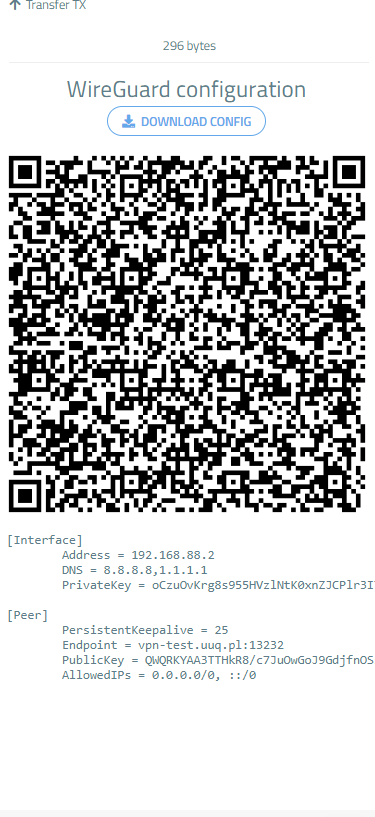
##### Available options in the client panel:

- Links in the form of buttons to the instruction and VPN clients
- General information about the service
- Option to download WireGuard configuration as a file
- QR code for WireGuard configuration
- VPN connection status
- VPN interface reboot function (to reset a frozen connection)

##### Screenshot of the client area

[![image-1718682439666.png](https://doc.puq.info/uploads/images/gallery/2024-06/scaled-1680-/image-1718682439666.png)](https://doc.puq.info/uploads/images/gallery/2024-06/image-1718682439666.png)
[![image-1718682485505.png](https://doc.puq.info/uploads/images/gallery/2024-06/scaled-1680-/image-1718682485505.png)](https://doc.puq.info/uploads/images/gallery/2024-06/image-1718682485505.png)
[![image-1718682520994.png](https://doc.puq.info/uploads/images/gallery/2024-06/scaled-1680-/image-1718682520994.png)](https://doc.puq.info/uploads/images/gallery/2024-06/image-1718682520994.png)
# Admin Area


# Order Detail

### Mikrotik WireGuard VPN module **[WISECP](https://puqcloud.com/link.php?id=78)** 

##### [Order now](https://puqcloud.com/index.php?rp=/store/wisecp-module-mikrotik-wireguard-vpn) | [Download](https://download.puqcloud.com/WISECP/Product/PUQ_WISECP-Mikrotik-WireGuard-VPN/) | [FAQ](https://faq.puqcloud.com/)

##### Navigate to the service you want to manage, then go to the '**Core**' tab.

[![image-1718682588779.png](https://doc.puq.info/uploads/images/gallery/2024-06/scaled-1680-/image-1718682588779.png)](https://doc.puq.info/uploads/images/gallery/2024-06/image-1718682588779.png)
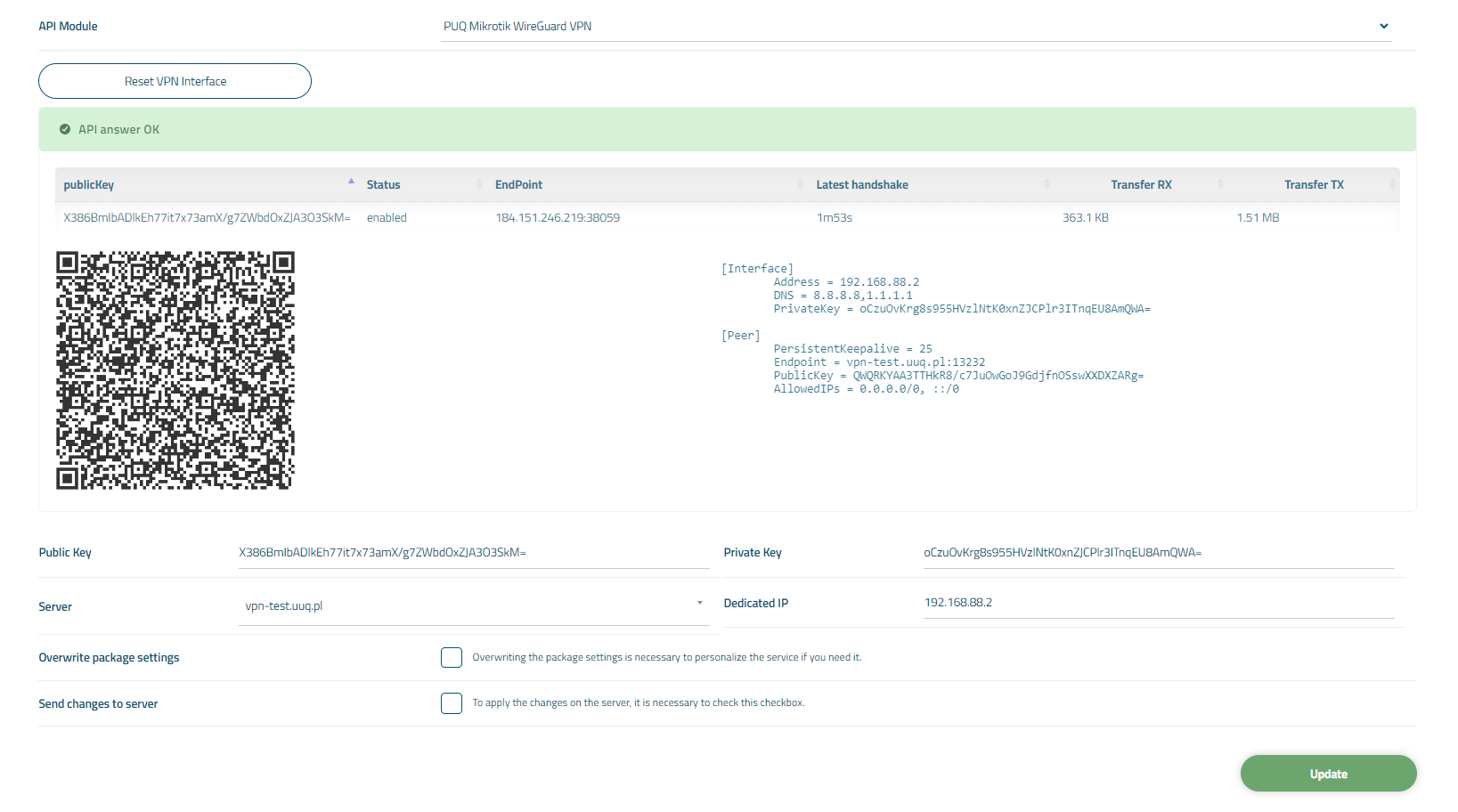
In the opened tab, you have a view of the online status of the service. The available online information includes:

- Connection status to the API
- Information about the VPN account on the **[MikroTik](https://mikrotik.com/)** router
- Information about the account

Also, below are fields with the client's personal data.  
  
You can also individually override package options for the client by checking the '**Overwrite package settings**' box.

<p class="callout success">After modifying the configuration options, check the '**Send changes to server**' box to save the data to the [**MikroTik** ](https://mikrotik.com/)server.</p>

[![image-1718682631871.png](https://doc.puq.info/uploads/images/gallery/2024-06/scaled-1680-/image-1718682631871.png)](https://doc.puq.info/uploads/images/gallery/2024-06/image-1718682631871.png)

<div id="bkmrk--2"><div></div></div><div id="bkmrk--3"><div></div></div>