# Order Detail
### Mikrotik WireGuard VPN module **[WISECP](https://puqcloud.com/link.php?id=78)**
##### [Order now](https://puqcloud.com/index.php?rp=/store/wisecp-module-mikrotik-wireguard-vpn) | [Download](https://download.puqcloud.com/WISECP/Product/PUQ_WISECP-Mikrotik-WireGuard-VPN/) | [FAQ](https://faq.puqcloud.com/)
##### Navigate to the service you want to manage, then go to the '**Core**' tab.
[](https://doc.puq.info/uploads/images/gallery/2024-06/image-1718682588779.png)
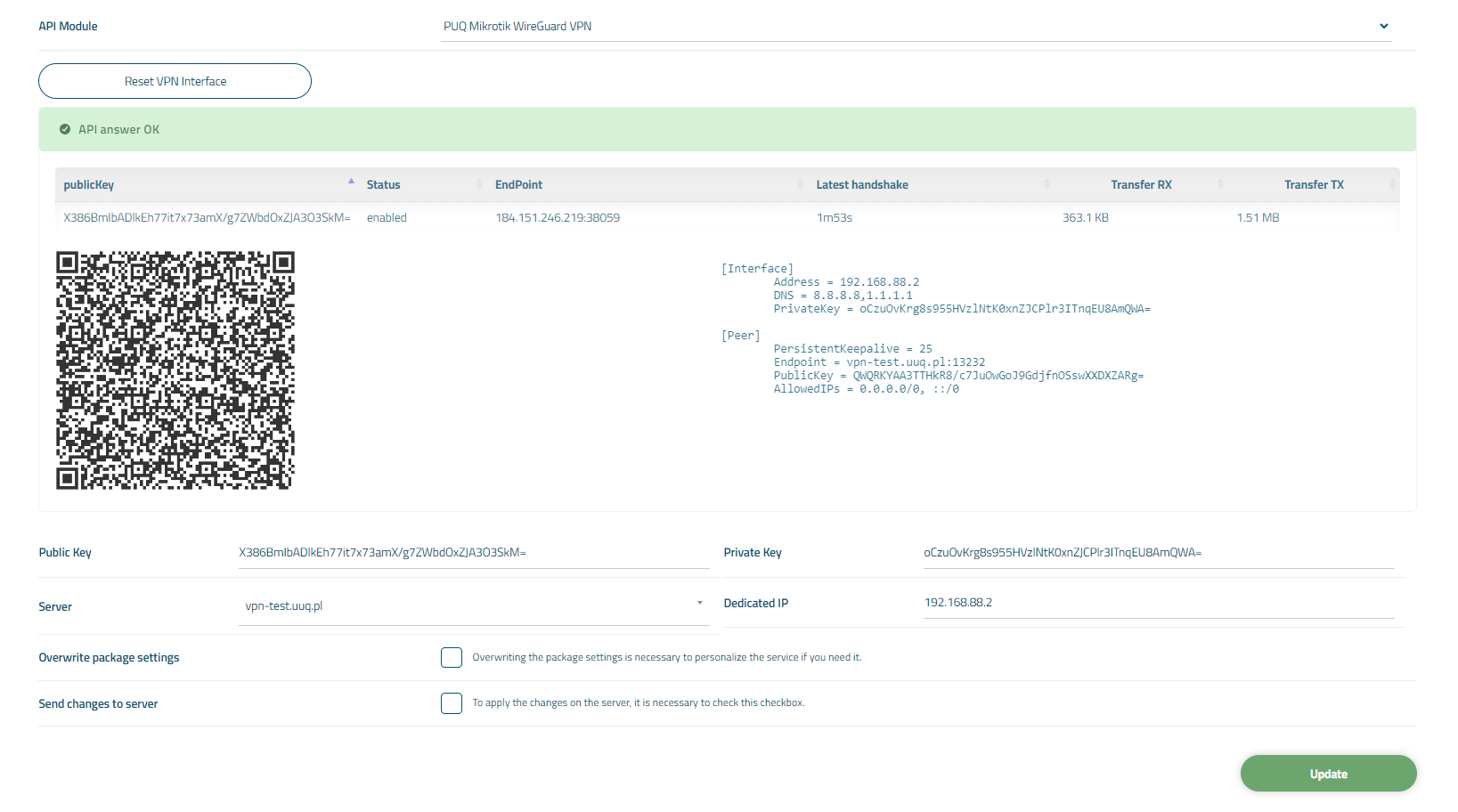
In the opened tab, you have a view of the online status of the service. The available online information includes:
- Connection status to the API
- Information about the VPN account on the **[MikroTik](https://mikrotik.com/)** router
- Information about the account
Also, below are fields with the client's personal data.
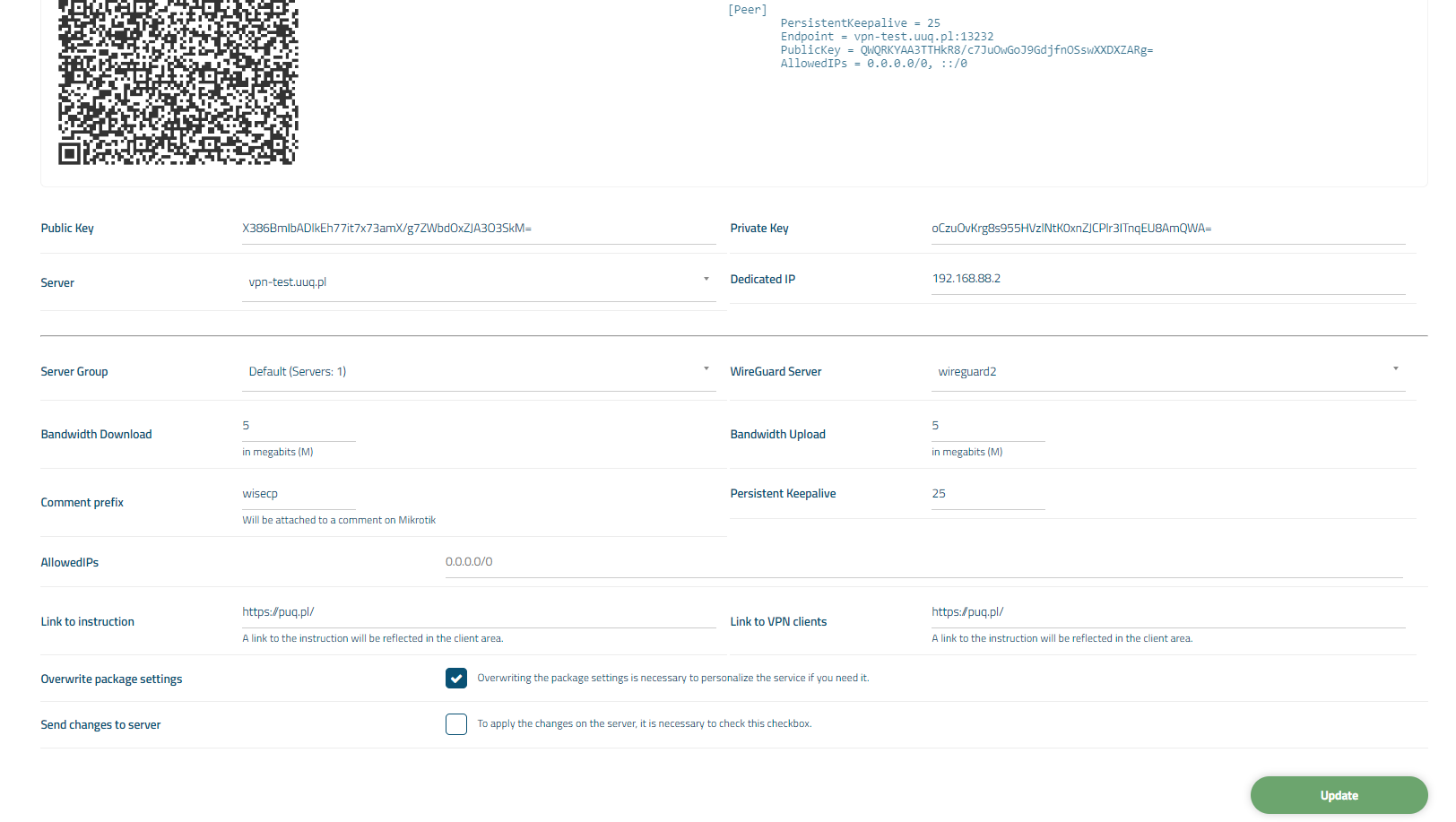
You can also individually override package options for the client by checking the '**Overwrite package settings**' box.
After modifying the configuration options, check the '**Send changes to server**' box to save the data to the [**MikroTik** ](https://mikrotik.com/)server.
[](https://doc.puq.info/uploads/images/gallery/2024-06/image-1718682631871.png)