# Grouping Client Products
To use this custom functionality, you must have whmcs installed and configured, with access to the whmcs system and to the whmcs file system with administrator rights.
Install and unzip grouping\_client\_products.zip
Move the `hooks_grouping_client_products.php` file to includes>hooks
Move the `grouping_client_products.tpl` file to templates>twenty-one
Move the `grouping_client_products.php file` to the root of your code, i.e. to all other php files
To open this page enter `https://your.domain/grouping_client_products.php`
When you change the name of a .php file, the link `https://your.domain/your_file.php` also changes
[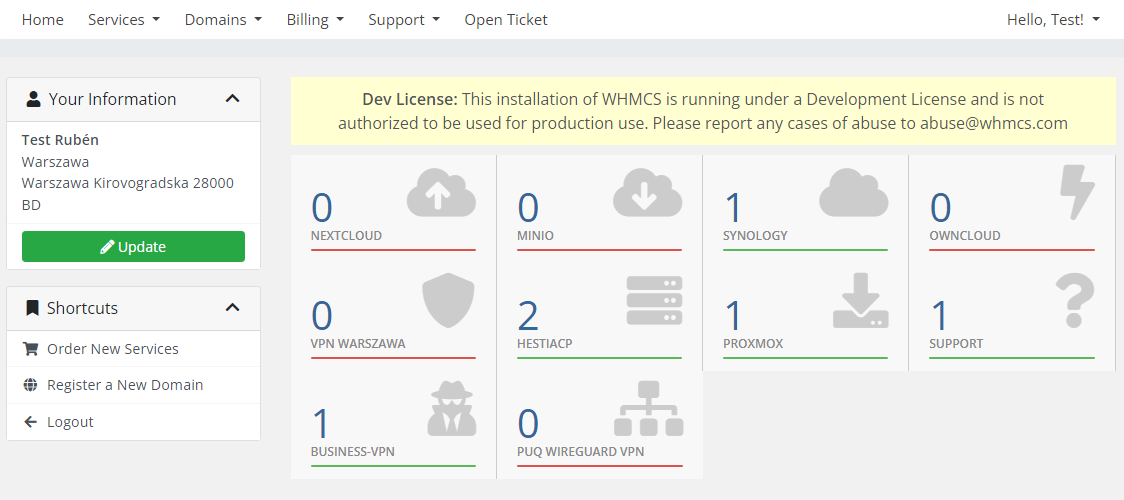](https://doc.puq.info/uploads/images/gallery/2023-03/image-1678796025770.png)
To change the page title,
[](https://doc.puq.info/uploads/images/gallery/2023-03/image-1678796368106.png)
you need to change in grouping\_client\_products.php
`//Enter the page title in $title_of_page
$title_of_page = "your title";`
[](https://doc.puq.info/uploads/images/gallery/2023-03/image-1678796467212.png)
Let's move on to the external changes. To add/change an icon to a product group, you need to:
1. Log in to WHMCS on the admin panel
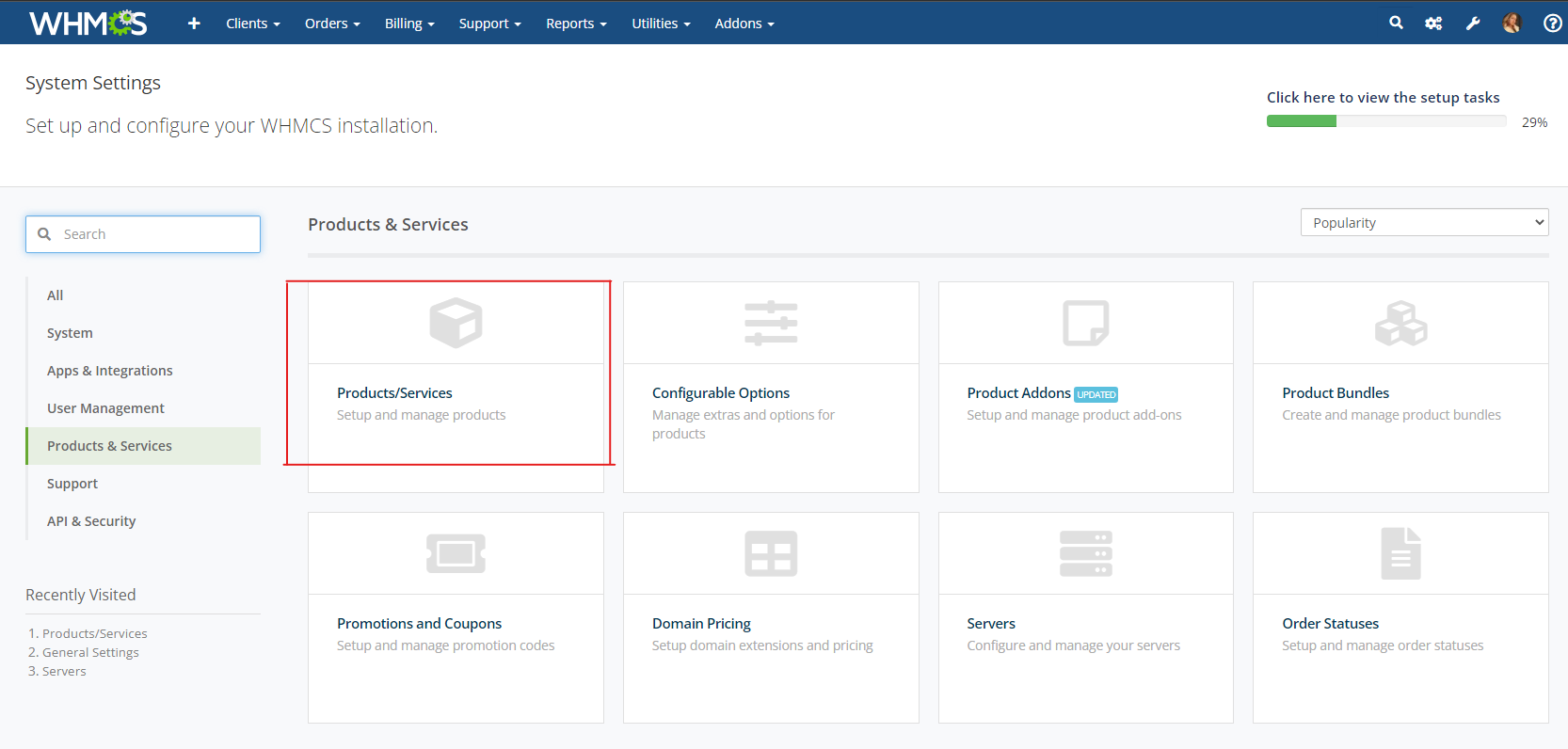
2. Go to System Settings.
[](https://doc.puq.info/uploads/images/gallery/2023-03/image-1678798718296.png)
Navigate to Products/Services.
[](https://doc.puq.info/uploads/images/gallery/2023-03/image-1678798811348.png)
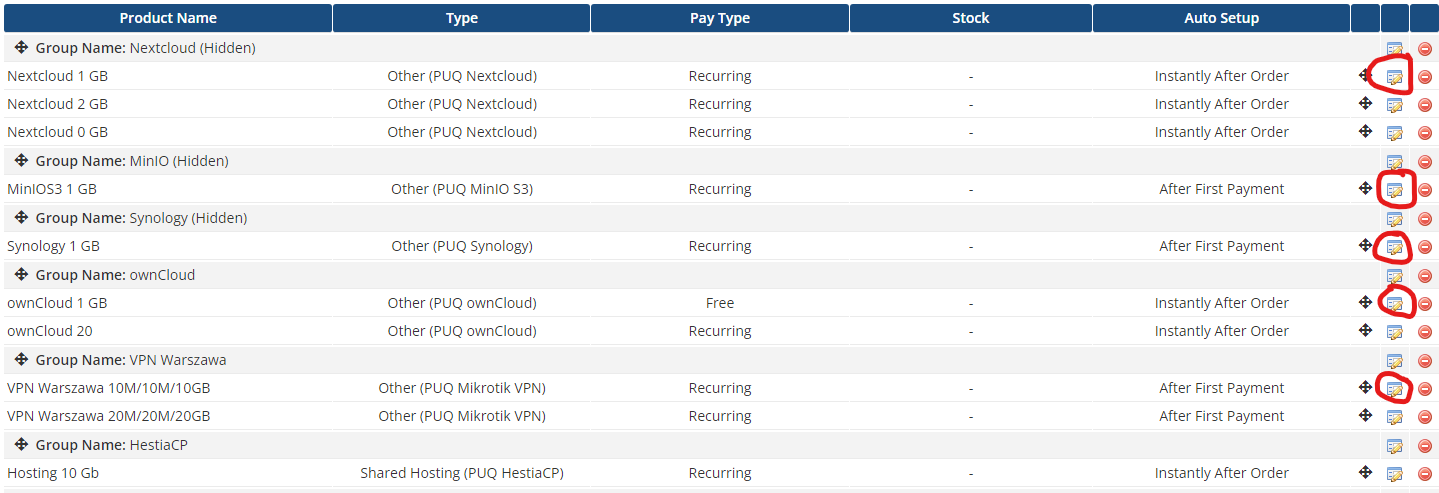
Select the first product from the group and click on Edit
[](https://doc.puq.info/uploads/images/gallery/2023-03/image-1678799111504.png)
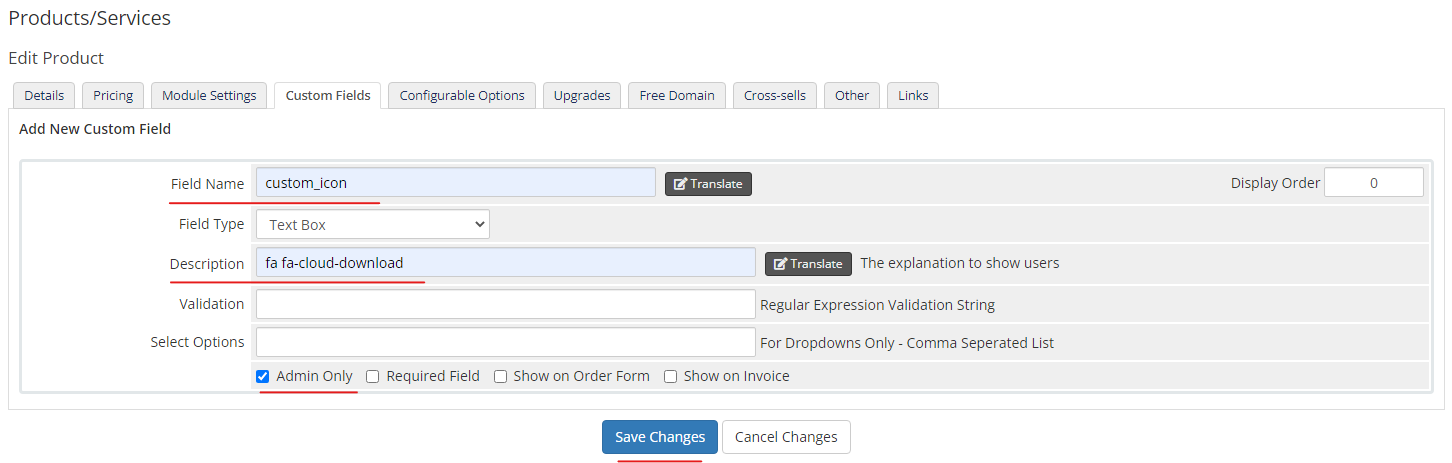
Go to the "Custom Fields" tab and change the icon in the Description field.
The Field Name field should always be named "custom\_icon". Without this, the script will not work and your icon will not be displayed.
Check the Admin Only parameter and save the changes
[](https://doc.puq.info/uploads/images/gallery/2023-03/image-1678799820017.png)
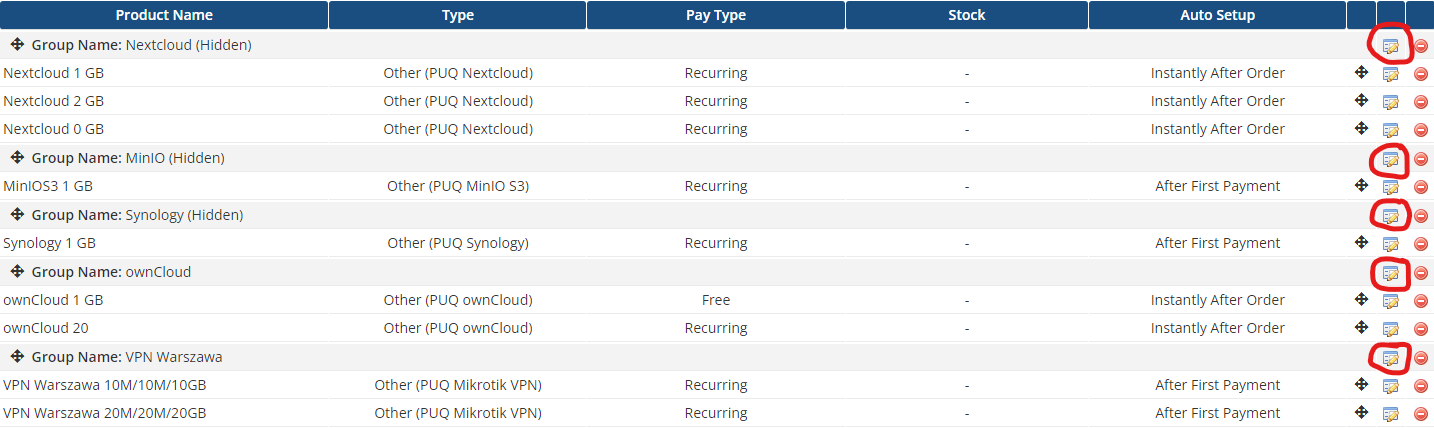
If you want to hide the group, select the group you want to hide and click on Edit.
[](https://doc.puq.info/uploads/images/gallery/2023-03/image-1678799535270.png)
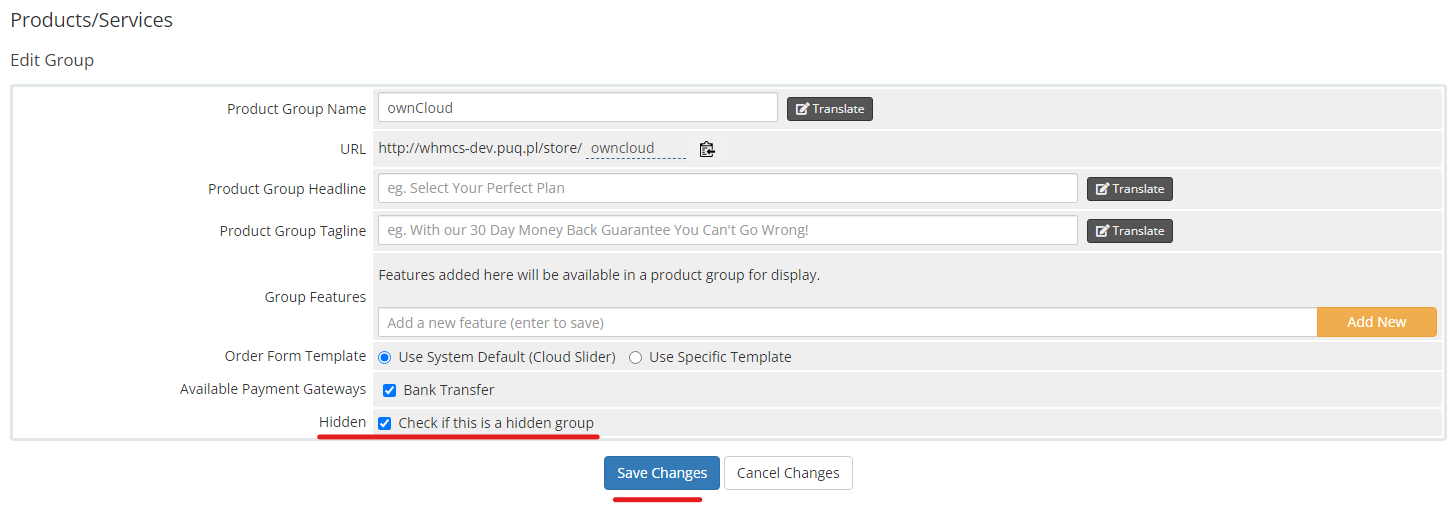
Check the Hidden field and save the changes
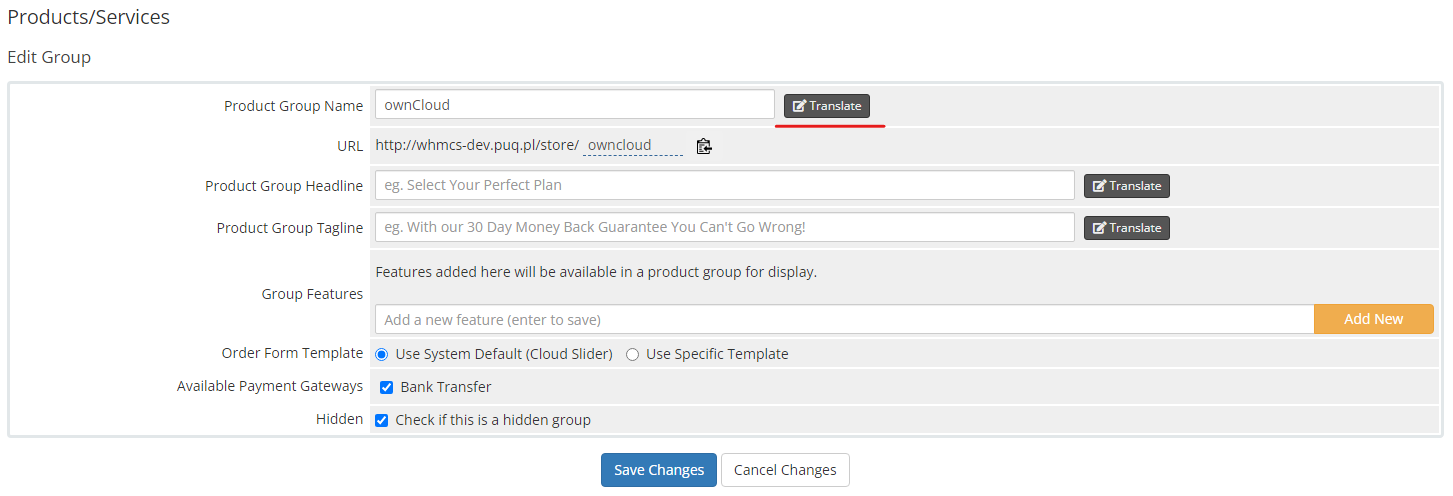
[](https://doc.puq.info/uploads/images/gallery/2023-03/image-1678799825092.png)To translate the page to the group name, go to Edit of the selected group and click on the Translate button next to the Product Group Name field.
[](https://doc.puq.info/uploads/images/gallery/2023-03/image-1678800111756.png)
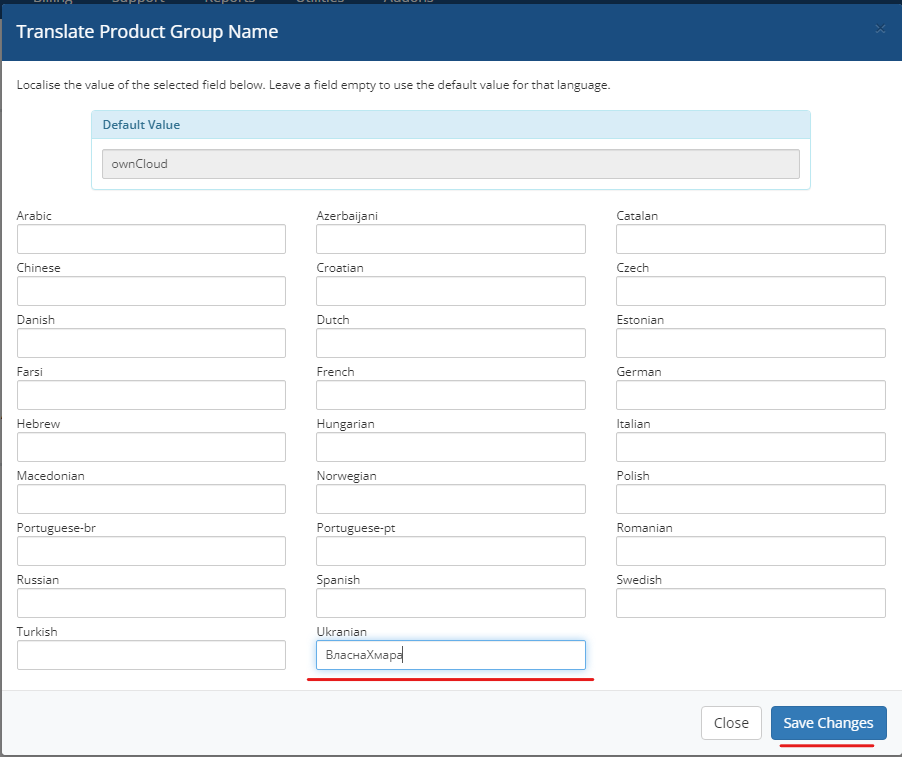
Select the language you want to translate the group to, enter the name in that language, and click on Save Changes.
[](https://doc.puq.info/uploads/images/gallery/2023-03/image-1678800300420.png)