# Client Area
Everything the end customer sees in the WHMCS client area: VM overview with real-time status, noVNC console, performance charts, reinstall, snapshots, backups, password reset, reverse DNS, ISO mount, firewall management, and centralized SSH keys management. Available features are controlled per product by the administrator.
# Overview
### Proxmox KVM module **[WHMCS](https://puqcloud.com/link.php?id=77)**
##### [Order now](https://puqcloud.com/whmcs-module-proxmox-kvm.php) | [Download](https://download.puqcloud.com/WHMCS/servers/PUQ_WHMCS-Proxmox-KVM/) | [Community](https://community.puqcloud.com/)
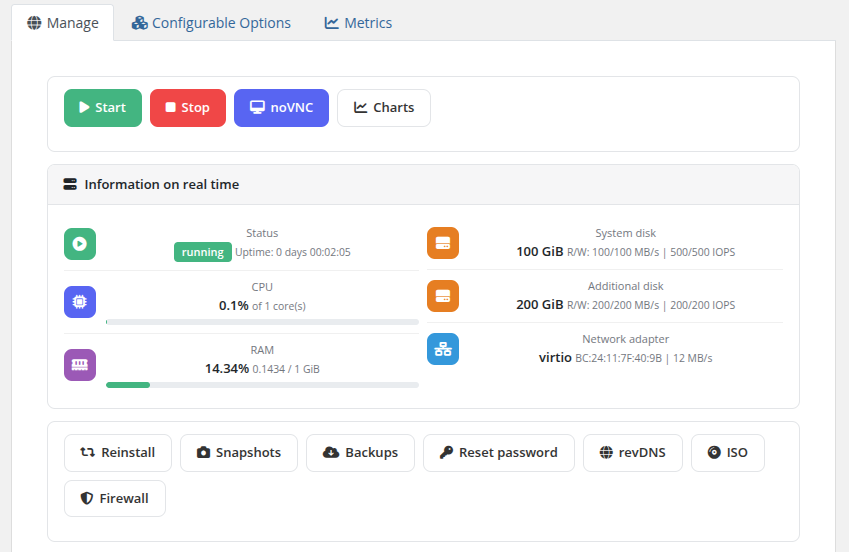
The Overview page is the main management screen displayed when a client opens their Proxmox KVM service. It provides real-time VM status information, quick action buttons, and a complete network configuration summary.
## Action Buttons
At the top of the page, action buttons allow the client to perform common operations:
- **Start** — Power on the virtual machine
- **Stop** — Gracefully shut down the virtual machine
- **noVNC** — Open a browser-based VNC console session (see [noVNC](02-novnc.md))
- **Charts** — View performance usage graphs (see [Charts](03-charts.md))
Below the real-time information panel, additional management buttons provide access to:
- **Reinstall** — Reinstall the operating system
- **Snapshots** — Manage VM snapshots
- **Backups** — Manage backups and schedules
- **Reset password** — Reset the root/admin password
- **revDNS** — Configure reverse DNS records
- **ISO** — Mount or unmount ISO images
- **Firewall** — Manage firewall policies and rules
The visibility of each button depends on the Client Area Permissions configured by the administrator for the product.
## Information on Real Time
The overview displays live VM metrics that auto-refresh every 7 seconds:
| Field | Description |
|-------|-------------|
| **Status** | Current VM state (running / stopped) with uptime counter |
| **CPU** | Current CPU utilization percentage and number of allocated cores |
| **RAM** | Current memory usage with used/total values and a progress bar |
| **System disk** | System disk size with R/W throughput (MB/s) and IOPS limits |
| **Additional disk** | Additional disk size with R/W throughput (MB/s) and IOPS limits (if configured) |
| **Network adapter** | Network adapter model, MAC address, and link speed |
*client-area-manage-overview.png*
## Network Configuration
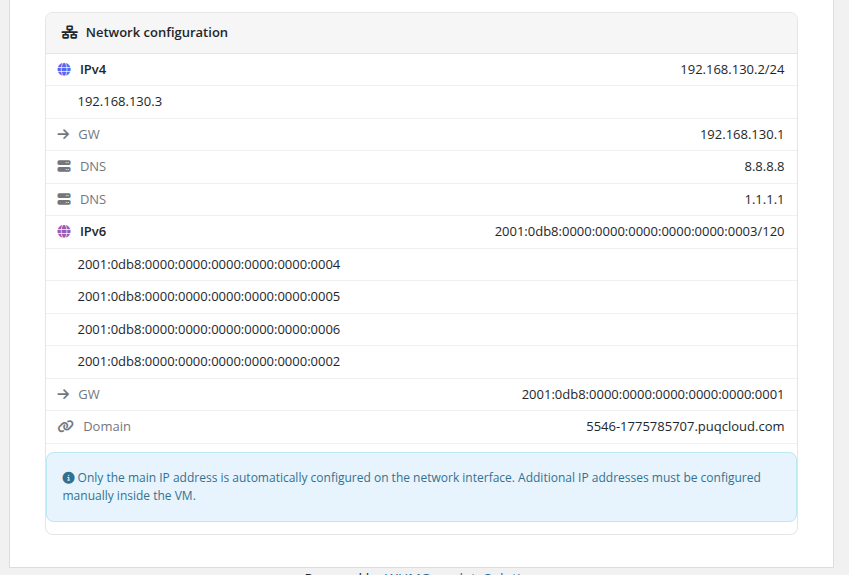
Below the real-time information panel, the network configuration section displays the complete networking setup for the VM:
- **IPv4** — Primary IPv4 address with subnet mask, plus any additional IPv4 addresses
- **GW** — IPv4 gateway address
- **DNS** — Configured DNS servers (primary and secondary)
- **IPv6** — Primary IPv6 address with prefix length, plus any additional IPv6 addresses
- **GW** — IPv6 gateway address
- **Domain** — The assigned domain name for the VM
An informational note reminds the client that only the main IP address is automatically configured on the network interface. Additional IP addresses must be configured manually inside the VM.
*client-area-network-configuration.png*
## Disabled actions
When a feature is not permitted by the product's client-area permissions (or is temporarily unavailable — for example, during a backup or snapshot operation), the corresponding button stays **visible but dimmed** and is not clickable. This is intentional: the client can see the full list of features the product offers, even if specific ones are not allowed in their plan, and clearly understands the state of their VM while operations are in progress.
> **Changed in v3.0.** Feature permissions have moved from the legacy `configoption12` checkboxes to the new Bootstrap-based **Client permissions** panel in the product settings. All permission flags are preserved during upgrade, so the end-user behavior is identical to v2.x.
## Navigation menu
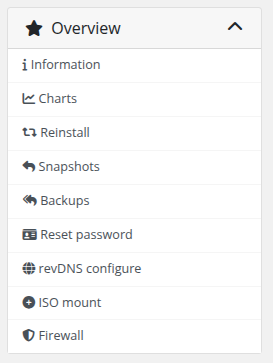
Every sub-page in the client service area (Snapshots, Backups, Firewall, Reset password, revDNS, ISO, Charts, Reinstall) has a sidebar **navigation menu** that allows the client to jump between settings without going back to the overview each time.
*client-area-sidebar-navigation.png*
If the client navigates directly to a page for a feature that the product does not allow, they see an **Access Denied** error message instead of the feature's UI. The `Overview` and `noVNC` buttons cannot be hidden — they are always available.
## Error messages
The client area displays two common error messages:
- **Something went wrong** — returned when WHMCS cannot reach the Proxmox server (network issue, credentials invalid, API service down) or when the VM is no longer present on Proxmox. Check the [Log Collection](../08-troubleshooting/01-log-collection.md) chapter for diagnostics.
- **Access Denied** — returned when the client tries to open a page (via a direct URL or a bookmarked link) for a feature that is not enabled for their product.
# noVNC Console
### Proxmox KVM module **[WHMCS](https://puqcloud.com/link.php?id=77)**
##### [Order now](https://puqcloud.com/whmcs-module-proxmox-kvm.php) | [Download](https://download.puqcloud.com/WHMCS/servers/PUQ_WHMCS-Proxmox-KVM/) | [Community](https://community.puqcloud.com/)
The noVNC console provides browser-based remote access to the virtual machine's display, allowing clients to interact with their VM directly without requiring a separate VNC client application.
## Accessing the Console
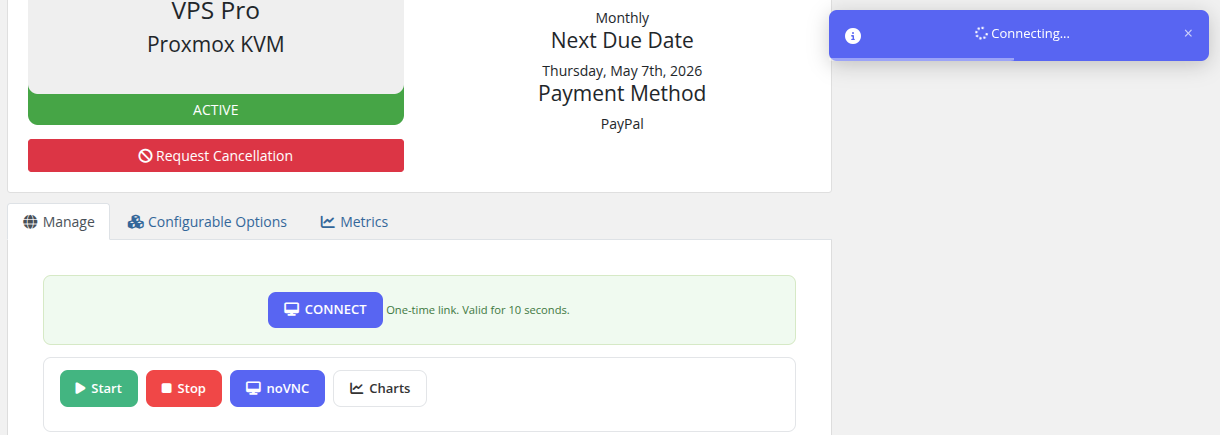
1. Navigate to the service detail page and click the **noVNC** button in the action bar.
2. A **CONNECT** button will appear along with a note indicating that the link is a one-time connection valid for 10 seconds.
3. Click **CONNECT** to open the noVNC console in a new browser tab.
*client-area-novnc-connecting.png*
## Connecting
After clicking the CONNECT button, a new browser tab opens and establishes a secure, encrypted WebSocket connection to the Proxmox VNC proxy. A status indicator in the console confirms the connection, showing the target QEMU VM identifier.
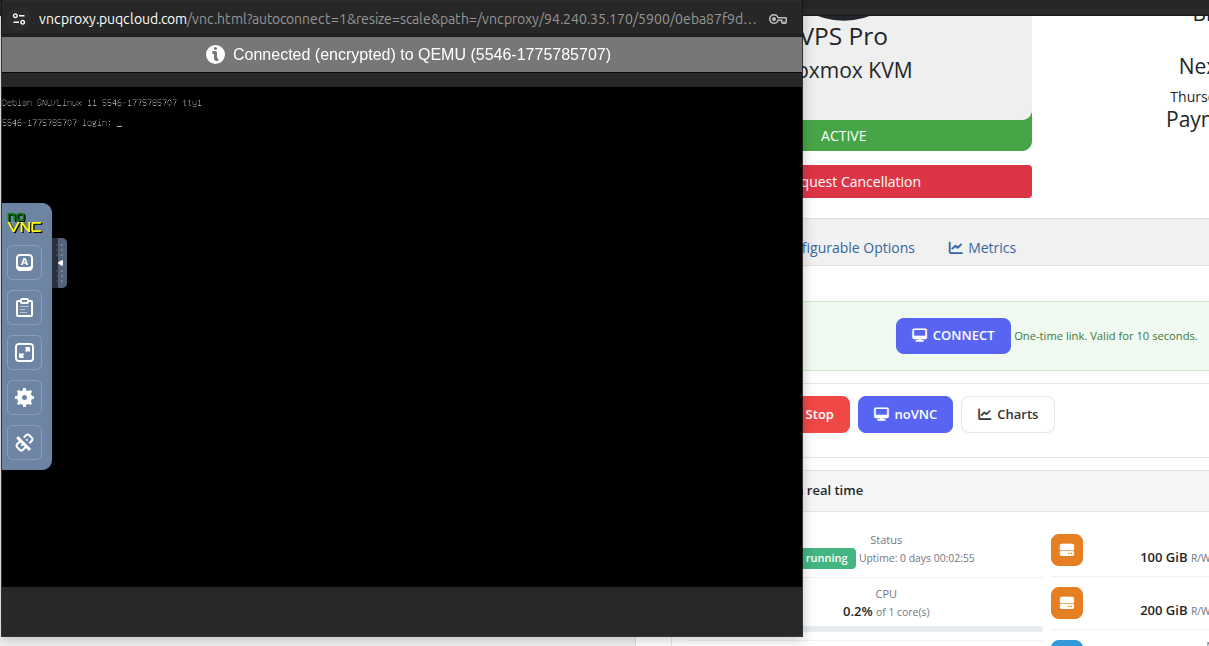
*client-area-novnc-console-open.png*
## Console View
Once connected, the full noVNC console is displayed, providing direct keyboard and mouse interaction with the VM. The console toolbar on the left side provides additional controls for clipboard, screen scaling, and connection settings.
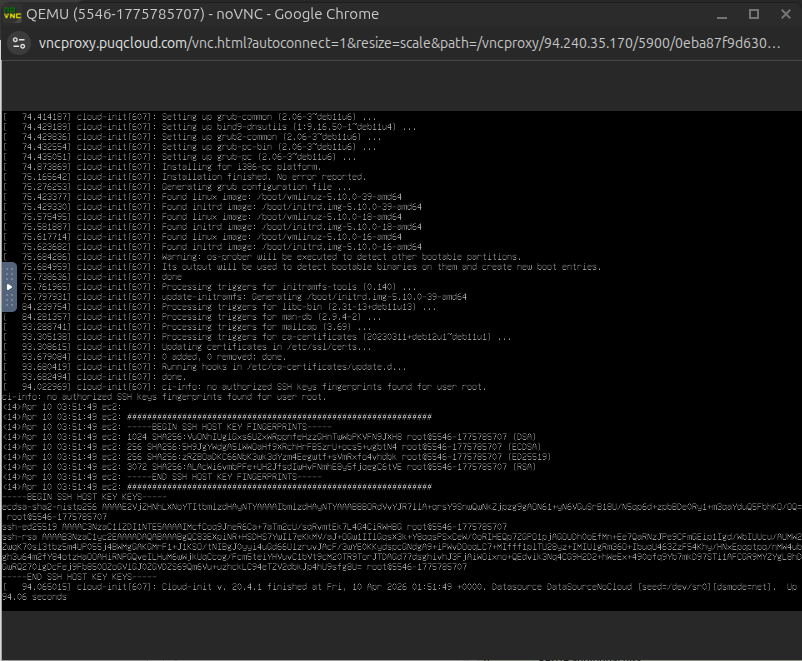
*novnc-console-connected.png*
## Important Notes
- The console connection link is **one-time use** and expires after **10 seconds**. If the link expires, click the noVNC button again to generate a new one.
- The VM must be in a **running** state to open a console session.
- The noVNC feature must be enabled in the product's Client Area Permissions by the administrator.
- The connection is encrypted (TLS) between the browser and the VNC proxy server.
- Full keyboard input is supported, including special key combinations (Ctrl+Alt+Del, etc.) via the console toolbar.
# Charts
### Proxmox KVM module **[WHMCS](https://puqcloud.com/link.php?id=77)**
##### [Order now](https://puqcloud.com/whmcs-module-proxmox-kvm.php) | [Download](https://download.puqcloud.com/WHMCS/servers/PUQ_WHMCS-Proxmox-KVM/) | [Community](https://community.puqcloud.com/)
The Charts page provides visual performance graphs showing resource utilization of the virtual machine over time. Data is sourced from Proxmox VE RRD (Round Robin Database) statistics and rendered using the Google Charts library.
## Available Charts
The page displays four resource usage graphs:
| Chart | Description |
|-------|-------------|
| **CPU Usage** | Processor utilization as a percentage of allocated cores over time |
| **RAM Usage** | Memory consumption showing used vs. available RAM |
| **Disk I/O Usage** | Disk read and write throughput, displayed as separate Read MB/s and Write MB/s lines |
| **Network Usage** | Network traffic volume with separate lines for inbound (In MB/s) and outbound (Out MB/s) traffic |
## Time Period Tabs
Charts can be viewed across different time ranges using the tab buttons at the top of the page:
- **Hour** — Last 60 minutes of data
- **Day** — Last 24 hours of data
- **Week** — Last 7 days of data
- **Month** — Last 30 days of data
- **Year** — Last 12 months of data
Clicking a tab reloads all four charts with data for the selected time period.
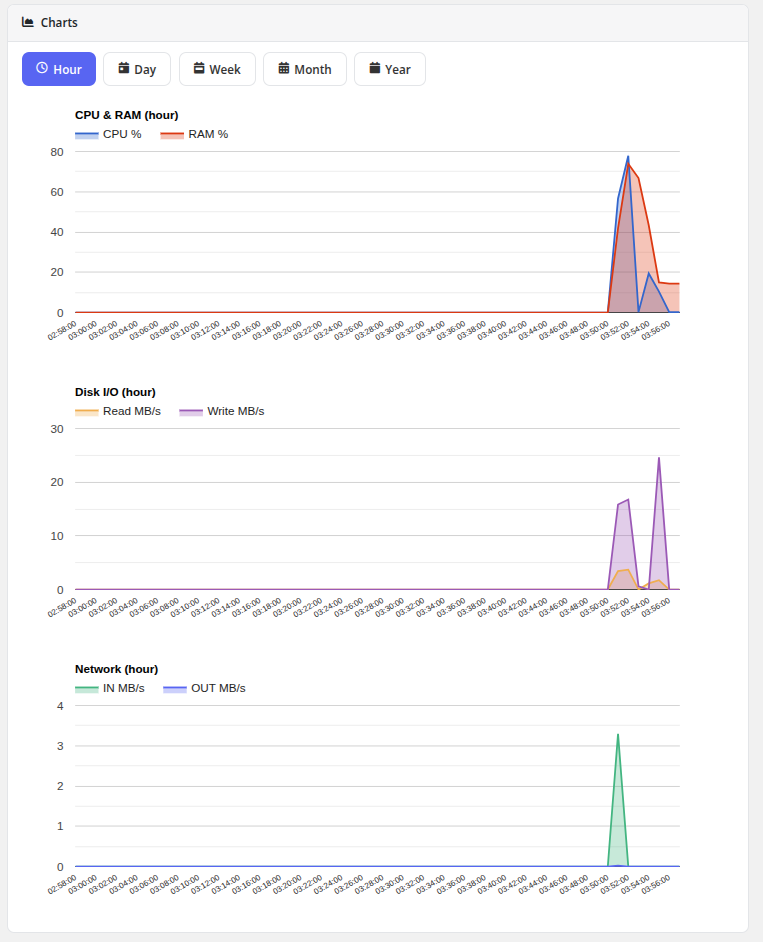
*client-area-charts-usage.png*
## Notes
- The Charts feature must be enabled in the product's Client Area Permissions by the administrator.
- The VM must be running to generate new data points. Historical data is available even when the VM is stopped.
- Data granularity varies by time period: shorter periods show more detailed data points, while longer periods are averaged.
# Reinstall
### Proxmox KVM module **[WHMCS](https://puqcloud.com/link.php?id=77)**
##### [Order now](https://puqcloud.com/whmcs-module-proxmox-kvm.php) | [Download](https://download.puqcloud.com/WHMCS/servers/PUQ_WHMCS-Proxmox-KVM/) | [Community](https://community.puqcloud.com/)
The Reinstall page allows clients to reinstall the operating system on their virtual machine. This is a destructive operation that replaces the current OS with a fresh installation from the selected template.
## Process
1. Navigate to the service and click **Reinstall** in the sidebar or from the action buttons on the overview page.
2. A warning is displayed: reinstalling will **completely remove all data on all disks** of the virtual machine, and **all snapshots will also be deleted**.
3. Select the desired operating system from the **Select operating system** dropdown. The available options are configured by the administrator in the product settings.
4. **Select SSH Keys:** If public SSH keys are saved in your account profile, choose which keys to automatically authorize on the new system. You can also click **Manage Keys** to open your key manager.
5. To protect against accidental reinstallation, type the word **REINSTALL** in the confirmation field.
6. Click the **Reinstall** button to begin the process.
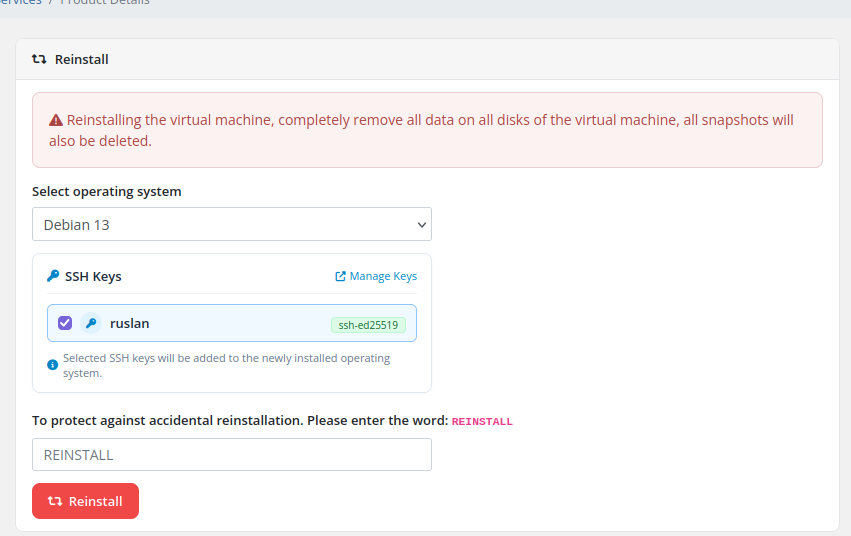
*client-area-reinstall.png*
## What Happens During Reinstall
- The VM is stopped if currently running.
- All data on all disks is destroyed.
- All existing snapshots are deleted.
- The VM is redeployed from the selected OS template using the module's deploy pipeline.
- Cloud-init configuration is reapplied (hostname, IP addresses, DNS, user credentials, and selected SSH public keys).
- **Network identity is preserved** — the original IPv4/IPv6 addresses, the **same network card MAC address**, the VLAN tag and the VMID are kept so that inventory systems, firewalls and DNS records continue to work without changes.
- A new root password is generated and sent to the client via email.
> **Backups survive a reinstall.** The reinstall procedure explicitly deletes only the VM's disks and snapshots — any existing **backup archives are kept intact**. This gives you a safety net: even after reinstalling a brand-new OS, you can still restore a previous backup to return to the pre-reinstall state. Use this carefully.
## Important Notes
- This operation is **irreversible** for the data on the VM disks. All data will be permanently lost.
- The Reinstall feature must be enabled in the product's Client Area Permissions by the administrator.
- Only OS templates approved by the administrator appear in the dropdown list.
- The VM must not be locked by another operation (backup, snapshot, migration) when initiating a reinstall.
- The `REINSTALL` confirmation word must be typed **in capital letters** exactly — it's an intentional speed-bump to prevent accidental reinstalls.
# Snapshots
### Proxmox KVM module **[WHMCS](https://puqcloud.com/link.php?id=77)**
##### [Order now](https://puqcloud.com/whmcs-module-proxmox-kvm.php) | [Download](https://download.puqcloud.com/WHMCS/servers/PUQ_WHMCS-Proxmox-KVM/) | [Community](https://community.puqcloud.com/)
The **Snapshots** page allows clients to create, schedule, rollback, and remove point-in-time snapshots of their virtual machine directly from the WHMCS client area. Snapshots capture the complete state of the VM (including disk contents and RAM state if running), enabling quick recovery to a known good state.
> **Snapshots are not backups.** Snapshots depend on the VM's underlying disk storage and are intended as short-term recovery checkpoints (for example, prior to applying OS updates or software changes). For durable, long-term disaster recovery, use the [Backups](06-backups.md) feature.
---
## Operating Modes
The module supports two operational modes for snapshots, configured by the administrator in the product's **Module Settings → VM Configuration**:
### 1. Scheduled Automatic Snapshots Mode (Recommended)
When **Snapshot schedule mode** is enabled on the product, snapshots operate on an automated weekly schedule with automatic FIFO rotation:
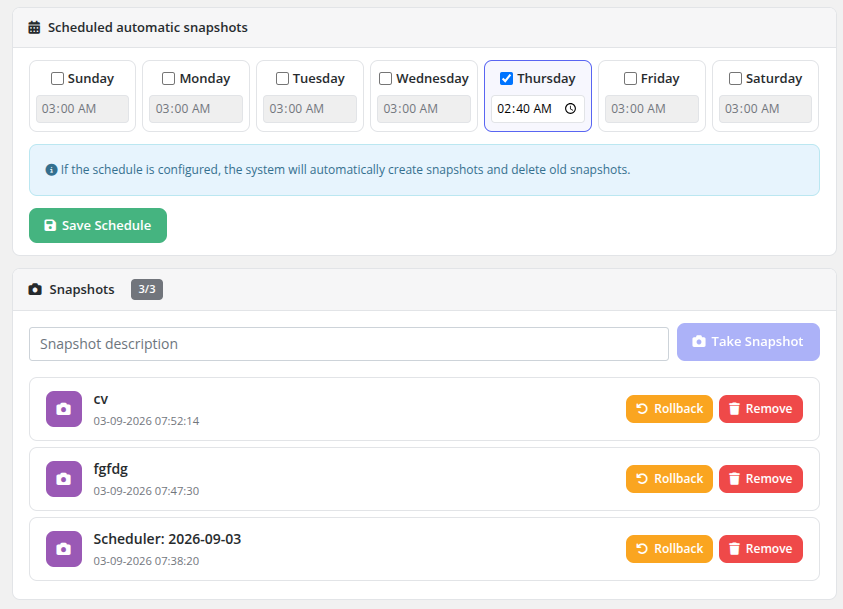
- **Weekly Schedule Card**: The client selects which days of the week (Sunday through Saturday) and at what time of day snapshots should be taken.
- **Automated Execution**: The background cron task (`scheduleSnapshot`) runs every 5 minutes, checks the VM's configured schedule, and automatically takes a snapshot named `Scheduler: YYYY-MM-DD`.
- **Automatic FIFO Rotation**: When the service snapshot quota is reached (e.g., **3/3**), the system automatically deletes the oldest snapshot before creating the new scheduled snapshot. The client always maintains the most recent checkpoints without manual intervention.
- **Manual Snapshots**: The client can also manually create snapshots at any time, subject to the service quota limit.
### 2. Lifetime Expiration Mode
When **Snapshot schedule mode** is disabled on the product:
- Snapshots are created manually by the client.
- Each snapshot has a maximum retention lifetime (1–10 days or indefinite) configured in the product settings.
- A countdown timer (e.g., `0 days 23:59:54`) is displayed next to each snapshot indicating when it will expire.
- When the lifetime expires, the background cleanup cron automatically removes the snapshot.
---
## Configuring Snapshot Schedule
If scheduled snapshot mode is enabled for your service:
1. In the **Scheduled automatic snapshots** card at the top of the page, check the days of the week on which you want snapshots taken.
2. For each selected day, configure the desired execution time.
3. Click the **Save Schedule** button.
The system will automatically create snapshots at the configured times and rotate older ones once the quota is reached.
---
## Snapshot Quota
The snapshot quota is displayed in the card header as a counter badge (e.g., **3/3**), showing the number of active snapshots out of the maximum allowed. The quota limit is determined by the product configuration or the `Snapshots` Configurable Option assigned to the service.
When the quota limit is reached, the **Take Snapshot** button is disabled until an existing snapshot is removed or rotated.
---
## Taking a Manual Snapshot
1. Navigate to your service and click **Snapshots** in the sidebar.
2. Enter a description in the **Snapshot description** field (e.g., `Before kernel update`).
3. Click the **Take Snapshot** button and confirm the action in the prompt modal.
4. The snapshot process runs in the background. Once complete, the new snapshot appears in the list.
---
## Managing Snapshots
Each snapshot in the list displays:
- **Description / Label** — The description provided during creation, or `Scheduler: YYYY-MM-DD` for automated snapshots.
- **Timestamp** — The exact date and time the snapshot was taken.
- **Remaining Lifetime** — (Lifetime mode only) A countdown indicator showing time remaining until automatic deletion.
Two primary actions are available for each snapshot:
- **Rollback** (): Restores the virtual machine to the exact state captured at the time of the snapshot. During rollback, the VM is temporarily stopped, reverted to the snapshot point, and restarted.
- **Remove** (): Permanently deletes the snapshot from Proxmox storage, freeing up quota and disk space.
*client-area-snapshots.png*
---
## Important Notes
- **Storage Impact**: Snapshots use copy-on-write delta storage on the Proxmox node. As the VM continues to run and write data, snapshot delta files grow over time.
- **Operation Locks**: The VM must not be locked by another pending task (backup, reinstall, migration) when creating or rolling back a snapshot.
- **Rollback Impact**: Rolling back to a previous snapshot discards all disk changes made after that snapshot was captured.
- **Backup Restore**: When restoring a full backup, all existing snapshots on the VM are permanently removed as part of the storage re-initialization.
# Backups
### Proxmox KVM module **[WHMCS](https://puqcloud.com/link.php?id=77)**
##### [Order now](https://puqcloud.com/whmcs-module-proxmox-kvm.php) | [Download](https://download.puqcloud.com/WHMCS/servers/PUQ_WHMCS-Proxmox-KVM/) | [Community](https://community.puqcloud.com/)
The Backups page provides full VM backup management, including scheduled automatic backups, manual on-demand backups, restore from backup, and backup removal.
## Scheduled Automatic Backups
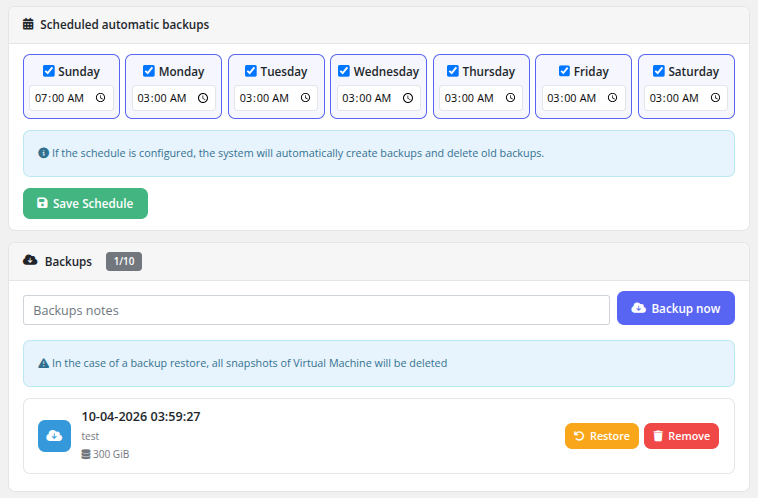
The top section of the page displays the backup schedule configuration with a day-of-week grid. For each day of the week (Sunday through Saturday), the client can:
- **Enable or disable** the day using the checkbox.
- **Set the time** for the backup to run on that day.
After configuring the schedule, click **Save Schedule** to apply the changes. When a schedule is configured, the system will automatically create backups at the specified times and delete old backups that exceed the retention quota.
An informational note confirms: "If the schedule is configured, the system will automatically create backups and delete old backups."
## Backup Quota
The backup quota is displayed as a counter next to the **Backups** heading (e.g., **1/10**), showing the number of existing backups out of the maximum allowed. The quota limit is configured by the administrator in the product settings.
## Creating a Manual Backup
1. Optionally enter a note in the **Backups notes** text field to identify the backup.
2. Click the **Backup now** button.
3. The backup task is submitted to Proxmox and runs in the background. Progress is monitored by the WHMCS cron system.
## Backup List
Each backup in the list displays:
- **Date and time** — When the backup was created
- **Description** — The note entered when creating the backup
- **Size** — The storage size of the backup (e.g., 300 GiB)
For each backup, two actions are available:
- **Restore** — Restore the VM from this backup. The VM will be stopped during the restore process.
- **Remove** — Permanently delete this backup to free up storage space and quota.
A warning note reminds the client: "In the case of a backup restore, all snapshots of Virtual Machine will be deleted."
*client-area-backups-schedule.png*
## How scheduled backups run
On each cron tick the backup task:
1. Checks which VMs have the current weekday enabled in their schedule.
2. Checks whether the configured time-of-day for today is already in the past (so that the job runs once per day, not repeatedly).
3. Checks whether today's backup already exists — if yes, skips.
4. Checks whether there is a free backup slot. If the quota is full, the **oldest** backup is deleted first to make room.
5. Creates the new backup and monitors the Proxmox task until completion.
## Backup restoration
Before a backup is restored, the VM must be in a **powered off** state. After a successful restore the module automatically re-applies the current package parameters to the restored VM:
1. Set CPU & RAM if different from the restored values
2. Resize system disk if different
3. Re-apply system disk bandwidth limits
4. Create additional disk if needed
5. Resize additional disk if needed
6. Re-apply additional disk bandwidth limits
7. Re-apply network configuration (bridge, VLAN, bandwidth, MAC)
8. Start the VM
9. Send the **Backup restored** email to the client
If the restore fails for any reason, the client is given the option to retry the restore or to reinstall the virtual machine from scratch.
## Important Notes
- Backups are stored on the backup storage configured in Proxmox by the administrator.
- Restoring a backup will stop the VM and delete all existing snapshots.
- Backup creation runs as a background task; large VMs may take considerable time to back up.
- Scheduled backups are executed by the WHMCS cron system. Ensure that the cron is running properly for scheduled backups to function.
- **While a backup is being created or restored, all other VM management operations are suspended** — Start/Stop, Reinstall, Reset password, Snapshots and package changes are locked until Proxmox releases the backup lock.
- The datastore used for backups must either not rotate backup copies, or rotate them in a way that does not interfere with the number of spare copies purchased by the client.
# Reset Password
### Proxmox KVM module **[WHMCS](https://puqcloud.com/link.php?id=77)**
##### [Order now](https://puqcloud.com/whmcs-module-proxmox-kvm.php) | [Download](https://download.puqcloud.com/WHMCS/servers/PUQ_WHMCS-Proxmox-KVM/) | [Community](https://community.puqcloud.com/)
The Reset Password page allows clients to generate a new root/admin password for their virtual machine. The new password is applied via cloud-init and sent to the client by email.
## Process
1. Navigate to the service and click **Reset password** in the sidebar.
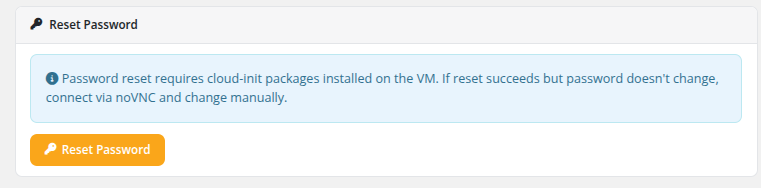
2. Review the informational note about cloud-init requirements.
3. Click the **Reset Password** button.
4. A new password is automatically generated by the system.
5. Cloud-init applies the new password to the VM.
6. The new password is sent to the client via the configured email template.
*client-area-reset-password.png*
## Cloud-Init Requirement
An informational note on the page states: "Password reset requires cloud-init packages installed on the VM. If reset succeeds but password doesn't change, connect via noVNC and change manually."
This means:
- The **cloud-init** package must be installed and properly configured inside the VM's operating system.
- The **QEMU guest agent** is recommended for the password change to take effect immediately.
- If cloud-init is not installed or not functioning, the password reset command will succeed on the API level but the actual password inside the VM will not change. In this case, the client should use the noVNC console to log in and change the password manually.
## Important Notes
- The Reset Password feature must be enabled in the product's Client Area Permissions by the administrator.
- The VM should be in a **running** state for the password change to be applied by cloud-init.
- The generated password is random and secure. The client receives it only via the configured email template.
- If the VM was deployed from a template that does not include cloud-init, this feature will not work as expected.
> **Changed in v3.0.** The password reset flow now works on a **running** VM via cloud-init (and the QEMU guest agent if installed) — the client does not need to stop the VM first. In **v2.x and earlier**, the client had to manually power off the VM before resetting the password; the module then generated the new password, rewrote cloud-init and started the VM back up. If you are documenting behaviour for clients running an older version, keep that difference in mind.
# Reverse DNS
### Proxmox KVM module **[WHMCS](https://puqcloud.com/link.php?id=77)**
##### [Order now](https://puqcloud.com/whmcs-module-proxmox-kvm.php) | [Download](https://download.puqcloud.com/WHMCS/servers/PUQ_WHMCS-Proxmox-KVM/) | [Community](https://community.puqcloud.com/)
The Reverse DNS page allows clients to configure PTR (pointer) records for all IP addresses assigned to their virtual machine. Reverse DNS records map IP addresses back to hostnames and are commonly required for mail servers and other services that perform reverse lookups.
## Configuration
1. Navigate to the service and click **revDNS configure** in the sidebar.
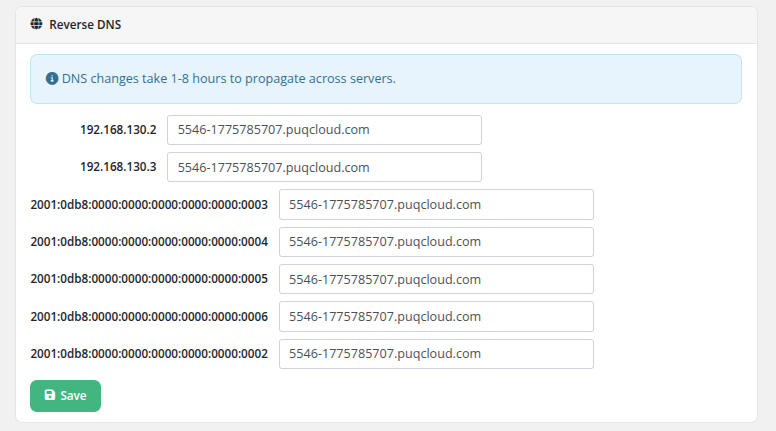
2. Each IP address assigned to the VM (both IPv4 and IPv6) is listed with an editable hostname field.
3. Enter the desired hostname for each IP address.
4. Click the **Save** button to apply the changes.
The page lists all assigned addresses, including:
- All IPv4 addresses (primary and additional)
- All IPv6 addresses (primary and additional)
Each address has its own hostname input field, allowing independent reverse DNS configuration per IP.
*client-area-reverse-dns.png*
## DNS Propagation
An informational note at the top of the page states: "DNS changes take 1-8 hours to propagate across servers."
After saving, the reverse DNS records are automatically synchronized with the configured DNS provider (Cloudflare or HestiaCP, as configured in the addon module). However, due to DNS caching and propagation across the internet, the changes may not be visible to all resolvers immediately.
## Important Notes
- The RevDNS feature must be enabled in the product's Client Area Permissions by the administrator.
- The DNS addon module must be configured with the appropriate reverse DNS zones for the IP ranges used by the VM.
- Hostnames must be in a valid DNS format (e.g., `mail.example.com`).
- Reverse DNS is particularly important for email delivery. Many mail servers reject messages from IP addresses without proper PTR records.
## Ticket-based fallback
> **Still supported for operators without a DNS API.** If your reverse-DNS infrastructure does not expose an API (neither Cloudflare, HestiaCP nor PowerDNS), the module can fall back to **opening a WHMCS ticket** when the client requests a revDNS change — you then apply the change by hand on your DNS server.
>
> This is configured in the product settings under **Integrations → Revdns ticket / RevDNS ticket department**. When a ticket department is selected, saving the reverse-DNS form creates a new WHMCS ticket in that department with the requested IP→hostname mapping instead of calling the DNS provider.
> **Changed in v3.0.** With the PowerDNS provider added alongside Cloudflare and HestiaCP, most deployments can now use the automatic path and do not need the ticket fallback any more. The ticket mode is still available for mixed setups or for operators who deliberately want manual approval of every PTR change.
# ISO Mount
### Proxmox KVM module **[WHMCS](https://puqcloud.com/link.php?id=77)**
##### [Order now](https://puqcloud.com/whmcs-module-proxmox-kvm.php) | [Download](https://download.puqcloud.com/WHMCS/servers/PUQ_WHMCS-Proxmox-KVM/) | [Community](https://community.puqcloud.com/)
The ISO Mount page allows clients to mount and unmount ISO images on their virtual machine's virtual CD/DVD drive. ISO images are organized into categorized folders for easy browsing.
## Currently Mounted ISO
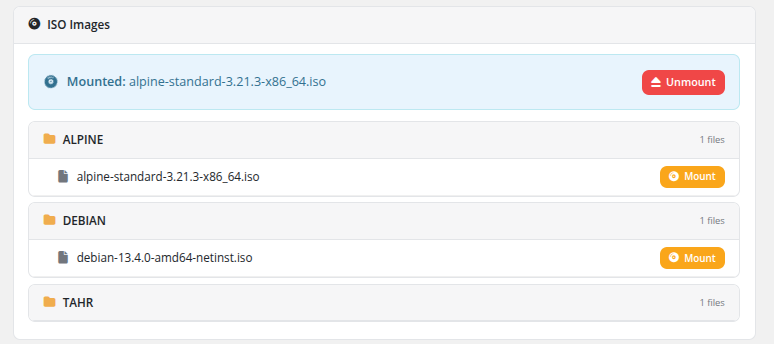
If an ISO image is currently mounted, it is displayed at the top of the page with a highlighted status bar showing the filename (e.g., "Mounted: alpine-standard-3.21.3-x86_64.iso") and an **Unmount** button to eject it.
## Browsing Available ISOs
ISO images are organized into folders by category. Each folder displays:
- **Folder name** — The category name (e.g., ALPINE, DEBIAN, TAHR), shown with a folder icon
- **File count** — The number of ISO files in that folder
Inside each folder, individual ISO files are listed with their full filename and a **Mount** button.
### How the categorization works
To keep the ISO list readable the module derives the folder name from the **part of the filename before the first `-` character**:
- `Debian-12.5.0-amd64-netinst.iso` → folder **Debian**
- `alpine-standard-3.21.3-x86_64.iso` → folder **alpine**
- `myimage.iso` (no dash at all) → folder **OTHER**
Follow this convention when uploading ISOs to your Proxmox ISO storage. PUQcloud publishes a set of pre-built ISO images that are named in this convention and ready to use — see the ISO storage on [files.puqcloud.com](https://files.puqcloud.com/).
## Mounting an ISO
1. Navigate to the service and click **ISO mount** in the sidebar.
2. Browse the available ISO folders to find the desired image.
3. Click the **Mount** button next to the ISO file.
4. The ISO is attached to the VM's virtual CD/DVD drive and becomes available for booting or installation.
## Unmounting an ISO
1. Locate the currently mounted ISO at the top of the page.
2. Click the **Unmount** button.
3. The ISO is ejected from the virtual CD/DVD drive.
*client-area-iso-mount.png*
## Use Cases
- **Recovery operations** — Boot from a rescue ISO to repair a broken system
- **Manual OS installation** — Install an operating system from an ISO image
- **Additional software** — Mount driver or utility ISOs for installation
- **Diagnostics** — Boot diagnostic tools (e.g., memtest, disk utilities)
## Important Notes
- The ISO mount feature must be enabled in the product's Client Area Permissions by the administrator.
- Available ISO images are sourced from the ISO storage configured in the Proxmox product settings. Only ISOs uploaded by the administrator to that storage will appear.
- To boot from a mounted ISO, the VM's boot order may need to be configured to include the CD/DVD drive.
- Only one ISO can be mounted at a time. Mounting a new ISO will replace the currently mounted one.
# Firewall
### Proxmox KVM module **[WHMCS](https://puqcloud.com/link.php?id=77)**
##### [Order now](https://puqcloud.com/whmcs-module-proxmox-kvm.php) | [Download](https://download.puqcloud.com/WHMCS/servers/PUQ_WHMCS-Proxmox-KVM/) | [Community](https://community.puqcloud.com/)
The Firewall page provides clients with full control over their virtual machine's Proxmox firewall, including default policies and individual traffic rules.
## Firewall Policies
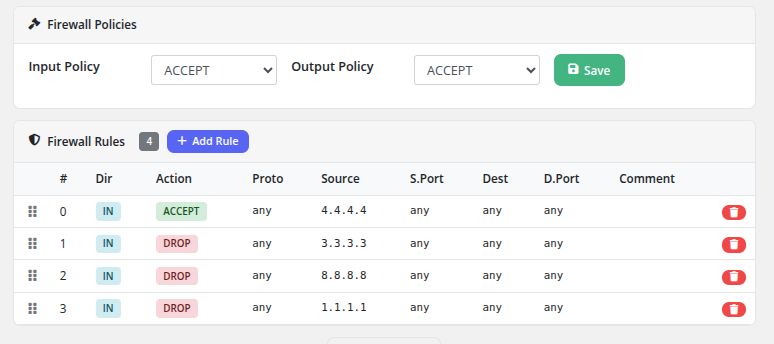
At the top of the page, two default policies can be configured:
- **Input Policy** — The default action for incoming traffic (ACCEPT or DROP)
- **Output Policy** — The default action for outgoing traffic (ACCEPT or DROP)
After selecting the desired policy values from the dropdown menus, click the **Save** button to apply them. These policies determine what happens to traffic that does not match any specific rule.
## Firewall Rules
Below the policies section, the rules table displays all configured firewall rules. The rule count is shown as a badge next to the heading (e.g., **4**).
### Rules Table Columns
| Column | Description |
|--------|-------------|
| **#** | Rule position number (determines evaluation order) |
| **Dir** | Traffic direction: **IN** (inbound) or **OUT** (outbound) |
| **Action** | What to do with matching traffic: **ACCEPT** (allow, shown in green) or **DROP** (block, shown in red) |
| **Proto** | Protocol filter (e.g., tcp, udp, any) |
| **Source** | Source IP address or network (or "any" for all sources) |
| **S.Port** | Source port or port range (or "any" for all ports) |
| **Dest** | Destination IP address or network (or "any" for all destinations) |
| **D.Port** | Destination port or port range (or "any" for all ports) |
| **Comment** | Optional description of the rule's purpose |
### Adding a Rule
Click the **+ Add Rule** button to open the rule creation modal. Fill in the rule parameters (direction, action, protocol, source, destination, ports, and comment) and save.
### Reordering Rules
Rules are evaluated in order from top to bottom. The drag handle (grid icon) on the left side of each rule row allows drag-and-drop reordering. Drag a rule up or down to change its evaluation priority. The first matching rule determines the action taken on the traffic.
### Deleting a Rule
Click the red delete button on the right side of a rule row to remove it. The rule is deleted immediately.
*client-area-firewall-rules.png*
## How Rules Are Evaluated
1. Incoming or outgoing traffic is checked against the rules in order, starting from rule #0.
2. The first rule that matches the traffic's direction, protocol, source, destination, and ports determines the action (ACCEPT or DROP).
3. If no rule matches, the default policy (Input Policy or Output Policy) is applied.
## Important Notes
- The Firewall feature must be enabled in the product's Client Area Permissions by the administrator.
- Anti-spoofing IPSet rules are automatically managed by the module to prevent IP address spoofing from the VM.
- Rule changes take effect immediately on the Proxmox firewall.
- Be cautious when changing the default Input Policy to DROP, as this will block all incoming traffic that is not explicitly allowed by a rule. Ensure you have an ACCEPT rule for your management access (e.g., SSH on port 22) before changing the policy.
# SSH Keys
### Proxmox KVM module **[WHMCS](https://puqcloud.com/link.php?id=77)**
##### [Order now](https://puqcloud.com/whmcs-module-proxmox-kvm.php) | [Download](https://download.puqcloud.com/WHMCS/servers/PUQ_WHMCS-Proxmox-KVM/) | [Community](https://community.puqcloud.com/)
The **SSH Keys** management feature enables clients to securely manage their OpenSSH public keys in their WHMCS account profile. Stored keys can be selected during new VM orders and operating system reinstallations for automatic, passwordless Cloud-Init provisioning.
---
## Accessing the SSH Key Manager
Clients can access their saved SSH keys through multiple convenient entry points:
### 1. User Profile Menu
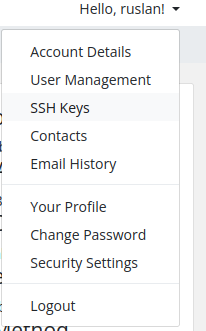
Click the account dropdown menu in the upper-right corner (**Hello, {Name}!**) and select **SSH Keys**.
*client-area-user-menu-ssh-keys.png*
### 2. Services Navigation Menu
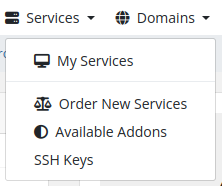
Click **Services** in the main navigation bar and choose **SSH Keys**.
*client-area-services-menu-ssh-keys.png*
---
## Managing Saved Keys
The SSH Keys overview page displays all authorized public keys associated with the client's account.
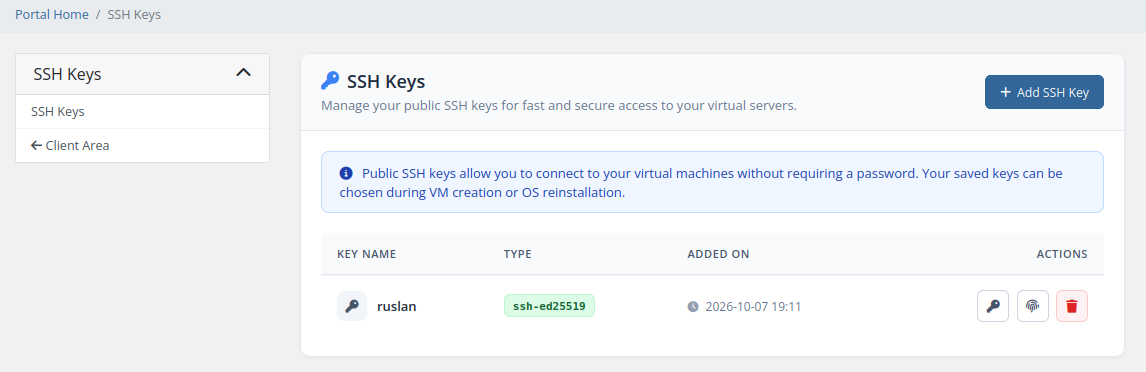
*client-area-ssh-keys-manage.png*
### Key List Table
| Column | Description |
|---|---|
| **Key Name** | A memorable nickname chosen by the user to identify their workstation or device |
| **Type** | The cryptographic key algorithm badge (e.g., `ssh-ed25519`, `ssh-rsa`, `ecdsa-sha2-*`) |
| **Added On** | Timestamp when the key was created |
| **Actions** | Quick interactive actions: **Copy Public Key**, **Copy Fingerprint (SHA256)**, and **Delete** |
### Interactive Actions
- **Copy Public Key** (key icon): Instantly copies the full OpenSSH public key text to the clipboard.
- **Copy Fingerprint** (fingerprint icon): Copies the SHA256 cryptographic fingerprint to the clipboard.
- **Delete** (trash icon): Opens a confirmation modal to remove the key from saved keys. Deleting a key does not revoke it from already provisioned virtual machines.
---
## Adding an SSH Public Key
Click the **+ Add SSH Key** button to open the key registration modal.
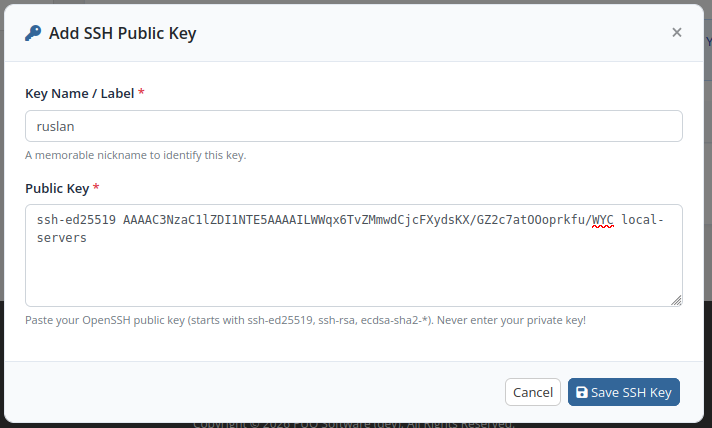
*client-area-ssh-key-add-modal.png*
1. **Key Name / Label:** Enter a nickname for the key (e.g., `work-laptop`, `id_ed25519`).
2. **Public Key:** Paste the OpenSSH public key. Supported formats:
- `ssh-ed25519` (recommended for modern security and performance)
- `ssh-rsa`
- `ecdsa-sha2-nistp256`, `ecdsa-sha2-nistp384`, `ecdsa-sha2-nistp521`
3. Click **Save SSH Key**.
> **Security Note:** Never enter private keys (`id_rsa`, `id_ed25519`). Only public keys (`.pub`) are accepted. The module automatically validates the public key structure and derives the SHA256 fingerprint.
---
## SSH Key Authentication During Service Orders
When purchasing a new virtual machine (`cart.php?a=confproduct`), clients can choose their authentication method on the **Configure Server** page.
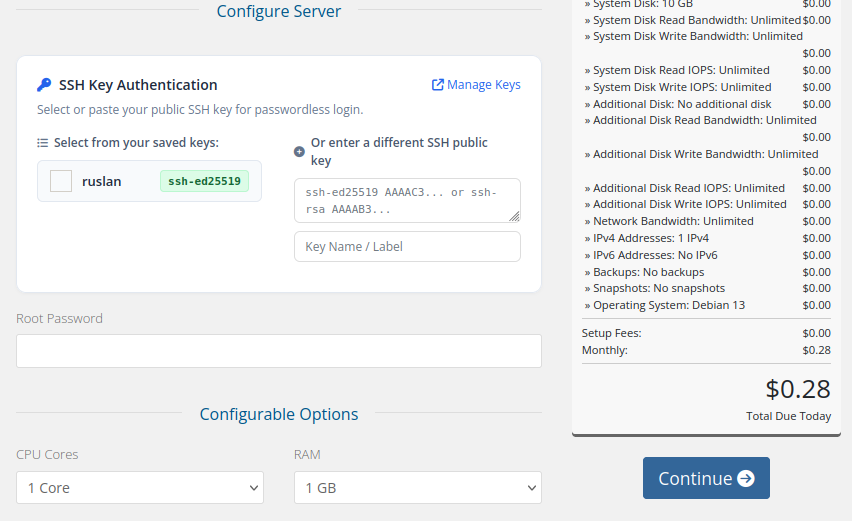
*client-order-ssh-key-selection.png*
### Selection Options
- **Select from saved keys:** Check the boxes for any saved SSH keys you want to inject into the VM.
- **Enter a different SSH public key:** Paste a new OpenSSH public key on-the-fly without leaving the order funnel.
### Automatic Password Handling
- **When one or more SSH keys are selected or entered:** The standard **Root Password** field is automatically hidden. The module generates a secure 30-character random password in the background, ensuring strict passwordless SSH access.
- **When no SSH keys are selected:** The **Root Password** field is displayed normally, allowing standard password-based login.
---
## SSH Keys During OS Reinstallation
Clients can also assign SSH keys when performing an operating system reinstall on an active virtual machine:
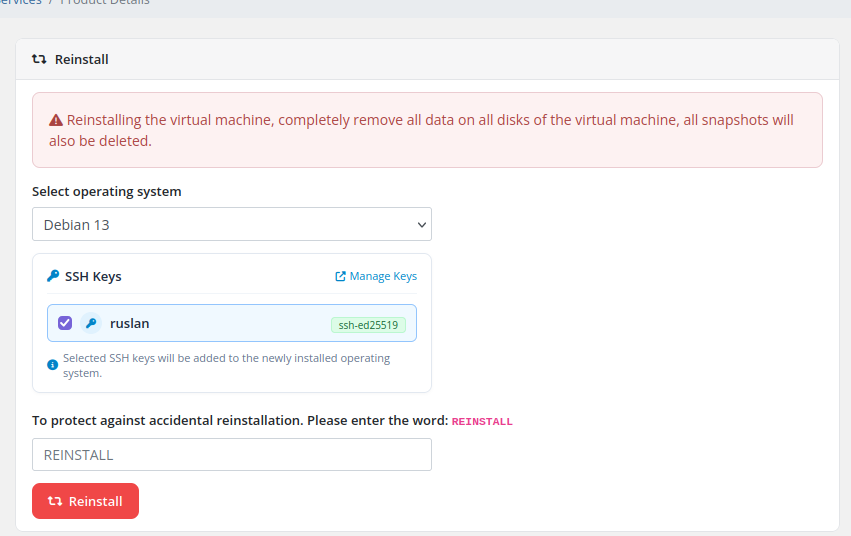
*client-area-reinstall.png*
1. Navigate to the service details and open **Reinstall**.
2. Select the operating system.
3. Check the desired **SSH Keys** from your saved keys.
4. Type `REINSTALL` in capital letters and confirm.
5. Cloud-Init deploys the new OS image with the selected public keys pre-authorized in `/root/.ssh/authorized_keys`.