# Custom Template

### PUQ Customization module **[WHMCS](https://puqcloud.com/link.php?id=77)**

#####  [Order now](https://puqcloud.com/whmcs-addon-puq-customization.php) | [Download](https://download.puqcloud.com/WHMCS/addons/PUQ-Customization/) | [FAQ](https://faq.puqcloud.com/)

<div id="bkmrk-to-add-your-custom-t"><div><div>To add your custom template to display in the client area during maintenance mode, you must have WHMCS installed and configured, including our WHMCS Addon "PUQ Customization" with access to the whmcs system and to the whmcs file system with administrator rights.</div></div><div>  
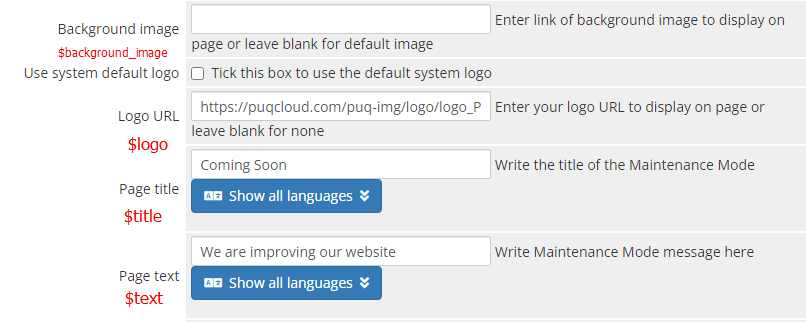
Your template should be named `custom.tpl`, otherwise, it will contradict the logic of this extension, and your template will simply not be displayed.</div><div></div><div>It is also crucial that you use the following variables in your template for proper data transmission:</div></div><div id="bkmrk-"></div><div id="bkmrk--0">[![custom1.png](https://doc.puq.info/uploads/images/gallery/2023-05/scaled-1680-/custom1.png)](https://doc.puq.info/uploads/images/gallery/2023-05/custom1.png)</div><div id="bkmrk-%7B%24background_image%7D-"><div><div></div><div>**{$background\_image}** - link to the background image</div></div></div>Example usage:

```
<style>
        body {
            margin: 0;
            padding: 0;
            background-image: url("{$background_image}");
            background-size: cover;
            background-position: center;
            font-size: 2vw;
        }
</style>
```

<div id="bkmrk-%7B%24logo%7D---link-to-th"><div><div>**{$logo}** - link to the logo</div></div></div>Example usage:

```
<body>
	<img src="{$logo}" alt="Logo">
</body>
```

<div id="bkmrk-%7B%24title%7D---title-for"><div><div>**{$title}** - title for the page</div></div></div>Example usage:

```
<head>
    <title>{$title}</title>
</head>
<body>
	<h1 class="title">{$title}</h1>
</body>
```

<div id="bkmrk-%7B%24text%7D---message-ab"><div><div>**{$text}** - message about the technical work</div></div></div>Example usage:

```
<body>
	<h1 class="text">{$text}</h1>
</body>
```

To add a timer, insert the following code in the appropriate place:

```
{if $enabled_counter eq 'on'}
	{include file='templates/timer.tpl'}
{/if}
```

Now that your template meets the requirements, connect it to the MaintainceMode extension.

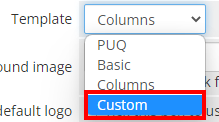
<div id="bkmrk-move-the%C2%A0custom.tpl-"><div>Move the `custom.tpl` file to **addons-&gt; puq\_customization-&gt; extensions-&gt; MaintainceMode-&gt; templates**</div><div></div><div>Then, in the configuration, select the Template as "Custom."</div></div><div id="bkmrk--1"></div><div id="bkmrk--2">[![custom2.png](https://doc.puq.info/uploads/images/gallery/2023-05/scaled-1680-/custom2.png)](https://doc.puq.info/uploads/images/gallery/2023-05/custom2.png)</div><div id="bkmrk--3"></div><div id="bkmrk-congratulations%21-if-">Congratulations! If you have followed the instructions precisely, your template is successfully configured!</div><div id="bkmrk--4"></div></body>