
How to use Admin Area in PUQcloud Panel
- Manage Dashboard
- Create and manage Clients
- Create and manage users
- Transactions Page
- Create and manage a Home Company
- Create and manage Tax Rules
- Create and Manage a Product
- Create and Manage Product Groups
- Create and Manage an Attribute Group
- Create and Manage Product Option Groups
- Check and manage Task Queue
- Check and manage Admin Sessions
- Check and manage Client Sessions
- Check and manage Activity Log
- Check and manage Module Log
- Check and manage Notification History
- Create & Manage Administrators
- Create & Manage Administrator Groups
- Manage scheduler in the Admin Area
- Manage Notification Senders in the Admin Area
- Manage Notification Layouts in the Admin Area
- Manage Notification Templates (Admin Area)
- DNS Manager — Server Groups
- DNS Manager — Servers
- DNS Manager — Zones
- SSL Manager - Certificate Authorities
- SSL Manager - SSL Certificates
- Manage General on Admin Area
- Сheck Countries in the Admin Area
- Create and manage Currencies in the Admin Area
Manage Dashboard
PUQcloud Panel
Order Now | Download | FAQ
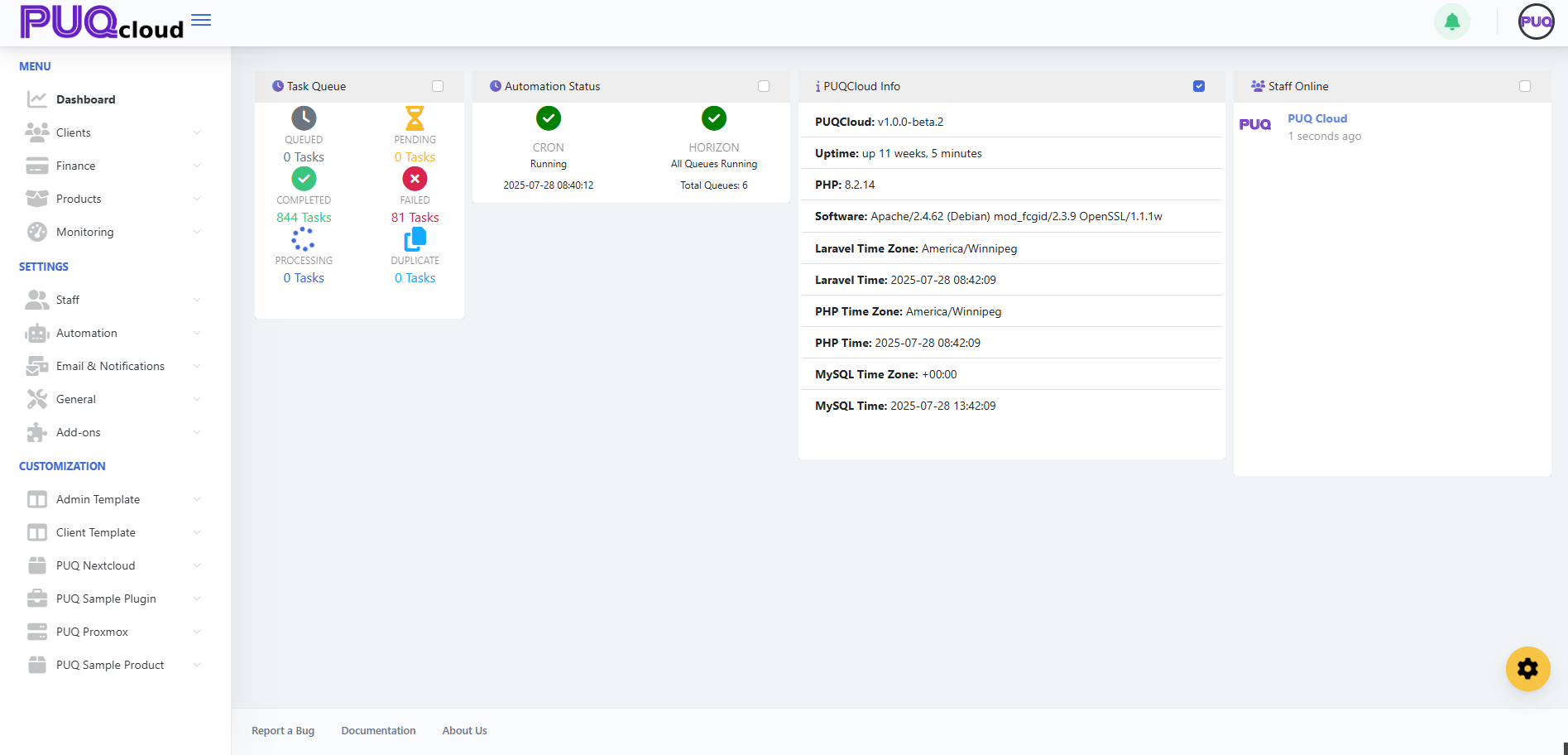
On the PUQcloud dashboard, you can see basic information such as:
-
Task Queue – Live information about all task statuses, including Queued, Pending, Completed, Failed, Processing, and Duplicate.
-
Automation Status – Information about Cron and Horizon statuses.
-
PUQcloud Info – General information about the panel.
-
Staff Online – A list of currently online staff members.
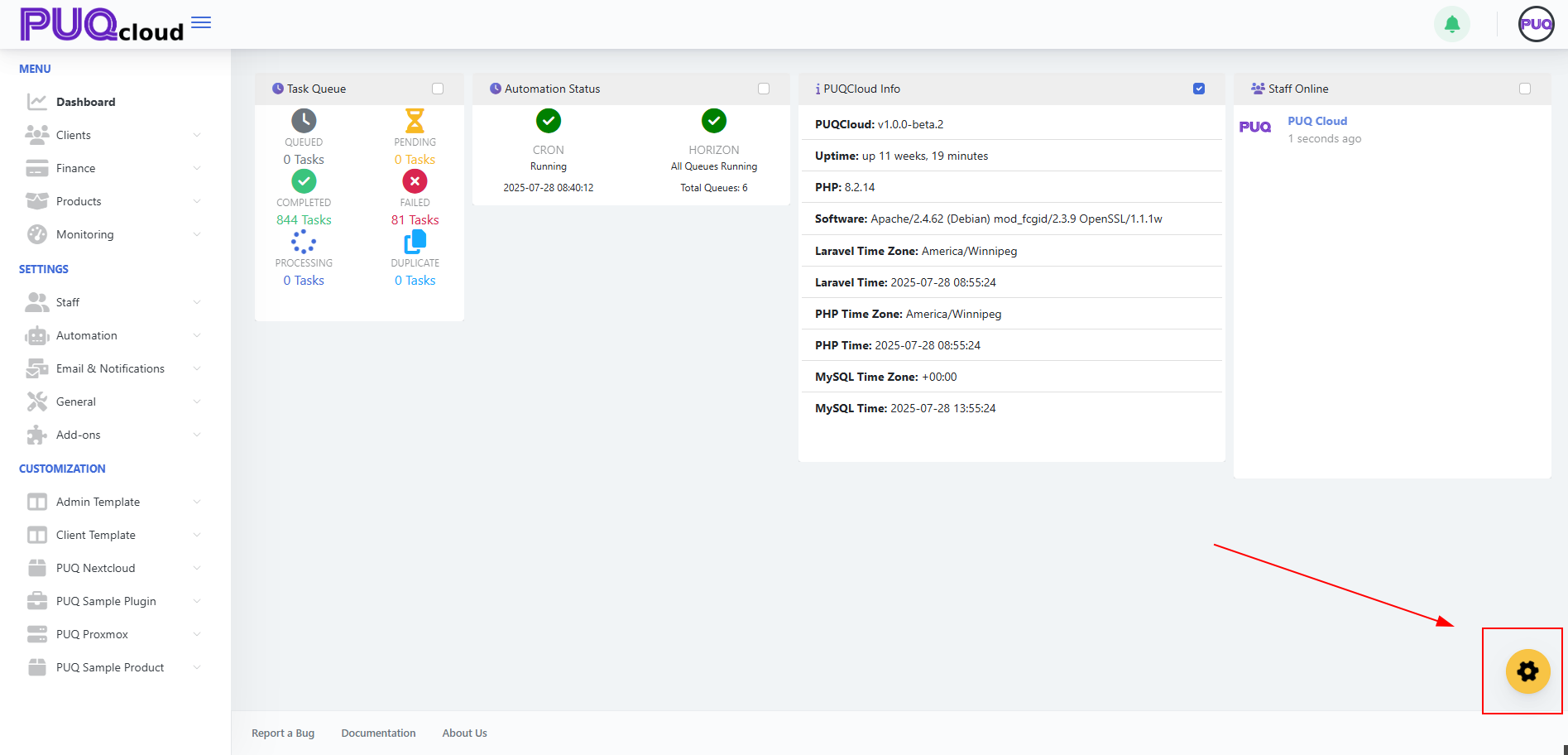
You can also manage the widgets on the dashboard.
Click the gear icon in the bottom-left corner.
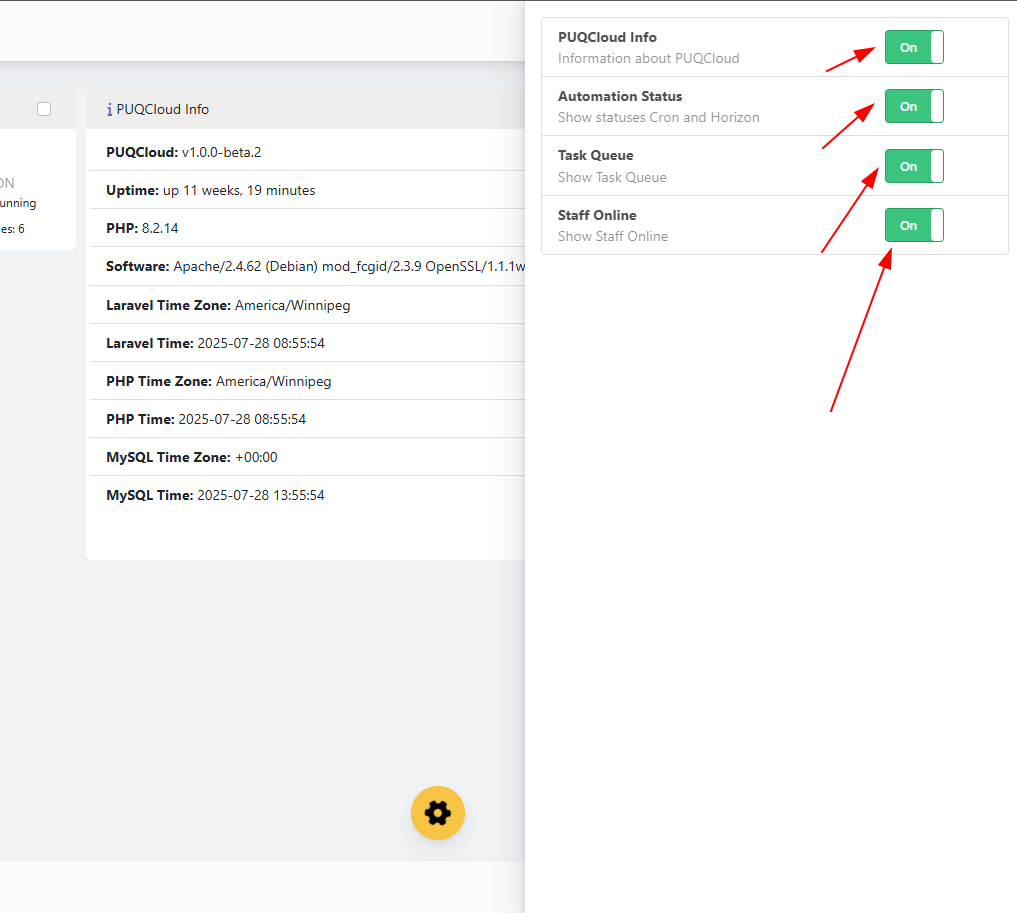
Toggle widgets on or off as needed.
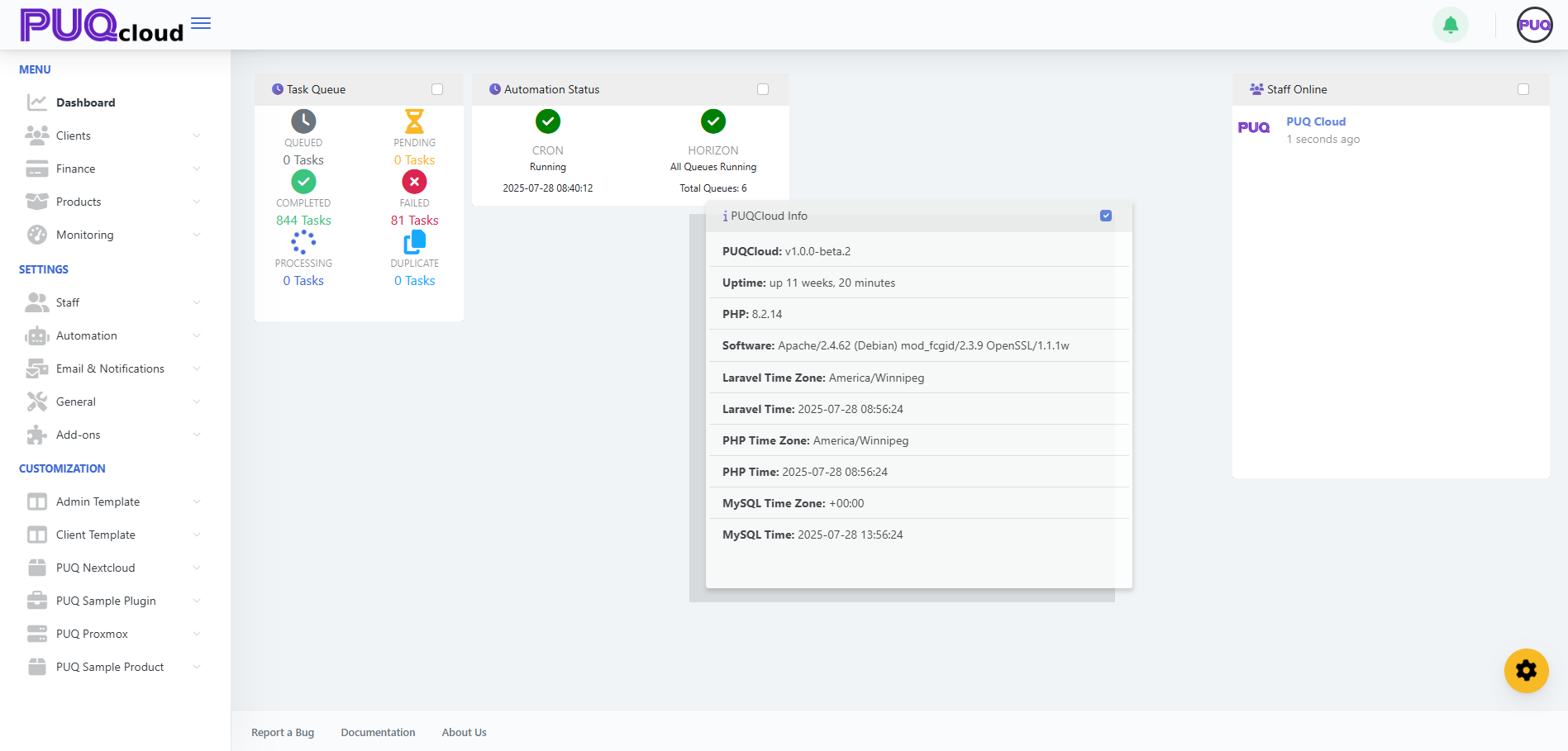
You can also rearrange any widget by simply dragging it to your preferred location.
Create and manage Clients
PUQcloud Panel
Order Now | Download | FAQ
Overview
This guide shows administrators how to create new clients and manage existing ones in PUQcloud Panel. You’ll learn where to find client records, how to add a client, attach users and addresses, and how to handle services, invoices, and transactions.
Key Features
-
Centralized client directory with search, sort, and status badges.
-
Full client profile: personal/company info, language, currency, tax ID, credit limit, admin notes.
-
Addresses management: billing/shipping, multiple entries, default flags.
-
Users & permissions: associate users to the client and grant granular rights.
-
Services lifecycle: add, view status (ACTIVE/COMPLETED/ERROR), open product actions.
-
Finance tools: create invoices and manual transactions for charges/credits.
Before You Begin
-
You must be logged in as an administrator.
-
Ensure you know your home company tax settings and available products & prices.
Navigation
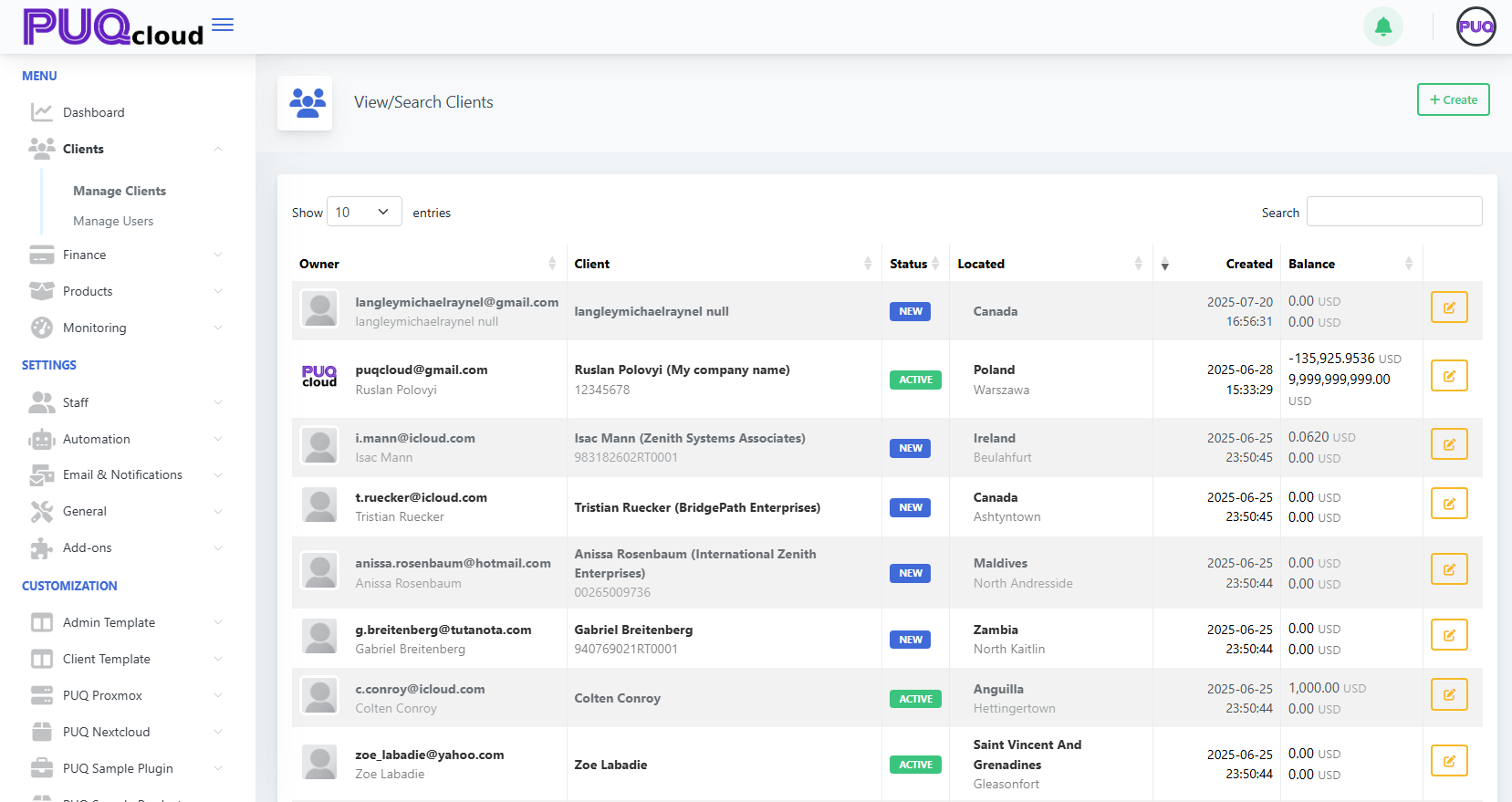
Create a New Client
-
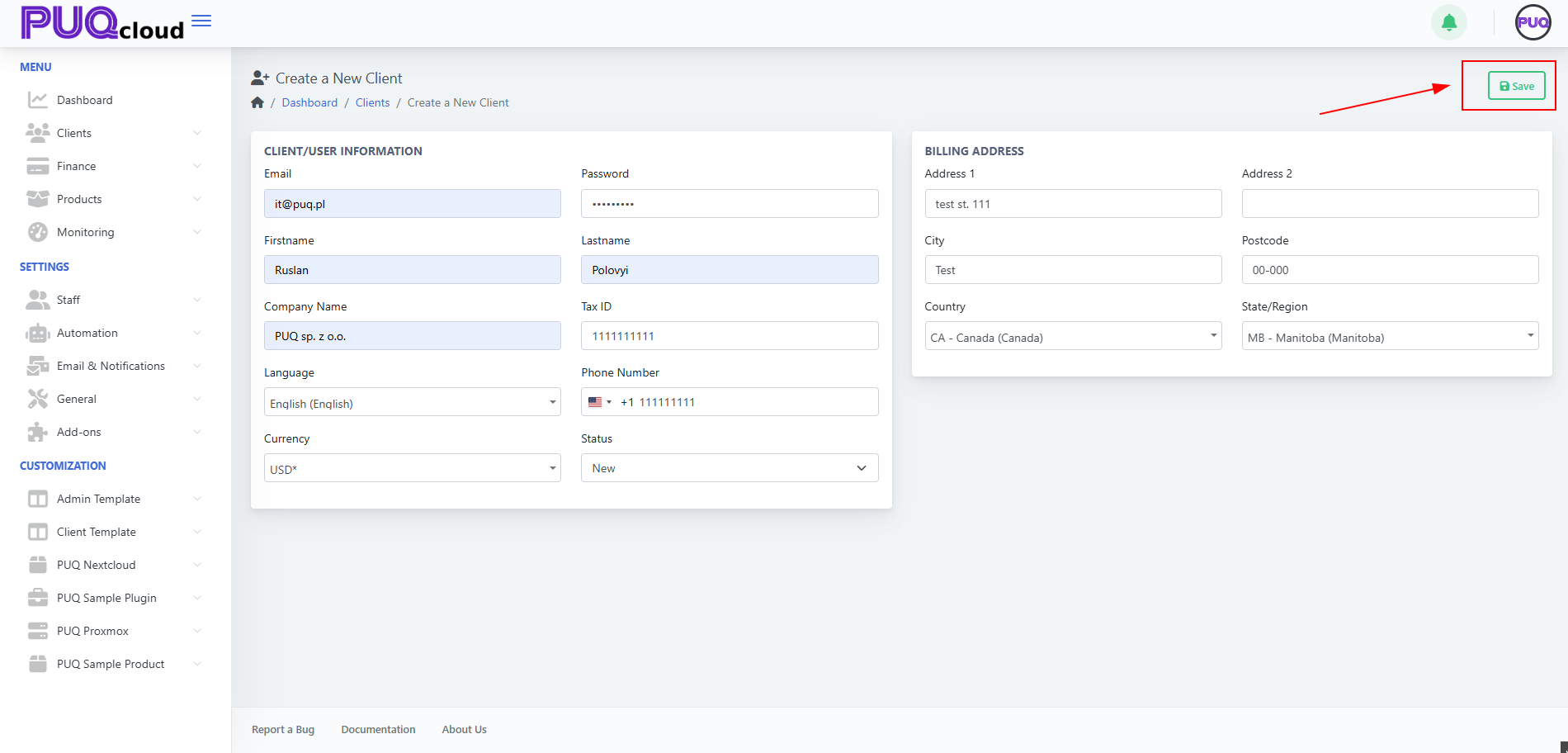
Click + Create (top-right on the client list).
-
Fill the Client/User Information fields:
-
Email and Password
-
Firstname, Lastname
-
Company Name (optional for individuals)
-
Tax ID (if applicable)
-
Phone Number (with country code)
-
Language, Currency
-
Status (New/Active/etc.)
-
-
Fill the Billing Address: Address 1/2, City, Postcode, Country, State/Region.
-
Click Save.
(screenshot: Create a New Client form)
Tips
-
Language affects the UI for the client’s users.
-
Currency determines invoice currency defaults.
-
Use an accurate Tax ID (e.g., GST/HST/QST/VAT formats) for correct tax handling.
Client Record – Tabs & What They Do
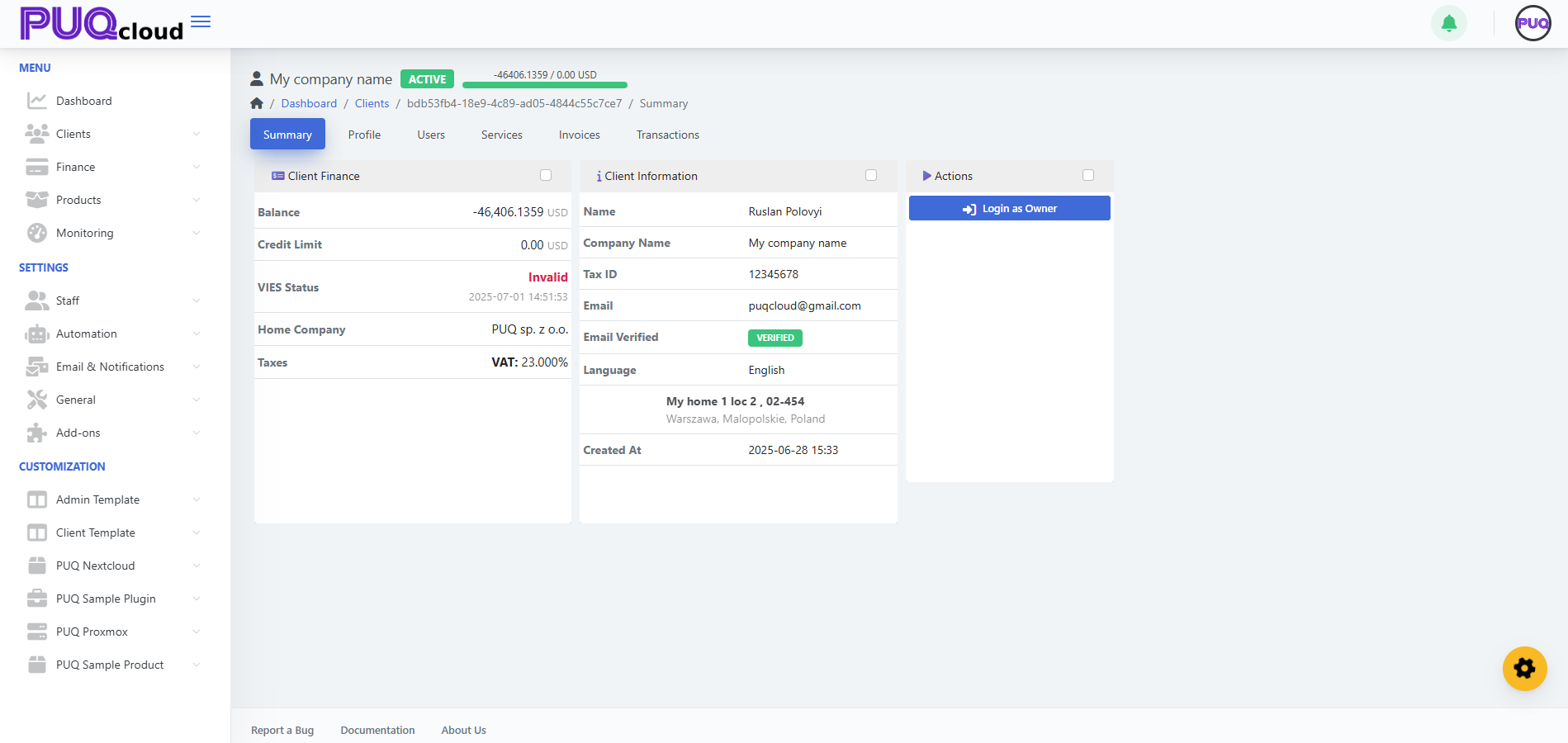
After saving, you’ll land on the client’s page with these tabs: Summary, Profile, Users, Services, Invoices, Transactions.
Summary
-
Quick view of Client Finance (Balance, Credit Limit, VIES/Tax status) and Client Information (name, company, email, language, main address, created at).
-
Actions card: Login as Owner.
screenshot: Client → Summary tab
Profile
-
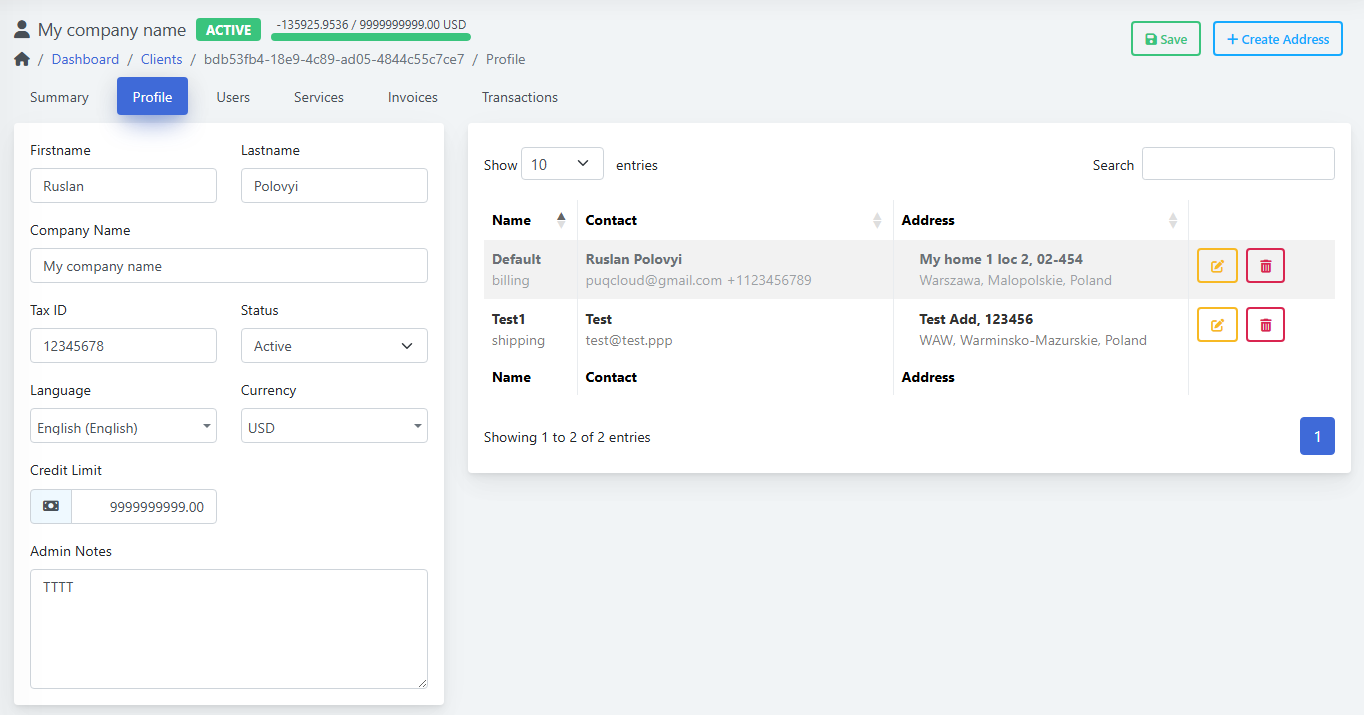
Update Firstname/Lastname, Company, Tax ID, Status, Language, Currency, Credit Limit, Admin Notes.
-
Right side shows the Addresses table with labels like Default (billing) or shipping; use the yellow Edit and red Delete buttons.
-
Click + Create Address to add a new address.
(screenshot: Client → Profile tab)
(screenshot: Create Address modal (Type, Name, Contact, Phone, Email, Address, Country, State/Region))
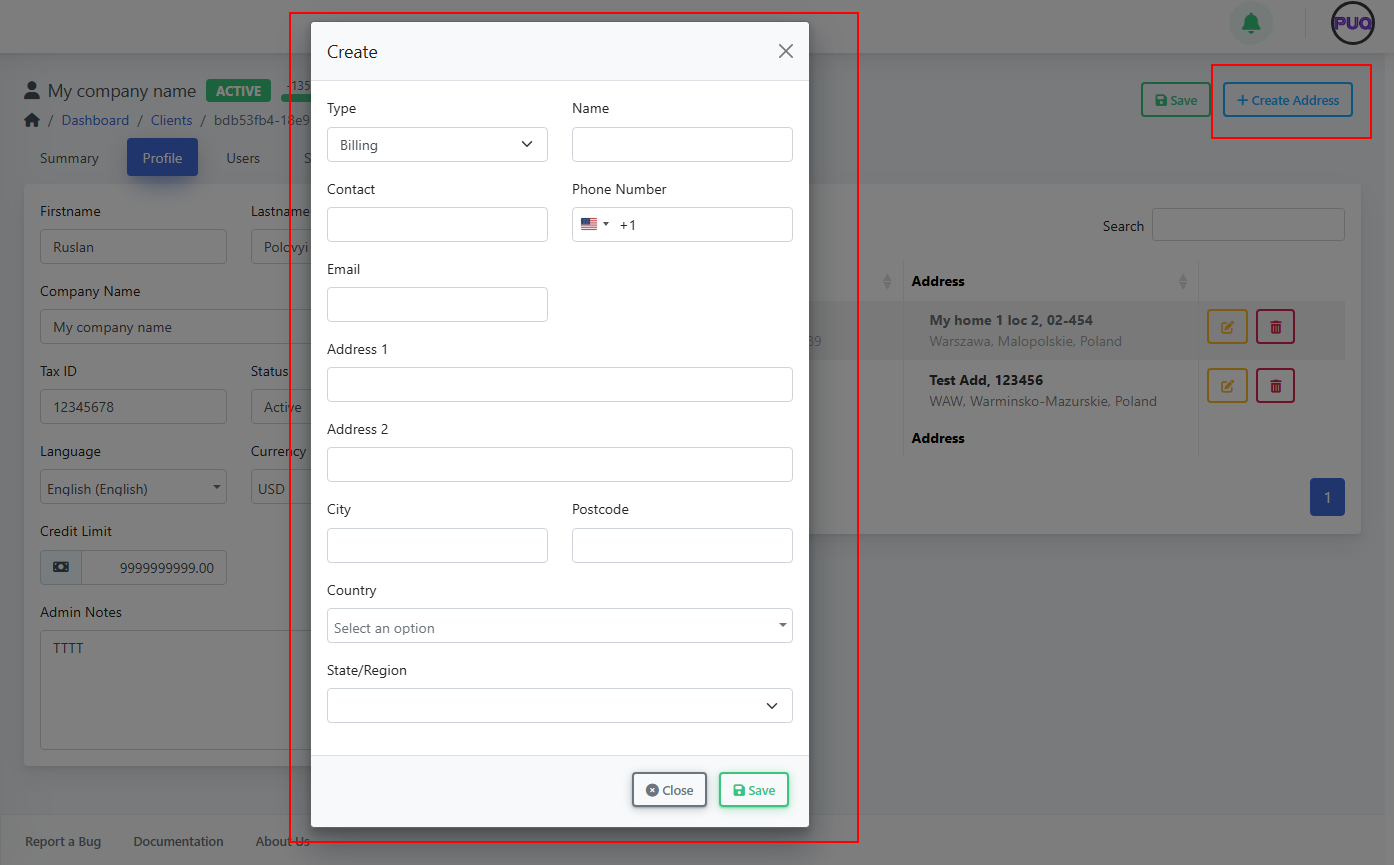
Address Types
-
Billing (used on invoices)
-
Shipping (for service deliveries/records)
Users
-
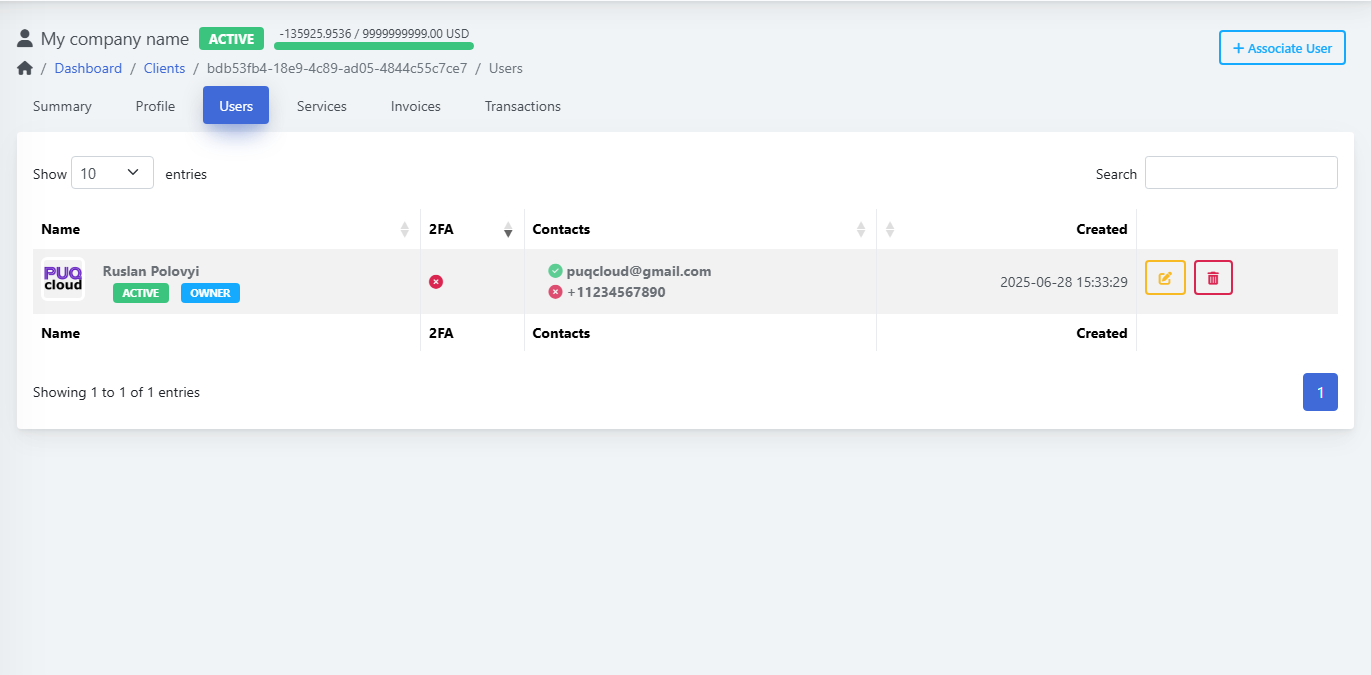
See associated users, 2FA status, contact info, and created date.
-
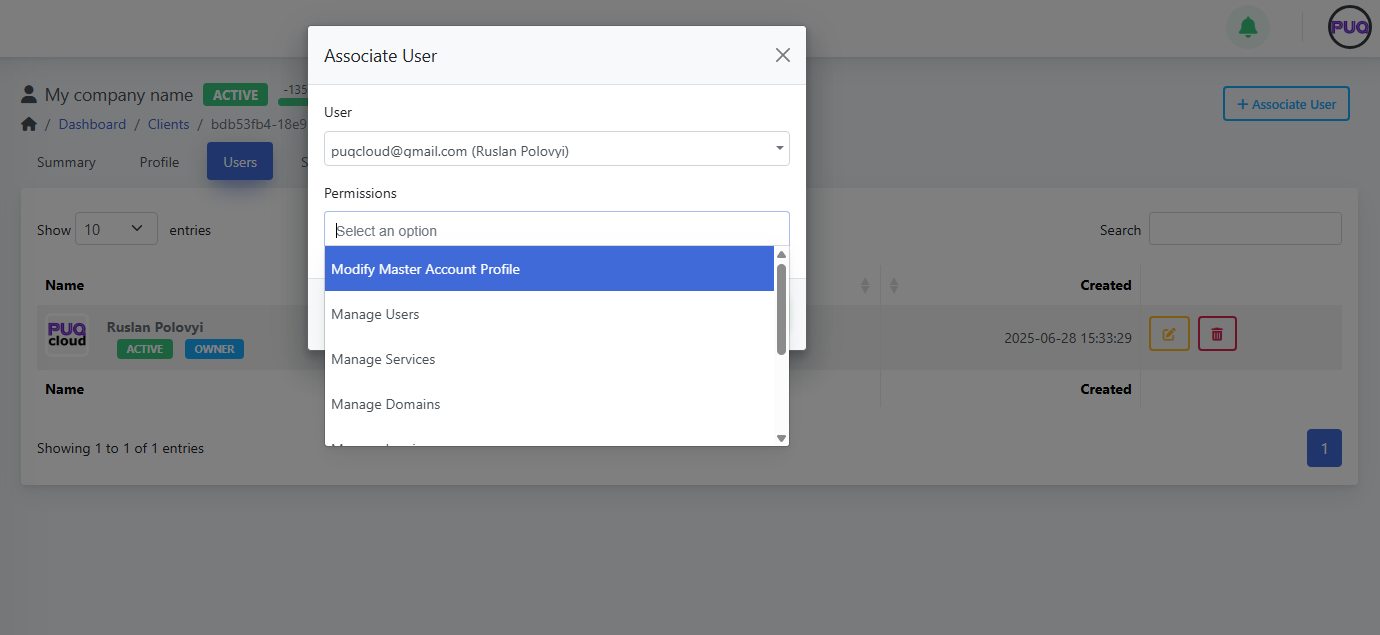
Click + Associate User to link an existing user account.
-
Choose Permissions such as: Modify Master Account Profile, Manage Users, Manage Services, Manage Domains, etc.
-
Use Edit/Delete to maintain user links.
(Screenshot: Client → Users tab)
(Screenshot: Associate User modal with permissions list)
Services
-
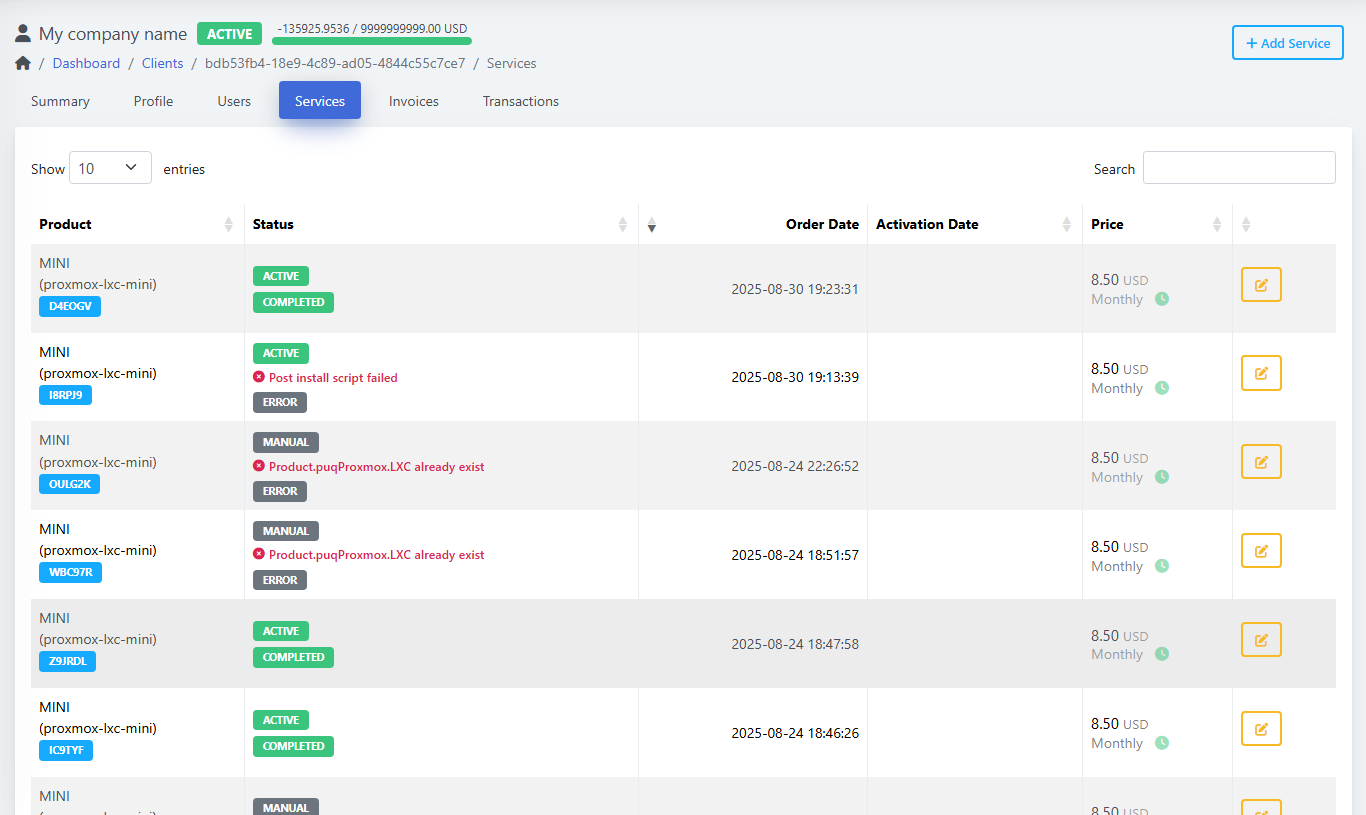
View all services with status badges (e.g., ACTIVE, COMPLETED, ERROR).
-
See Order Date, Activation Date, and Price.
-
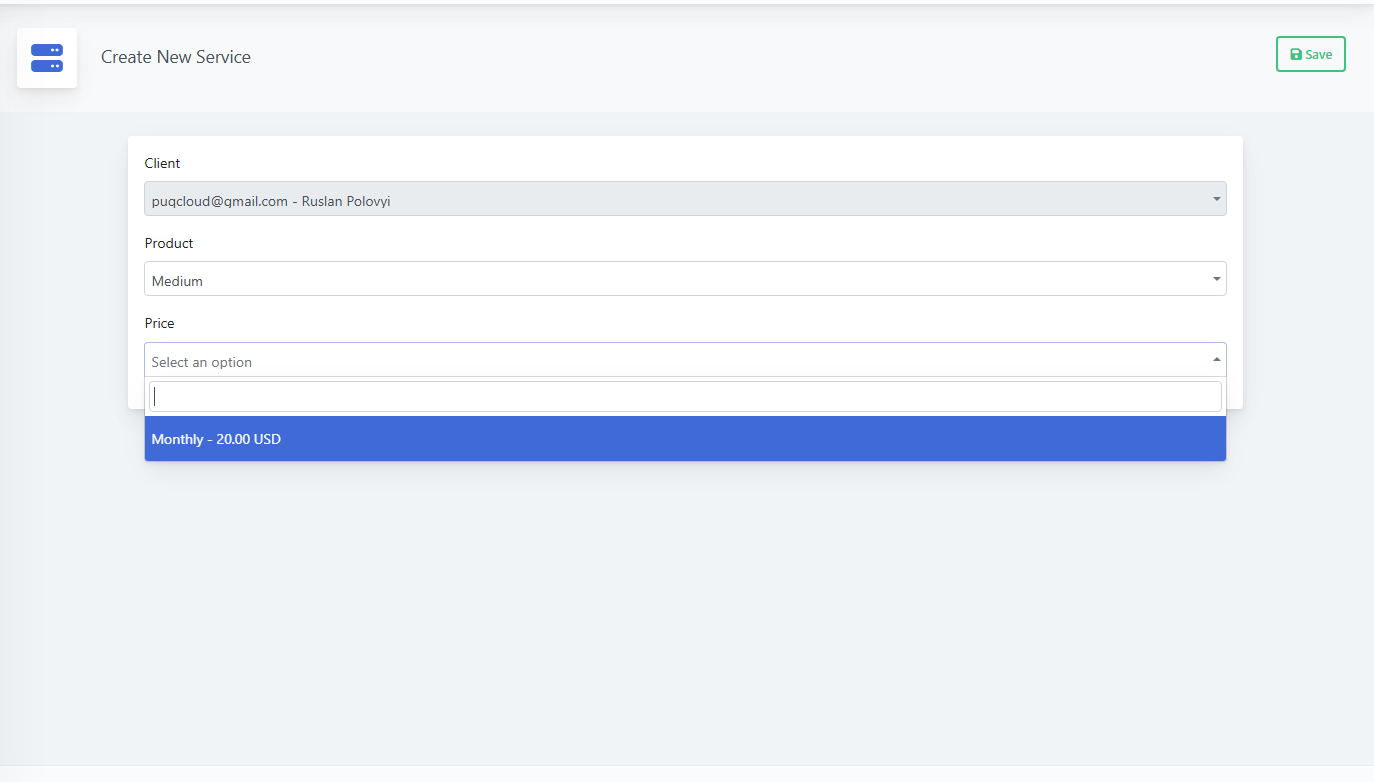
Click + Add Service to provision a product for this client:
-
Select Product
-
Choose Price (e.g., Monthly – 20.00 USD)
-
Click Save
-
(Screenshot: Services list)
(Screenshot: Create New Service form)
Invoices
-
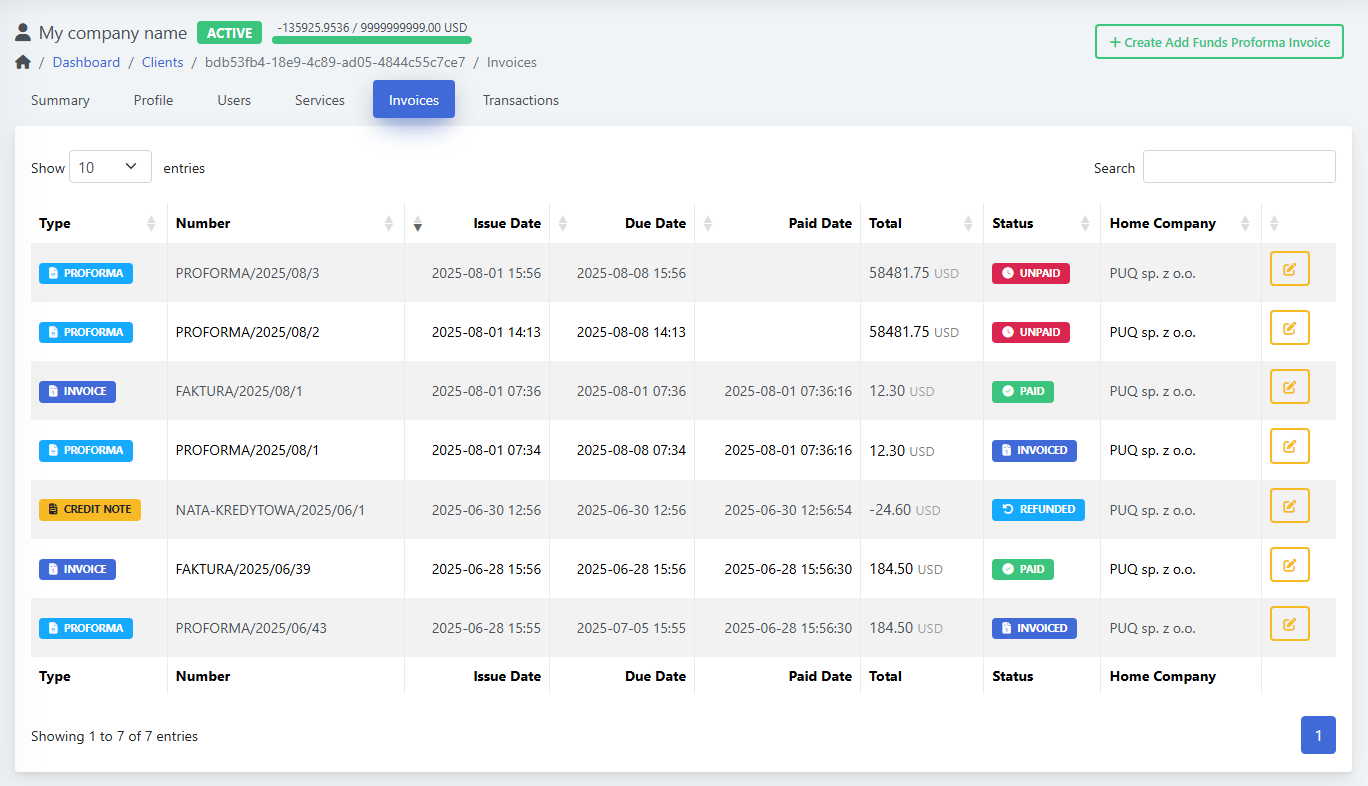
List shows Type (PROFORMA/INVOICE/CREDIT NOTE), Number, Issue/Due/Paid Dates, Total, Status (UNPAID/PAID/INVOICED/REFUNDED), and Home Company.
-
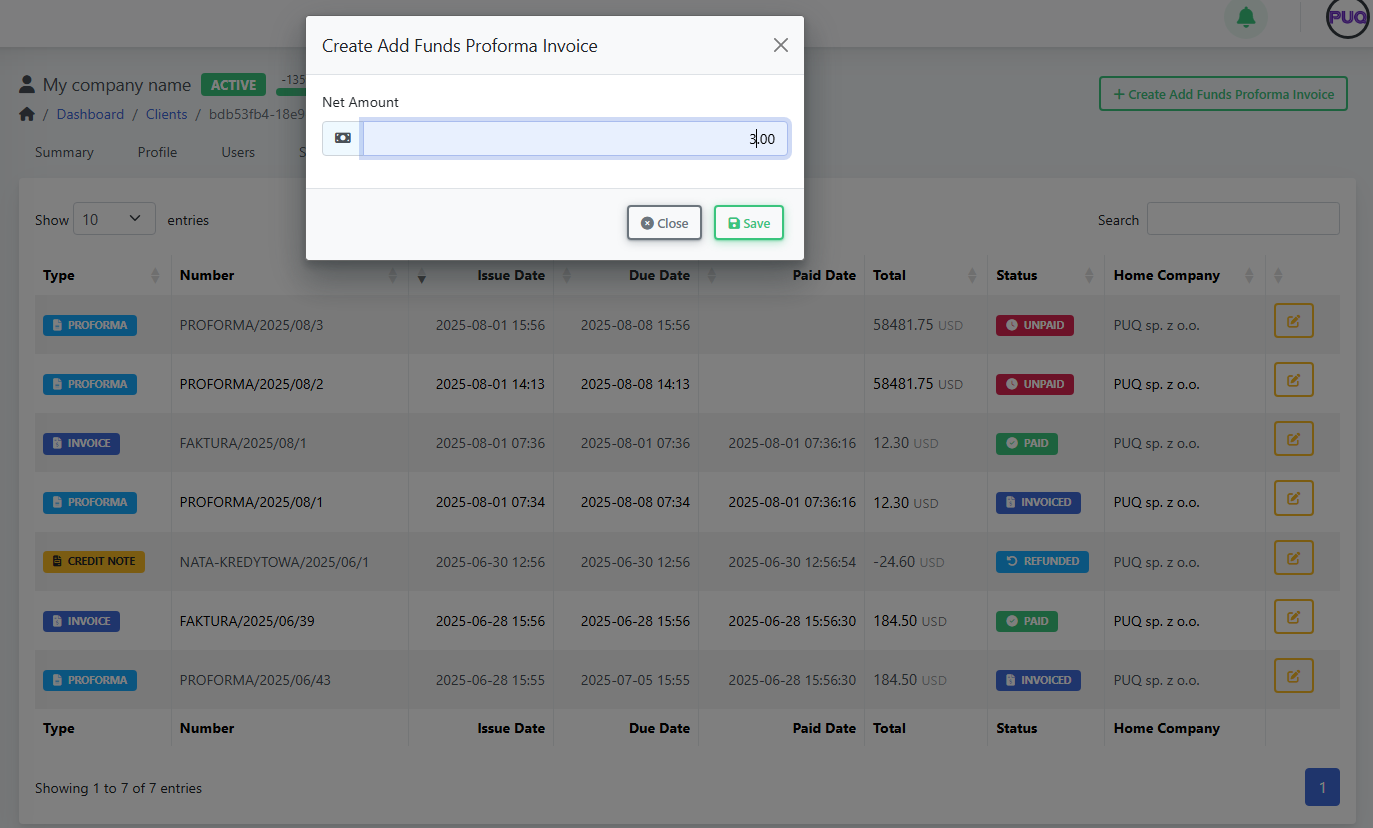
Create Add Funds Proforma Invoice: opens a modal where you set Net Amount to top up client funds.
(Screenshot: Invoices list)
(Screenshot: Create Add Funds Proforma Invoice modal)
Transactions
-
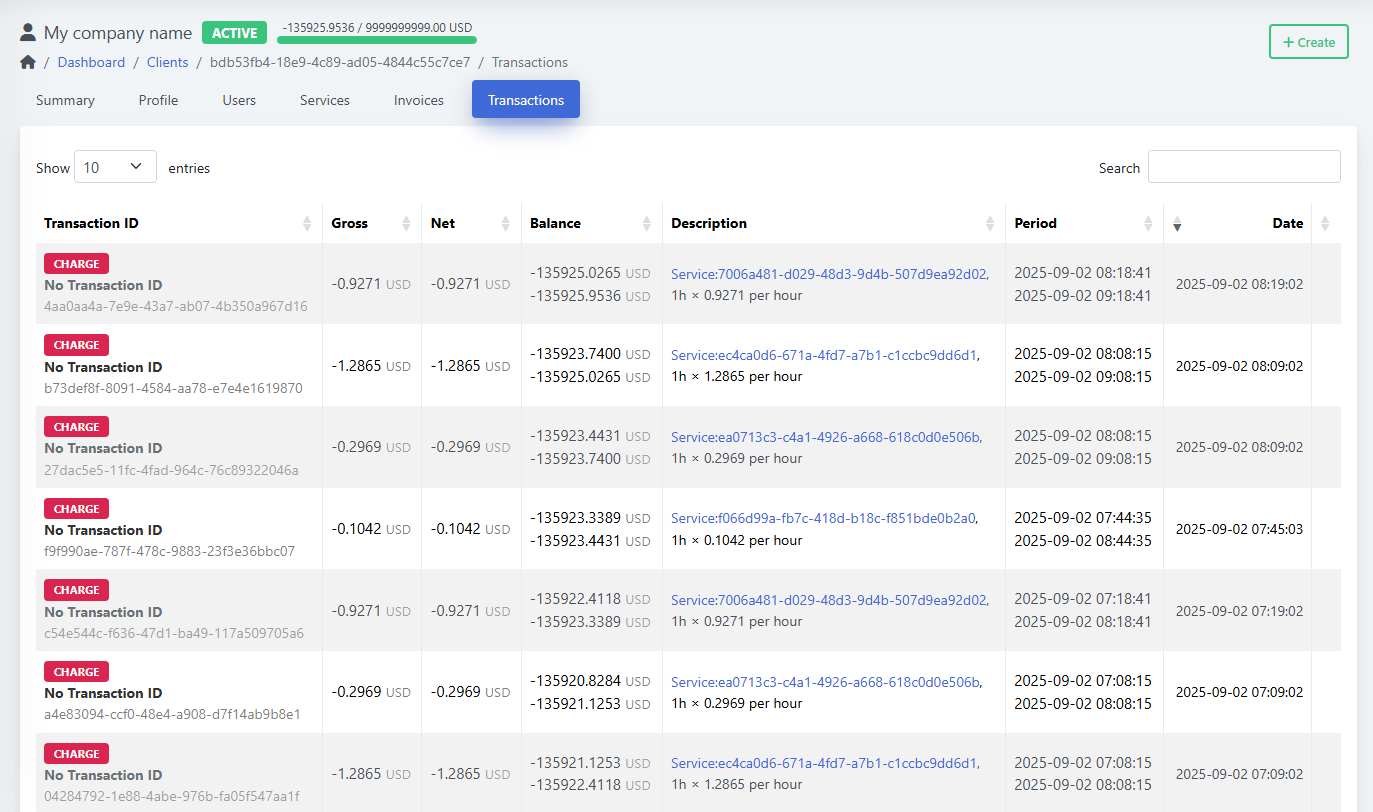
Ledger of Gross, Net, Balance, Description (usually linked to a service), Period, and Date.
-
Click Create to add a manual transaction (charge or credit): set Amount, Transaction ID (optional), and Description, then Save.
(Screenshot: Transactions list)
(Screenshot: Transactions → Create modal)
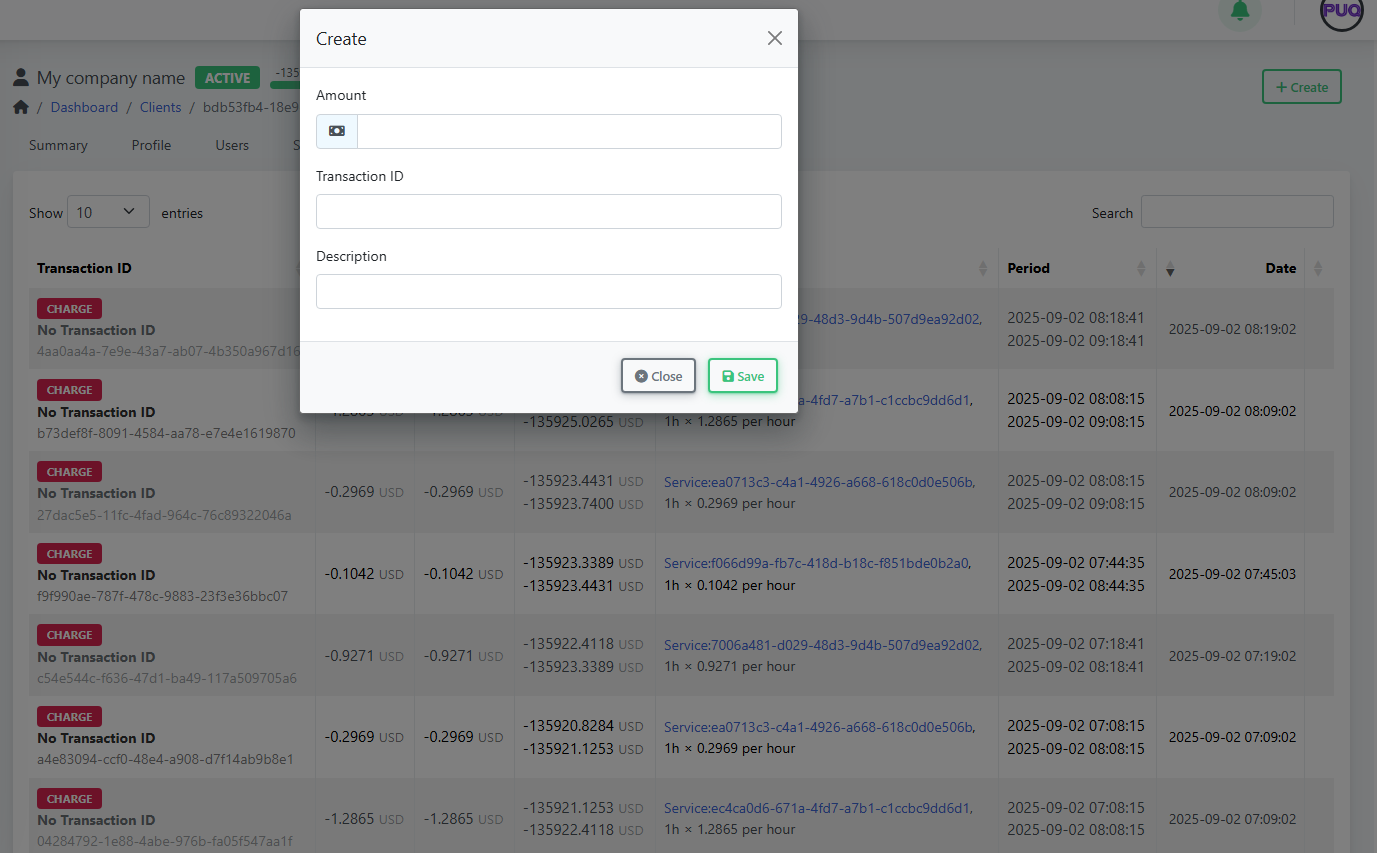
Search, Filter, and Sort Clients
-
Use the Search box on the client list to filter by name, email, or company.
-
Click column headers to sort (e.g., by Created date or Balance).
-
Status badges (NEW, ACTIVE) help you visually triage records.
Editing & Lifecycle
-
Change Status (e.g., New → Active) from the Profile tab.
-
Update Tax ID or Language/Currency any time; new settings apply to future invoices.
-
Maintain Credit Limit to control spending and alerting.
-
Keep Admin Notes for internal context (billing agreements, support history, etc.).
Best Practices
-
Keep addresses current—billing address prints on invoices.
-
Use Users & permissions to grant least-privilege access.
-
Prefer Add Funds Proforma for prepayments; reconcile via Transactions.
-
Review Services after order to confirm status (look for ERROR badges and fix product-side issues).
Troubleshooting
-
Invoice in wrong currency → Check client Currency in Profile before creating invoices.
-
Taxes not applying as expected → Verify Home Company tax rules and client Tax ID.
-
User cannot see services → Revisit Users → permissions (grant Manage Services).
-
Provisioning error on service → Open service details and review the last error note; re-run or fix product configuration.
Shortcuts
-
Clients → Manage Clients: quick search and open profile.
-
On Summary, use Login as Owner to replicate the customer view for support.
You’re done!
You can now add clients, attach their users and addresses, create services, and manage billing—everything from one place in PUQcloud Panel.
Create and manage users
PUQcloud Panel
Order Now | Download | FAQ
This guide explains how administrators can create users, view their client associations, edit details, and remove users in PUQcloud Panel.
Overview
Tip: A User is a person’s login. A Client is an account/business they belong to. One user can be associated with multiple clients (e.g., consultant, owner). Permissions are managed from the Client → Users tab.
List View (Manage Users)
In the table you’ll see: avatar, name, status badges (e.g., ACTIVE, INACTIVE, NEW), 2FA indicator, contact details (email, phone), Clients counter with an eye button, Created date, and row actions (Edit, Delete). Use Search to filter.
(Screenshot: View/Search Users list view)
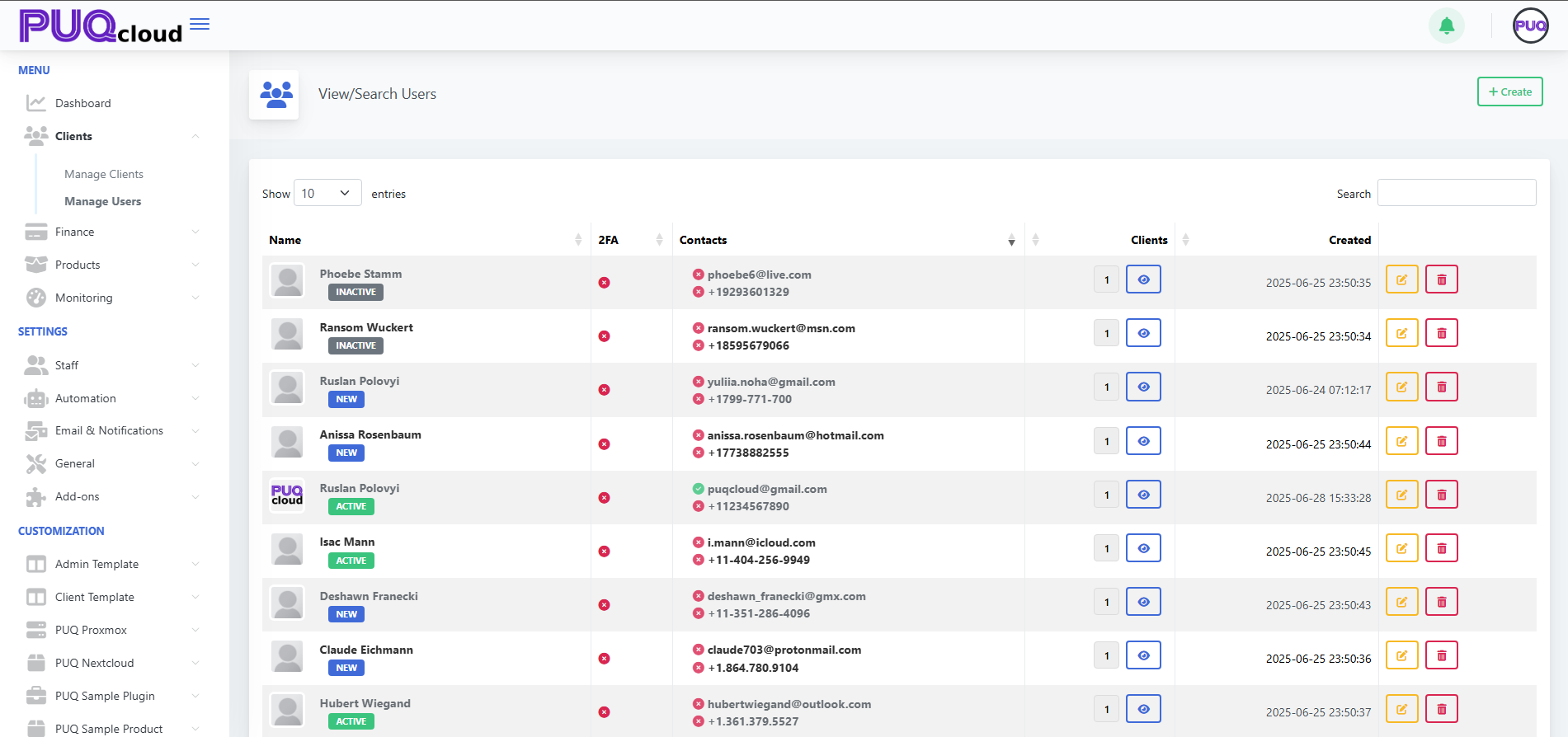
Create a User
-
Go to Clients → Manage Users and click + Create.
(Screenshot: Create User modal)
-
Fill the fields:
-
Email (required)
-
Password (required)
-
2FA (toggle; optional but recommended)
-
Firstname, Lastname
-
Phone Number (with country code)
-
Language (UI language for the user)
-
Admin Notes (internal only)
-
-
Click Save. The user appears in the list.
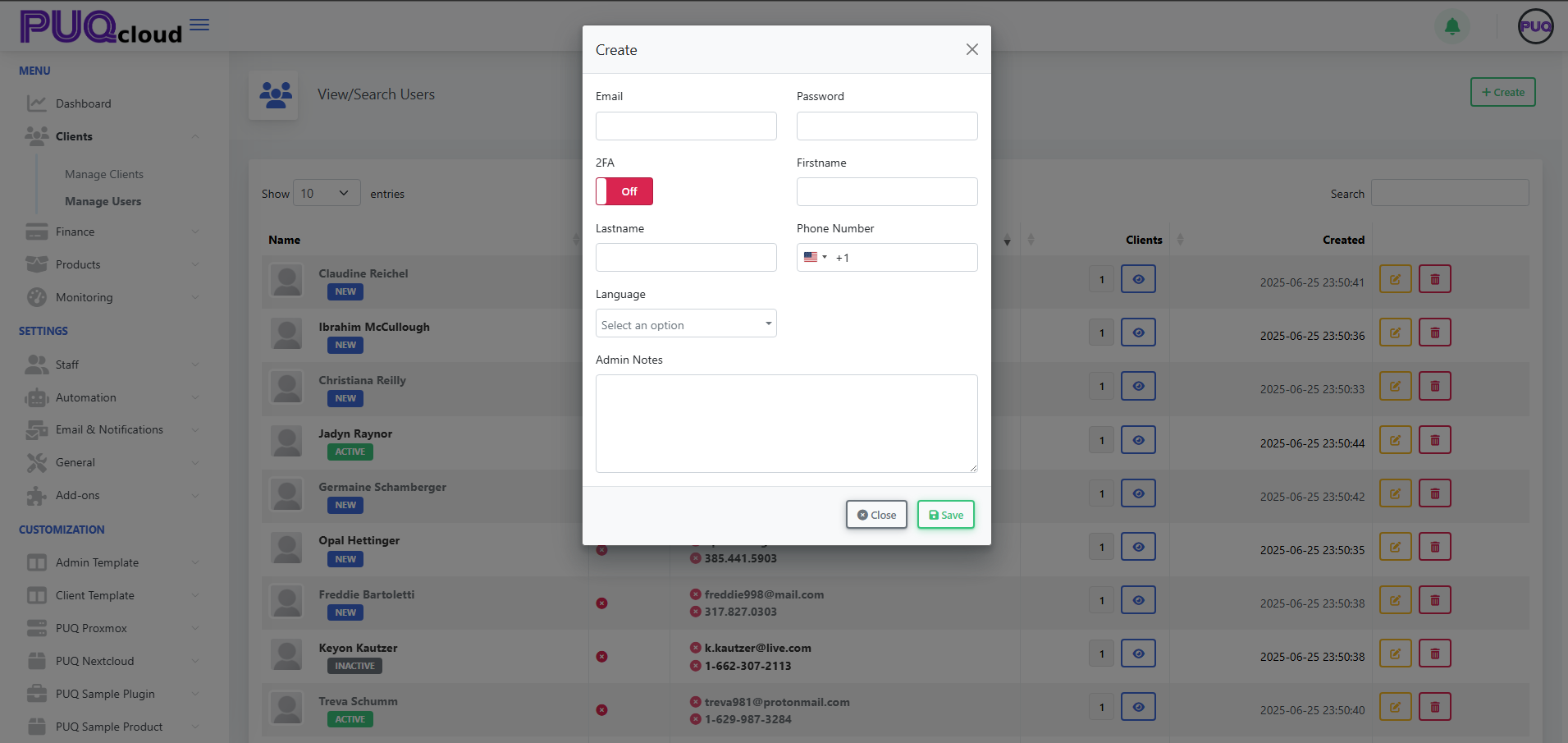
Next step: Associate this user with a client from Clients → Manage Clients → open a client → Users tab → + Associate User (choose permissions there).
View a User’s Clients
-
In Manage Users, find the user.
-
Click the eye icon in the Clients column.
-
In User Clients modal, review:
-
User Information: UUID, Name, Email, Phone.
-
Associated Clients: Client Name, Company Name, Tax ID, and Status badges (e.g., ACTIVE, OWNER).
-
-
Close when done.
(Screenshot: User Clients modal)
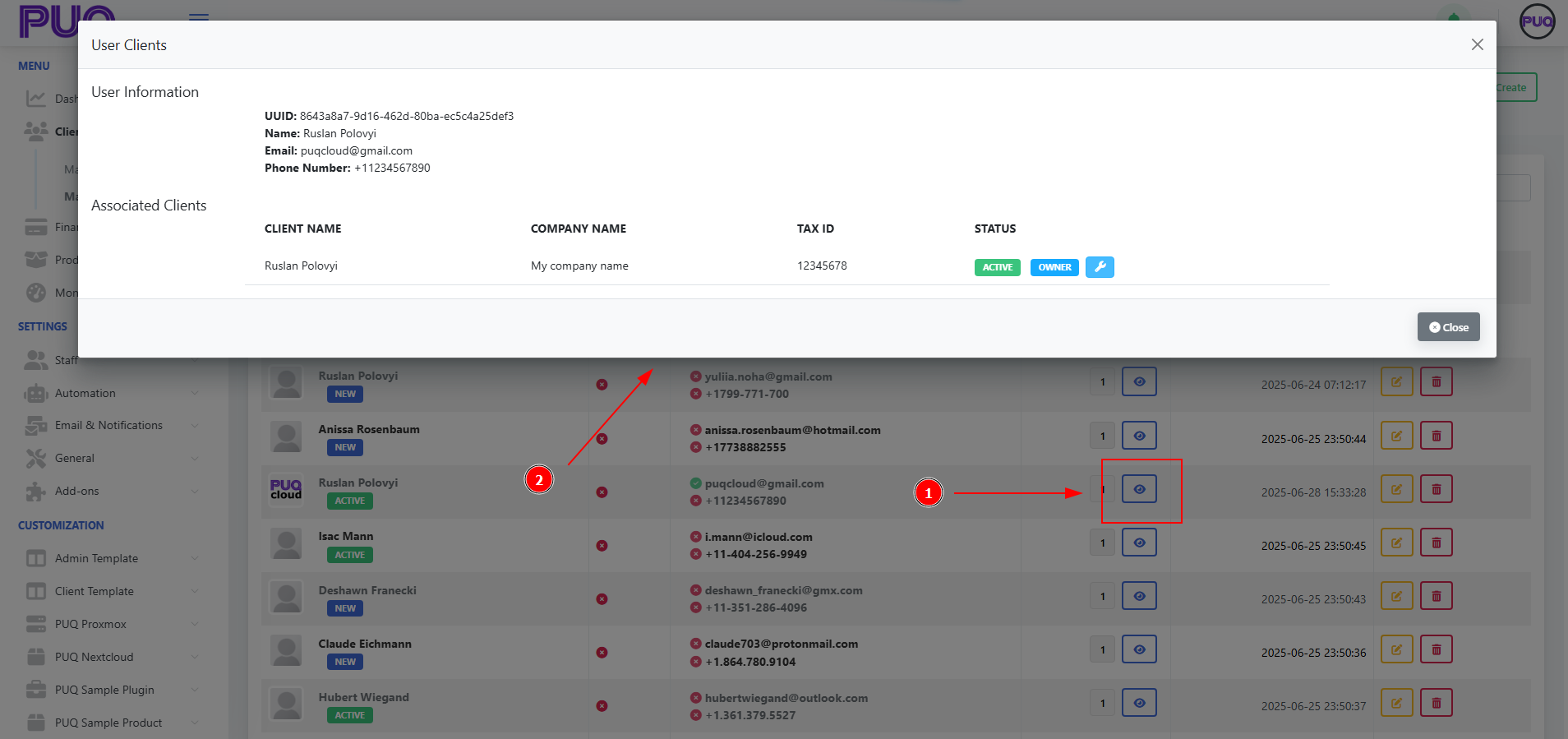
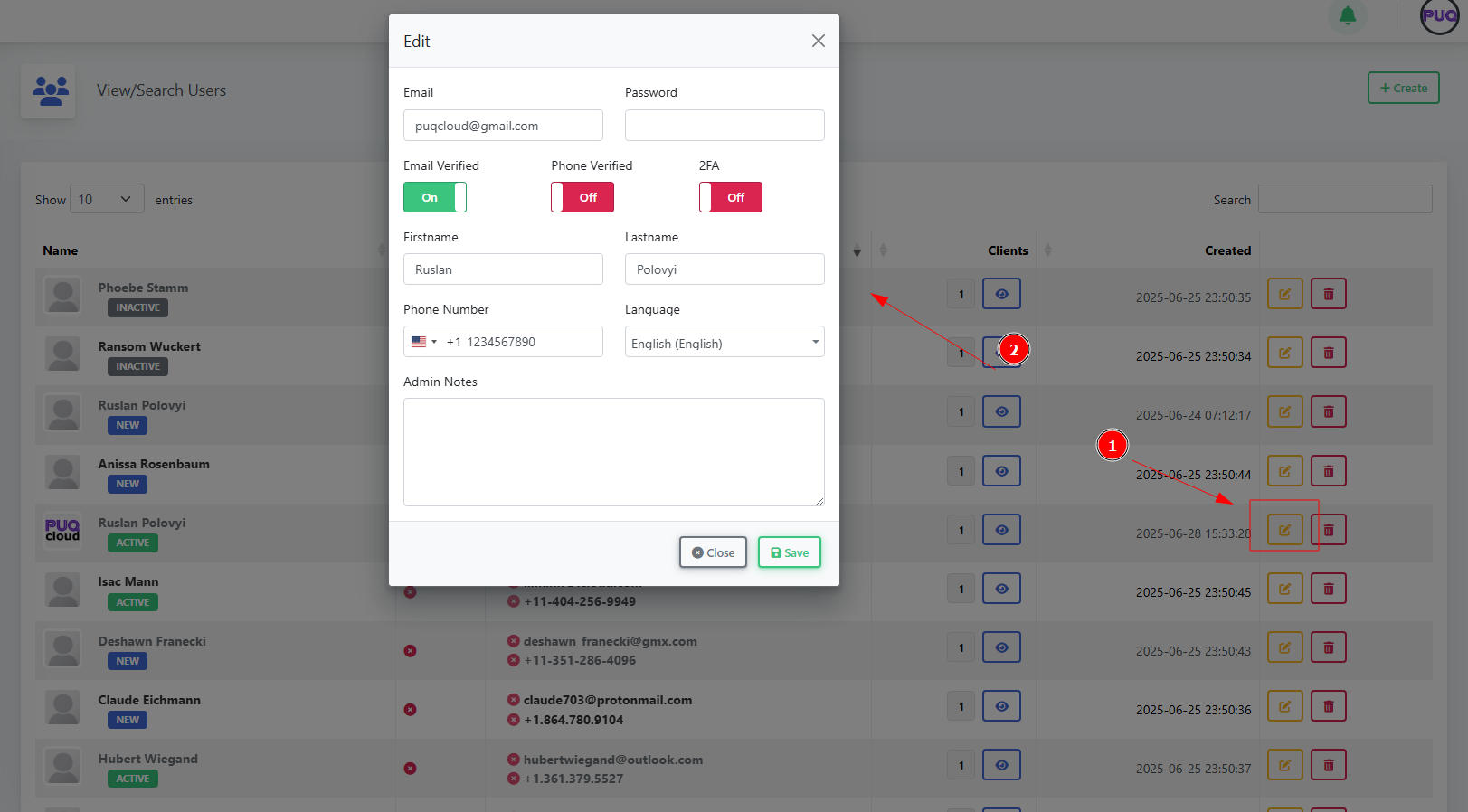
Edit a User
-
In Manage Users, click the Edit (pencil) icon on the desired row.
(Screenshot: Edit User modal)
-
Update fields:
-
Email, Password (to reset), Firstname, Lastname
-
Phone Number, Language, Admin Notes
-
Verification toggles: Email Verified, Phone Verified
-
Security toggle: 2FA (enable/disable)
-
-
Click Save.
Delete a User
-
In Manage Users, click the Delete (trash) icon.
-
Confirm the action.
Field Reference
| Field | Where | Description |
|---|---|---|
| Create/Edit | User’s login email. Must be unique. | |
| Password | Create/Edit | Set/reset the user’s password. |
| 2FA | Create/Edit | Turn on two‑factor authentication for extra security. |
| Firstname / Lastname | Create/Edit | User’s display name. |
| Phone Number | Create/Edit | Stored with international country code. |
| Language | Create/Edit | UI language for this user. |
| Admin Notes | Create/Edit | Internal notes visible to admins only. |
| Email Verified | Edit | Mark whether the email has been verified. |
| Phone Verified | Edit | Mark whether the phone has been verified. |
Good Practices
-
Require strong passwords and 2FA for staff.
-
Keep contact info and language up to date.
-
Use Admin Notes to capture context (e.g., who requested access, ticket link).
-
Manage access at Client → Users (set granular permissions per client).
Troubleshooting
-
Cannot log in → Reset Password; ensure Email Verified is On; check if the user is ACTIVE.
-
User can’t see a client → Associate them in Client → Users, verify status and permissions.
-
2FA lockout → Temporarily disable 2FA in Edit, then re‑enroll.
-
Duplicate email → Each user must have a unique email; rename or remove old account.
Transactions Page
PUQcloud Panel
Order Now | Download | FAQ
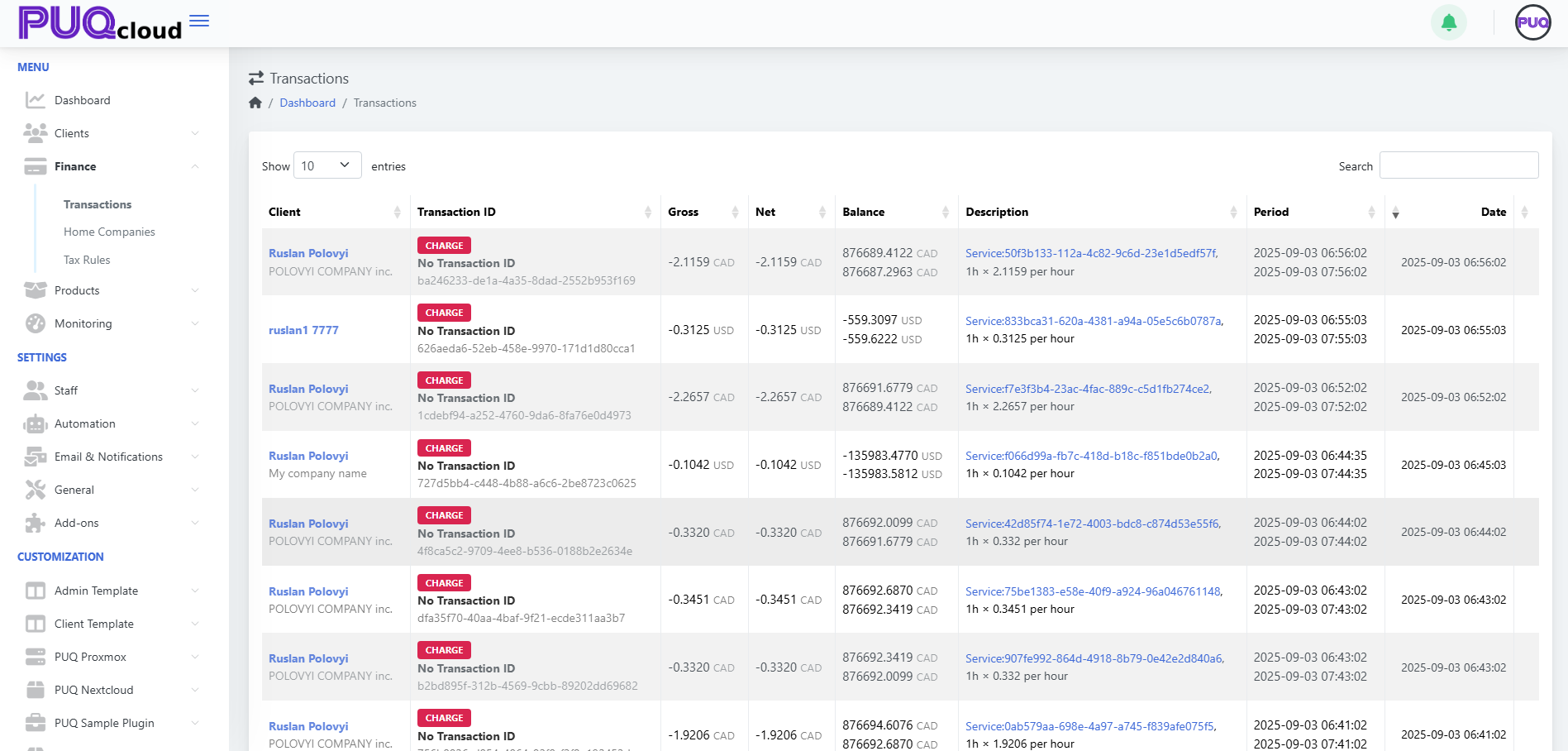
1. Open Transactions View
-
From the left-side menu, go to:
Finance → Transactions
2. Understand the Columns
Each transaction row includes the following:
| Column | Description |
|---|---|
| Client | The name of the client associated with the transaction. |
| Transaction ID | Displays the transaction type (e.g. CHARGE) and a unique ID or "No Transaction ID". |
| Gross / Net | Amount before and after fees or discounts. |
| Balance | The client’s account balance after the transaction. |
| Description | Contains a reference to the service and billing logic. |
| Period | Time range for which the charge applies. |
| Date | The exact timestamp of when the transaction occurred. |
3. Clickable Navigation
-
🔗 Click on the Client name
→ You will be redirected to the Client Summary page of that user. -
🔗 Click on the link in the Description column
→ You will be redirected to the specific Service page within the client's profile that generated the transaction.
Notes:
-
Transactions are displayed in real-time.
-
You can search, filter, and track charges per hour, per service.
-
Currency is shown per client’s preference (e.g., CAD, USD).
Create and manage a Home Company
PUQcloud Panel
Order Now | Download | FAQ
Overview
A Home Company is the legal entity that appears on your invoices, credit notes, emails, and payment pages (name, address, logo, tax IDs, etc.). You can keep one or many Home Companies and switch which one is Default.
Path: Dashboard → Home Companies
1) Create a Home Company
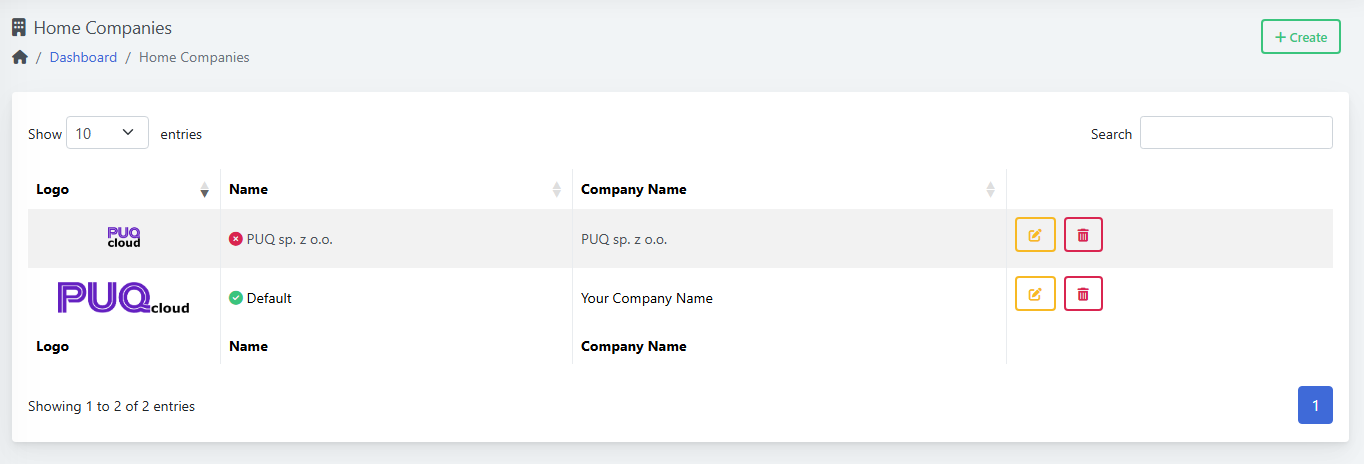
-
Go to Menu → Finance → Home Companies.
(Screenshot: list view with “+ Create”)
-
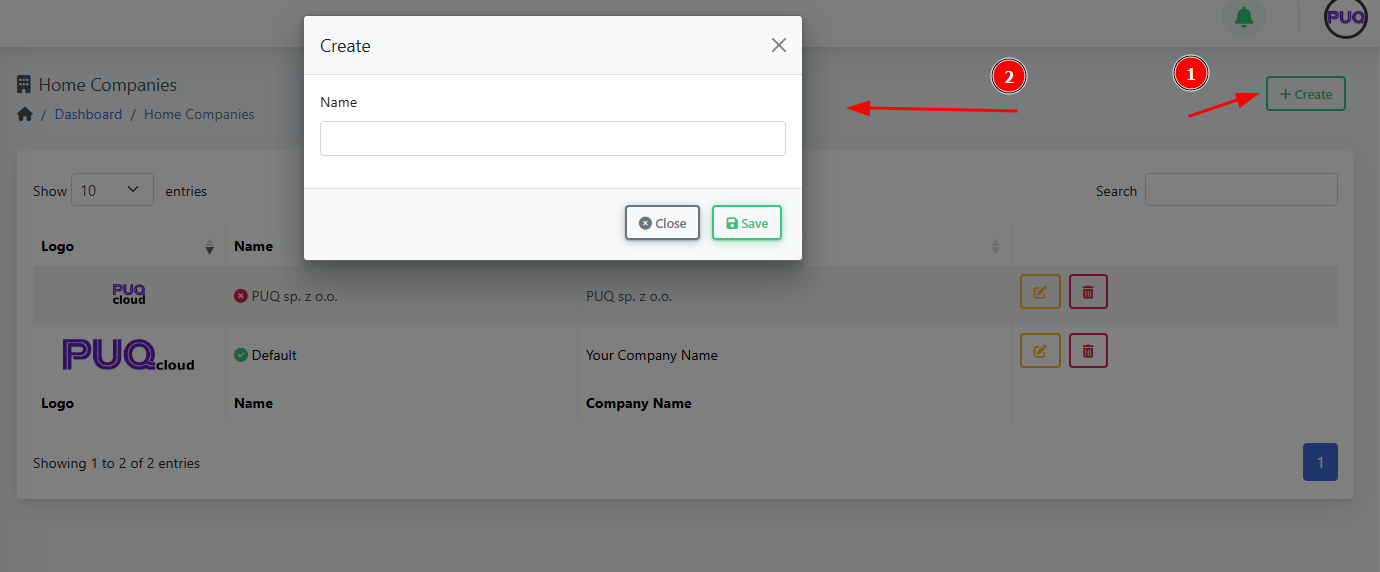
Click + Create.
(Screenshot: “Create” modal)
-
Enter Name (internal name, e.g., “PUQ sp. z o.o.” or “North America”).
-
Click Save.
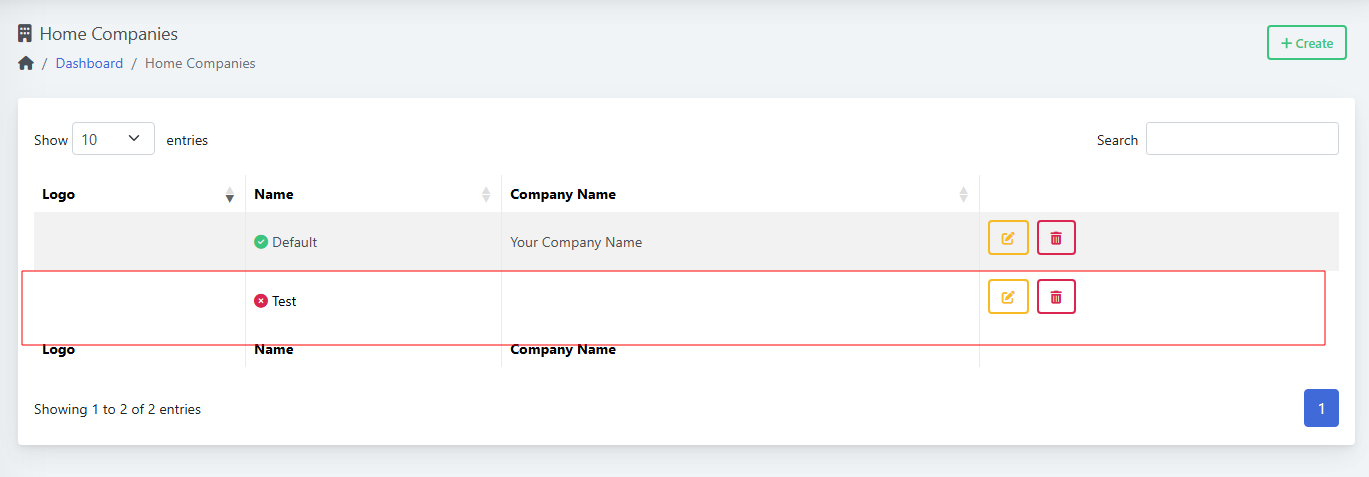
(Screenshot: list shows new row)
Tips
-
The green check means “Default”. The red dot means “not default”.
-
Use the search box to find companies quickly.
2) Edit a Home Company
-
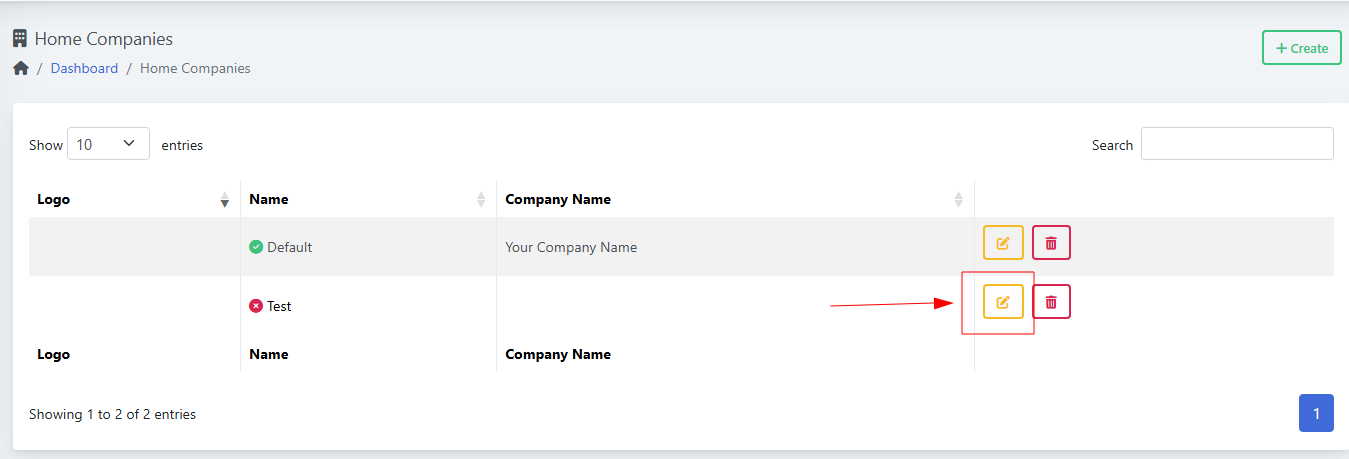
In the list, click the yellow edit button on the row.
(Screenshot: edit icon highlighted)
-
You’ll open the Home Company editor with tabs:
-
General
-
Images
-
Email Settings
-
Tax Settings
-
Invoice Settings
-
Proforma Template
-
Invoice Template
-
Credit Note Template
-
Payment Gateways
-
-
After changes, click Save (top-right).
3) Fill out each tab
General
(Screenshot: General tab)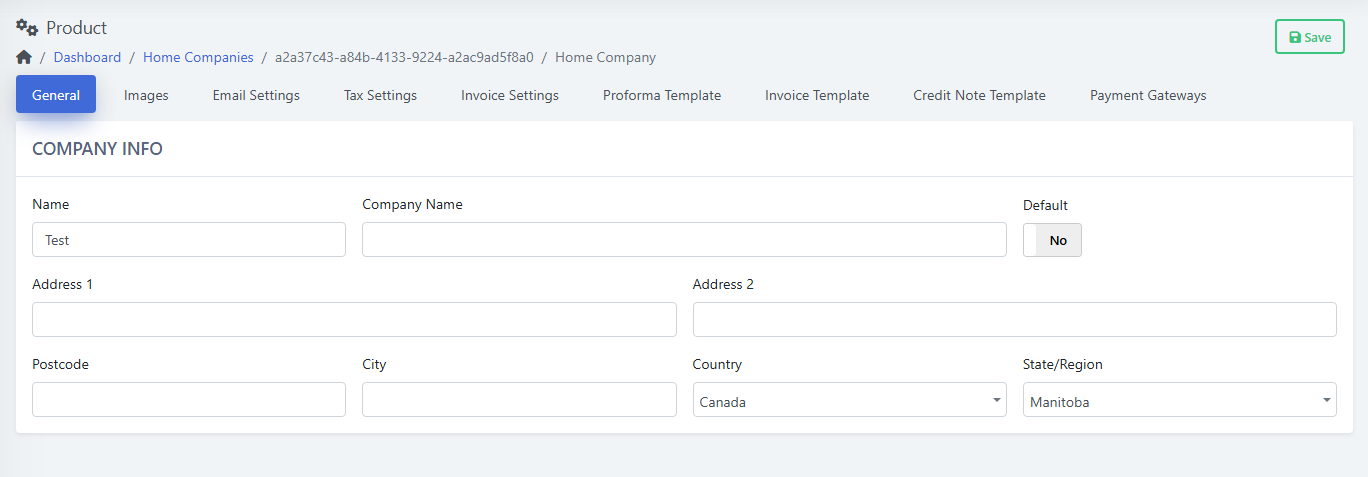
-
Name — internal label (already set).
-
Company Name — legal name shown on documents.
-
Address 1/2, Postcode, City, Country, State/Region — printed on invoices/credit notes.
-
Default: Yes/No — set this company as the Default sender across billing.
-
Click Save.
Images
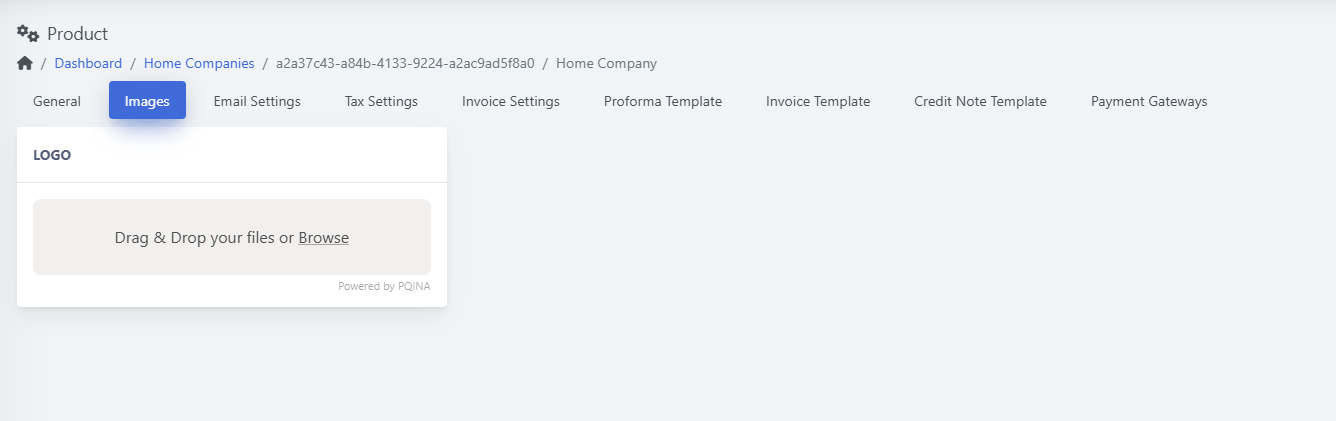
(Screenshot: Images tab)
-
Upload your Logo (drag & drop or “Browse”).
-
Use a transparent PNG for best results.
-
Click Save.
Email Settings
(Screenshot: Email Settings tab)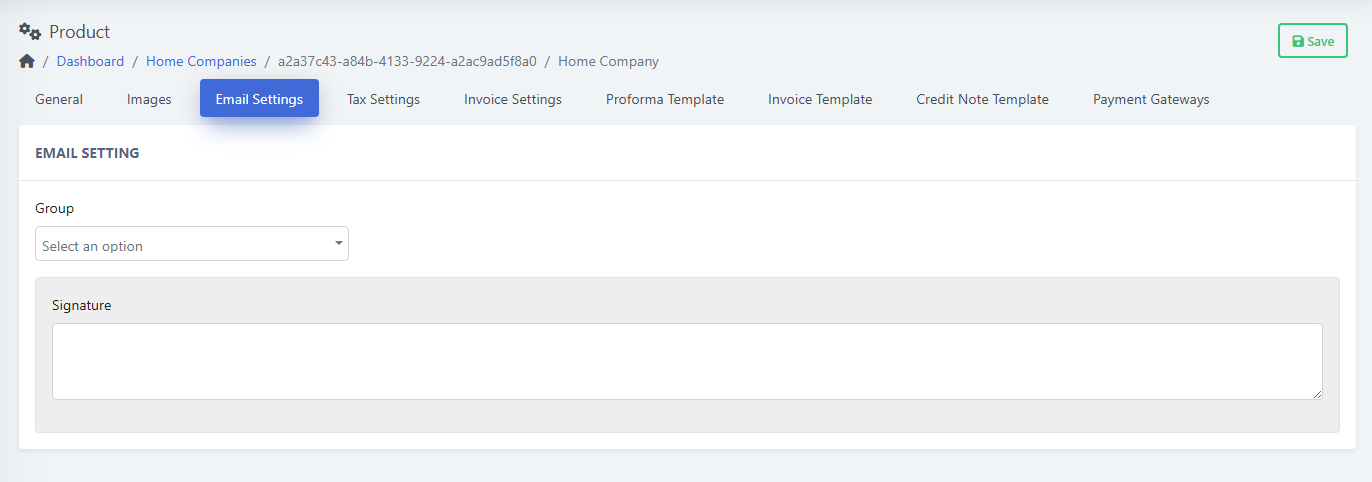
-
Group — choose the email group this company uses (for templates/routing).
-
Signature — footer appended to outgoing emails (support info, legal note).
-
Click Save.
Tax Settings
(Screenshot: Tax Settings tab)
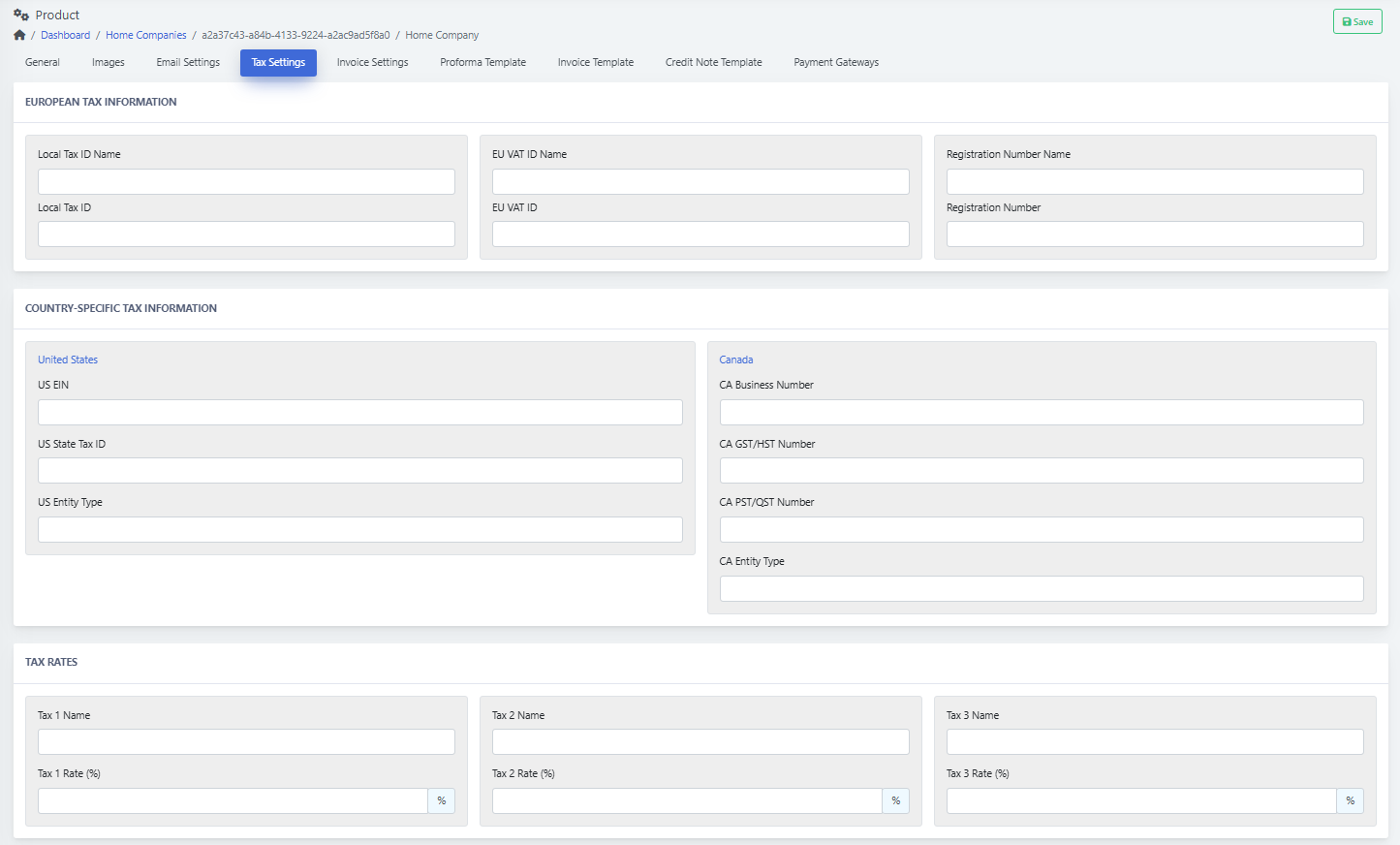
European Tax Information
-
Local Tax ID Name / Local Tax ID (e.g., NIP, VAT, etc.)
-
EU VAT ID Name / EU VAT ID
-
Registration Number Name / Registration Number
Country-Specific Tax Information
-
United States: US EIN, US State Tax ID, US Entity Type
-
Canada: CA Business Number, CA GST/HST Number, CA PST/QST Number, CA Entity Type
Tax Rates
-
Tax 1/2/3 Name and Rate (%) — define up to three stacked taxes.
-
Click Save.
Invoice Settings
(Screenshot: Invoice Settings tab)
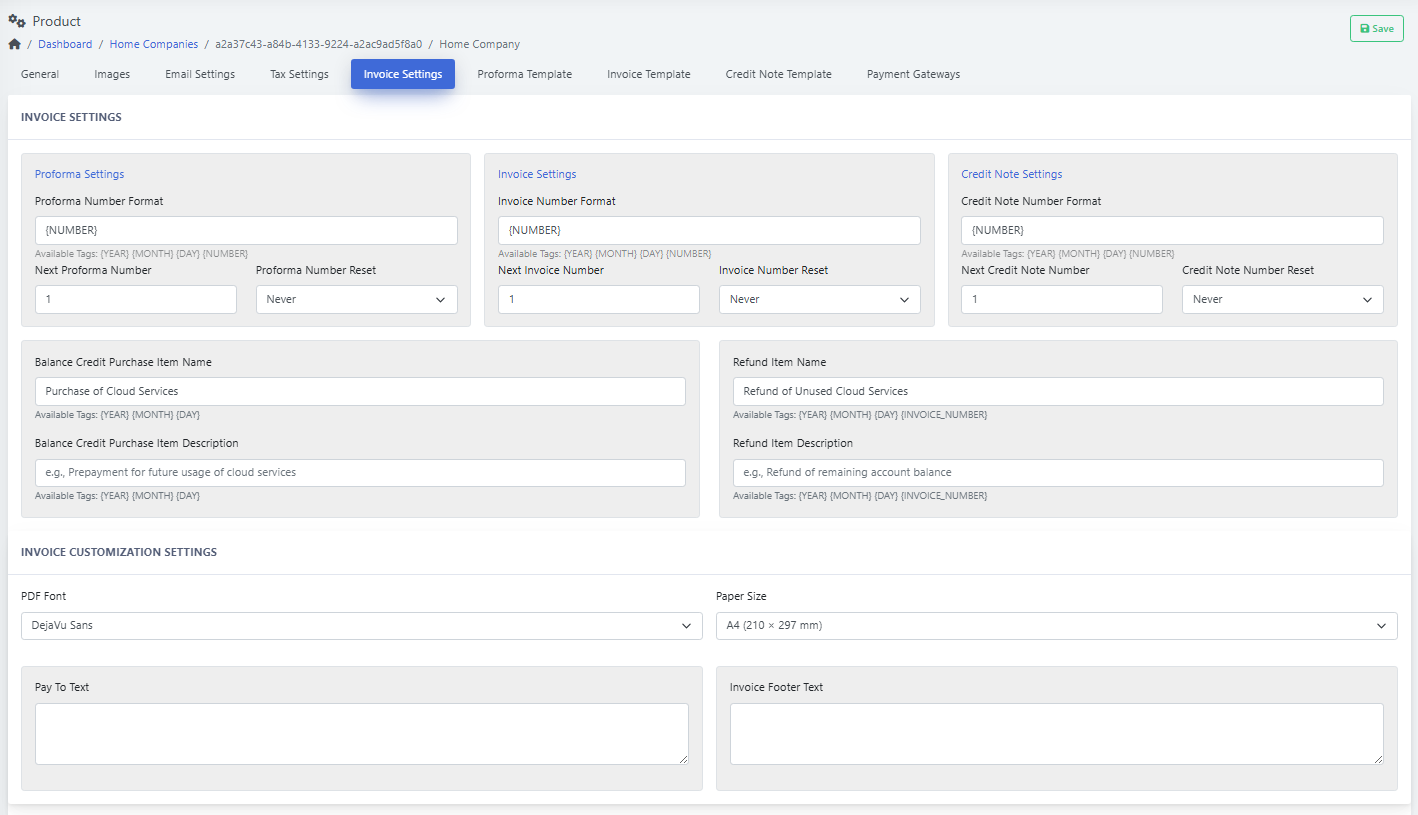
Numbering
-
Proforma / Invoice / Credit Note Number Format — use tokens such as
{YEAR},{MONTH},{DAY},{NUMBER}. -
Next … Number — starting counter (e.g.,
1). -
… Number Reset — how often to reset numbering (e.g., Never, yearly).
Item Texts
-
Balance Credit Purchase Item Name/Description — wording shown when adding balance.
-
Refund Item Name/Description — wording shown on credit/refunds.
Customization
-
PDF Font (e.g., DejaVu Sans for multilingual).
-
Paper Size (A4 or Letter).
-
Pay To Text — payment instructions.
-
Invoice Footer Text — legal notes, company disclaimer.
-
Click Save.
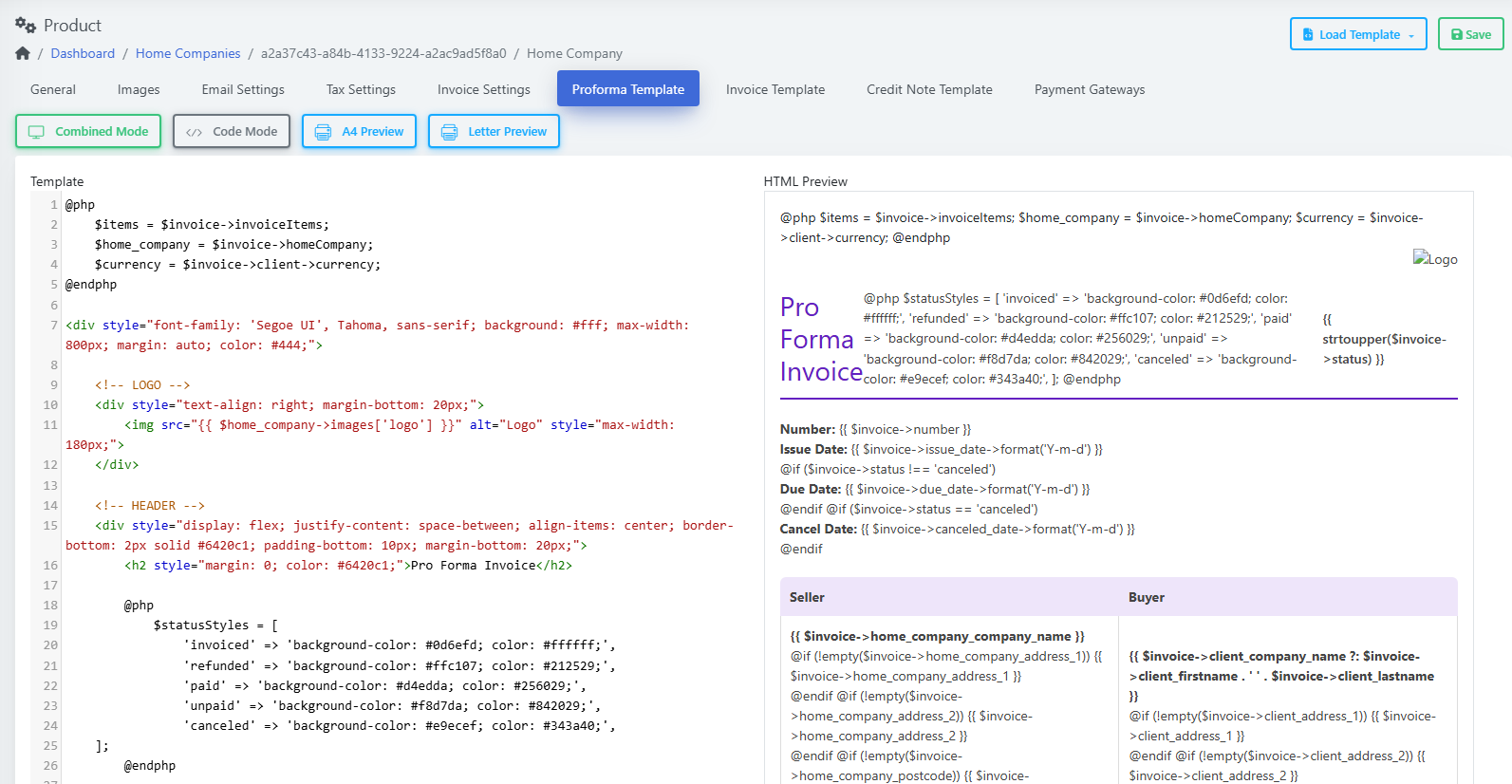
Proforma Template
-
Works like the Invoice/Credit Note Template editors below.
-
Edit the HTML/Blade content; preview and Save.
Invoice Template
(Screenshot: Invoice Template editor with live preview)
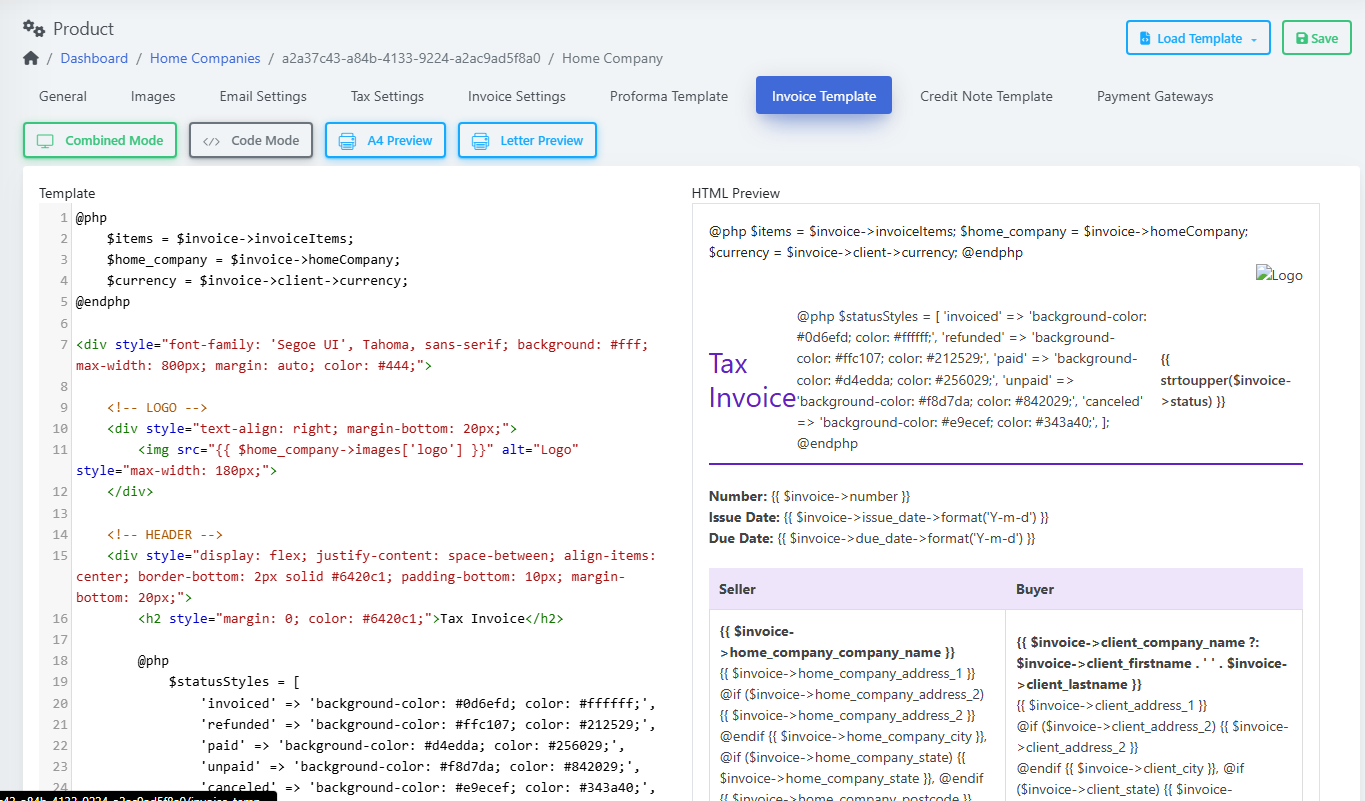
-
Modes: Combined, Code Mode; Previews: A4 / Letter.
-
Left pane: template code (Blade + HTML/CSS).
-
Right pane: HTML Preview.
-
Variables available (examples):
-
$invoice,$invoice->invoiceItems,$invoice->client,$invoice->homeCompany, etc.
-
-
Keep your styles simple for nice PDFs. Save after edits.
Credit Note Template
(Screenshot: Credit Note Template editor with live preview)
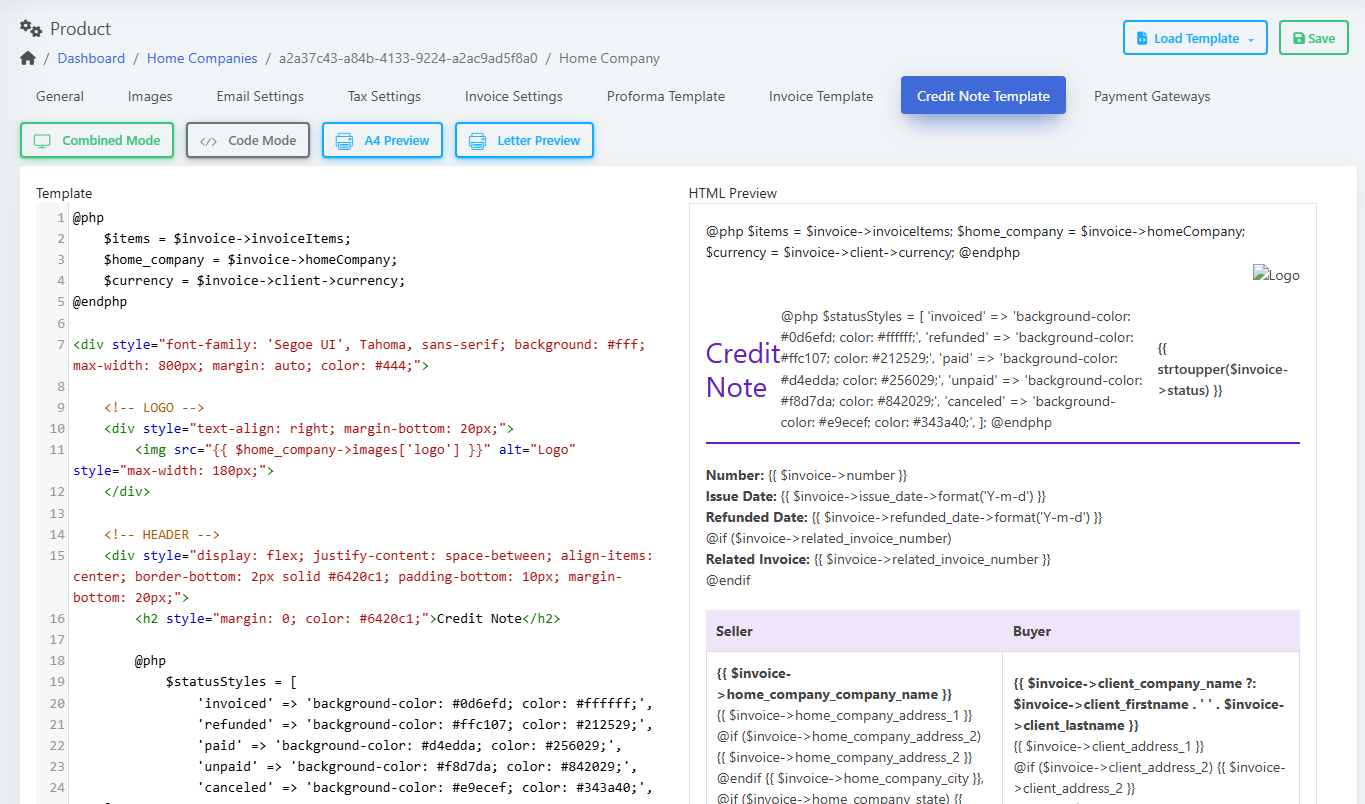
-
Same tools as Invoice Template; shows “Credit Note” preview.
-
Save after edits.
Payment Gateways
(Screenshot: Payment Gateways tab — empty table with + Create)
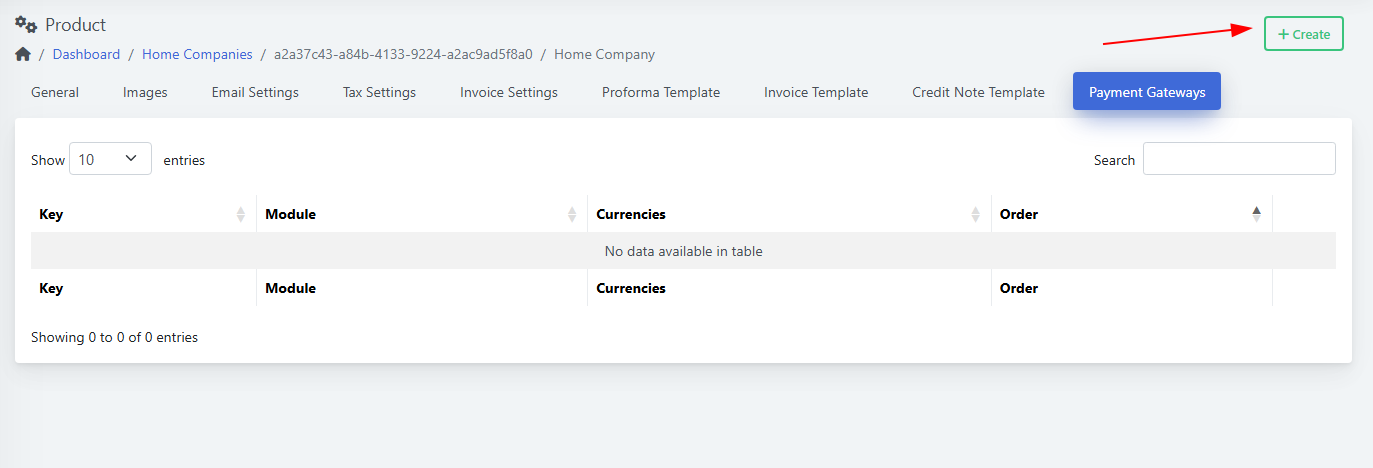
Add a Gateway
-
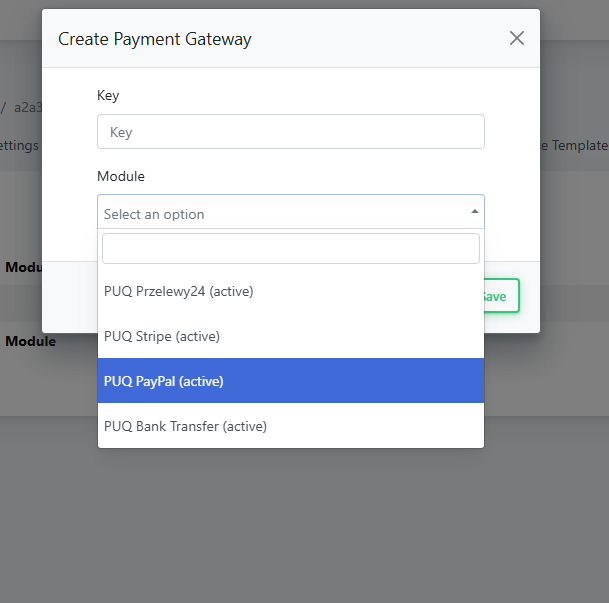
Click + Create.
(Screenshot: Create Payment Gateway modal)
-
Fill Key (internal ID, e.g.,
stripe_main). -
Pick Module:
-
PUQ Przelewy24 (active)
-
PUQ Stripe (active)
-
PUQ PayPal (active)
-
PUQ Bank Transfer (active)
-
-
Click Save.
Configure the Gateway
(Screenshot: Payment Gateway detail form)
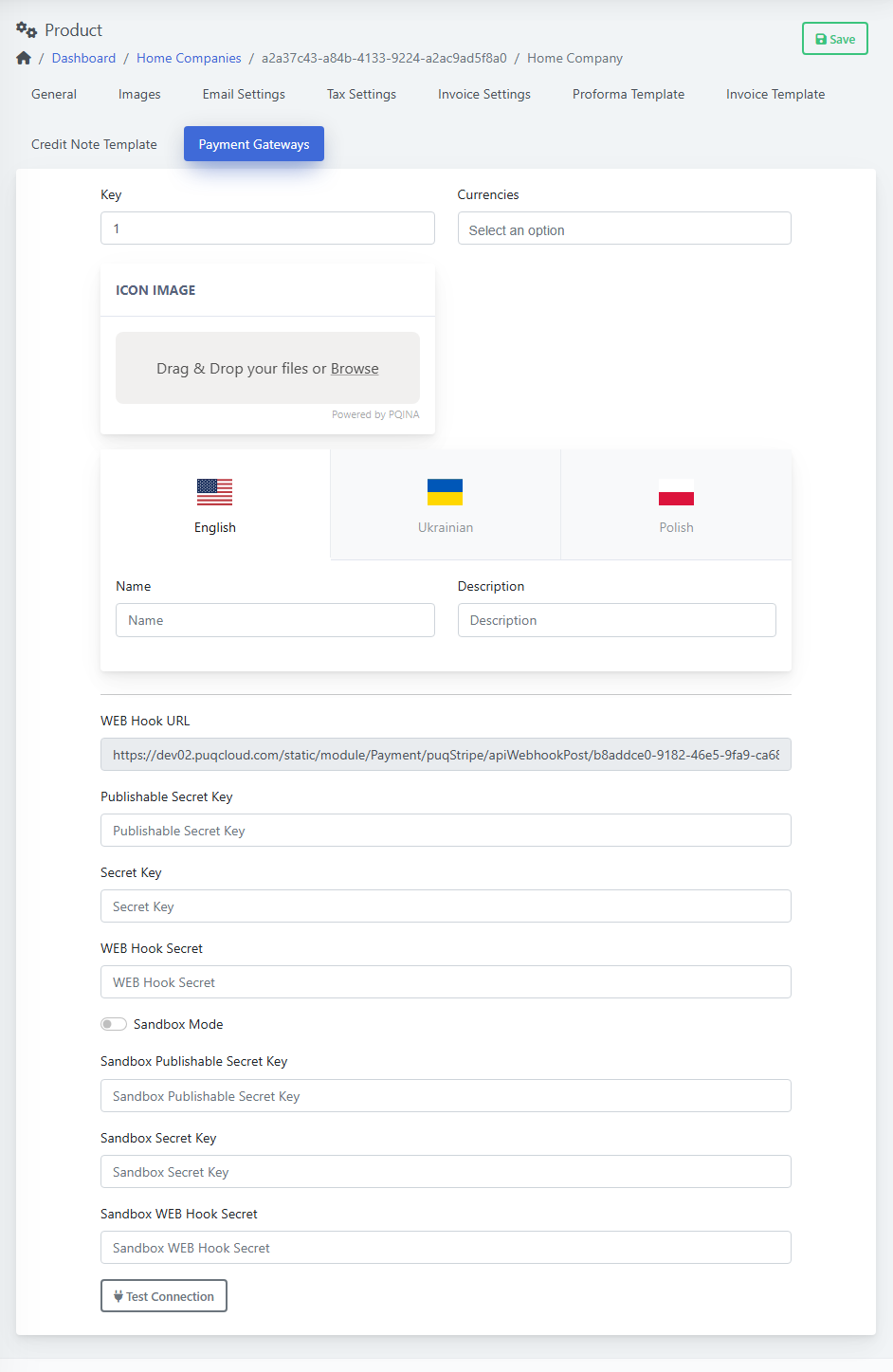
-
Key — internal ID.
-
Currencies — choose supported currencies.
-
Icon Image — optional logo for checkout.
-
Multilingual Name and Description (English / Ukrainian / Polish).
-
Module fields (example: Stripe):
-
WEB Hook URL (paste into Stripe dashboard).
-
Publishable Key, Secret Key, WEB Hook Secret.
-
Sandbox Mode toggle + sandbox keys.
-
Test Connection — verify credentials.
-
-
Click Save.
4) Make a company Default (or change it)
-
Open the company → General tab.
-
Toggle Default to Yes.
-
Save.
The Default Home Company will be used on new billing documents unless a module or workflow specifies otherwise.
5) Manage the list
-
Edit (yellow pencil) — change details.
-
Delete (red trash) — remove a company you no longer need.
-
Tip: do not delete a company that still appears on historical invoices.
-
-
Search — filter by name.
Best Practices
-
Numbering: include
{YEAR}in formats to avoid duplicates across years (e.g.,INV-{YEAR}-{NUMBER}). -
Logos: upload a high-resolution PNG with transparent background.
-
Taxes: set the correct country section (US or CA) and fill local VAT/GST fields to keep invoices compliant.
-
Backups: before editing templates, export or copy the current code.
Troubleshooting
-
Gateway test fails: recheck the keys, ensure you used the live or sandbox pair to match the Sandbox Mode setting.
-
Wrong logo/text on documents: verify you edited the correct Home Company and that it’s set as Default.
-
Numbers jumping: confirm the Next … Number and the Reset policy; avoid changing formats mid-year.
Create and manage Tax Rules
PUQcloud Panel
Order Now | Download | FAQ
This guide shows you how to set up and maintain Tax Rules for different countries and regions in the PUQcloud Panel. Use these rules to automatically apply the correct taxes on invoices based on the client type and location.
Overview
How matching works
The system reads rules from top to bottom. The first matching rule is applied. Keep your most specific rules (e.g., province/state) above more general ones.
Before You Start
-
Make sure you have at least one Home Company configured (Settings → Finance → Home Companies).
-
Know your target tax rates (GST/HST/PST/VAT, etc.).
-
Decide which client types the rule should apply to:
-
Private Client (individual)
-
Company Without TAX ID
-
Company With TAX ID
-
Always verify rates with your accountant or the official tax authority.
Quick Start: Generate Preset Rules
You can auto-create a starting set of rules and then fine‑tune them.
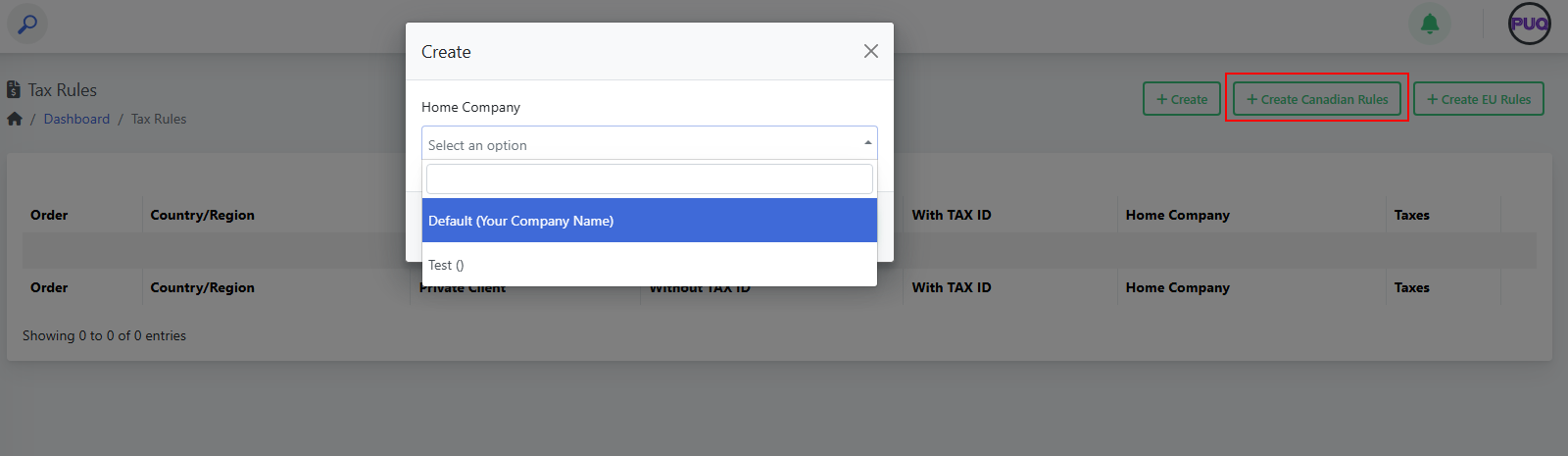
Create Canadian Rules
-
Go to Finance → Tax Rules.
-
Click Create Canadian Rules.
-
Select your Home Company and Save.
-
Review the generated rules and adjust rates as needed.
(Screenshot reference: “Create Canadian Rules” modal)
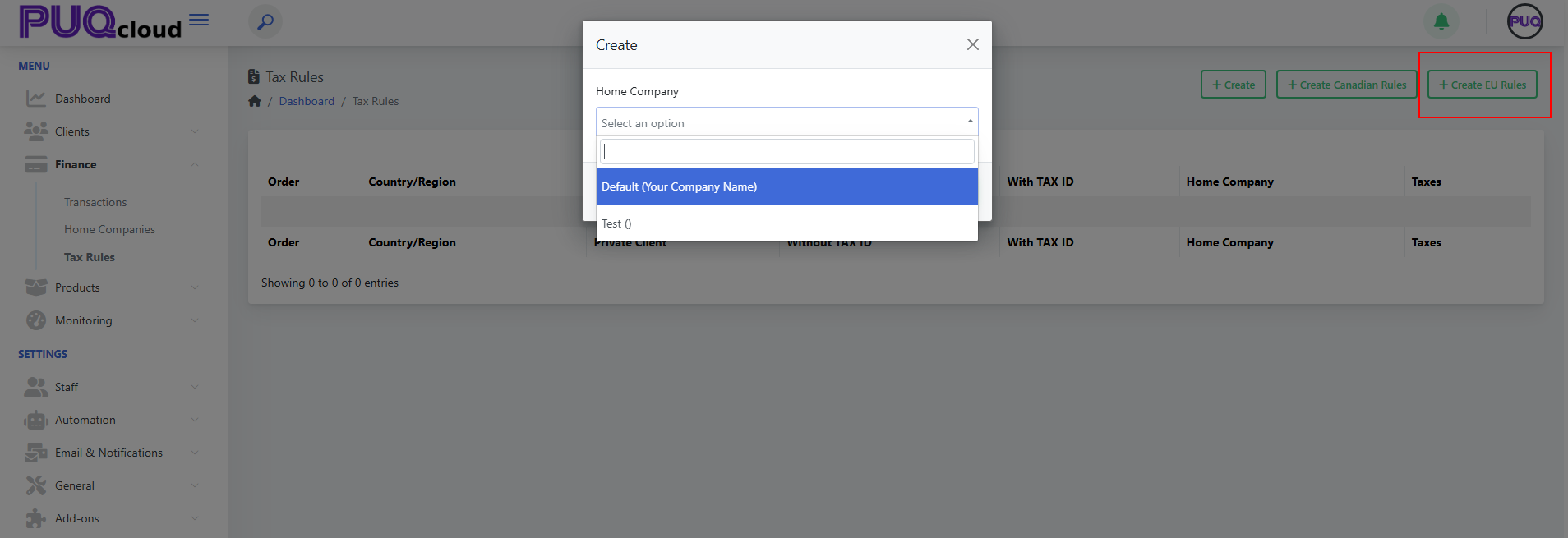
Create EU Rules
-
Go to Finance → Tax Rules.
-
Click Create EU Rules.
-
Select your Home Company and Save.
-
Review the generated rules and adjust rates as needed.
(Screenshot reference: “Create EU Rules” modal)
Note: Presets are a convenience. You are responsible for validating the final rates.
Create a Tax Rule Manually
-
Open Finance → Tax Rules. (See: List view)

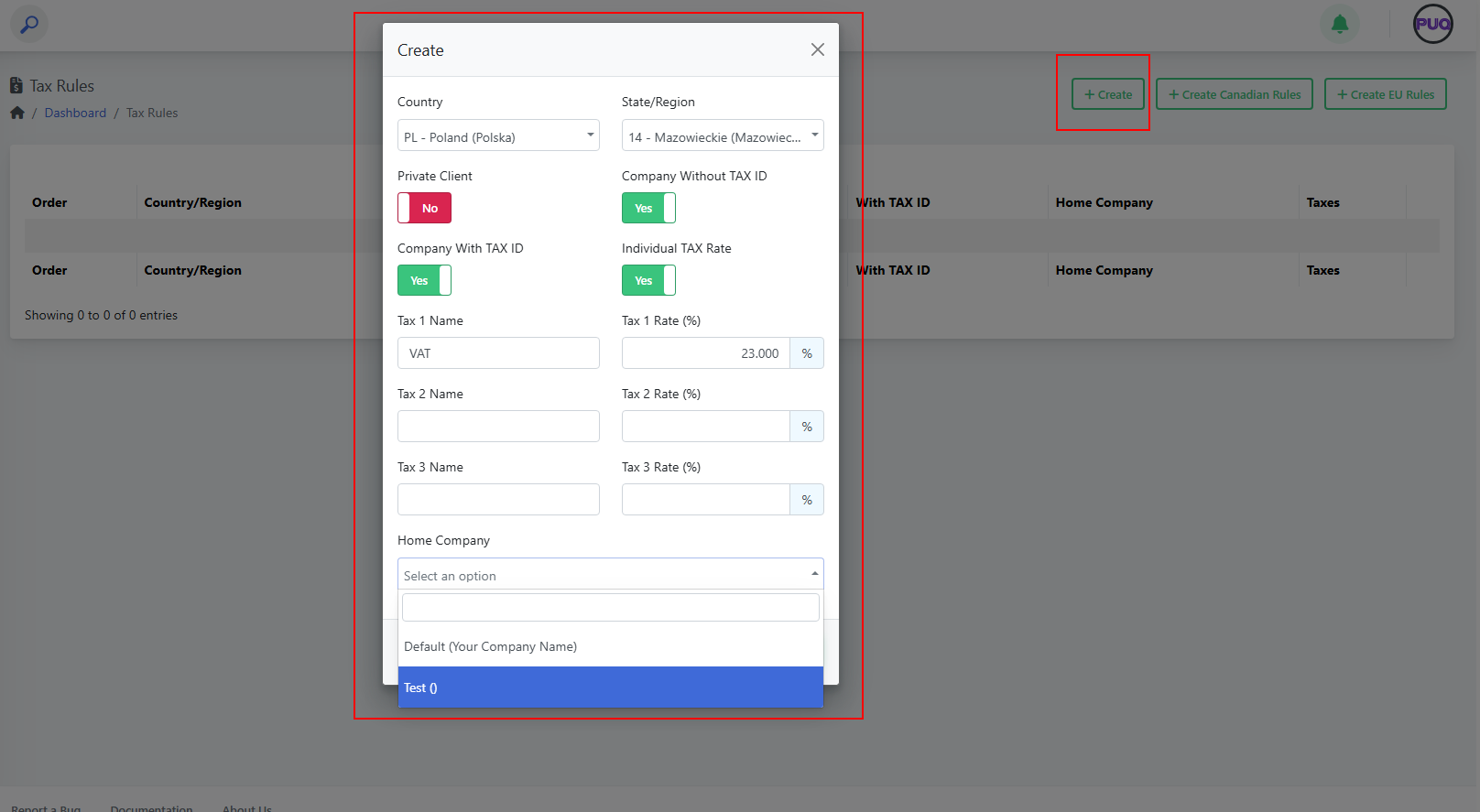
-
Click Create. (See: “Create” modal)

-
Fill the fields:
-
Country and State/Region (optional).
-
Turn on the client‑type toggles the rule should apply to:
Private Client, Company Without TAX ID, Company With TAX ID.
(Use Individual TAX Rate if the rule should tax individuals.) -
Enter up to three taxes (name + percent). Example:
-
Tax 1 Name:
VAT— Tax 1 Rate:23.000 -
Tax 2 Name:
PST— Tax 2 Rate:7.000(if applicable) -
Tax 3 Name:
GST— Tax 3 Rate:5.000(if applicable)
-
-
Choose Home Company.
-
-
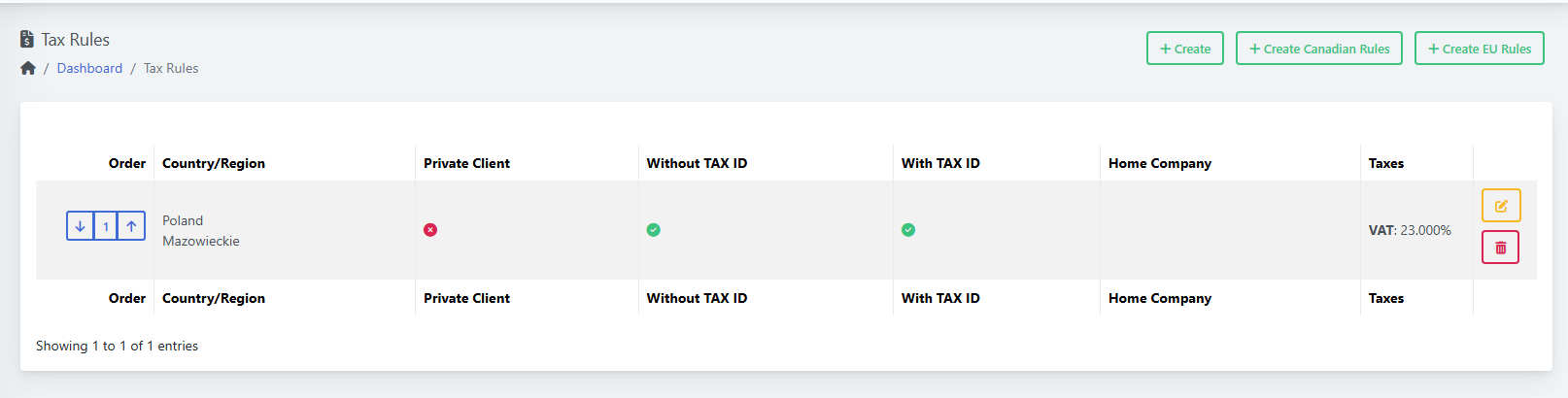
Click Save. Your rule appears in the list. (See: List after creating a rule)

Edit a Rule
-
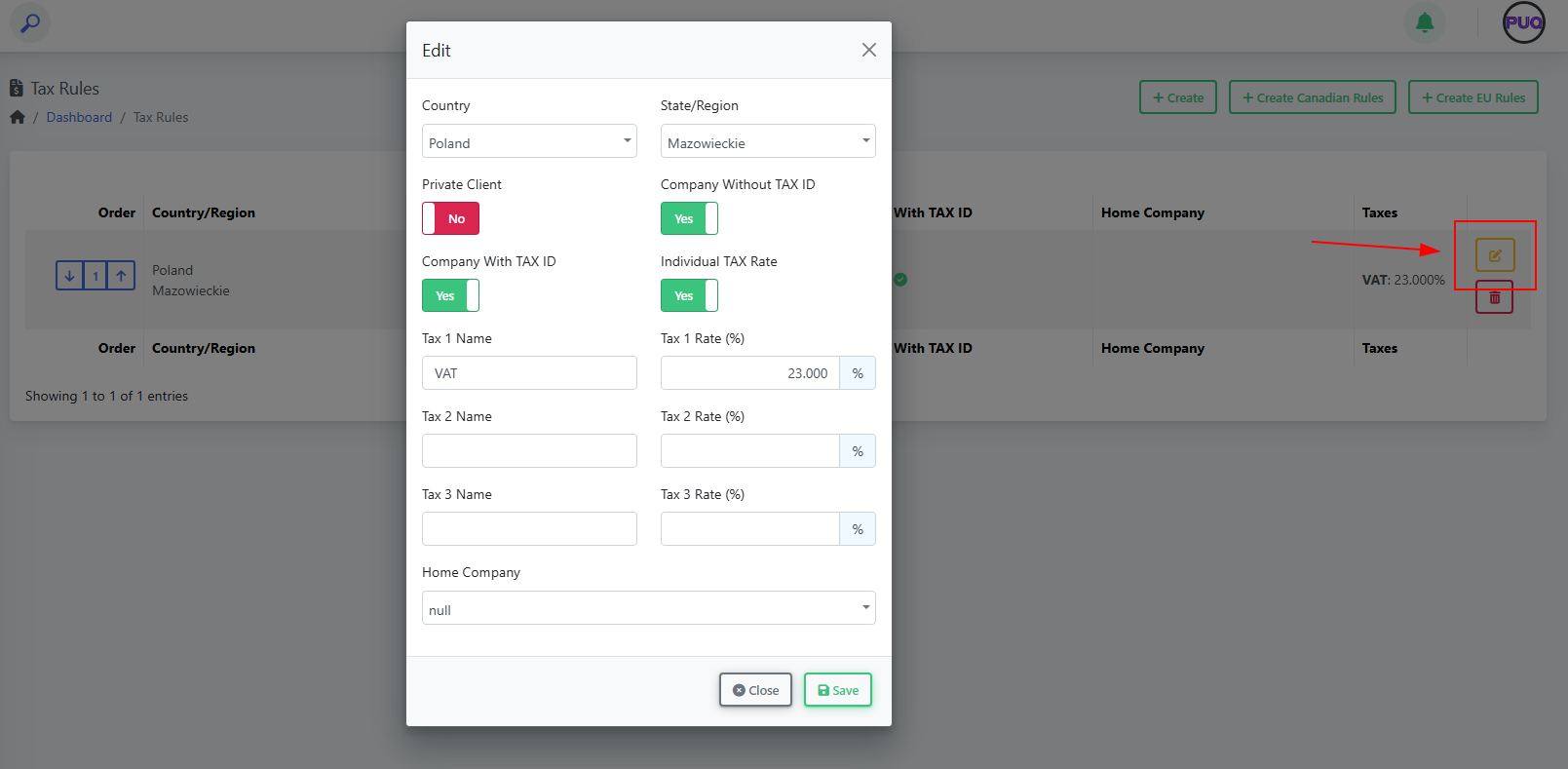
In Finance → Tax Rules, click the Edit icon on the desired row.
-
Change any fields (country/region, toggles, tax names/rates, home company).
-
Click Save.
(Screenshot reference: “Edit” modal)
Delete a Rule
-
In Finance → Tax Rules, click the Delete (trash) icon on the row.
-
Confirm the deletion.
Deleting a rule does not change past invoices; it only affects new invoices going forward.
Change Rule Order (Priority)
-
In Finance → Tax Rules, use the up/down arrows in the Order column.
-
Place specific rules (e.g., province/state) above general country-wide rules.
Field Reference
| Field | Type | What it controls | Example |
|---|---|---|---|
| Country | Dropdown | The country the rule applies to. | Poland |
| State/Region | Dropdown | Optional region/province/state inside the country. | Mazowieckie |
| Private Client | Toggle | Apply this rule to individuals. | On |
| Company Without TAX ID | Toggle | Apply when client is a company without a valid tax ID. | On |
| Company With TAX ID | Toggle | Apply when client is a company with a valid tax ID. | On |
| Individual TAX Rate | Toggle | Enable taxation for individuals per this rule. | On |
| Tax 1 Name / Rate (%) | Text / Number | First tax component name and percentage. | VAT / 23.000 |
| Tax 2 Name / Rate (%) | Text / Number | Second tax component (if needed). | PST / 7.000 |
| Tax 3 Name / Rate (%) | Text / Number | Third tax component (if needed). | GST / 5.000 |
| Home Company | Dropdown | Which Home Company owns/uses this rule. | Default (Your Company Name) |
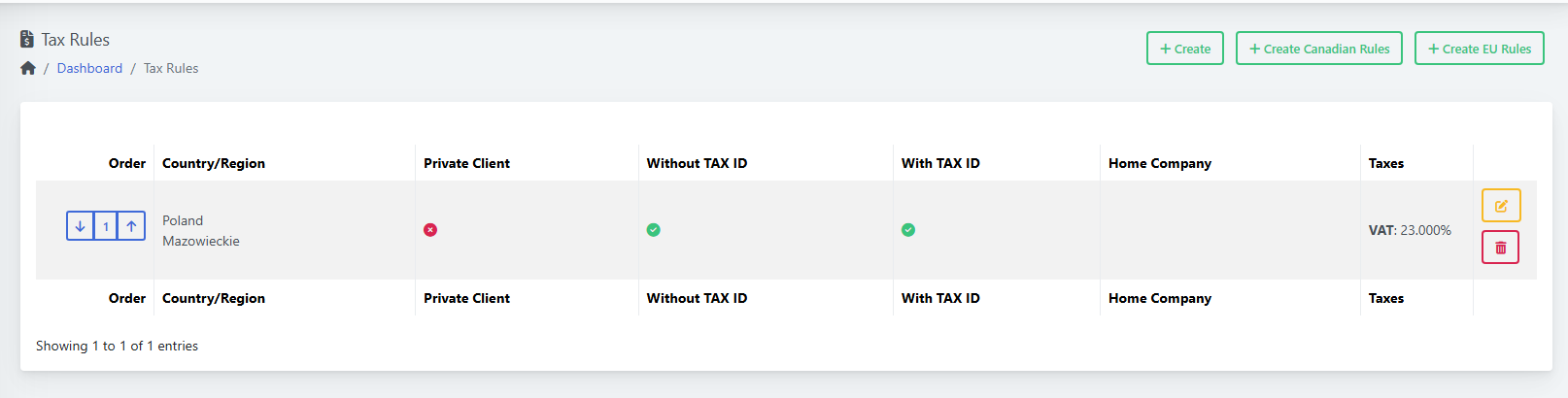
Example: Poland → Mazowieckie (VAT 23%)
-
Create a rule.
-
Country: Poland; State/Region: Mazowieckie.
-
Toggles: Private Client = Off (if you only tax businesses), Company Without TAX ID = On, Company With TAX ID = On.
-
Tax 1 Name: VAT; Tax 1 Rate: 23.000.
-
Select Home Company.
-
Save. (See: List after creating a rule)
Tips & Good Practices
-
Keep a country-wide rule at the bottom and region‑specific rules above it.
-
Use clear tax names: VAT, GST, PST, HST.
-
Review rules after tax law changes or when you expand to new regions.
-
For multi‑company setups, double‑check the Home Company on each rule.
Troubleshooting
-
My client is taxed incorrectly
-
Check rule order (a broader rule may be matched first).
-
Verify the client’s country/region and tax ID status.
-
Confirm the toggles (Private/With ID/Without ID) match your intent.
-
Ensure tax rates are numeric (e.g.,
23.000).
-
-
I don’t see my Home Company
-
Create it in Home Companies and then return to Tax Rules.
-
Screenshot References
-
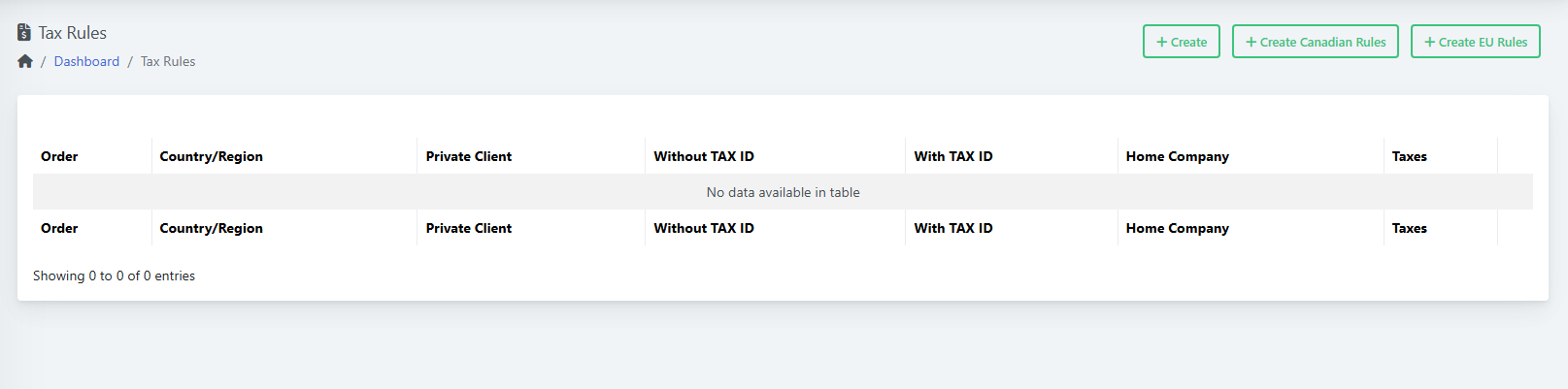
List view (empty) — overall layout and action buttons (Create, Create Canadian Rules, Create EU Rules).
-
Create modal — full form with toggles and tax fields.
-
Create Canadian Rules modal — select Home Company.
-
Create EU Rules modal — select Home Company.
-
List view (after creating) — shows Poland/Mazowieckie, indicators and VAT 23.000%.
-
Edit modal — modify existing rule fields.
Create and Manage a Product
PUQcloud Panel
Order Now | Download | FAQ
This guide explains how to create, configure, and maintain Products in the PUQcloud Panel, including pricing, attributes, options, and module settings.
Overview
A Product is what your customers buy. Prices, options, and the provisioning module all live under the product.
Products List
From Products → Products you’ll see: Icon, Key, Visible, Active, Stock, Services, and actions (Edit, Delete). Use Search to filter.
(Screenshot reference: Products list view)
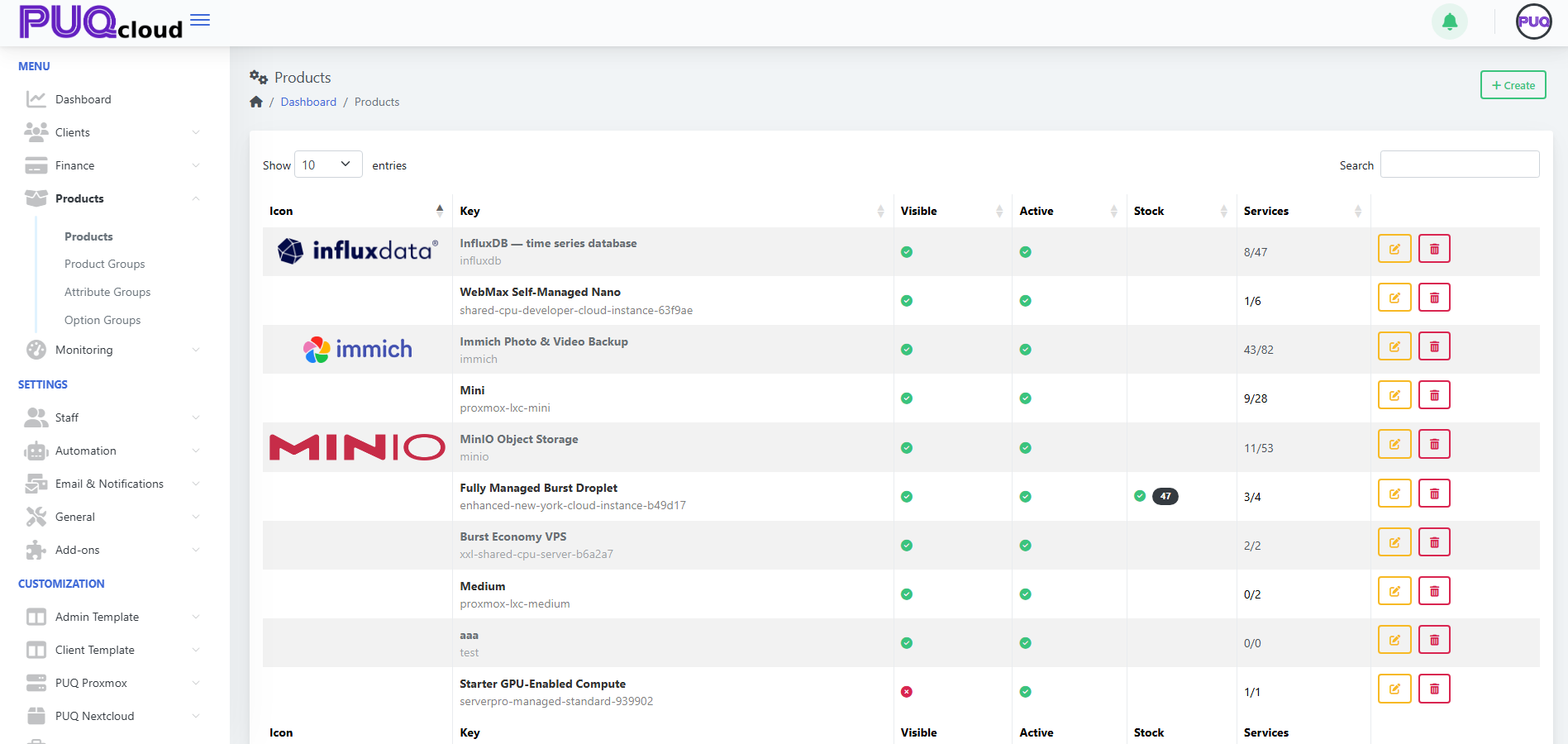
Actions
-
+ Create — start a new product.
-
Edit — open the product tabs (General, Images, Pricing, Attributes, Options, Module).
-
Delete — remove the product (does not remove existing services already provisioned).
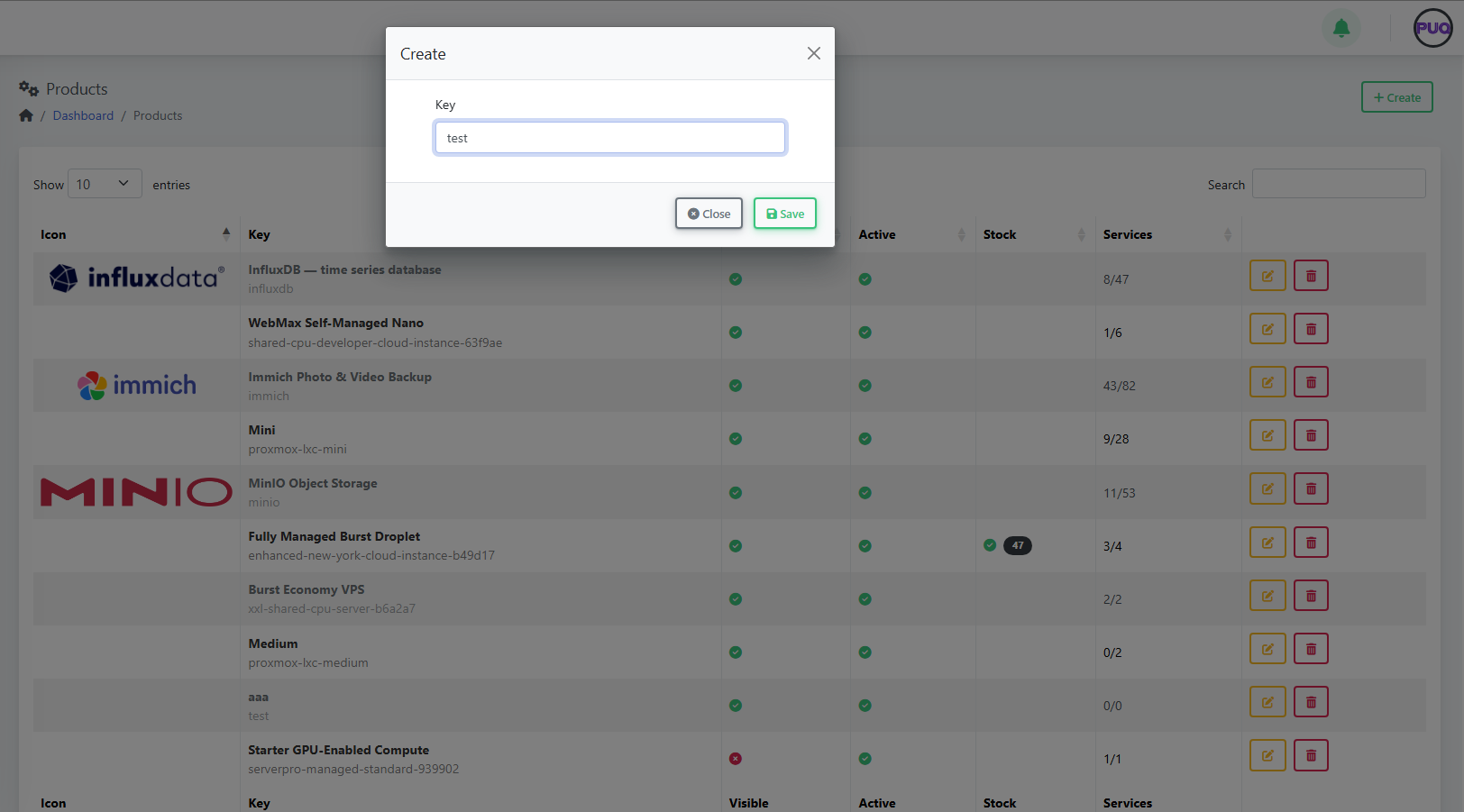
Create a Product
-
Click + Create.
-
Enter a unique Key (e.g.,
influxdb). -
Click Save — the product opens on the General tab for further setup.
(Screenshots: Create Product modal → Product General tab)
Configure the Product
Use the tabs across the top to complete setup.
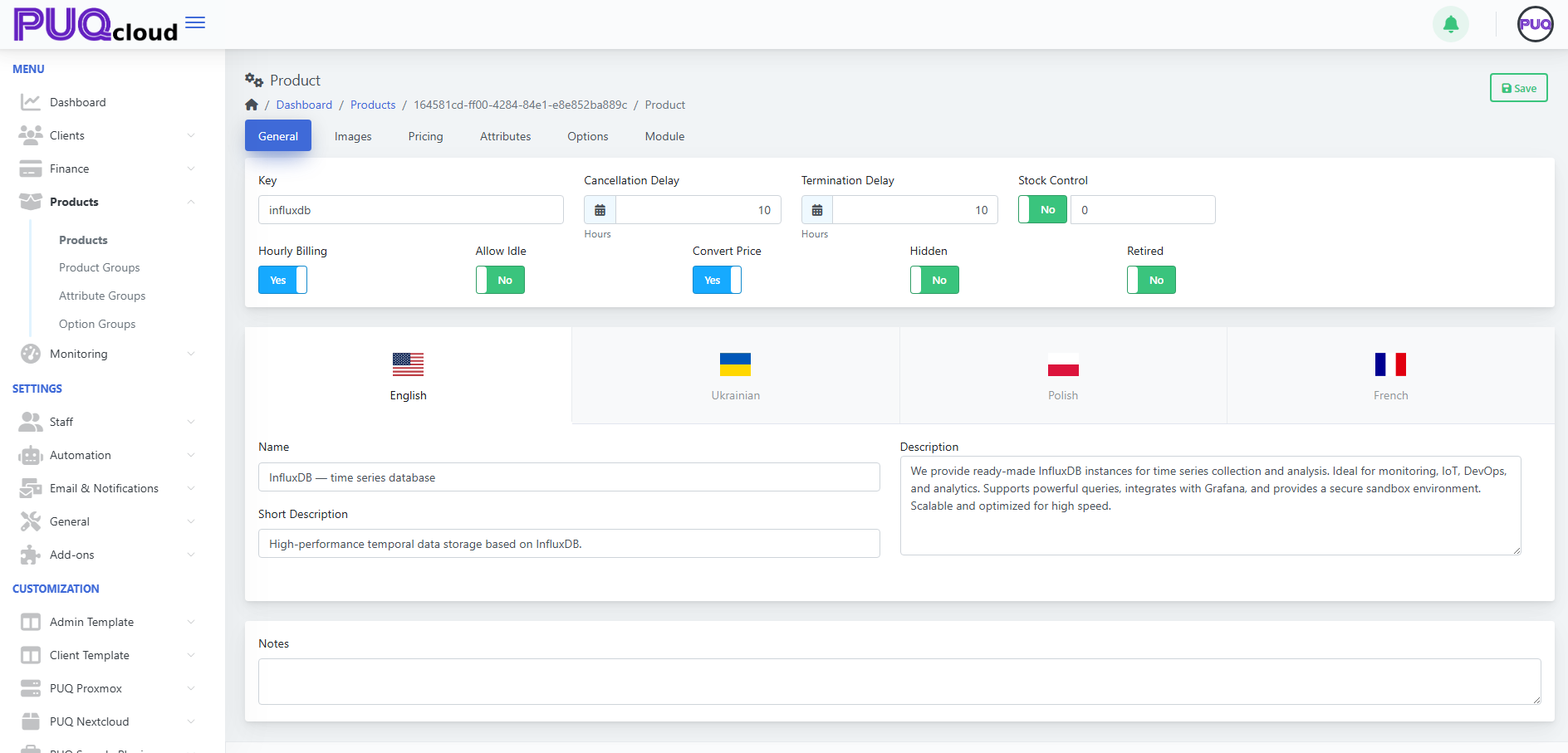
1) General
Fields you’ll see:
-
Key — internal identifier (read-only after creation).
-
Hourly Billing — enable if the product can be charged hourly.
-
Allow Idle — allow an "idle" price tier.
-
Convert Price — auto-convert base currency rates to other currencies.
-
Cancellation Delay / Termination Delay (Hours) — grace windows before cancel/terminate executes.
-
Stock Control — enable and set quantity to track stock.
-
Hidden — hide from storefront/catalog.
-
Retired — prevent new purchases while keeping existing services.
-
Localized content — Name, Short Description, Description per language.
-
Notes — internal notes for admins.
Click Save.
(Screenshot reference: Product → General tab)
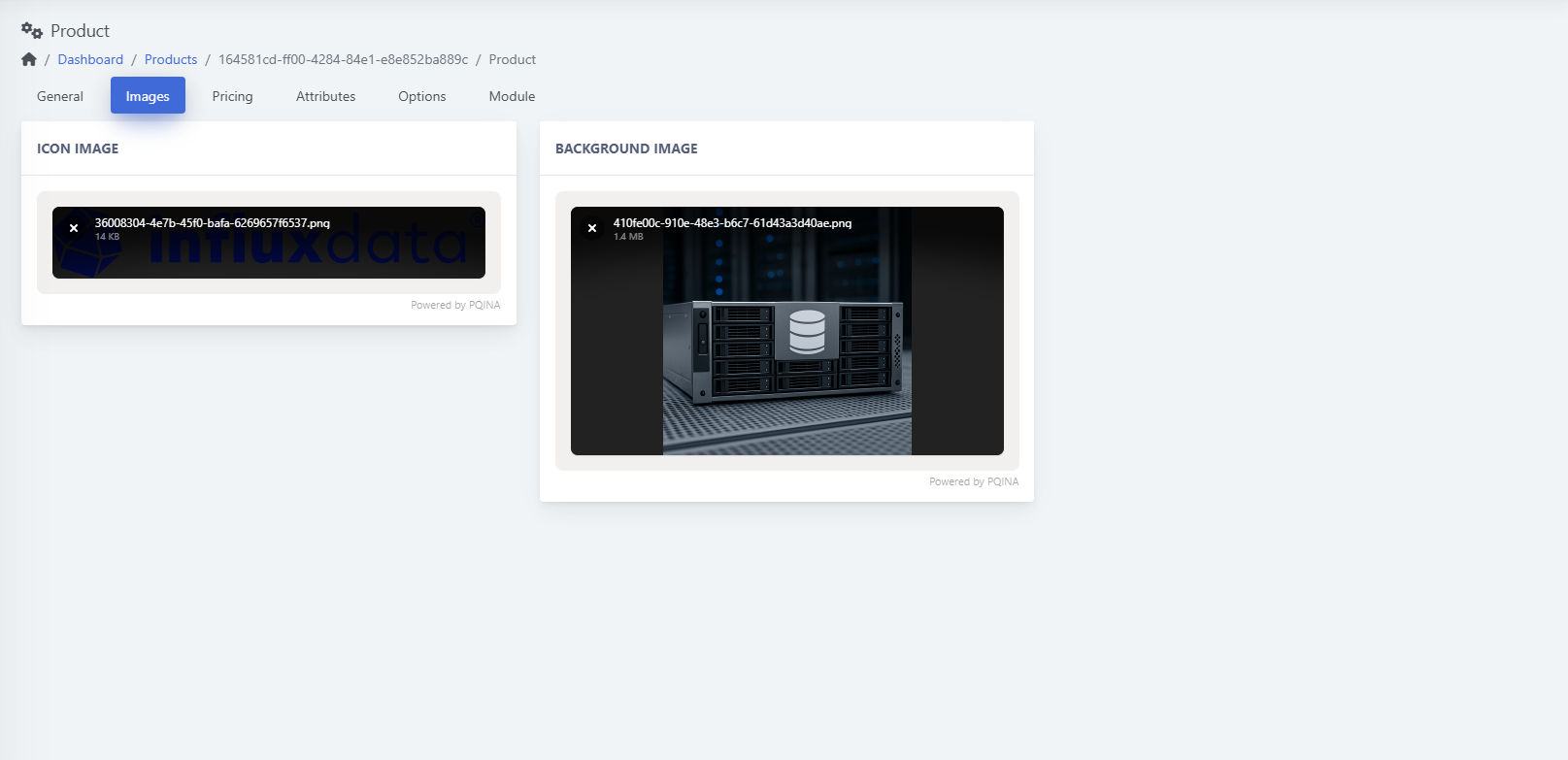
2) Images
-
Icon image — small logo shown in listings.
-
Background image — larger visual used on product pages/cards.
Drag & drop or click to upload, then Save.
(Screenshot reference: Product → Images tab)
3) Pricing
The table shows Period, Currency, Setup, Base, Idle, Switch down, Switch up, Uninstall with Edit/Delete actions.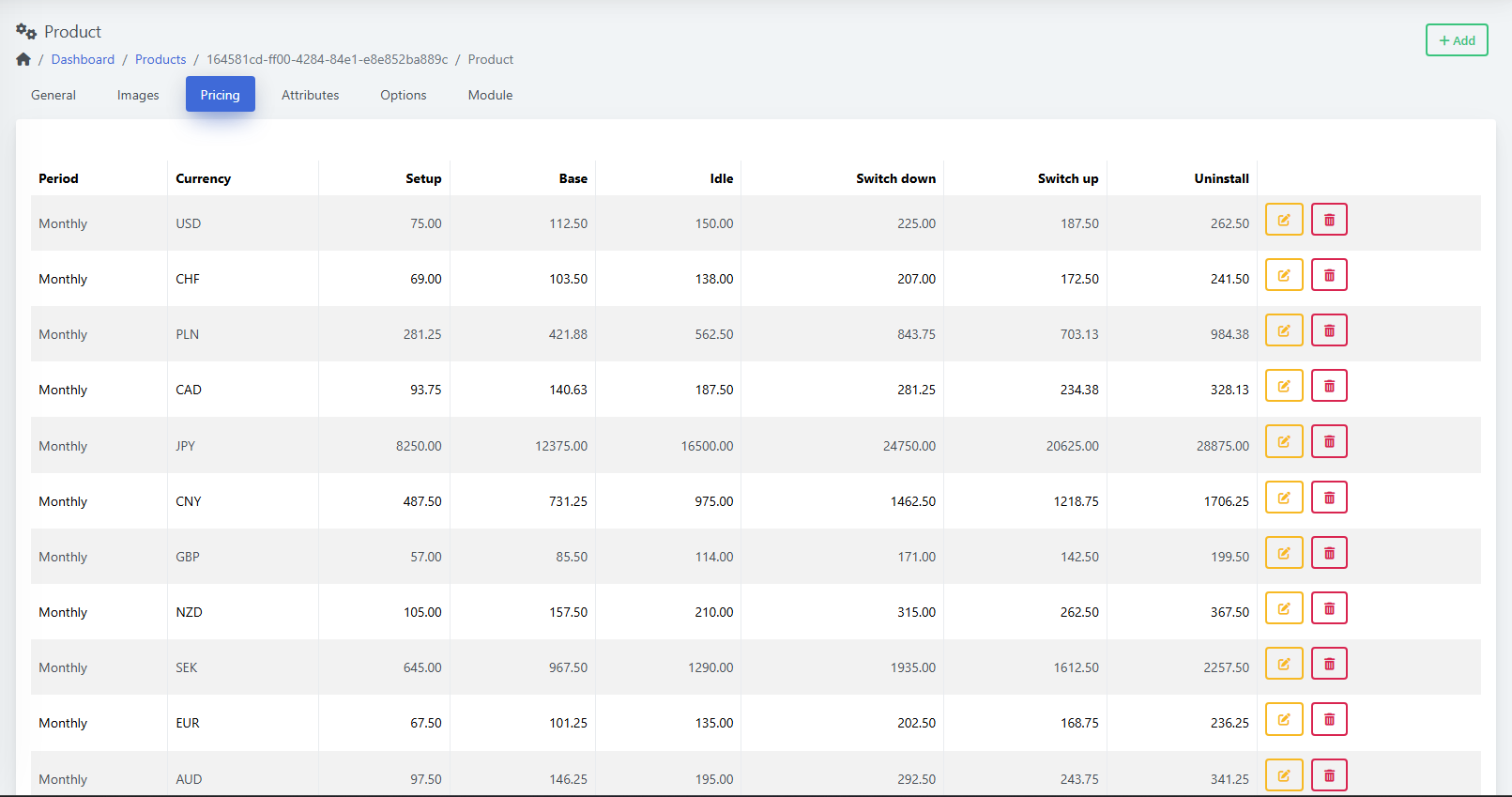
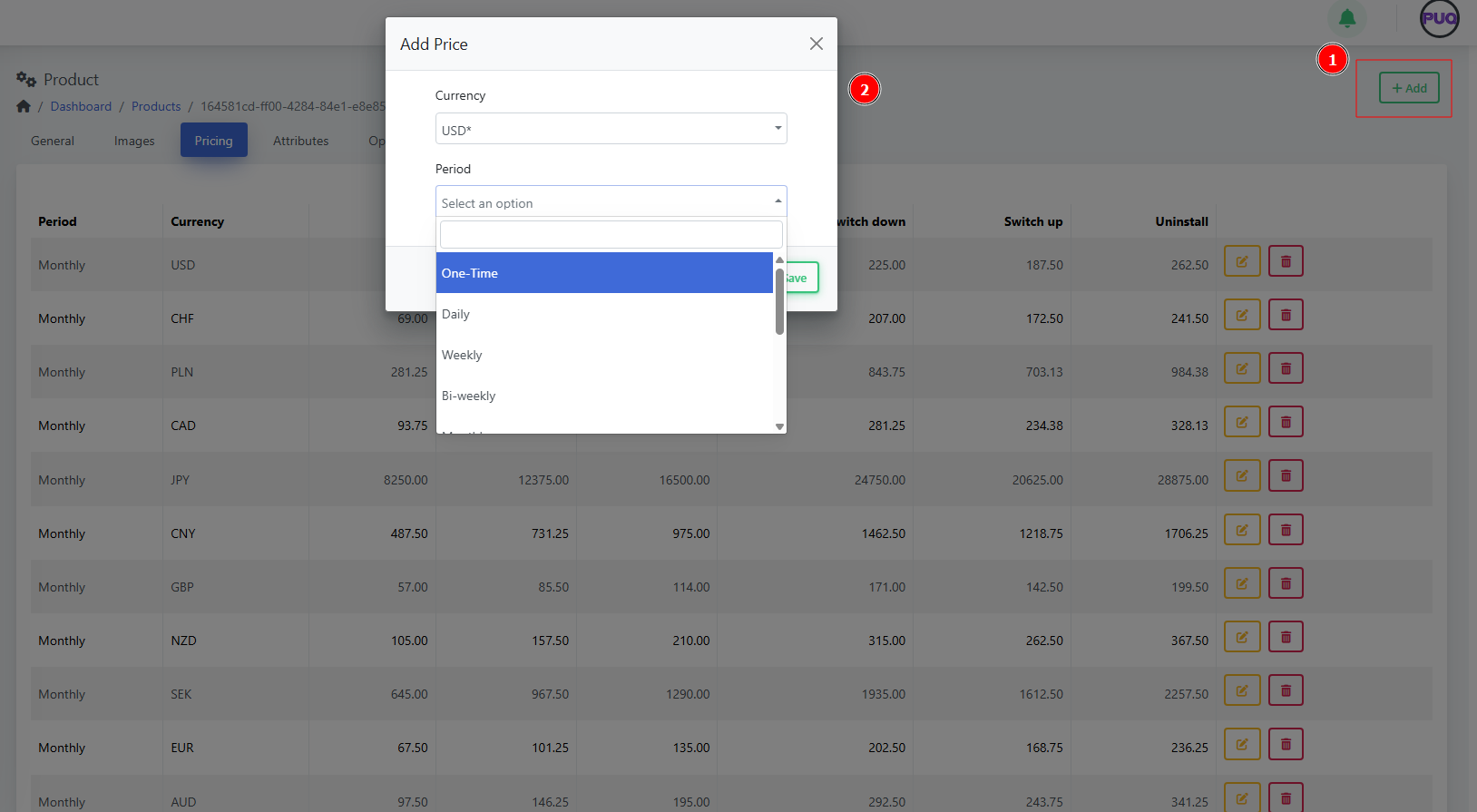
Add a price
-
Click + Add.
-
Choose Currency and Period (One‑Time, Daily, Weekly, Bi‑weekly, Monthly, etc.).
-
Enter amounts as needed (Setup, Base, Idle, Switch up/down, Uninstall).
-
Save.

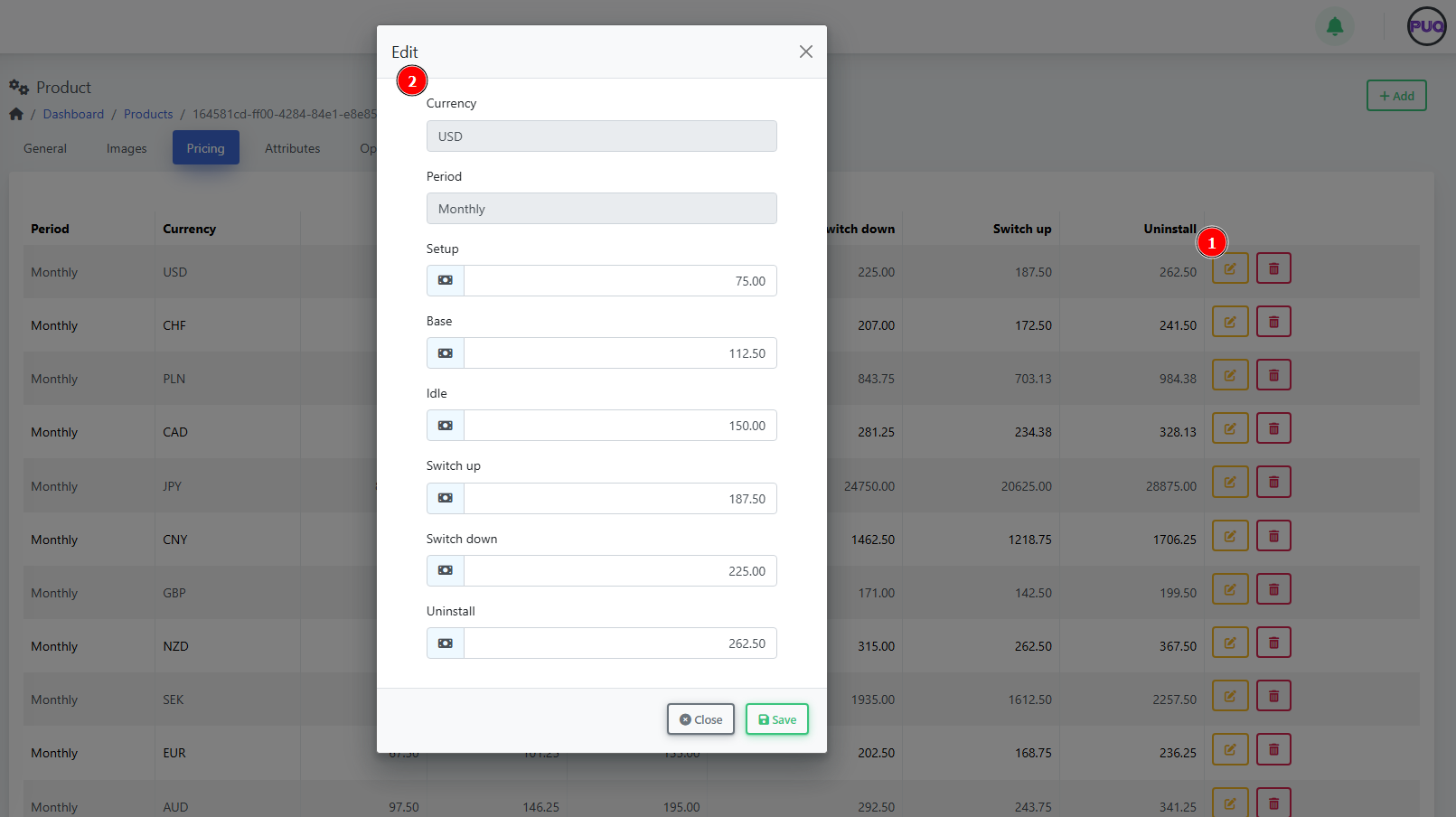
Edit a price
-
Click the Edit icon on a row, adjust amounts, Save.

4) Attributes
Attach predefined attributes that describe or parameterize the product (often used by modules or displayed to customers).
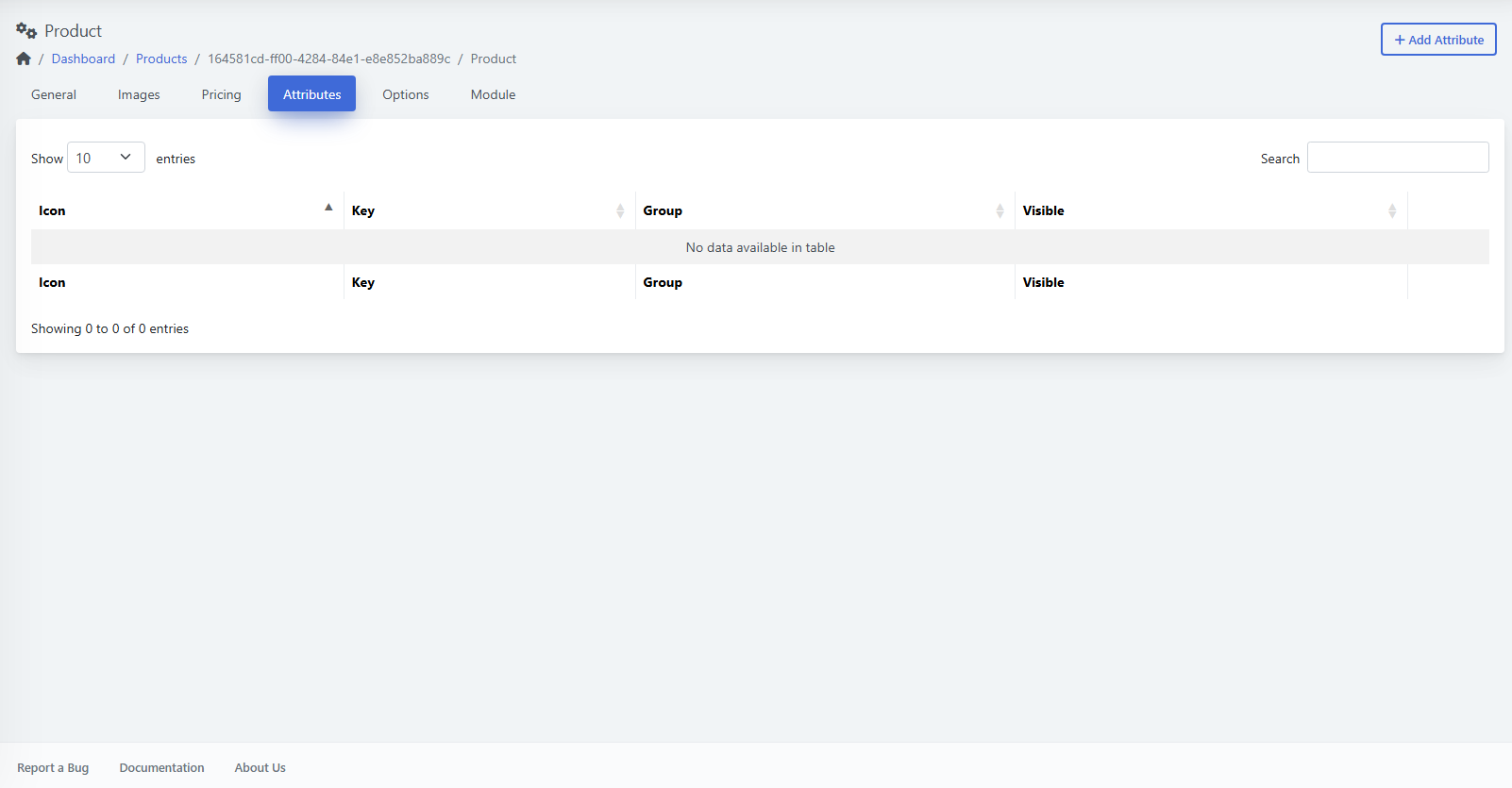
Add an attribute
-
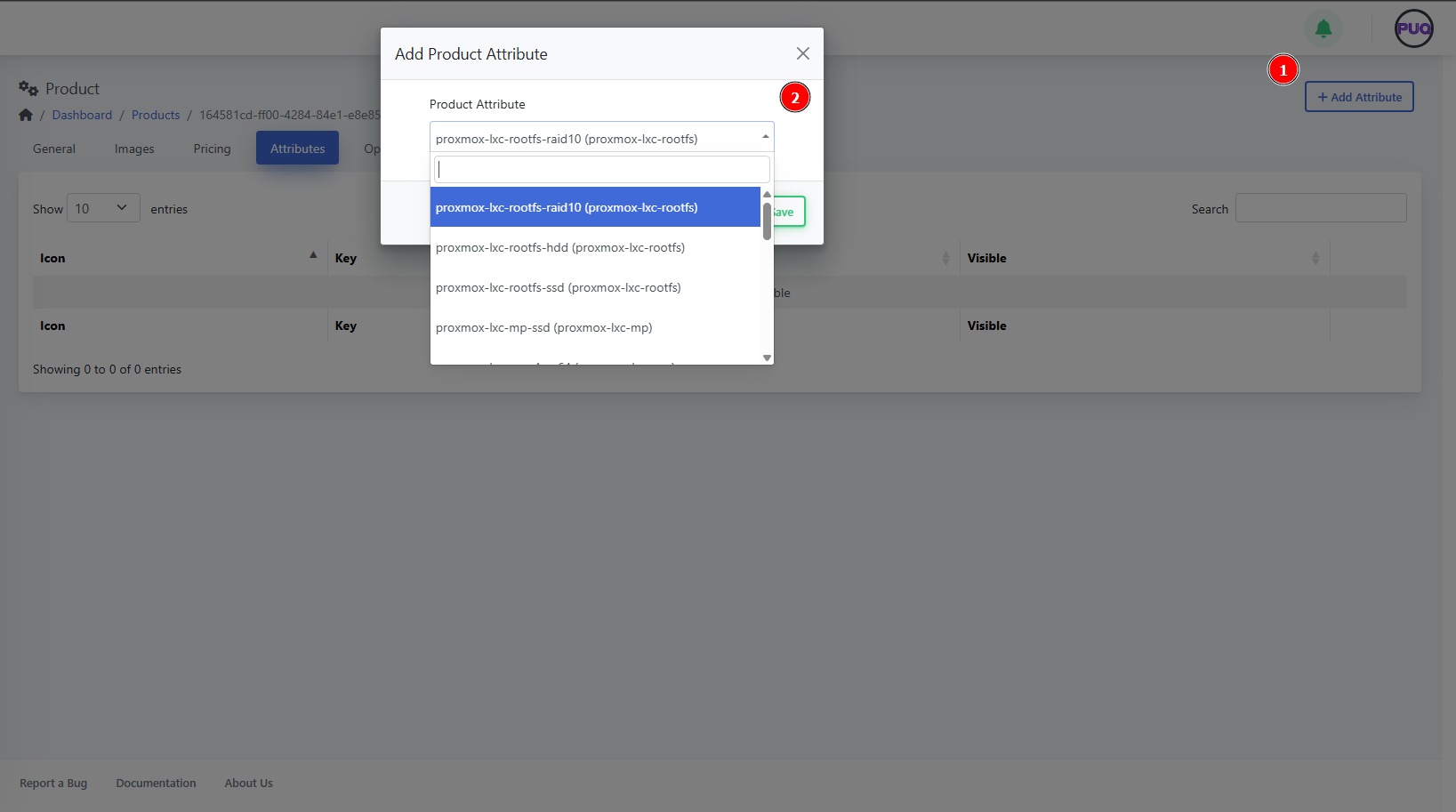
Open Attributes and click + Add Attribute.
-
Pick an item from the dropdown list (e.g.,
proxmox-lxc-rootfs-raid10). -
Save.
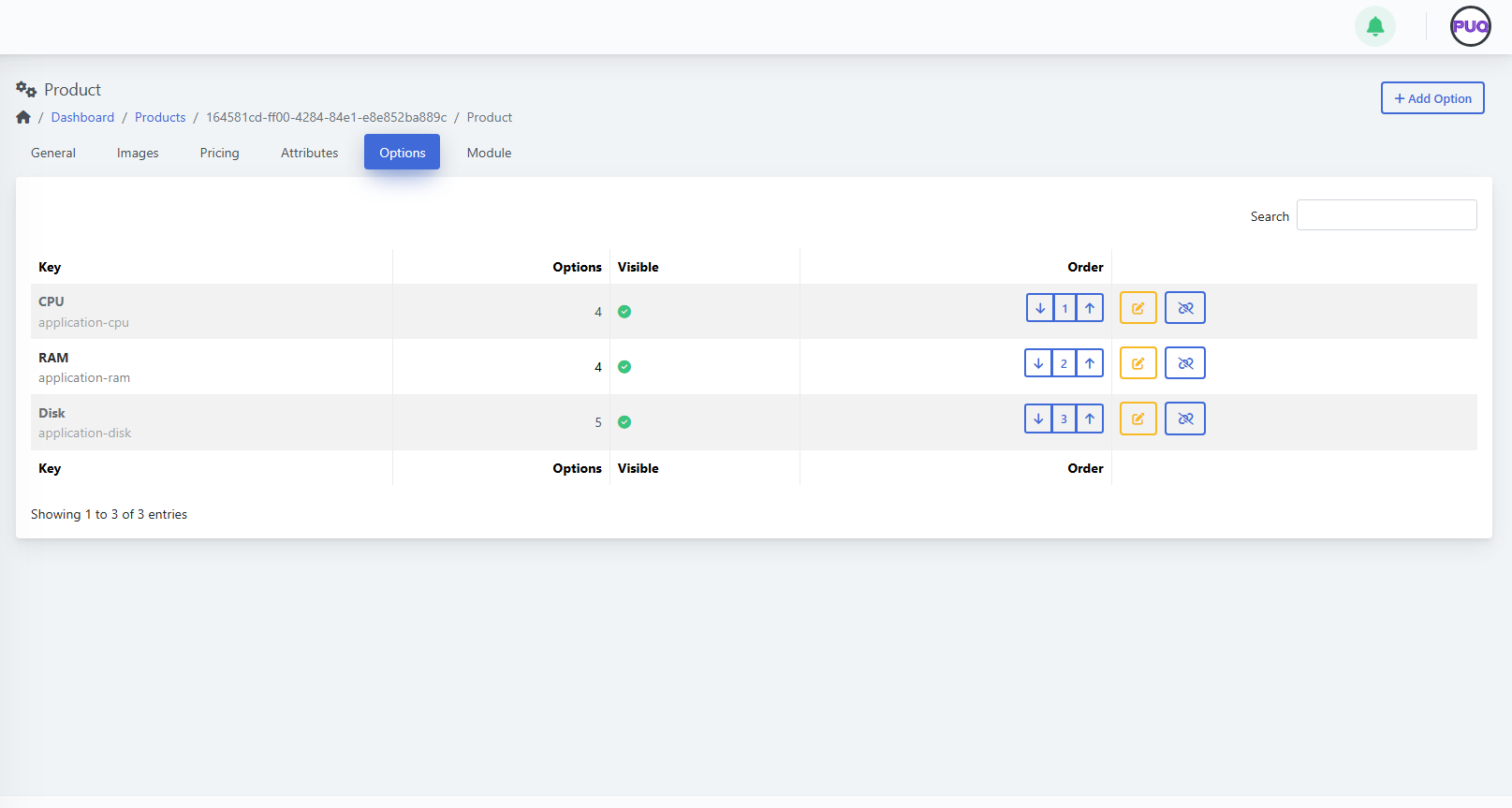
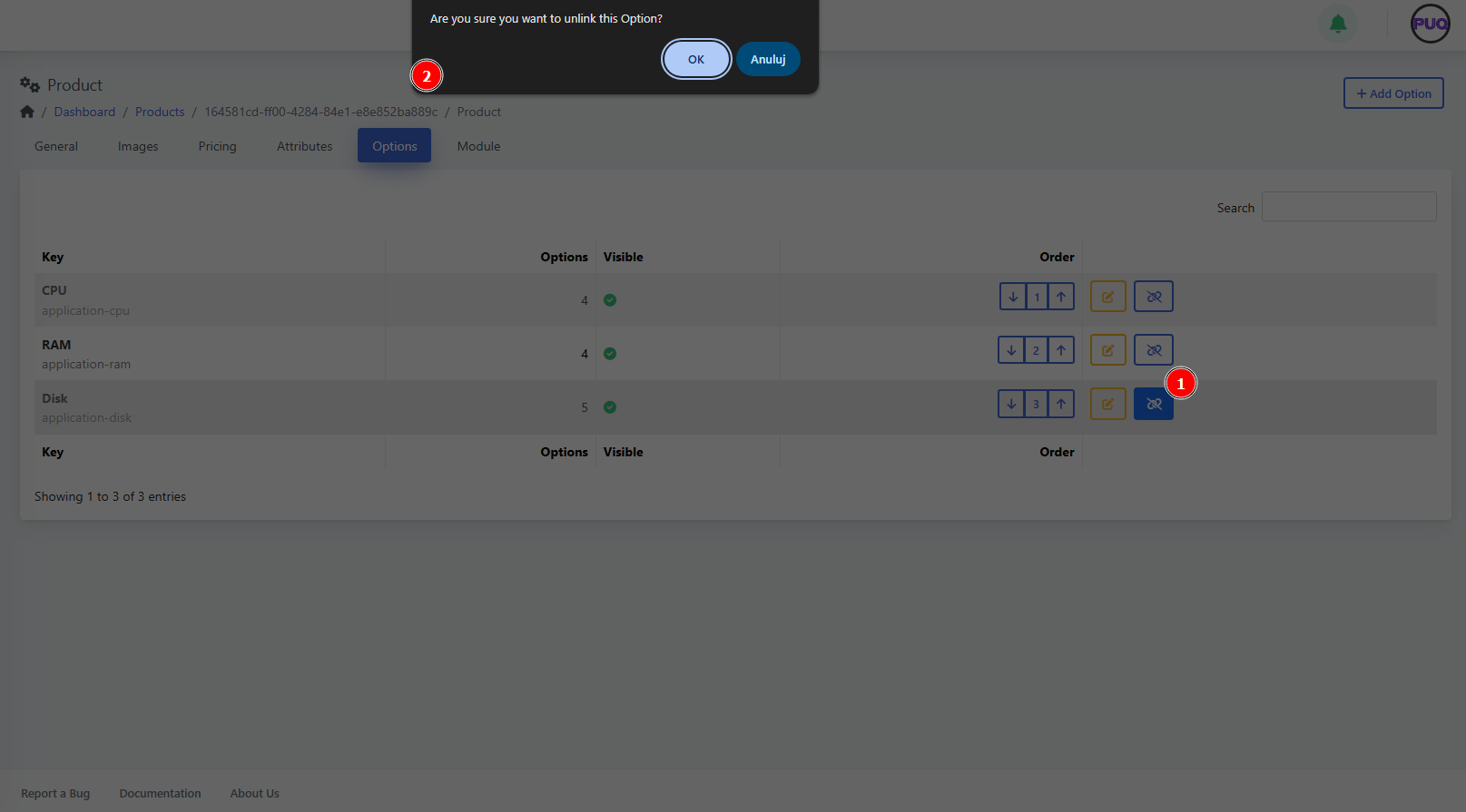
5) Options
Link option groups like CPU, RAM, Disk to let customers configure variants during order.
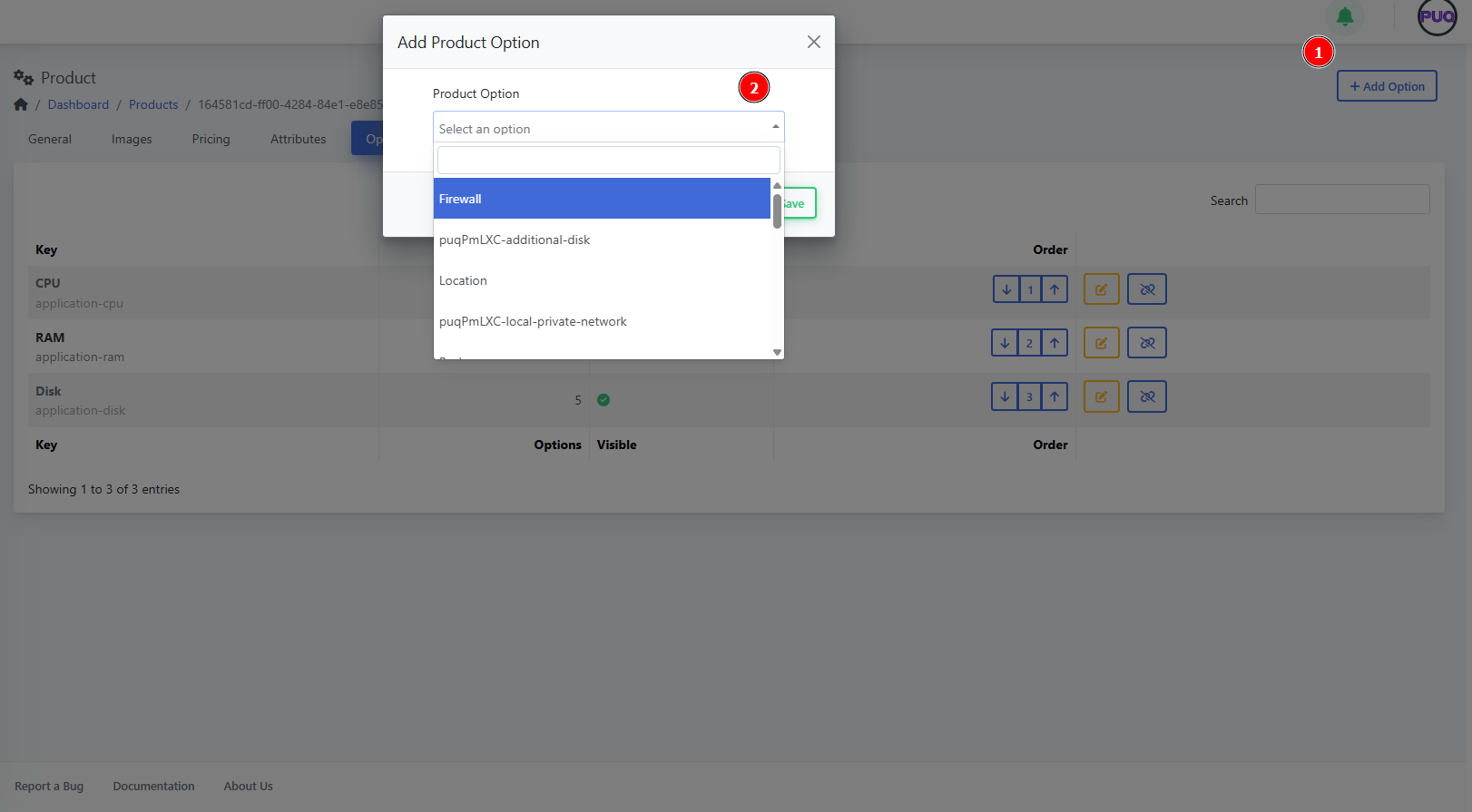
Add an option group
-
Open Options and click + Add Option.
-
Select a group (e.g., Firewall, Location, Additional Disk) and Save.
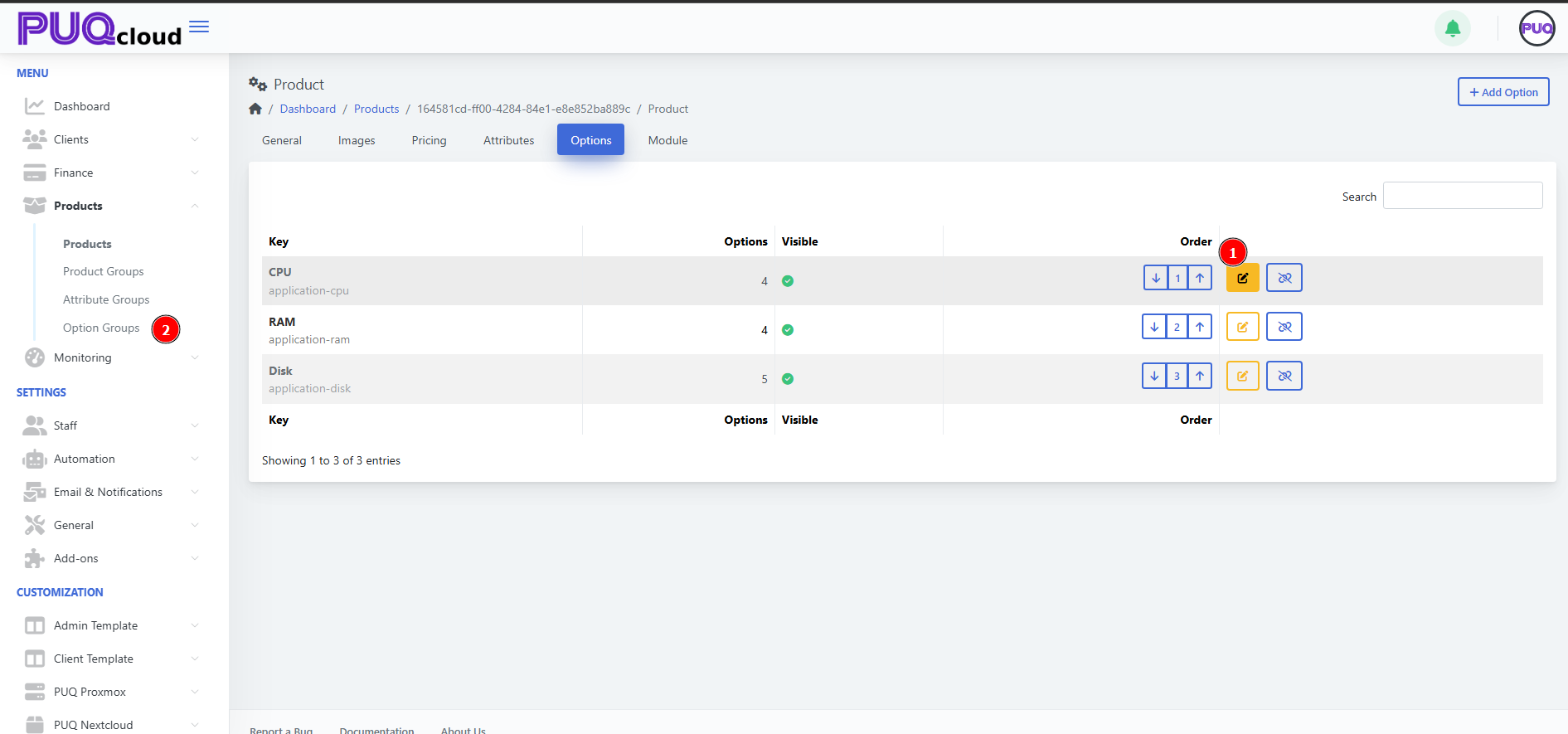
Manage option groups
-
Order — use the up/down arrows to change display order.
-
Edit — open the option group editor.
-
Hide/Show — toggle visibility for this product.
-
Unlink — detach the group from this product (confirm in the dialog).
6) Module
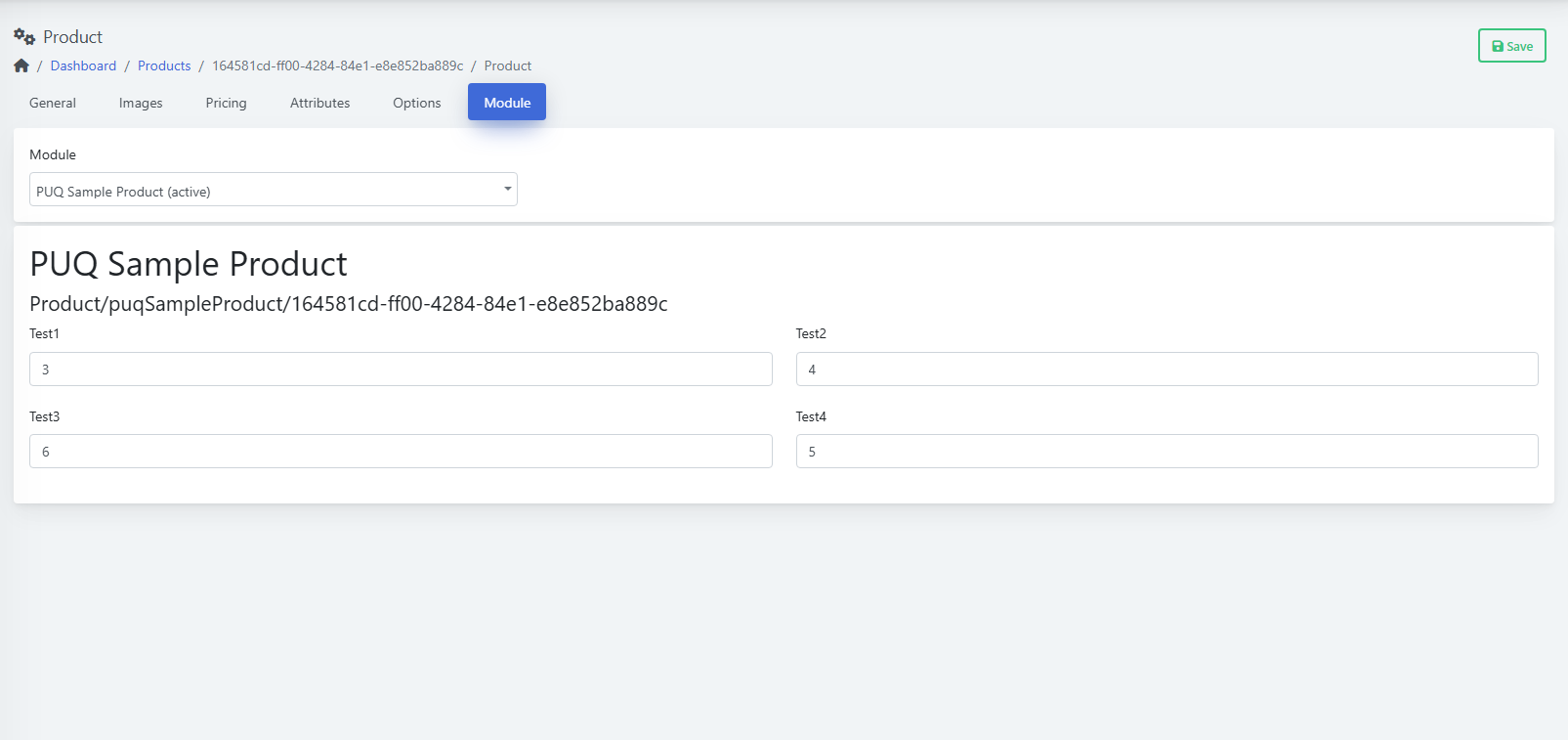
Choose the provisioning module and fill in any required fields. Each module exposes its own parameters.
-
Go to Module.
-
Pick the Module from the dropdown (e.g., PUQ Sample Product (active)).
-
Complete the module fields.
-
Click Save.
(Screenshot reference: Module tab)
Manage Visibility & Lifecycle
Best Practices
Troubleshooting
-
Product not visible on site → Check Hidden and Retired toggles; ensure at least one Price exists.
-
Options missing at checkout → Verify the groups are linked and visible for this product.
-
Provisioning fails → Confirm Module is selected and all required fields are filled; review module logs.
-
Wrong currency shown → Check the Pricing table and Convert Price setting.
Create and Manage Product Groups
PUQcloud Panel
Order Now | Download | FAQ
Product Groups let you organize related products (e.g., Mini/Medium/Advanced plans) into a single category with shared visuals and templates.
Overview
Groups control how products are displayed on the storefront (list/order/manage templates) and provide a place to order items and manage visibility.
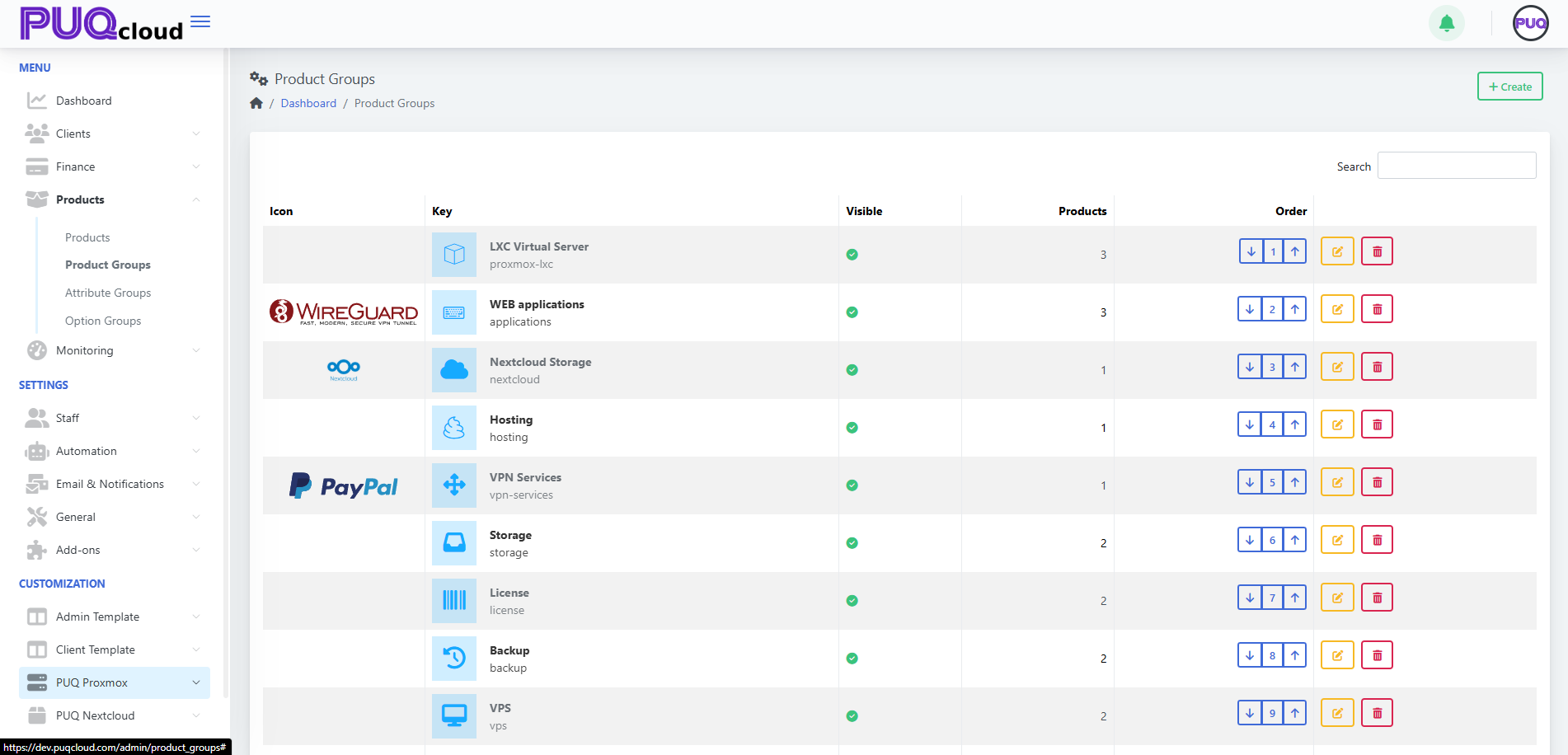
Product Groups List
You’ll see: Icon, Key, Visible, Products (count), Order controls (down / index / up), and actions (Edit, Delete). Use Search to filter.
(Screenshot reference: Product Groups list)
Actions
-
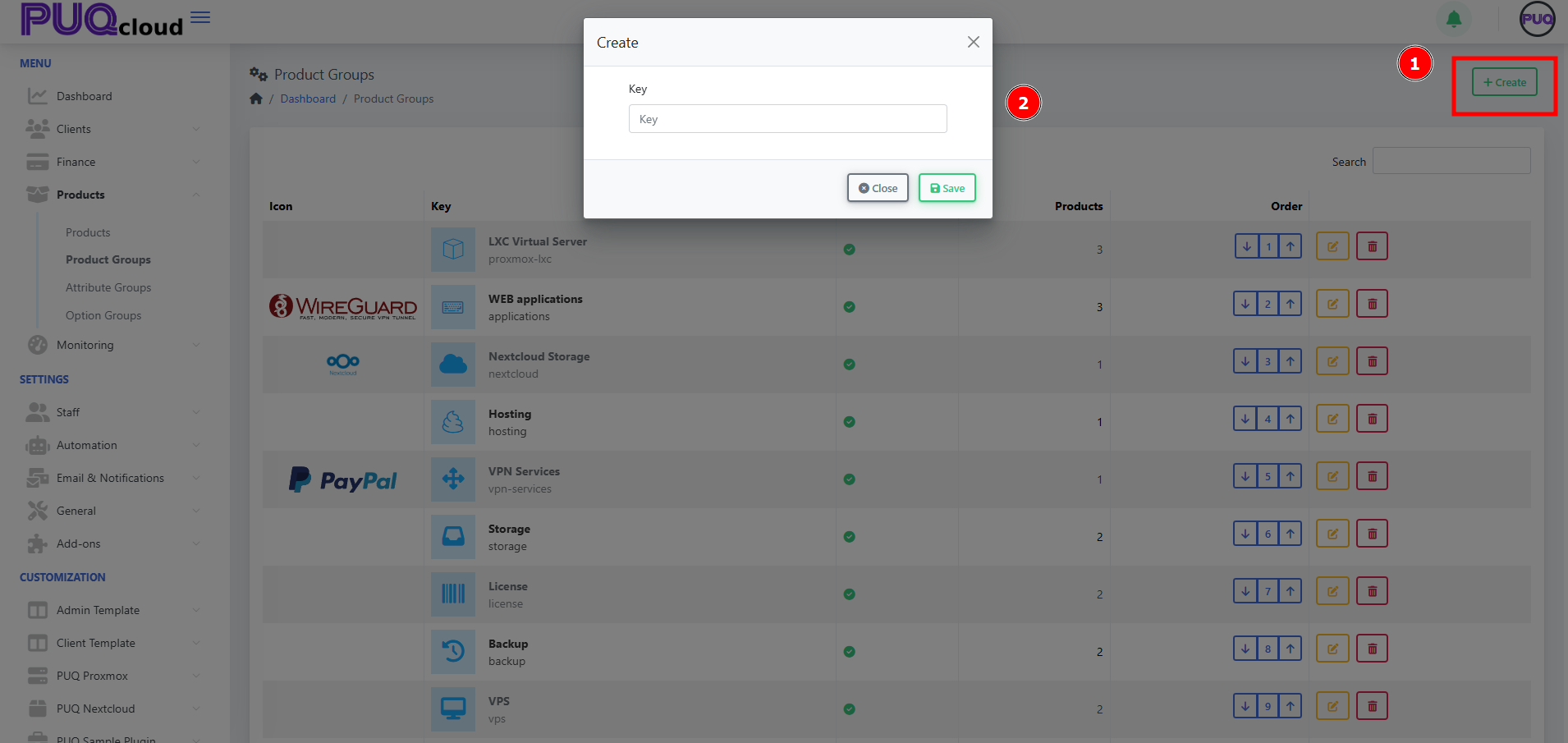
+ Create — add a new group. (Screenshot: Create Group modal)

-
Order — use arrows to arrange groups on the storefront.
-
Edit — open tabs General / Images / Products.
-
Delete — remove the group (does not delete products).
Create a Product Group
-
Click + Create.
-
Enter a unique Key (e.g.,
proxmox-lxc). -
Click Save. The group opens on the General tab.
(Screenshots: Create modal → General tab)
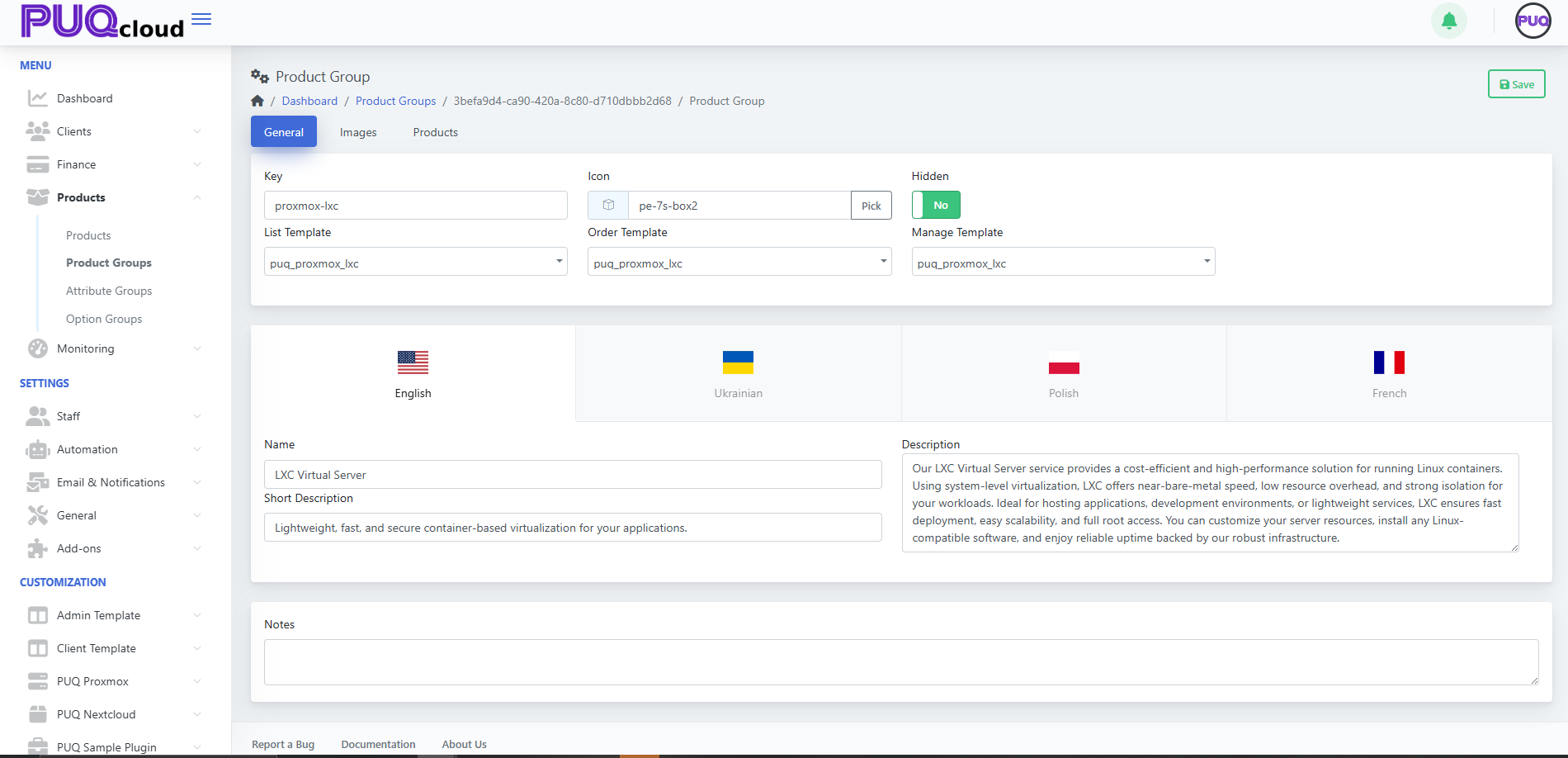
Configure the Group
General tab
-
Key — internal identifier (read‑only after creation).
-
Icon — choose an icon from your set (Pick).
-
Hidden — hide/show the group from storefront.
-
Templates
-
List Template — how the group appears on the catalog page.
-
Order Template — layout for the order page of products in this group.
-
Manage Template — layout for the client’s service management page.
-
-
Localized content — Name, Short Description, Description per language.
-
Notes — internal, visible to admins only.
Click Save.
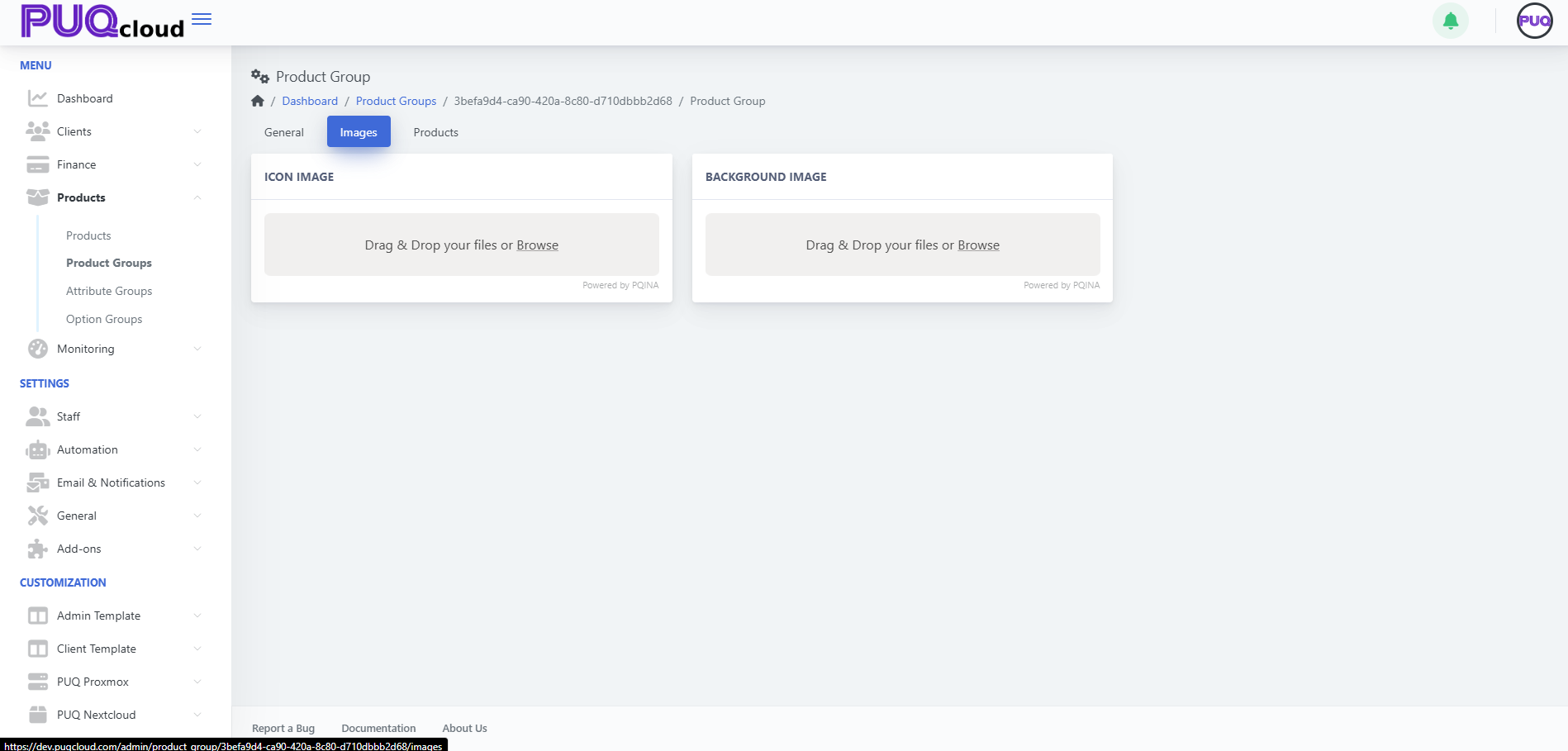
Images tab
Upload visuals that represent the group:
-
Icon Image — small logo used in lists/cards.
-
Background Image — large banner-style image.
Drag & drop or Browse, then Save.
(Screenshot: Images tab)
Add & Manage Products in the Group
Open the Products tab. (Screenshot: Products tab)
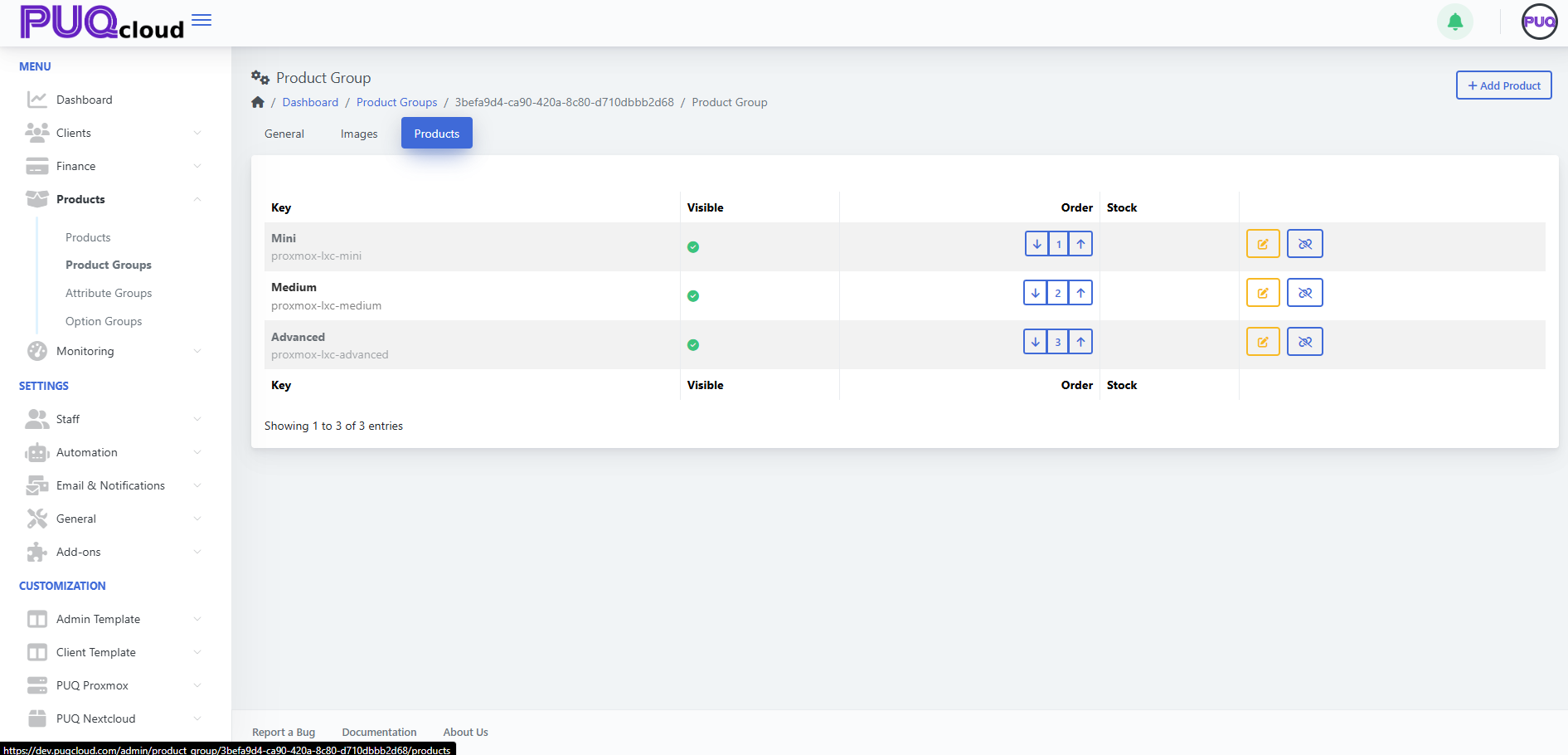
Add products
-
Click + Add Product.
-
Select one or more existing products to link to this group.
-
Save.
Manage items
-
Visible — the green check indicates the product is visible inside this group.
-
Order — use arrows to set the display order (e.g., Mini = 1, Medium = 2, Advanced = 3).
-
Edit — open the product for editing in a new view.
-
Hide/Show — toggle product visibility in this group (without altering the product’s global status).
-
Unlink — detach the product from the group (confirmation dialog).
Tip: Keep a clear progression (e.g., Mini → Medium → Advanced) and ensure at least one visible product exists per group.
Best Practices
Troubleshooting
-
Group doesn’t appear in catalog → Turn Hidden = Off; verify that the group contains at least one visible product.
-
Product not showing under the group → Ensure it’s linked and visible in the Products tab; also check the product’s own Hidden/Active flags.
-
Wrong page layout → Confirm List/Order/Manage Templates are correct for this group.
-
Unexpected order → Use the arrow controls in both Group list (for groups) and Products tab (for items) to correct ordering.
Screenshot References
-
Product Groups list — overview of groups with counts, visibility and order.
-
Create Group modal — single Key field.
-
General tab — Key, Icon, Hidden, Templates, localized fields.
-
Images tab — Icon Image and Background Image uploaders.
-
Products tab — list with Visible, Order, Edit, Hide/Show, Unlink.
Create and Manage an Attribute Group
PUQcloud Panel
Order Now | Download | FAQ
Product Attribute Groups are collections of attributes (e.g., IPv4, IPv6, 10 Gbps) you can later attach to products. They help standardize feature flags and technical capabilities across multiple products.
Overview
A Product Attribute is a single capability/flag (e.g., IPv6). An Attribute Group is a labeled collection of such attributes.
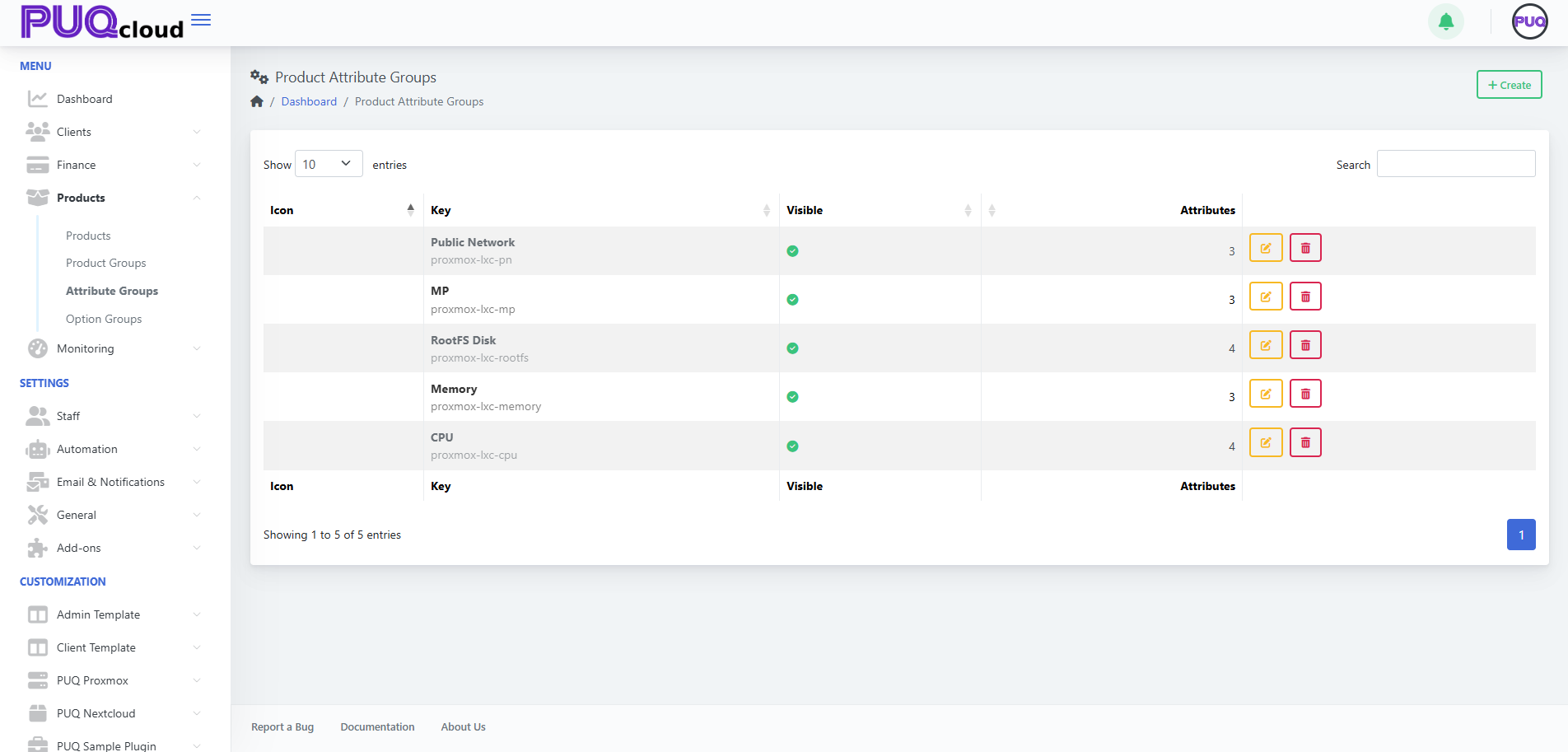
Attribute Groups List
The list shows Icon, Key, Visible, and Attributes (count) with actions Edit and Delete. Use Search to filter.
(Screenshot reference: Attribute Groups list)
Actions
-
+ Create — add a new attribute group. (Screenshot: Create Group modal)

-
Edit — open tabs General / Images / Attributes.
-
Delete — remove the group (does not remove attributes already linked to products).
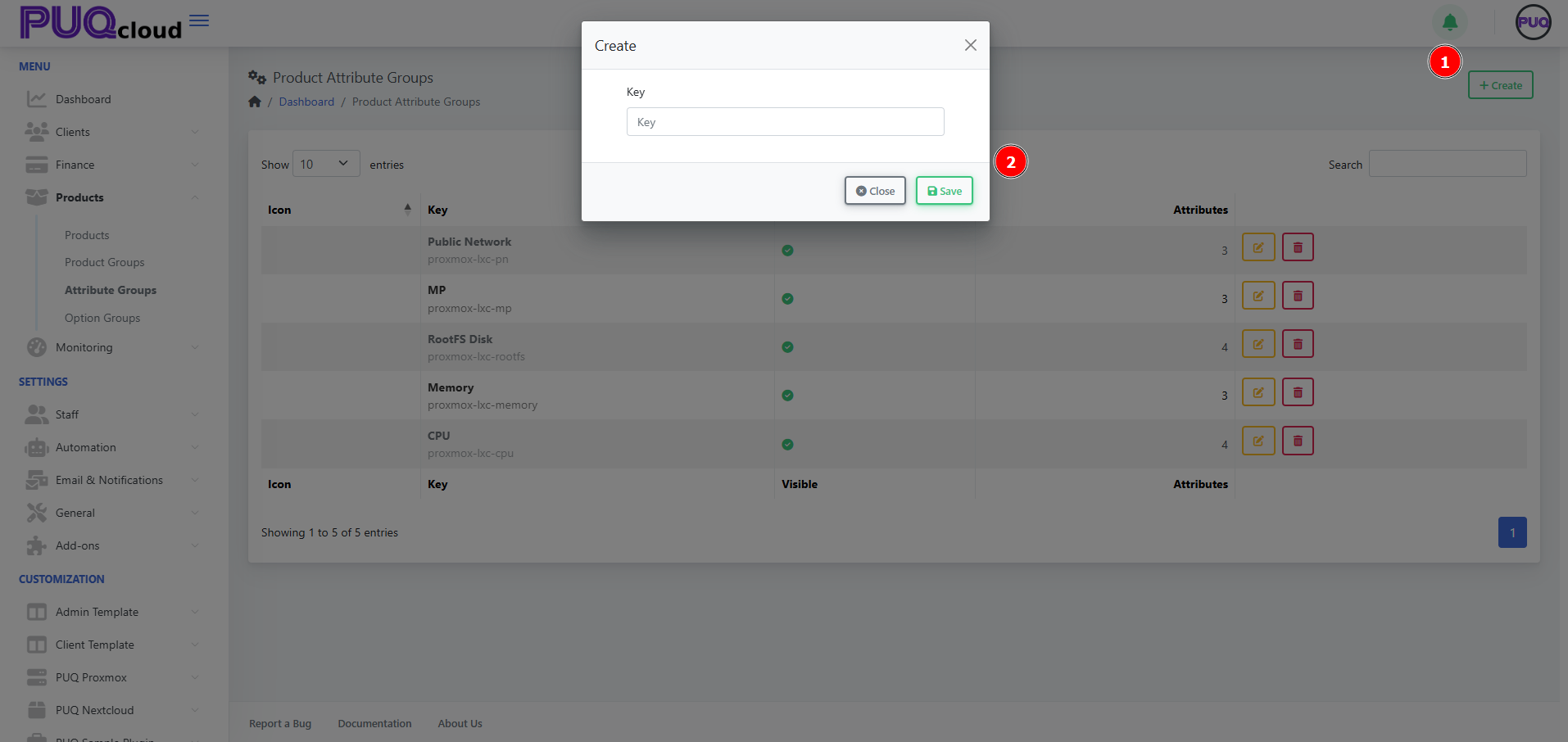
Create an Attribute Group
-
Click + Create.
-
Enter a unique Key (e.g.,
proxmox-lxc-pn) and Save.
Configure the Group
Use the tabs across the top.
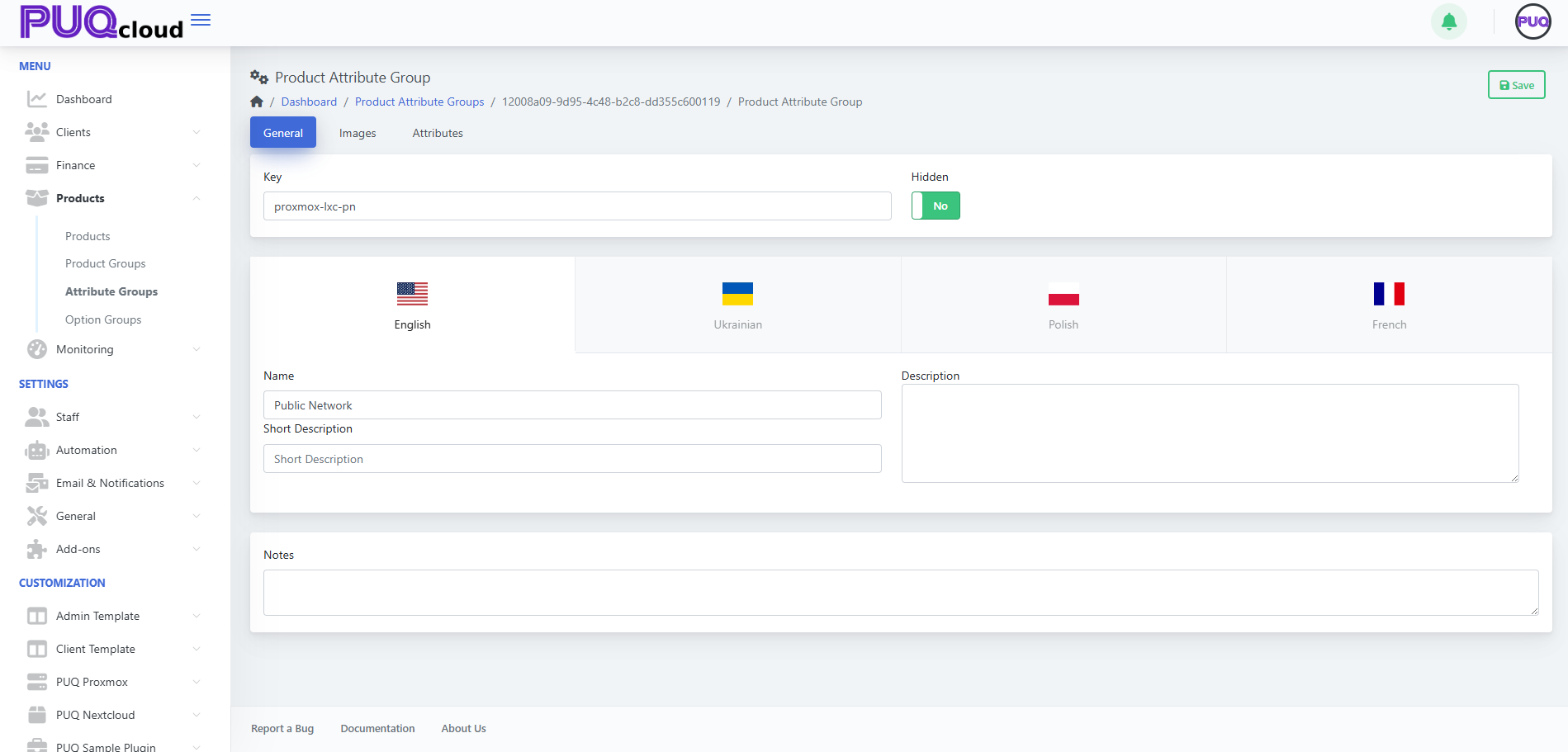
General tab
-
Key — internal identifier (read‑only after creation).
-
Hidden — hide/show the entire group from selection lists.
-
Localized content — Name, Short Description, and Description per language.
-
Notes — internal notes for admins.
Click Save.
(Screenshot: Attribute Group → General tab)
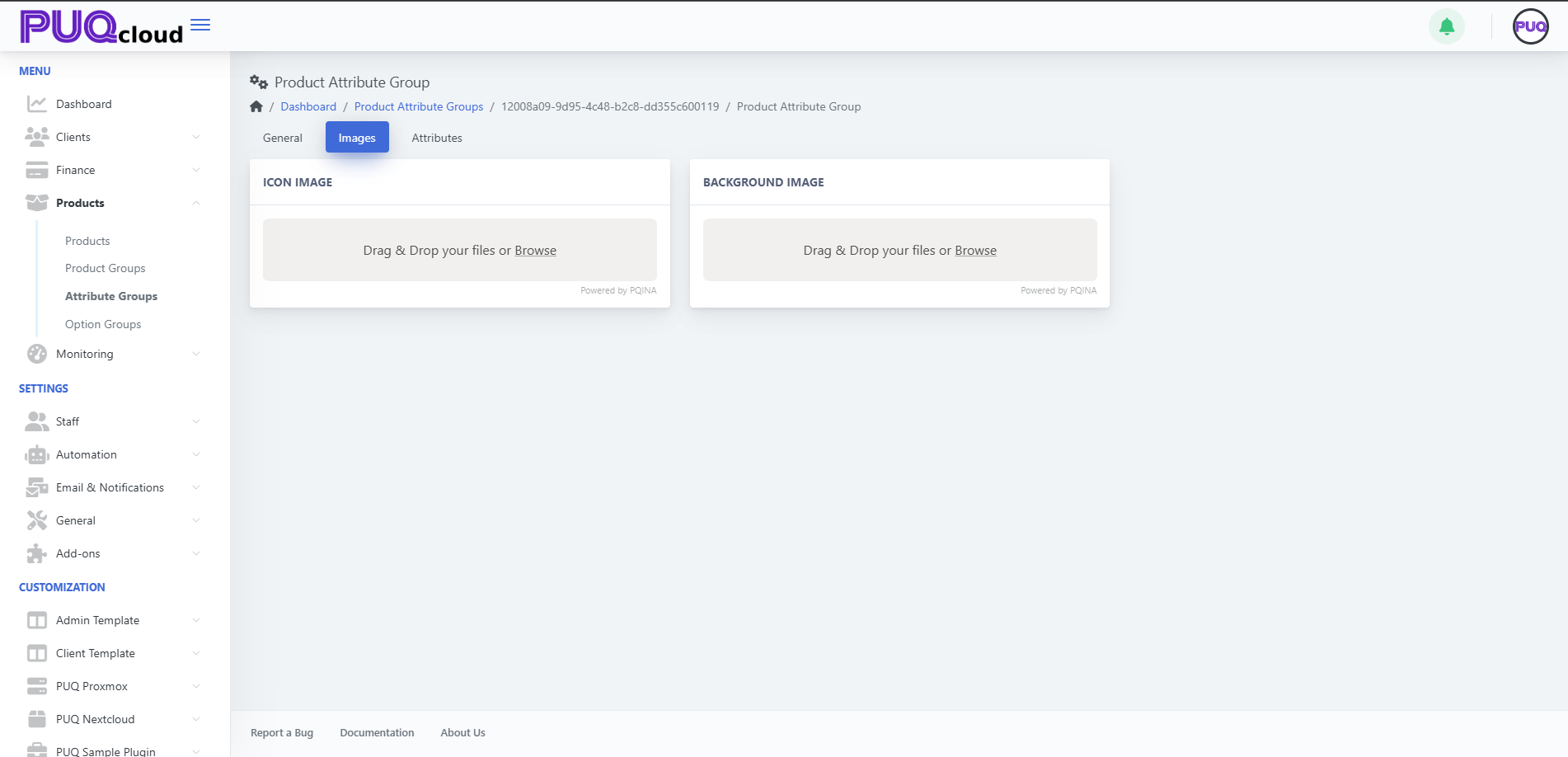
Images tab
Upload visuals representing the group:
-
Icon Image — small logo used in lists/cards.
-
Background Image — larger banner image.
Drag & drop files or Browse, then Save.
(Screenshot: Attribute Group → Images tab)
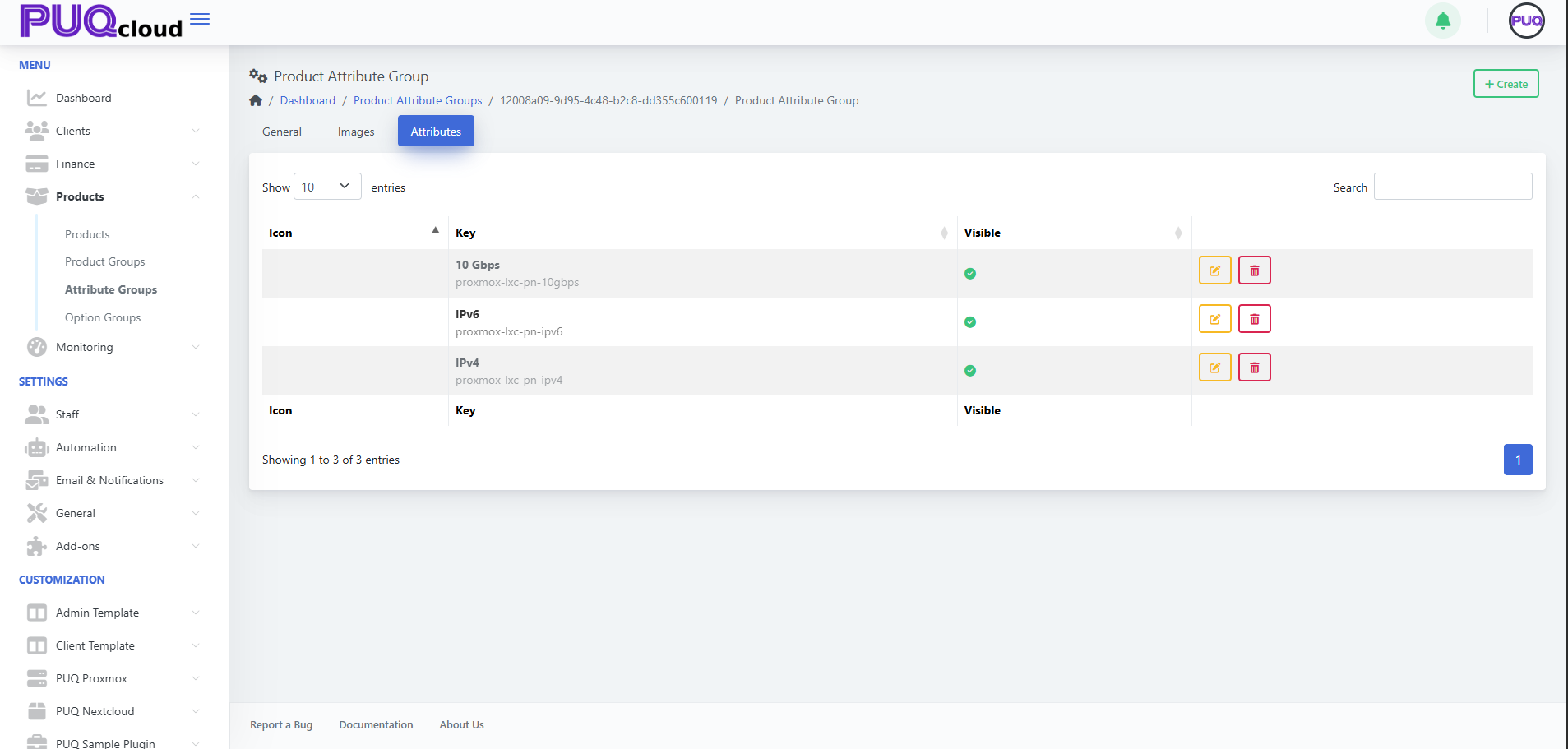
Attributes tab (inside the group)
Add and manage the individual attributes that belong to this group.
You’ll see columns Key and Visible with actions Edit and Delete for each attribute.
Add an attribute
-
Click + Create (top‑right while on the group).
-
Fill out the attribute details (e.g., Key
proxmox-lxc-pn-ipv6, NameIPv6). -
Set Visible as needed and Save.
Edit / Delete
-
Use the Edit (pencil) or Delete (trash) on a row.
(Screenshot: Attribute Group → Attributes tab showing IPv4, IPv6, 10 Gbps)
Using Attributes in Products
Once your attributes exist, attach them to products.
-
Open Products → Products, select a product.
-
Go to the product’s Attributes tab.
-
Click + Add Attribute and pick from available attributes (they are organized by their groups).
-
Save the product.
Tip: Consistent keys (e.g., proxmox-lxc-pn-ipv4) make it easier for modules/automation to reference attributes programmatically.
Best Practices
-
Plan the taxonomy: create groups by domain (e.g., Networking, Storage, CPU features).
-
Keep keys stable: avoid renaming keys after products reference them.
-
Localize names/descriptions so storefronts are consistent across languages.
-
Use visibility to stage new attributes before making them selectable.
Troubleshooting
-
Attribute not selectable on a product → Ensure the attribute exists, is Visible, and you’re on the product’s Attributes tab.
-
Old attribute still appears → It may be linked on products; unlink from those products before deletion.
-
Module fails expecting a flag → Verify the attribute Key matches what the module/integration expects (case‑sensitive).
Screenshot References
-
Attribute Groups list page.
-
Create Attribute Group modal.
-
Attribute Group → General tab.
-
Attribute Group → Images tab.
-
Attribute Group → Attributes tab with items (IPv4, IPv6, 10 Gbps).
Create and Manage Product Option Groups
PUQcloud Panel
Order Now | Download | FAQ
Why Option Groups?
Option Groups let you package reusable choices (like Firewall levels, CPU tiers, RAM sizes) and attach them to many products at once. You get consistent naming, pricing, and ordering — and one place to update them.
Step-by-step, with pro tips
1) Create the Group
-
Go to Products → Option Groups → + Create.
Screenshot list view.
Screenshot “Create Option Group” modal

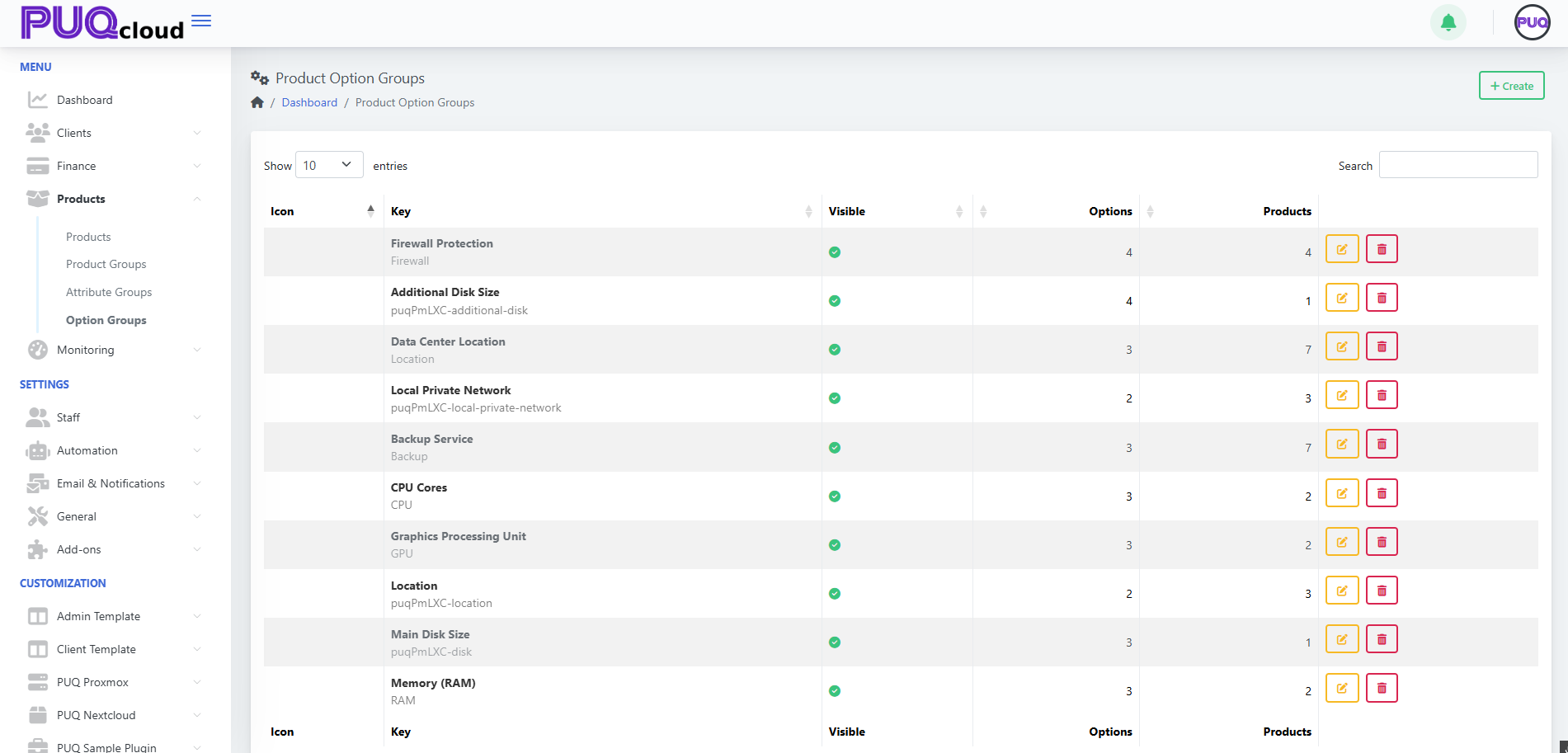
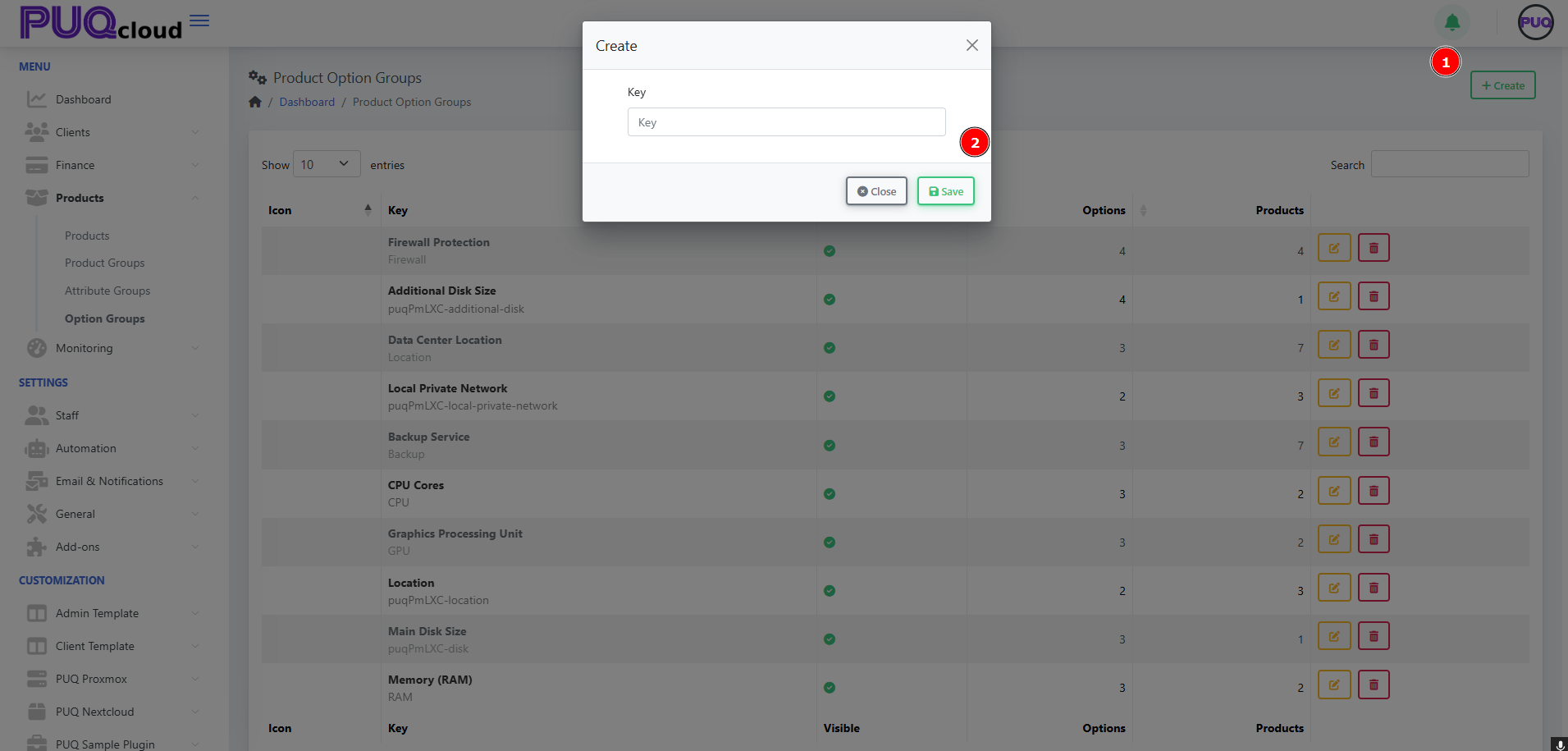
Naming rule of thumb
-
Key: machine-friendly & permanent (e.g.,
Firewall,CPU,puqPmLXC-disk). -
Name: client-facing & translatable (e.g., “Firewall Protection”).
-
Avoid spaces in Key; use hyphens or camelCase for consistency.
2) Set General Properties
Open the group and configure:
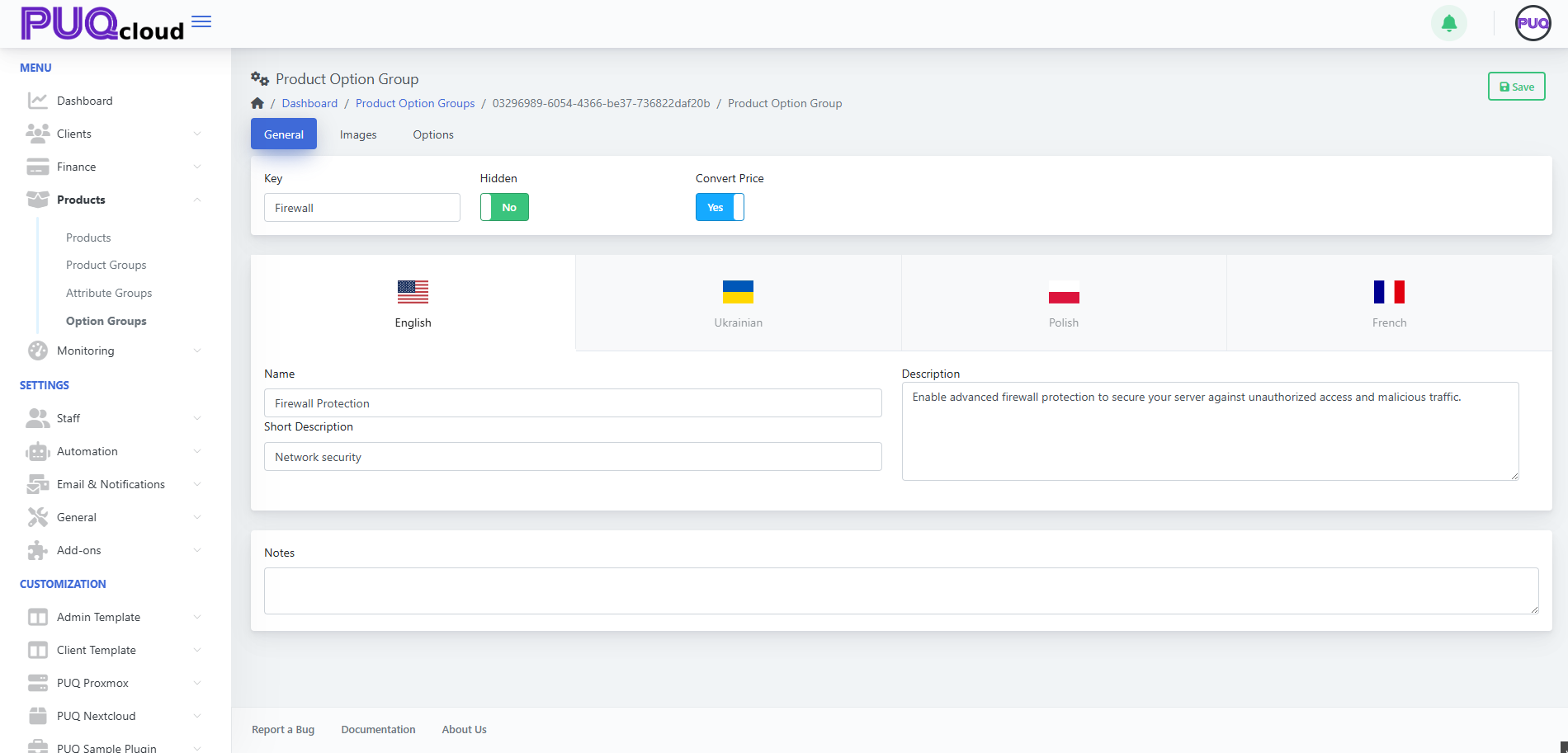
Pro tip: Put upgrade logic in the Description (“Level 2 adds IP reputation filter”), so clients know what changes between levels.
3) Add Visuals (optional, but nice)
Add an Icon for quick recognition and a Background for storefront cards.
Screenshot Images tab
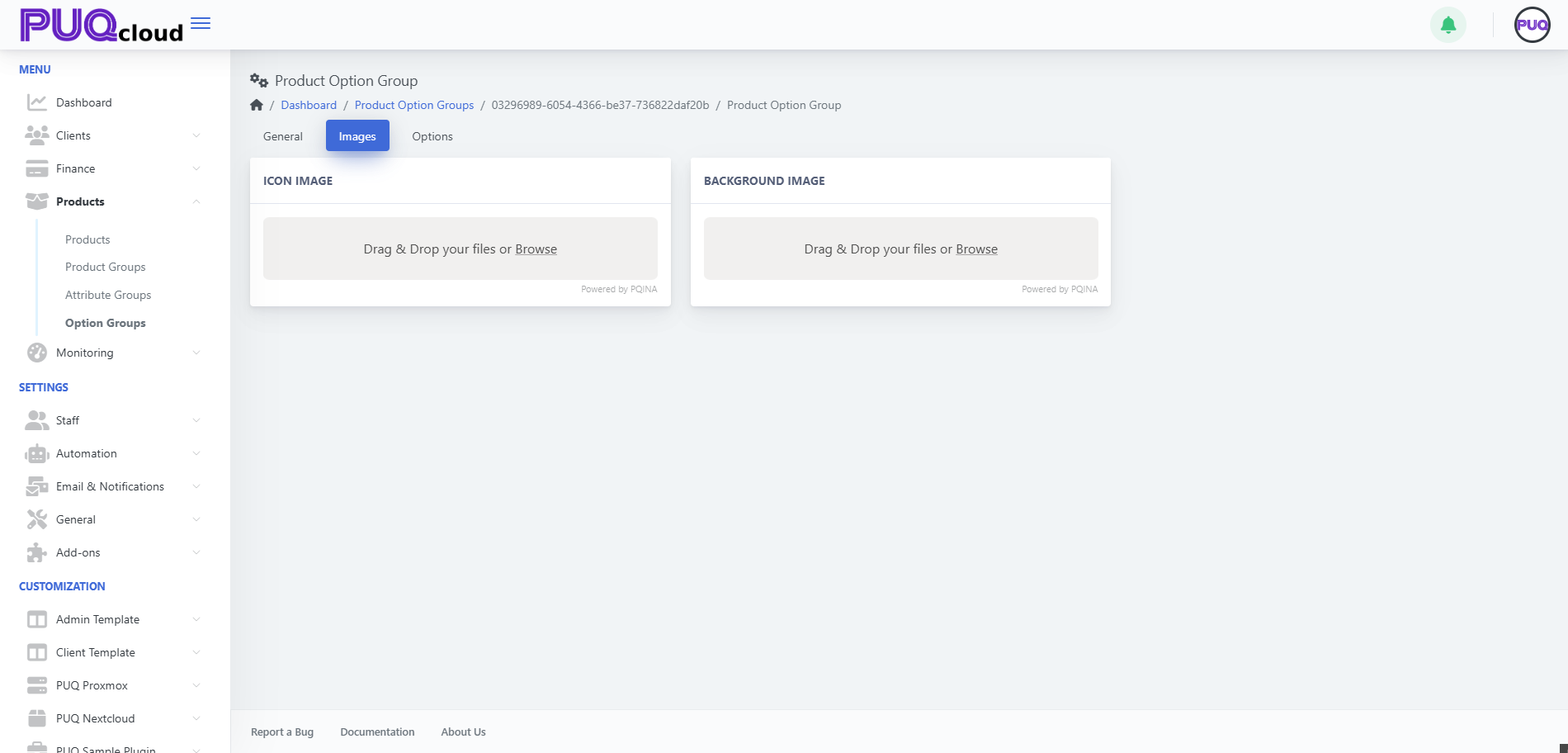
Branding tip: Use neutral, product-agnostic icons so this group can be reused across offerings.
4) Add Options (the items clients actually choose)
Go to Options → + Create and add each selectable item (e.g., Firewall level 0/1/2/3).
Screenshot Options list with order controls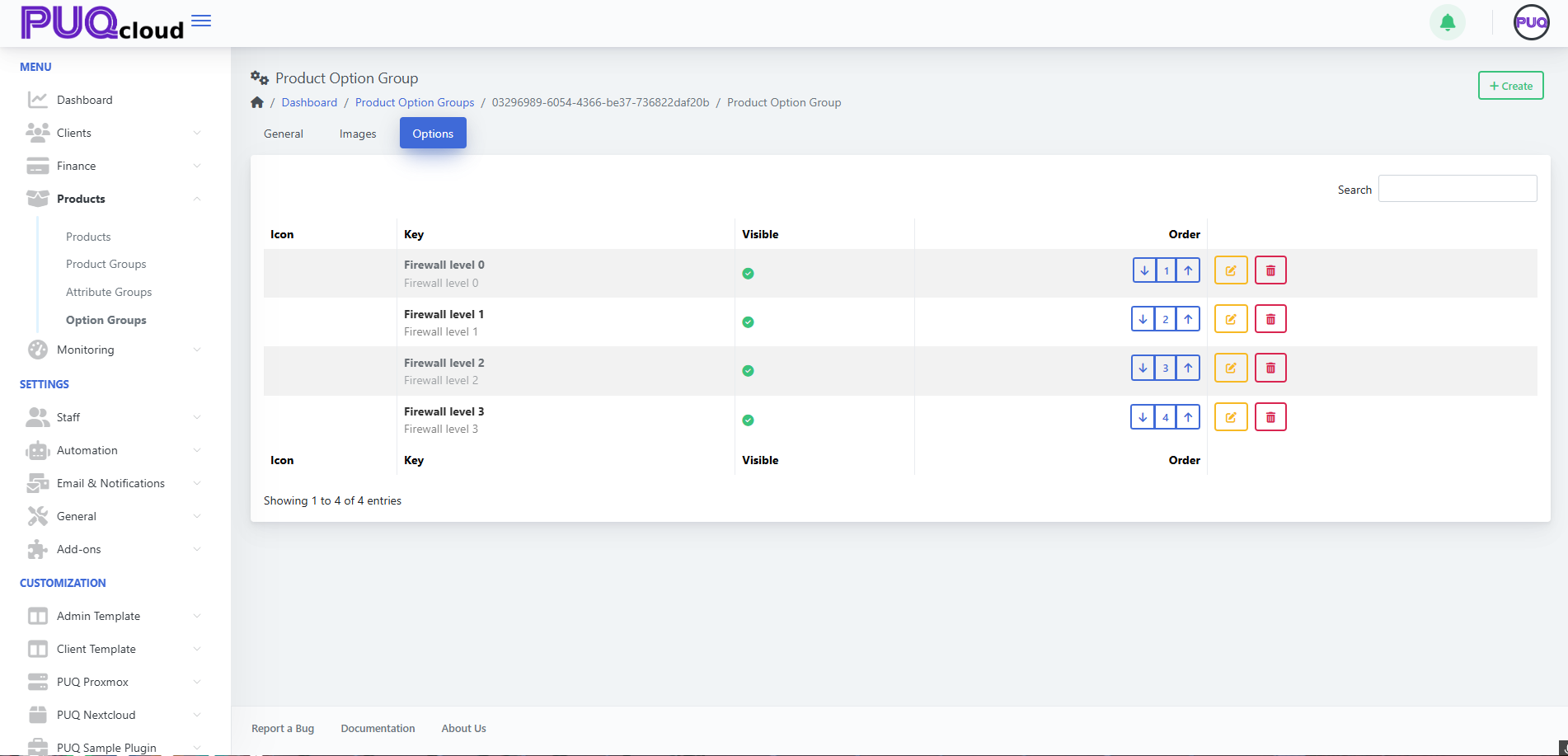
Screenshot “Create Option” modal
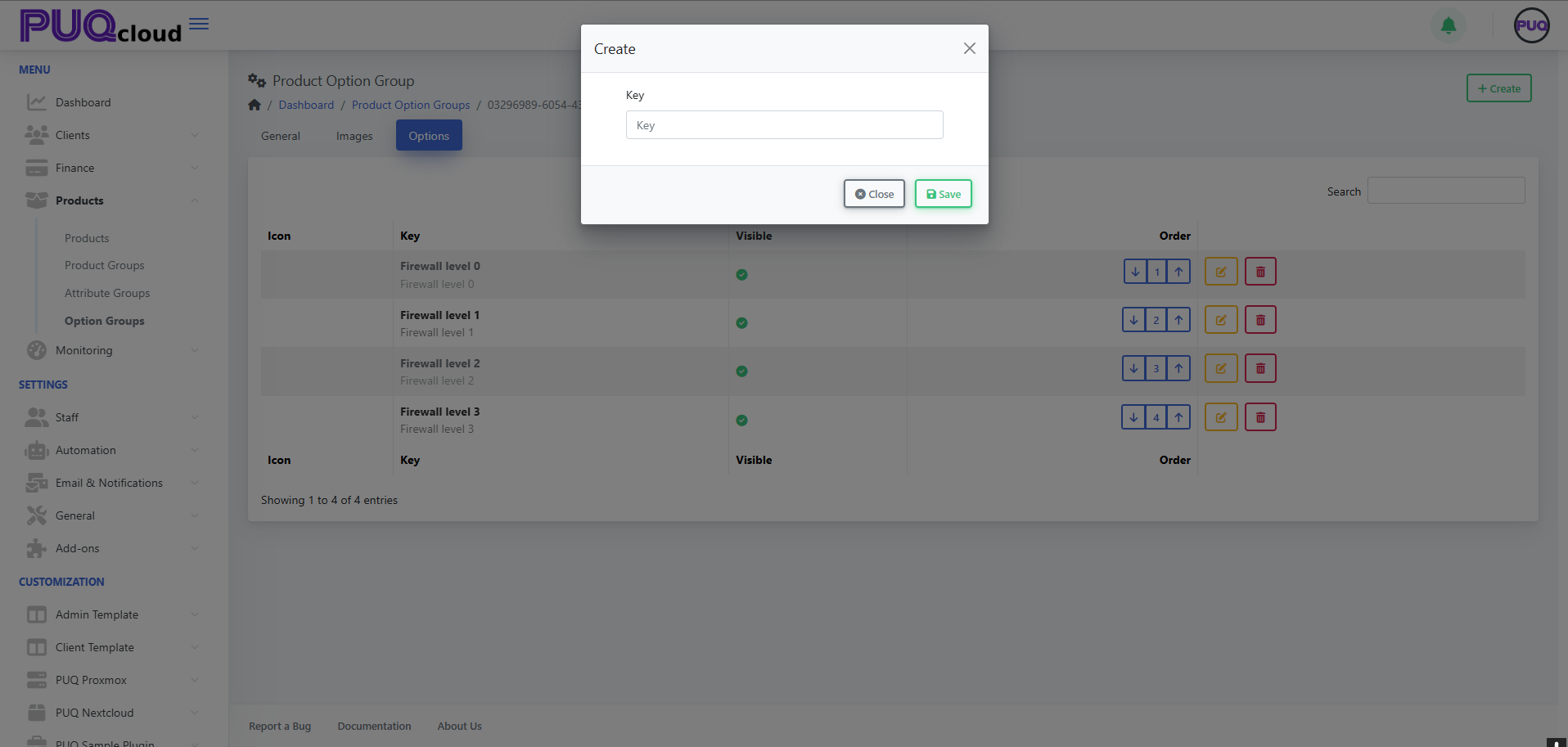
-
Keep Key short (e.g.,
firewall-level-1). -
Use the order arrows to arrange from lowest → highest tier.
-
Toggle Visible to quickly remove an option from the storefront without deleting it.
UX tip: List from “basic → advanced”. Clients upgrade more confidently when progression is obvious.
5) Edit an Option & Add Prices
Click Edit on an option:
-
Fill Key, optional Value (if your module reads a value), Hidden, Notes.
-
Upload Icon/Background for this option (optional).
-
Localize Name, Short Description, Description.
Screenshot Edit Option page
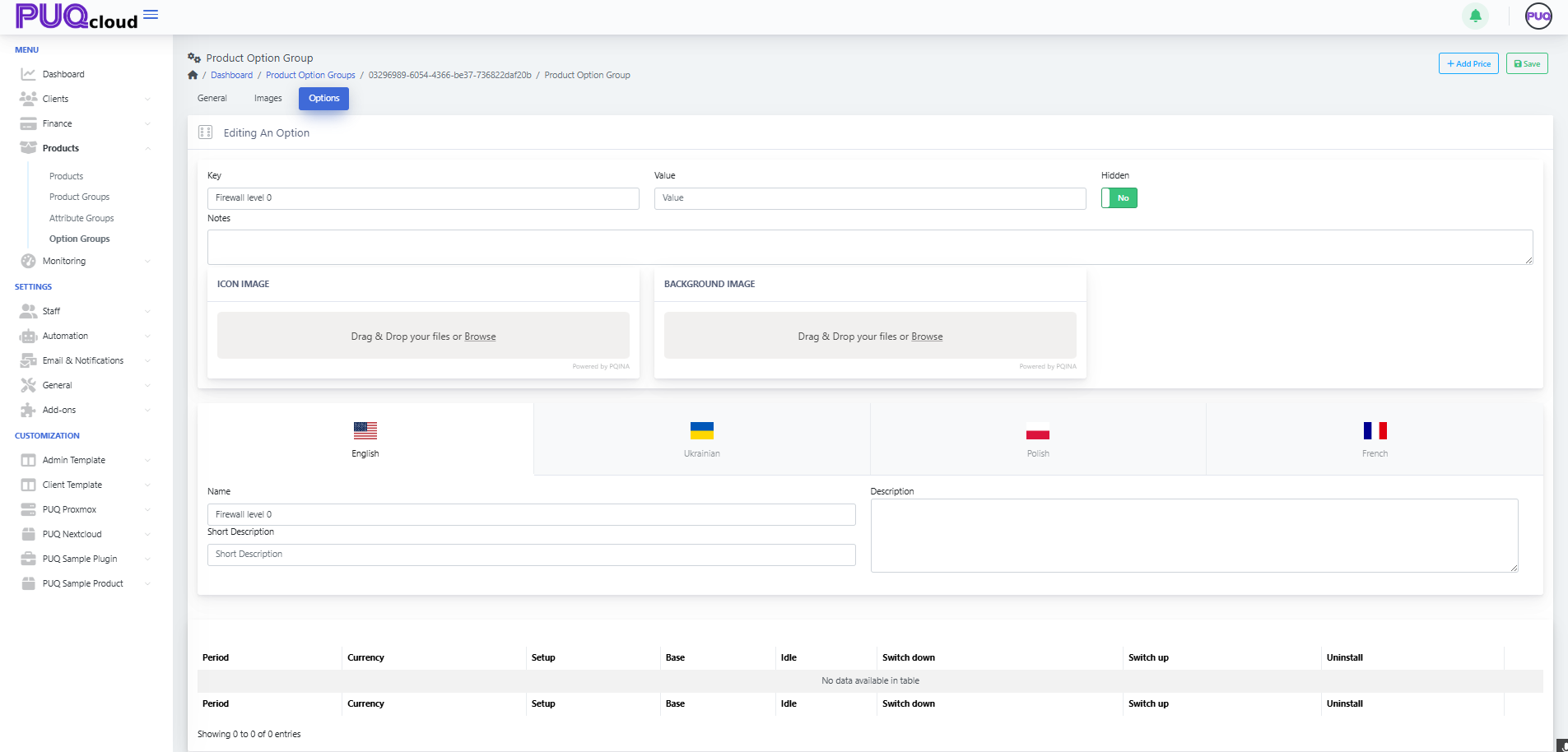
Now add a price row:
-
Click + Add Price → choose Currency & Period (One-time, Daily, Monthly, etc.).
-
Fill Setup, Base (recurring), Idle (if billed when idle), Switch up/down (upgrade/downgrade delta), Uninstall (one-time removal fee).
Screenshot “Add Price” modal
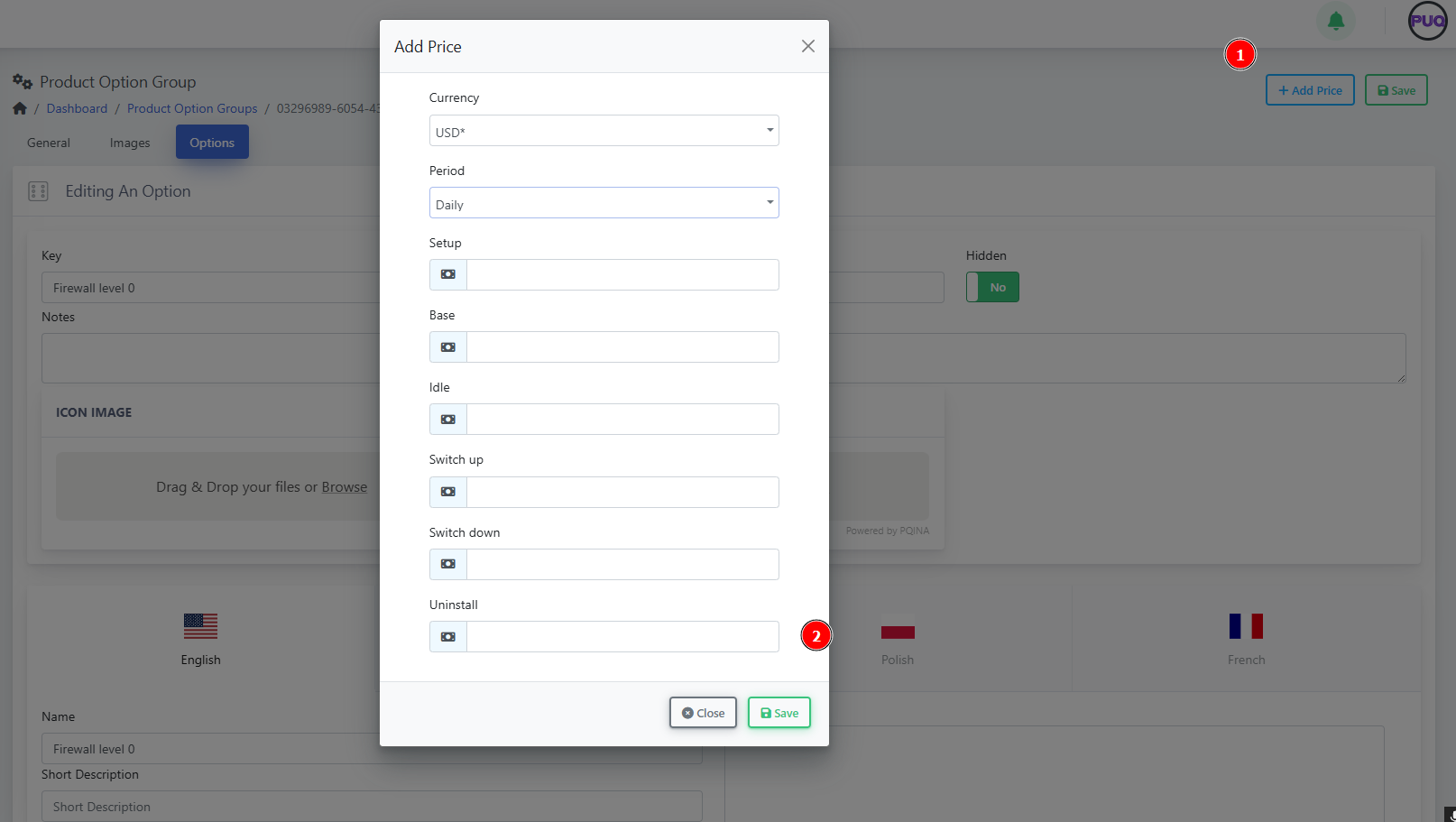
Pricing tip: Only add price rows you actually need. If an option is informational, leave pricing blank.
Example: “Firewall Protection” (ready-to-copy model)
Group Key: Firewall
Options (ordered):
-
Firewall level 0 — baseline filtering
-
Firewall level 1 — adds IP reputation lists
-
Firewall level 2 — + geo-blocking
-
Firewall level 3 — + L7 rules & rate limiting
Minimal price matrix idea
-
Level 0: Base 0.00 (included)
-
Level 1: Base 3.00 (Monthly)
-
Level 2: Base 6.00 (Monthly)
-
Level 3: Base 9.00 (Monthly)
(Use Convert Price = Yes for multi-currency catalogs.)
Attaching the Group to Products
-
Open a Product → Options tab → link your Option Group.
-
Save and preview the product order page to verify order, visibility, and prices.
Governance tip: Reuse one Firewall group across multiple products; update once, benefit everywhere.
Quality checks (2-minute audit)
-
✅ Group is Visible and option order makes sense.
-
✅ Each option has localized Name (and descriptions where needed).
-
✅ Price rows exist only where you charge.
-
✅ Group is attached to every relevant product.
-
✅ Upgrade paths are clear (level numbers or size increments).
Troubleshooting & gotchas
-
Group doesn’t show on the product: It isn’t attached on the product’s Options tab.
-
Wrong currency on price: Add a row per currency or enable Convert Price.
-
Client can’t see an option: The option is Hidden or priced for a period the product doesn’t use.
-
Reordering doesn’t reflect on storefront: Refresh cache and verify product still points to the same group.
Maintenance playbook
-
Use Notes to record internal logic (e.g., “Level 2 requires WAF module v2.1+”).
-
When deprecating, switch an option to Hidden first, then remove after migrations.
-
Version your groups with a suffix only when schema changes (e.g.,
Firewall-v2).
Check and manage Task Queue
PUQcloud Panel
Order Now | Download | FAQ
Overview
In PUQcloud Panel, many system operations are processed in the background, allowing multiple tasks to run simultaneously without affecting overall performance.
This background job system ensures that resource-intensive operations — such as permission checks, automated provisioning, or notifications — are executed efficiently and asynchronously.
The Task Queue section gives administrators full visibility and control over these background jobs.
It allows monitoring, filtering, and inspection of all automated system tasks.
Navigation Path
Dashboard → Monitoring → Task Queue
Key Features
| Feature | Description |
|---|---|
| Background Execution | Multiple jobs run in parallel without slowing down the panel or user sessions. |
| Job List | Displays all queued, running, or completed background tasks. |
| Status Indicators | Each job shows a colored label: Pending, Processing, or Completed. |
| Queue Info | Indicates which queue the job belongs to (e.g., System, Default, etc.). |
| Dates | Displays job creation, start, and completion timestamps. |
| Filter Range | Allows selection of specific date/time intervals to refine results. |
| Task Detail View | Shows raw input and output data for each job. |
Using the Task Queue
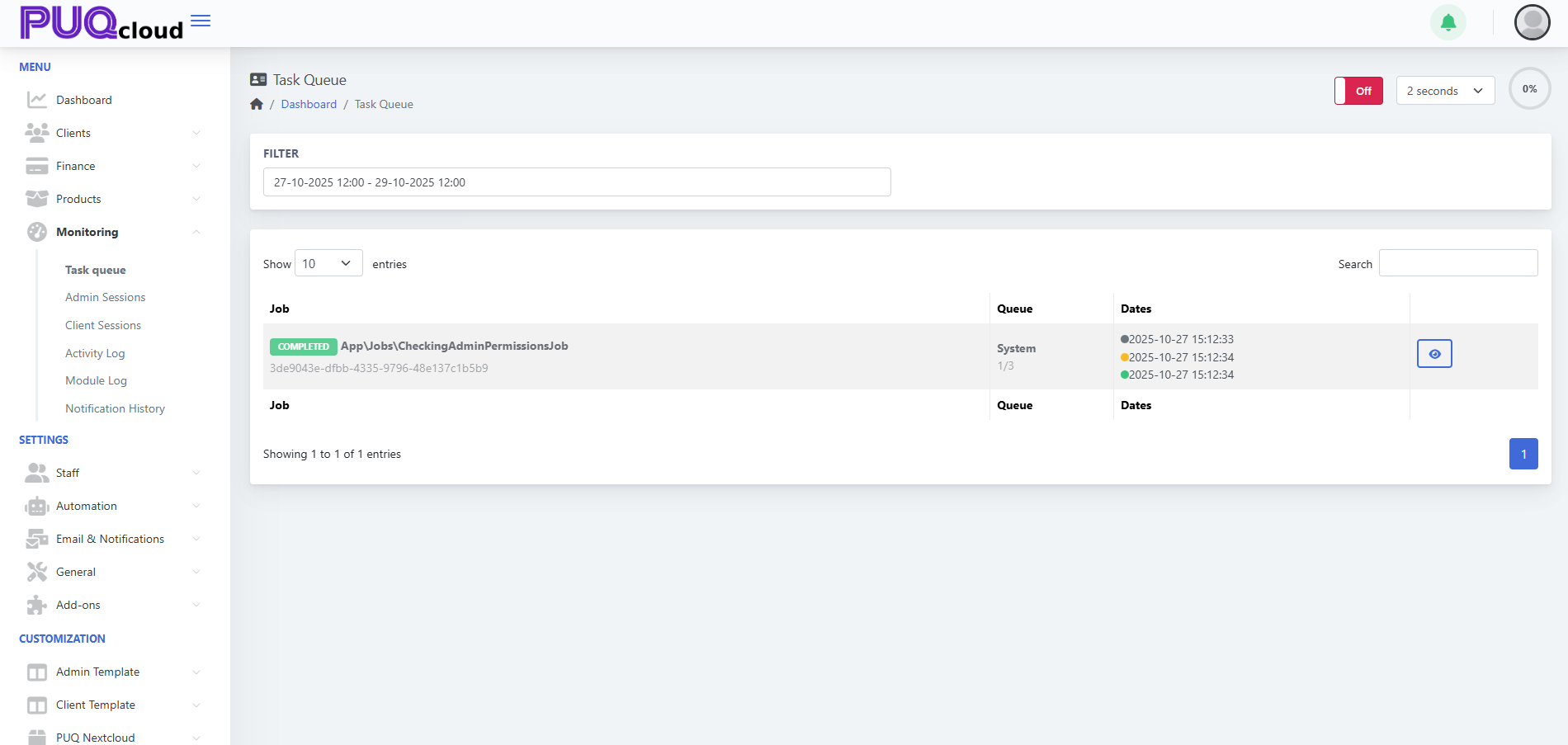
1. Access the Task Queue
You will see a list of recent system jobs.
Each entry contains:
-
Job Name
-
Queue
-
Dates
-
Status
2. Filter by Date and Time
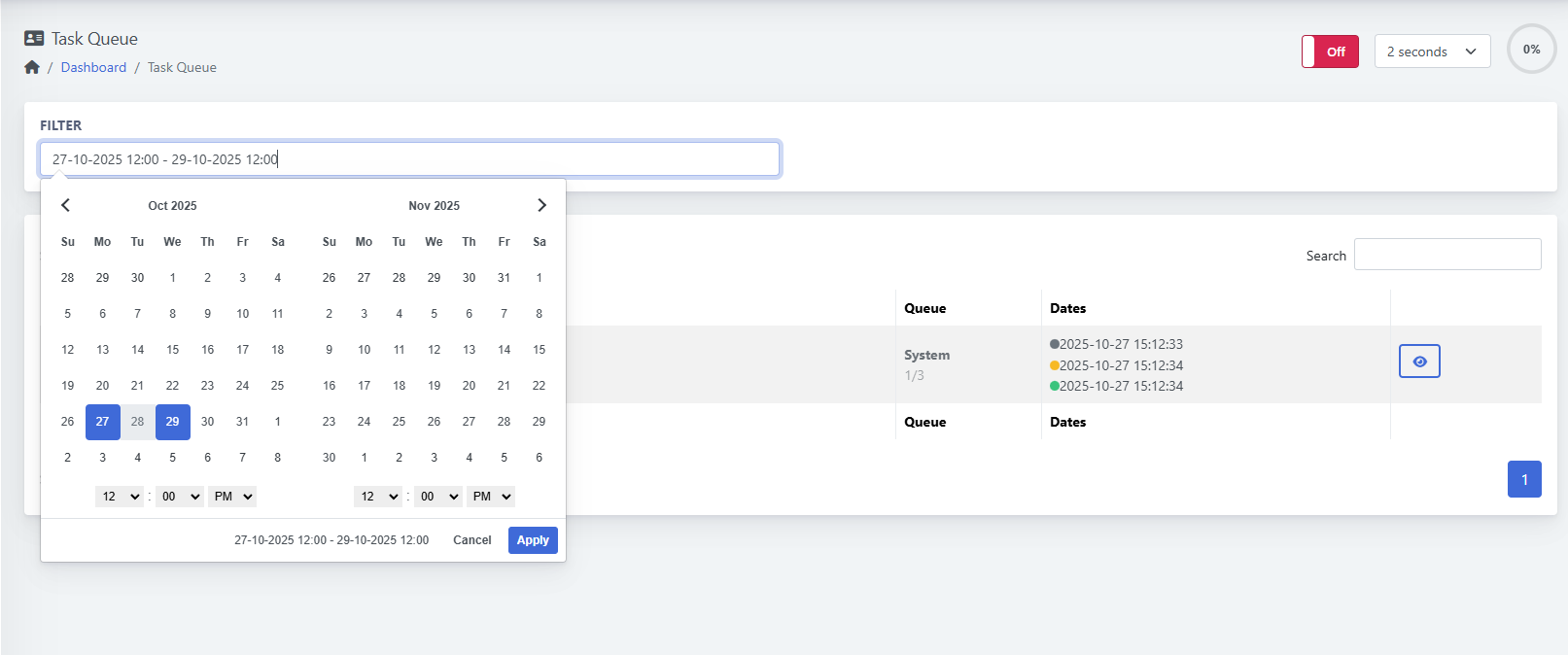
Use the Filter field to narrow down results.
Click the date range bar and select a start and end date/time using the popup calendar.
After choosing the range, click Apply.
3. View Task Details
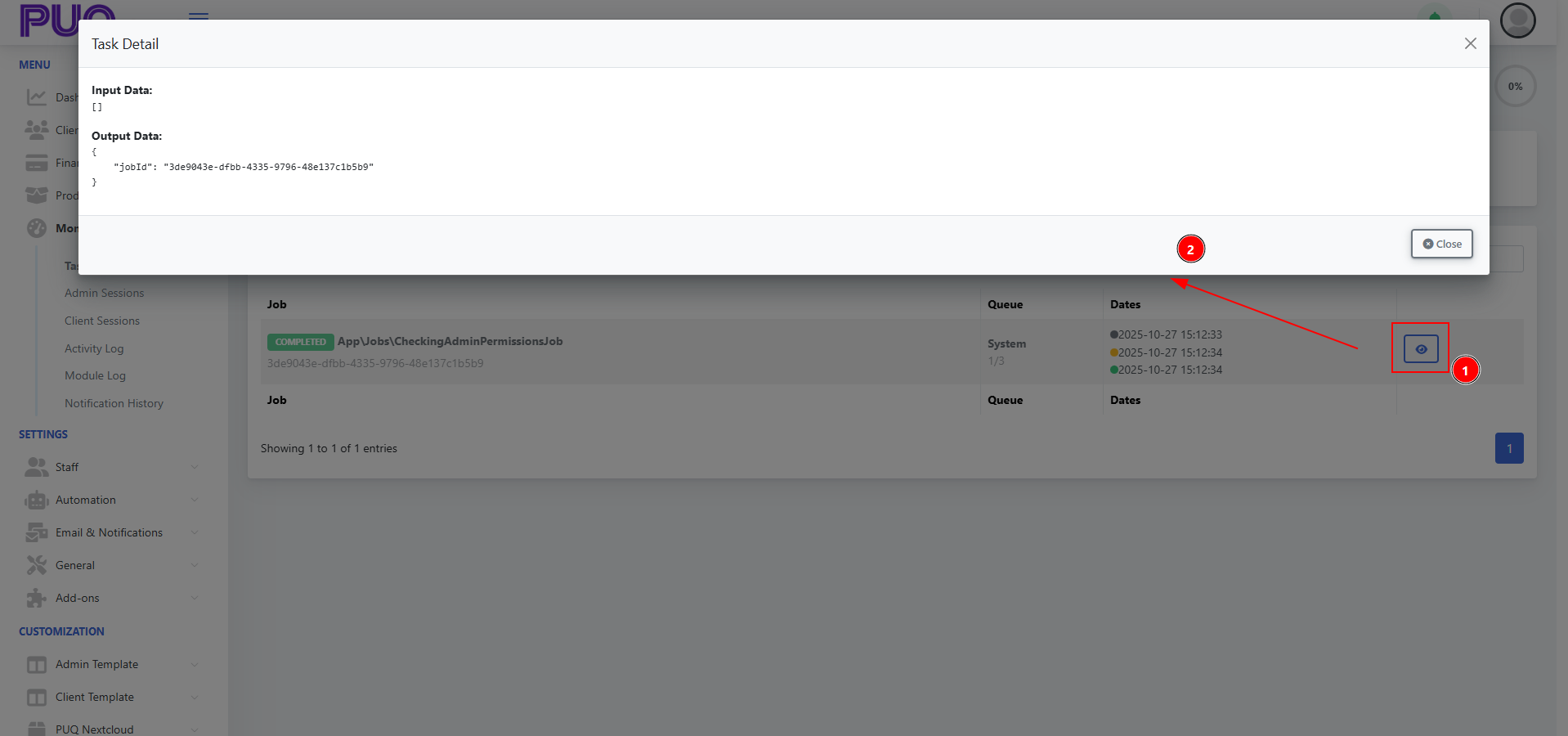
To inspect a specific job:
-
Click the eye icon next to the job.
-
A popup window will display Input Data and Output Data.
This information helps identify job parameters and verify successful completion.
Status Colors
| Color | Meaning |
|---|---|
| 🟡 Processing | Task is currently being executed. |
| ⚫ Queued | Task is waiting to start. |
| 🟢 Completed | Task has finished successfully. |
| 🔴 Failed | Task encountered an error during execution. |
Queue Controls
| Control | Description |
|---|---|
| Auto Refresh Interval | Located in the top right corner. Choose how often the list updates (e.g., every 2 seconds). |
| Switch (Off/On) | Enables or disables automatic refreshing. |
| Search Field | Quickly locate jobs by name or ID. |
Example Use Case
A system job such asApp\Jobs\CheckingAdminPermissionsJob
verifies admin permission configurations.
When completed, the Task Detail window shows output data like:
{
"jobId": "3de9043e-dfbb-4335-9796-48e137c1b5b9"
}Tips
-
PUQcloud automatically manages queues, ensuring high performance even when many jobs are running simultaneously.
-
Use short intervals (2–5 seconds) when debugging background tasks.
-
To reduce load, disable auto-refresh when not actively monitoring.
-
If a task fails, use the job ID from the output data to locate logs or related errors.
Check and manage Admin Sessions
PUQcloud Panel
Order Now | Download | FAQ
Overview
The Admin Sessions section in PUQcloud Panel allows system administrators to monitor all admin activities and requests executed through both web and API interfaces.
Each session is logged automatically, showing the admin user, IP address, accessed URL, and method type.
This monitoring tool helps maintain transparency, detect unusual activity, and ensure security compliance within your PUQcloud environment.
Just like the Task Queue, these operations run in the background, ensuring no performance impact on the system while recording all admin actions.
Navigation Path
Dashboard → Monitoring → Admin Sessions
Key Features
| Feature | Description |
|---|---|
| Complete Admin Logs | Tracks all admin operations across the web panel and API requests. |
| Background Tracking | Logs are recorded automatically without slowing down system performance. |
| Filter by Date Range | Focus on specific time periods for auditing or troubleshooting. |
| Auto Refresh Control | Choose how often session logs update automatically. |
| Search and Sorting | Quickly find specific admins, URLs, or IP addresses. |
| “Hide Me” Option | Exclude your own sessions from the view for cleaner analysis. |
Using the Admin Sessions Page
1. Access the Page
Go to
Dashboard → Monitoring → Admin Sessions
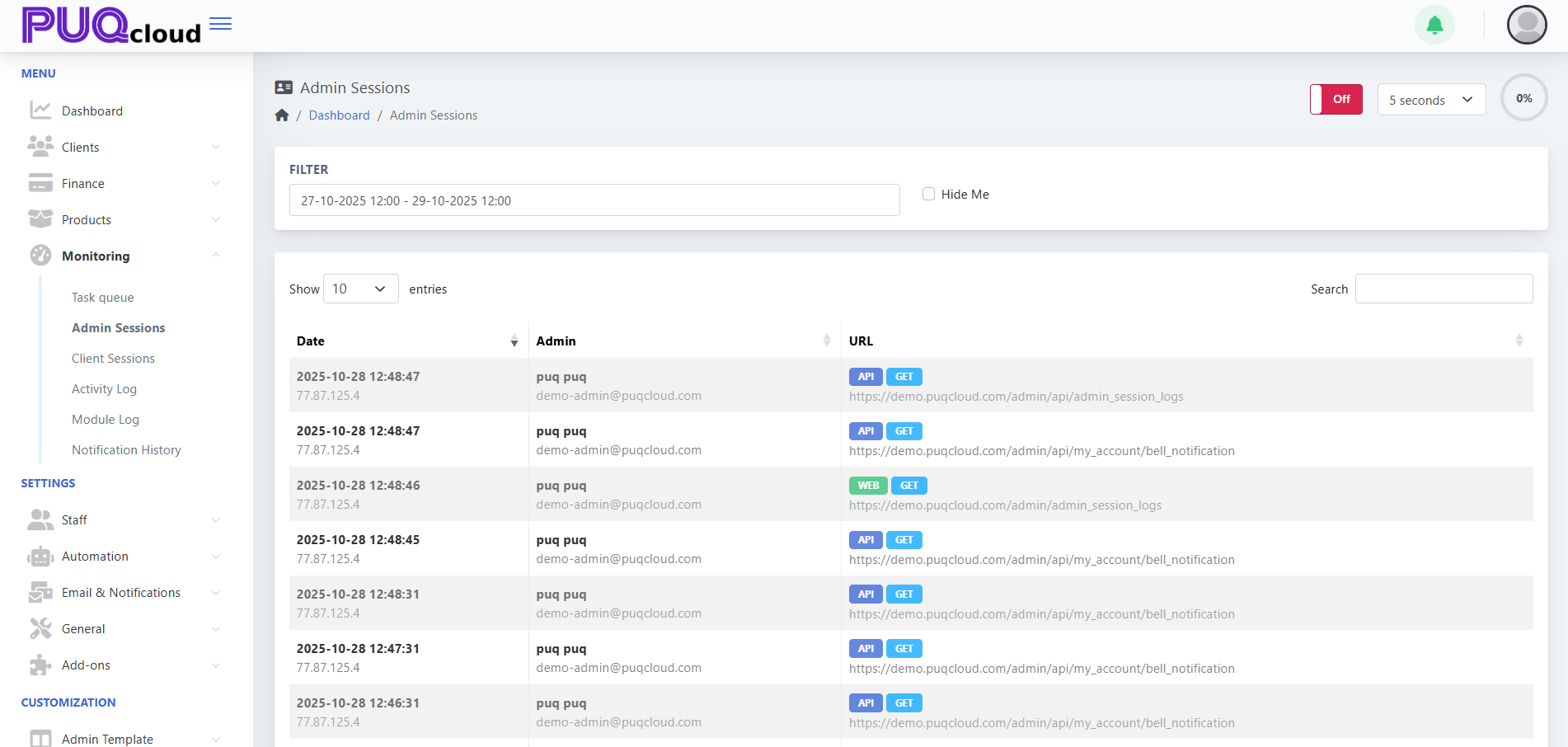
You will see a list of session entries, each containing:
-
Date and Time
-
Admin Name and Email
-
IP Address
-
Request Type (WEB/API, GET/POST)
-
Accessed URL
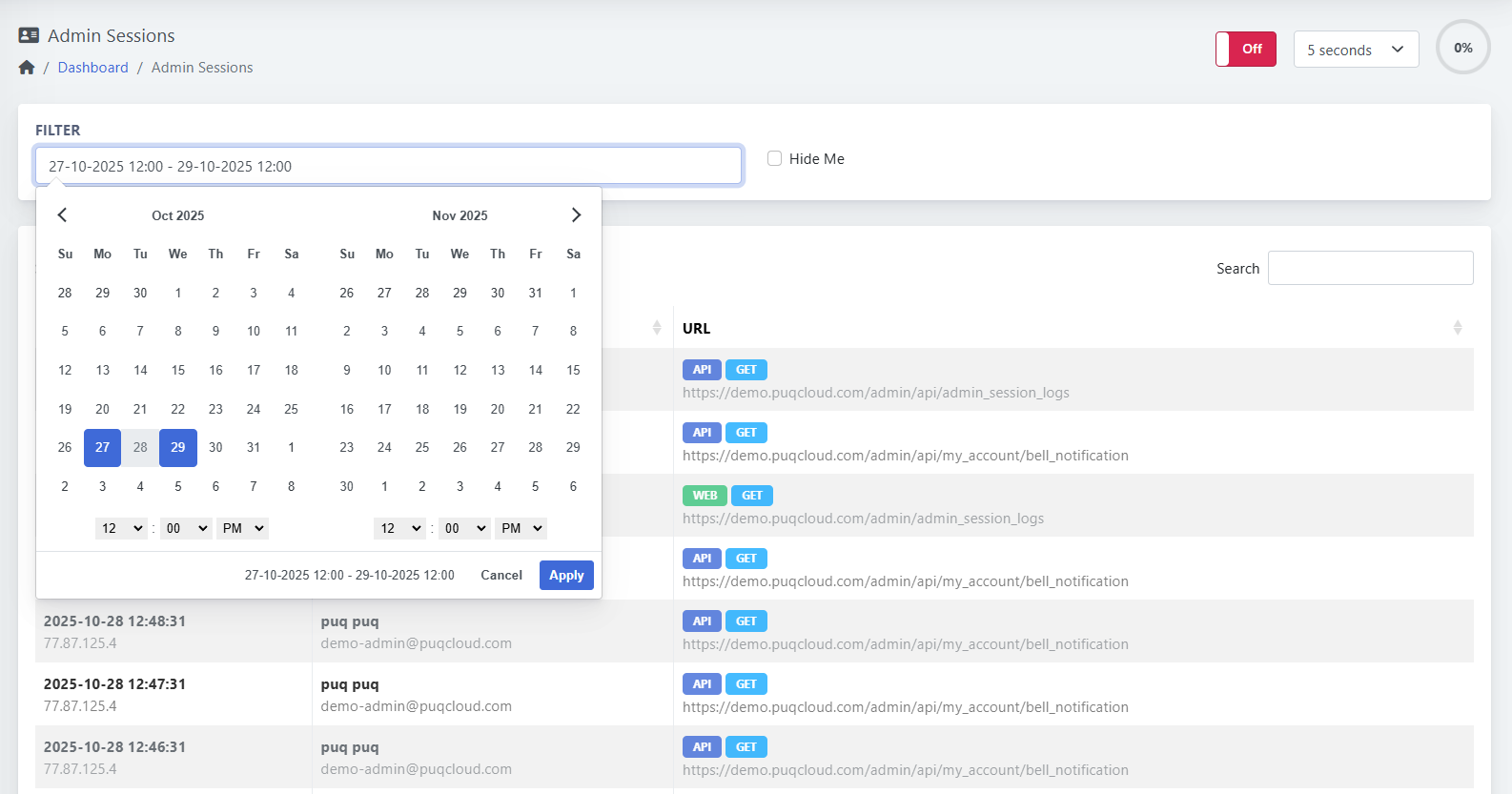
2. Filtering Sessions
Use the Filter field to select a time range.
Click inside the date field to open the calendar, choose a start and end date, and confirm with Apply.
This helps narrow the view to a specific investigation period.
Columns Explained
| Column | Description |
|---|---|
| Date | Timestamp of when the admin made a request. |
| Admin | Name and email of the administrator. |
| IP Address | Logged IP address from which the request was made. |
| URL | Full path of the accessed page or API endpoint. |
| Type (WEB/API) | Indicates the source of the request. |
| Method (GET/POST) | Shows the HTTP method used. |
Status Labels
| Label | Meaning |
|---|---|
| 🟦 API | Request came through the system API. |
| 🟩 WEB | Request made through the web interface. |
| 🟢 GET | Data was fetched from the system. |
| 🟠 POST | Data was sent or modified. |
Queue Controls
| Control | Description |
|---|---|
| Auto Refresh Interval | Located in the top right. You can set refresh time (e.g., every 5 seconds). |
| Off/On Switch | Enables or disables automatic refreshing. |
| Search Box | Filter results by keyword (admin name, URL, IP). |
Example Use Case
An administrator wants to verify recent API requests:
By opening Monitoring → Admin Sessions, they can view every endpoint accessed, including timestamps, IP addresses, and request types.
Example entry:
2025-10-28 12:48:47 | puq puq | demo-admin@puqcloud.com
API GET → https://demo.puqcloud.com/admin/api/admin_session_logs
IP: 77.87.125.4
Tips
-
Enable short auto-refresh intervals (2–5 seconds) for real-time monitoring.
-
Use the Hide Me checkbox to exclude your own requests while observing other admins.
-
Combine date filtering with keyword search for precise audits.
-
API and web sessions are logged in one unified view for maximum traceability.
Check and manage Client Sessions
PUQcloud Panel
Order Now | Download | FAQ
Overview
The Client Sessions section in PUQcloud Panel provides full visibility into all user and client activities occurring in the system.
Each client’s interaction — whether via the web panel or API requests — is automatically logged in real time.
All session tracking runs in the background, so even with thousands of simultaneous connections, the system performance remains unaffected.
This feature is essential for security auditing, support troubleshooting, and usage monitoring.
Navigation Path
Dashboard → Monitoring → Client Sessions
Key Features
| Feature | Description |
|---|---|
| Complete Client Logs | Monitors every user’s actions through the Client Area and API. |
| Background Execution | Sessions are recorded asynchronously, ensuring no system slowdown. |
| Real-Time Tracking | Displays ongoing requests with instant refresh intervals. |
| Filter by Date Range | Analyze session activity for a specific period. |
| Auto Refresh Option | Set automatic updates every few seconds. |
| Detailed Metadata | Includes timestamp, IP, client name, user name, and accessed URL. |
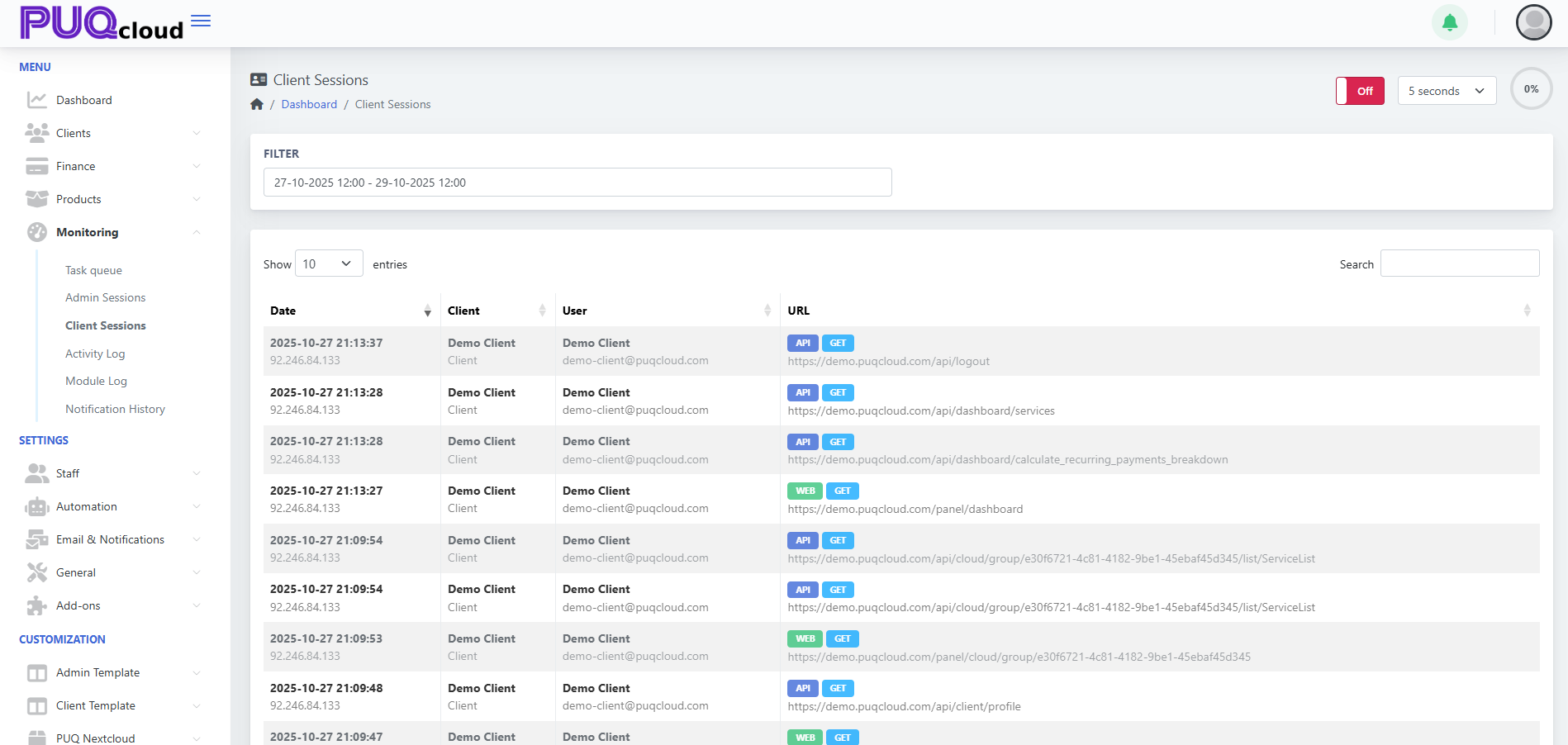
Using the Client Sessions Page
1. Access the Page
You’ll see a list of recorded client activities including:
-
Date and Time
-
Client and User
-
IP Address
-
Request Source (WEB/API)
-
HTTP Method (GET/POST)
-
Full URL Accessed
2. Filter by Date and Time
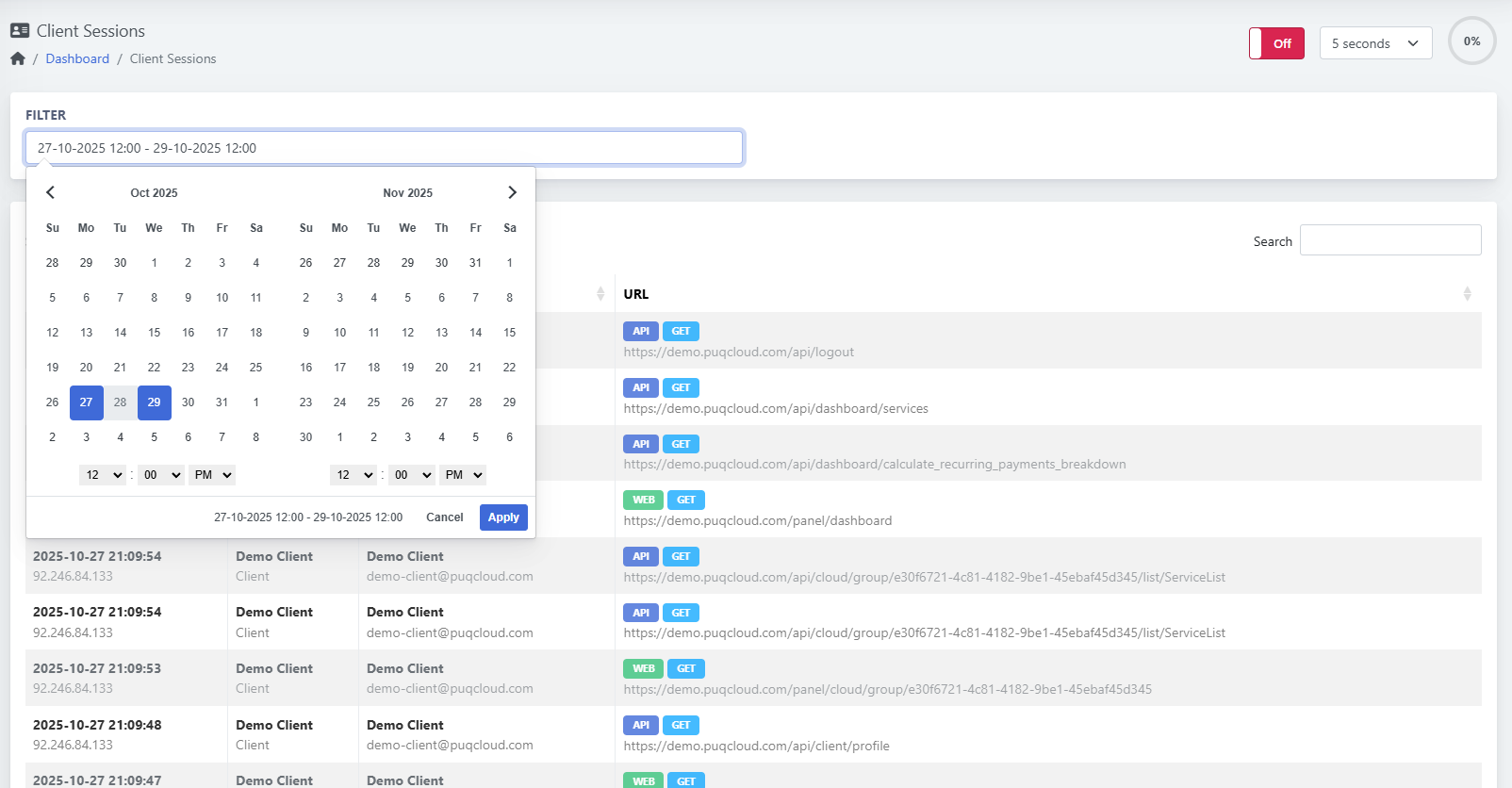
To narrow results, use the Filter field at the top.
Click the date range selector, choose your start and end times, then click Apply to confirm.
Columns Explained
| Column | Description |
|---|---|
| Date | When the request was made. |
| Client | Name of the organization or customer account. |
| User | Name and email of the user under that client. |
| IP Address | Source IP used during the session. |
| URL | Exact web or API endpoint accessed. |
| Type (WEB/API) | Indicates the request source. |
| Method (GET/POST) | HTTP action type (data retrieval or update). |
Status Labels
| Label | Meaning |
|---|---|
| 🟦 API | Request executed through system API. |
| 🟩 WEB | Request sent via client web interface. |
| 🟢 GET | Data retrieved from the system. |
| 🟠 POST | Data submitted or changed. |
Queue Controls
| Control | Description |
|---|---|
| Auto Refresh Interval | Located in the top-right corner. Select update frequency (e.g., every 5 seconds). |
| Off/On Switch | Turns automatic refreshing on or off. |
| Search Box | Quickly find sessions by client name, user, IP, or URL. |
Example Use Case
Support staff can use this section to trace a client’s recent activity.
For instance, you can identify when a client accessed their service list or triggered an API call.
Example entry:
2025-10-27 21:13:37 | Demo Client | demo-client@puqcloud.com
API GET → https://demo.puqcloud.com/api/logout
IP: 92.246.84.133
Tips
-
Use short refresh intervals (3–5 seconds) to watch active client activity in real time.
-
Combine date filters with keyword searches to quickly find suspicious or failed API calls.
-
Logs include both web panel navigation and API usage, providing full operational transparency.
-
Background tracking ensures stable system performance even with heavy usage.
Check and manage Activity Log
PUQcloud Panel
Order Now | Download | FAQ
Overview
The Activity Log section in PUQcloud Panel provides a centralized record of all important system and user actions.
Every event — whether triggered by an administrator, client, or automated background job — is logged here to ensure full transparency and accountability.
Activity tracking runs entirely in the background, meaning multiple operations can be recorded simultaneously without affecting system performance.
This allows administrators to trace actions, monitor transactions, and quickly investigate unusual activity.
Navigation Path
Dashboard → Monitoring → Activity Log
Key Features
| Feature | Description |
|---|---|
| Full Action History | Tracks all actions performed by users and system processes. |
| Performance-Safe Logging | Background operation ensures stable performance during heavy load. |
| Detailed Event Data | Each record includes time, initiator, action type, and description. |
| Filter by Date Range | Focus on specific periods to analyze system behavior. |
| Search Function | Quickly find specific actions or users. |
| Auto Refresh Option | Keep the log updated in real time for live monitoring. |
Using the Activity Log
1. Access the Activity Log
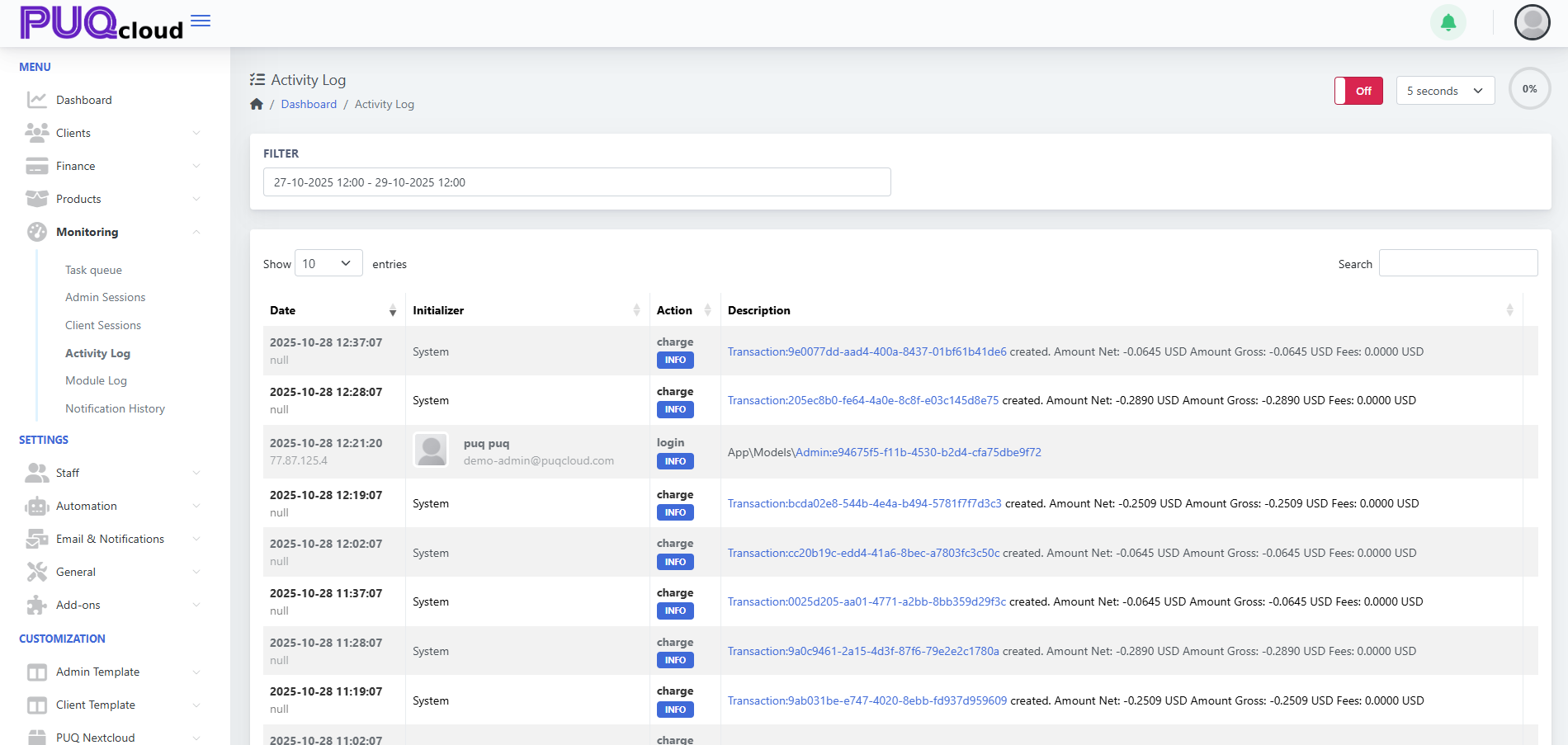
You’ll see a structured table displaying all recent system activities with columns for:
-
Date
-
Initializer (User or System)
-
Action
-
Description
2. Filter by Date and Time
To focus on a specific time range, use the Filter field.
Click the input box to open the date/time selector, choose your preferred period, and click Apply.
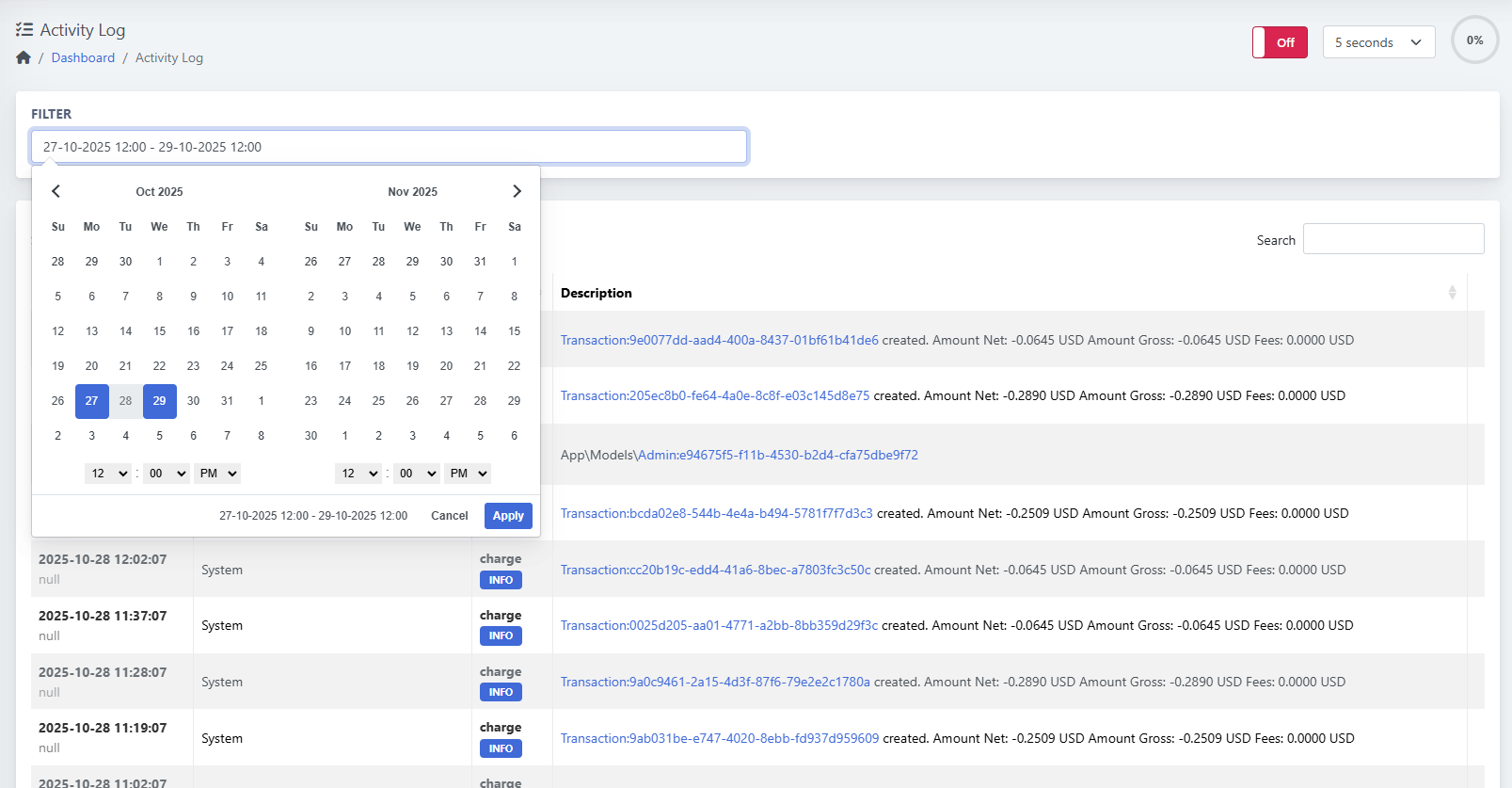
Columns Explained
| Column | Description |
|---|---|
| Date | Timestamp of when the action occurred. |
| Initializer | The actor who performed the action (e.g., system, admin, or client). |
| Action | The operation type (e.g., charge, login, create, update). |
| Description | Detailed log entry including affected model, transaction link, and related data. |
Action Types
| Label | Meaning |
|---|---|
| 🟦 INFO | Informational log (e.g., successful login, transaction created). |
| 🟧 WARNING | Indicates potential issue or unusual operation. |
| 🔴 ERROR | Operation failed or triggered an exception. |
Queue Controls
| Control | Description |
|---|---|
| Auto Refresh Interval | Located at the top right. Define how often logs refresh (e.g., every 5 seconds). |
| Off/On Switch | Enables or disables automatic refresh. |
| Search Box | Find actions by keyword, ID, or user. |
Example Use Case
An administrator wants to verify all automated billing actions executed by the system.
By filtering the Activity Log, they can view entries such as:
2025-10-28 12:37:07 | System | charge | Transaction:9e0077dd-aad4-400a-8437-01bf61b41de6 created.
Amount Net: -0.0645 USD Amount Gross: -0.0645 USD Fees: 0.0000 USD
This helps confirm that automated transactions ran correctly and without errors.
Tips
-
Use Activity Log as your primary audit trail for all background and user operations.
-
Combine it with Admin Sessions and Client Sessions for full transparency.
-
Use search filters to isolate suspicious events quickly.
-
Since logging runs asynchronously, you can safely enable real-time refresh during monitoring.
Check and manage Module Log
PUQcloud Panel
Order Now | Download | FAQ
Overview
The Module Log in PUQcloud Panel provides detailed records of all operations executed by modules — including API requests, SSH commands, and service actions.
It helps administrators debug, monitor, and audit communication between PUQcloud and external systems such as Proxmox, Nextcloud, and others.
All logging processes run in the background, allowing multiple modules to record events simultaneously without impacting performance.
This ensures that even heavy automation tasks remain fast and efficient.
Navigation Path
Dashboard → Monitoring → Module Log
Key Features
| Feature | Description |
|---|---|
| Detailed Module-Level Tracking | Records every request and response for each module. |
| Safe Background Execution | All logs are generated asynchronously to avoid slowing down the system. |
| Live Monitoring | Real-time updates every few seconds for active debugging. |
| Filter by Date and Time | Review specific activity ranges. |
| Search and Filter | Quickly locate logs by module name, action, or keyword. |
| Log Viewer | Inspect full request and response content for debugging. |
| Delete All Logs | Instantly clear old logs when troubleshooting is complete. |
Using the Module Log
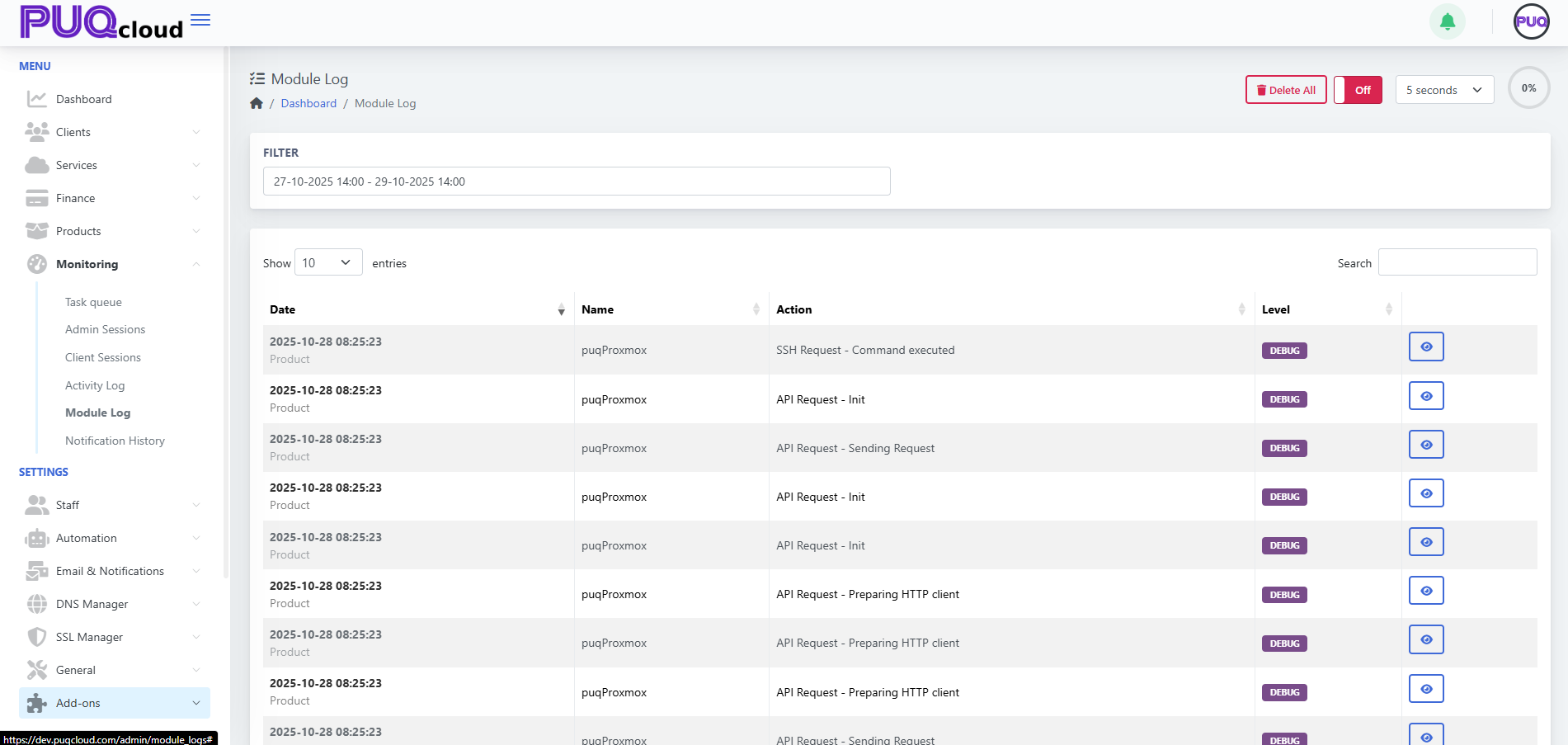
1. Access the Page
You’ll see all module-related activity displayed in a structured table with columns for:
-
Date
-
Name (module name)
-
Action
-
Level
2. Filter by Date and Time
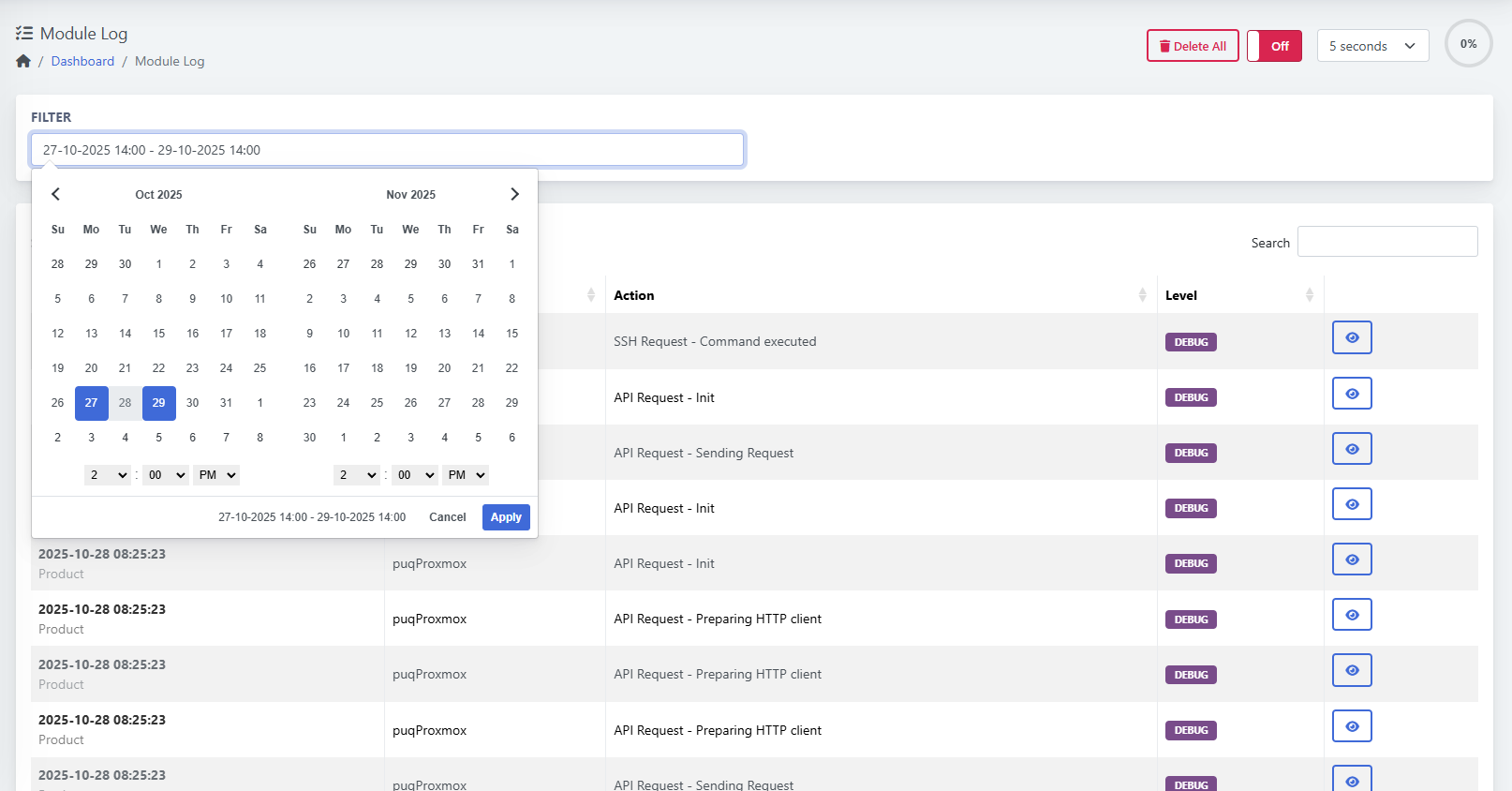
To focus on a specific period, use the Filter control at the top.
Select the desired start and end dates and times, then click Apply to reload the results.
3. View Log Details
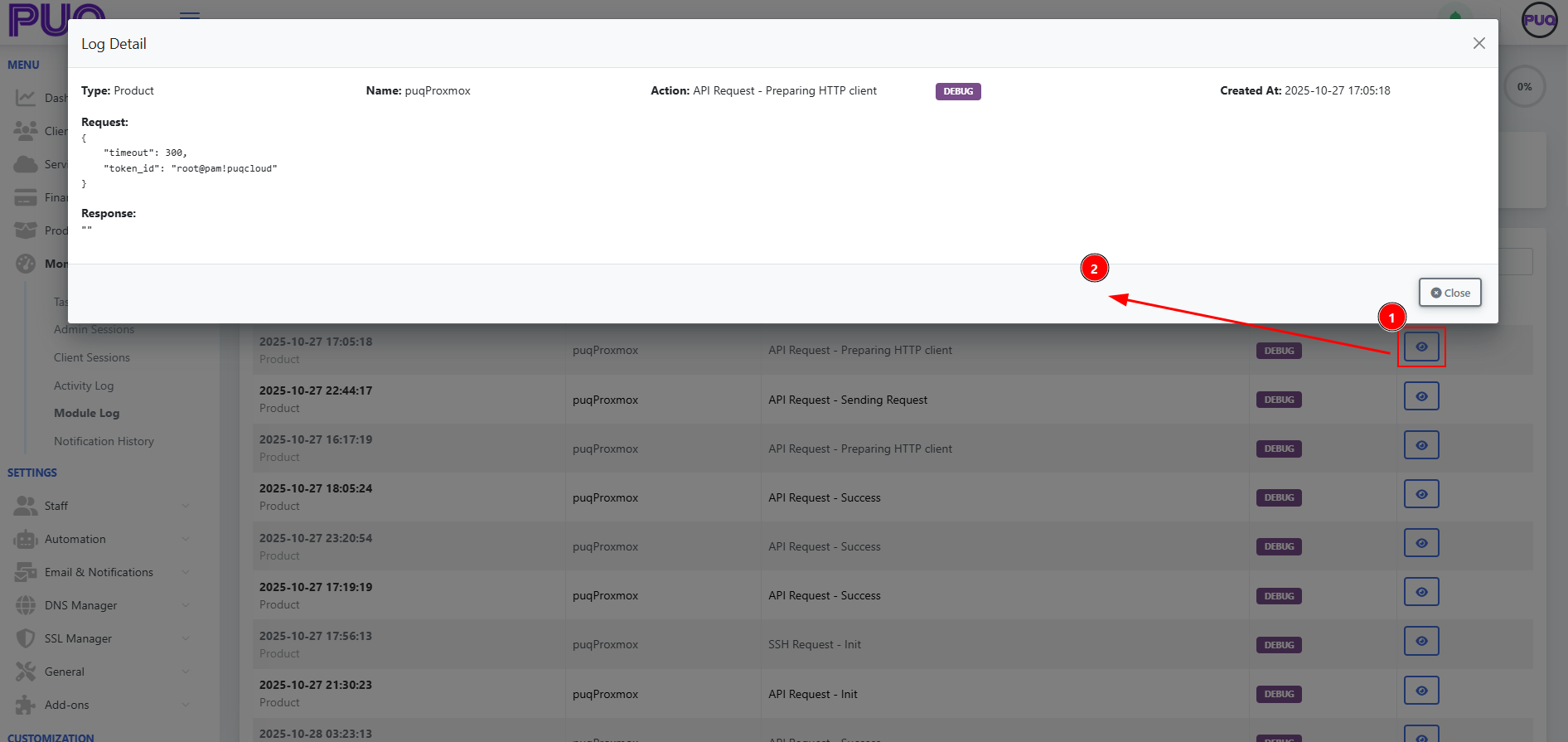
Each record includes a “View” (👁️) icon on the right.
Click it to open the detailed log window showing:
-
Type and Module Name
-
Action Type
-
Log Level
-
Request Payload
-
Response Data
This view is essential for debugging API and SSH communication.
Columns Explained
| Column | Description |
|---|---|
| Date | Timestamp of the log entry. |
| Name | The name of the module (e.g., puqProxmox, puqNextcloud). |
| Action | Describes what operation was executed (API Request, SSH Command, etc.). |
| Level | Indicates the log type (Debug, Info, Warning, Error). |
Log Levels
| Level | Description |
|---|---|
| 🟣 DEBUG | Detailed technical data for developers and administrators. |
| 🟦 INFO | Informational events indicating normal operation. |
| 🟧 WARNING | Non-critical issue or irregular response. |
| 🔴 ERROR | Operation failed or received invalid data. |
Controls and Options
| Control | Description |
|---|---|
| Auto Refresh | Refresh interval (top-right) allows you to monitor logs in real time. |
| Off/On Switch | Enable or disable live updates. |
| Search Box | Quickly find logs by action or module name. |
| Delete All | Clears all logs at once — useful after debugging sessions. |
Example Use Case
While testing the puqProxmox module, the administrator can open Module Log to check the API and SSH calls executed during a provisioning process.
Example entry:
2025-10-28 08:25:23 | puqProxmox | API Request - Sending Request | DEBUG
By clicking the 👁️ icon, the admin can inspect both the request JSON and the response received from the external system.
Tips
-
Use DEBUG level logs for troubleshooting module integrations.
-
Regularly clear old logs to keep your workspace clean.
-
Combine with the Task Queue section to trace background automation steps.
-
Since logs are recorded asynchronously, there’s no performance degradation, even during heavy module execution.
Check and manage Notification History
PUQcloud Panel
Order Now | Download | FAQ
Create & Manage Administrators
PUQcloud Panel
Order Now | Download | FAQ
Use this quick, practical guide to add new admins, edit access, reset passwords, and keep your panel secure. Each step tells you exactly where to place your screenshots.
Open the Administrators page
Path: Settings → Staff → Admins
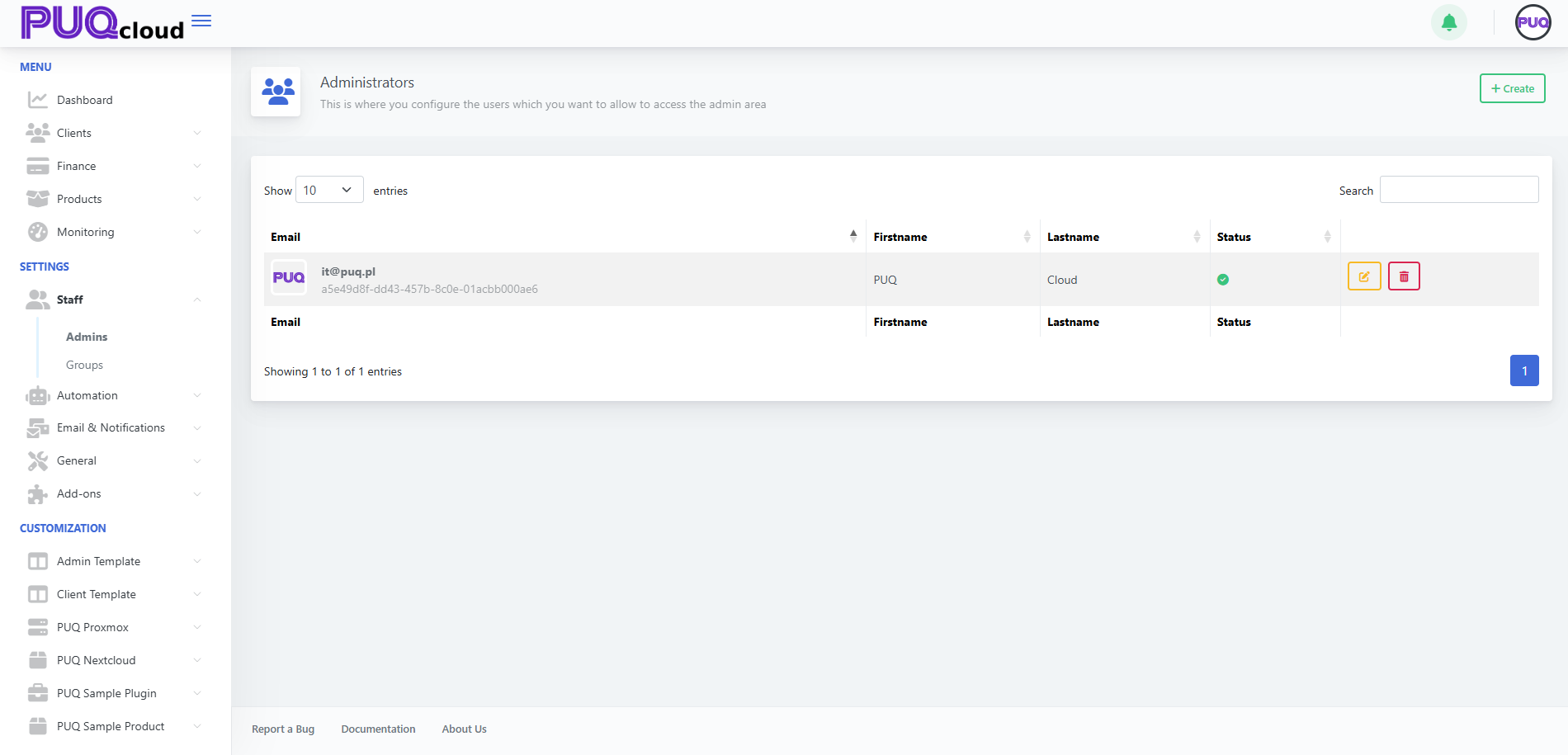
Here you’ll see the current admins list with Edit ✏️ and Delete 🗑️ actions.
Administrators list (with Edit/Delete).
Create a new Administrator
-
Click + Create (top-right).
-
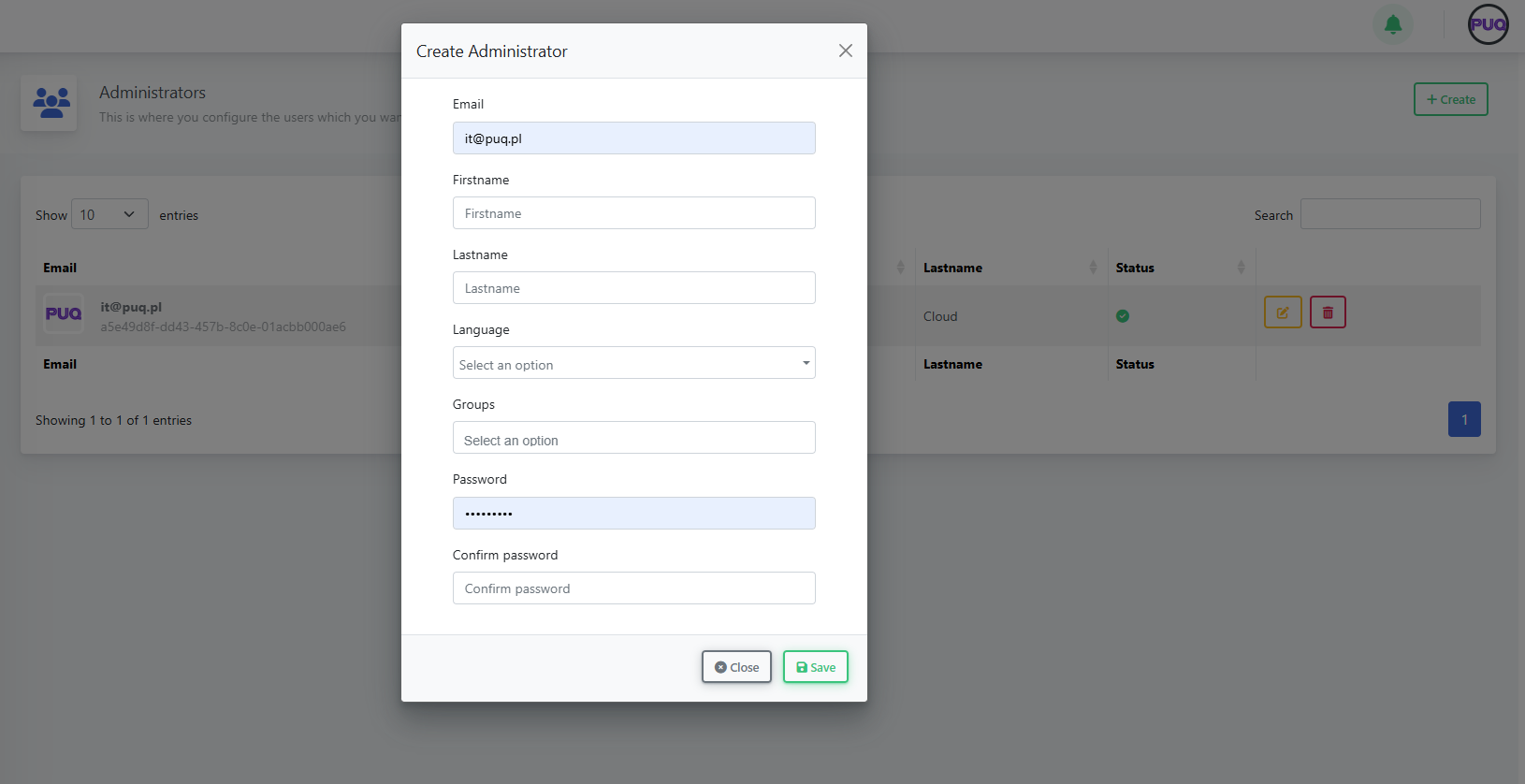
Fill in:
-
Email, Firstname, Lastname
-
Language (UI language for this admin)
-
Groups (permission set; e.g., Super Admin or your custom groups)
-
Password and Confirm password
-
-
Click Save.
“Create Administrator” modal (all fields)
Notes
-
Use a unique, work email per person (no shared logins).
-
Assign the minimum necessary group (least privilege).
Edit an Administrator (status, groups, details)
From the list, click Edit:
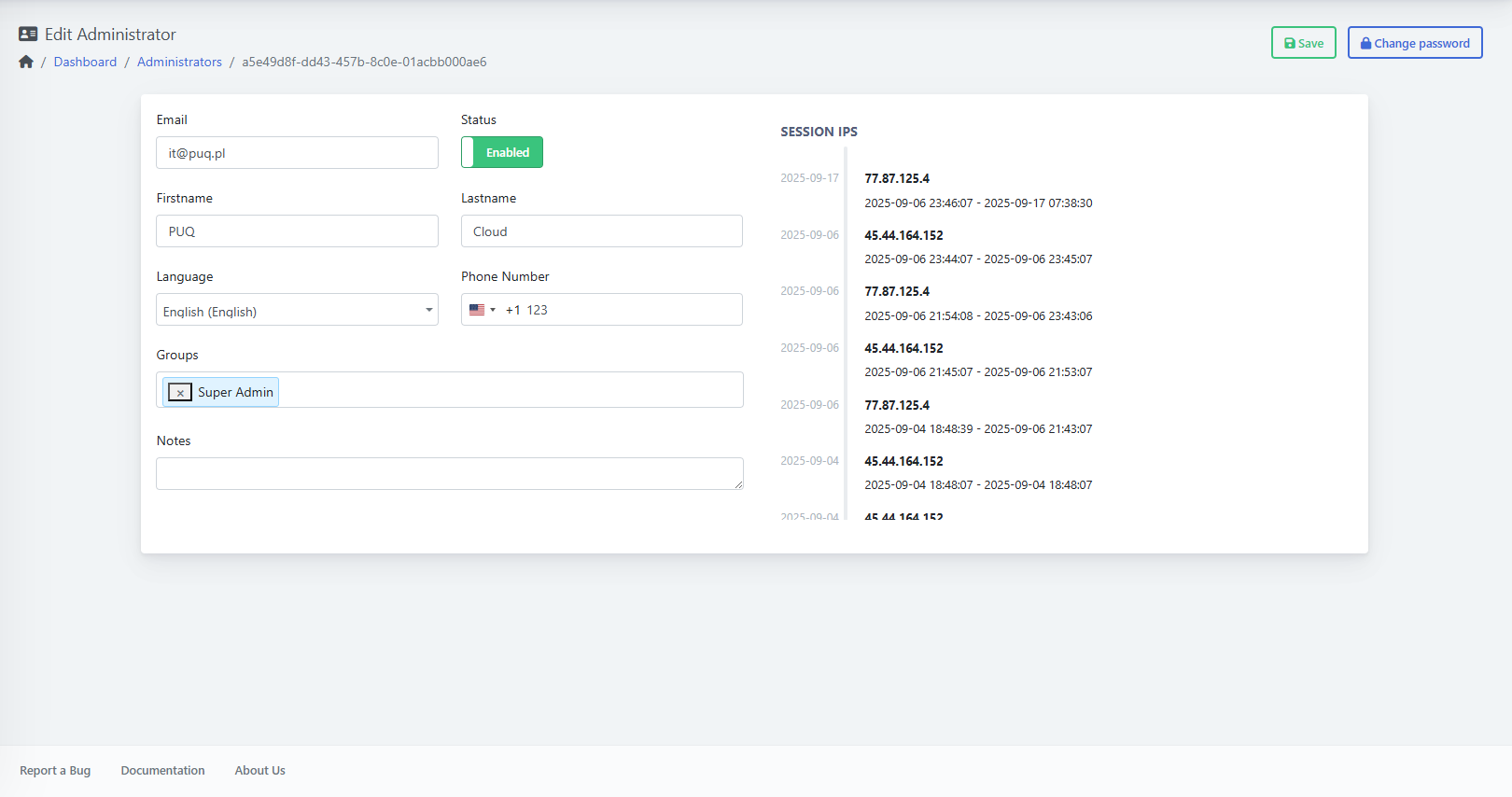
-
Status: toggle Enabled/Disabled to grant or block access.
-
Groups: add/remove roles to change permissions.
-
Language, Phone Number, and Notes as needed.
-
Session IPs (right side): quick audit of recent logins.
Click Save when done.
Edit Administrator page (Status, Groups, Session IPs, Save)
Change an Administrator’s Password
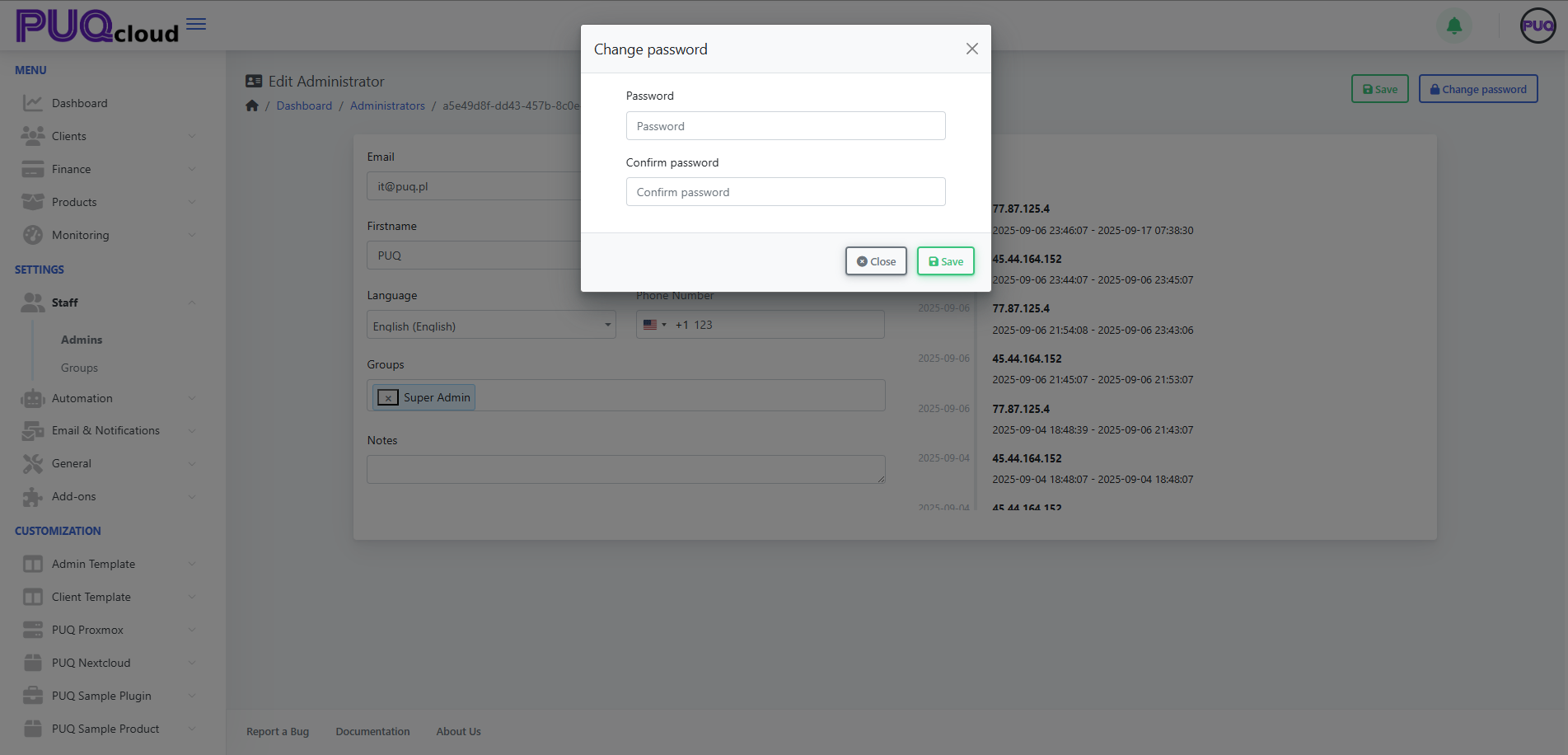
On the Edit page, click Change password (top-right), enter Password and Confirm, then Save.
“Change password” modal
Tip: enforce strong passwords and ask the user to enable 2FA in their Client Area.
Delete an Administrator
On the Admins list, click the 🗑️ Delete button next to the user and confirm.
Best practice: never delete your last Super Admin. Create/assign another Super Admin first.
Groups & permissions (quick tips)
-
Define groups in Settings → Staff → Groups (e.g., Support, Finance, Ops).
-
Follow least privilege: grant only what the role needs.
-
Separate Finance vs Technical access when possible.
-
Review group membership regularly (monthly/quarterly).
Security checklist
-
One person = one account (no shared logins).
-
Require 2FA for all admins (set in the user’s Client Area).
-
Rotate passwords for high-privilege accounts.
-
Watch the Session IPs for unusual activity.
-
Immediately Disable or Delete ex-staff accounts.
Troubleshooting
-
“Save” is greyed out / error: check required fields, unique email, password match.
-
Can’t log in: ensure Status = Enabled; verify correct email.
-
Missing features: user likely lacks the right Group.
-
Password change fails: confirm both fields match and meet policy.
Create & Manage Administrator Groups
PUQcloud Panel
Order Now | Download | FAQ
Use this to build role-based access for your staff. I’ll also show where to place each screenshot.
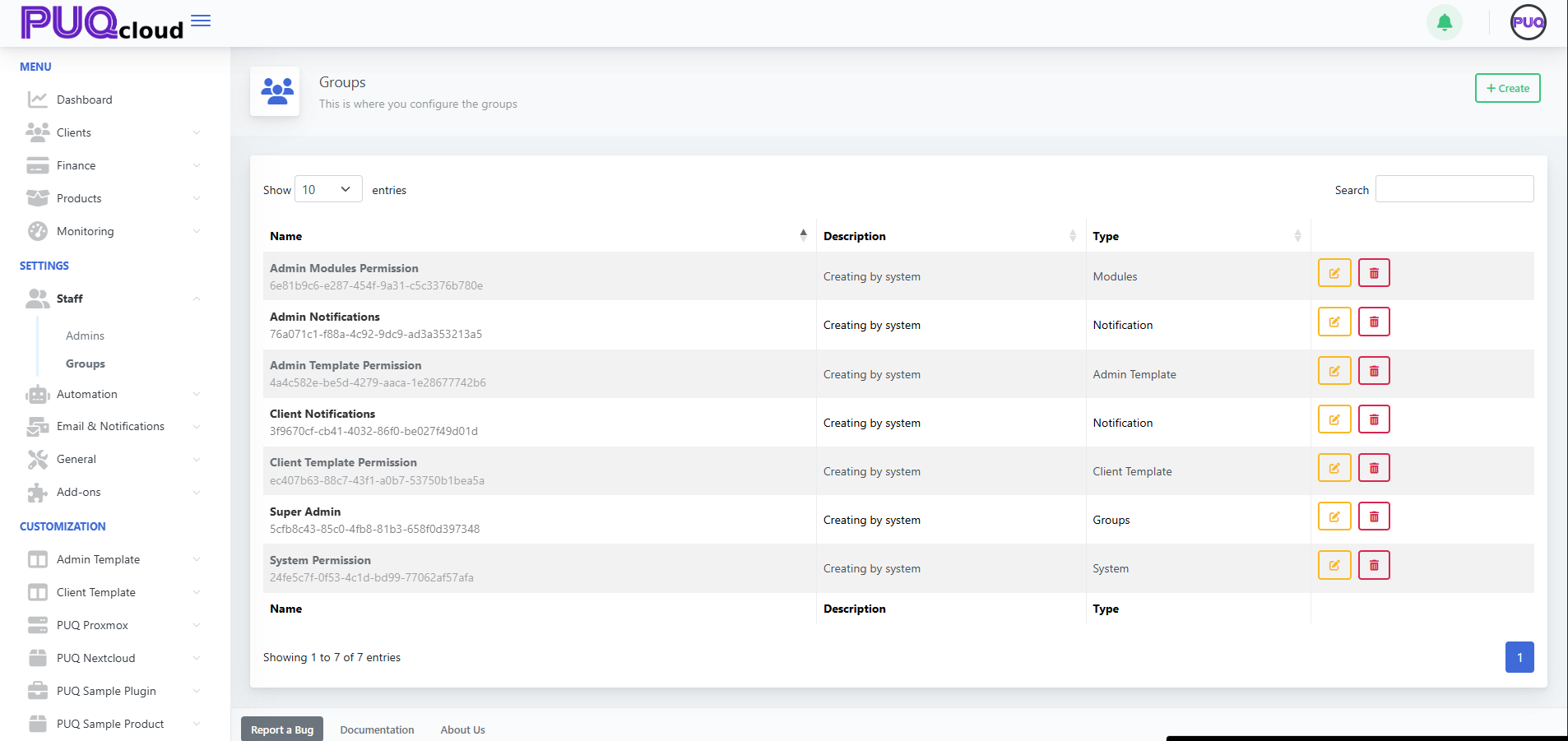
Open Groups
Path: Settings → Staff → Groups
Here you can see all groups plus Edit ✏️ / Delete 🗑️.
Groups list (with action buttons).
Create a Group (for Admins)
-
Click + Create (top-right).
-
Fill in:
-
Name — e.g., Support, Finance, Ops
-
Type — choose Groups (this is the correct type for administrator roles)
-
-
Save.
“Create Group” modal (Type dropdown visible).
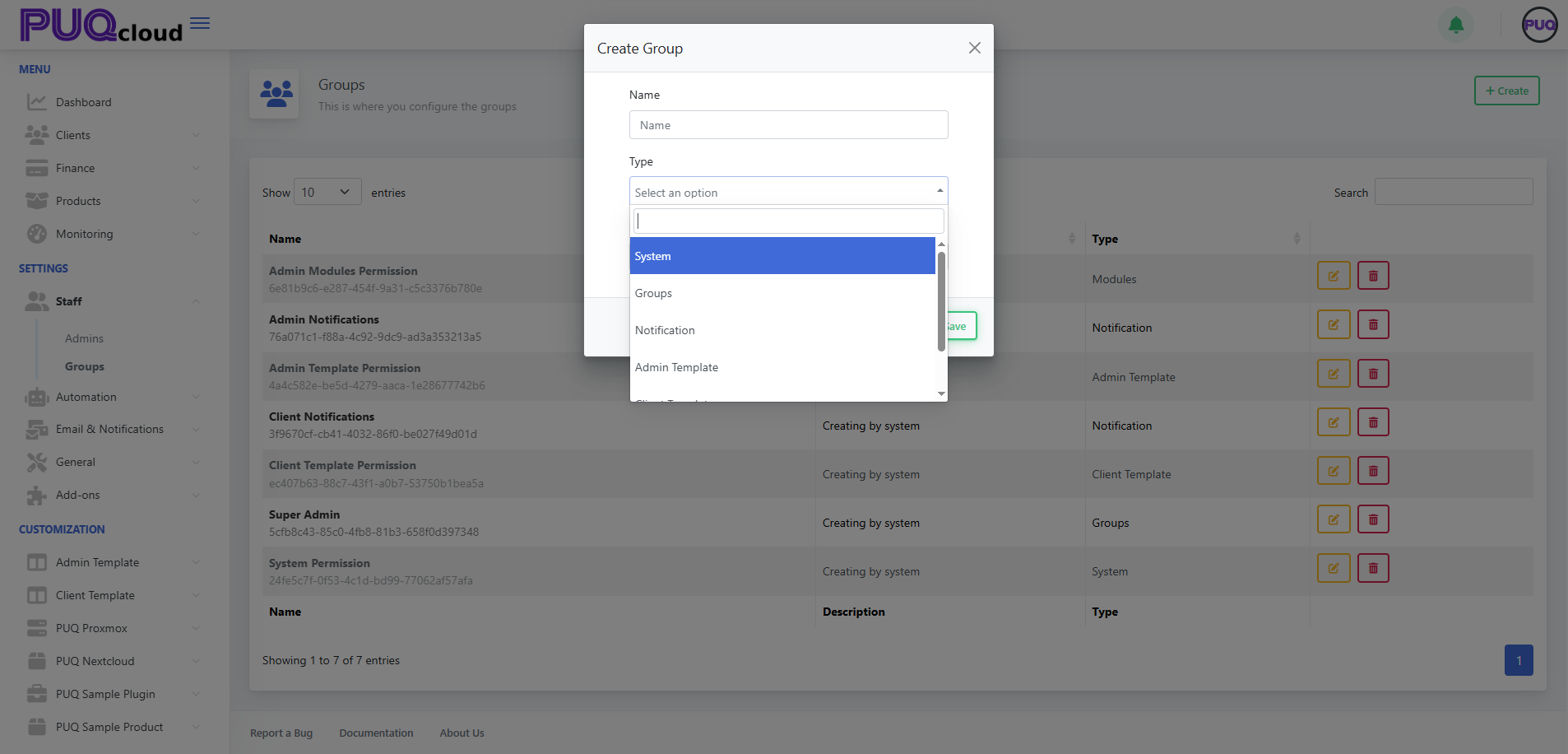
Other types (System, Notification, Admin/Client Template) are system/helper sets. For admin roles, use Groups.
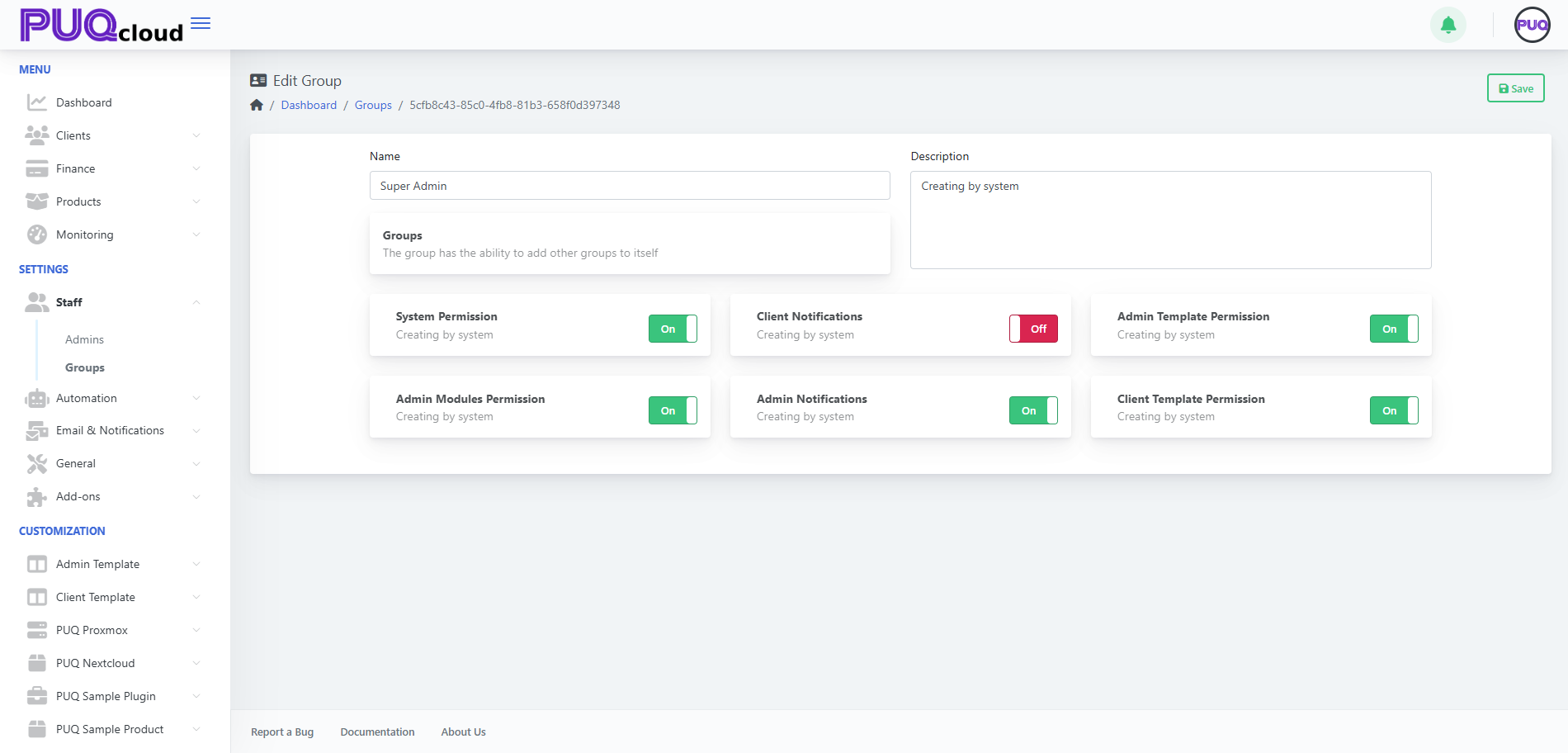
Configure Permissions
After saving, you’re on the Edit Group page. Toggle capabilities the group should have, e.g.:
-
System Permission — system-level operations.
-
Admin Modules Permission — access to admin modules/features.
-
Admin Notifications — receive back-office alerts.
-
Client Notifications — receive client-side alerts (usually off for admins unless needed).
-
Admin Template Permission / Client Template Permission — manage templates.
Add a Description, then Save.
Edit Group with toggles (On/Off).
Assign the Group to Administrators
Path: Settings → Staff → Admins → Edit an admin → Groups field → add your group → Save.
(Use least-privilege: only the access they need.)
Edit / Delete a Group
-
From the Groups list, click ✏️ Edit to change toggles or rename/describe.
-
Click 🗑️ Delete to remove a group (only if no critical users rely on it).
Tips & Good Practice
-
Start with broad roles (Support, Finance, Ops), then refine toggles.
-
Keep Super Admin for a few trusted people only.
-
Review memberships monthly; remove access for ex-staff immediately.
-
Test new roles with a non-super-admin account before rollout.
Manage scheduler in the Admin Area
PUQcloud Panel
Order Now | Download | FAQ
Why Scheduler? So billing, cleanups, lifecycle actions, and Proxmox jobs run on time, automatically, and predictably.
Where is it?
Automation → Scheduler
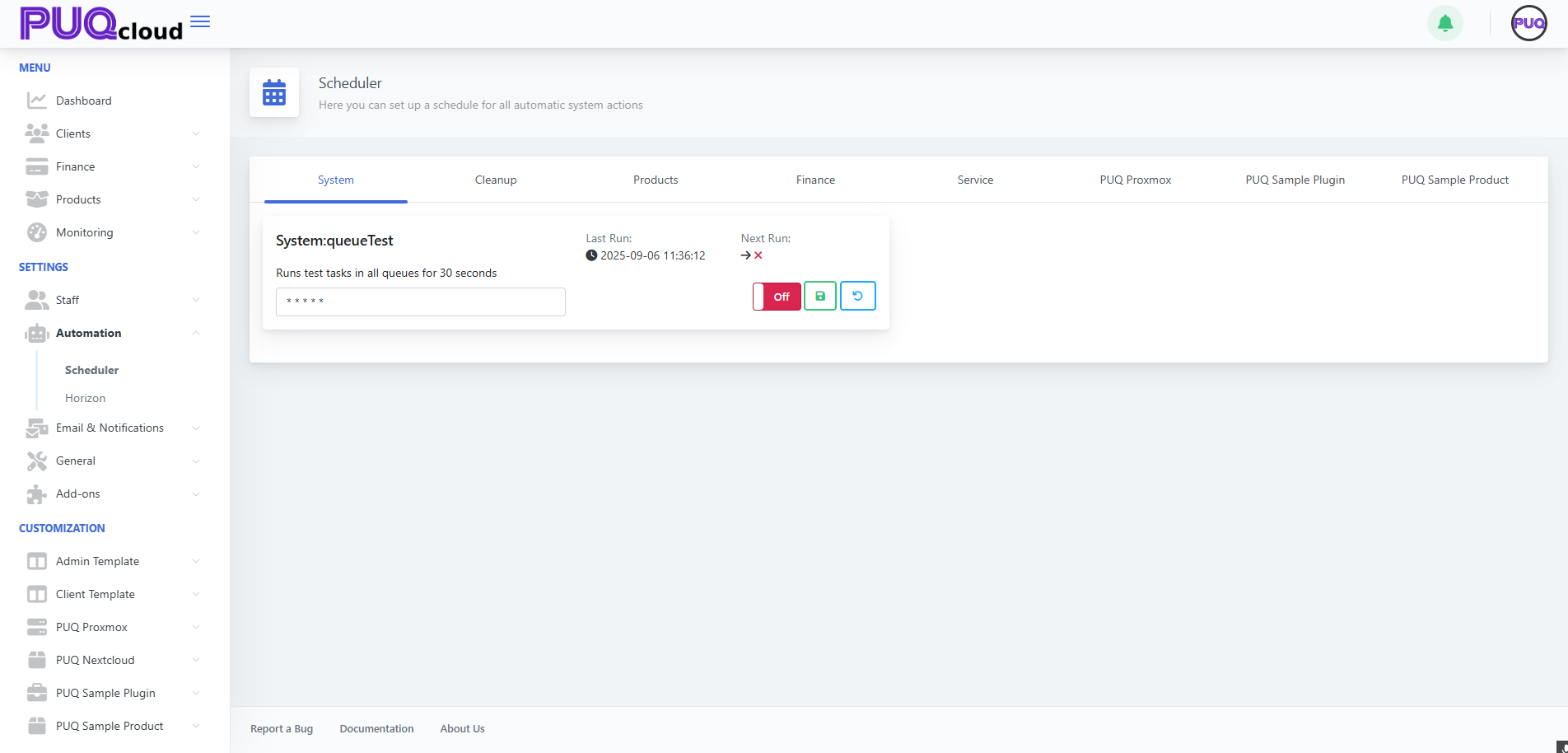
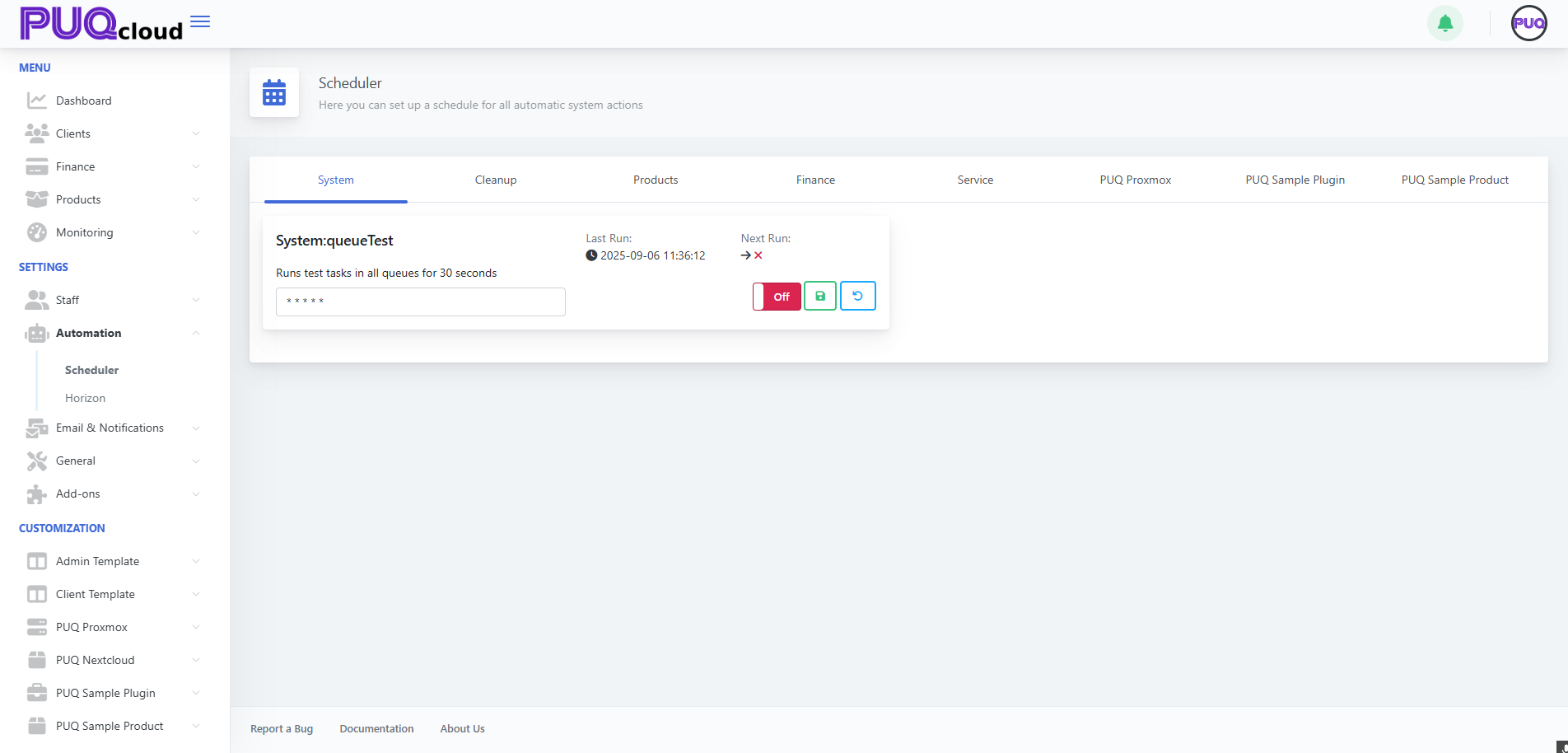 Scheduler overview (System tab) with task card UI (Last/Next Run, cron, On/Off, Save, Reset).
60-second UI tour
Every task card has 6 key parts:
-
Title + short description.
-
Last Run — when it last executed (great to spot stalls).
-
Next Run — when it will run next.
-
Cron expression — schedule in
* * * * *format. -
On/Off toggle — enable/disable instantly.
-
Save (disk) / Reset (↺) — apply or discard changes.
Rule #1: change cron → Save → confirm Next Run updates. If it didn’t, your change isn’t applied.
Tabs & what they’re for
1. System
Service/test tasks.
-
Keep Off in production unless you use them intentionally.

Scheduler overview (System tab) with task card UI (Last/Next Run, cron, On/Off, Save, Reset).
2. Cleanup
Housekeeping for logs, sessions, and “lost” queue jobs.
-
System:clearingLostTasks — converts
pending/processingtofailed/duplicate. -
System:Cleanup — clears logs/history by retention.
Suggested schedule:
-
LostTasks:
*/30 * * * * -
Cleanup:
0 3 * * *(daily at 03:00) Cleanup tab showing “System:clearingLostTasks” and “System:Cleanup” with example cron values.
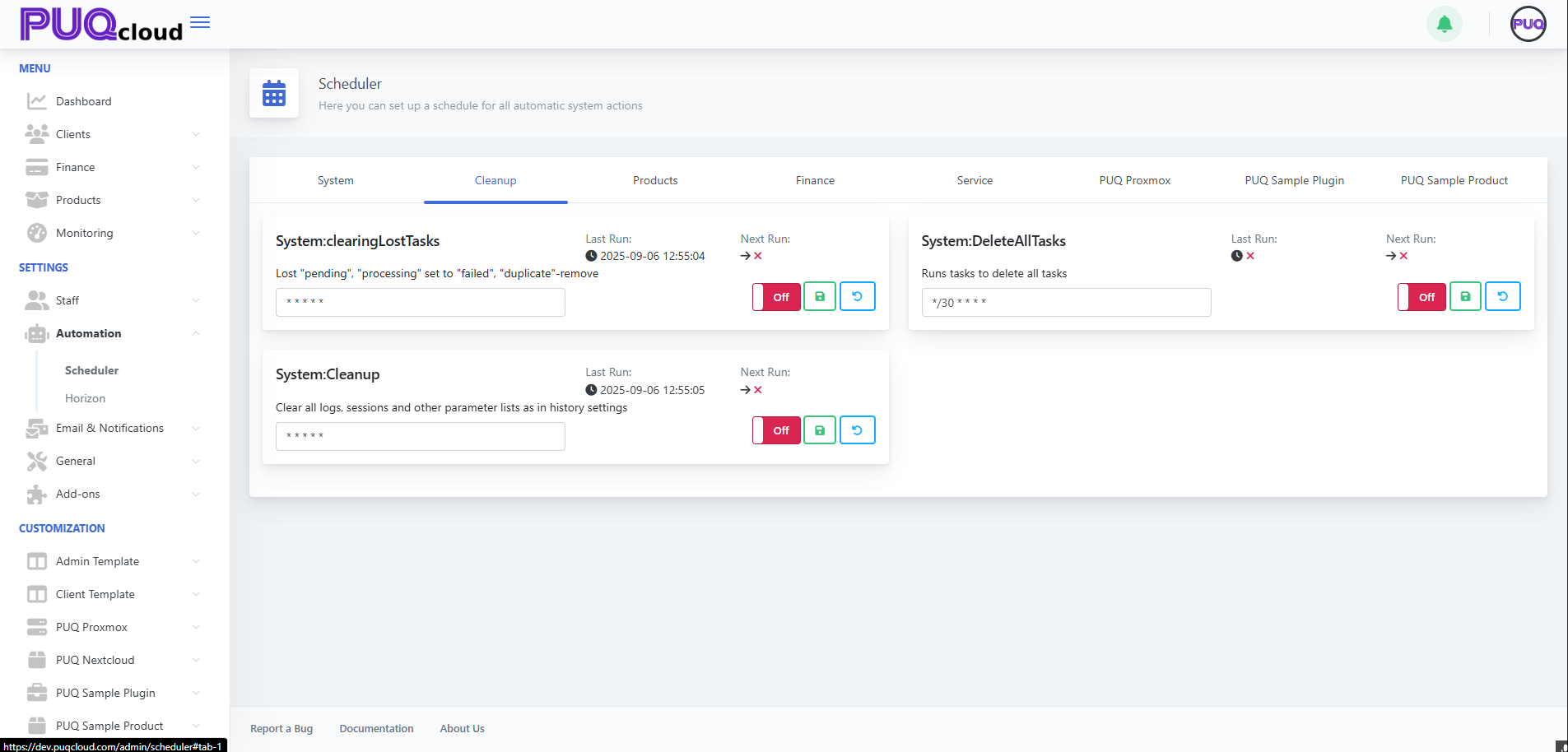
Tip: while debugging you can run them more often; switch back to the nightly window later.
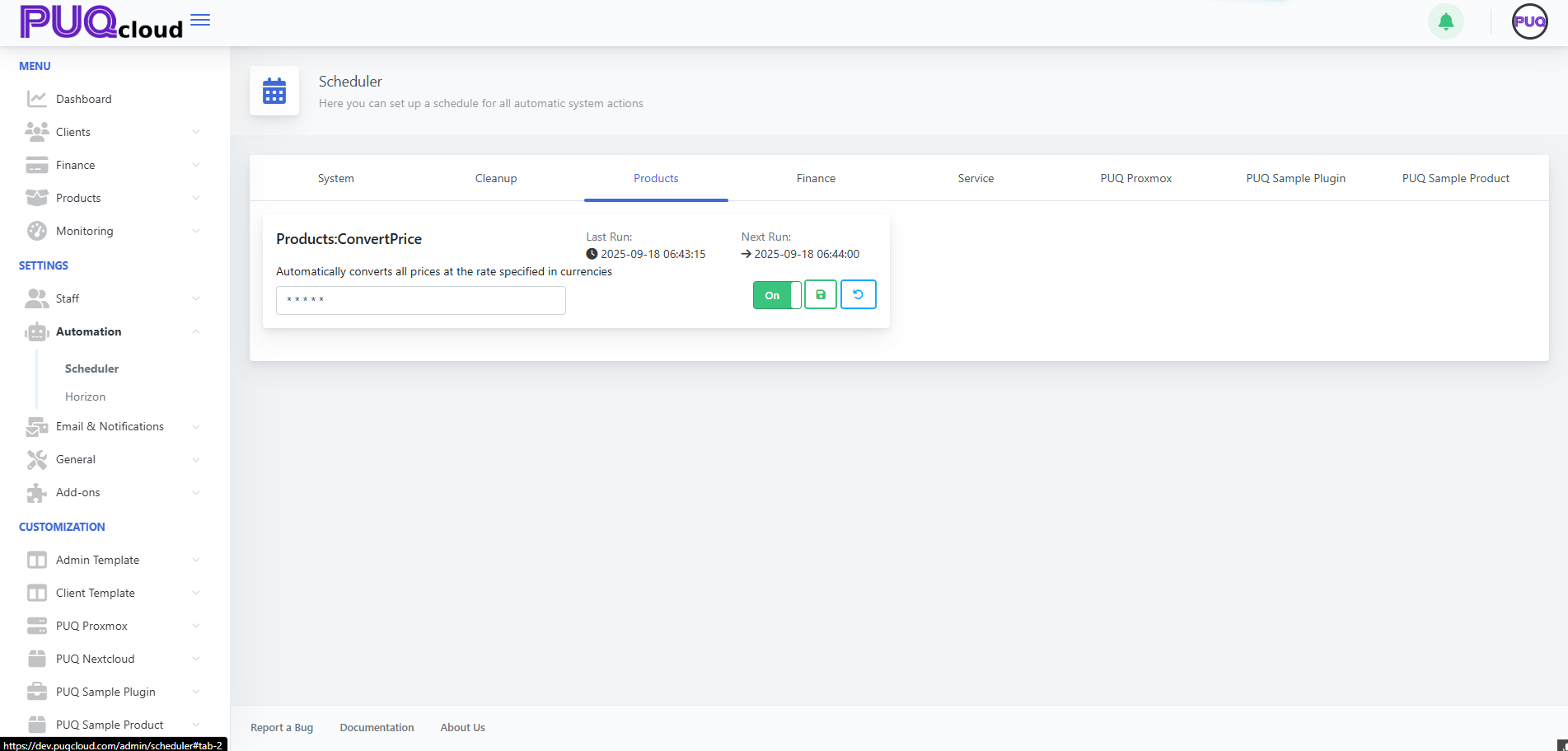
3. Products
Bulk price conversions/recalculation.
-
Products:ConvertPrice — keeps prices aligned with currency rates.
Schedules that work: -
0 * * * *(hourly) or*/15 * * * *in volatile markets.
Products tab showing “Products:ConvertPrice” enabled with sample cron.
4. Finance
The billing heart: charges and transactions.
-
Finance:ChargeServices — charges active services and creates transactions.
Balanced options: -
*/10 * * * *— near-real-time customer experience. -
0 * * * *— lighter load, OK for hourly charging. Finance tab showing “Finance:ChargeServices” enabled with sample cron.
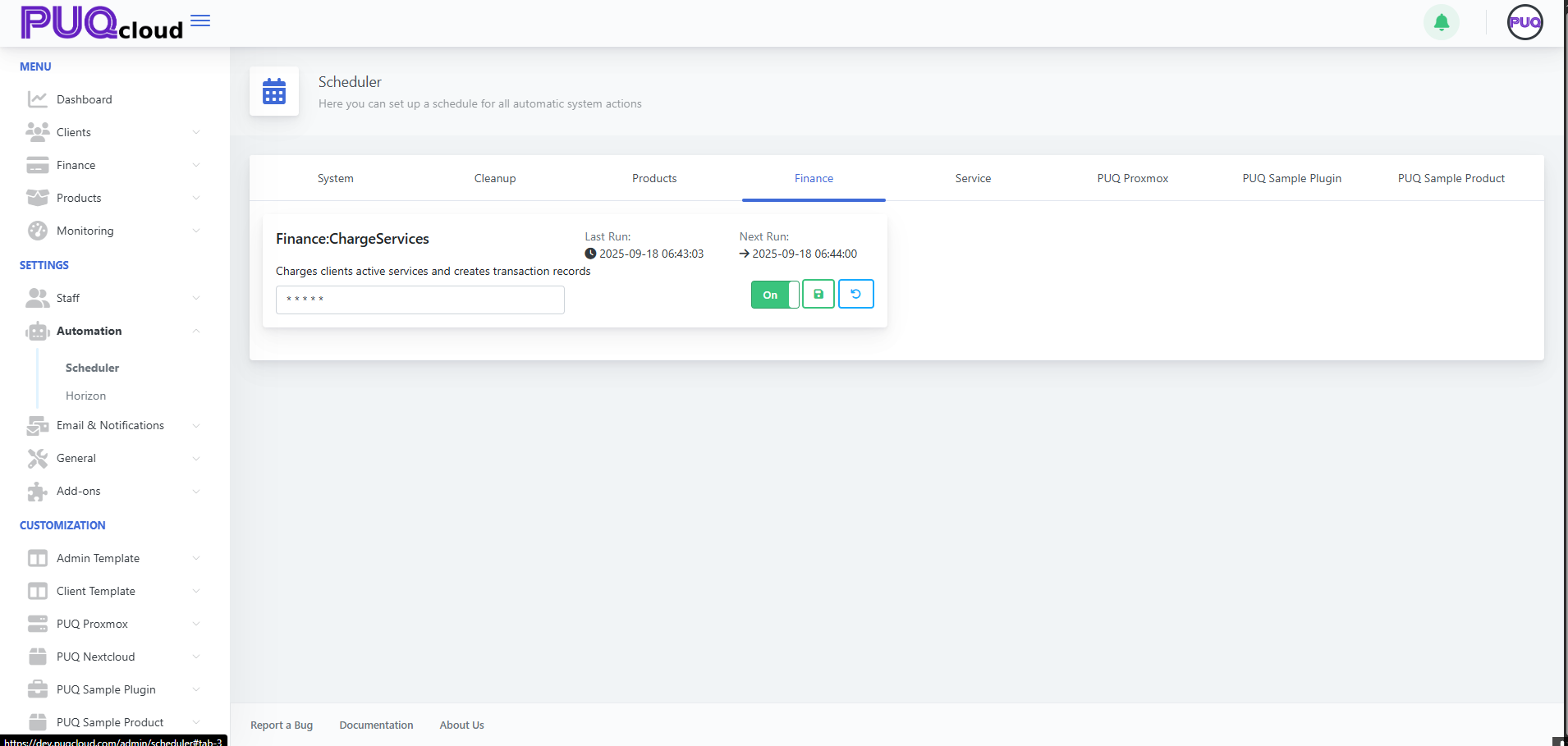
Pro tip: do faster cycles by day (*/10), slower at night if you manage cron externally with “day/night” profiles.
5. Service
Service lifecycle automation:
-
Service:CreateServices — create on sufficient funds.
-
Service:SuspendServices — suspend on debt.
-
Service:TerminationServices — terminate after grace.
-
Service:UnsuspendServices — restore after top-up.
-
Service:CancellationServices — process cancellations.
Recommended starter profile:
-
Create/Suspend/Unsuspend:
*/10 * * * * -
Cancellation:
*/30 * * * * -
Termination:
0 4 * * *(nightly) Service tab with lifecycle tasks (Create, Suspend, Unsuspend, Termination, Cancellation) and their toggles.
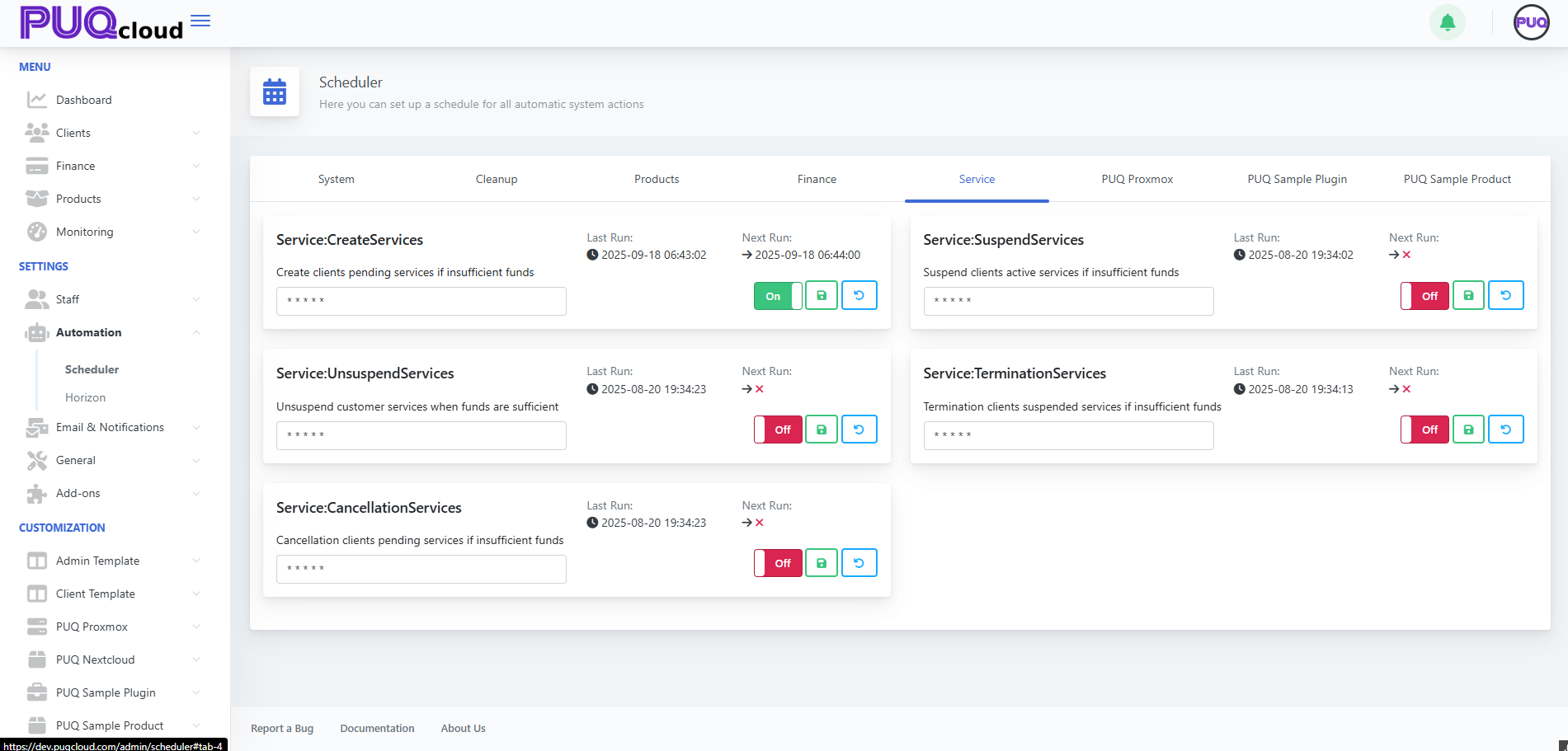
Safety: run terminations once per night to avoid heavy daytime I/O.
6. PUQ Proxmox
Cluster sync and backups.
-
puqProxmox:SyncClusters —
*/5 * * * *. -
puqProxmox:MakeBackups —
0 2 * * *(02:00 daily). PUQ Proxmox tab showing “puqProxmox:SyncClusters” and “puqProxmox:MakeBackups” with recommended schedules.
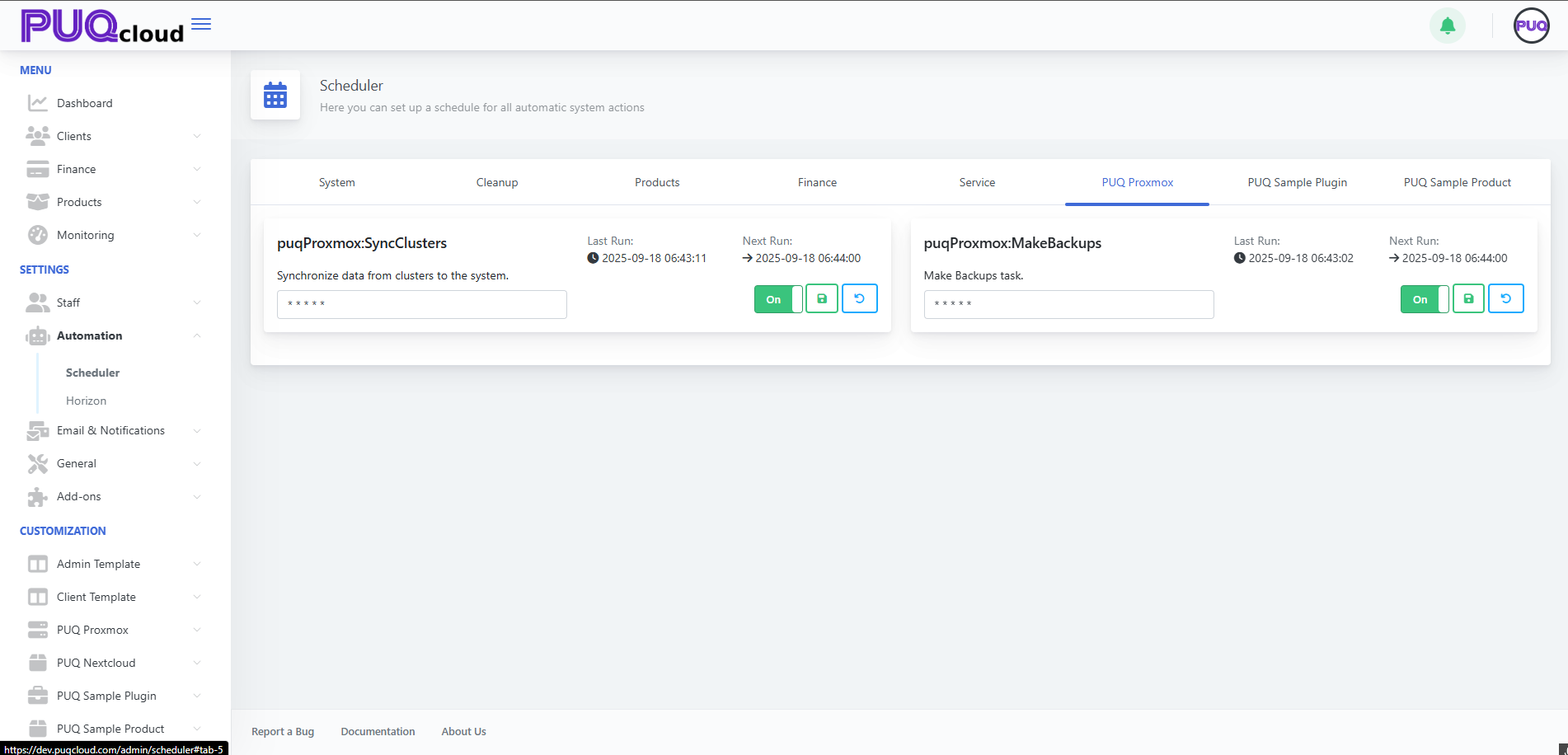
Practice: give backups a dedicated quiet window; watch storage I/O.
7. PUQ Sample Plugin / PUQ Sample Product
Demo tasks — keep Off in production.
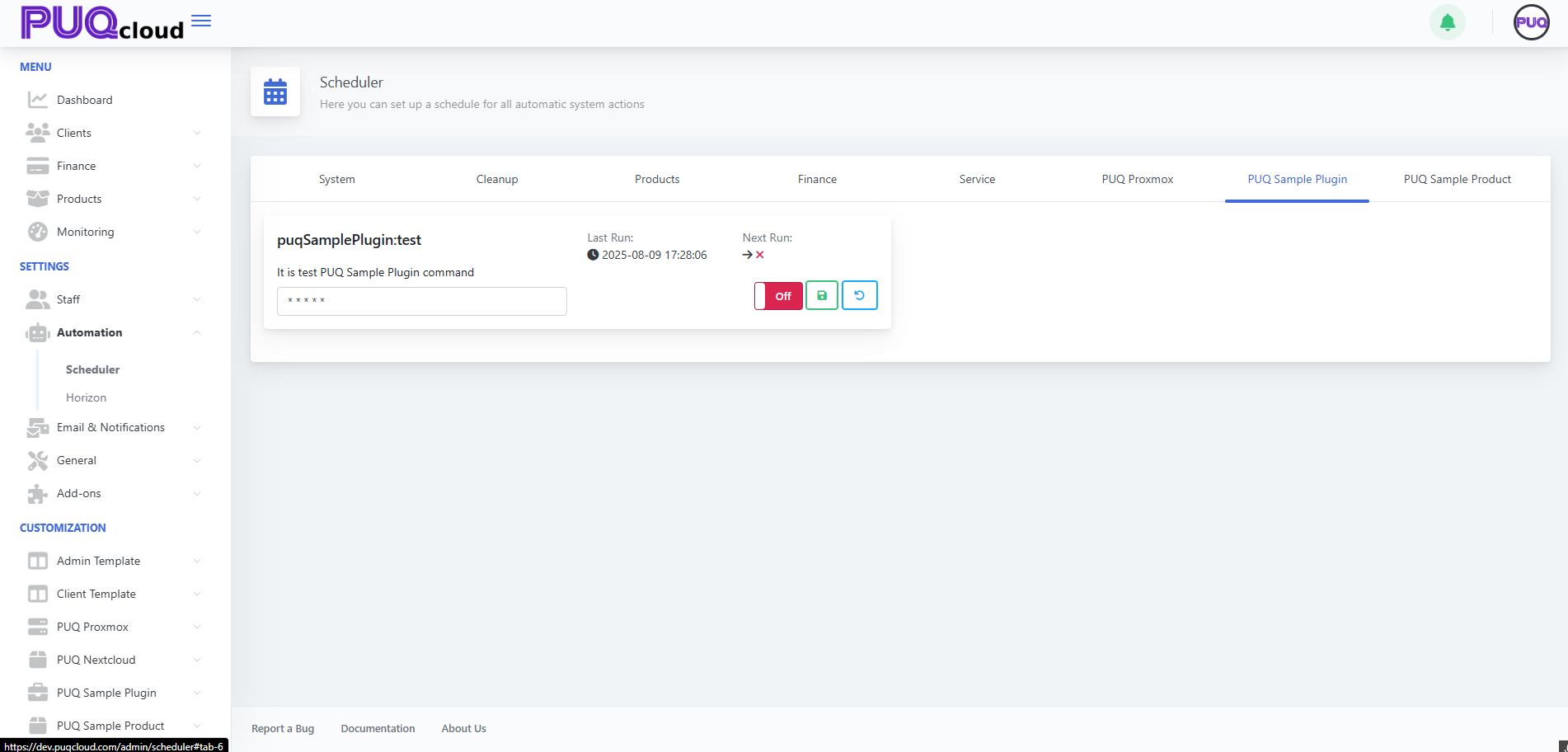 PUQ Sample Plugin tab showing “puqSamplePlugin:test” (demo task) in Off state.
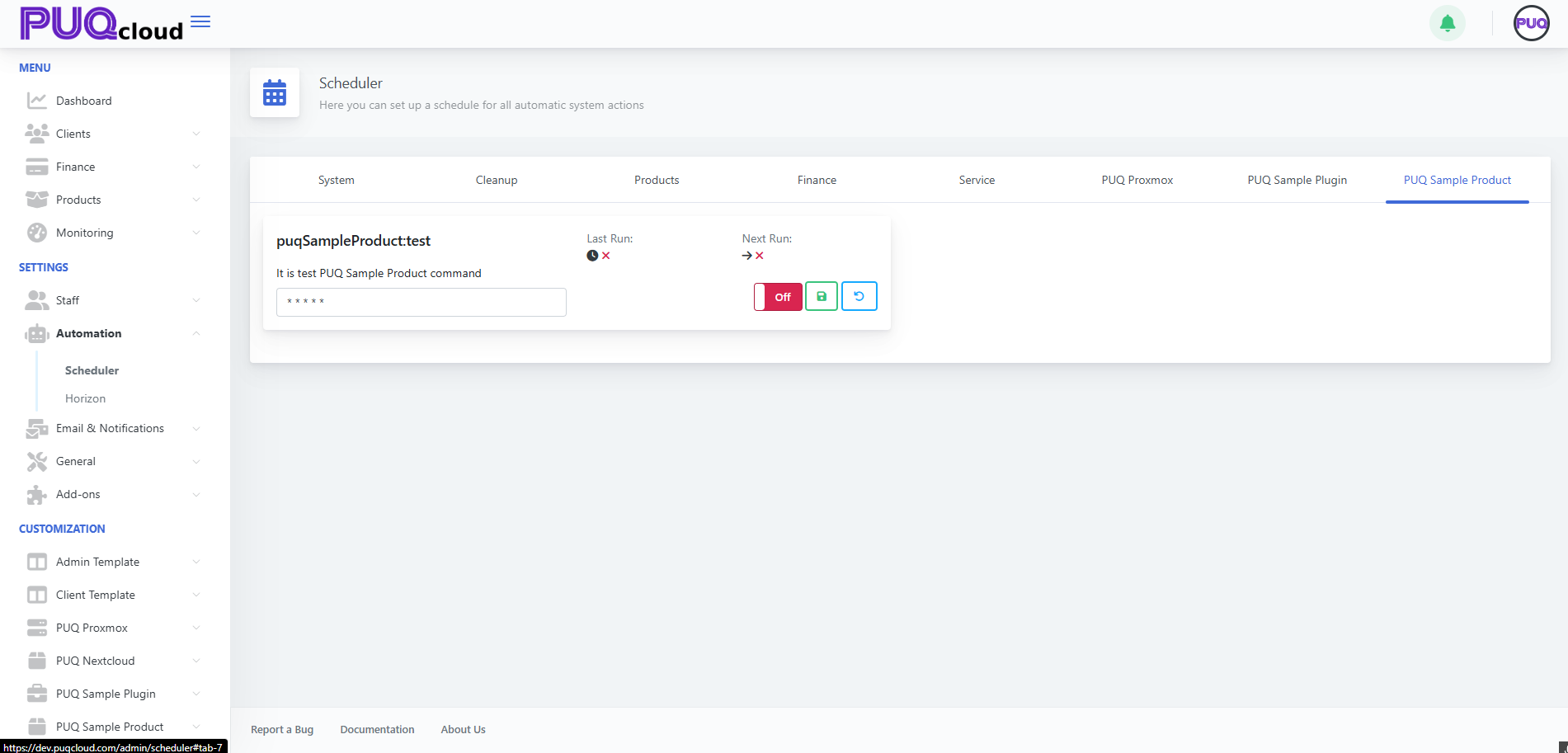 PUQ Sample Product tab showing “puqSampleProduct:test” (demo task) in Off state.
Cron cheat sheet (no pain)
| Expression | Meaning |
|---|---|
* * * * * |
Every minute |
*/5 * * * * |
Every 5 minutes |
*/10 * * * * |
Every 10 minutes |
0 * * * * |
At the start of every hour |
0 2 * * * |
Daily at 02:00 |
0 3 * * 1 |
Mondays at 03:00 |
*/30 8-20 * * 1-5 |
Every 30 min 08:00–20:00 on weekdays |
Note: Times follow the server’s timezone. If times look odd, verify the host TZ.
Ready-made profiles (copy/paste)
“Starter” (safe and effective)
-
Finance:
*/10 * * * * -
Service Create/Suspend/Unsuspend:
*/10 * * * * -
Service Cancellation:
*/30 * * * * -
Service Termination:
0 4 * * * -
Cleanup Lost:
*/30 * * * * -
Cleanup:
0 3 * * * -
Convert Price:
0 * * * * -
SyncClusters:
*/5 * * * * -
MakeBackups:
0 2 * * *
“Nightly heavy-lifting”
-
All heavy tasks (Termination/Cleanup/Backups) between 02:00–04:00.
-
Frequent light tasks during the day (Charge/Status/Sync).
Safe-change checklist
-
Environment — test on staging first.
-
Snapshot current crons — copy or take a screenshot for rollback.
-
Change cron → Save → confirm Next Run updated.
-
Monitor 24–48h: Last Run, billing effects, backups, system load.
-
If issues appear — Reset on the card (or revert cron) and Save.
Troubleshooting quick tree
A. Task doesn’t run
-
Toggle is Off? → turn On.
-
Next Run missing? → fix cron syntax and Save.
-
Workers/cron down? → restart your queue workers/system cron.
B. System load too high
-
Move heavy jobs to night (02:00–04:00).
-
Reduce frequency (
*/10→*/30,*/30→0 * * * *).
C. Data gets stale (prices/sync/status)
-
Increase frequency (hourly → every 15 or 10 minutes).
-
Check worker logs for task errors.
Micro-FAQ
-
Why is “Next Run” showing an X?
Task is Off or cron is invalid. Enable and/or fix cron, then Save. -
Can I trigger a task now?
UI focuses on schedules. For ad-hoc runs, temporarily set the cron to the nearest minute, Save, then revert. -
How do I know it’s healthy?
Watch Last Run, see that service lifecycle events occur on time, finance entries are up-to-date, and backups are fresh.
Wrap-up
-
Define “day/night” profiles.
-
Heavy jobs at night; routine jobs every 5–15 minutes.
-
After any change: Save → check Next Run.
-
Use Last Run + worker logs as your health sensors.
Manage Notification Senders in the Admin Area
PUQcloud Panel
Order Now | Download | FAQ
Use this guide to add, edit, and configure the channels your system uses to send emails/alerts (PHP mailer, SMTP, Bell, etc.).
Open the Notification Senders page
-
In the Admin Area, go to Email & Notifications → Notification Senders.
-
You’ll see all existing senders with their Module (delivery method) and quick actions.
Notification Senders list with Edit/Delete actions.
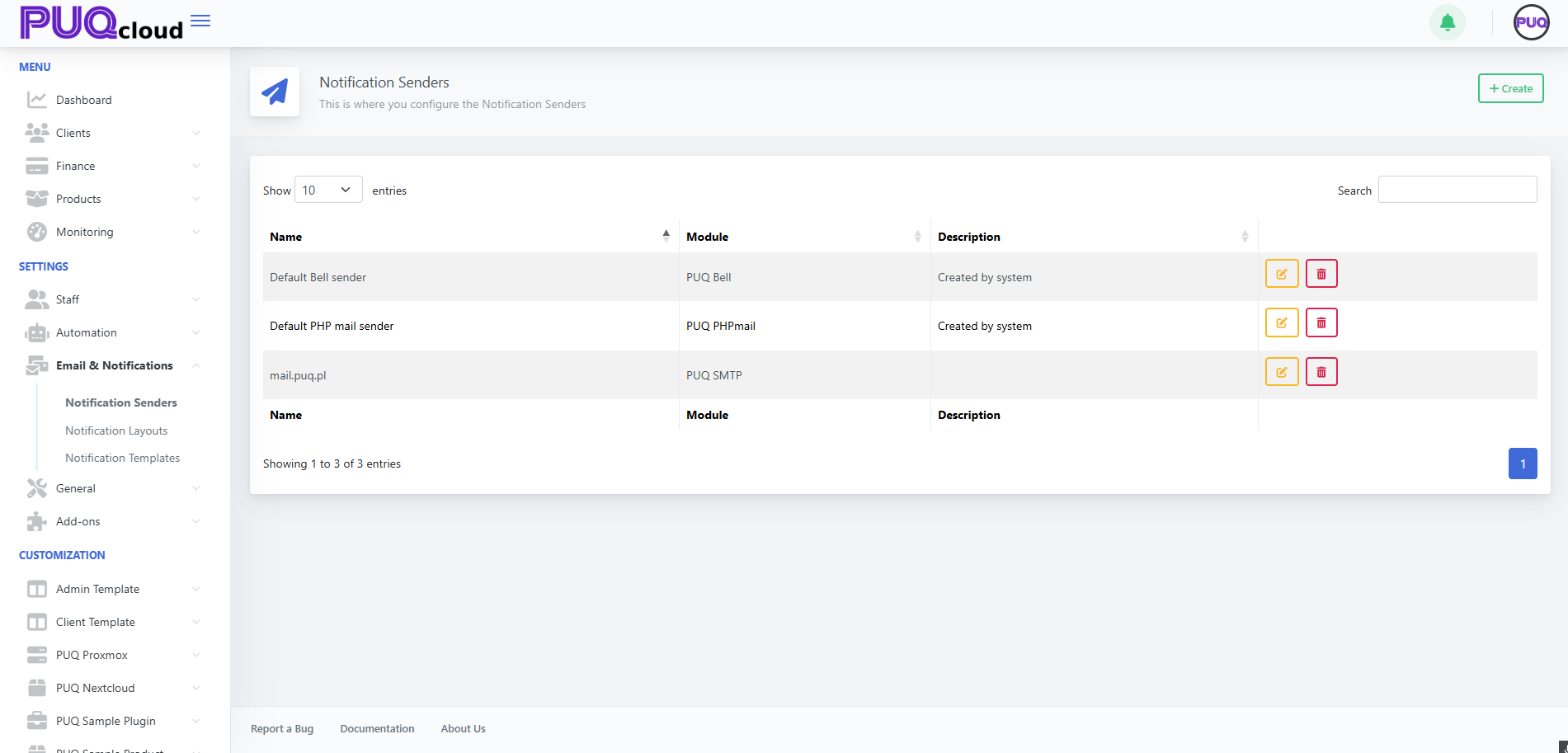
Understand sender types (Modules)
When creating a sender you’ll choose a Module:
-
PUQ PHPMailer — uses PHP mail; simple to set up, limited deliverability controls.
-
PUQ SMTP — sends through your mail server (recommended for deliverability).
-
PUQ Bell — internal “bell”/in-app notifications (no email).
Create a new sender
-
Click + Create (top-right).
-
In the modal, fill Name (e.g., “Support SMTP”) and choose a Module.
“Create Notification Sender” modal with Module dropdown.
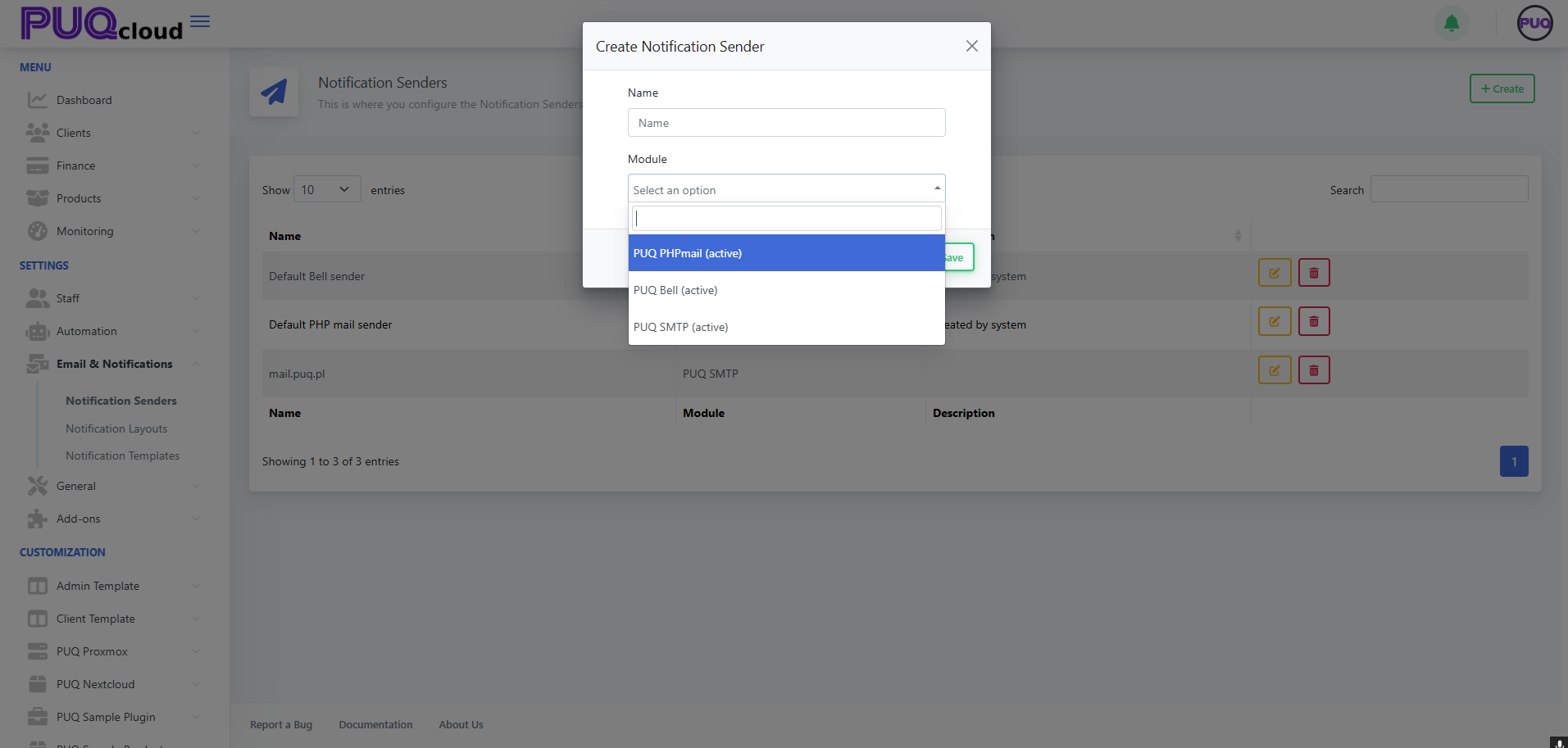
Tip: Create one sender per use case (e.g., “System Alerts (SMTP)”, “Marketing (SMTP)”, “In-app Bell”).
Configure SMTP details (if you chose PUQ SMTP)
After saving the modal, you’ll land on the sender’s settings page. Fill the fields:
-
Name / Description — friendly label for admins.
-
Email — the “From” address (often must be a verified mailbox/domain).
-
Sender Name — the “From name” (e.g., “PUQ Cloud”).
-
Server — SMTP host (e.g.,
mail.example.com). -
Port — usually 465 (SSL) or 587 (TLS).
-
Encryption — SSL/TLS/None per your provider.
-
Username / Password — mailbox credentials.
Click Test Connection to verify, then Save.
SMTP sender edit form with Test Connection button.
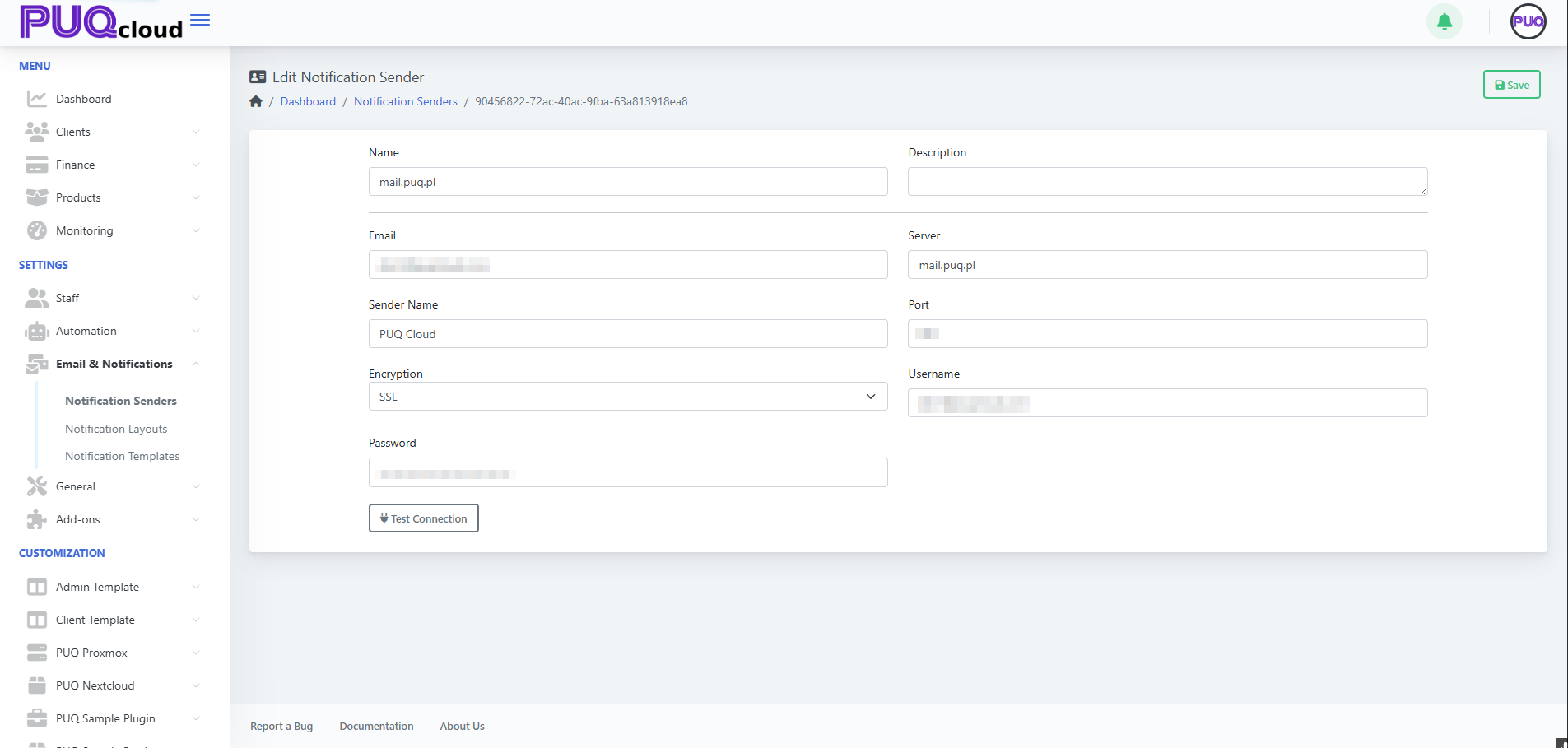
Deliverability tips
• Use a dedicated subdomain (e.g., mail.example.com).
• Set up SPF, DKIM, and DMARC where you host DNS.
• Match the Email domain with the authenticated SMTP domain.
Edit or remove a sender
-
From the list, click ✏️ Edit to update any field and Save.
-
Click 🗑️ Delete to remove a sender (you’ll be asked to confirm).
Heads-up: If a sender is referenced by a Notification Template or workflow, update those to the new sender before deleting.
Best practices
-
Maintain at least one SMTP sender for production.
-
Keep separate senders for transactional vs marketing mail.
-
Periodically Test Connection after password/host changes.
-
Restrict who can edit senders via Admin Groups/Roles.
Troubleshooting checklist
-
❌ Test Connection fails → verify host/port/encryption; check firewall blocks.
-
📬 Emails land in spam → fix SPF/DKIM/DMARC; use consistent “From” domain; warm up IP if applicable.
-
🔐 Auth errors → re-enter username/password; confirm app-passwords if using Google/Microsoft; ensure 2FA policies allow SMTP.
That’s it! Your Notification Senders are now set up and ready to power templates and automated notifications.
Manage Notification Layouts in the Admin Area
PUQcloud Panel
Order Now | Download | FAQ
Below is a compact, step-by-step guide to creating and customizing the HTML wrappers (“layouts”) that your notification templates use. You’ll: find the section, add a layout, and tailor the HTML/CSS with live preview and multi-language tabs.
Open Notification Layouts
-
Go to Email & Notifications → Notification Layouts.
-
You’ll see the built-in Admin Default Layout and Client Default Layout.
What you can do here
-
✏️ Edit an existing layout.
-
🗑️ Delete a custom layout (system layouts are protected).
-
+ Create a new layout.
Notification Layouts list with built-in Admin/Client entries.
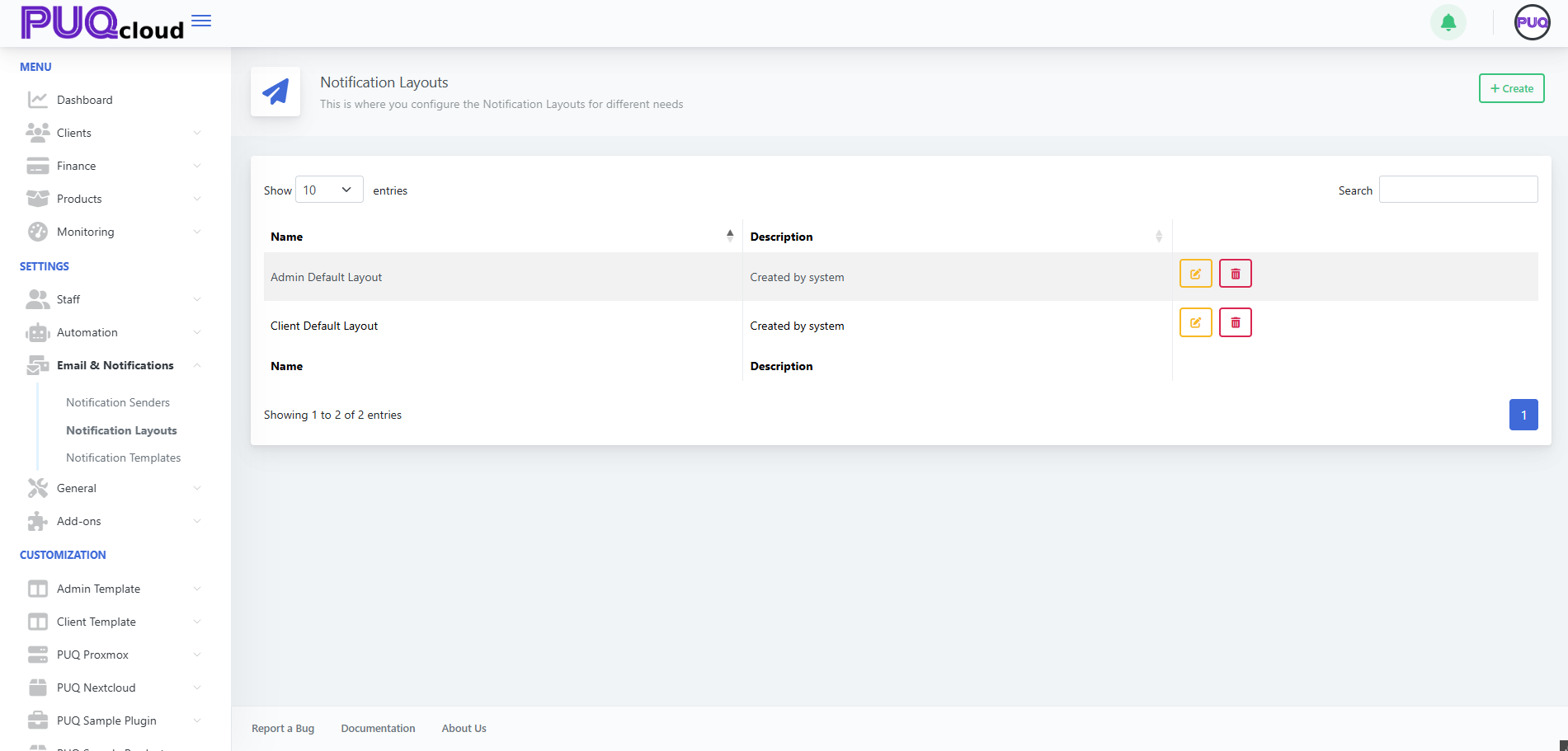
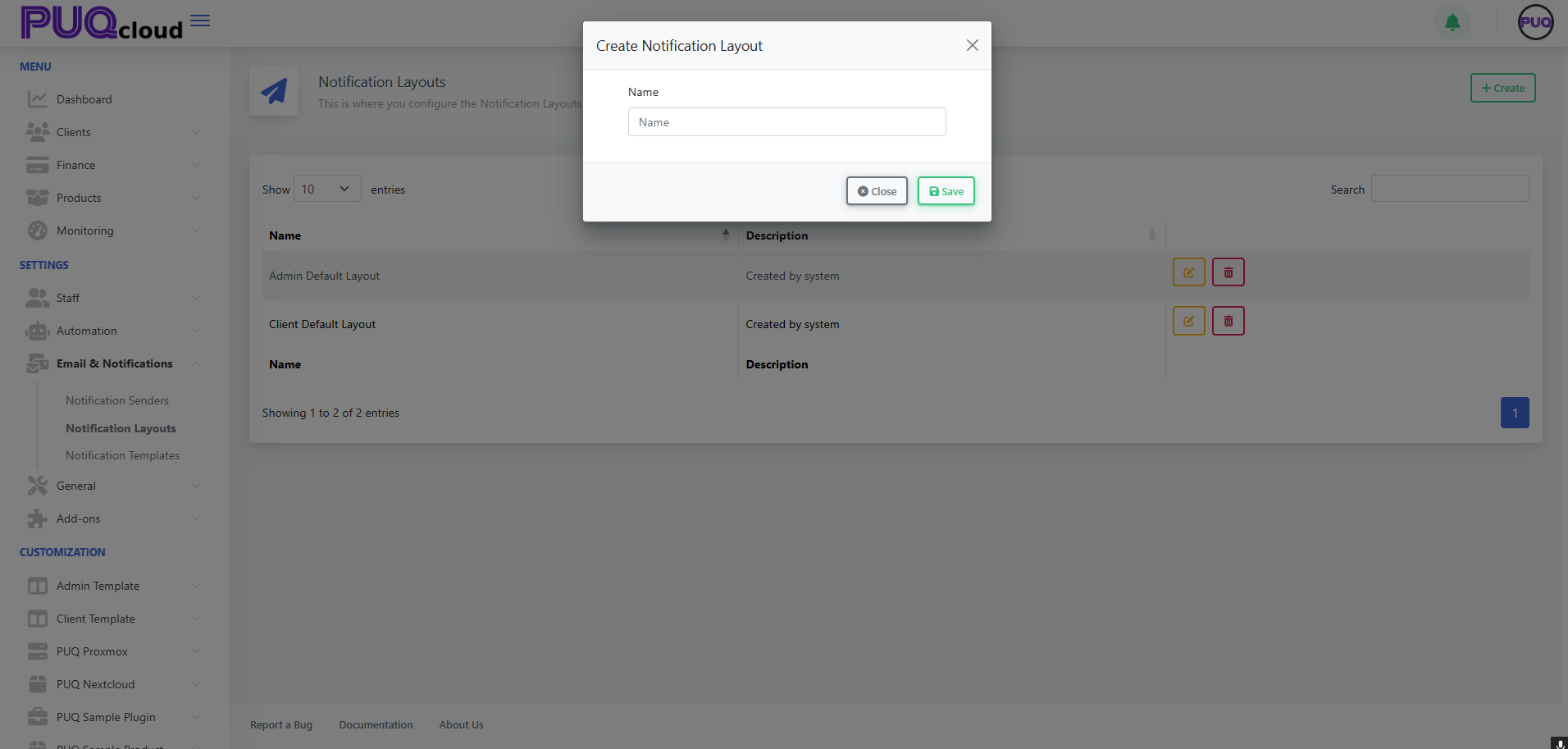
Create a new layout
-
Click ➕ Create (top-right).
-
Give the layout a Name (e.g., “Marketing Layout”).
-
Click Save.
“Create Notification Layout” modal (Name).
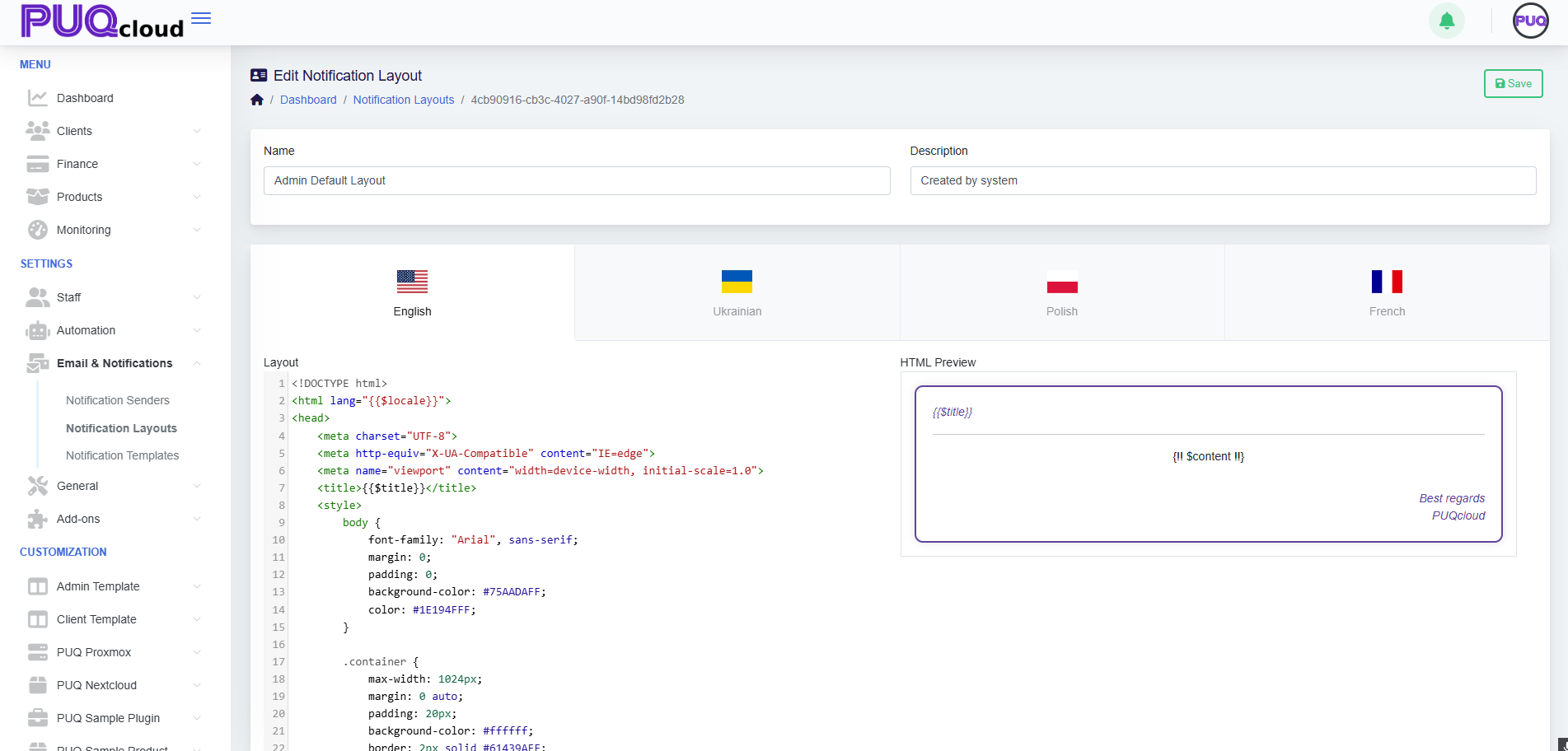
Edit a layout (HTML/CSS + preview)
Open a layout (e.g., Admin Default Layout). The editor provides:
-
Multi-language tabs across the top (🇺🇸 English, 🇺🇦 Ukrainian, 🇵🇱 Polish, 🇫🇷 French).
-
A code editor (left) for your HTML/CSS wrapper.
-
A live HTML preview (right) showing how variables render.
Key variables/partials you’ll use
-
{{ $title }}– Notification/title string. -
{!! $content !!}– The body that each specific notification template injects. -
{{ $locale }}– Current language code (often used on the<html lang="">tag). -
Optional:
{{ $signature }}or{!! $signature !!}if your layout includes a signature partial (depends on your installation).
Tip: Your layout is the frame. Individual notification templates only inject their own content into {!! $content !!}. Keep shared branding, header, footer, fonts, and styling in the layout.
“Edit Notification Layout” (Admin Default) with code editor and live preview.
Style a client-facing layout
For the Client Default Layout, you might include:
-
A branded header with gradient background.
-
A CTA button (e.g., “Visit Client Area”).
-
A footer with company signature.
Best practice: Keep fonts, spacing, and colors consistent with your website, and ensure the CTA is visible in both light/dark email clients.
“Edit Notification Layout” (Client Default) with branded CTA preview.
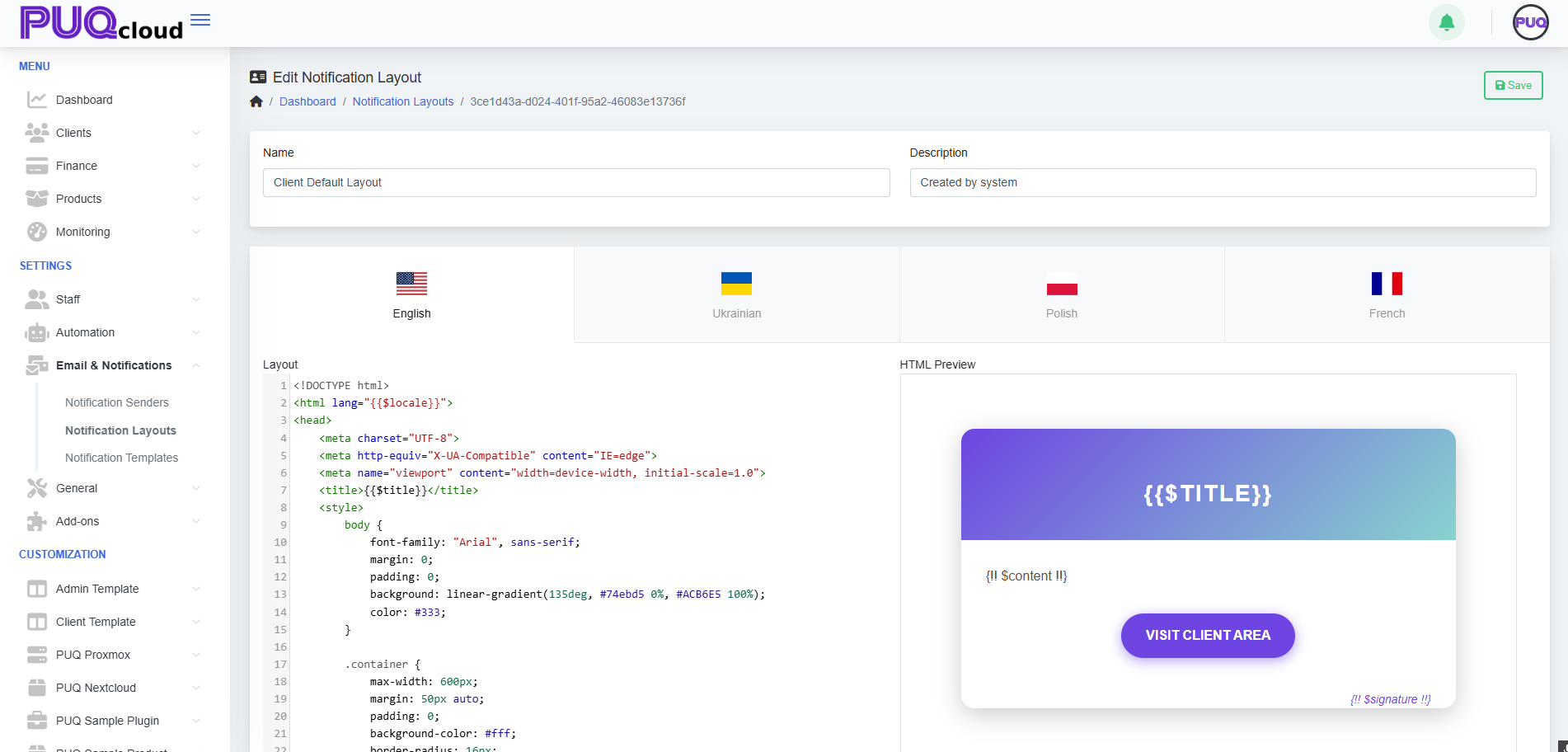
Apply layouts to your notification templates
-
Each notification template (e.g., “Invoice Paid”, “Password Reset”) can reference one of your layouts.
-
Use the Client Default Layout for customer-facing emails and Admin Default Layout for staff/internal alerts.
If your system allows choosing the layout inside each template: open Email & Notifications → Notification Templates, pick the template, and select the layout from the dropdown. (If not present, your installation may assign layouts automatically by scope—Client vs Admin.)
Test before you go live
-
Use Notification Senders (SMTP/PHPMail/Bell) to ensure delivery works.
-
Send a real test for each language tab you changed.
-
Check the email in a few clients (Gmail, Outlook, Apple Mail) and on mobile.
Tips & safeguards
-
Do not remove
{!! $content !!}— your template body inserts here. -
Keep inline styles where possible; many email clients strip external CSS.
-
Avoid heavy JS (email clients ignore it).
-
Dark mode: test contrast (buttons and text).
-
Language tabs: update all languages to avoid fallback mismatches.
-
Versioning: copy your HTML to a snippet file or Git before big edits.
Quick Troubleshooting
-
Broken layout? Revert to the default layout or restore your last working HTML.
-
Variables not rendering? Ensure you used the correct blade/templating syntax (
{{ }}for escaped,{!! !!}for raw HTML). -
Images blocked? Host images over HTTPS and add
alttext; consider base64 for critical icons.
That’s it! Your notifications are now consistent, branded, and ready to ship.
Manage Notification Templates (Admin Area)
PUQcloud Panel
Order Now | Download | FAQ
Here’s a clear, step-by-step guide to managing Notification Templates in the Admin Area.
Open the Templates list
-
Go to Email & Notifications → Notification Templates.
-
This page lists all built-in (“SYSTEM”) and any custom templates, grouped by category (Staff/Client – Operational/Administrative).
-
Use the Search box to filter by name and the ✏️ Edit button to customize a template.
Notification Templates list with categories and edit actions.
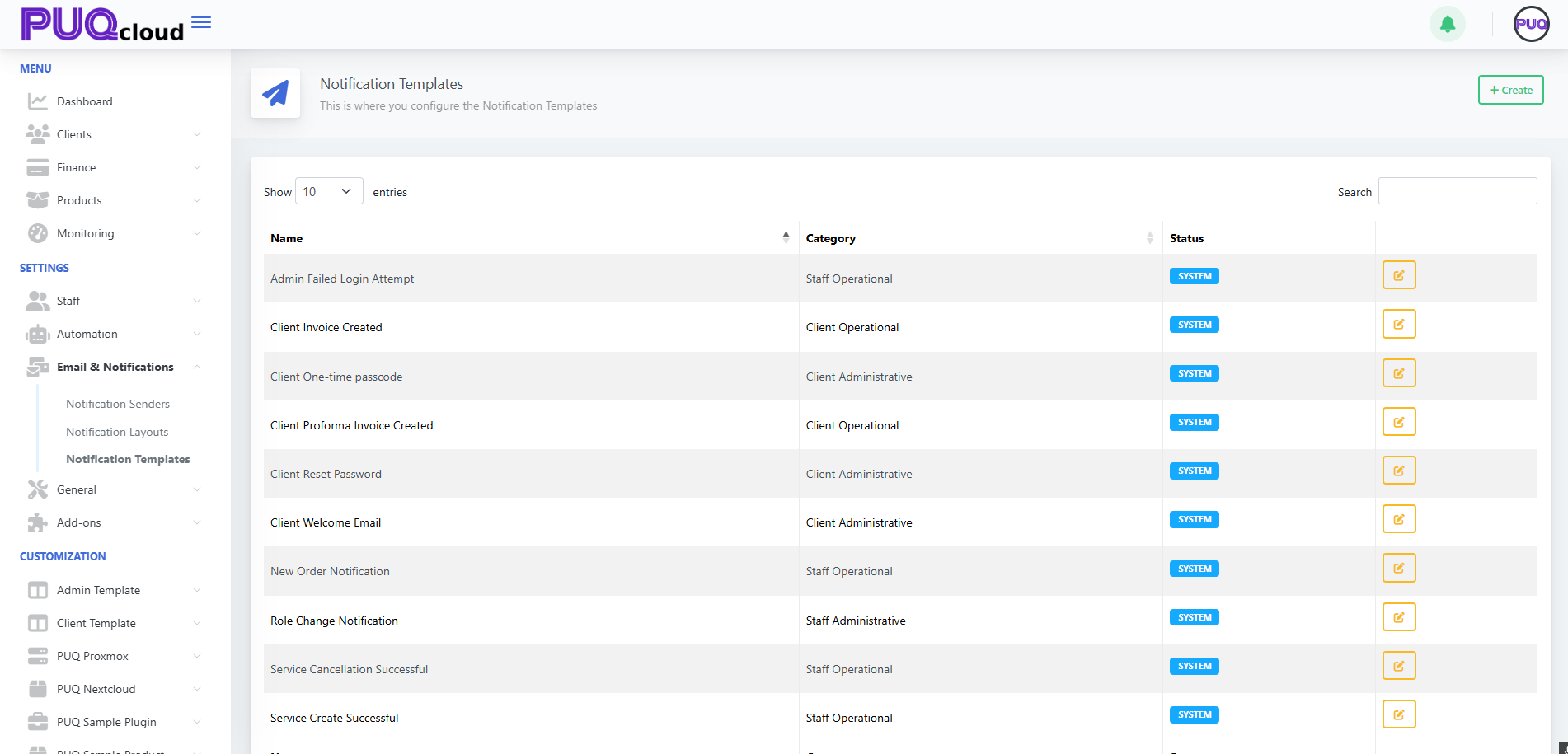
Create a new template
-
Click + Create (top-right).
-
Enter a Name.
-
Pick a Category:
-
Staff Administrative
-
Staff Operational
-
Client Administrative
-
Client Operational
-
-
Click Save.
Tip: Categories help route who receives the message and where it shows up in the UI.
“Create Notification Template” modal (Category).
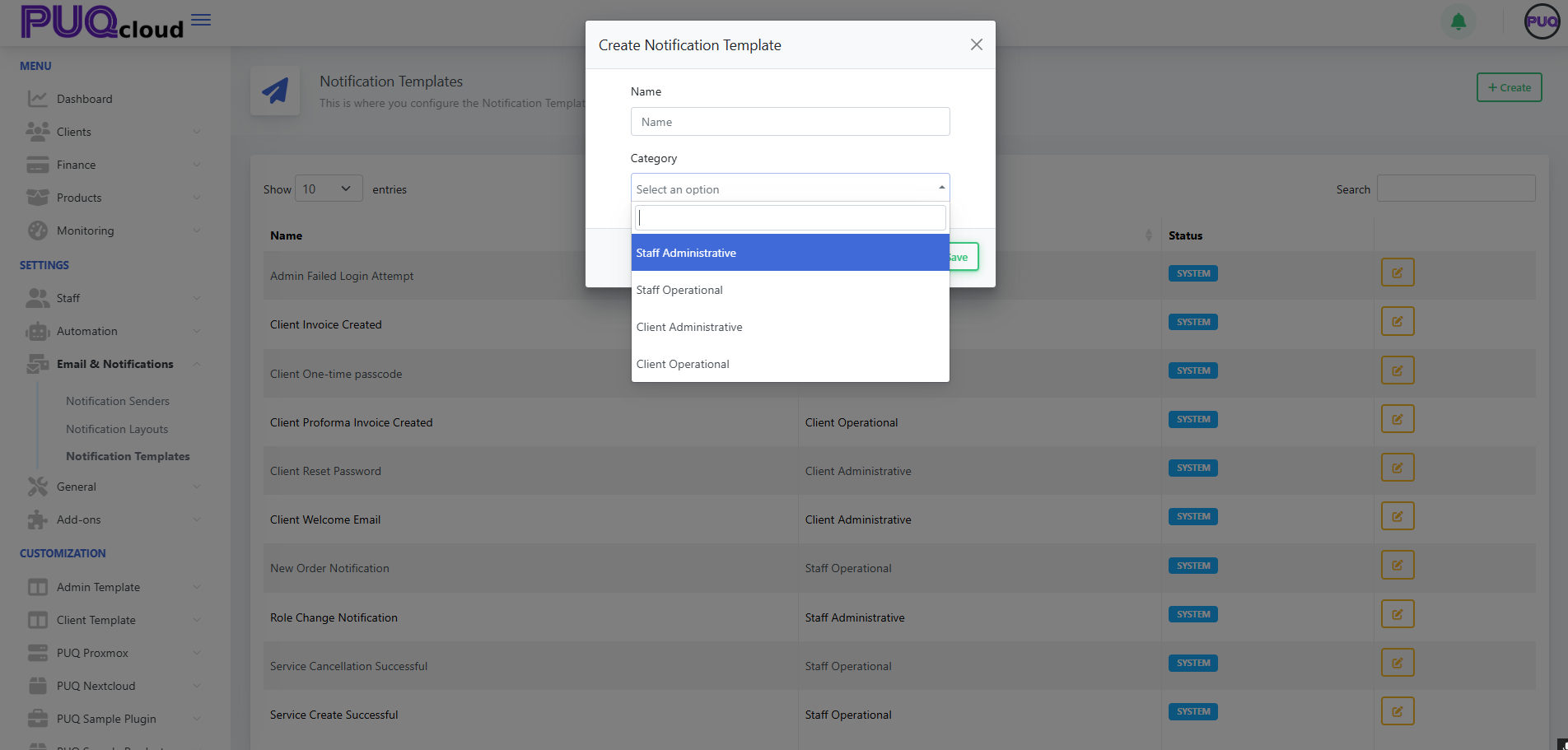
Edit a template (content & languages)
When you edit a template you’ll see:
-
Language tabs (EN/UA/PL/FR): maintain localized versions for each language you support.
-
Subject: the email subject line for that language.
-
Text Mini: a short/plain snippet (great for SMS/push or the top of text-only emails).
-
HTML Preview: a live preview of the HTML you’re composing on the left.
Changes are independent per language; remember to save after editing each language if you switch tabs.
Edit Notification Template: language tabs, Subject, Text Mini, live preview.
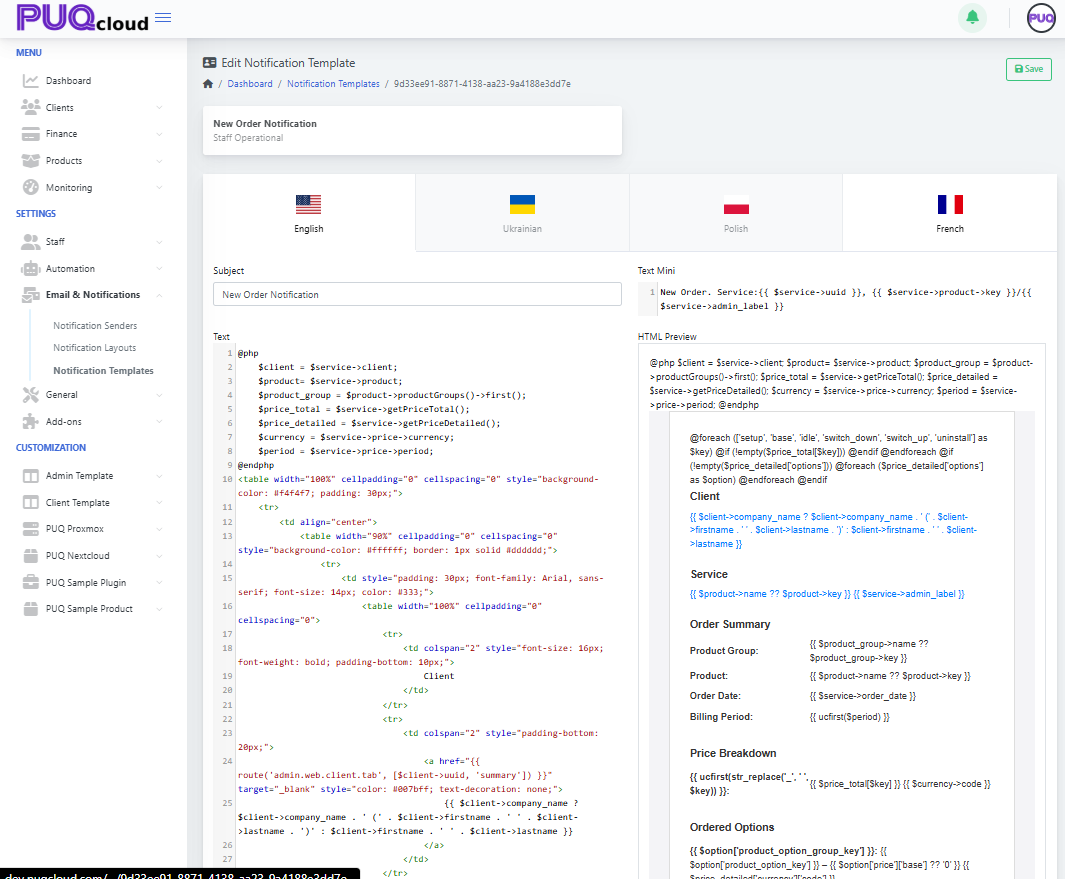
Write the message (variables & logic)
-
The editor supports template variables and light blade-style syntax. Common objects include:
-
$client(e.g.,$client->company_name,$client->firstname) -
$service(e.g.,$service->uuid,$service->price,$service->product) -
$product,$price_detail,$currency,$period, etc., depending on the event
-
-
Use control structures (
@if,@foreach) to conditionally render parts of the email.
Examples you’ll often see:
{{ $service->uuid }}
{{ $client->firstname }} {{ $client->lastname }}
@foreach($price_detailed['options'] ?? [] as $option)
{{ $option['name'] }} — {{ $option['price'] }}
@endforeach
-
Keep Text Mini short and human-readable; reserve full markup for the HTML body.
-
Watch the HTML Preview on the right to validate your structure and data placeholders.
Best practices
-
Clone behavior: Editing a SYSTEM template effectively overrides it (your changes become the active version); you can always re-apply defaults later by copying from a fresh environment.
-
Keep it accessible: Use semantic HTML and inline styles; avoid images for critical info.
-
Localization parity: Ensure every language tab has at least a basic subject/body.
-
Personalization: Prefer
$client->firstnameover generic “Dear Customer”. -
Links & safety: Use absolute URLs and include a clear call to action (e.g., “Visit Client Area”).
-
Testing: Trigger the real event (e.g., create a proforma invoice) in a sandbox account to see the final message flowing through your selected Notification Sender (SMTP/PHPMail/Bell).
Troubleshooting
-
Variables show blank: That variable isn’t available for the event. Inspect other defaults for that event to see which fields are used.
-
Rendering issues: Check unclosed tags and preview; simplify nested tables if needed.
-
Wrong language sent: Confirm the client’s preferred language and that the localized version exists.
Related setup (optional but recommended)
-
Configure Email & Notifications → Notification Senders (SMTP, PHPMail, Bell) so mail actually goes out.
-
Adjust Notification Layouts if you want a shared header/footer or branding that wraps your templates.
That’s it—you’re ready to create polished, localized notifications that fit your brand and workflows.
DNS Manager — Server Groups
PUQcloud Panel
Order Now | Download | FAQ
1) What Server Groups are for
A Server Group is a logical pool of one or more DNS servers that act together as the authoritative nameservers for the zones you assign to the group.
You define the public NS hostnames for the group (what registrars and resolvers will see), and you attach real DNS servers to the group (PowerDNS or HestiaCP via PUQcloud modules). Any Zone linked to this group will be created/updated on all servers in the group.
Path: Settings → DNS Manager → Server Groups
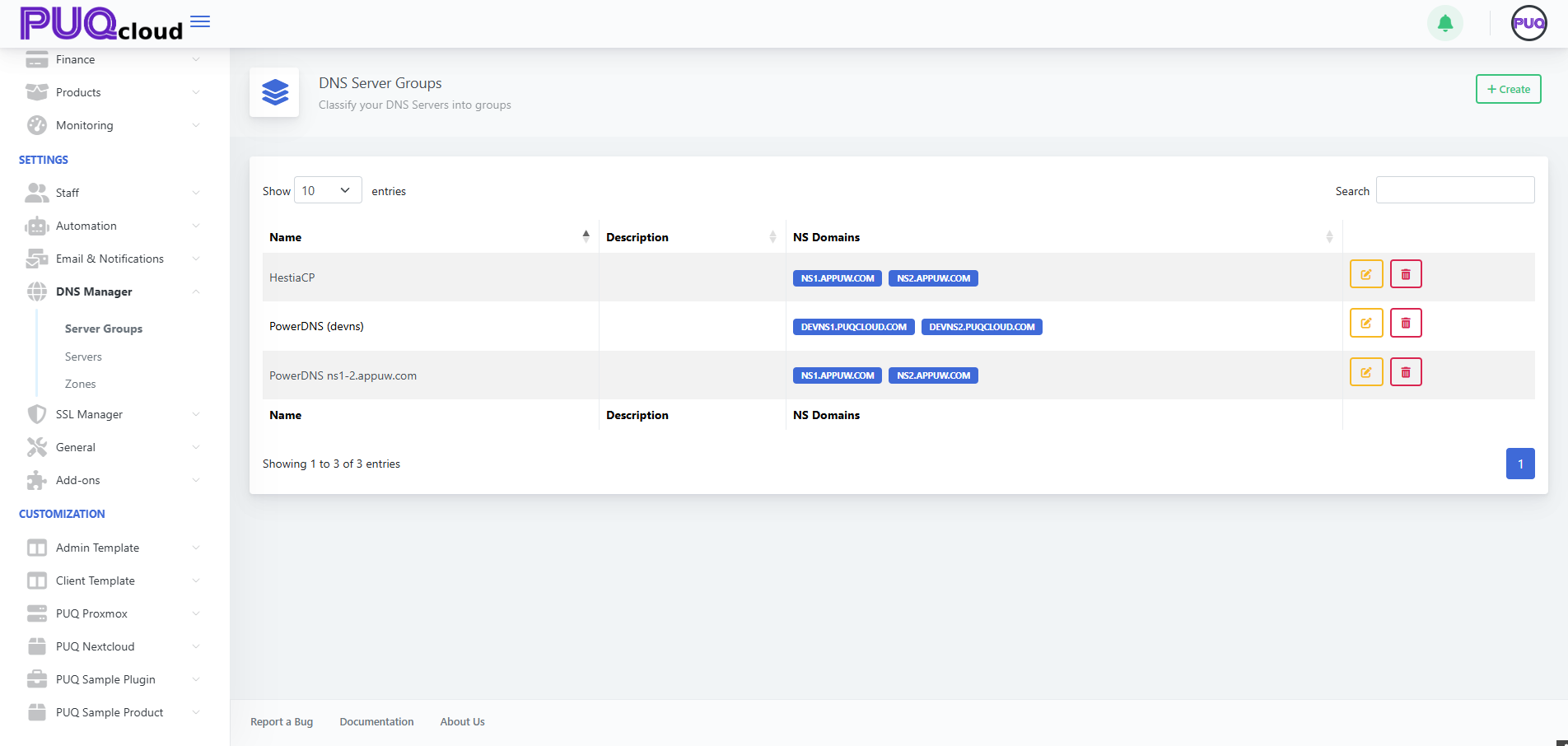
2) When you need groups
-
You operate two or more DNS servers for redundancy.
-
You separate production vs staging/tech DNS (e.g., ACME DNS-01 challenge zone).
-
You roll out multi-region authoritative DNS and want a single switch to move zones between clusters.
-
You’re migrating from one platform to another and need both pools side by side.
3) Supported modules (for servers you’ll attach)
-
PUQ PowerDNS — talks directly to PowerDNS HTTP API (typically port
8081). -
PUQ HestiaCP DNS — manages zones/records through HestiaCP API.
You can mix group types: one group may contain only PowerDNS nodes, another only HestiaCP, etc.
4) Before you start (prereqs)
-
Prepare your NS hostnames (e.g.,
ns1.example.com,ns2.example.com) and make sure they will resolve to the public IPs of your real DNS servers. -
Add your physical DNS servers in DNS Manager → Servers and verify them with Save and Test.
-
If these hostnames are used for domain delegation, update them at the registrar after you finish (or set glue records if needed).
5) Creating a Server Group — step by step
-
Go to Server Groups and click + Create.
-
Fill in Name and (optional) Description.
-
In NS Domains, enter the authoritative NS hostnames — one per line (e.g.,
ns1.appuw.com,ns2.appuw.com). -
Click Save.

6) Editing a Server Group (fields explained)
Open the group you just created.
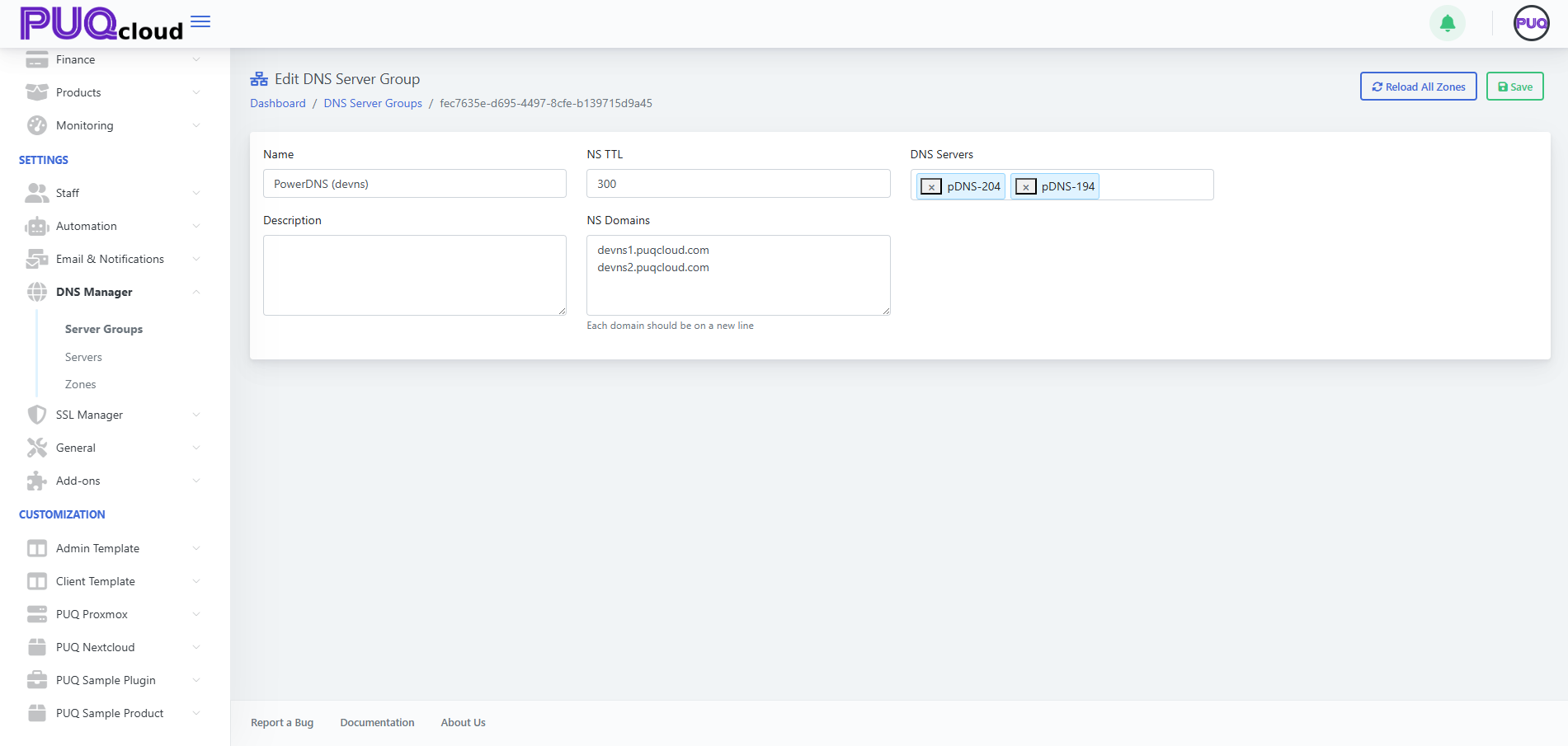
Fields
| Field | Purpose | Notes / Examples |
|---|---|---|
| Name | Friendly title of the group | e.g., PowerDNS (devns) |
| NS TTL | TTL for NS records this group advertises | 300–900 is typical; use 300 during migrations |
| NS Domains | The public authoritative NS hostnames for the group | ns1.appuw.com and ns2.appuw.com, each on a new line |
| DNS Servers | The real servers (from DNS Manager → Servers) to run this group | Select 2+ for redundancy; can be PowerDNS or HestiaCP nodes |
Actions
-
Reload All Zones — push/refresh every zone assigned to this group across all attached servers (useful after adding/removing a server).
-
Save — persist changes.
7) How groups, servers, and zones interact
-
A Zone belongs to exactly one Server Group.
-
A Server Group can contain multiple servers (recommended: at least two).
-
When you create/edit a zone, PUQcloud writes changes to all servers in the selected group.
-
Changing the group for a zone (via Zones → Move To) moves its management to the new server pool.
8) Typical patterns
A. ACME “Tech Zone” group (DNS-01 for SSL)
Create a group like PowerDNS (devns) with NS hostnames such as devns1.yourdomain.com and devns2.yourdomain.com, attach 2+ PowerDNS servers, and delegate these NS in the registry.
Use this group to host a technical zone (e.g., acme.yourdomain.com) where SSL Manager will place TXT records during issuance. In target zones you only set CNAME for _acme-challenge pointing into the tech zone; Let’s Encrypt follows the CNAME and validates TXT there.
B. Production authoritative DNS
Create a group PowerDNS ns1-2 with ns1.example.com and ns2.example.com, attach your production servers, and assign all public zones to this group.
C. Migration between platforms
Keep Group A (HestiaCP) and Group B (PowerDNS) simultaneously.
Import zones to Group B, test, then in Zones use Move To to switch each zone from A to B. Lower NS TTL before switching to reduce propagation delays.
9) Best practices
-
Always have ≥2 servers per group, ideally in different networks/regions.
-
Choose clear names:
PowerDNS ns1-2,PowerDNS (devns),HestiaCP-EU. -
Keep NS TTL low (300) during migrations or frequent changes.
-
After adding a server to a group, run Reload All Zones.
-
Ensure NS Domains here match the actual delegation at your registrar.
-
Secure server APIs (IP allowlist, HTTPS where applicable) and use distinct API keys.
10) Troubleshooting
| Symptom | Likely cause | Fix |
|---|---|---|
| Zones don’t appear on a new server | Server not attached to the group or not reloaded | Add it under DNS Servers, click Reload All Zones |
| Public NS answers are inconsistent | One node out of sync or offline | Check server health, run Reload All Zones, review logs |
| Registrar warns about NS mismatch | NS hostnames in group don’t match registry delegation | Align NS Domains here with registrar NS; wait for TTL |
| SSL DNS-01 fails | Tech group/zone mis-delegated or CNAME wrong | Verify tech zone delegation and _acme-challenge CNAME chain |
DNS Manager — Servers
PUQcloud Panel
Order Now | Download | FAQ
1) Purpose of this section
In Servers you connect your real DNS servers to PUQcloud. Then you attach these servers to Server Groups, and groups power your Zones (create/update records, reload zones, import/export).
Path: Settings → DNS Manager → Servers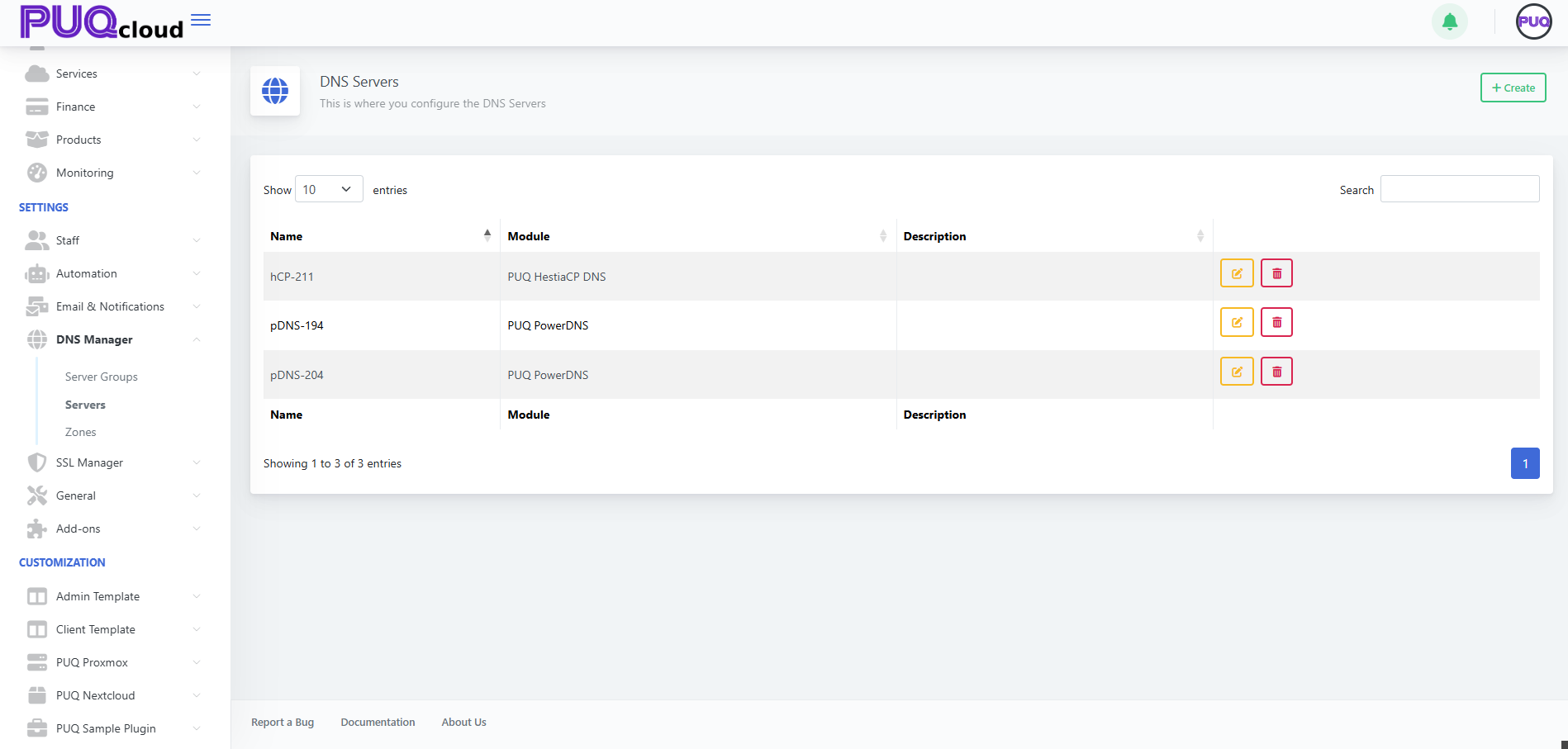
2) Supported modules
PUQcloud integrates via pluggable modules:
• PUQ PowerDNS
Direct integration with the PowerDNS HTTP API (typically port 8081). The panel creates/updates zones and records through the REST API and provides Save and Test to confirm connectivity and show the PowerDNS version.
Use when: you run your own PowerDNS authoritative servers and want fast, transparent automation (including ACME/SSL “tech zone” workflows).
• PUQ HestiaCP DNS
Manages zones/records via the HestiaCP API. Operations are performed under a HestiaCP user/API key you supply.
Use when: your DNS lives inside HestiaCP and you want to centralize control via PUQcloud.
You can run both modules side-by-side in different Server Groups (handy for migrations or prod/staging separation).
3) Create a server — step by step
-
Open Servers and click + Create.
-
Enter a Name (a friendly label).
-
Choose Module: PUQ PowerDNS or PUQ HestiaCP DNS.
-
Click Save — you’ll land on the edit page with connection fields.
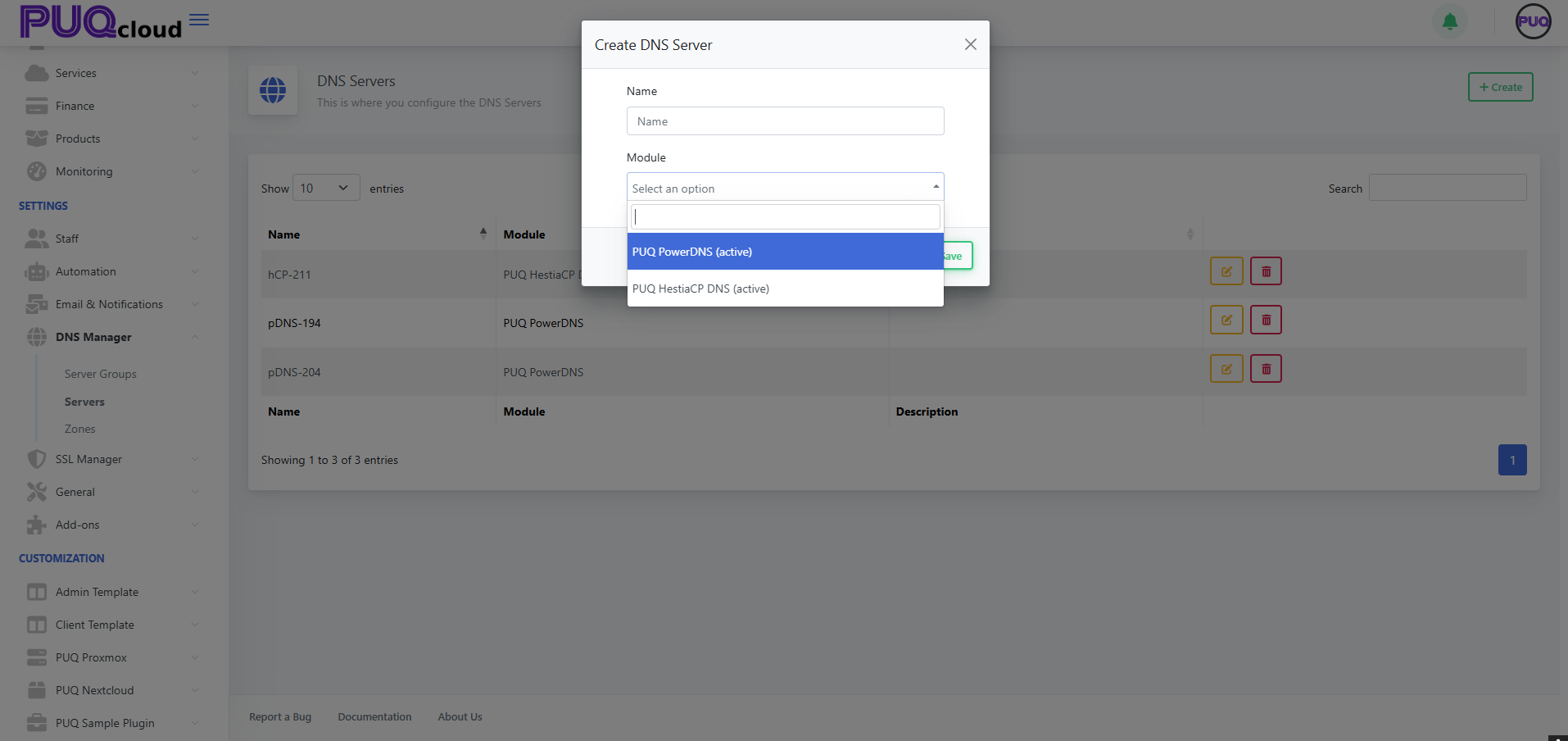
4) Configure PowerDNS (PUQ PowerDNS)
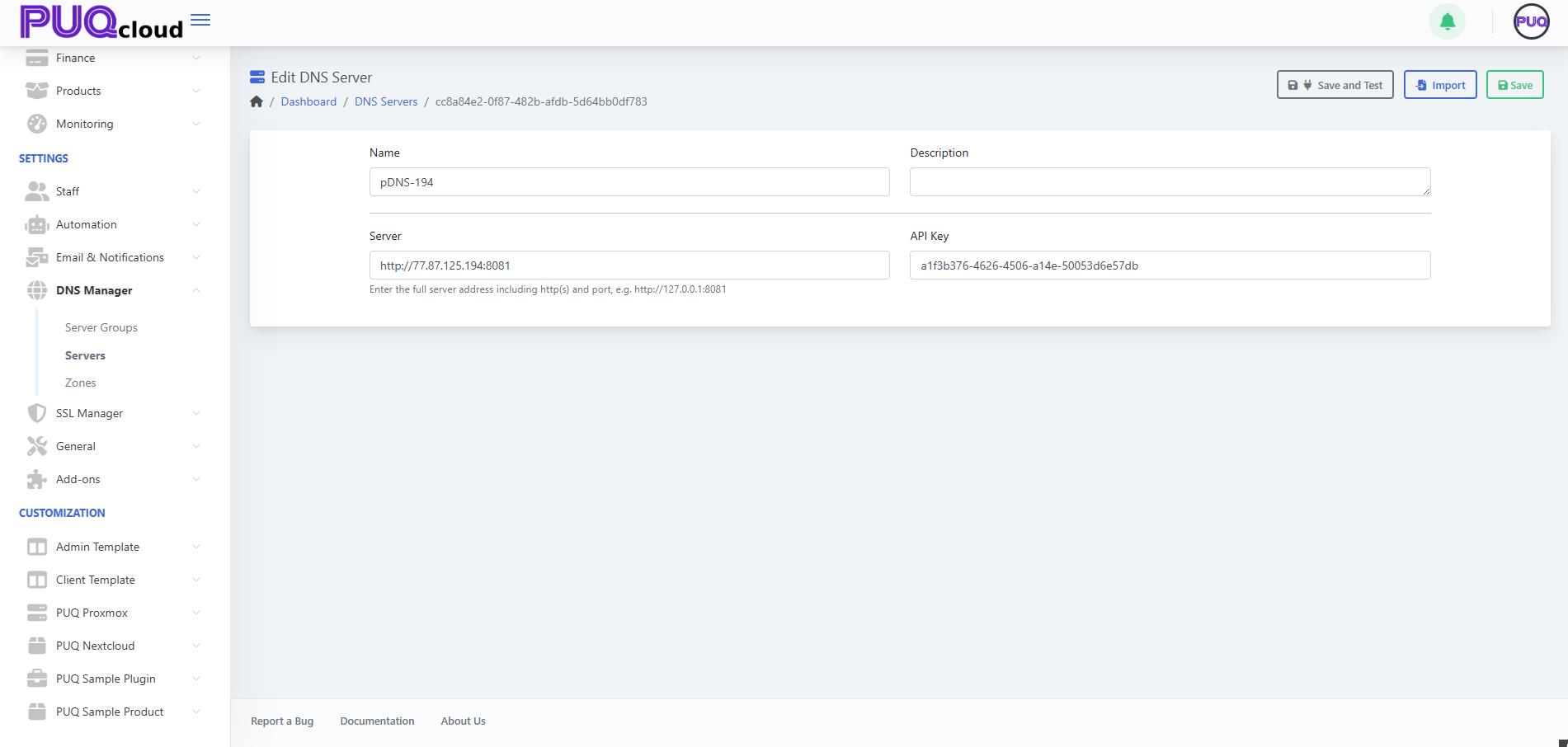
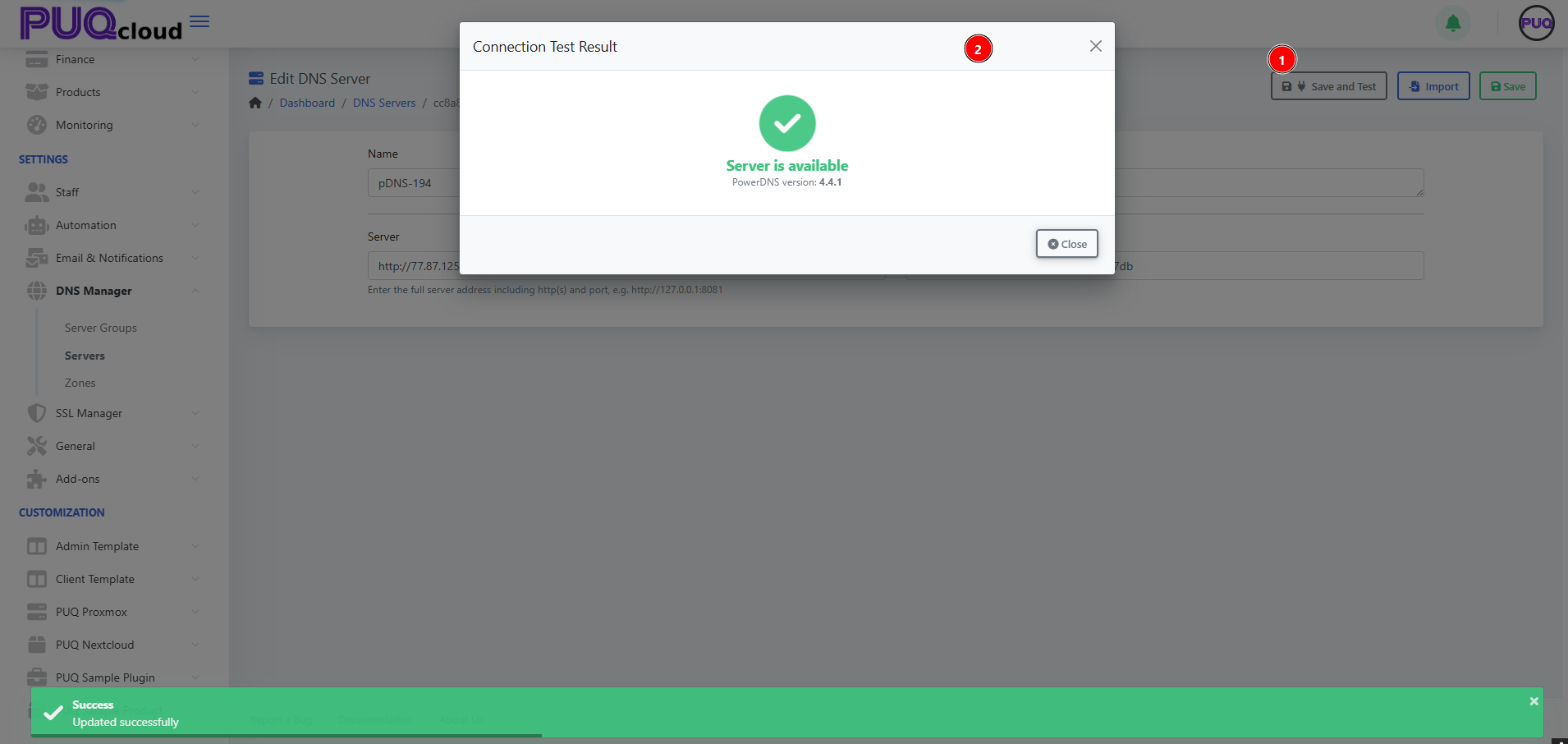
Fields
| Field | What to enter | Example / Tip |
|---|---|---|
| Name | Any friendly name | pDNS-194 |
| Description | Optional note | PowerDNS on dev node |
| Server | Full API URL incl. protocol & port | http://203.0.113.194:8081 or https://dns.example.com:8081 |
| API Key | PowerDNS API token (api-key= in config) |
Create a dedicated key for PUQcloud only |
Buttons
-
Save and Test — checks connectivity and displays the PowerDNS version.
-
Import — pulls existing zones from this server (useful on first attach).
-
Save — persists the settings.
Security tips
-
IP-restrict the PowerDNS API to your PUQcloud host.
-
Prefer HTTPS to the API, use a separate API Key with least privilege.
-
Watch PowerDNS logs during imports or bulk changes.
5) Configure HestiaCP (PUQ HestiaCP DNS)
After selecting PUQ HestiaCP DNS, the edit form shows the HestiaCP API connection fields (API URL + authentication parameters according to your HestiaCP setup — token or user/password).
Recommendations:
-
Create a dedicated HestiaCP user/API key for PUQcloud.
-
Confirm the API is enabled and reachable from the PUQcloud host.
-
After Save and Test, verify by creating a test zone under Zones.
6) Add the server to a group
Once the server tests OK, go to Settings → DNS Manager → Server Groups → Edit and add it under DNS Servers for the target group.
Then click Reload All Zones to deploy all group zones onto this newly attached node.
7) Typical scenarios
A. PowerDNS cluster for the ACME tech zone
-
Add 2+ PowerDNS servers (in Servers), test each with Save and Test.
-
Create a group PowerDNS (devns), set NS Domains (e.g.,
devns1.example.com,devns2.example.com), and attach both servers. -
Delegate those NS at your registrar.
-
Create the tech zone
acme.example.comin this group. -
In SSL Manager → Certificate Authorities, select this tech zone as DNS Zone. Done.
B. Migrating from HestiaCP to PowerDNS
-
Connect your PowerDNS servers.
-
Import zones from HestiaCP (use the Import button on PowerDNS or Zones → Export / Import).
-
Create a new Server Group for PowerDNS and Move To switch zones into it.
-
After validation, change domain delegation at the registrar to the new NS.
8) Best practices
-
Redundancy: attach at least two servers to each group (ideally different regions/ASNs).
-
Naming: keep labels clear —
pDNS-194,pDNS-204,hCP-211. -
Always run Save and Test after changing connection params.
-
Keep zone TTL 300–600s during active changes/migrations.
-
Lock down APIs by IP allowlists and use HTTPS where possible.
-
Export zones as backups before bulk operations.
9) Troubleshooting
| Symptom | Likely cause | Fix |
|---|---|---|
| Save and Test fails | Wrong URL/port/key or firewall blocks access | Verify http(s)://host:port, API key, and allow the PUQcloud IP |
| Zone import incomplete | API/user lacks permissions | Grant appropriate rights or use Zones → Import |
| Group zones don’t deploy to the new server | Server not added to Server Group | Add it, then Reload All Zones |
| Different answers from NS nodes | One node out of sync or offline | Check health/logs, Reload All Zones, restore connectivity |
DNS Manager — Zones
PUQcloud Panel
Order Now | Download | FAQ
1) What a Zone is and how it works
A DNS Zone is the set of DNS records for a domain (e.g., example.com) or a reverse domain (in-addr.arpa, ip6.arpa).
In PUQcloud, every zone is assigned to exactly one Server Group, and that group has one or more real DNS servers attached. As a result:
-
When you create or change records in Zones, PUQcloud writes those changes to all servers in the selected group.
-
Zone-level meta (e.g., Primary NS, NS Domains, SOA fields) is stored with the zone and deployed to the group’s servers.
Path: Settings → DNS Manager → Zones

2) The Zones list & actions
The list shows all zones, how many records each has, which Server Group it belongs to, the Primary NS (SOA MNAME), and the Admin Email (SOA RNAME).
Per-row actions:
-
Edit — open the zone editor
-
Delete — remove the zone
Top-right: + Create to add a new zone.
3) Create a zone
Click + Create and fill the form.

Field reference
| Field | Description | Tip |
|---|---|---|
| Name | Zone name. For forward zones use example.com. For reverse: IPv4 uses x.y.z.in-addr.arpa, IPv6 uses the …ip6.arpa nibble format. |
Use correct reverse notation. |
| DNS Server Group | Which group of servers will host this zone | Choose the group you prepared (e.g., PowerDNS ns1-2 or PowerDNS (devns) for the ACME tech zone). |
| SOA Admin Email | Email in SOA (RNAME, with a dot instead of @) |
Commonly hostmaster@domain.tld. |
| SOA TTL (seconds) | TTL for the SOA record | 3600 is a safe default. |
| SOA Refresh | Slave refresh interval | 86400 (24h) typical. |
| SOA Retry | Retry interval if refresh fails | 7200 (2h). |
| SOA Expire | When slaves consider zone expired | 1209600 (14 days). |
| SOA Minimum TTL | Negative caching (minimum TTL) | 3600. |
Click Save to create the zone.
4) Edit a zone
Opening a zone leads to Edit DNS Zone.

What you see
-
Name — zone name (read-only for some reverse templates).
-
DNS Server Group — which group serves this zone.
-
Primary NS — SOA MNAME (main NS).
-
NS Domains — authoritative nameserver hostnames shown as badges. These should match your actual registrar delegation.
-
SOA fields — TTL, Refresh, Retry, Expire, Minimum TTL.
-
Records table — the list of all records in this zone.
Top actions
-
+ Create Record — add A/AAAA/CNAME/TXT/MX/SRV/NS/PTR etc.
-
Reload Zone — force-sync this zone across all servers in the group.
-
Move To — move the zone to another Server Group (useful for migrations).
-
Export / Import — export to/import from a standard zone format (PowerDNS/BIND-compatible).
-
Save — save changes to the zone properties (record edits have their own save flow in the record modal).
5) Add records
Click + Create Record.

Common record types
-
A / AAAA — IPv4/IPv6 address mappings (e.g.,
www → 203.0.113.10). -
CNAME — alias (e.g.,
www → @orexample.com). -
TXT — free-form text (SPF, DKIM, ACME challenges).
-
MX — mail exchangers with priority.
-
SRV — service records (VoIP, LDAP, etc.).
-
NS — delegate sub-zones to other nameservers.
-
PTR — reverse mapping (IP to hostname) for reverse zones.
Examples (forward)
-
@→ A →203.0.113.10 -
www→ CNAME →@
Example (mail)
-
@→ MX (10) →mx1.example.com. -
@→ TXT →v=spf1 include:spf.example.net -all
Reverse example (PTR)
In 0.168.192.in-addr.arpa:
-
130→ PTR →host130.example.com.
6) ACME / SSL with a technical zone
For DNS-01 challenges, SSL Manager commonly uses a technical zone (e.g., acme.yourdomain.tld) hosted by a dedicated Server Group (e.g., PowerDNS (devns)). The workflow:
-
In the target zone (the zone for which you want a cert), create a CNAME:
_acme-challenge.yourdomain.tld → _acme-challenge.yourdomain.tld.acme.yourdomain.tld. -
During issuance, SSL Manager automatically creates/updates the TXT in the tech zone (via PowerDNS/Hestia modules).
-
The CA queries
_acme-challengeon the target zone, follows the CNAME into the tech zone, and reads the TXT. -
Once validated, the certificate becomes ACTIVE (see SSL Certificates guide).
Ensure the tech group’s NS Domains are really authoritative and are properly delegated at the registrar.
7) Export / Import
-
Export — download the zone in a PowerDNS/BIND-compatible format (great for backups and migrations).
-
Import — upload a zone file to quickly populate records. After import, verify records and click Reload Zone.
8) Best practices
-
Use TTL 300–600s while actively changing/migrating; raise later for stability.
-
Keep ≥2 NS in the serving group (prefer distinct regions/ASNs).
-
For ACME, keep a separate tech zone and separate group.
-
Always Export before bulk edits.
-
After changing a zone’s Server Group, use Move To and then Reload Zone.
-
Regularly verify delegation (
dig NS yourdomain.tld) and key records resolution from multiple locations.
9) Troubleshooting
| Symptom | Likely cause | Fix |
|---|---|---|
| Public resolvers can’t see your changes | Registrar delegation wrong or NS Domains don’t match real NS | Correct delegation, align NS Domains, wait for TTL |
| Different answers on NS1 vs NS2 | One node out of sync or offline | Reload Zone, check server health, review logs |
| ACME DNS-01 fails | Missing/wrong CNAME to tech zone; caching | Validate with dig, fix CNAME/TXT, wait for TTL |
| Zone import errors | Incompatible format or invalid entries | Fix offending lines, re-import |
SSL Manager - Certificate Authorities
PUQcloud Panel
Order Now | Download | FAQ
Overview
Certificate Authorities (CA) are provider profiles the panel uses to issue and renew SSL/TLS certificates via ACME. PUQcloud follows a simple rule: one module per CA.
Currently supported modules:
-
Let’s Encrypt (plus Let’s Encrypt Staging for safe testing)
-
ZeroSSL
Where to find it: Settings → SSL Manager → Certificate Authorities
What you can do here
-
Create and configure CA profiles (ACME account, technical DNS zone, timeouts).
-
Test connectivity to the CA (Save and Test) and see the CA directory endpoints.
-
Keep multiple profiles (e.g., Production vs Staging) and select them per-certificate.
Create a CA Profile (step-by-step)
-
Go to Settings → SSL Manager → Certificate Authorities and click + Create.
-
Enter Name and choose Module = PUQ ACME (active) → Save.
-
Click Edit on the new CA profile and fill in the fields (see the Field Reference below).
-
Click Save and Test. A modal should show API is available plus a dump of ACME directory endpoints.
-
Click Save.
Field Reference (when & why)
| Field | What it is | When / Why |
|---|---|---|
| Name | Internal display name | Use meaningful names like LE PROD, LE STAGING, ZeroSSL. |
| Description | Short profile note | Note target usage: “production issuance”, “sandbox”, or project scope. |
| Certificate Authority | Selected CA directory | Use Let’s Encrypt Staging for tests, Let’s Encrypt or ZeroSSL for production. |
| Email address for the ACME account | Email used to register/manage the ACME account | Required. Prefer a shared ops mailbox (e.g., it@company.tld) for continuity. |
| EAB Key ID / EAB HMAC Key | External Account Binding | Needed by some providers/plans (e.g., ZeroSSL). Leave empty if not required. |
| DNS Zone | Technical zone where TXT records are actually created | Example: acme.puqcloud.com. The target domain’s _acme-challenge will CNAME to this zone. |
| Allow wildcard certificates | Allows *.domain |
Enable if you plan wildcard issuance (DNS-01 only). |
| DNS Record TTL (seconds) | TTL for created DNS records | 30–60 speeds up DCV; raise slightly if your DNS is slow to propagate. |
| API Timeout (seconds) | Max wait for ACME API responses | Increase (e.g., 20–30) on flaky networks/CI bursts. |
| Save and Test (button) | Connectivity check | Opens a modal with API is available and the list of ACME endpoints. Investigate if it fails. |
Provider specifics
Let’s Encrypt (incl. Staging)
-
Uses DNS-01 via a technical zone:
-
On the target domain you create a CNAME for
_acme-challenge.domainpointing into your technical zone (e.g.,_acme-challenge.domain CNAME <token>.acme.puqcloud.com). -
Let’s Encrypt queries
_acme-challengeon the target domain, follows the CNAME into the tech zone, and reads the TXT value there.
-
-
Let’s Encrypt Staging is ideal for testing without spending production rate limits.
-
Wildcards (
*.domain) require DNS-01 and the Allow wildcard flag.
ZeroSSL
-
Supports account API keys so that issued certificates appear in your ZeroSSL account.
-
If you don’t provide keys, the system will create temporary keys per certificate automatically.
-
With a paid ZeroSSL plan (~$12/month), generate API keys and add them to PUQcloud so all certs are visible/manageable in your ZeroSSL panel.
Good practices
-
Start with Let’s Encrypt Staging to validate your flow, then enable Let’s Encrypt (production).
-
Keep DNS TTL low (30–60s) in the CA profile to speed up challenges.
-
For ZeroSSL at scale, use account keys for visibility and auditing.
Migration cheat-sheet (e.g., from Let’s Encrypt to ZeroSSL)
-
Create a new CA profile (add EAB/API keys if required by your ZeroSSL plan).
-
Save and Test to confirm directory endpoints.
-
Check/update your technical DNS zone if it differs from previous setup.
-
Issue a test cert on a non-critical domain to validate DCV.
-
For new certs, select the new CA in the creation form. For existing certs, you cannot “switch issuer”; issue a new certificate under the new CA and deploy it.
-
Verify Days Remaining / Auto Renew behavior on new certs (and, with ZeroSSL keys, that issues appear in the ZeroSSL account).
Troubleshooting
-
“Save and Test” doesn’t show “API is available”
-
Check selected CA, network access, EAB keys (if required), and API Timeout.
-
-
LE DNS validation fails
-
Confirm the CNAME is correct and already resolves to the tech zone; wait for TTL.
-
-
Wildcard fails
-
Ensure Allow wildcard is enabled and you are using DNS-01.
-
-
ZeroSSL certificates don’t show in the ZeroSSL dashboard
-
Add account API keys to the CA profile (temporary per-certificate keys don’t link certs to your account).
-
Related
-
SSL Certificates — issuance workflow (Draft → CSR → Pending (CNAME) → Active), auto-renew, metadata.
-
DNS Manager — managing your technical zone and verifying
_acme-challengerecords. -
Email & Notifications — reminders for expiry and operational alerts.
SSL Manager - SSL Certificates
PUQcloud Panel
Order Now | Download | FAQ
Overview
The SSL Certificates section is your single place to issue, renew, import, and store SSL/TLS certificates.
Each certificate page is split into two columns:
-
Left column — generated by the panel and identical for all certificates (fields, statuses, PEM blocks, metadata).
-
Right column — module-specific, driven by the selected CA module (PUQ ACME). It may show provider-specific hints or controls.
Where to find it: Settings → SSL Manager → SSL Certificates
What you can do
-
Create a certificate (set the domain, choose a CA profile, add SANs/aliases).
-
Generate a CSR and a private key.
-
Complete domain control validation (DNS-01 via CNAME → tech zone).
-
Enable Auto-renewal and track Days Remaining.
-
View/copy Certificate / Private Key / CSR (PEM).
-
Change status (Draft → Active via standard actions).
-
Delete certificates.
-
(Optionally) Import existing certificates.
The private key is encrypted in the database and visible only on the certificate’s page.
Certificates list
The list shows:
-
Domain, Certificate Authority (PUQ ACME)
-
Status (e.g., ACTIVE, “X DAYS”, “AUTO RENEW: 7”)
-
Actions: Edit / Delete
-
+ Create to add a new certificate
Create a certificate (step-by-step)
-
Click + Create in SSL Certificates.
-
Fill in:
-
Domain — primary domain (CN).
-
Certificate Authority — select a CA profile (e.g., Let’s Encrypt / ZeroSSL).
-
Aliases — SAN domains, one per line (optional).
-
-
Click Save — this only saves form data (no keys or certificate yet).
-
Click Generate CSR:
-
The system creates the CSR and Private Key (they do not exist before this step).
-
The private key is encrypted in DB; it is only visible on this page.
-
-
Status switches to Pending. The panel shows instructions to create a CNAME for
_acme-challenge.<domain>pointing into your tech zone (e.g.,acme.puqcloud.com). -
Once the CNAME resolves, issuance starts automatically. When finished, the card turns Active and shows all metadata/PEMs.
Certificate page — left column fields
Top block (editable in Draft)
-
Certificate Status (Draft toggle) — draft state.
-
Auto Renew Days — how many days before expiry to auto-renew (typically
7). -
Days Remaining — remaining days until expiry (LE defaults are ~90 days from issue).
-
Email (ACME account email) and Agree to Terms of Service — required by the CA policy.
Domain & Organization
-
Domain — CN.
-
Aliases (SANs) — additional domains/subdomains, one per line.
-
Wildcard —
*.domain(works with DNS-01 and “Allow wildcard” enabled in the CA profile). -
Email (contact) — certificate contact (may differ from ACME account email, if present).
-
Organization / Organizational Unit / Country / State / Locality — subject fields (as required by policy).
CA / Crypto / Metadata
Actions
-
Generate CSR — create CSR + private key (mandatory before issuance).
-
Change Status — service actions.
-
Save — persist form changes (no CA interaction).
In Draft, the upper part of the left column is editable; after issuance, many fields become read-only.
Workflow: statuses & transitions
-
Draft
-
Edit primary fields (domain, SANs, email, ToS, auto-renew threshold).
-
Save only stores data; no key/CSR is created.
-
-
Generate CSR
-
Creates CSR and Private Key (encrypted; visible only on this page).
-
Crypto fields/PEM blocks appear.
-
-
Pending (CNAME → tech zone)
-
The panel displays the exact CNAME instruction for
_acme-challenge.<domain>→ into your tech zone. -
As soon as the CNAME resolves, the panel continues issuance (DNS-01).
-
-
Active
-
Certificate is issued; Certificate PEM is available; a success panel shows “Certificate is active!”.
-
Days Remaining and Auto Renew operate; crypto/metadata are filled.
-
-
Expired / Error / Revoked
-
Expired — reissue/renew required.
-
Error — check logs/CA setup/DNS path.
-
Revoked — revoked per CA policy.
-
Auto-renewal
-
Controlled by Auto Renew Days (e.g.,
7). -
The panel tracks Days Remaining and triggers renewal ahead of expiry.
-
For LE/ZeroSSL via DNS-01, ensure your CNAME and tech zone remain intact.
Importing an existing certificate (if used)
-
Open SSL Certificates → + Import (or equivalent).
-
Paste CRT / Private Key / CA Bundle in PEM.
-
Save and verify validity/expiry.
-
Configure Auto Renew manually if needed (imports are usually not tied to ACME).
Key security
-
The private key is created at Generate CSR, encrypted in the database, and never shown outside this certificate page.
-
Visibility follows your role-based access.
-
Export a secure copy and store it in your organization’s secret vault.
Troubleshooting
| Symptom | Likely cause | Fix |
|---|---|---|
| Stuck in Pending | CNAME not resolving / wrong target | Verify _acme-challenge.<domain> name and target in tech zone; wait for TTL. |
| Issuance doesn’t start | CSR not generated | Click Generate CSR, then follow CNAME steps. |
| No “Certificate is active!” after CNAME | DCV incomplete / CA error | Check logs; ensure the tech zone is publicly resolvable. |
| Auto-renew doesn’t trigger | Bad Auto Renew Days or broken CNAME | Use a sensible threshold (e.g., 7) and verify CNAME/tech zone. |
| PEM mismatch on import | Key/cert pair doesn’t match | Import the correct pair or reissue. |
Related
Manage General on Admin Area
PUQcloud Panel
Order Now | Download | FAQ
The General page centralizes platform-wide defaults and housekeeping rules. It’s organized into four tabs:
-
Time Based – how long to keep logs and histories
-
Finance – billing and balance limits
-
Client – customer-facing timeouts
-
Social – your company’s social/profile links
Time Based (log retention)
Use this tab to control how long different histories are kept before cleanup jobs remove them.
-
Admin Session Log History – days to keep admin login/session logs.
-
Client Session Log History – days to keep client session logs.
-
Activity Log History – days to keep system activity logs (actions, events).
-
Module Log History – days to keep module-specific logs.
-
Notification History – days to keep notification entries.
-
Completed Task Queue History – days to keep completed queue items.
-
Task Queue History – days to keep all queue task records.
-
User Verification Code Lifetime – minutes a verification code remains valid.
Tips
-
Shorter values reduce storage usage and improve log queries.
-
Keep compliance needs in mind (audit requirements) before trimming aggressively.
General › Time Based tab with retention fields.
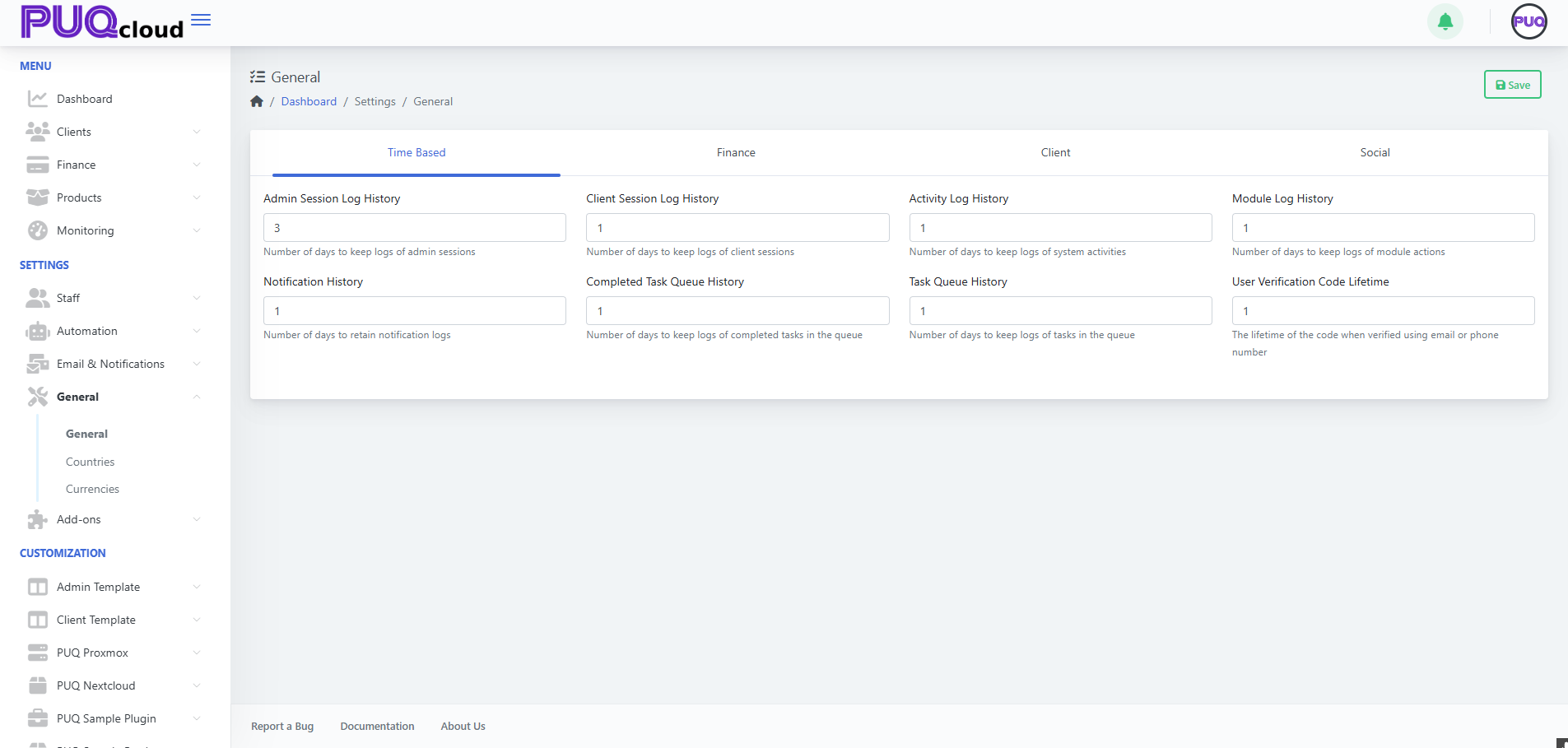
Finance (billing defaults & limits)
Define monetary guardrails and invoice behavior.
-
Default Invoice Due Days – number of days after issue date when invoices are due.
-
Minimum Add Funds Amount – smallest wallet/top-up amount allowed.
-
Maximum Add Funds Amount – largest single top-up amount allowed.
-
Maximum Client Balance – hard ceiling for a client’s total wallet balance.
Best practices
-
Align Default Invoice Due Days with your dunning/collections process.
-
Set realistic Min/Max Add Funds to reduce micro-payments and risk.
-
Use Max Client Balance to avoid accounting or AML headaches.
General › Finance tab with invoice and balance limits.
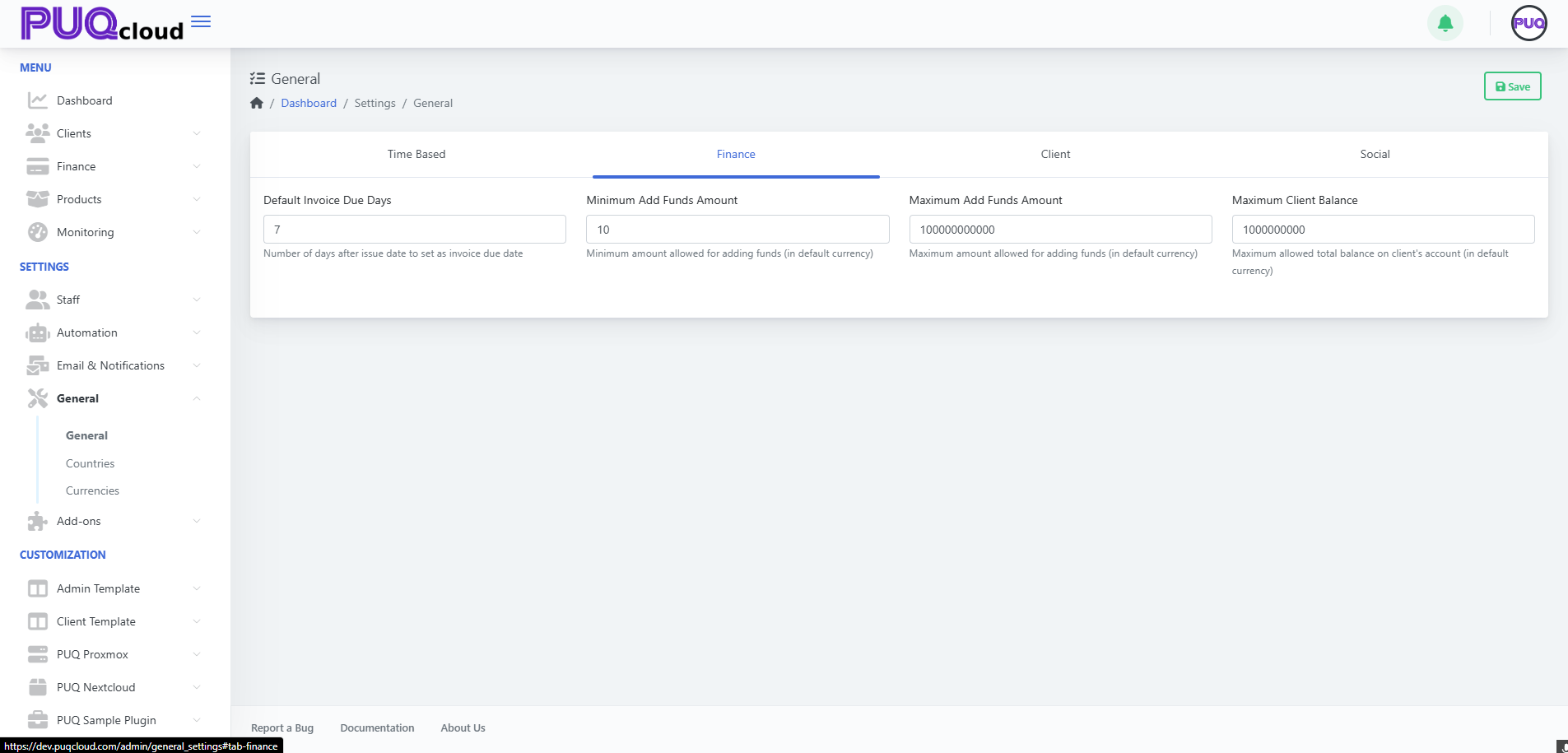
Client (customer timeouts)
A small but important setting for customer security & UX.
-
Reset Password URL Expire (minutes) – how long a password-reset link remains valid after it’s issued.
Guidance
-
30–120 minutes is common; lower values are more secure, higher values are more forgiving.
General › Client tab with reset link expiry.
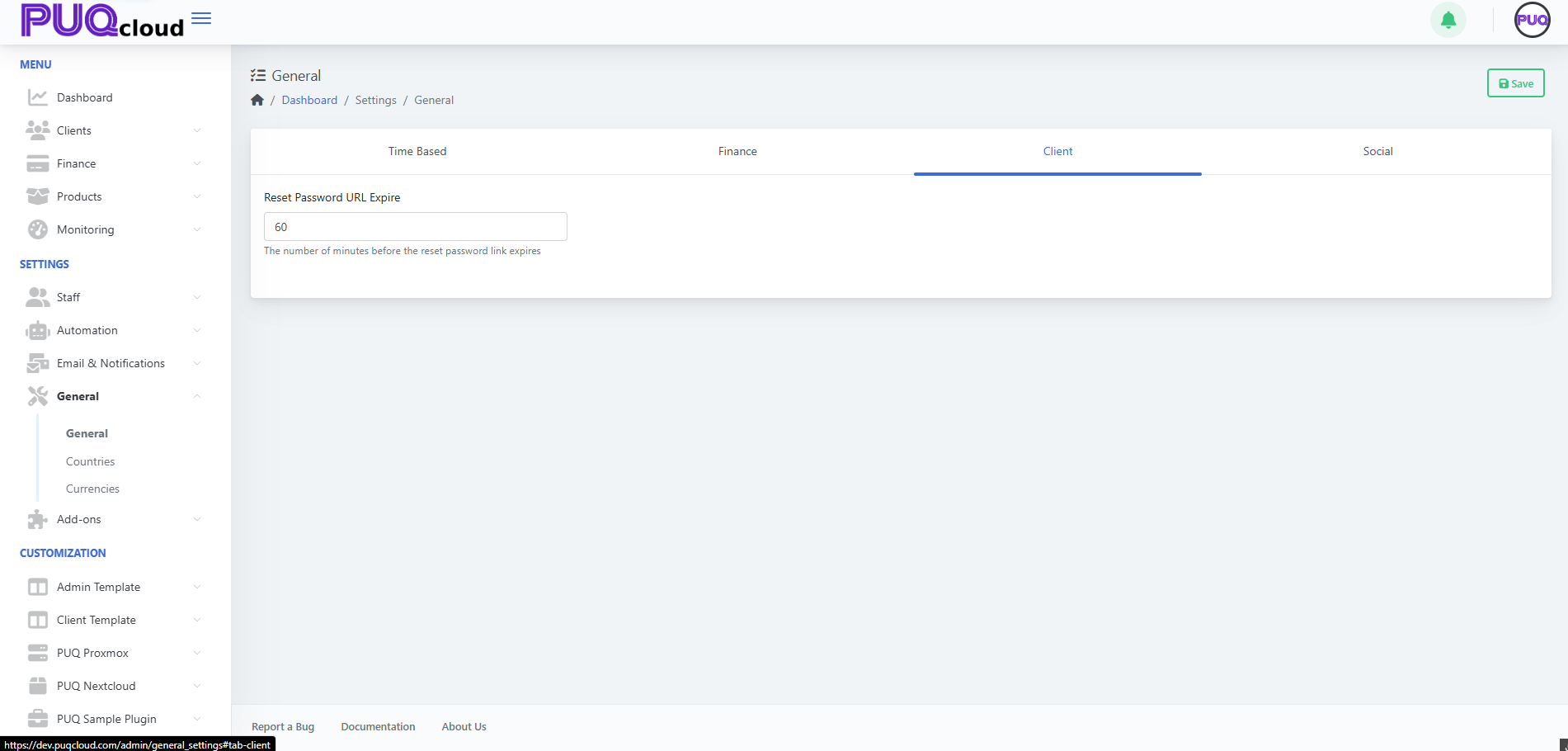
Social (brand & contact presence)
Store the official social/profile identifiers used across notifications and the client portal. Fields include:
-
Facebook, YouTube, LinkedIn, WhatsApp, Telegram, Twitter (X), Viber, Discord, Reddit, Vimeo, GitHub, Flickr, Skype, Bitbucket, Gitter, Slack.
Usage
-
Enter full URLs where applicable; for chat apps, follow the placeholder notes (e.g., WhatsApp in full international format, Discord invite URL path).
-
These can be pulled into notification templates or shown in the client area footer/headers, depending on your theme.
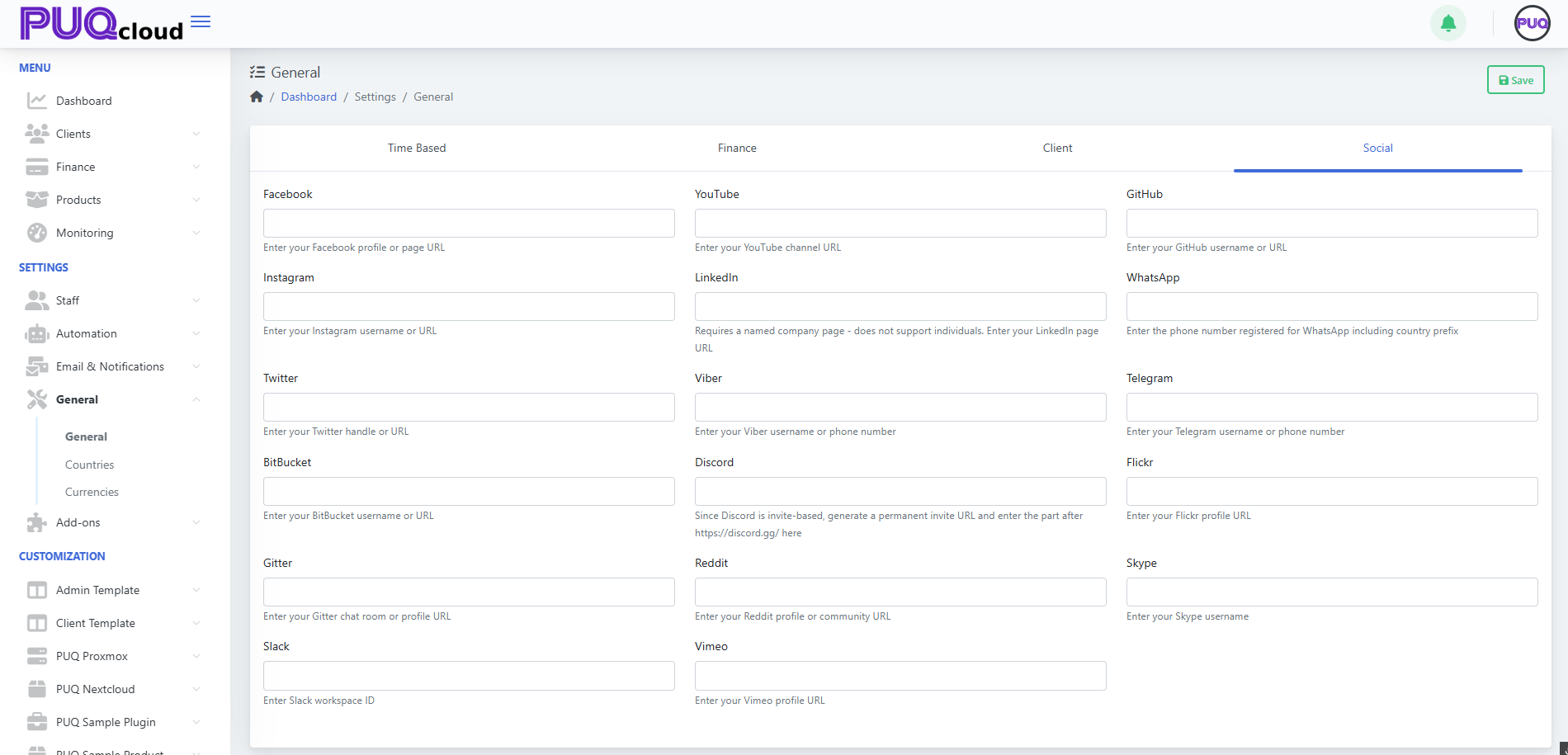
Workflow summary
-
Go to Dashboard → Settings → General.
-
Work through each tab (Time Based → Finance → Client → Social).
-
Click Save (top-right).
-
If you reduced retention periods, confirm your Scheduler/Cleanup tasks are enabled (so old data is actually purged).
-
Review notification templates/layouts if you plan to surface your social links there.
Quick defaults (safe starting points)
-
Admin/Activity/Module logs: 7–30 days
-
Client/Task queues: 7–14 days
-
Verification code lifetime: 10–30 minutes
-
Invoice due days: 7–14 days
-
Min/Max add funds: set to your business model (e.g., 10 / 10,000)
-
Max client balance: large enough for typical prepayments, but not unlimited
Сheck Countries in the Admin Area
PUQcloud Panel
Order Now | Download | FAQ
Follow these steps to review country records and their regions.
Go to Countries
Countries list with search, pagination, and “Regions (eye)” action.

View a country’s regions
-
In the Regions column, click the eye button for the country you want to inspect.
Regions modal listing Region Name, Native Name, and Code (with Close button).
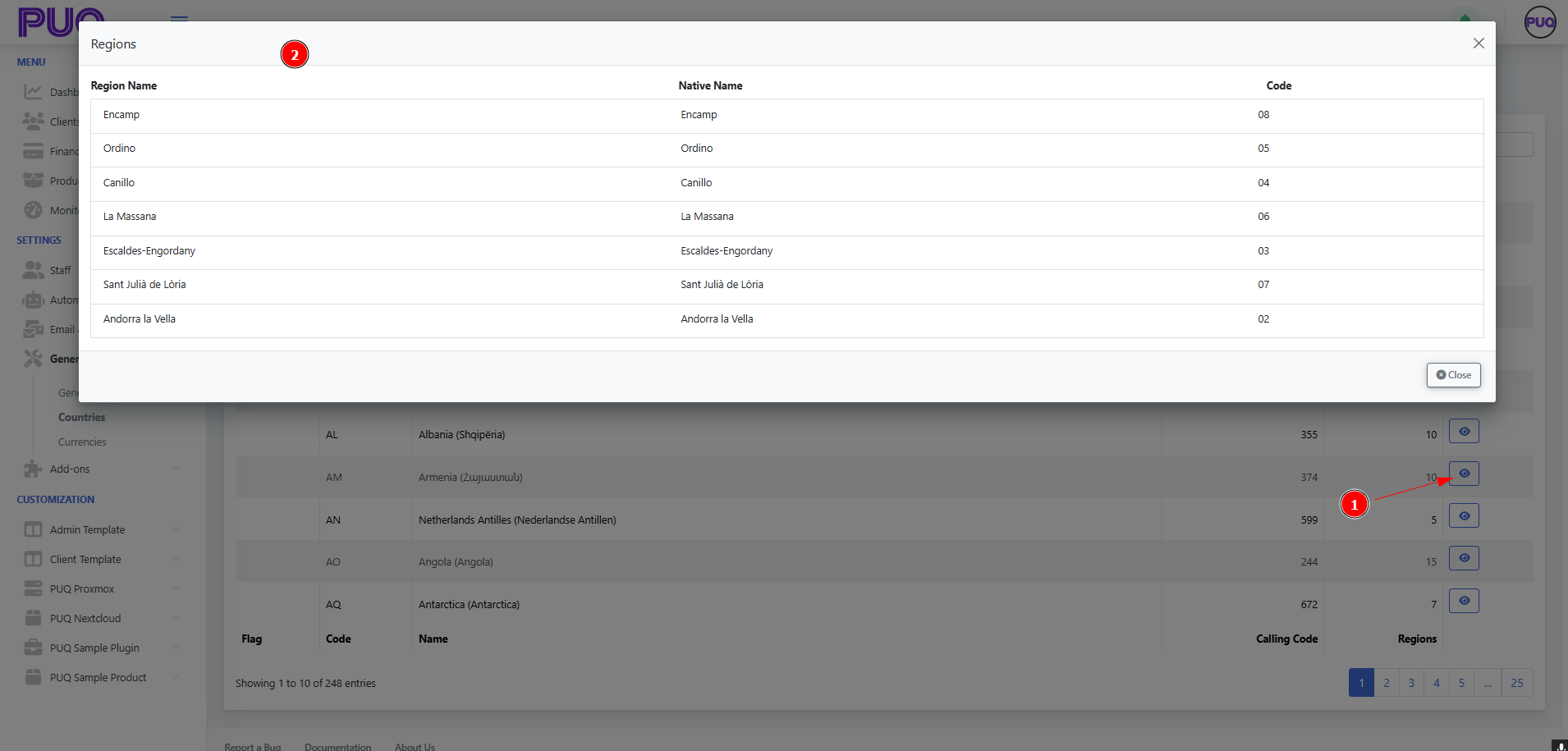
Tips
-
Click column headers to sort (e.g., by Code or Calling Code).
-
The Regions modal is read-only; use the Close button to return to the list.
Create and manage Currencies in the Admin Area
PUQcloud Panel
Order Now | Download | FAQ
Where to find it
-
In the left menu go to Settings → General → Currencies.
Currencies list with search, paging, and row actions (Edit/Delete).
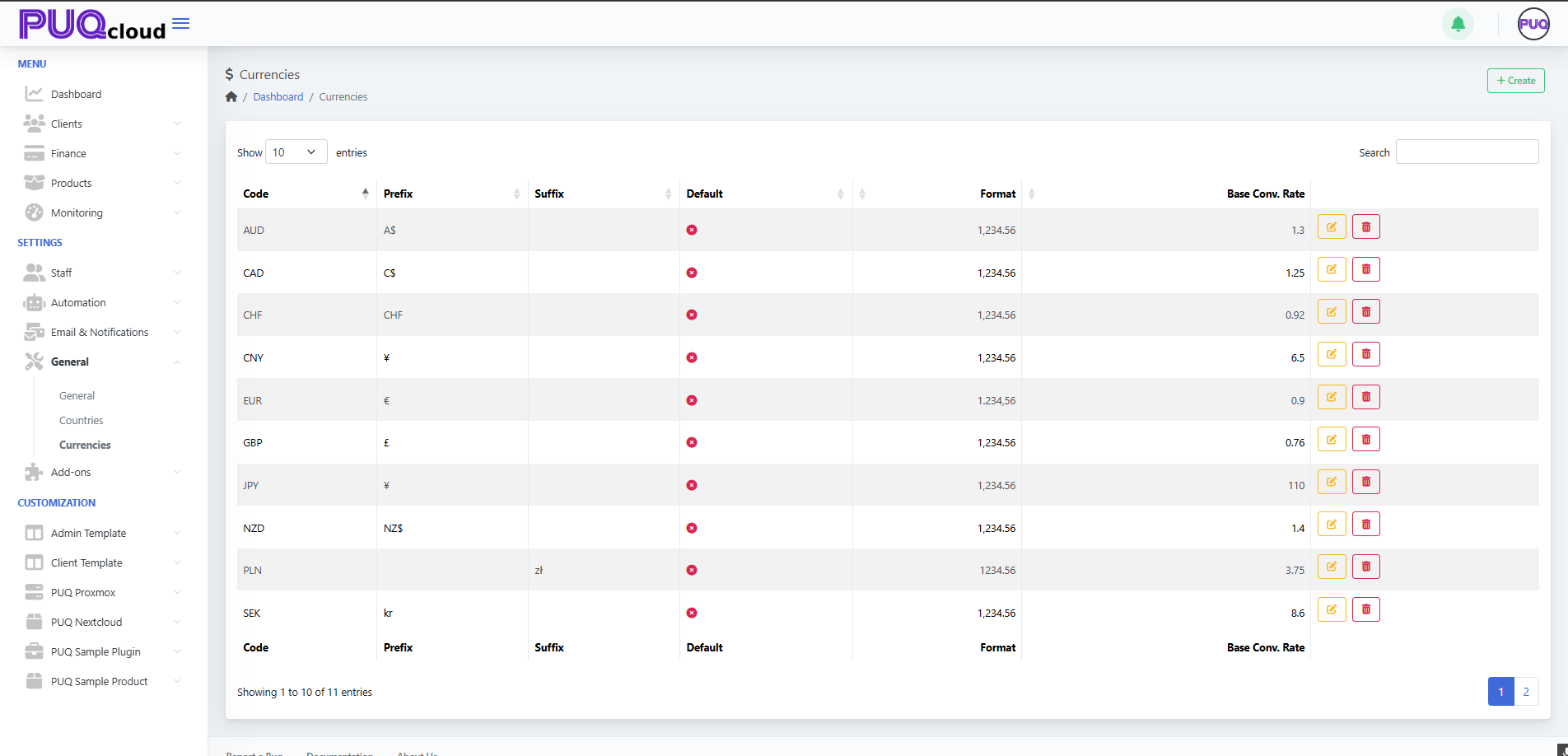
Create a new currency
-
Click + Create (top-right of the page).
-
In the Create modal, fill in:
-
Code – the ISO currency code (e.g.,
USD,EUR,JPY). -
Prefix – symbol shown before the amount (e.g.,
$,CHF). -
Suffix – symbol shown after the amount (e.g.,
złfor PLN). -
Exchange Rate – base conversion rate against your system’s base currency.
-
Format – choose the number formatting style (thousand/decimal separators).
-
Default – tick if this should become the system default currency.
-
-
Click Save.
Notes
-
You can use either a sign (e.g.,
€) or a short text (e.g.,NZ$) for prefix/suffix. -
The Exchange Rate is relative to your base currency (the one you treat as “1.00”).
“Create Currency” modal with all fields (Code, Prefix, Suffix, Exchange Rate, Format, Default).
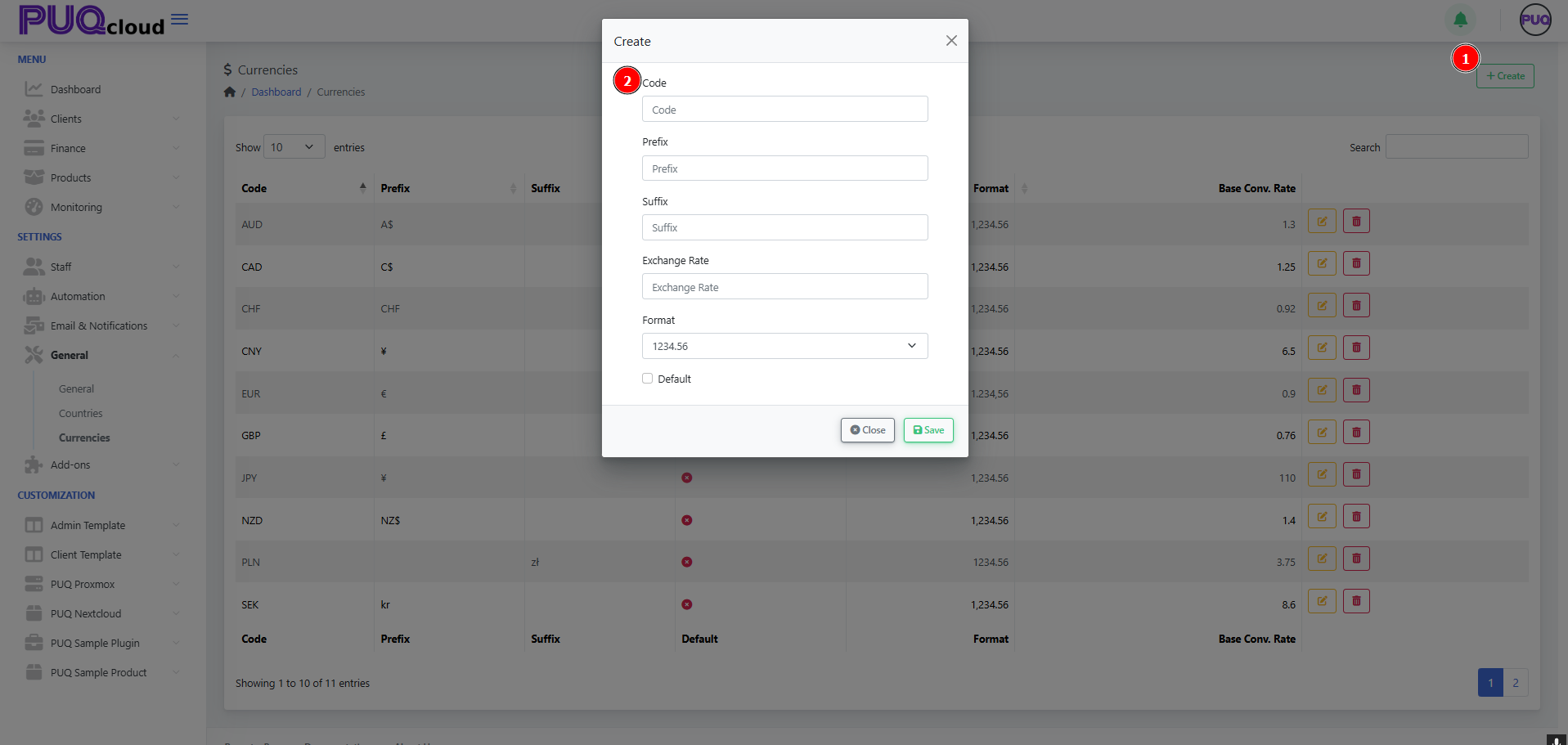
Edit an existing currency
-
In the list, click the pencil icon for the currency you want to change.
-
Update Code, Prefix, Suffix, Exchange Rate, Format, or toggle Default.
-
Click Save to apply changes.
Tips
-
Use Format to enforce consistent display (e.g.,
1,234.56vs1.234,56). -
When you change Exchange Rate, all derived conversions will use the new rate going forward.
“Edit Currency” modal opened from the row (rate/format/default shown).
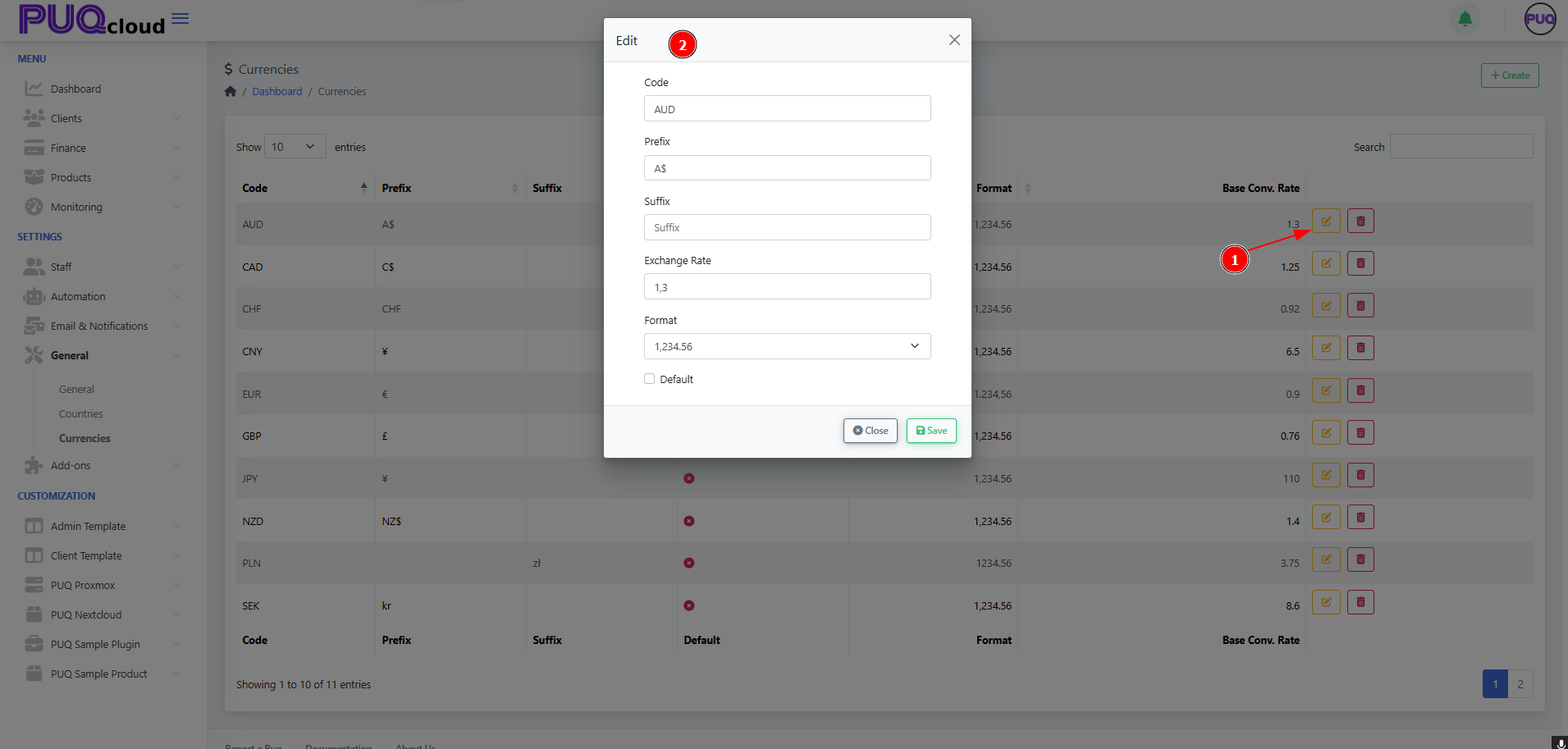
Delete a currency
-
Click the trash icon on the currency row you wish to remove, then confirm.
(You cannot delete a currency that is currently set as Default; switch default first.)
Search, sort, and paginate
-
Search (top-right) filters by code or symbols.
-
Click column headers to sort (e.g., by Code).
-
Use page controls at the bottom to navigate through the list.
Best practices
-
Keep one clear Default currency at all times.
-
Review Exchange Rates regularly or automate updates if available elsewhere.
-
Prefer ISO codes for clarity (
USD,EUR,GBP, etc.). -
Use Prefix/Suffix consistently across your currencies (e.g.,
$as prefix,złas suffix).
That’s it—you can now add, edit, remove, and format currencies in the Admin Area with confidence.