
How to use Client Area in PUQcloud Panel
- Manage the Client Area Dashboard
- Manage Your Profile in the Client Area
- Manage Invoices in the Client Area
- Check Transactions in the Client Area
- Account & Security: manage profile, password, verification, and 2FA
Manage the Client Area Dashboard
PUQcloud Panel
Order Now | Download | FAQ
Overview
Your Client-Area Dashboard is the command centre for balances, services, and quick actions (funds, invoices, security). This guide shows what each block means and how to use it daily — with exact spots to drop your screenshots.
Get Oriented
Open the client area. You’ll see:
-
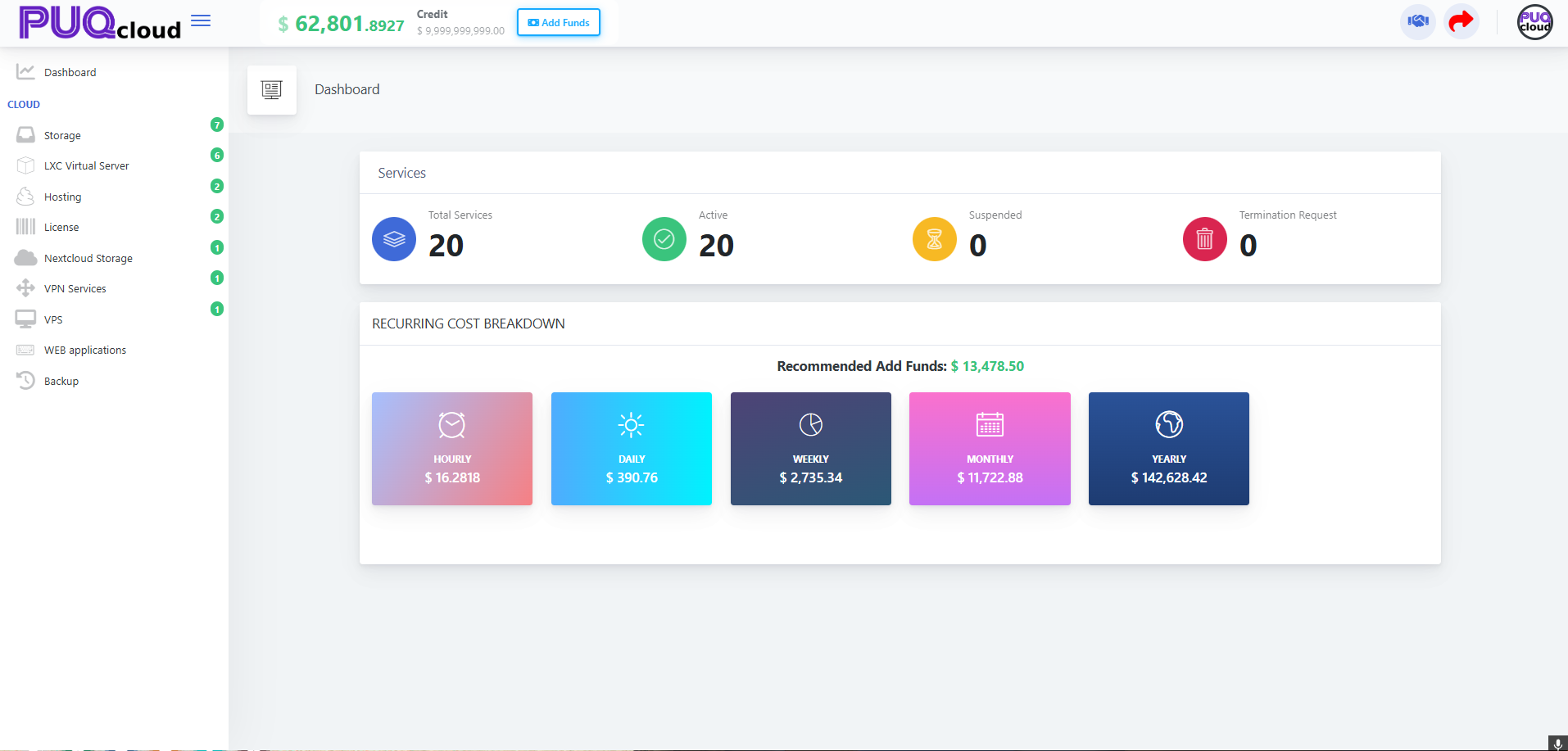
Balance strip (top): current Balance, Credit, and a Add Funds button.
-
Left menu: service families (Storage, LXC, Hosting, VPN, etc.) with counters.
-
Main canvas: cards for Services + Recurring Cost Breakdown.
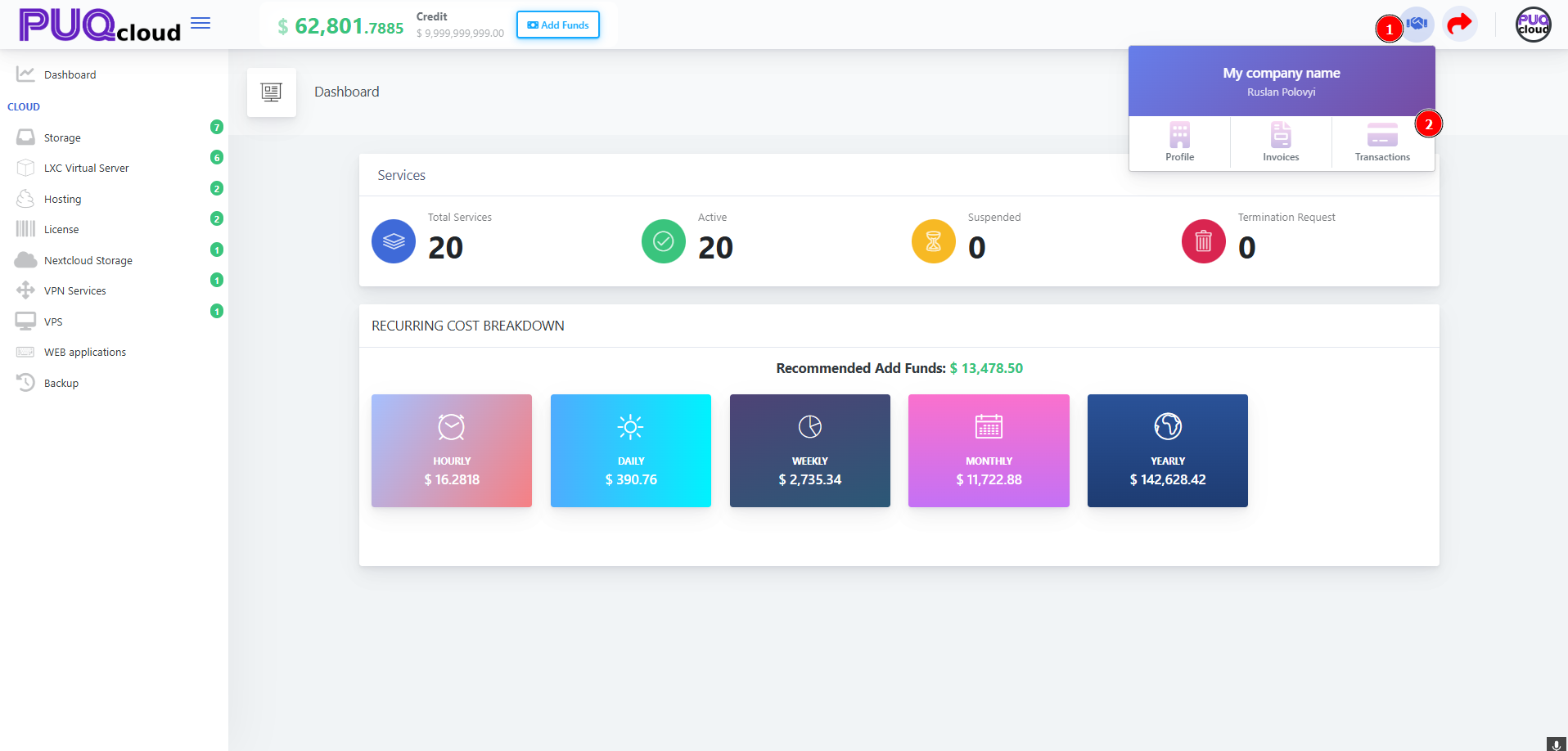
Full Dashboard overview.
Services Summary
At the top of the canvas you’ll find four counters:
-
Total Services — everything you own
-
Active — running and billable
-
Suspended — paused due to payment or policy
-
Termination Request — pending cancellations
Click any card to jump to the filtered services list (where applicable).
Recurring Cost Breakdown
Below the counters are your Hourly / Daily / Weekly / Monthly / Yearly spend estimates and the Recommended Add Funds amount.
Use it to:
-
Forecast top-ups before renewals
-
Spot anomalies (e.g., a spike in Hourly vs. Monthly)
Account & Security Menu
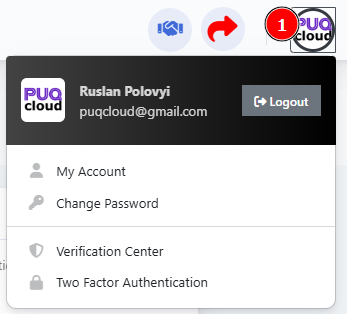
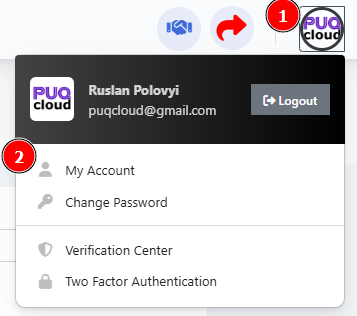
Top-right avatar opens quick actions:
-
My Account (profile & company details)
-
Change Password
-
Verification Center
-
Two-Factor Authentication (enable 2FA)
-
Logout
Account dropdown.
Best practice: enable 2FA immediately and complete Verification Center to lift payment/security limits.
Company Hub (Profile • Invoices • Transactions)
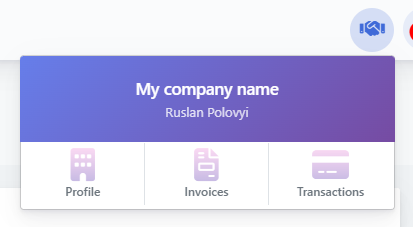
From My Account, open your company tile to reach:
-
Profile — legal details, addresses, tax IDs
-
Invoices — download/print invoices & credit notes
-
Transactions — all top-ups, payments, refunds
Company tile with Profile / Invoices / Transactions.
Add Funds (Top-Up)
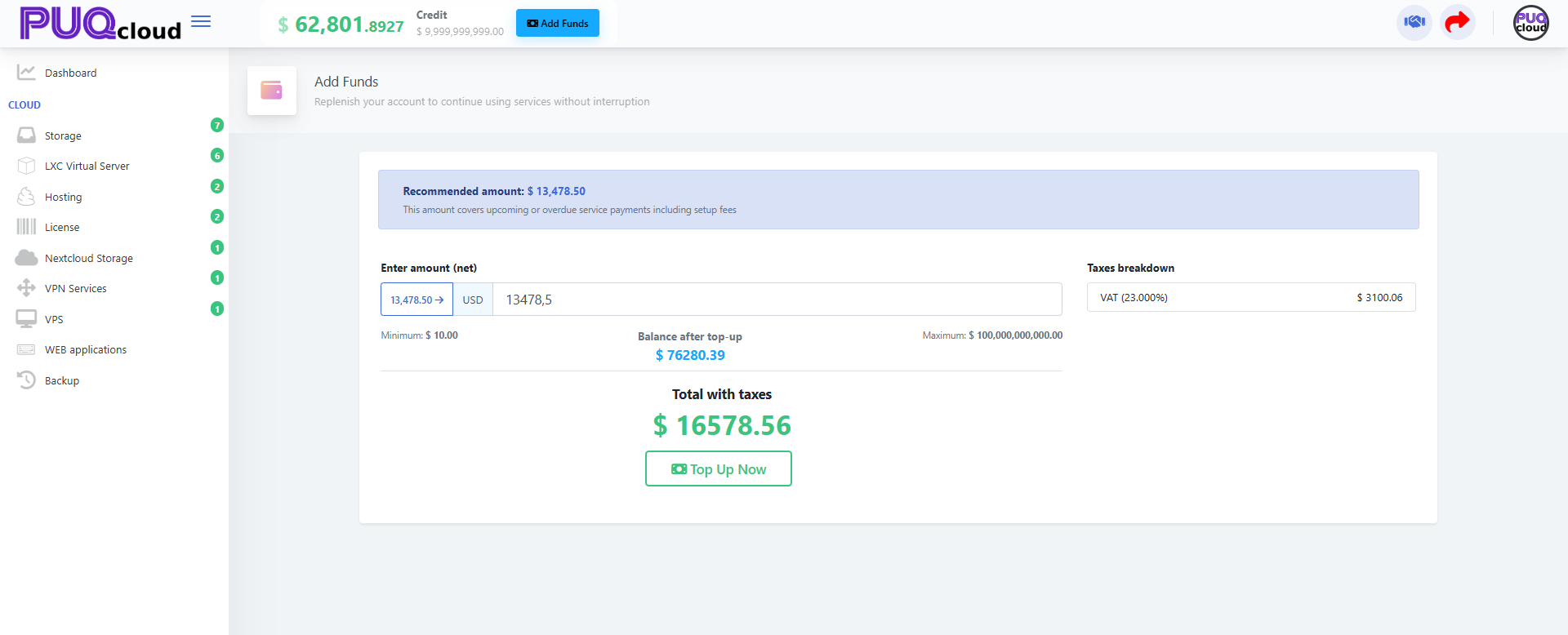
From the top strip click Add Funds to open the payment screen.
Steps:
-
Review the Recommended amount banner.
-
Enter net amount and currency.
-
Check Taxes breakdown (VAT, etc.).
-
Confirm Balance after top-up.
-
Click Top Up Now.
Add Funds page.
Tip: If you sell in multiple currencies, keep one primary currency for predictability; taxes depend on your profile’s country/region.
Daily Workflow (5 minutes)
-
Open dashboard → check Active vs Suspended.
-
Scan Recurring Cost Breakdown → compare to yesterday.
-
If Recommended Add Funds > your comfort buffer, Top Up.
-
Open Invoices if any new charges posted.
-
Review Transactions for failed/duplicate payments.
-
Security sweep: confirm 2FA is still active for all users.
Troubleshooting
-
Costs look too high → open services list and verify no unintended upgrades.
-
Top-up rejected → finish Verification Center and confirm billing info.
-
Taxes seem wrong → check company Tax ID and country in Profile.
-
See “Suspended” → settle outstanding invoices or contact support.
Manage Your Profile in the Client Area
PUQcloud Panel
Order Now | Download | FAQ
Overview
Keep your Profile correct to ensure proper taxes, legal invoice details, and contact emails. This guide shows how to open the Profile screen, what every field means, and the safest way to update it — with exact places to insert your screenshots.
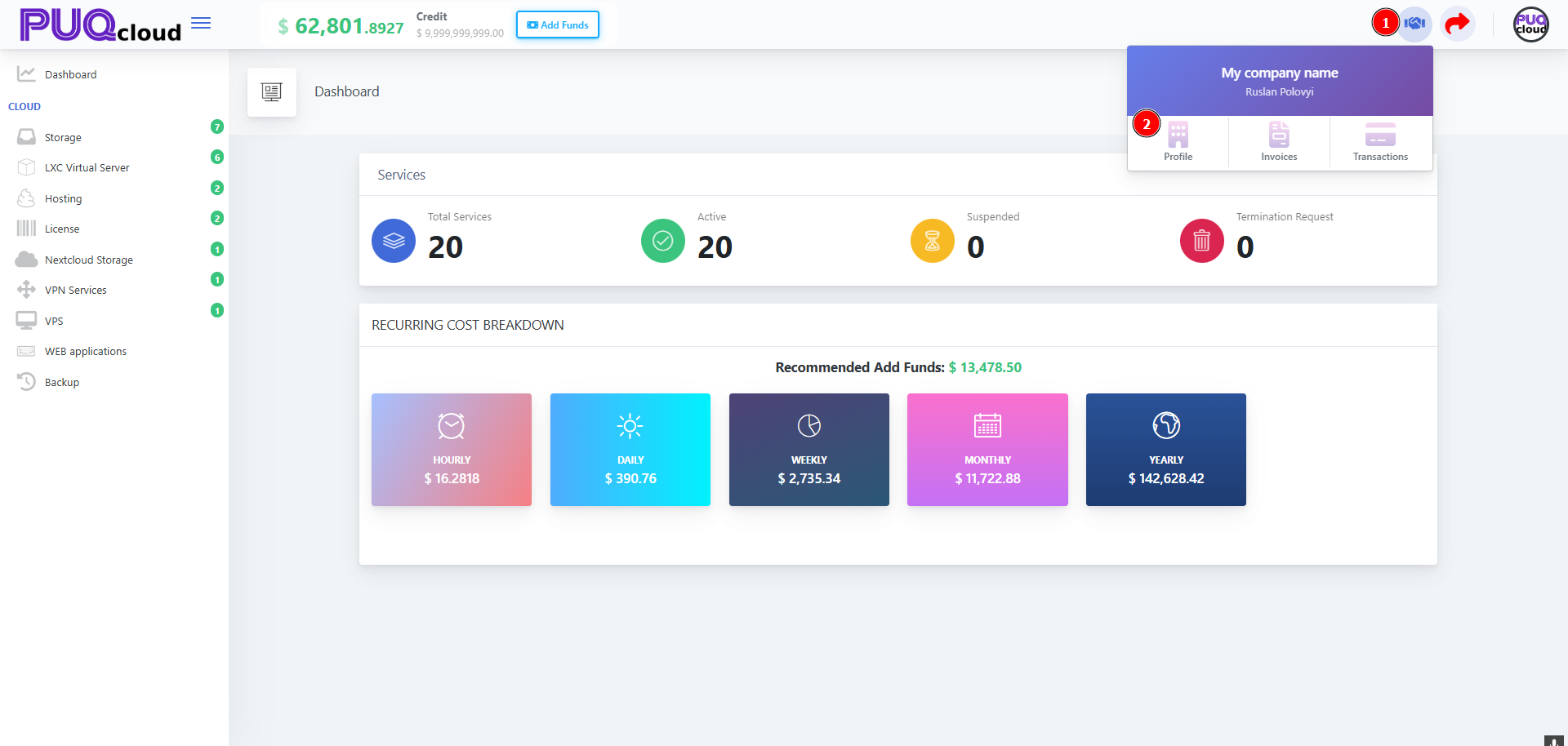
Open the Profile screen
-
On the Dashboard, click your Company widget in the top-right.
-
Choose Profile.
Company dropdown (marker 1 → open menu, marker 2 → Profile).
Edit your details
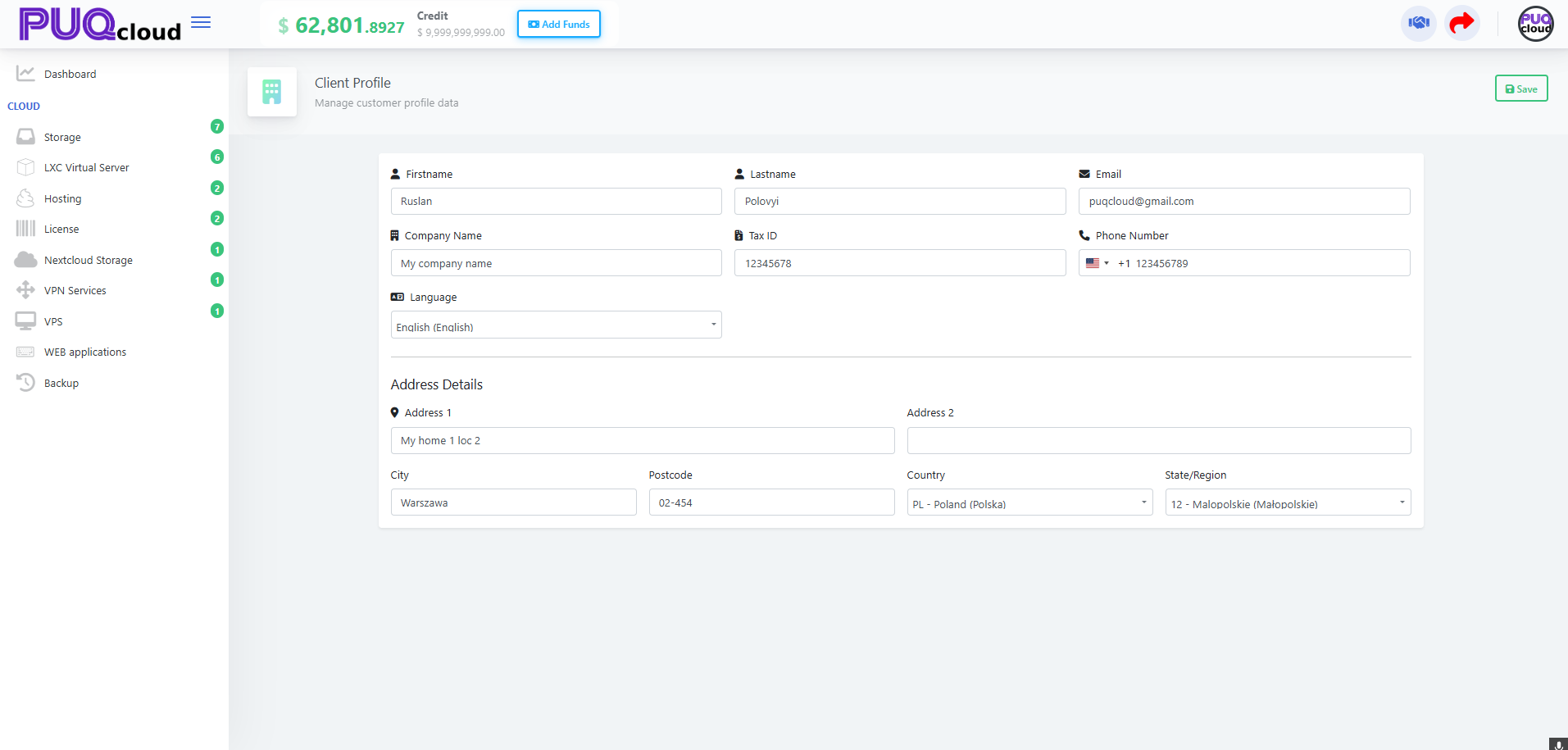
You’ll land on Client Profile. Update the fields below and press Save (top-right).
Client Profile form (full page).
What each field is for
-
Firstname / Lastname — Account owner name shown on invoices/receipts.
-
Email — Where invoices, payment receipts and alerts are sent.
-
Company Name — Legal entity name printed on invoices.
-
Tax ID — VAT/GST/Tax number. Required for correct tax calculation.
-
Phone Number — Include country code (e.g., +1, +48).
-
Language — UI language and (if enabled) document language.
-
Address 1/2, City, Postcode, Country, State/Region — Legal billing address used for taxes.
Tip: If you’re not a company, leave Company Name empty and Tax ID blank — you’ll be treated as a private individual where applicable.
Best practices (1-minute checklist)
-
Company vs Individual: Fill Company Name and Tax ID only if you’re a business.
-
Tax ID format: Use your country’s official format (e.g., PL VAT:
PL1234567890). -
Country & State: Must match your real billing address — taxes depend on it.
-
Phone: Add the country code; avoid spaces/symbols if validation fails.
-
Save: Click Save before leaving, then reload the Invoices page to confirm the header shows your new details.
When to update your profile
-
You see wrong VAT/GST on an invoice
-
Your company renamed, moved address, or changed tax number
-
You want the portal in another Language
-
Your Email for billing changed
Troubleshooting
-
“My invoice has the wrong tax.” → Recheck Country/State and Tax ID in Profile, then regenerate or request a corrected document.
-
Phone won’t save. → Include international format
+<country code><number>. -
Language saved but UI didn’t change. → Refresh the page or log out/in; some sections cache language.
-
Tax ID rejected. → Remove extra spaces, add country prefix if required (e.g.,
PL,DE,CAnumbers vary).
Manage Invoices in the Client Area
PUQcloud Panel
Order Now | Download | FAQ
Overview
This guide shows how to find, read, pay, and download your invoices (including proforma, invoice, and credit note) in the Client Area. Each step tells you exactly where to place your screenshots.
Open Invoices
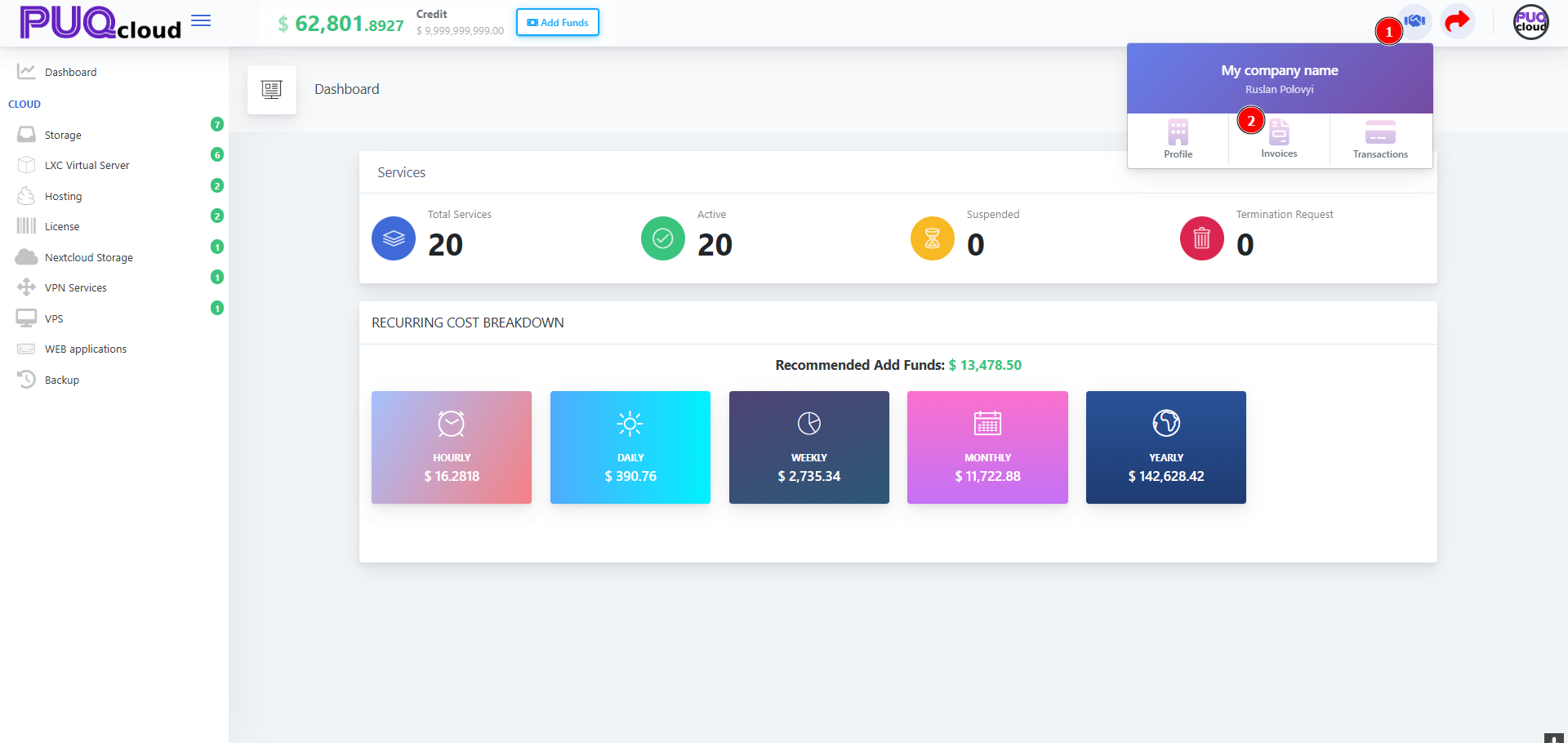
-
From the top-right Company widget, open the dropdown.
-
Click Invoices.
Company dropdown (1 → open menu, 2 → Invoices).
Understand the Invoices List
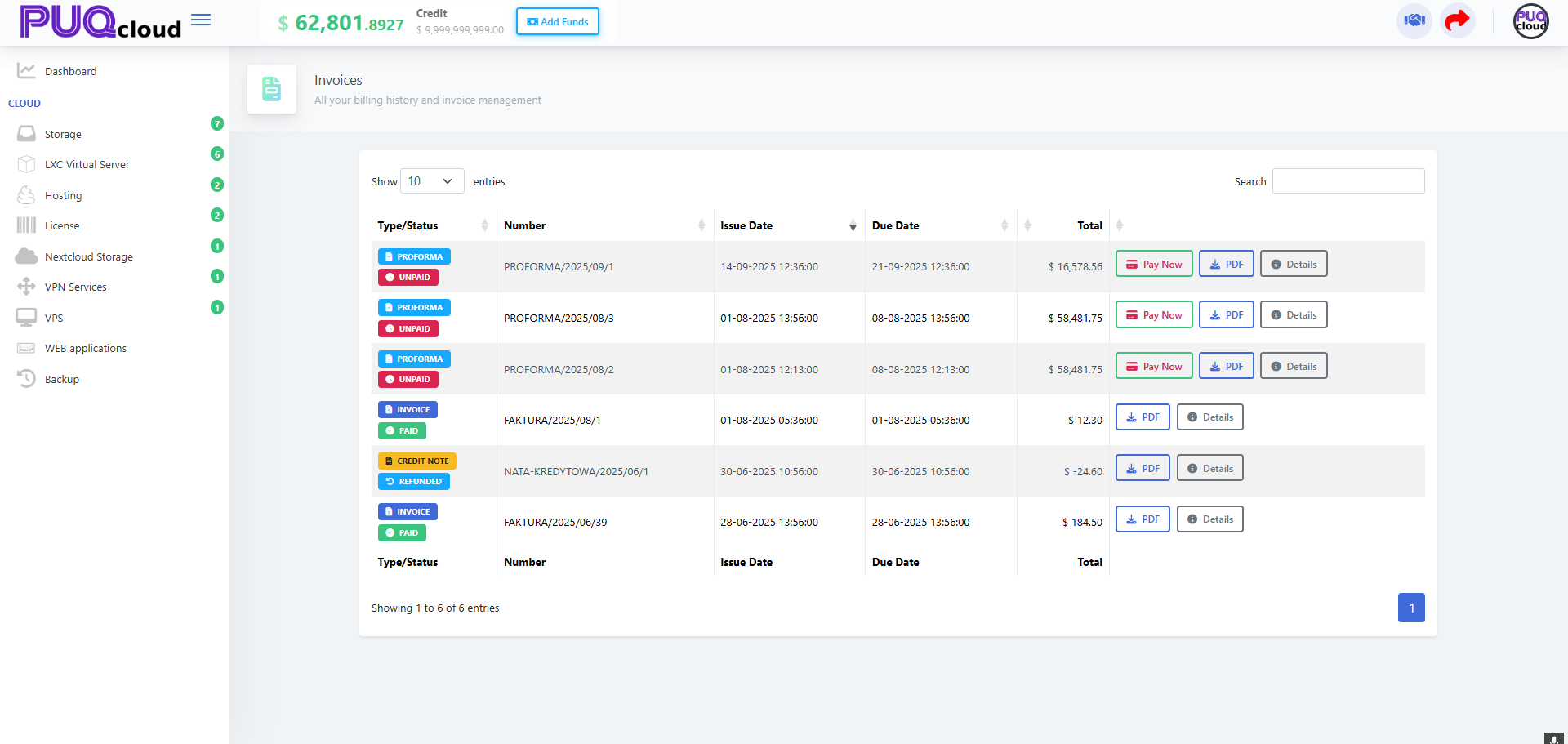
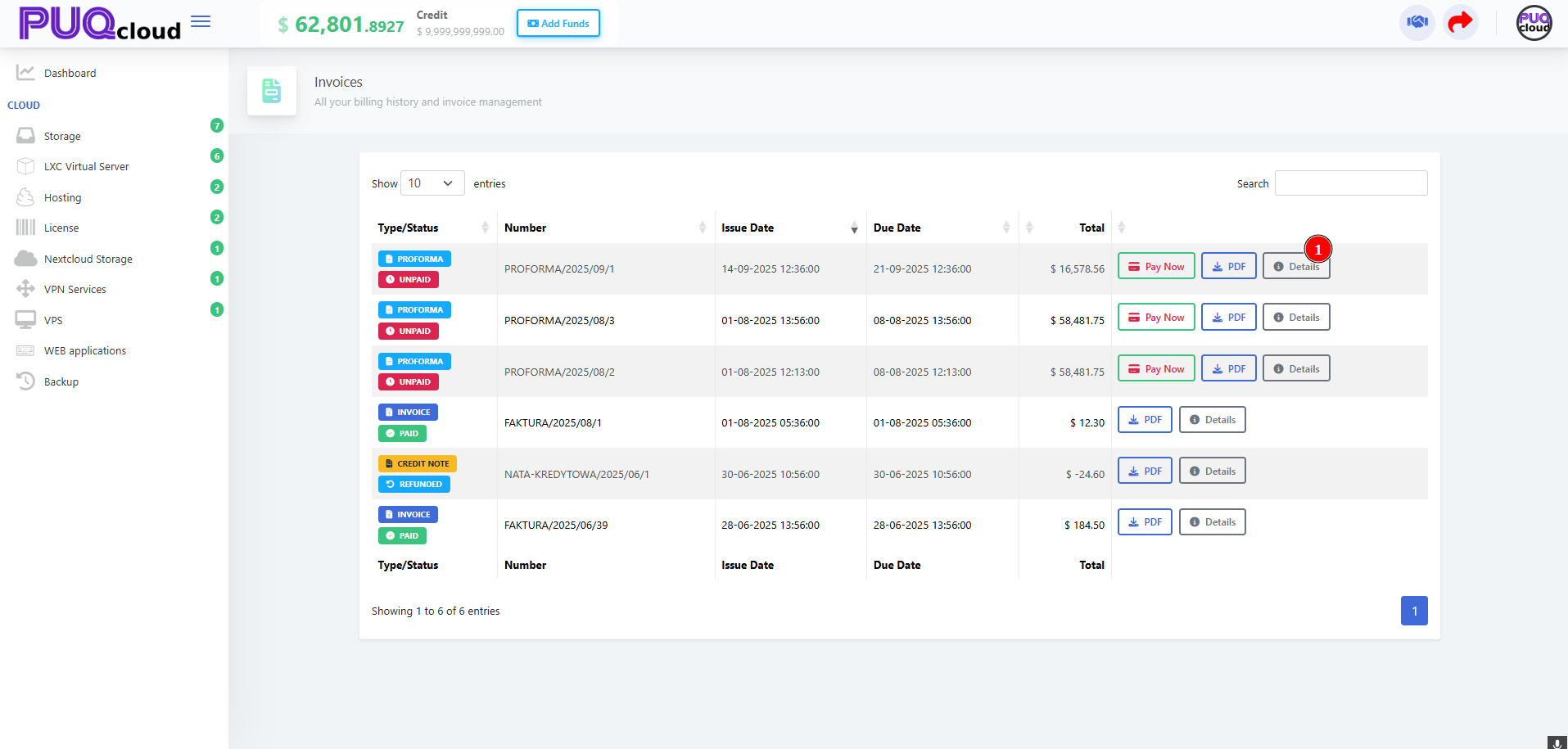
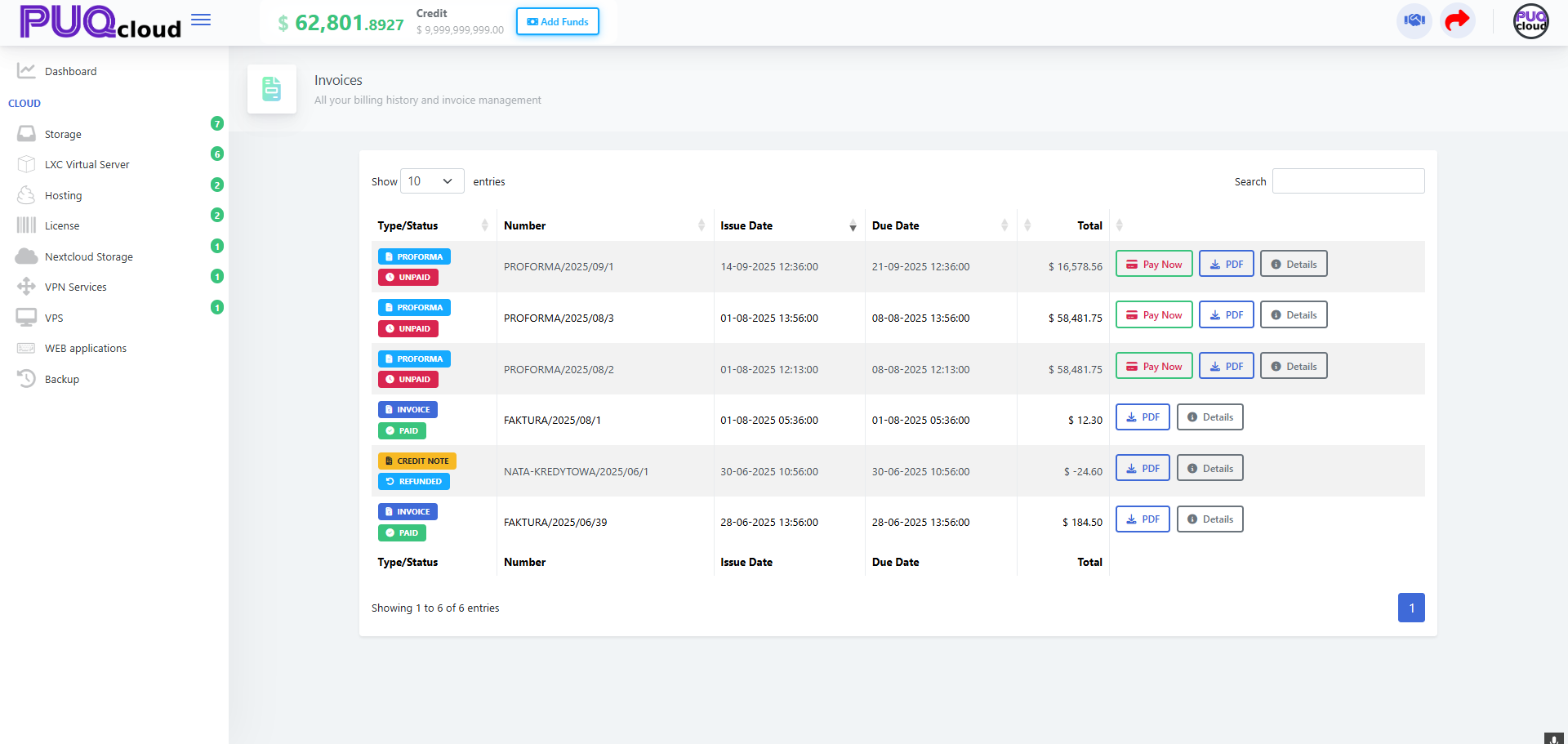
On the Invoices page you’ll see a table with:
-
Type/Status: PROFORMA / INVOICE / CREDIT NOTE and UNPAID / PAID / REFUNDED
-
Number, Issue Date, Due Date, Total
-
Actions: Pay Now, PDF, Details
Invoices list (full table).
Quick actions
-
Pay Now: pay any UNPAID proforma/invoice.
-
PDF: download the official document.
-
Details: open the invoice view.
Invoices list with “Details” highlighted (marker 1).
View & Pay an Invoice (Proforma / Unpaid)
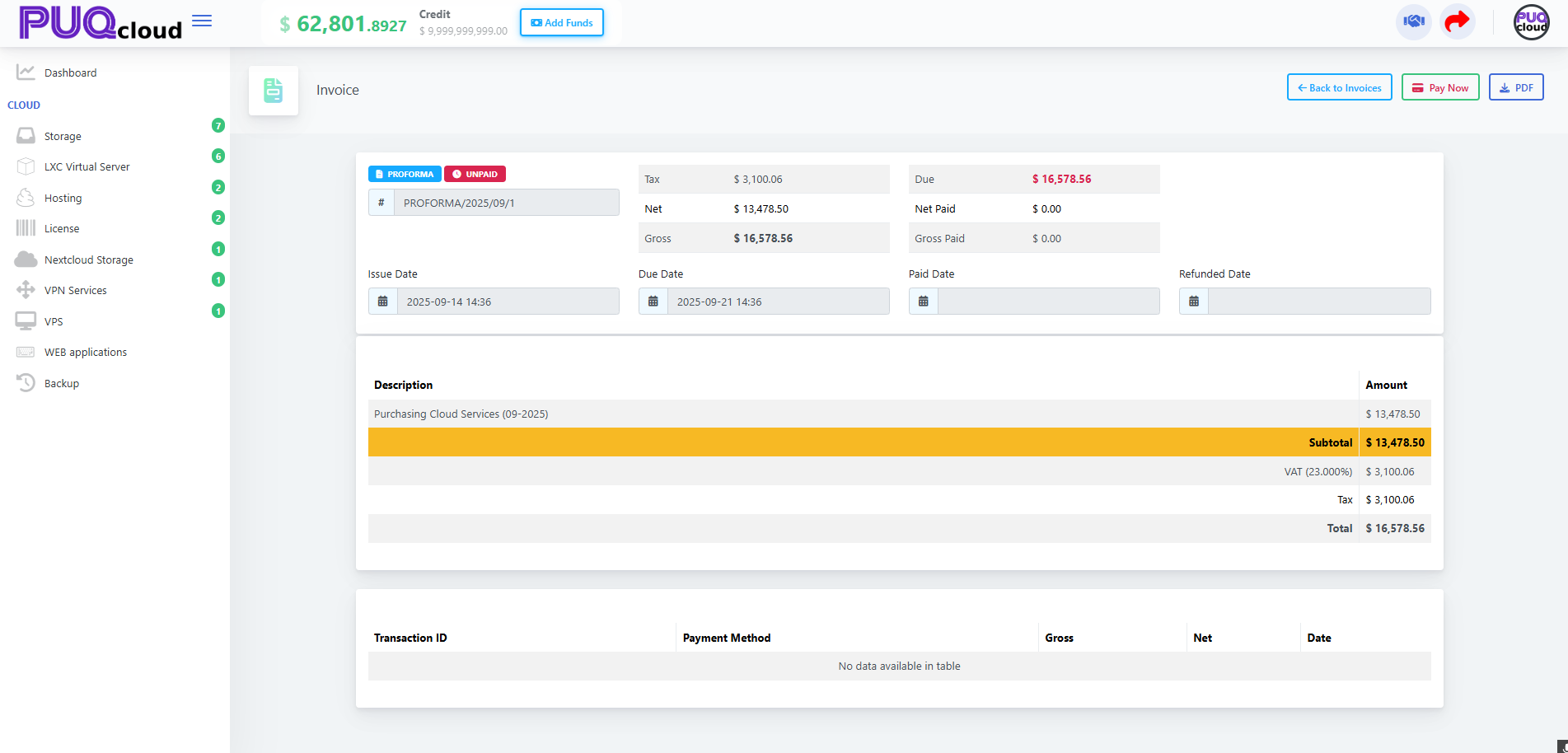
Opening Details shows the invoice summary:
-
Tax, Net, Gross, Due
-
Issue/Due/Paid/Refunded dates
-
Description and line totals
-
Top-right actions: Back to Invoices, Pay Now, PDF
To pay an UNPAID invoice, click Pay Now and complete the payment.
Unpaid PROFORMA invoice view (shows Pay Now and amounts).
Confirm a Paid Invoice & Payment Record
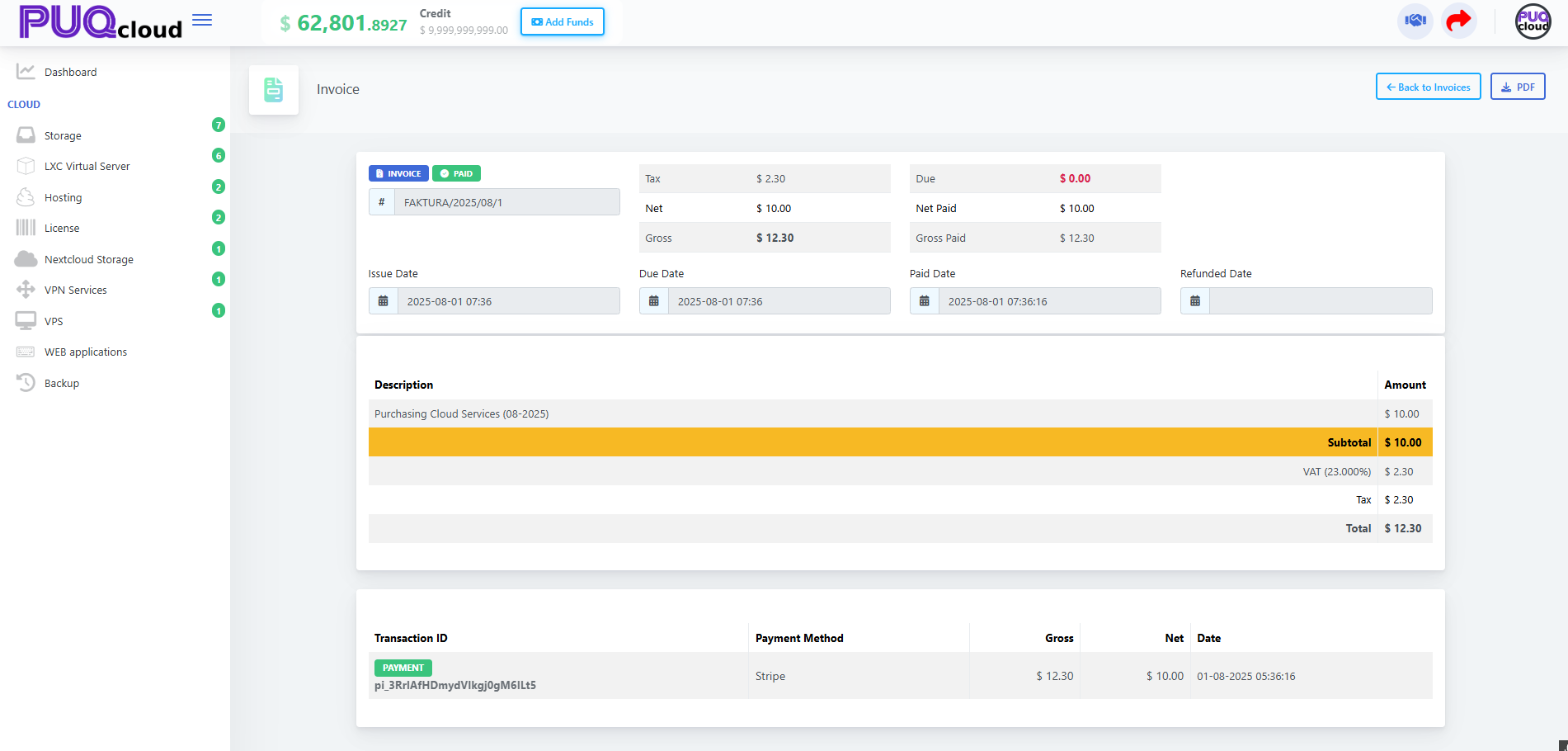
For PAID invoices you’ll see:
-
Due = $0.00
-
Paid Date filled
-
A Transactions section with the Payment Method, Gross/Net/Tax, and Transaction ID (useful for reconciliation).
Paid INVOICE view with transaction table (Stripe example).
Exporting PDFs (for accounting)
From either the list or the invoice view, click PDF to download/print the document for your books.
Tip: Keep Profile (company name, Tax ID, address) up to date so the invoice PDF has correct legal details.
Searching & Sorting
-
Use the Search box to filter by number or text.
-
Click table headers (e.g., Issue Date, Due Date) to sort.
-
Use the Show 10 dropdown to change page size.
Credit Notes & Refunds
-
CREDIT NOTE entries show refunds/adjustments.
-
Open Details to see amounts and download the PDF for your records.
Troubleshooting
-
Wrong tax/country on invoice? Update Company → Profile (Tax ID, country, address).
-
Payment failed? Try another method or check the Verification Center in your account menu.
-
Need an invoice reissued? Contact support with the Invoice Number.
Check Transactions in the Client Area
PUQcloud Panel
Order Now | Download | FAQ
Overview
The Transactions page shows every balance movement on your account: top-ups, service charges, refunds, adjustments. Here’s how to open it, read it, and quickly find what you need — with exact spots to place your screenshots.
Open the Transactions page
-
On the Dashboard, click the company widget at the top-right.
-
Choose Transactions.
Company dropdown (1 open menu → 2 Transactions).
Read the Transactions table
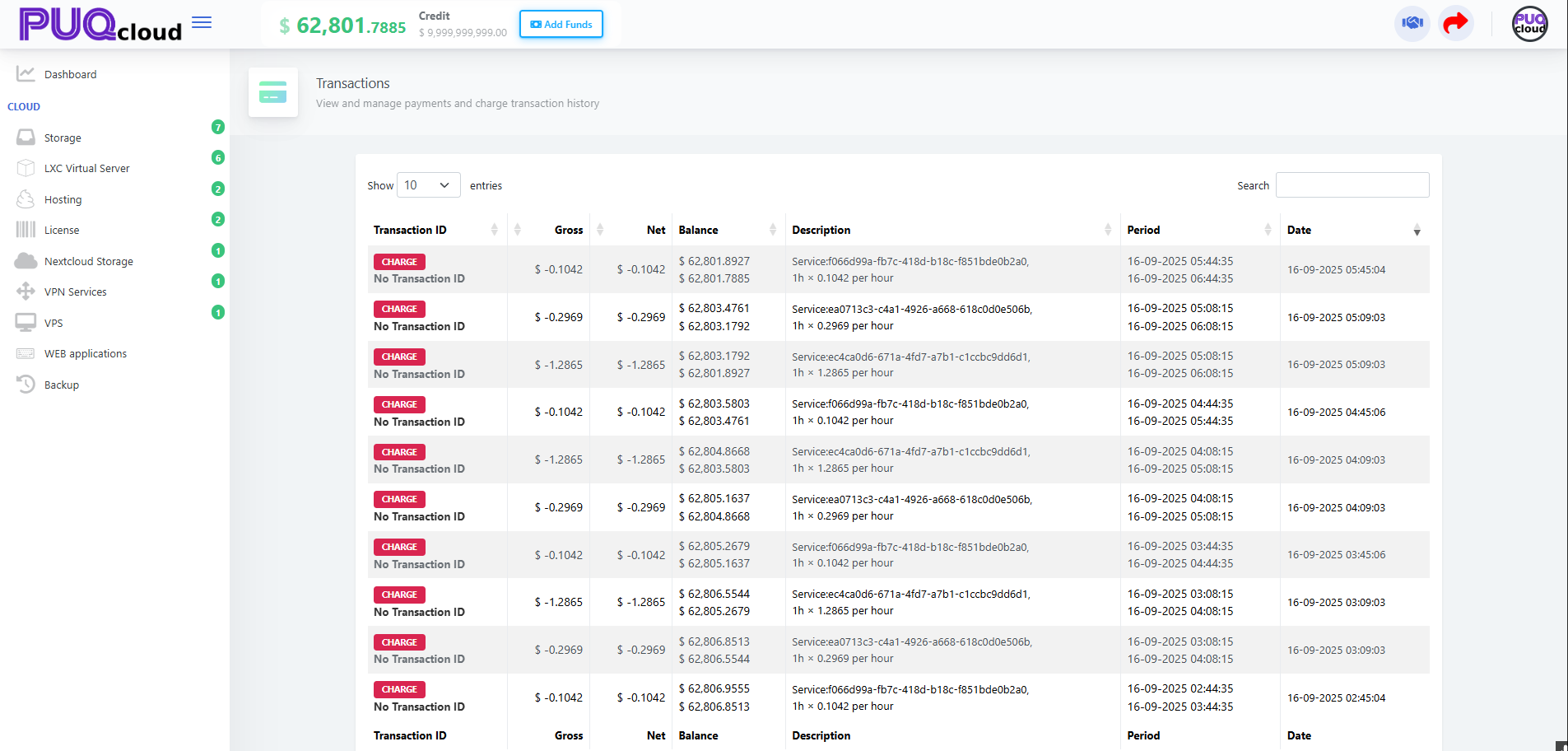
On the Transactions page you’ll see a ledger-style list with these columns:
-
Transaction ID — a payment identifier (for card/Stripe/etc.). If it shows No Transaction ID, it’s usually a system CHARGE (usage/recurring fee).
-
Gross / Net — amount including/excluding tax (negative numbers = charge; positive = credit/refund).
-
Balance — your account balance after this entry posted.
-
Description — what the entry is for (service key, action, notes).
-
Period — the time window the charge covers (e.g., the specific hour for hourly billing).
-
Date — when the entry was recorded.
Transactions list (full table with CHARGE rows).
Tip: To verify a top-up, look for a Transaction ID and a positive amount; the Balance column will jump up on that row.
Find a specific entry fast
-
Use the Search box (top-right) to filter by Transaction ID, amount, or service key from the Description.
-
Change Show 10 to see more rows on one page.
-
Use the table headers to sort (e.g., by Date) if enabled in your setup.
Reconcile with invoices
-
A service CHARGE here should correspond to items that later appear on your Proforma/Invoice totals.
-
To review the document: open Company → Invoices, then match by date/amount.
-
If a payment was made, the Transactions entry will show a Transaction ID and the invoice should show Paid.
Common checks & quick fixes
-
“My top-up isn’t visible.” Filter by today’s Date; confirm payment success in your bank/processor.
-
“Numbers look off.” Compare Gross vs Net and check your Profile tax settings (country/Tax ID).
-
“What was this charge?” Read the Description + Period to see which service and which window were billed.
-
Still unclear? Copy the Transaction ID (if present) and share it with support.
Account & Security: manage profile, password, verification, and 2FA
PUQcloud Panel
Order Now | Download | FAQ
Open the account menu
-
On the dashboard, click your company/avatar in the top-right.
-
You’ll see: My Account, Change Password, Verification Center, Two Factor Authentication.
Account dropdown (markers 1 & 2).
My Account — contact details
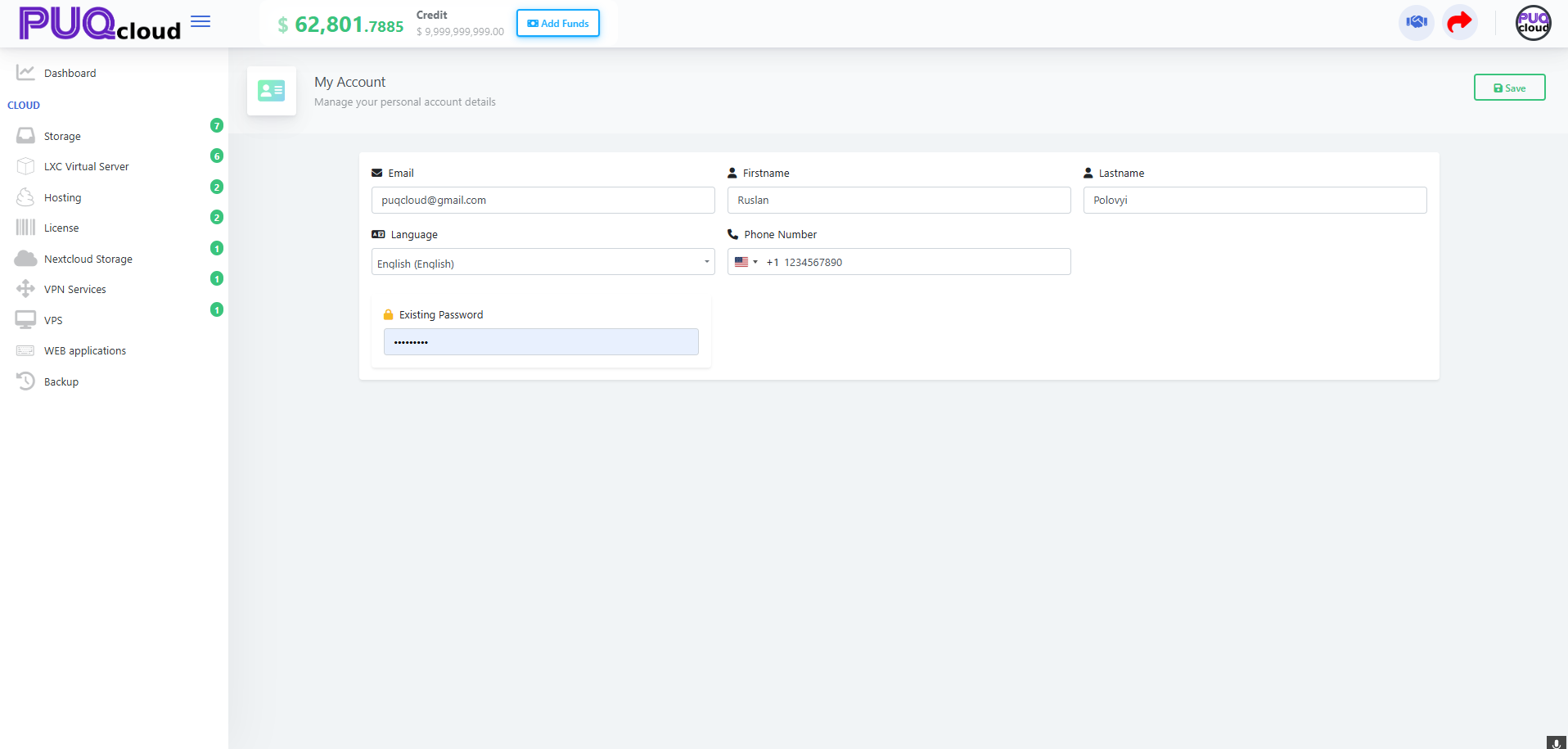
On My Account, update:
-
Email, First name / Last name
-
Language (UI language)
-
Phone Number (with country code, e.g., +48 …)
-
Confirm changes with Existing Password → Save
My Account page (form).
Tip: After changing email, check your inbox for service confirmations.
Change Password
“Change Password” menu item.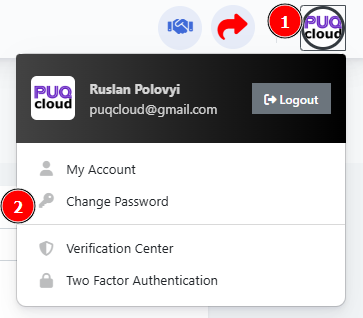
Change Password form (errors/strength bar example).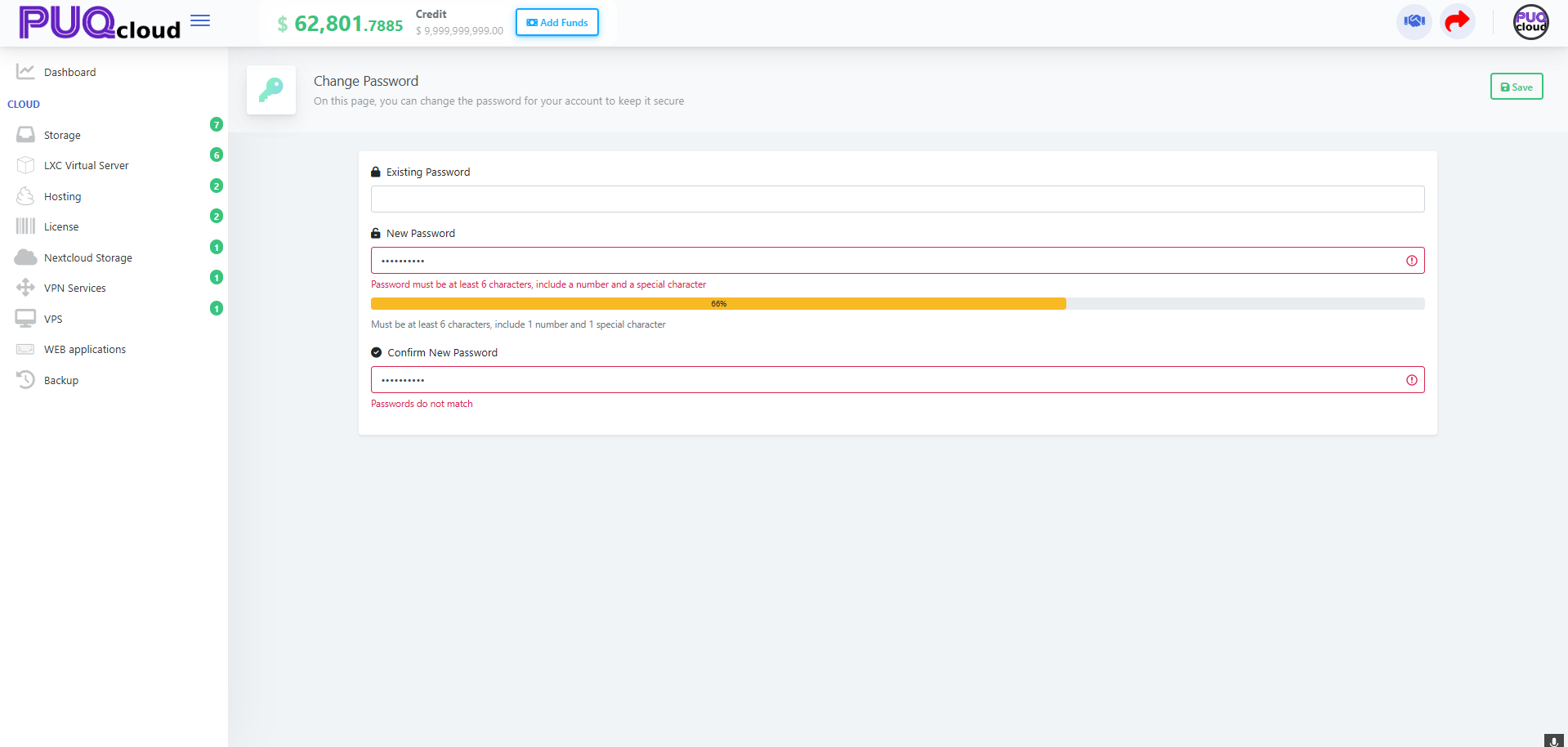
If you see “Passwords do not match,” the New and Confirm fields differ.
Verification Center — verification methods
Manage verification methods (email, TOTP app, etc.). Columns show:
-
Value, Verified, Default, Last Used At.
-
Star button = set as Default.
-
Bin icon = Delete a method.
“Verification Center” menu item.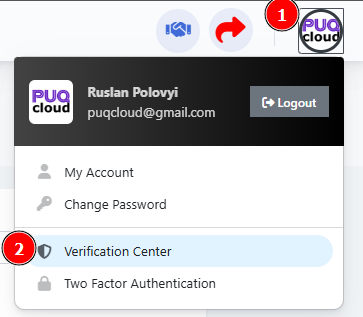
Verification Center list (Email + Authenticator App).
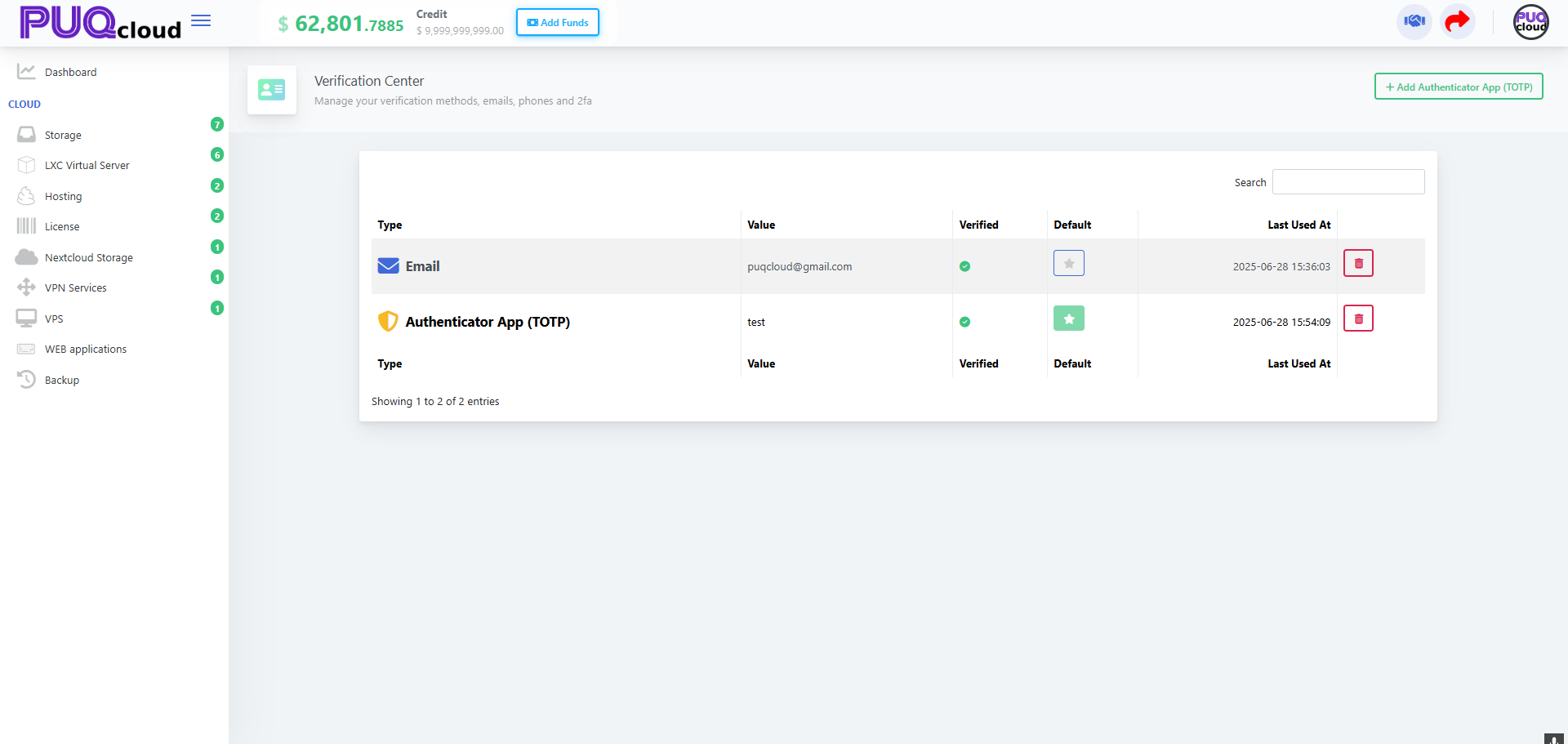
Recommendation: keep at least two methods (Email + TOTP) so you don’t get locked out.
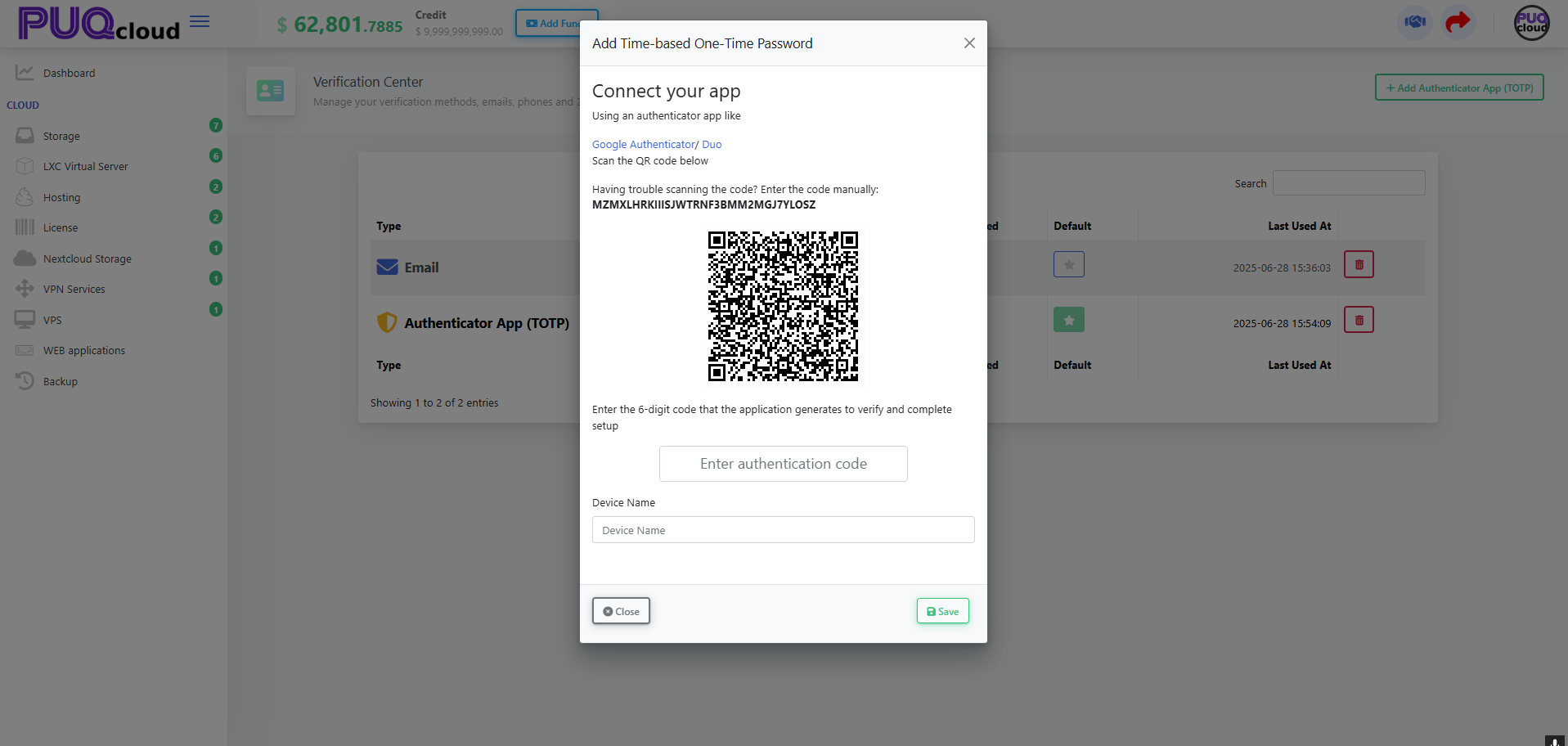
Add a TOTP Authenticator (Google Authenticator / Duo)
-
On Verification Center, click Add Authenticator App (TOTP).
-
Scan the QR code in your app or enter the secret manually.
-
Enter the 6-digit code, give a Device Name → Save.
QR-code modal with code input.
Two-Factor Authentication (2FA)
Enable 2FA
“Two Factor Authentication” menu item.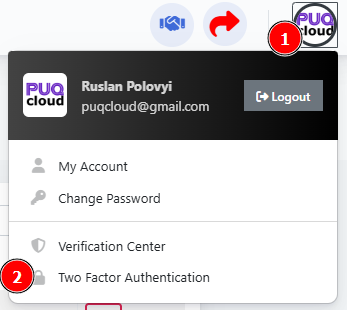
2FA page (Disabled state, Enable 2FA button).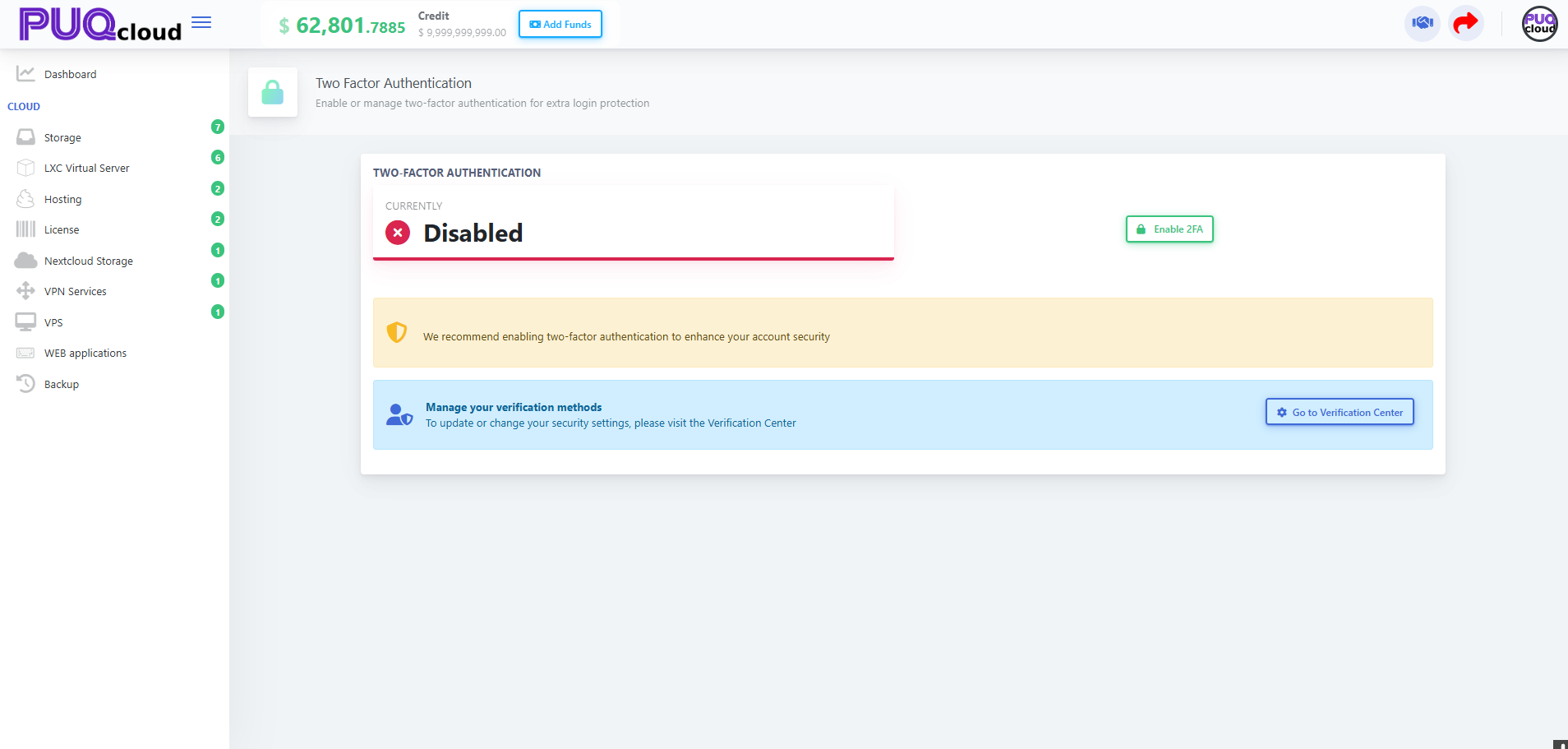
Enable 2FA confirmation modal (code entry).
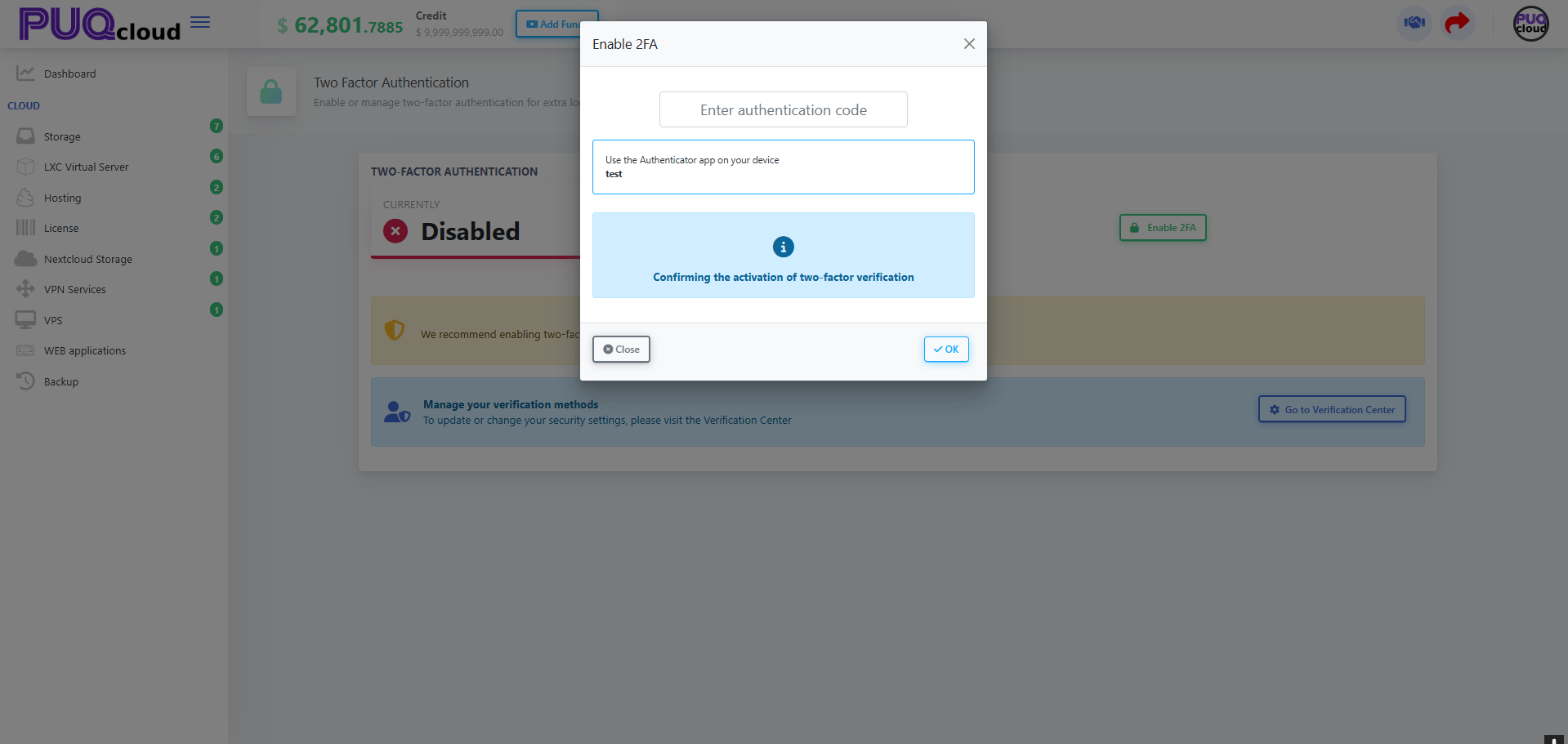
If “Enable 2FA” is disabled or missing, first add a TOTP method in Verification Center (see Section 5).
Security quick checklist
-
Turn 2FA on and set Authenticator App as Default.
-
Keep your email current (codes/alerts go there).
-
Use a long, unique password; don’t reuse it elsewhere.
-
Always keep two verification methods on file.
Troubleshooting
-
Code not accepted: ensure your phone time is correct (TOTP is time-based).
-
Can’t enable 2FA: add a TOTP method in Verification Center first.
-
Phone won’t save: use + format.
-
Lost TOTP device: use your alternate method (email) or contact support for removal after identity verification.