Tip: After changing email, check your inbox for service confirmations.
- - - - - - #### Change Password 1. Account menu → **Change Password**. 2. Enter **Existing Password**. 3. Set **New Password** and **Confirm New Password**. Requirements: **≥ 6 characters**, **at least 1 number** and **1 special character**. 4. Click **Save**. “Change Password” menu item. [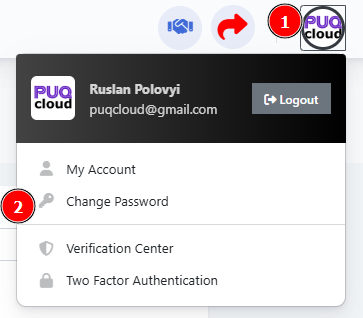](https://doc.puq.info/uploads/images/gallery/2025-09/image-1758028163954.png) Change Password form (errors/strength bar example). [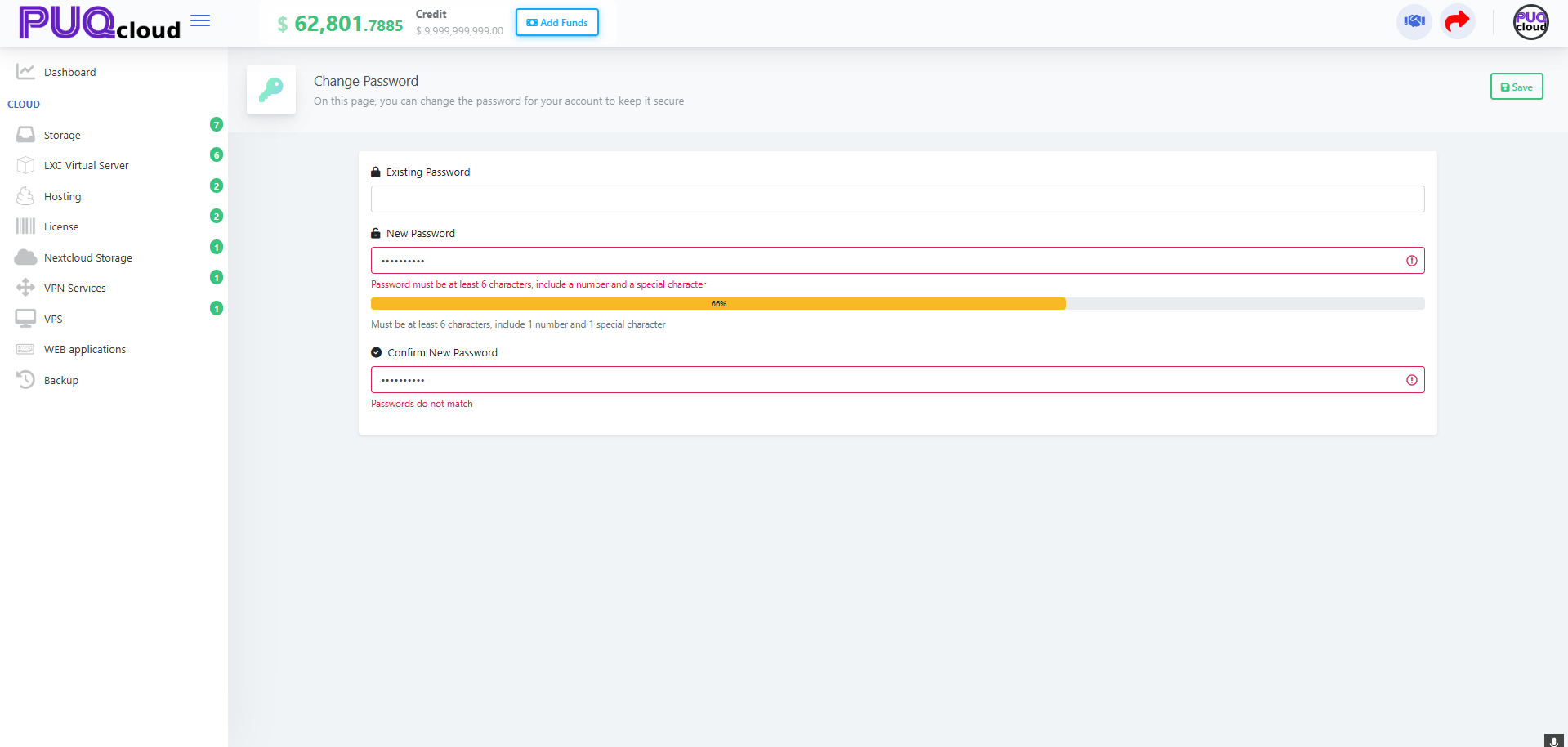](https://doc.puq.info/uploads/images/gallery/2025-09/image-1758028163977.png)If you see “Passwords do not match,” the New and Confirm fields differ.
- - - - - - #### Verification Center — verification methods Manage verification methods (email, TOTP app, etc.). Columns show: - **Value**, **Verified**, **Default**, **Last Used At**. - Star button = set as **Default**. - Bin icon = **Delete** a method. “Verification Center” menu item. [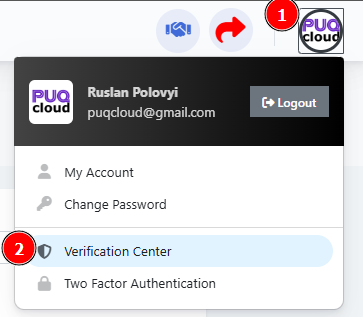](https://doc.puq.info/uploads/images/gallery/2025-09/image-1758028205585.png) Verification Center list (Email + Authenticator App). [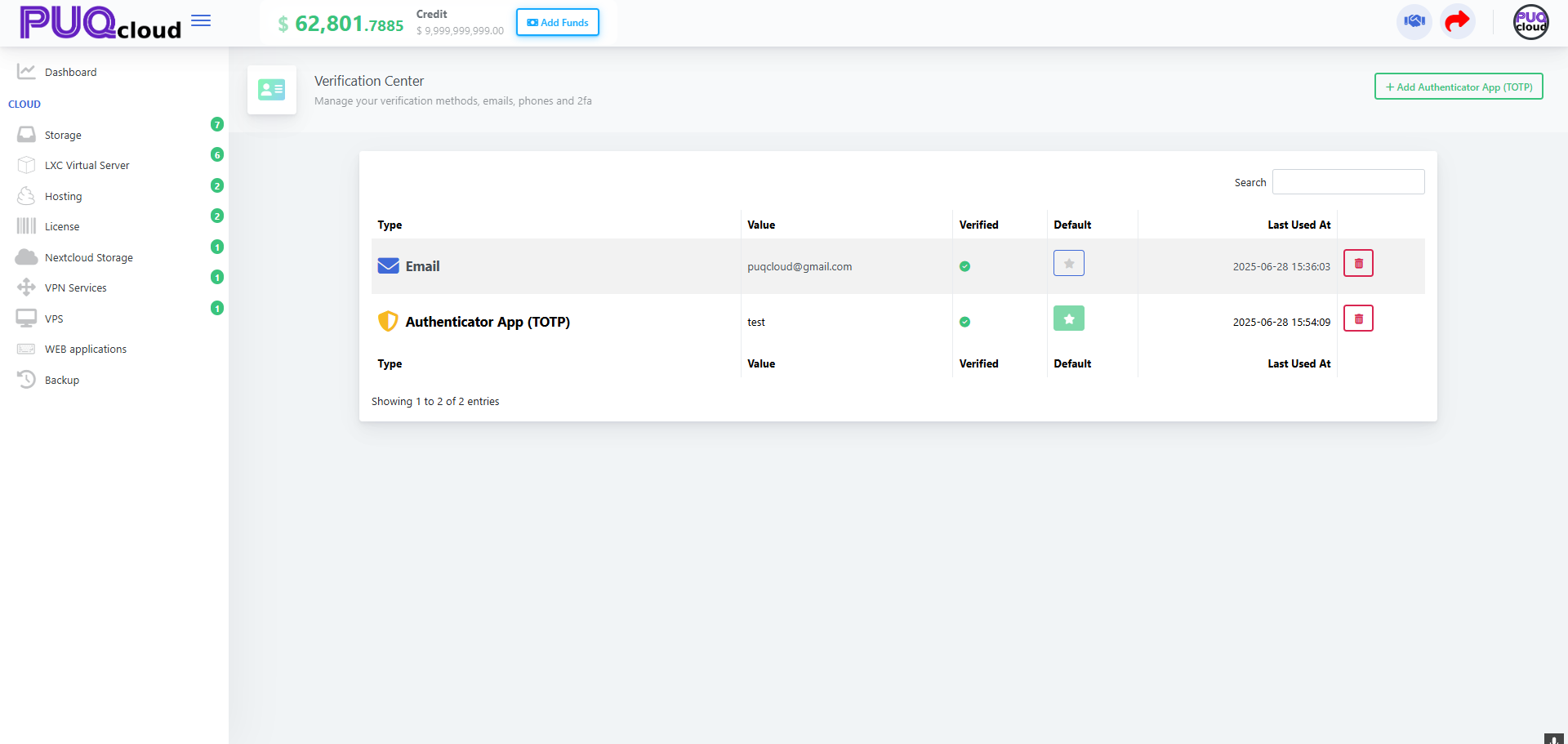](https://doc.puq.info/uploads/images/gallery/2025-09/image-1758028205613.png)Recommendation: keep at least **two** methods (Email + TOTP) so you don’t get locked out.
- - - - - - #### Add a TOTP Authenticator (Google Authenticator / Duo) 1. On **Verification Center**, click **Add Authenticator App (TOTP)**. 2. Scan the **QR code** in your app or enter the secret manually. 3. Enter the **6-digit code**, give a **Device Name** → **Save**. QR-code modal with code input. [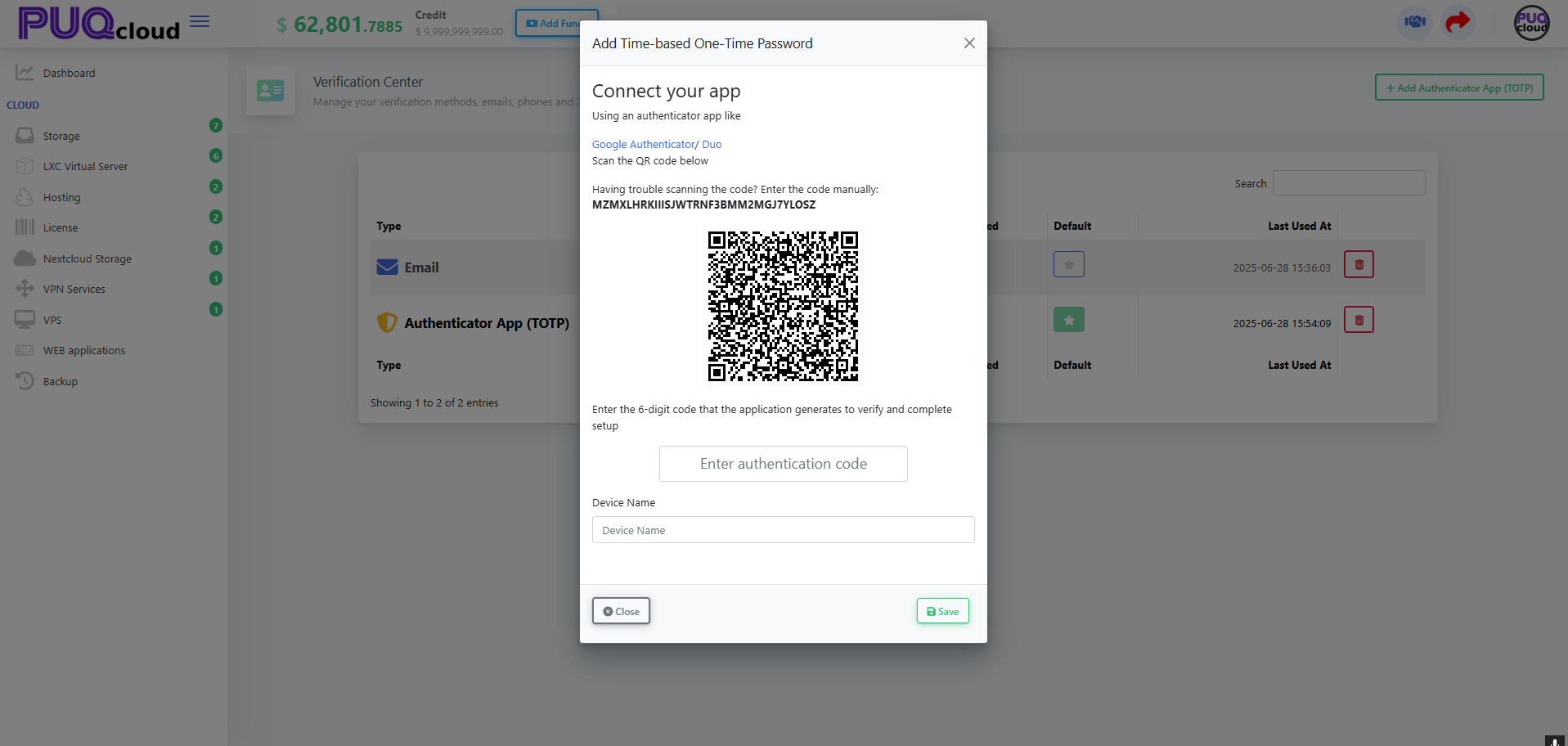](https://doc.puq.info/uploads/images/gallery/2025-09/image-1758028225891.png) - - - - - - #### Two-Factor Authentication (2FA) ##### Enable 2FA 1. Account menu → **Two Factor Authentication**. 2. Click **Enable 2FA**. 3. Enter the current **6-digit code** from your TOTP app → **OK**. “Two Factor Authentication” menu item. **[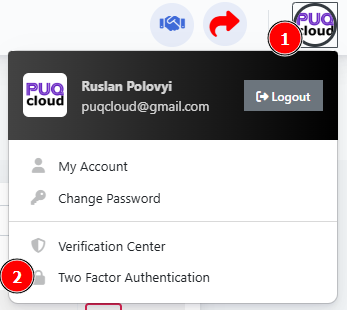](https://doc.puq.info/uploads/images/gallery/2025-09/image-1758028238508.png)** 2FA page (Disabled state, Enable 2FA button).[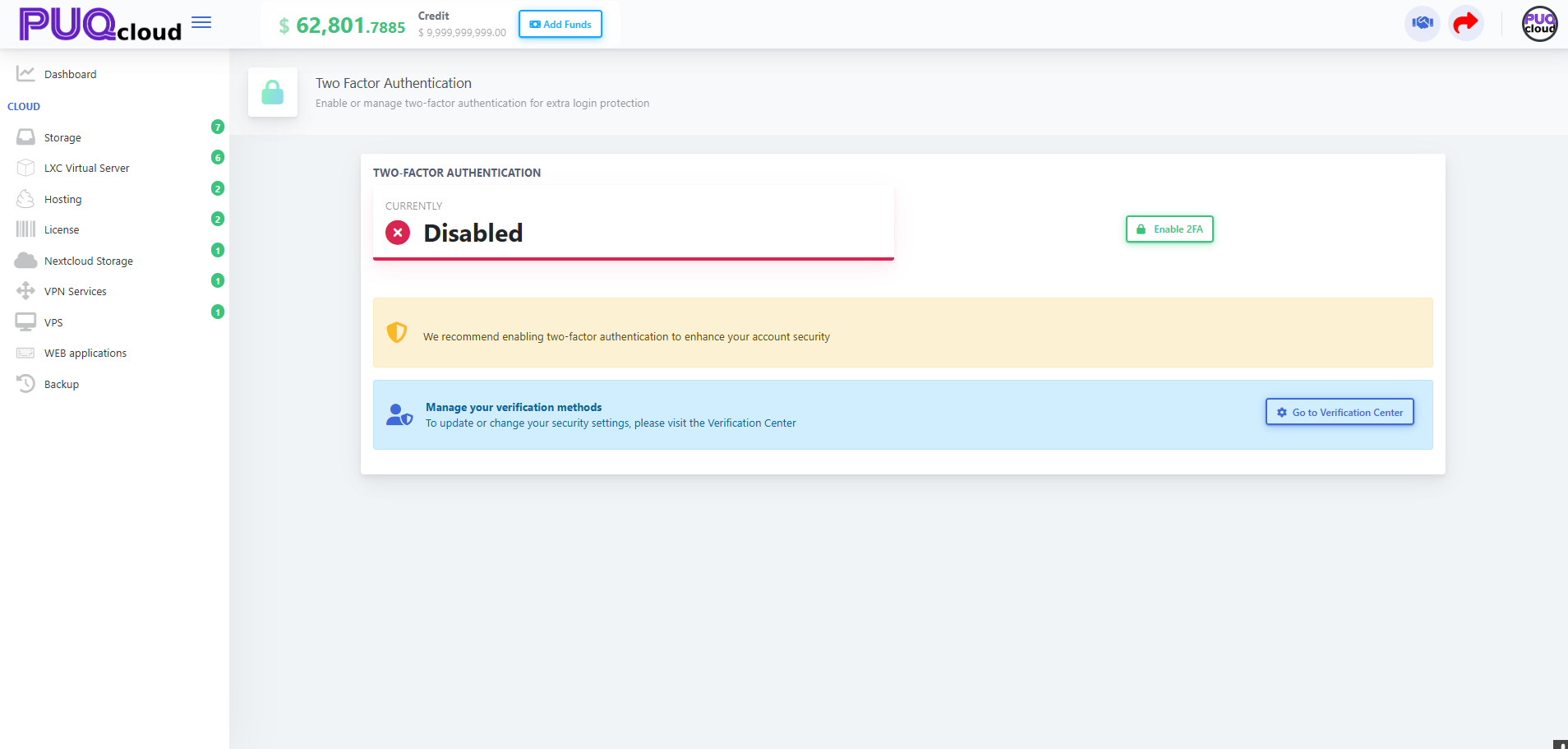](https://doc.puq.info/uploads/images/gallery/2025-09/image-1758028238561.png) Enable 2FA confirmation modal (code entry). [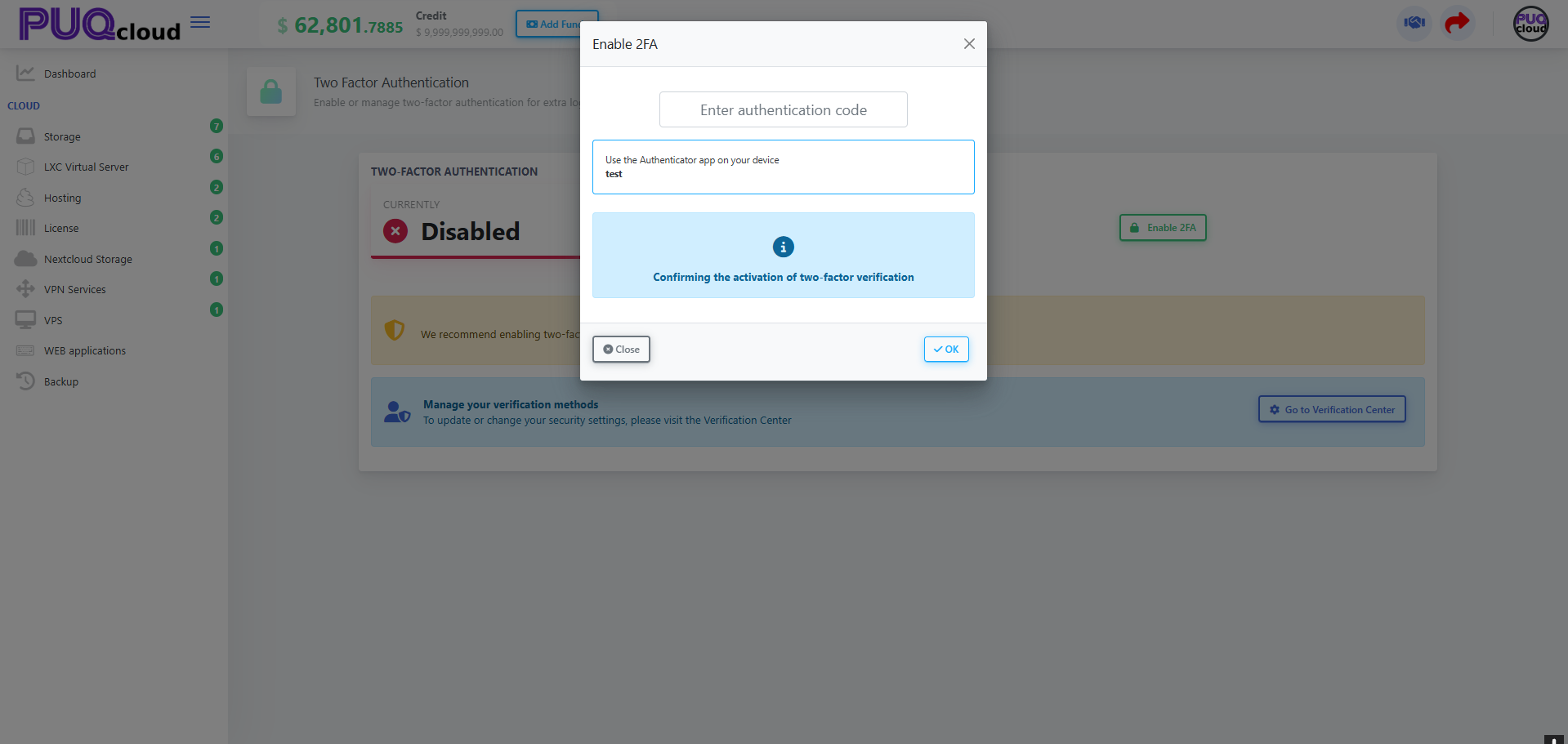](https://doc.puq.info/uploads/images/gallery/2025-09/image-1758028238535.png)If “Enable 2FA” is disabled or missing, first add a TOTP method in **Verification Center** (see Section 5).
- - - - - - #### Security quick checklist - Turn **2FA** on and set **Authenticator App** as **Default**. - Keep your **email** current (codes/alerts go there). - Use a long, unique **password**; don’t reuse it elsewhere. - Always keep **two verification methods** on file. - - - - - - #### Troubleshooting - **Code not accepted:** ensure your phone time is correct (TOTP is time-based). - **Can’t enable 2FA:** add a TOTP method in **Verification Center** first. - **Phone won’t save:** use **+** format. - **Lost TOTP device:** use your alternate method (email) or contact support for removal after identity verification.