
Check Transactions in the Client Area
PUQcloud Panel
Order Now | Download | FAQ
Overview
The Transactions page shows every balance movement on your account: top-ups, service charges, refunds, adjustments. Here’s how to open it, read it, and quickly find what you need — with exact spots to place your screenshots.
Open the Transactions page
-
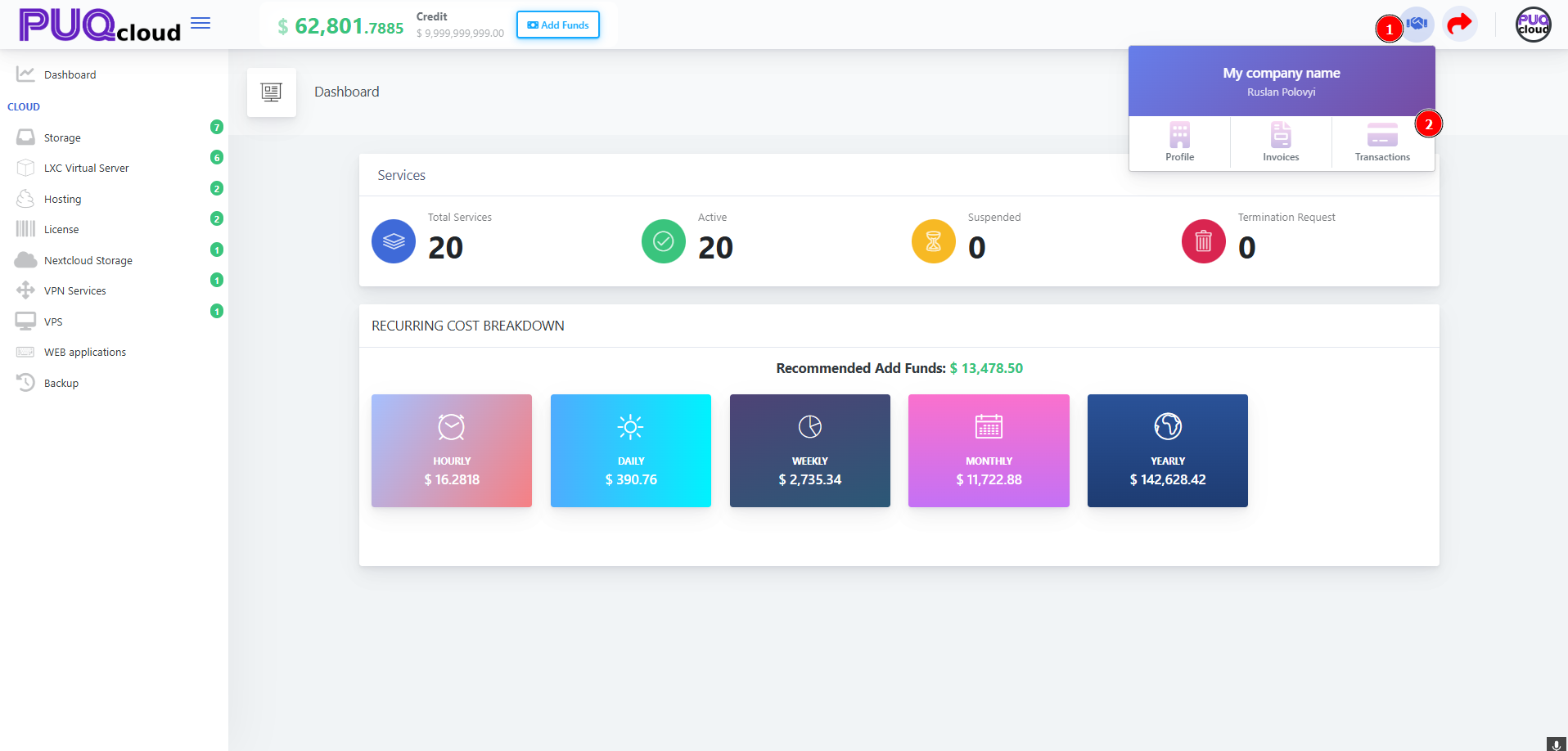
On the Dashboard, click the company widget at the top-right.
-
Choose Transactions.
Company dropdown (1 open menu → 2 Transactions).
Read the Transactions table
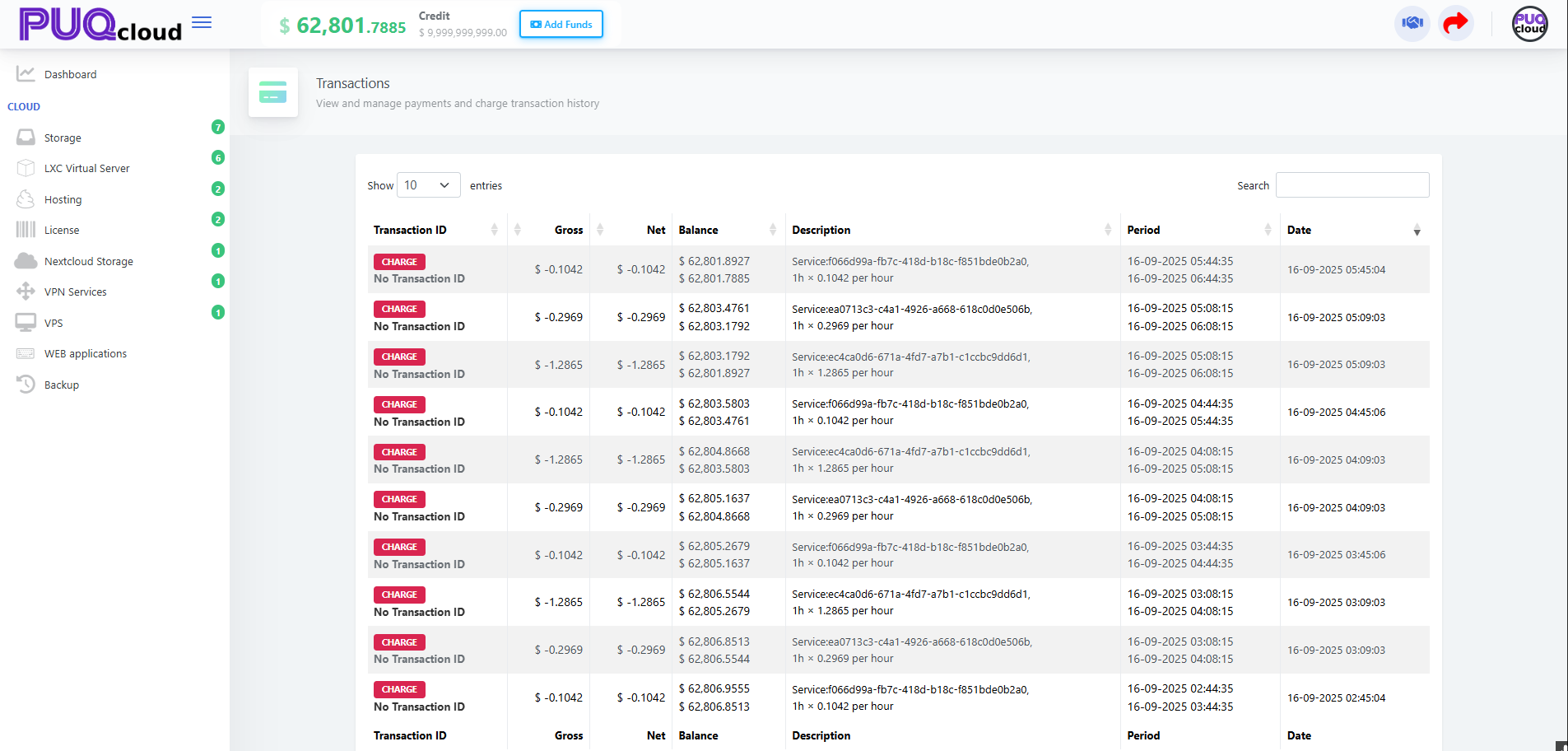
On the Transactions page you’ll see a ledger-style list with these columns:
-
Transaction ID — a payment identifier (for card/Stripe/etc.). If it shows No Transaction ID, it’s usually a system CHARGE (usage/recurring fee).
-
Gross / Net — amount including/excluding tax (negative numbers = charge; positive = credit/refund).
-
Balance — your account balance after this entry posted.
-
Description — what the entry is for (service key, action, notes).
-
Period — the time window the charge covers (e.g., the specific hour for hourly billing).
-
Date — when the entry was recorded.
Transactions list (full table with CHARGE rows).
Tip: To verify a top-up, look for a Transaction ID and a positive amount; the Balance column will jump up on that row.
Find a specific entry fast
-
Use the Search box (top-right) to filter by Transaction ID, amount, or service key from the Description.
-
Change Show 10 to see more rows on one page.
-
Use the table headers to sort (e.g., by Date) if enabled in your setup.
Reconcile with invoices
-
A service CHARGE here should correspond to items that later appear on your Proforma/Invoice totals.
-
To review the document: open Company → Invoices, then match by date/amount.
-
If a payment was made, the Transactions entry will show a Transaction ID and the invoice should show Paid.
Common checks & quick fixes
-
“My top-up isn’t visible.” Filter by today’s Date; confirm payment success in your bank/processor.
-
“Numbers look off.” Compare Gross vs Net and check your Profile tax settings (country/Tax ID).
-
“What was this charge?” Read the Description + Period to see which service and which window were billed.
-
Still unclear? Copy the Transaction ID (if present) and share it with support.