
Create and manage Currencies in the Admin Area
PUQcloud Panel
Order Now | Download | FAQ
Where to find it
-
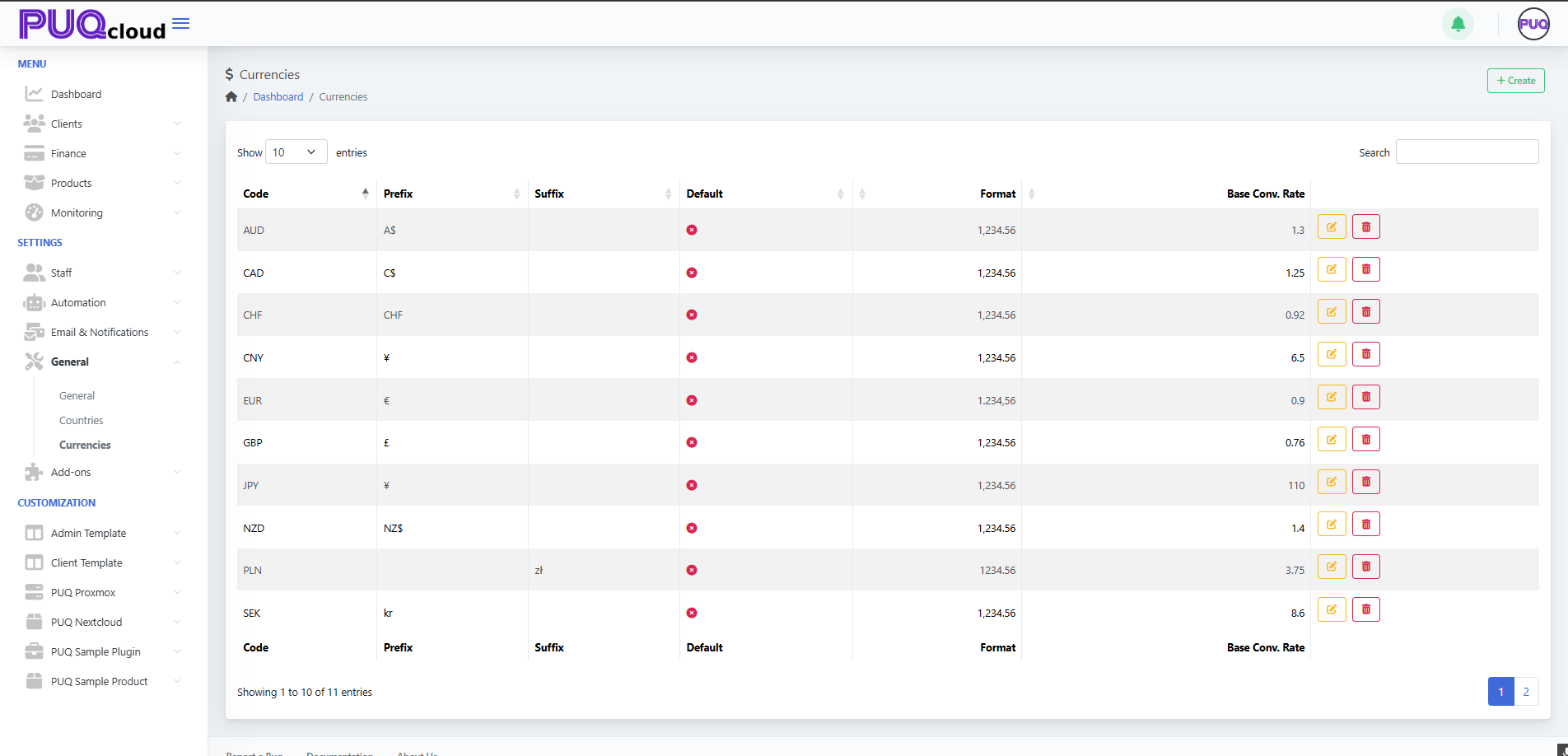
In the left menu go to Settings → General → Currencies.
Currencies list with search, paging, and row actions (Edit/Delete).
Create a new currency
-
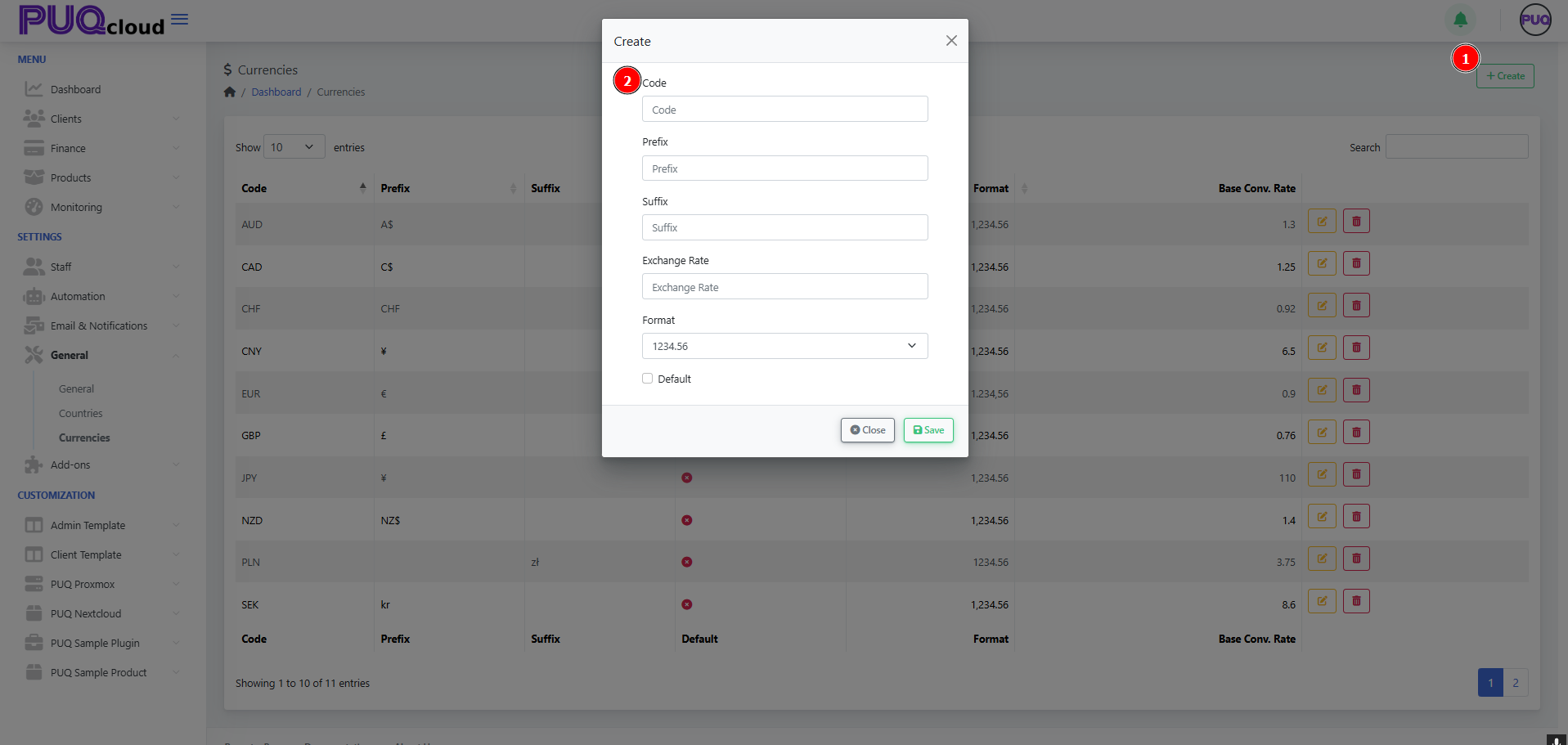
Click + Create (top-right of the page).
-
In the Create modal, fill in:
-
Code – the ISO currency code (e.g.,
USD,EUR,JPY). -
Prefix – symbol shown before the amount (e.g.,
$,CHF). -
Suffix – symbol shown after the amount (e.g.,
złfor PLN). -
Exchange Rate – base conversion rate against your system’s base currency.
-
Format – choose the number formatting style (thousand/decimal separators).
-
Default – tick if this should become the system default currency.
-
-
Click Save.
Notes
-
You can use either a sign (e.g.,
€) or a short text (e.g.,NZ$) for prefix/suffix. -
The Exchange Rate is relative to your base currency (the one you treat as “1.00”).
“Create Currency” modal with all fields (Code, Prefix, Suffix, Exchange Rate, Format, Default).
Edit an existing currency
-
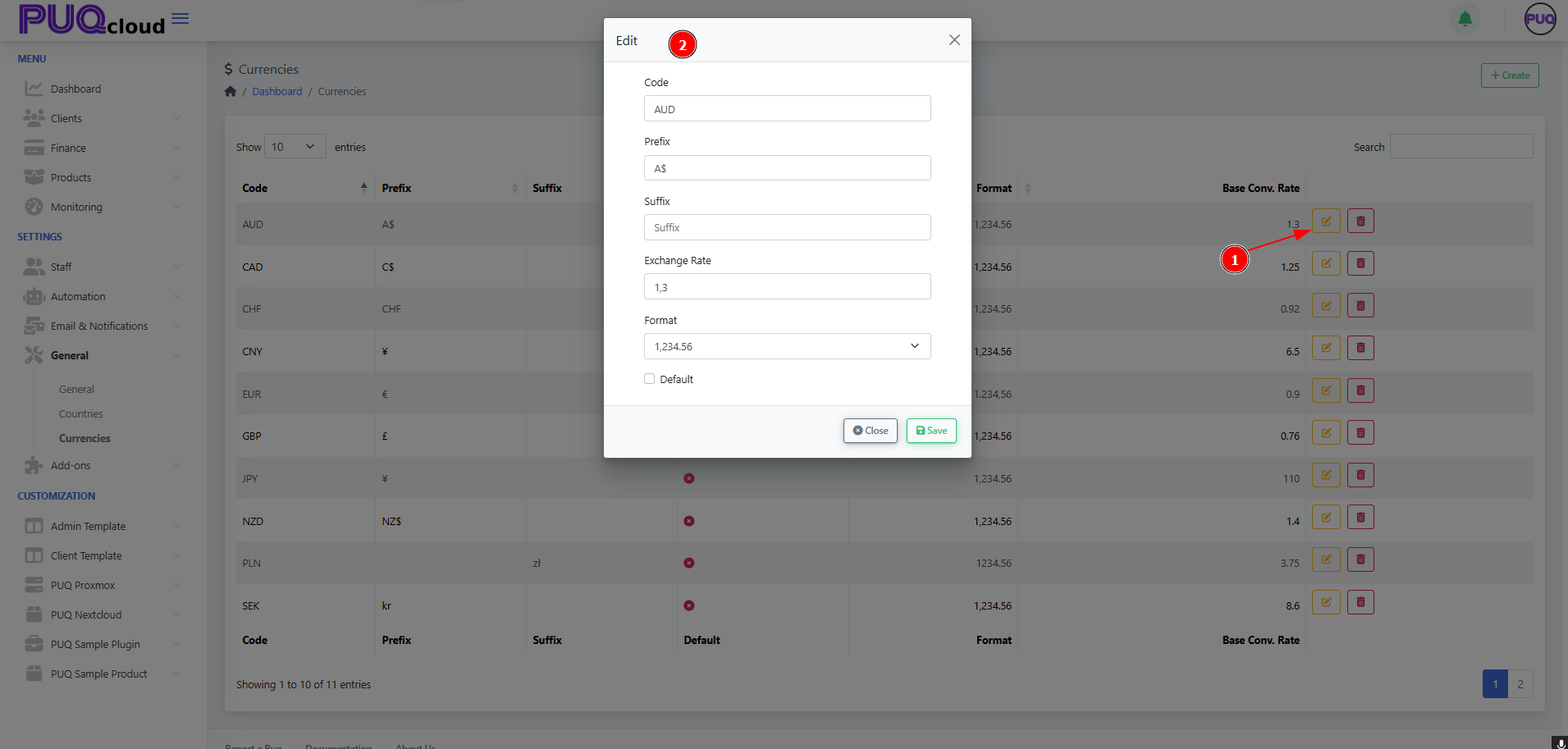
In the list, click the pencil icon for the currency you want to change.
-
Update Code, Prefix, Suffix, Exchange Rate, Format, or toggle Default.
-
Click Save to apply changes.
Tips
-
Use Format to enforce consistent display (e.g.,
1,234.56vs1.234,56). -
When you change Exchange Rate, all derived conversions will use the new rate going forward.
“Edit Currency” modal opened from the row (rate/format/default shown).
Delete a currency
-
Click the trash icon on the currency row you wish to remove, then confirm.
(You cannot delete a currency that is currently set as Default; switch default first.)
Search, sort, and paginate
-
Search (top-right) filters by code or symbols.
-
Click column headers to sort (e.g., by Code).
-
Use page controls at the bottom to navigate through the list.
Best practices
-
Keep one clear Default currency at all times.
-
Review Exchange Rates regularly or automate updates if available elsewhere.
-
Prefer ISO codes for clarity (
USD,EUR,GBP, etc.). -
Use Prefix/Suffix consistently across your currencies (e.g.,
$as prefix,złas suffix).
That’s it—you can now add, edit, remove, and format currencies in the Admin Area with confidence.