Groups control how products are displayed on the storefront (list/order/manage templates) and provide a place to order items and manage visibility.
- - - - - - #### Product Groups List You’ll see: **Icon**, **Key**, **Visible**, **Products** (count), **Order** controls (down / index / up), and actions (**Edit**, **Delete**). Use **Search** to filter. *(Screenshot reference: Product Groups list)* [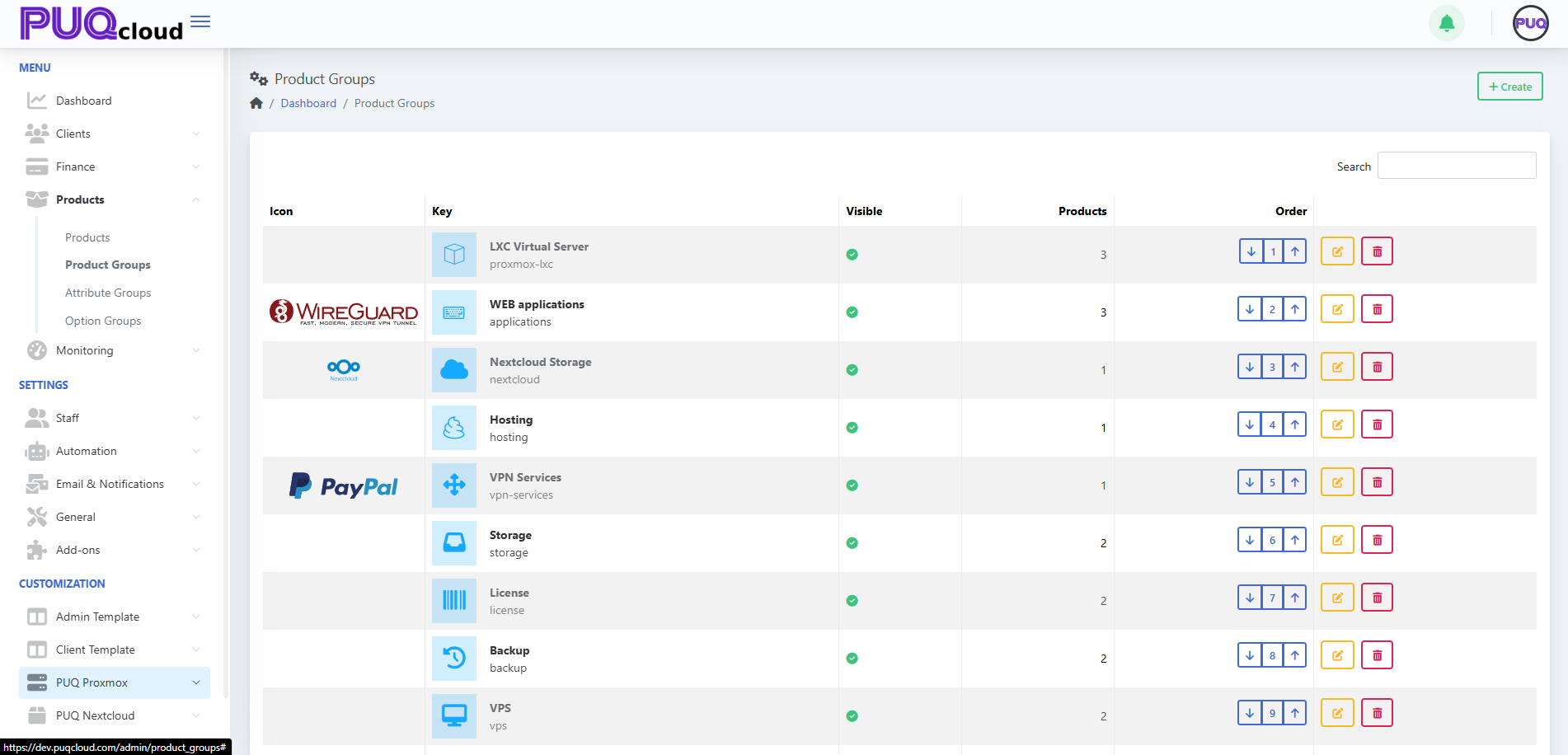](https://doc.puq.info/uploads/images/gallery/2025-09/image-1757599011970.png) **Actions** - **+ Create** — add a new group. *(Screenshot: Create Group modal)* [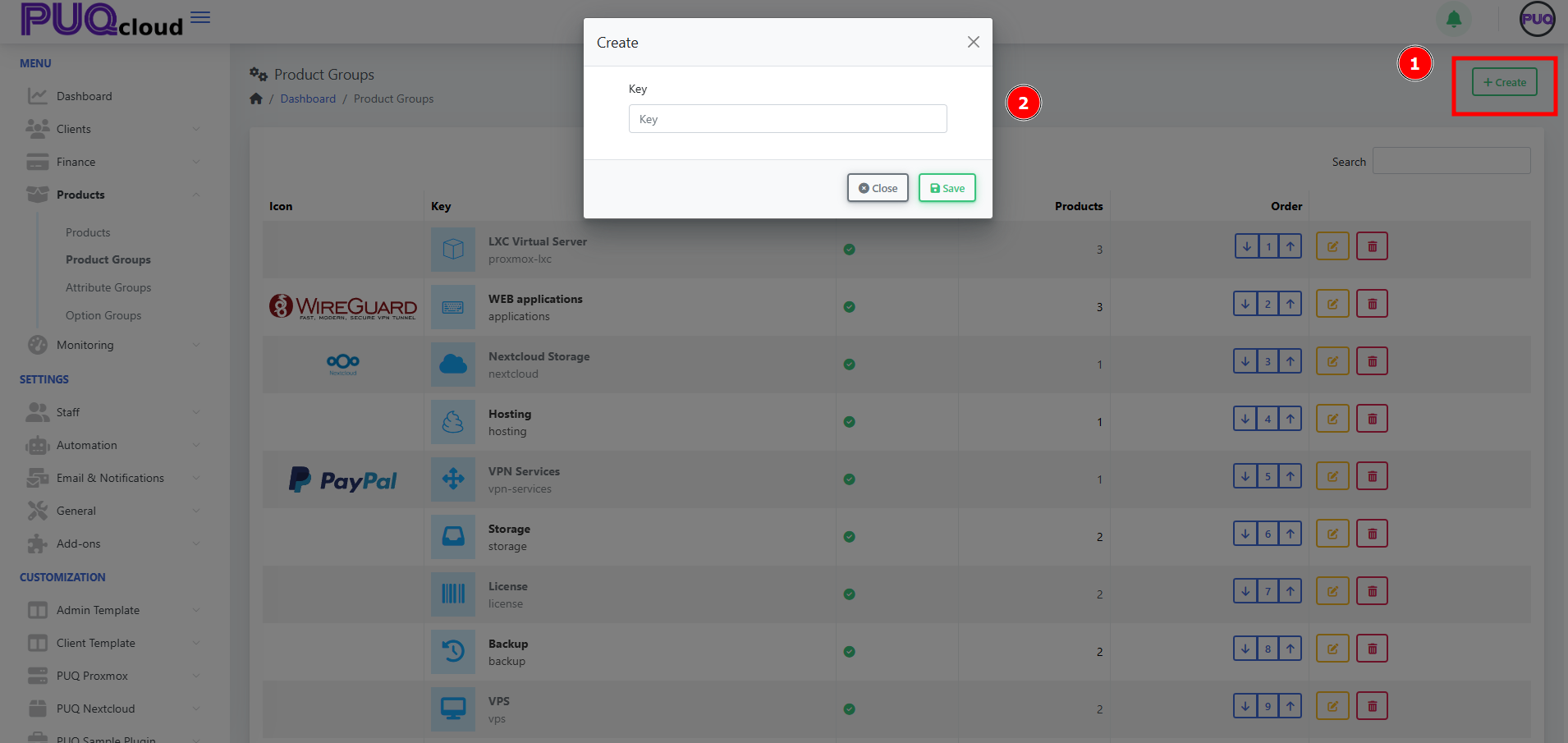](https://doc.puq.info/uploads/images/gallery/2025-09/image-1757599028793.png) - **Order** — use arrows to arrange groups on the storefront. - **Edit** — open tabs **General / Images / Products**. - **Delete** — remove the group (does not delete products). - - - - - - #### Create a Product Group 1. Click **+ Create**. 2. Enter a unique **Key** (e.g., `proxmox-lxc`). 3. Click **Save**. The group opens on the **General** tab. *(Screenshots: Create modal → General tab)* [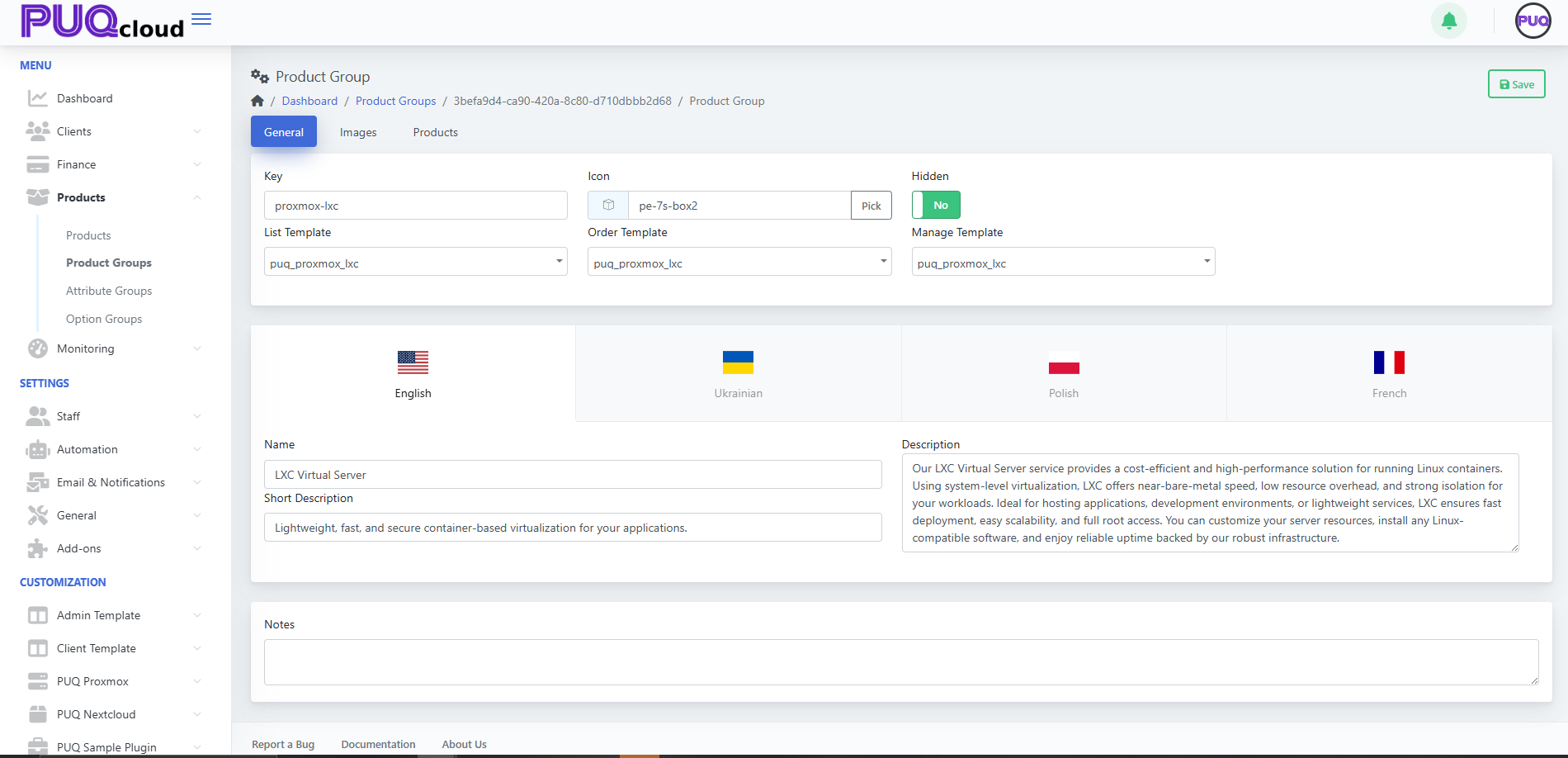](https://doc.puq.info/uploads/images/gallery/2025-09/image-1757599035155.png) - - - - - - #### Configure the Group ##### General tab - **Key** — internal identifier (read‑only after creation). - **Icon** — choose an icon from your set (**Pick**). - **Hidden** — hide/show the group from storefront. - **Templates** - **List Template** — how the group appears on the catalog page. - **Order Template** — layout for the order page of products in this group. - **Manage Template** — layout for the client’s service management page. - **Localized content** — **Name**, **Short Description**, **Description** per language. - **Notes** — internal, visible to admins only. Click **Save**. ##### Images tab Upload visuals that represent the group: - **Icon Image** — small logo used in lists/cards. - **Background Image** — large banner-style image. Drag & drop or **Browse**, then **Save**. *(Screenshot: Images tab)* [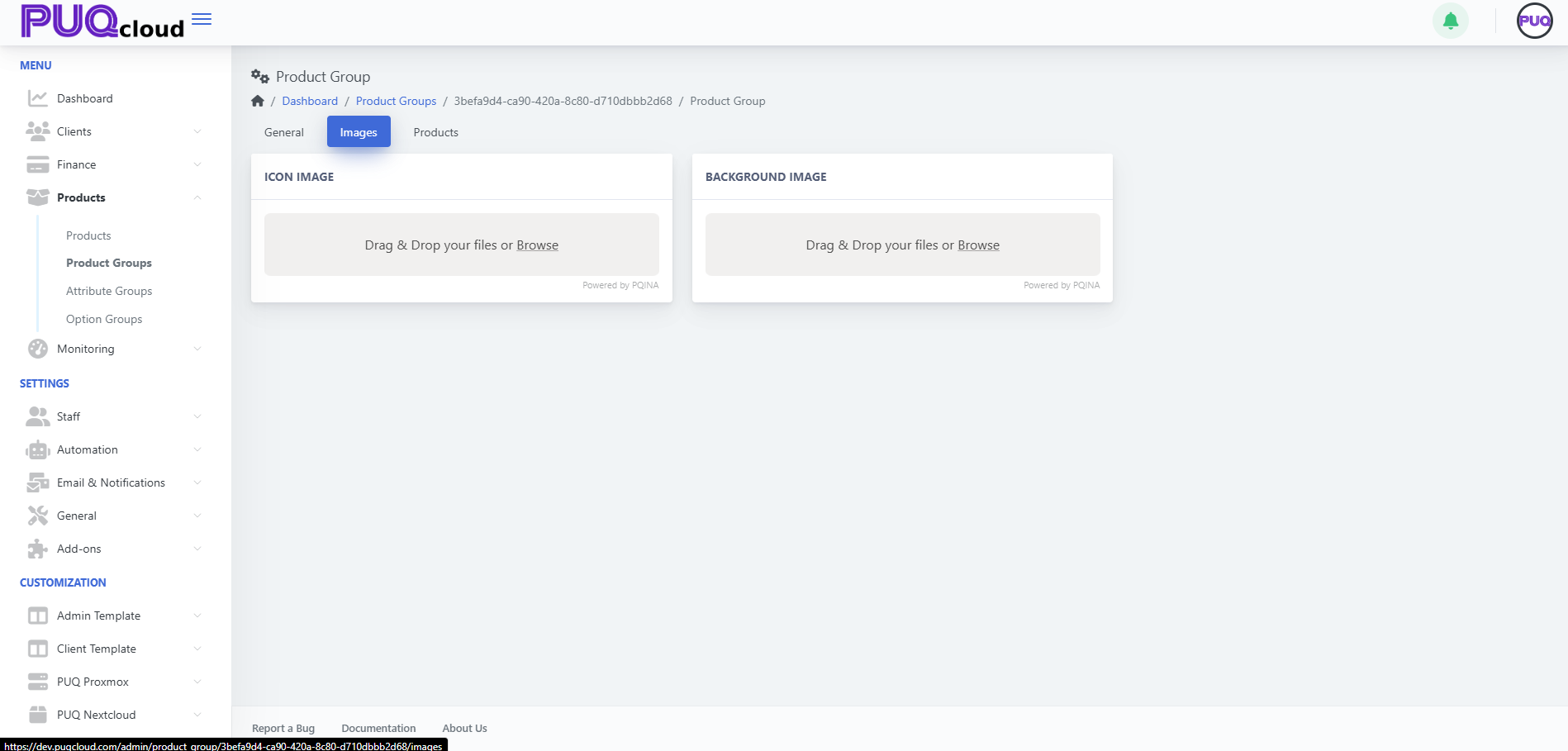](https://doc.puq.info/uploads/images/gallery/2025-09/image-1757599044206.png) - - - - - - #### Add & Manage Products in the Group Open the **Products** tab. *(Screenshot: Products tab)* [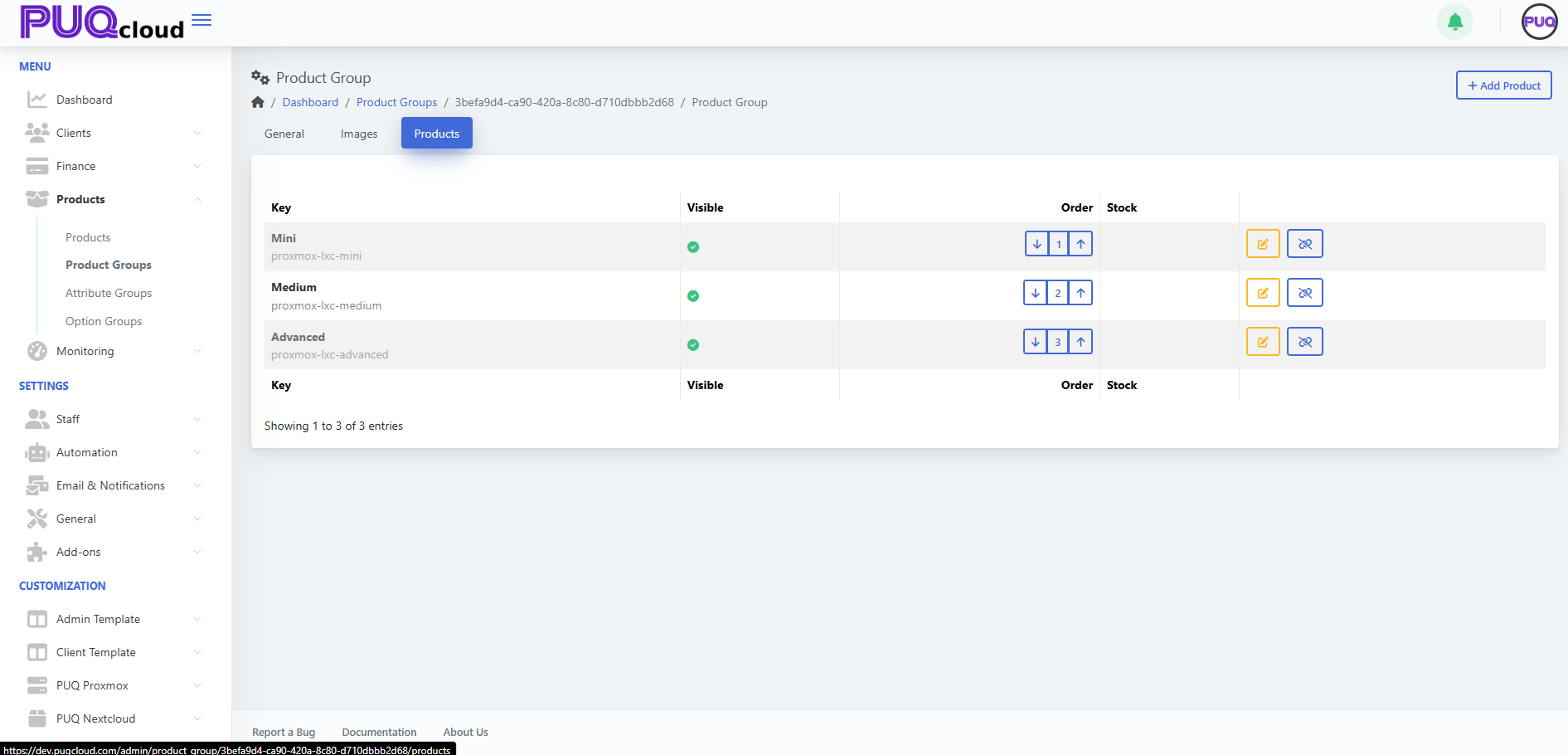](https://doc.puq.info/uploads/images/gallery/2025-09/image-1757599050153.png) ##### Add products 1. Click **+ Add Product**. 2. Select one or more **existing products** to link to this group. 3. **Save**. ##### Manage items - **Visible** — the green check indicates the product is visible inside this group. - **Order** — use arrows to set the display order (e.g., Mini = 1, Medium = 2, Advanced = 3). - **Edit** — open the product for editing in a new view. - **Hide/Show** — toggle product visibility in this group (without altering the product’s global status). - **Unlink** — detach the product from the group (confirmation dialog).Tip: Keep a clear progression (e.g., Mini → Medium → Advanced) and ensure at least one **visible** product exists per group.
- - - - - - #### Best Practices - Keep groups **Hidden** while drafting, then unhide when ready. - Use consistent naming/visuals across **Name**, **Icon**, and **Images**. - Choose templates that match the **product type** for a seamless order flow. - Reuse groups for families of products (e.g., CPU/RAM tiers for the same service). - Review the **Products** count in the list to quickly spot empty groups. - - - - - - #### Troubleshooting - **Group doesn’t appear in catalog** → Turn **Hidden = Off**; verify that the group contains at least **one visible product**. - **Product not showing under the group** → Ensure it’s **linked** and **visible** in the **Products** tab; also check the product’s own **Hidden/Active** flags. - **Wrong page layout** → Confirm **List/Order/Manage Templates** are correct for this group. - **Unexpected order** → Use the arrow controls in both **Group list** (for groups) and **Products tab** (for items) to correct ordering. - - - - - - #### Screenshot References - **Product Groups list** — overview of groups with counts, visibility and order. - **Create Group modal** — single Key field. - **General tab** — Key, Icon, Hidden, Templates, localized fields. - **Images tab** — Icon Image and Background Image uploaders. - **Products tab** — list with Visible, Order, Edit, Hide/Show, Unlink.