**Pro tip:** Put upgrade logic in the **Description** (“Level 2 adds IP reputation filter”), so clients know what changes between levels.
- - - - - - ##### 3) Add Visuals (optional, but nice) Add an **Icon** for quick recognition and a **Background** for storefront cards. Screenshot Images tab [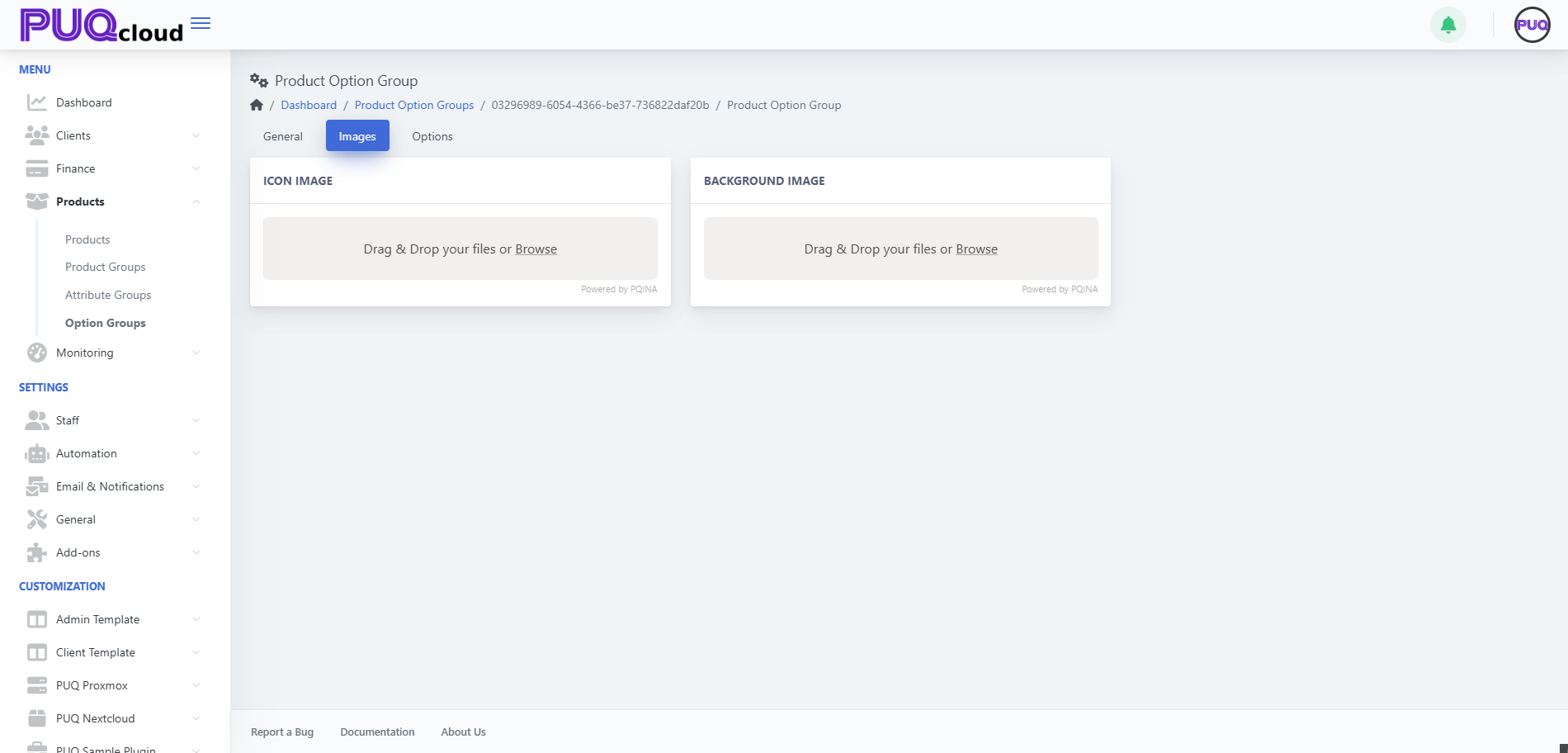](https://doc.puq.info/uploads/images/gallery/2025-09/image-1758024839999.png)**Branding tip:** Use neutral, product-agnostic icons so this group can be reused across offerings.
- - - - - - ##### 4) Add Options (the items clients actually choose) Go to **Options** → **+ Create** and add each selectable item (e.g., *Firewall level 0/1/2/3*). Screenshot Options list with order controls[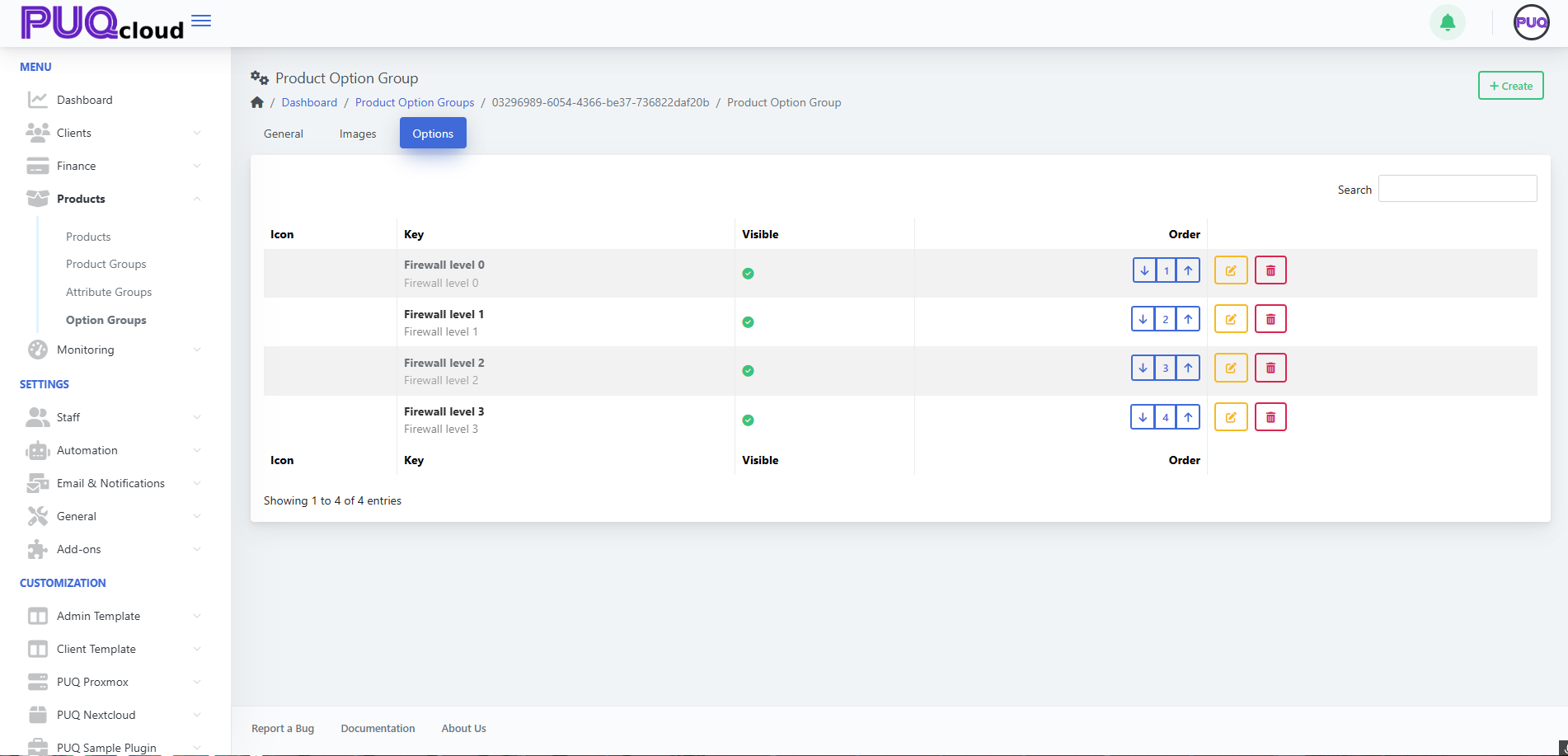](https://doc.puq.info/uploads/images/gallery/2025-09/image-1758024854462.png) Screenshot “Create Option” modal [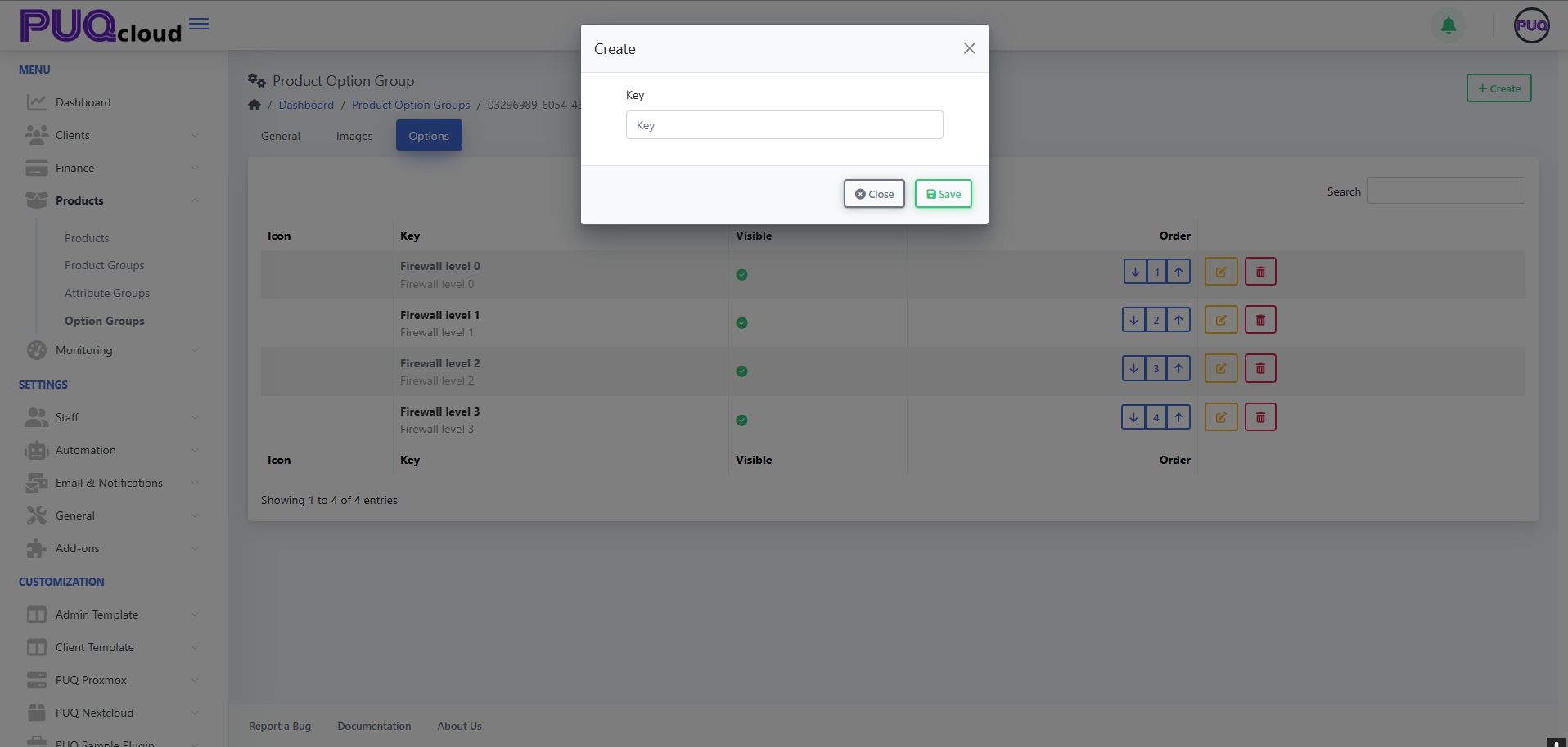](https://doc.puq.info/uploads/images/gallery/2025-09/image-1758024854491.png) - Keep **Key** short (e.g., `firewall-level-1`). - Use the **order arrows** to arrange from lowest → highest tier. - Toggle **Visible** to quickly remove an option from the storefront without deleting it.**UX tip:** List from “basic → advanced”. Clients upgrade more confidently when progression is obvious.
- - - - - - ##### 5) Edit an Option & Add Prices Click **Edit** on an option: - Fill **Key**, optional **Value** (if your module reads a value), **Hidden**, **Notes**. - Upload **Icon/Background** for this option (optional). - Localize **Name**, **Short Description**, **Description**. Screenshot Edit Option page [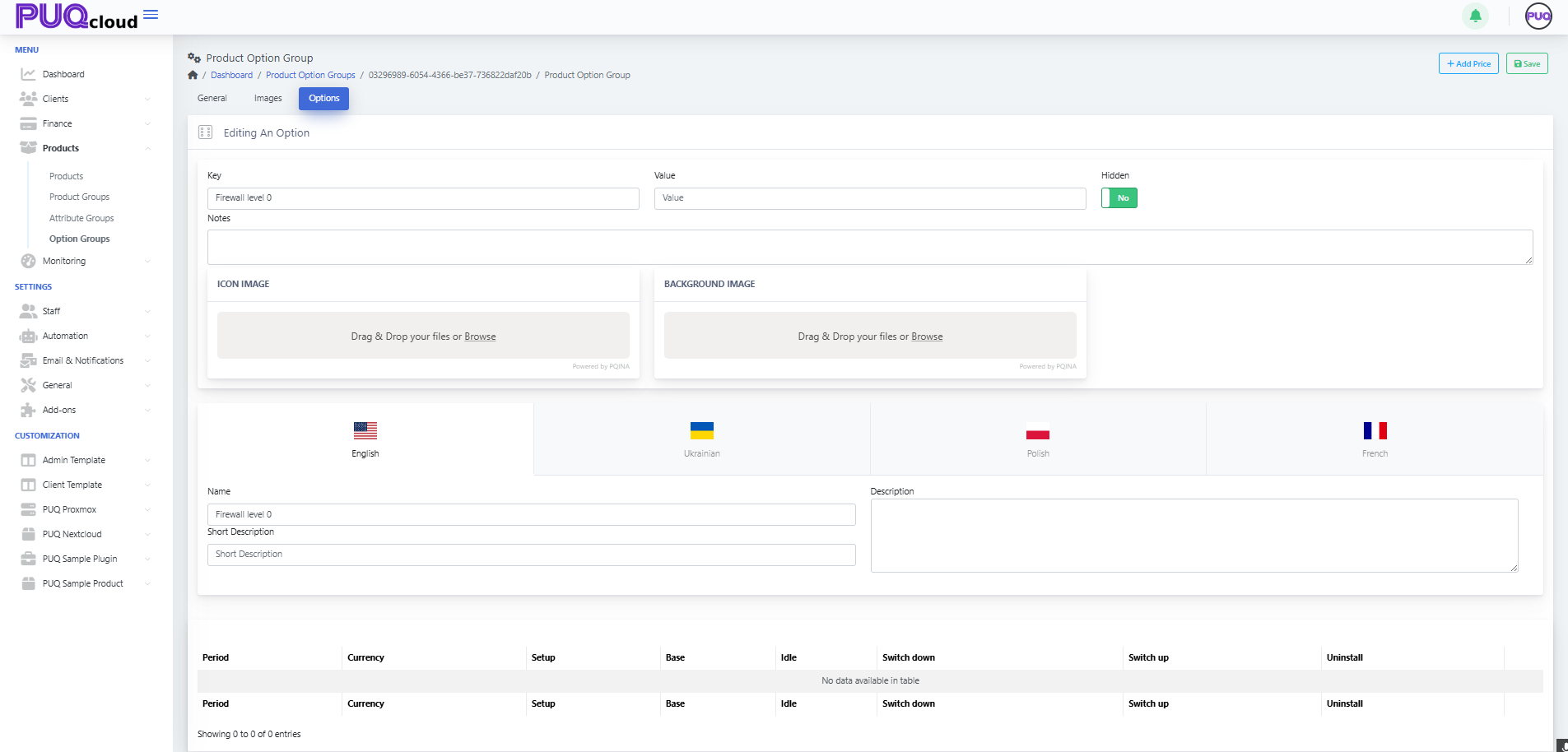](https://doc.puq.info/uploads/images/gallery/2025-09/image-1758024902746.png) Now add a price row: - Click **+ Add Price** → choose **Currency** & **Period** (One-time, Daily, Monthly, etc.). - Fill **Setup**, **Base** (recurring), **Idle** (if billed when idle), **Switch up/down** (upgrade/downgrade delta), **Uninstall** (one-time removal fee). Screenshot “Add Price” modal [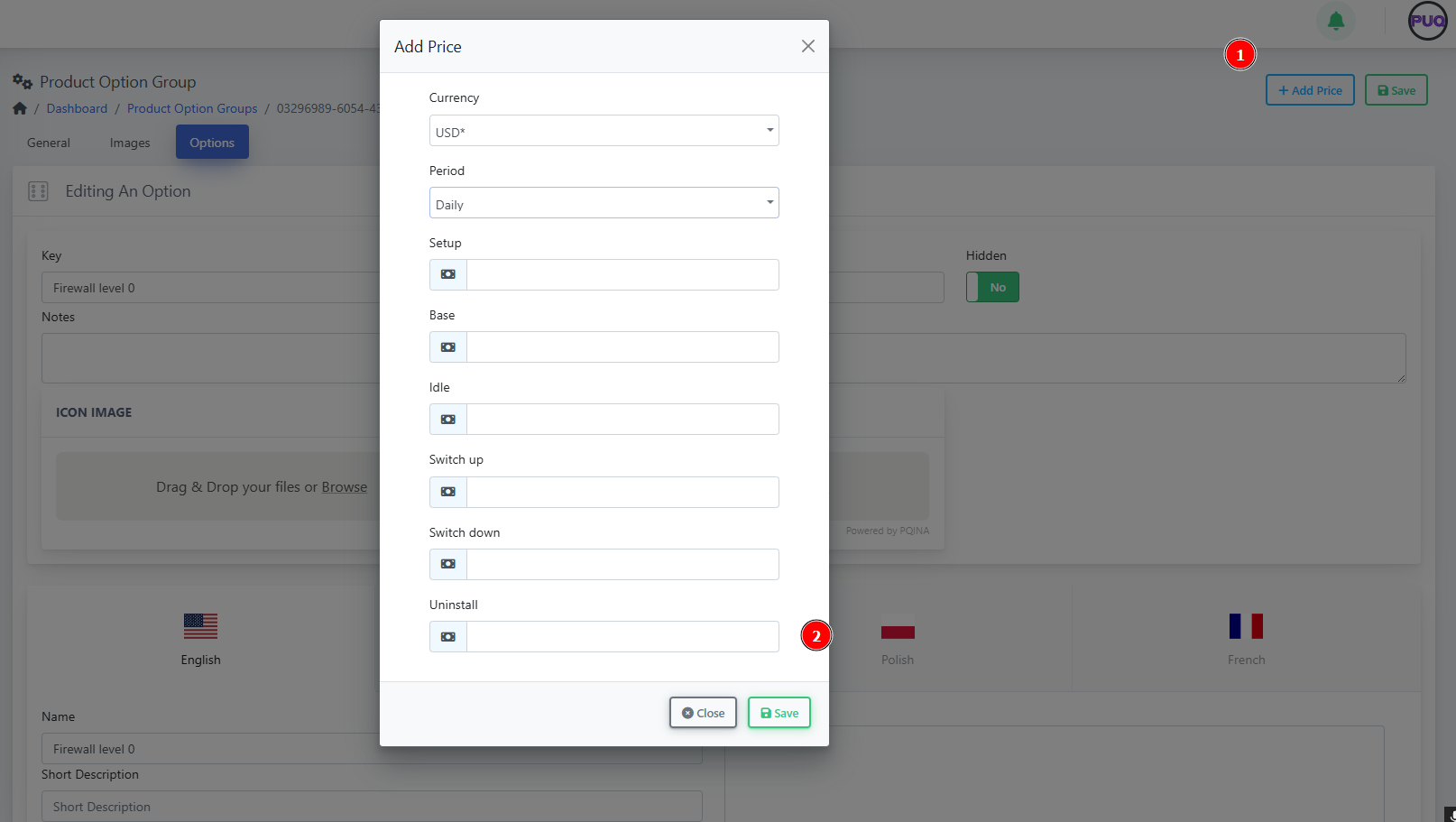](https://doc.puq.info/uploads/images/gallery/2025-09/image-1758024914898.png)**Pricing tip:** Only add price rows you actually need. If an option is informational, leave pricing blank.
- - - - - - #### Example: “Firewall Protection” (ready-to-copy model) **Group Key:** `Firewall` **Options (ordered):** 1. Firewall level 0 — baseline filtering 2. Firewall level 1 — adds IP reputation lists 3. Firewall level 2 — + geo-blocking 4. Firewall level 3 — + L7 rules & rate limiting **Minimal price matrix idea** - Level 0: Base 0.00 (included) - Level 1: Base 3.00 (Monthly) - Level 2: Base 6.00 (Monthly) - Level 3: Base 9.00 (Monthly) (Use **Convert Price = Yes** for multi-currency catalogs.) - - - - - - #### Attaching the Group to Products 1. Open a **Product** → **Options** tab → link your **Option Group**. 2. Save and preview the product order page to verify order, visibility, and prices.**Governance tip:** Reuse one **Firewall** group across multiple products; update once, benefit everywhere.
- - - - - - #### Quality checks (2-minute audit) - ✅ Group is **Visible** and option order makes sense. - ✅ Each option has localized **Name** (and descriptions where needed). - ✅ Price rows exist **only** where you charge. - ✅ Group is attached to every relevant product. - ✅ Upgrade paths are clear (level numbers or size increments). - - - - - - #### Troubleshooting & gotchas - **Group doesn’t show on the product:** It isn’t attached on the product’s **Options** tab. - **Wrong currency on price:** Add a row per currency or enable **Convert Price**. - **Client can’t see an option:** The option is **Hidden** or priced for a period the product doesn’t use. - **Reordering doesn’t reflect on storefront:** Refresh cache and verify product still points to the same group. - - - - - - #### Maintenance playbook - Use **Notes** to record internal logic (e.g., “Level 2 requires WAF module v2.1+”). - When deprecating, switch an option to **Hidden** first, then remove after migrations. - Version your groups with a suffix only when schema changes (e.g., `Firewall-v2`).