**How matching works** The system reads rules **from top to bottom**. The **first matching rule** is applied. Keep your most specific rules (e.g., province/state) **above** more general ones.
- - - - - - #### Before You Start 1. Make sure you have at least one **Home Company** configured (Settings → Finance → Home Companies). 2. Know your target **tax rates** (GST/HST/PST/VAT, etc.). 3. Decide which **client types** the rule should apply to: - **Private Client** (individual) - **Company Without TAX ID** - **Company With TAX ID**Always verify rates with your accountant or the official tax authority.
- - - - - - #### Quick Start: Generate Preset Rules You can auto-create a starting set of rules and then fine‑tune them. ##### Create Canadian Rules 1. Go to **Finance → Tax Rules**. 2. Click **Create Canadian Rules**. 3. Select your **Home Company** and **Save**. 4. Review the generated rules and adjust rates as needed. *(Screenshot reference: “Create Canadian Rules” modal)* [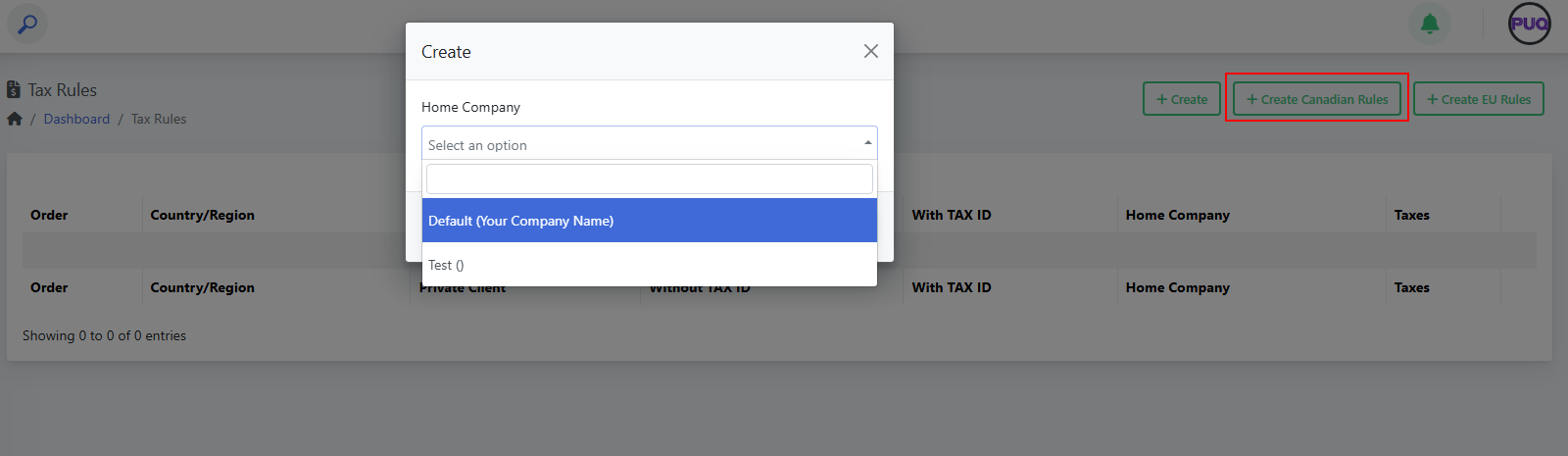](https://doc.puq.info/uploads/images/gallery/2025-09/image-1756819758460.png) ##### Create EU Rules 1. Go to **Finance → Tax Rules**. 2. Click **Create EU Rules**. 3. Select your **Home Company** and **Save**. 4. Review the generated rules and adjust rates as needed. *(Screenshot reference: “Create EU Rules” modal)* [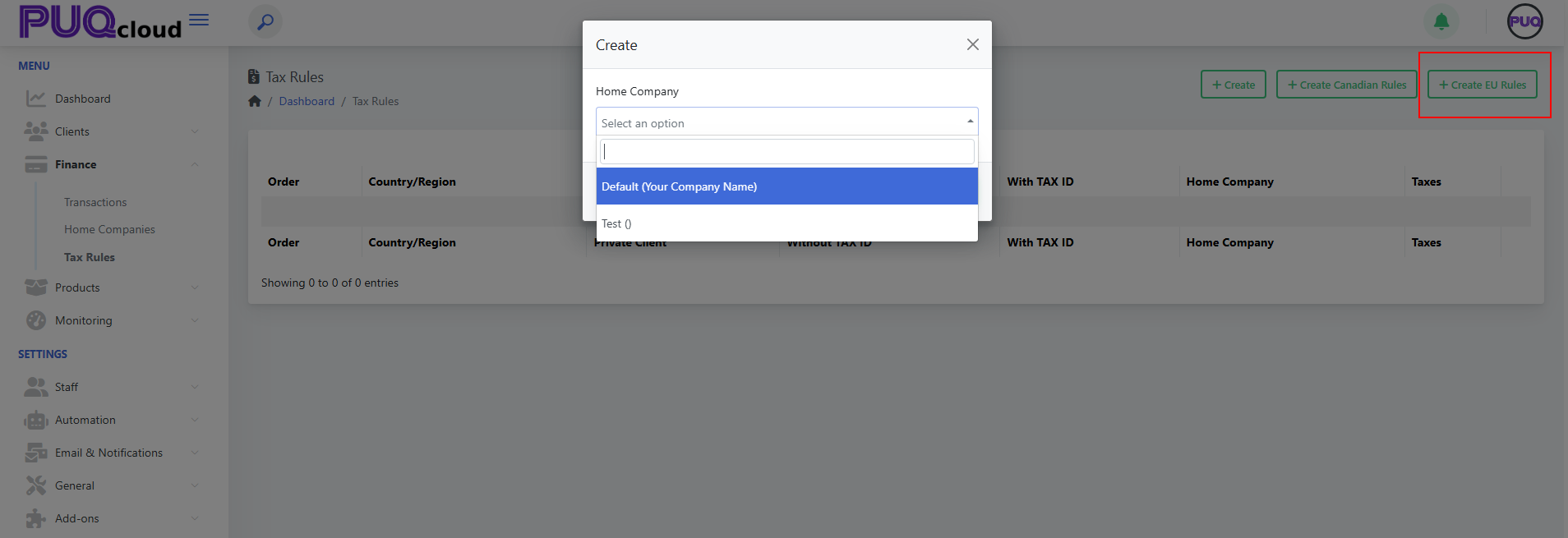](https://doc.puq.info/uploads/images/gallery/2025-09/image-1756819763523.png)**Note:** Presets are a convenience. You are responsible for validating the final rates.
- - - - - - #### Create a Tax Rule Manually 1. Open **Finance → Tax Rules**. *(See: List view)* [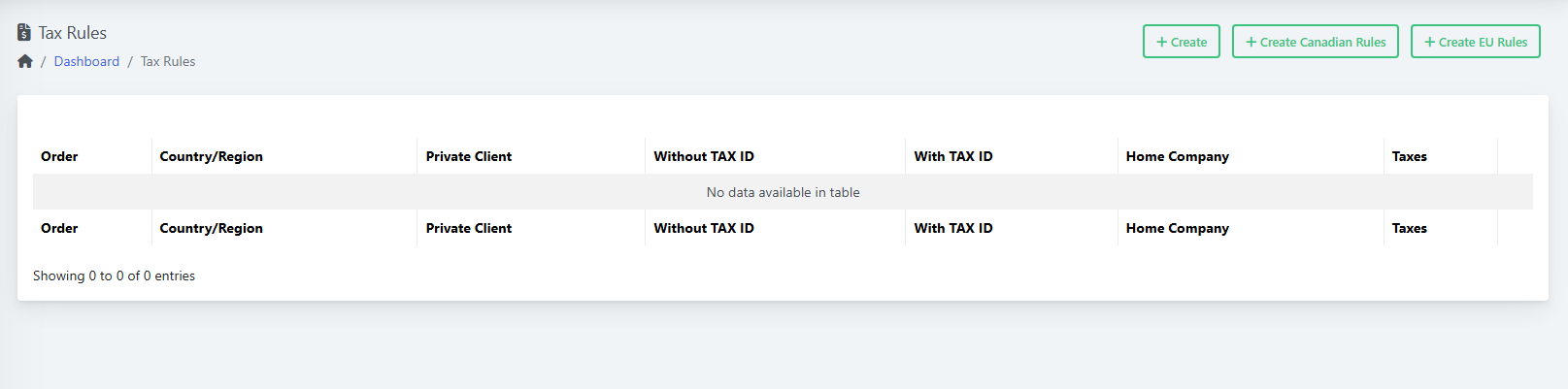](https://doc.puq.info/uploads/images/gallery/2025-09/image-1756819775855.png) 2. Click **Create**. *(See: “Create” modal)* [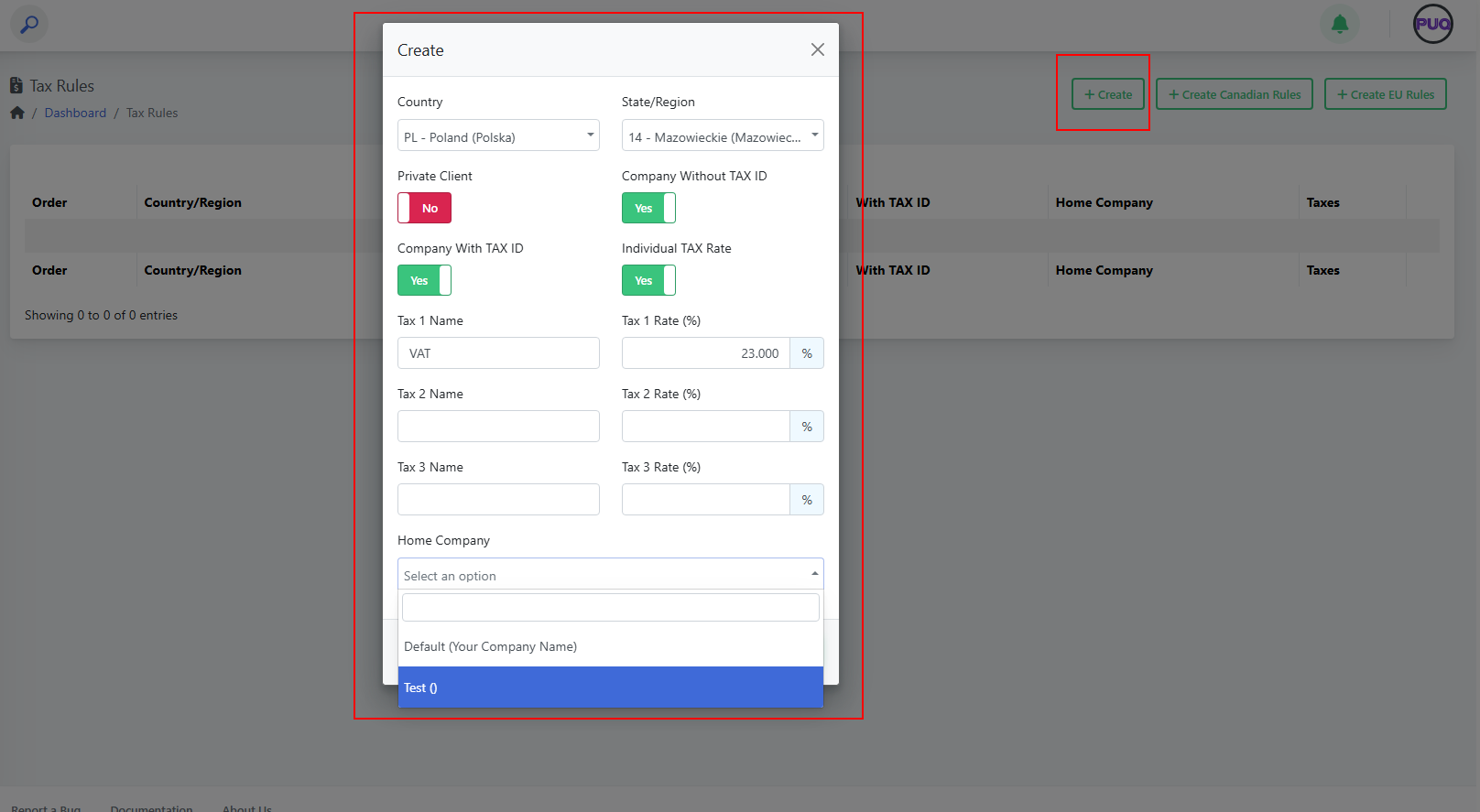](https://doc.puq.info/uploads/images/gallery/2025-09/image-1756819780375.png) 3. Fill the fields: - **Country** and **State/Region** (optional). - Turn on the client‑type toggles the rule should apply to: **Private Client**, **Company Without TAX ID**, **Company With TAX ID**. (Use **Individual TAX Rate** if the rule should tax individuals.) - Enter up to **three taxes** (name + percent). Example: - *Tax 1 Name:* `VAT` — *Tax 1 Rate:* `23.000` - *Tax 2 Name:* `PST` — *Tax 2 Rate:* `7.000` (if applicable) - *Tax 3 Name:* `GST` — *Tax 3 Rate:* `5.000` (if applicable) - Choose **Home Company**. 4. Click **Save**. Your rule appears in the list. *(See: List after creating a rule)* [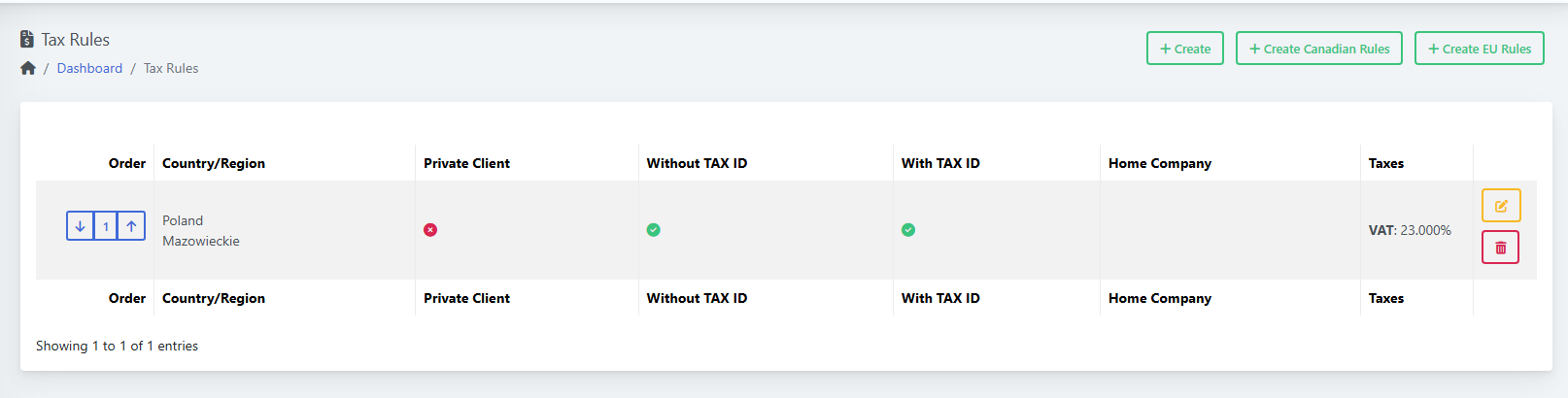](https://doc.puq.info/uploads/images/gallery/2025-09/image-1756819804598.png) - - - - - - #### Edit a Rule 1. In **Finance → Tax Rules**, click the **Edit** icon on the desired row. 2. Change any fields (country/region, toggles, tax names/rates, home company). 3. Click **Save**. *(Screenshot reference: “Edit” modal)* [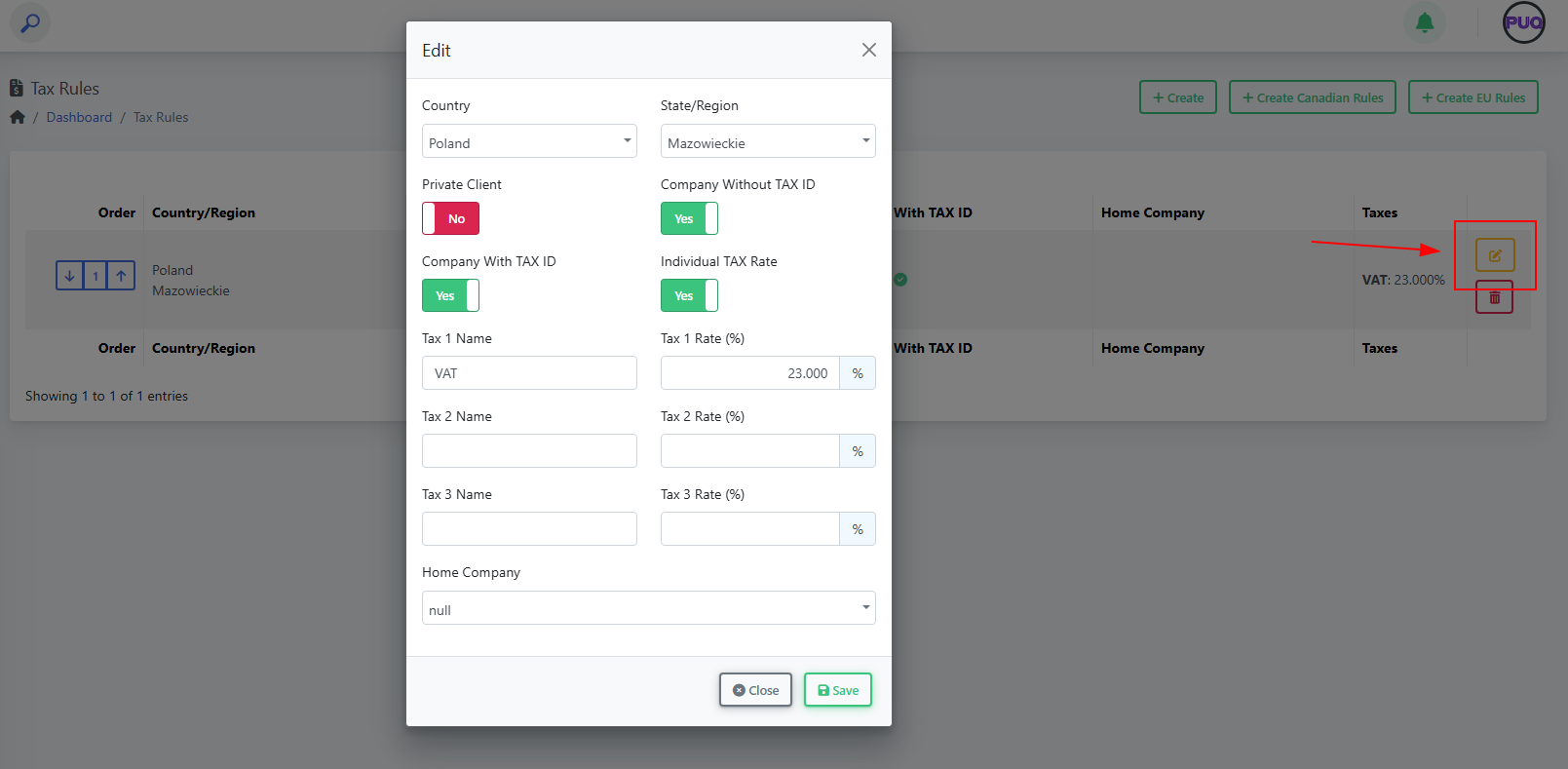](https://doc.puq.info/uploads/images/gallery/2025-09/image-1756819810427.png) - - - - - - #### Delete a Rule 1. In **Finance → Tax Rules**, click the **Delete** (trash) icon on the row. 2. Confirm the deletion.Deleting a rule does not change past invoices; it only affects new invoices going forward.
- - - - - - #### Change Rule Order (Priority) 1. In **Finance → Tax Rules**, use the **up/down arrows** in the **Order** column. 2. Place **specific** rules (e.g., province/state) **above** general country-wide rules. - - - - - - #### Field Reference| Field | Type | What it controls | Example |
|---|---|---|---|
| Country | Dropdown | The country the rule applies to. | Poland |
| State/Region | Dropdown | Optional region/province/state inside the country. | Mazowieckie |
| Private Client | Toggle | Apply this rule to **individuals**. | On |
| Company Without TAX ID | Toggle | Apply when client is a **company without** a valid tax ID. | On |
| Company With TAX ID | Toggle | Apply when client is a **company with** a valid tax ID. | On |
| Individual TAX Rate | Toggle | Enable taxation for individuals per this rule. | On |
| Tax 1 Name / Rate (%) | Text / Number | First tax component name and percentage. | VAT / 23.000 |
| Tax 2 Name / Rate (%) | Text / Number | Second tax component (if needed). | PST / 7.000 |
| Tax 3 Name / Rate (%) | Text / Number | Third tax component (if needed). | GST / 5.000 |
| Home Company | Dropdown | Which Home Company owns/uses this rule. | Default (Your Company Name) |