**Tip:** A **User** is a person’s login. A **Client** is an account/business they belong to. One user can be associated with multiple clients (e.g., consultant, owner). Permissions are managed from the **Client → Users** tab.
- - - - - - #### List View (Manage Users) In the table you’ll see: avatar, name, status badges (e.g., **ACTIVE**, **INACTIVE**, **NEW**), **2FA** indicator, contact details (email, phone), **Clients** counter with an **eye** button, **Created** date, and row actions (**Edit**, **Delete**). Use **Search** to filter. *(Screenshot: View/Search Users list view)* [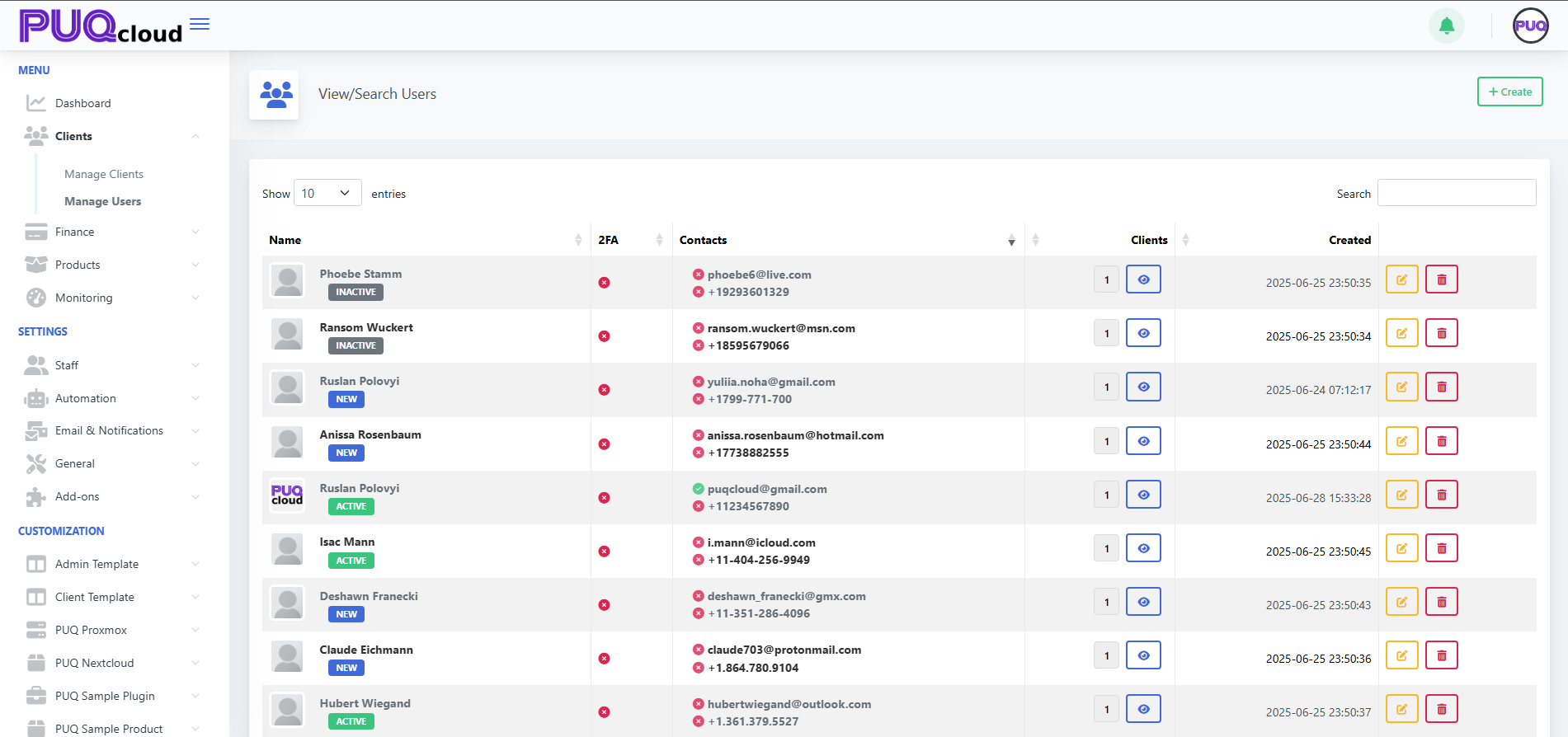](https://doc.puq.info/uploads/images/gallery/2025-09/image-1756900409222.png) - - - - - - #### Create a User 1. Go to **Clients → Manage Users** and click **+ Create**. *(Screenshot: Create User modal)* [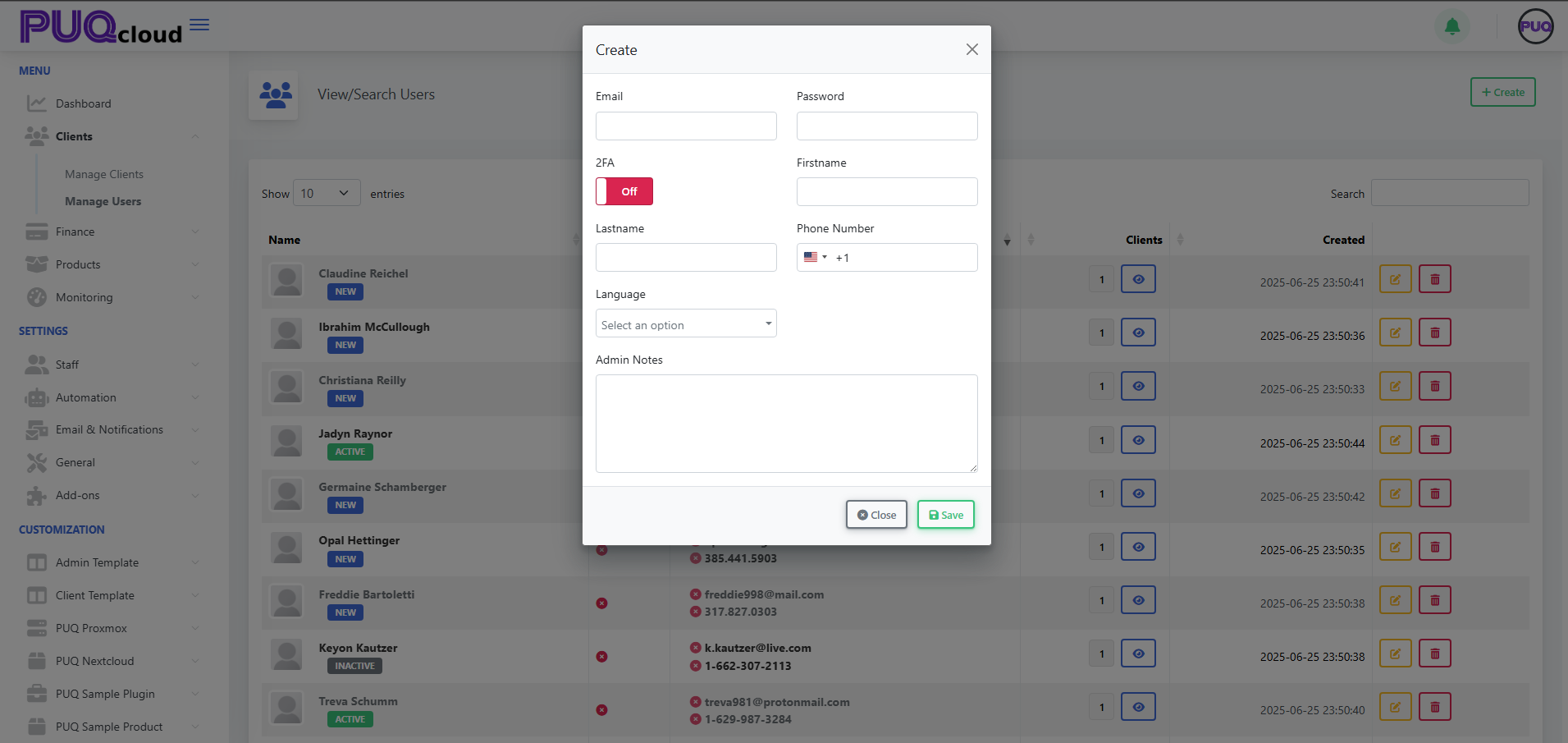](https://doc.puq.info/uploads/images/gallery/2025-09/image-1756900425343.png) 2. Fill the fields: - **Email** *(required)* - **Password** *(required)* - **2FA** *(toggle; optional but recommended)* - **Firstname**, **Lastname** - **Phone Number** *(with country code)* - **Language** *(UI language for the user)* - **Admin Notes** *(internal only)* 3. Click **Save**. The user appears in the list.**Next step:** Associate this user with a client from **Clients → Manage Clients → open a client → Users tab → + Associate User** (choose permissions there).
- - - - - - #### View a User’s Clients 1. In **Manage Users**, find the user. 2. Click the **eye** icon in the **Clients** column. 3. In **User Clients** modal, review: - **User Information:** UUID, Name, Email, Phone. - **Associated Clients:** Client Name, Company Name, Tax ID, and **Status** badges (e.g., **ACTIVE**, **OWNER**). 4. Close when done. *(Screenshot: User Clients modal)* [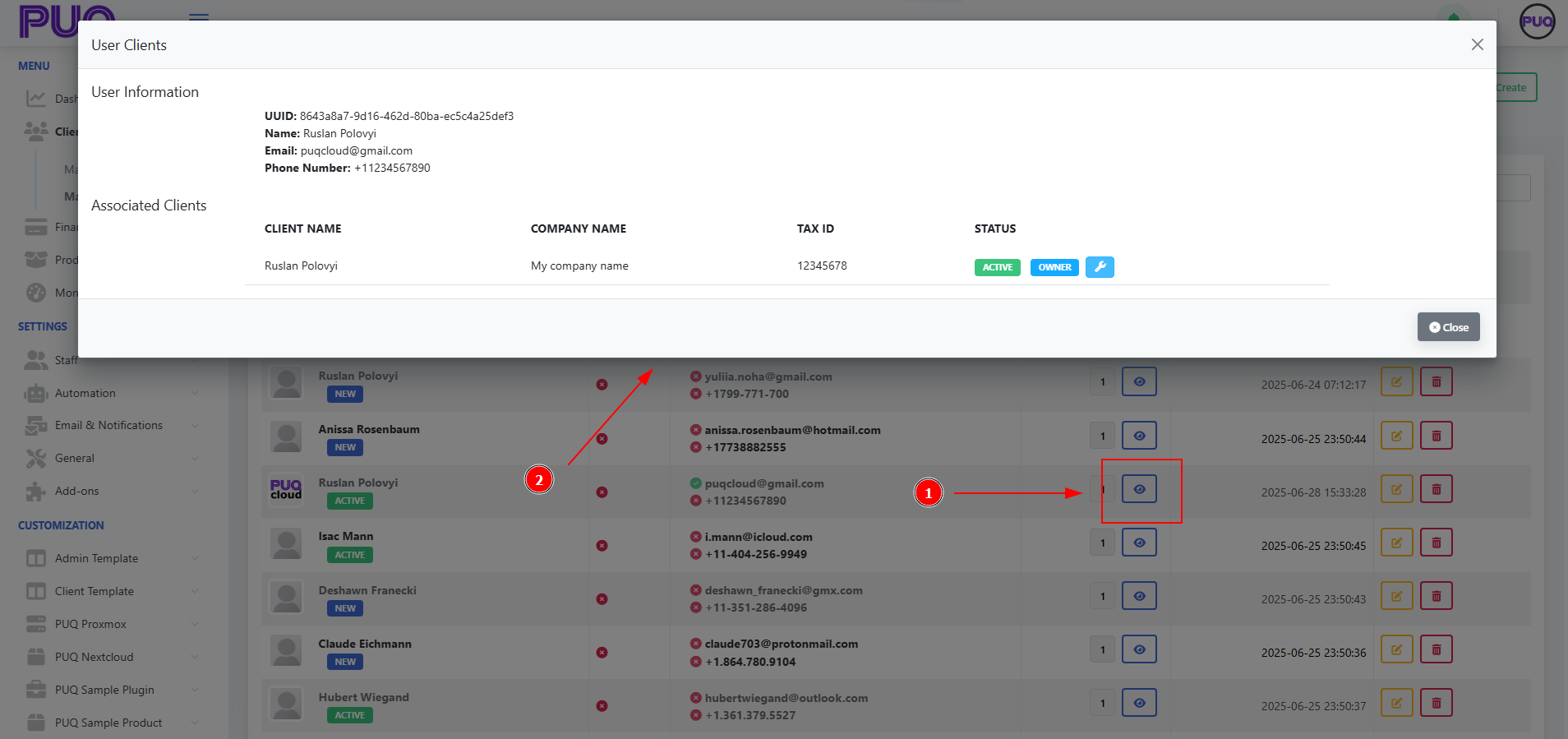](https://doc.puq.info/uploads/images/gallery/2025-09/image-1756900477431.png) - - - - - - #### Edit a User 1. In **Manage Users**, click the **Edit** (pencil) icon on the desired row. *(Screenshot: Edit User modal)* [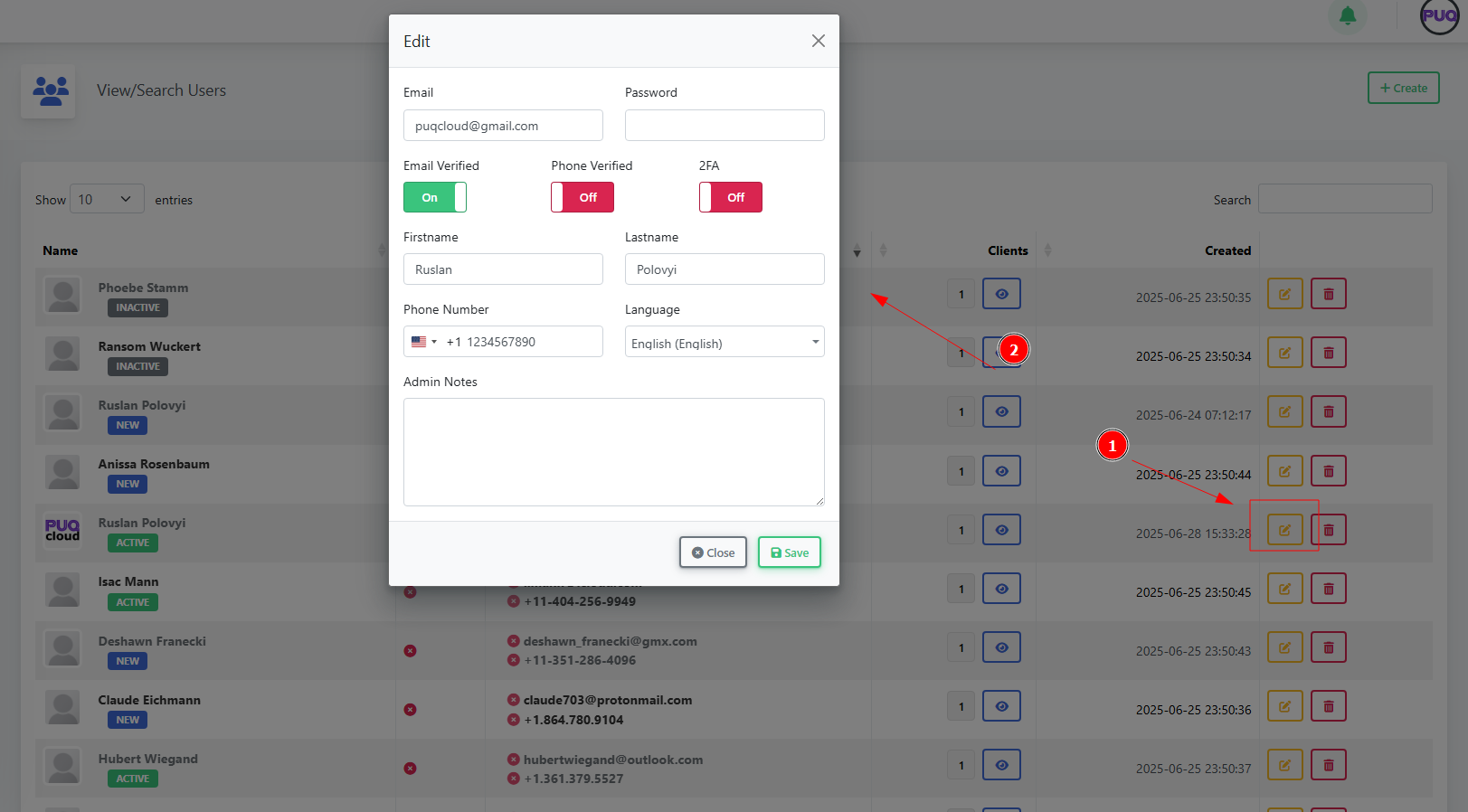](https://doc.puq.info/uploads/images/gallery/2025-09/image-1756900500443.png) 2. Update fields: - **Email**, **Password** (to reset), **Firstname**, **Lastname** - **Phone Number**, **Language**, **Admin Notes** - Verification toggles: **Email Verified**, **Phone Verified** - Security toggle: **2FA** (enable/disable) 3. Click **Save**. - - - - - - #### Delete a User 1. In **Manage Users**, click the **Delete** (trash) icon. 2. Confirm the action. - - - - - - #### Field Reference| Field | Where | Description |
|---|---|---|
| Create/Edit | User’s login email. Must be unique. | |
| Password | Create/Edit | Set/reset the user’s password. |
| 2FA | Create/Edit | Turn on two‑factor authentication for extra security. |
| Firstname / Lastname | Create/Edit | User’s display name. |
| Phone Number | Create/Edit | Stored with international country code. |
| Language | Create/Edit | UI language for this user. |
| Admin Notes | Create/Edit | Internal notes visible to admins only. |
| Email Verified | Edit | Mark whether the email has been verified. |
| Phone Verified | Edit | Mark whether the phone has been verified. |