
DNS Manager — Server Groups
PUQcloud Panel
Order Now | Download | FAQ
1) What Server Groups are for
A Server Group is a logical pool of one or more DNS servers that act together as the authoritative nameservers for the zones you assign to the group.
You define the public NS hostnames for the group (what registrars and resolvers will see), and you attach real DNS servers to the group (PowerDNS or HestiaCP via PUQcloud modules). Any Zone linked to this group will be created/updated on all servers in the group.
Path: Settings → DNS Manager → Server Groups
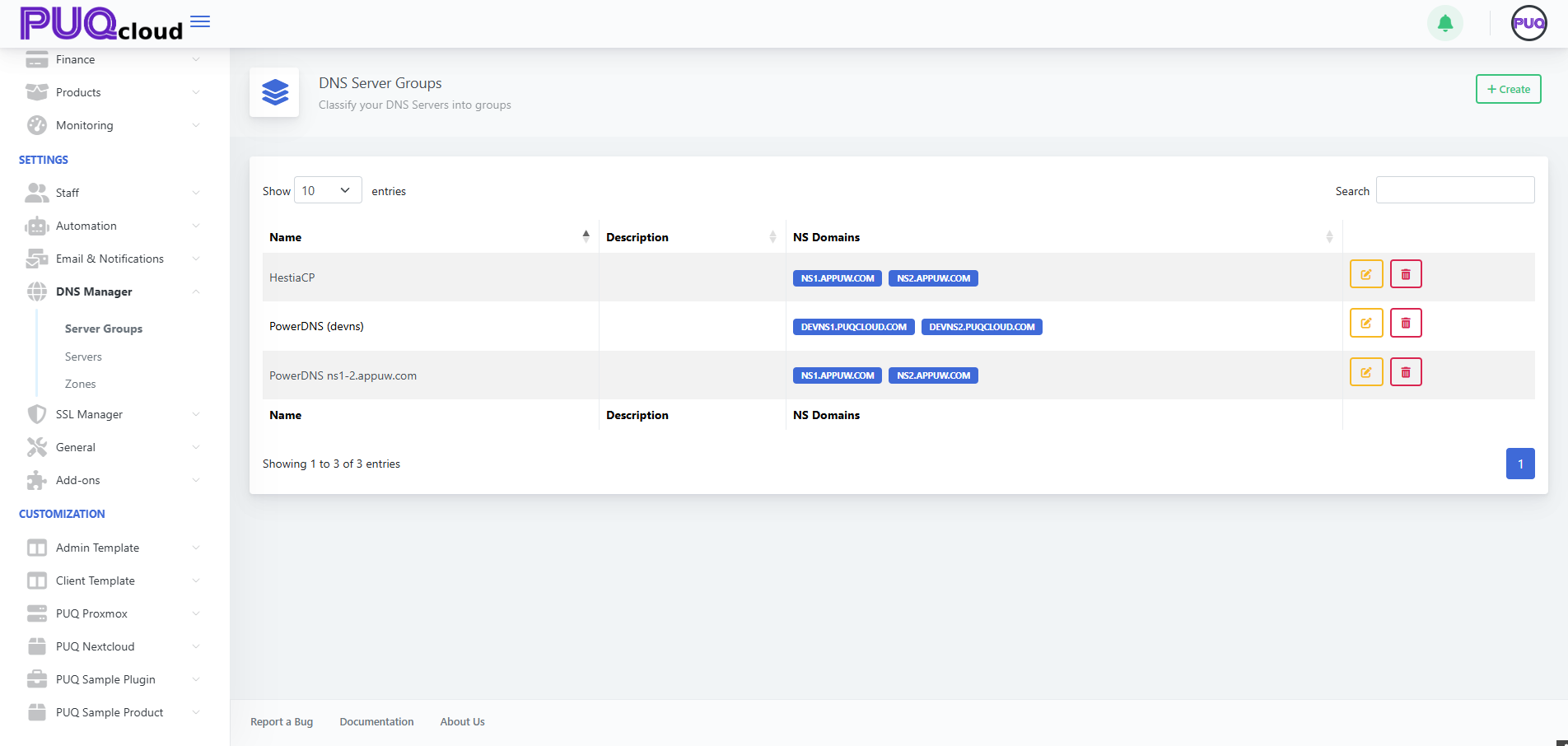
2) When you need groups
-
You operate two or more DNS servers for redundancy.
-
You separate production vs staging/tech DNS (e.g., ACME DNS-01 challenge zone).
-
You roll out multi-region authoritative DNS and want a single switch to move zones between clusters.
-
You’re migrating from one platform to another and need both pools side by side.
3) Supported modules (for servers you’ll attach)
-
PUQ PowerDNS — talks directly to PowerDNS HTTP API (typically port
8081). -
PUQ HestiaCP DNS — manages zones/records through HestiaCP API.
You can mix group types: one group may contain only PowerDNS nodes, another only HestiaCP, etc.
4) Before you start (prereqs)
-
Prepare your NS hostnames (e.g.,
ns1.example.com,ns2.example.com) and make sure they will resolve to the public IPs of your real DNS servers. -
Add your physical DNS servers in DNS Manager → Servers and verify them with Save and Test.
-
If these hostnames are used for domain delegation, update them at the registrar after you finish (or set glue records if needed).
5) Creating a Server Group — step by step
-
Go to Server Groups and click + Create.
-
Fill in Name and (optional) Description.
-
In NS Domains, enter the authoritative NS hostnames — one per line (e.g.,
ns1.appuw.com,ns2.appuw.com). -
Click Save.

6) Editing a Server Group (fields explained)
Open the group you just created.
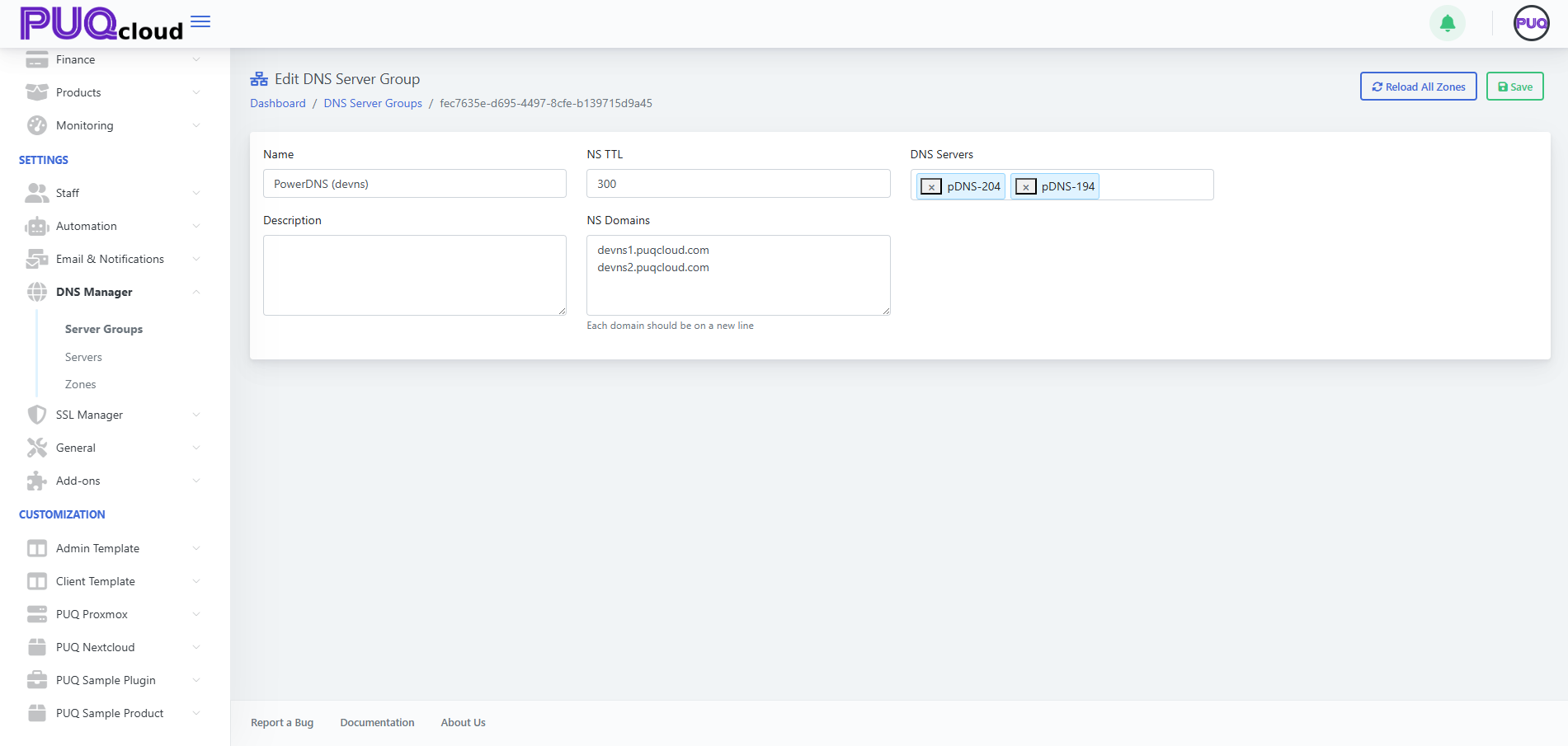
Fields
| Field | Purpose | Notes / Examples |
|---|---|---|
| Name | Friendly title of the group | e.g., PowerDNS (devns) |
| NS TTL | TTL for NS records this group advertises | 300–900 is typical; use 300 during migrations |
| NS Domains | The public authoritative NS hostnames for the group | ns1.appuw.com and ns2.appuw.com, each on a new line |
| DNS Servers | The real servers (from DNS Manager → Servers) to run this group | Select 2+ for redundancy; can be PowerDNS or HestiaCP nodes |
Actions
-
Reload All Zones — push/refresh every zone assigned to this group across all attached servers (useful after adding/removing a server).
-
Save — persist changes.
7) How groups, servers, and zones interact
-
A Zone belongs to exactly one Server Group.
-
A Server Group can contain multiple servers (recommended: at least two).
-
When you create/edit a zone, PUQcloud writes changes to all servers in the selected group.
-
Changing the group for a zone (via Zones → Move To) moves its management to the new server pool.
8) Typical patterns
A. ACME “Tech Zone” group (DNS-01 for SSL)
Create a group like PowerDNS (devns) with NS hostnames such as devns1.yourdomain.com and devns2.yourdomain.com, attach 2+ PowerDNS servers, and delegate these NS in the registry.
Use this group to host a technical zone (e.g., acme.yourdomain.com) where SSL Manager will place TXT records during issuance. In target zones you only set CNAME for _acme-challenge pointing into the tech zone; Let’s Encrypt follows the CNAME and validates TXT there.
B. Production authoritative DNS
Create a group PowerDNS ns1-2 with ns1.example.com and ns2.example.com, attach your production servers, and assign all public zones to this group.
C. Migration between platforms
Keep Group A (HestiaCP) and Group B (PowerDNS) simultaneously.
Import zones to Group B, test, then in Zones use Move To to switch each zone from A to B. Lower NS TTL before switching to reduce propagation delays.
9) Best practices
-
Always have ≥2 servers per group, ideally in different networks/regions.
-
Choose clear names:
PowerDNS ns1-2,PowerDNS (devns),HestiaCP-EU. -
Keep NS TTL low (300) during migrations or frequent changes.
-
After adding a server to a group, run Reload All Zones.
-
Ensure NS Domains here match the actual delegation at your registrar.
-
Secure server APIs (IP allowlist, HTTPS where applicable) and use distinct API keys.
10) Troubleshooting
| Symptom | Likely cause | Fix |
|---|---|---|
| Zones don’t appear on a new server | Server not attached to the group or not reloaded | Add it under DNS Servers, click Reload All Zones |
| Public NS answers are inconsistent | One node out of sync or offline | Check server health, run Reload All Zones, review logs |
| Registrar warns about NS mismatch | NS hostnames in group don’t match registry delegation | Align NS Domains here with registrar NS; wait for TTL |
| SSL DNS-01 fails | Tech group/zone mis-delegated or CNAME wrong | Verify tech zone delegation and _acme-challenge CNAME chain |