
Manage Invoices in the Client Area
PUQcloud Panel
Order Now | Download | FAQ
Overview
This guide shows how to find, read, pay, and download your invoices (including proforma, invoice, and credit note) in the Client Area. Each step tells you exactly where to place your screenshots.
Open Invoices
-
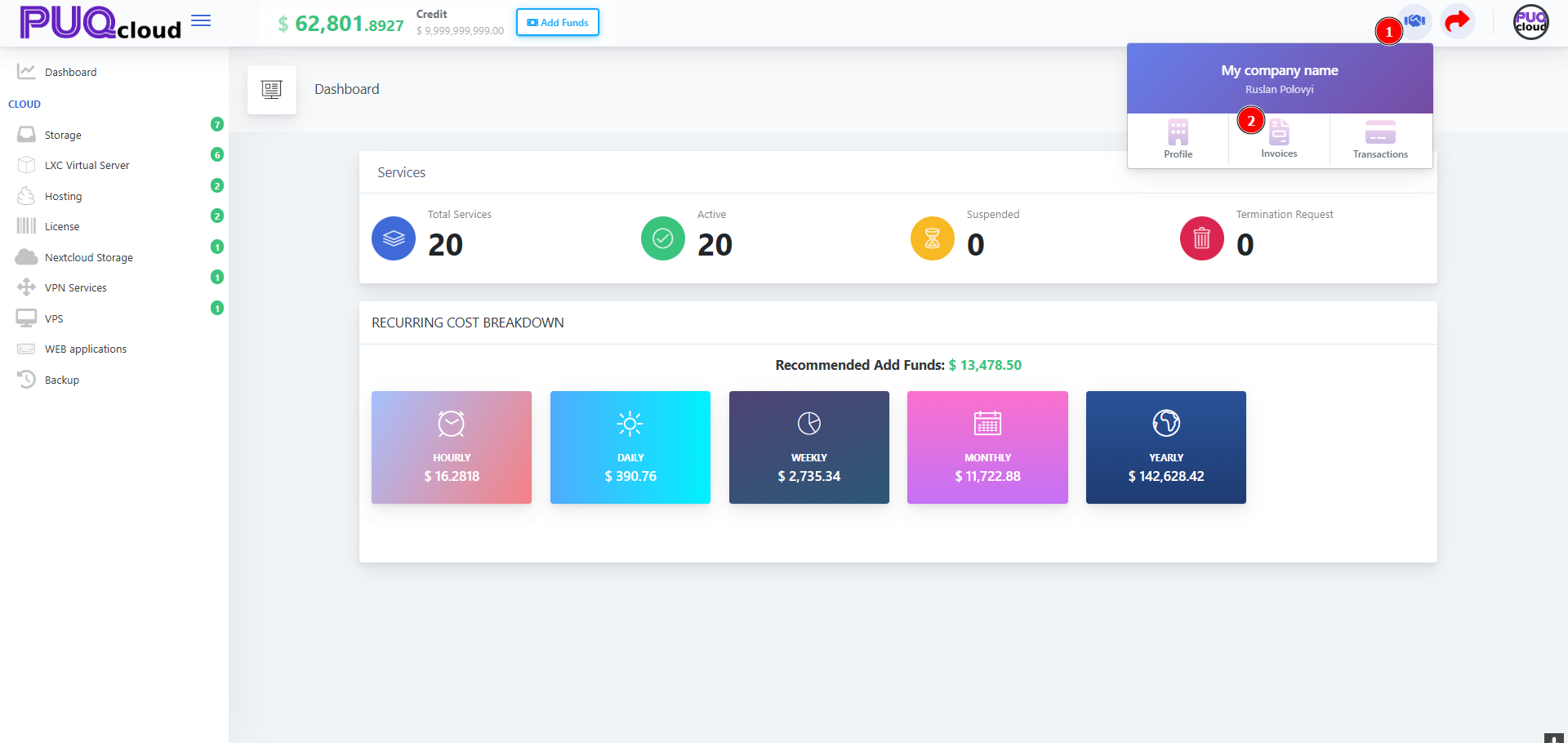
From the top-right Company widget, open the dropdown.
-
Click Invoices.
Company dropdown (1 → open menu, 2 → Invoices).
Understand the Invoices List
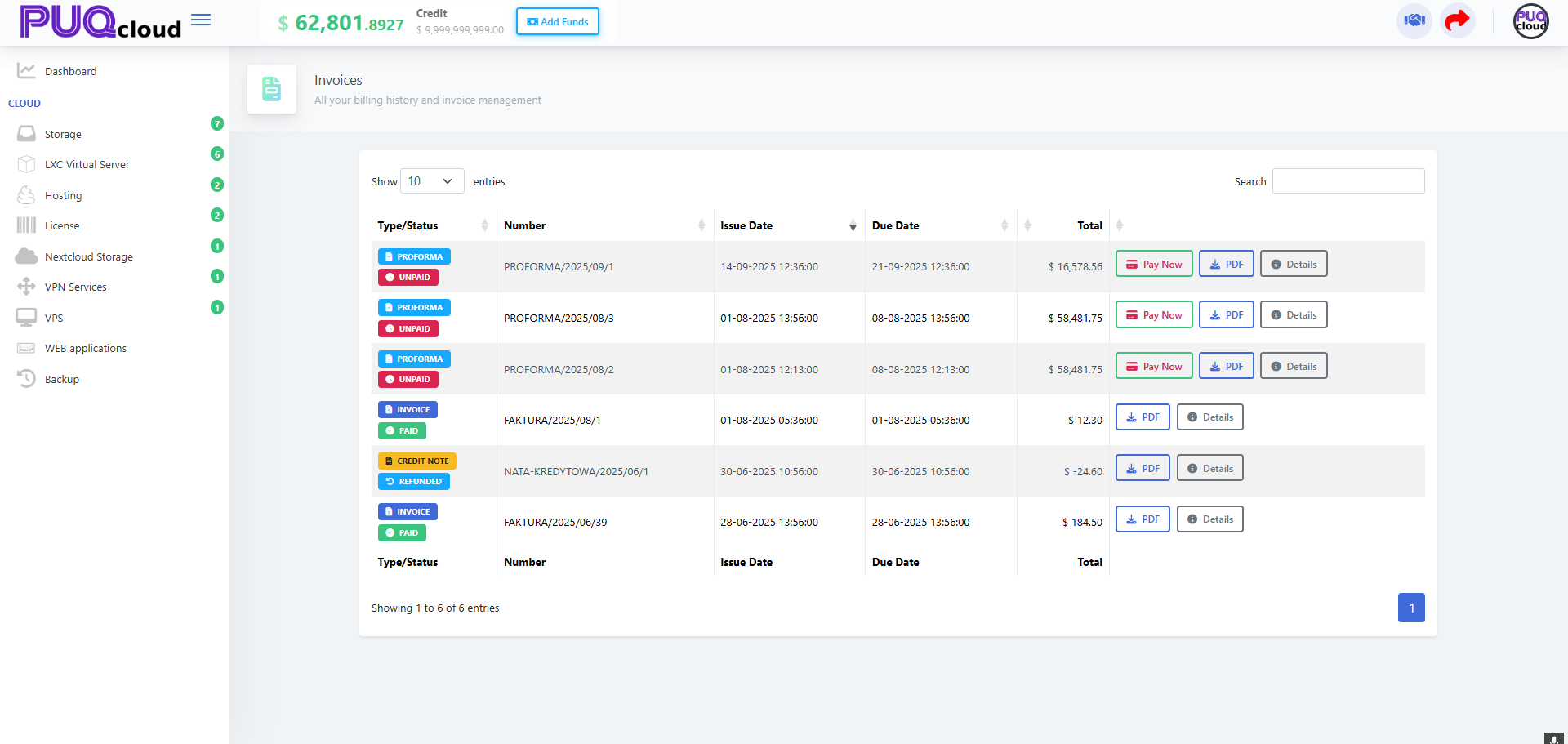
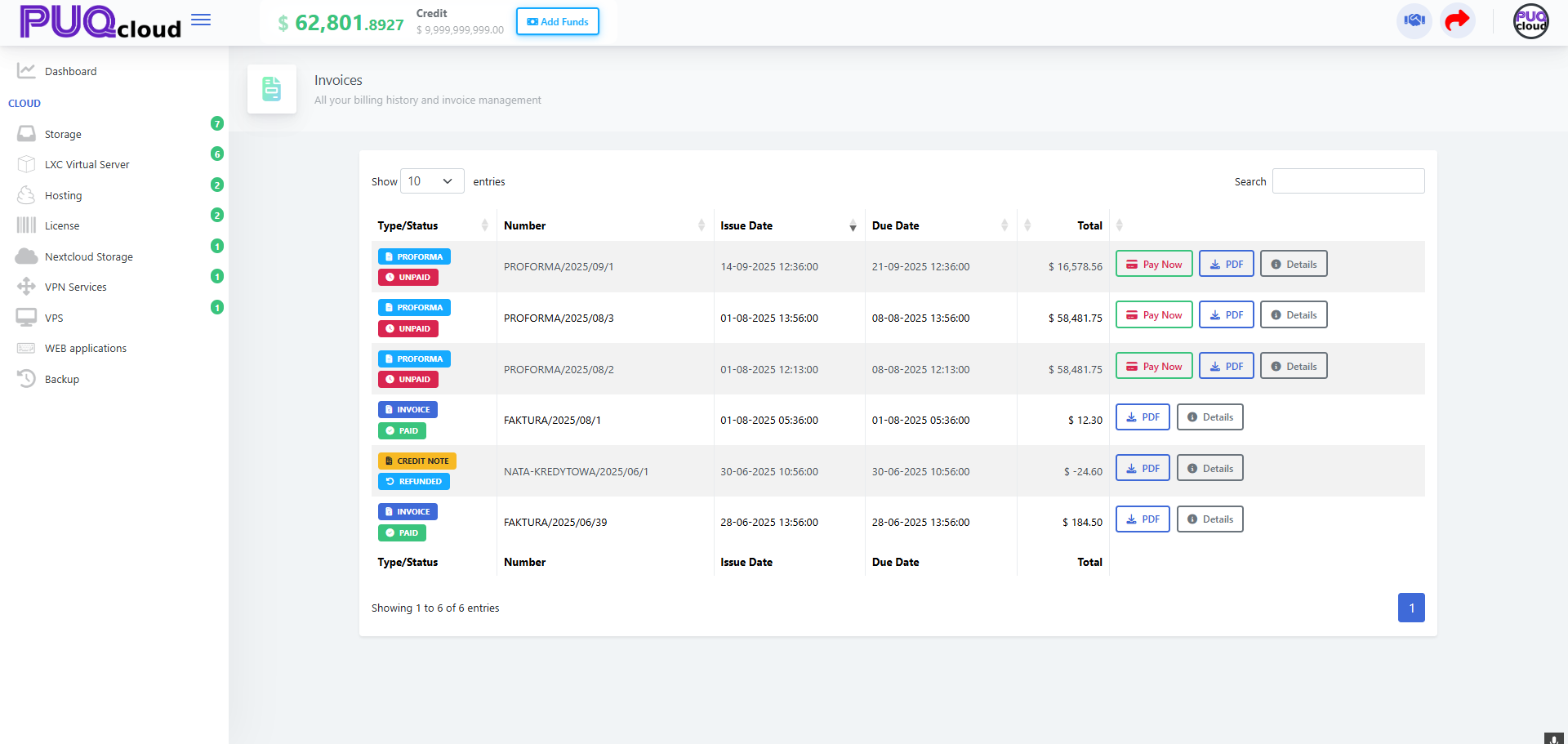
On the Invoices page you’ll see a table with:
-
Type/Status: PROFORMA / INVOICE / CREDIT NOTE and UNPAID / PAID / REFUNDED
-
Number, Issue Date, Due Date, Total
-
Actions: Pay Now, PDF, Details
Invoices list (full table).
Quick actions
-
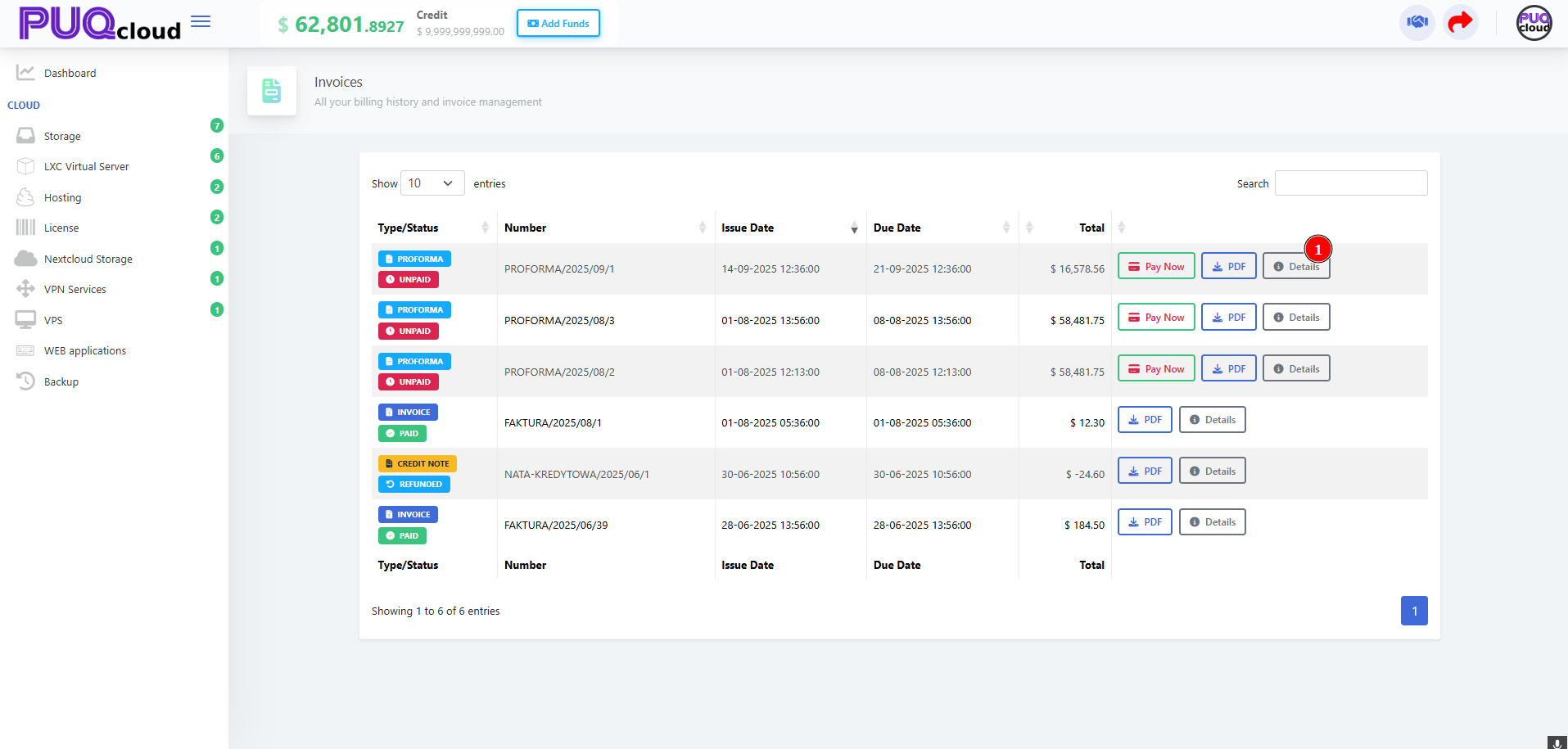
Pay Now: pay any UNPAID proforma/invoice.
-
PDF: download the official document.
-
Details: open the invoice view.
Invoices list with “Details” highlighted (marker 1).
View & Pay an Invoice (Proforma / Unpaid)
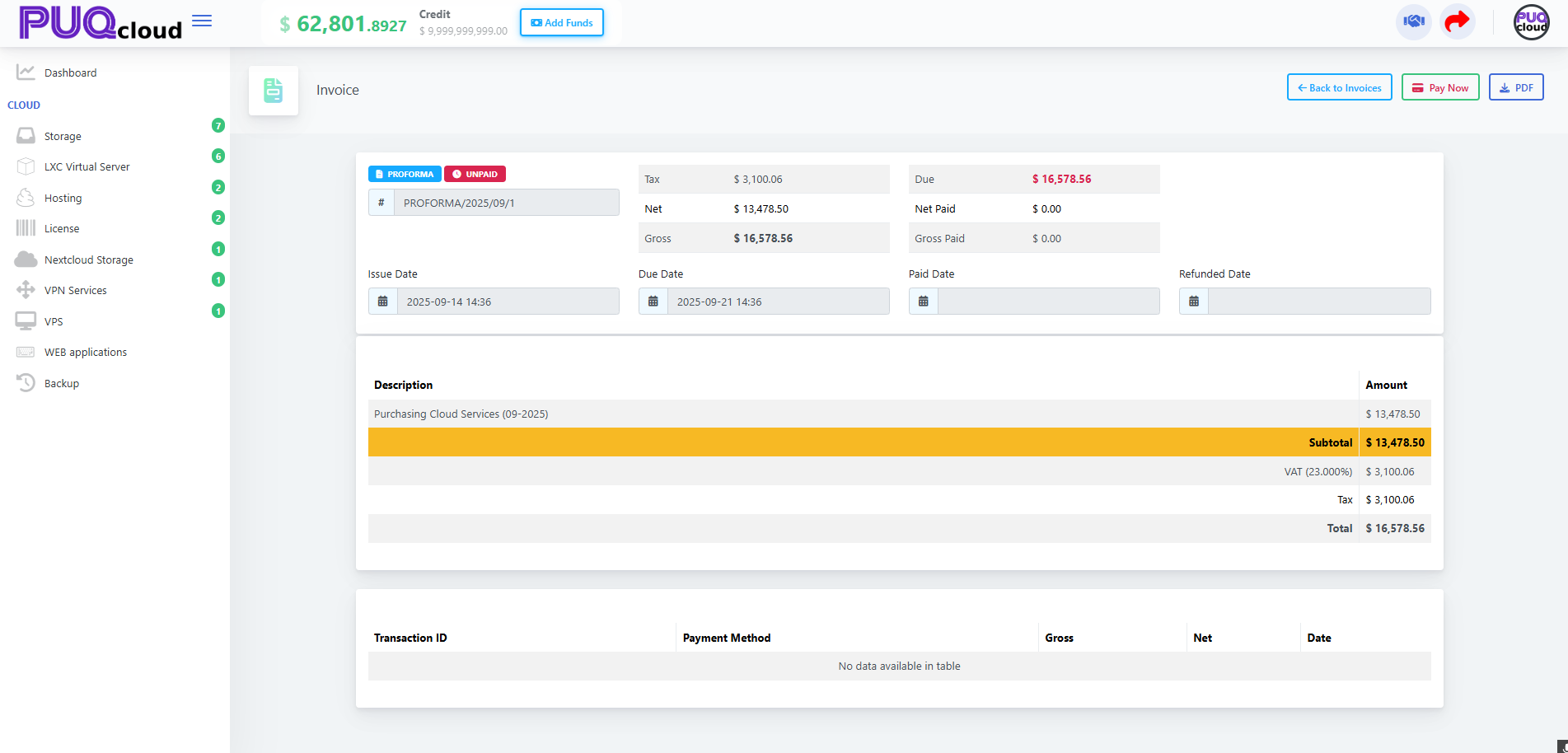
Opening Details shows the invoice summary:
-
Tax, Net, Gross, Due
-
Issue/Due/Paid/Refunded dates
-
Description and line totals
-
Top-right actions: Back to Invoices, Pay Now, PDF
To pay an UNPAID invoice, click Pay Now and complete the payment.
Unpaid PROFORMA invoice view (shows Pay Now and amounts).
Confirm a Paid Invoice & Payment Record
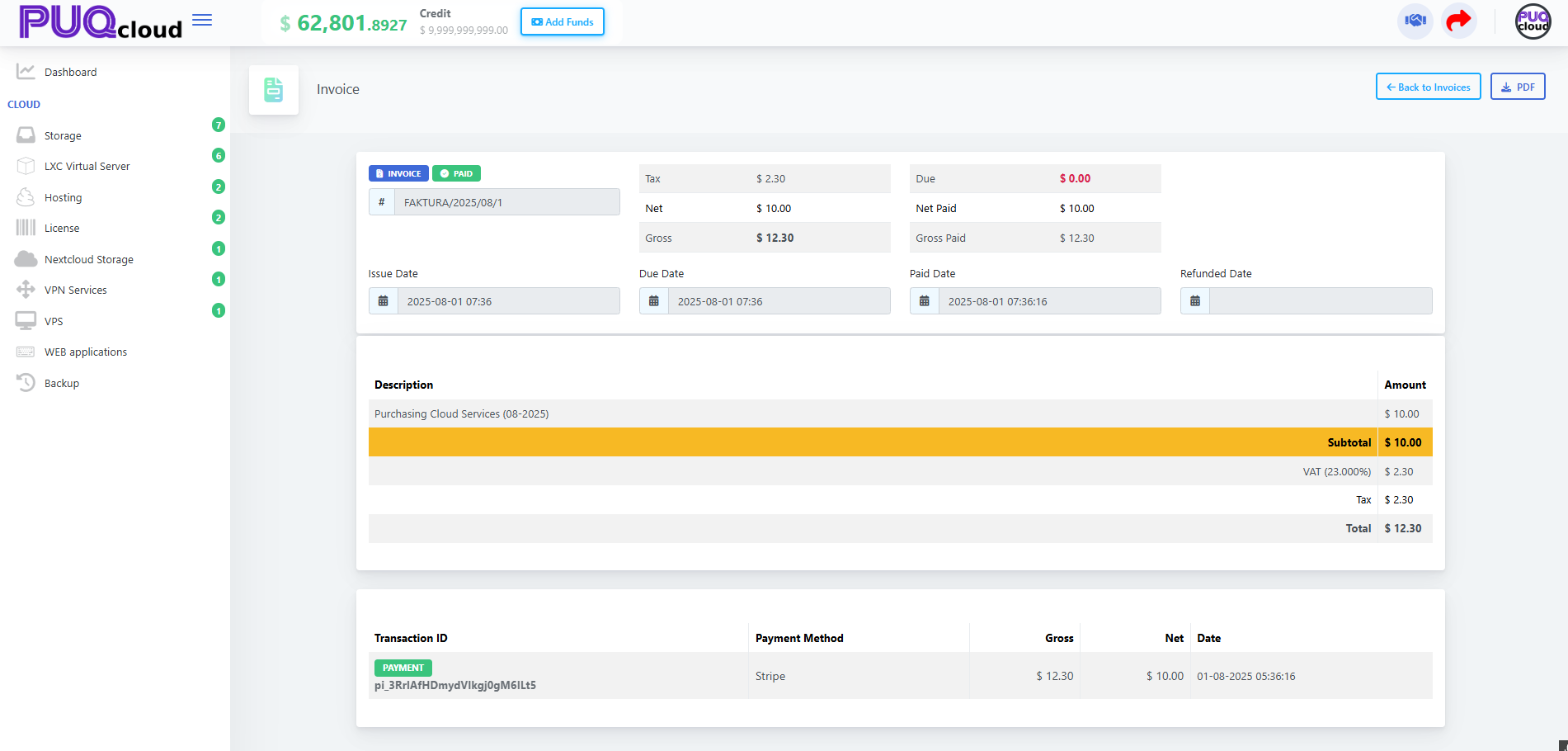
For PAID invoices you’ll see:
-
Due = $0.00
-
Paid Date filled
-
A Transactions section with the Payment Method, Gross/Net/Tax, and Transaction ID (useful for reconciliation).
Paid INVOICE view with transaction table (Stripe example).
Exporting PDFs (for accounting)
From either the list or the invoice view, click PDF to download/print the document for your books.
Tip: Keep Profile (company name, Tax ID, address) up to date so the invoice PDF has correct legal details.
Searching & Sorting
-
Use the Search box to filter by number or text.
-
Click table headers (e.g., Issue Date, Due Date) to sort.
-
Use the Show 10 dropdown to change page size.
Credit Notes & Refunds
-
CREDIT NOTE entries show refunds/adjustments.
-
Open Details to see amounts and download the PDF for your records.
Troubleshooting
-
Wrong tax/country on invoice? Update Company → Profile (Tax ID, country, address).
-
Payment failed? Try another method or check the Verification Center in your account menu.
-
Need an invoice reissued? Contact support with the Invoice Number.