Tip: Create one sender per use case (e.g., “System Alerts (SMTP)”, “Marketing (SMTP)”, “In-app Bell”).
- - - - - - #### Configure SMTP details (if you chose **PUQ SMTP**) After saving the modal, you’ll land on the sender’s settings page. Fill the fields: - **Name / Description** — friendly label for admins. - **Email** — the “From” address (often must be a verified mailbox/domain). - **Sender Name** — the “From name” (e.g., “PUQ Cloud”). - **Server** — SMTP host (e.g., `mail.example.com`). - **Port** — usually **465** (SSL) or **587** (TLS). - **Encryption** — **SSL**/**TLS**/**None** per your provider. - **Username / Password** — mailbox credentials. Click **Test Connection** to verify, then **Save**. *SMTP sender edit form with Test Connection button.* [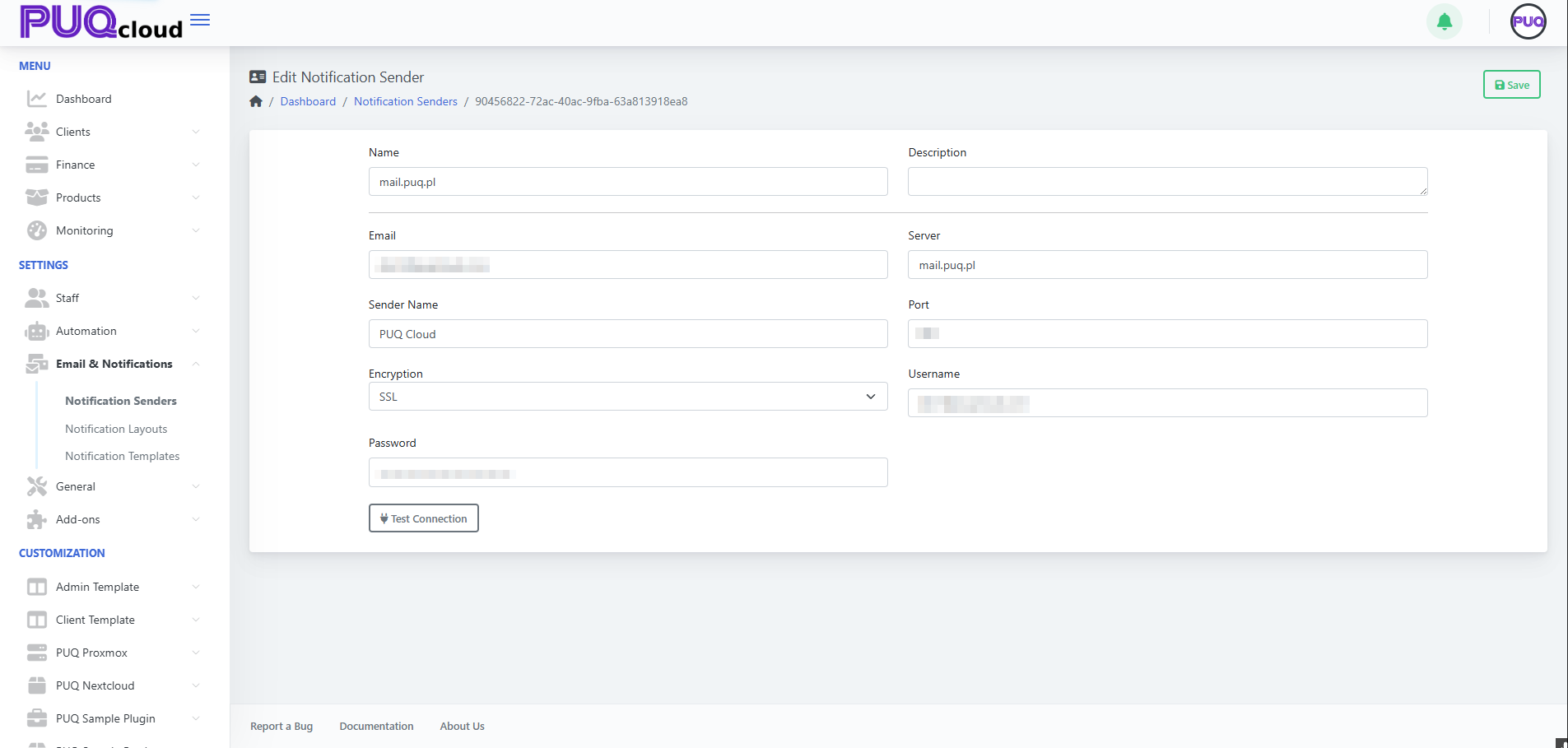](https://doc.puq.info/uploads/images/gallery/2025-09/image-1758199886166.png)Deliverability tips • Use a dedicated subdomain (e.g., `mail.example.com`). • Set up SPF, DKIM, and DMARC where you host DNS. • Match the **Email** domain with the authenticated SMTP domain.
- - - - - - #### Edit or remove a sender - From the list, click **✏️ Edit** to update any field and **Save**. - Click **🗑️ Delete** to remove a sender (you’ll be asked to confirm).Heads-up: If a sender is referenced by a **Notification Template** or workflow, update those to the new sender before deleting.
- - - - - - #### Best practices - Maintain at least **one SMTP sender** for production. - Keep separate senders for **transactional** vs **marketing** mail. - Periodically **Test Connection** after password/host changes. - Restrict who can edit senders via **Admin Groups/Roles**. - - - - - - #### Troubleshooting checklist - ❌ **Test Connection fails** → verify host/port/encryption; check firewall blocks. - 📬 **Emails land in spam** → fix SPF/DKIM/DMARC; use consistent “From” domain; warm up IP if applicable. - 🔐 **Auth errors** → re-enter username/password; confirm app-passwords if using Google/Microsoft; ensure 2FA policies allow SMTP. - - - - - - That’s it! Your Notification Senders are now set up and ready to power templates and automated notifications.