**Why Scheduler?** So billing, cleanups, lifecycle actions, and Proxmox jobs run *on time*, *automatically*, and *predictably*.
#### Where is it? **Automation → Scheduler** [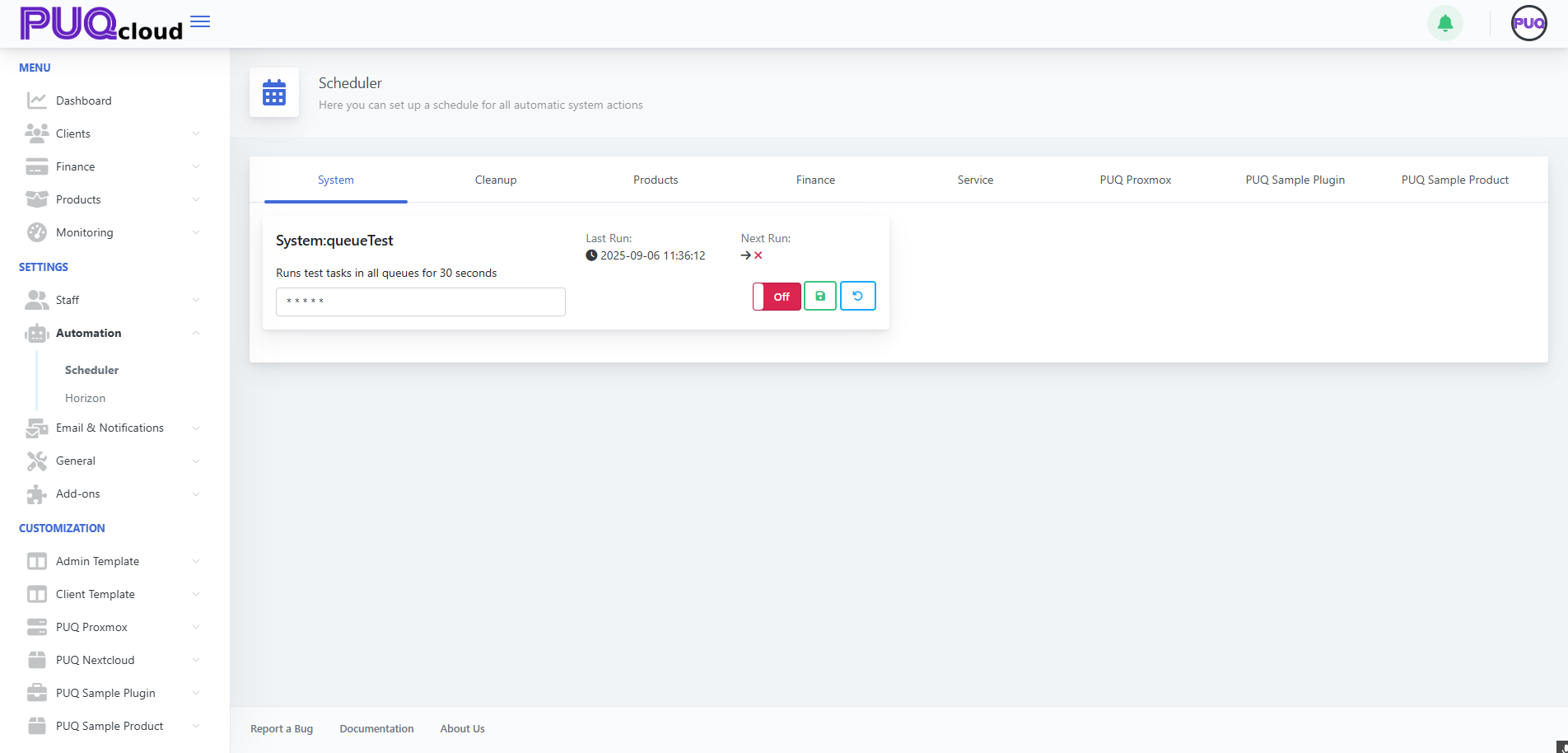](https://doc.puq.info/uploads/images/gallery/2025-09/image-1758198466372.png)Scheduler overview (System tab) with task card UI (Last/Next Run, cron, On/Off, Save, Reset). - - - - - - #### 60-second UI tour Every task card has 6 key parts: 1. **Title** + short description. 2. **Last Run** — when it last executed (great to spot stalls). 3. **Next Run** — when it will run next. 4. **Cron expression** — schedule in `* * * * *` format. 5. **On/Off** toggle — enable/disable instantly. 6. **Save** (disk) / **Reset** (↺) — apply or discard changes.**Rule #1:** change cron → **Save** → confirm **Next Run** updates. If it didn’t, your change isn’t applied.
- - - - - - #### Tabs & what they’re for ##### 1. System Service/test tasks. - Keep **Off** in production unless you use them intentionally. [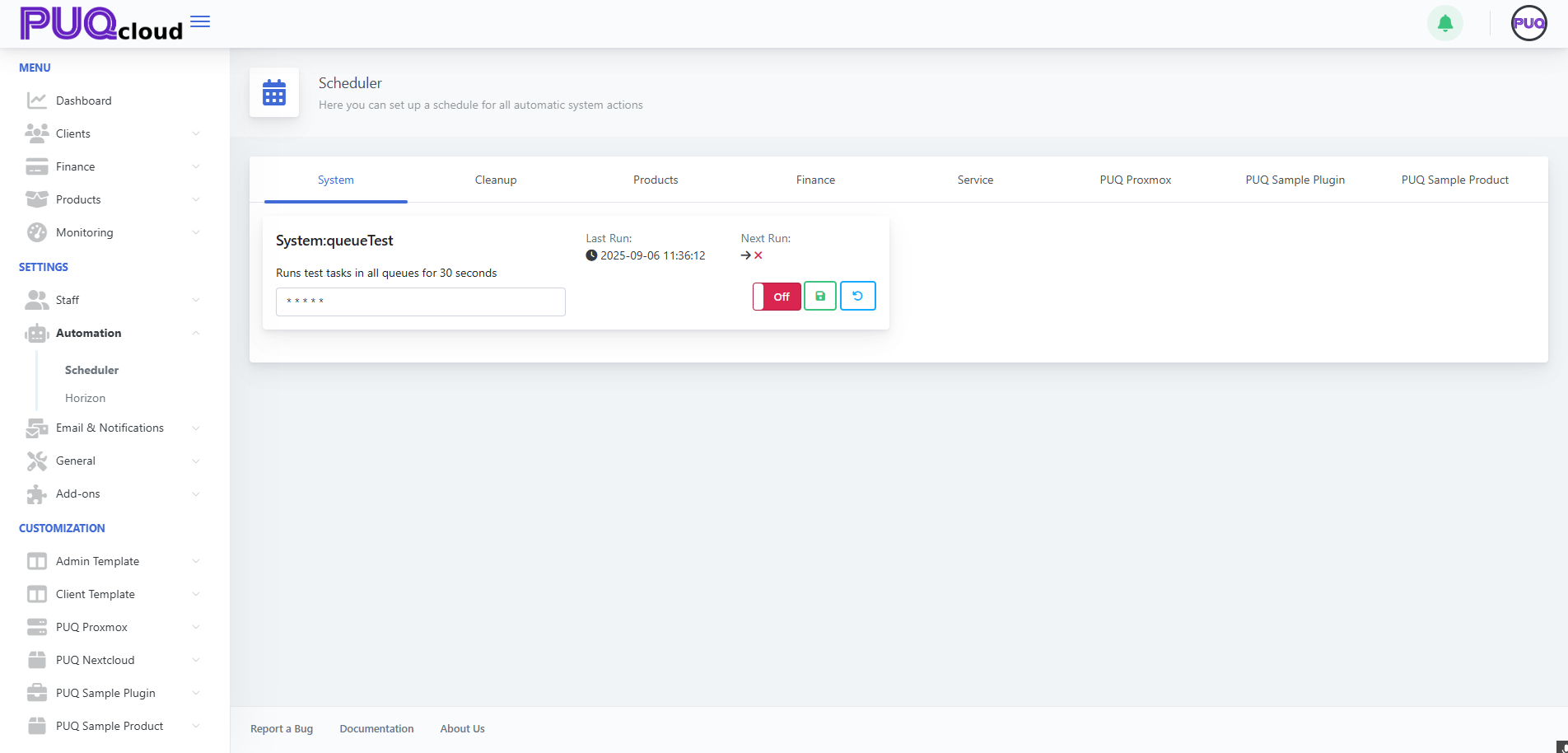](https://doc.puq.info/uploads/images/gallery/2025-09/image-1758198498265.png) Scheduler overview (System tab) with task card UI (Last/Next Run, cron, On/Off, Save, Reset). - - - - - - ##### 2. Cleanup Housekeeping for logs, sessions, and “lost” queue jobs. - **System:clearingLostTasks** — converts `pending/processing` to `failed/duplicate`. - **System:Cleanup** — clears logs/history by retention. Suggested schedule: - LostTasks: `*/30 * * * *` - Cleanup: `0 3 * * *` (daily at 03:00) [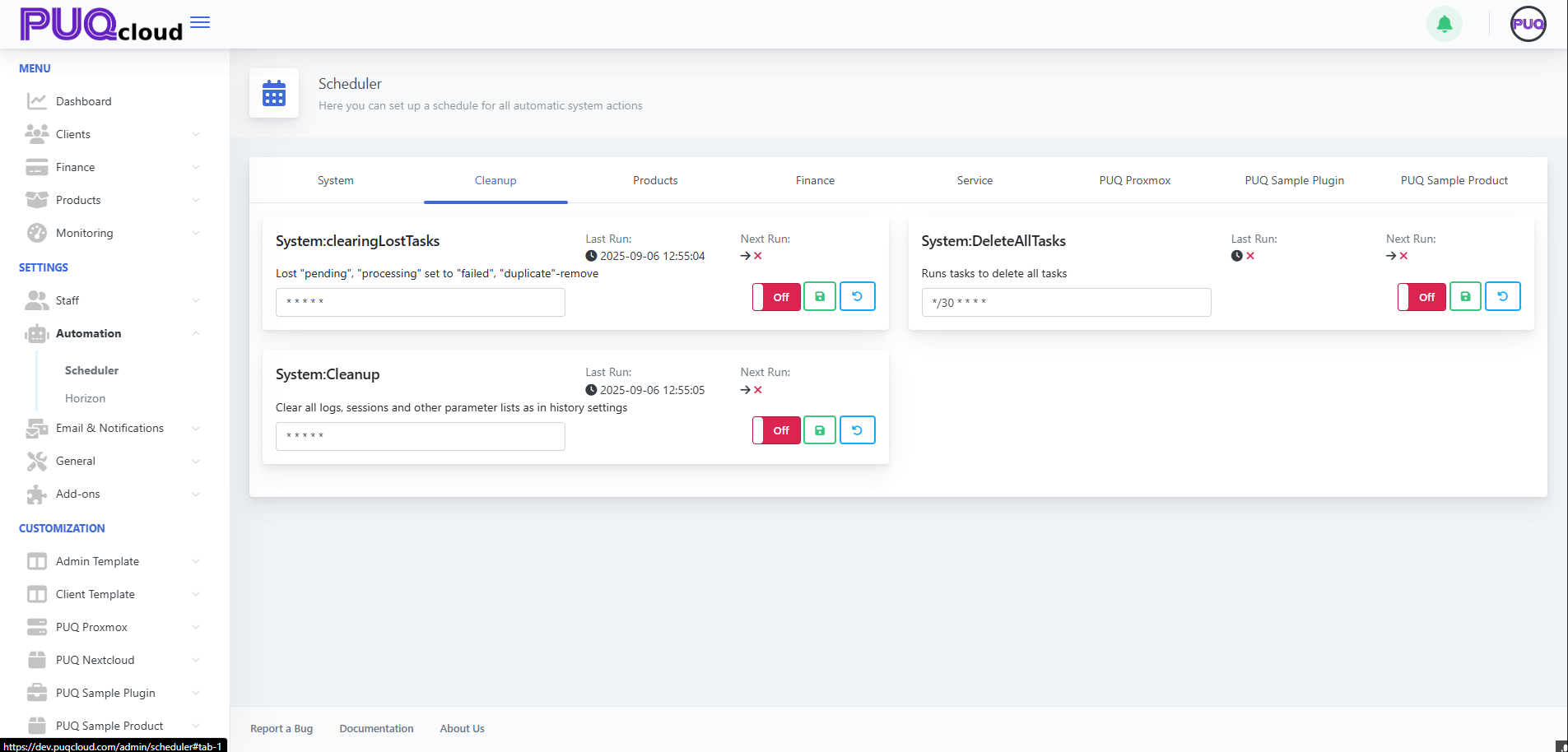](https://doc.puq.info/uploads/images/gallery/2025-09/image-1758198722637.png)Cleanup tab showing “System:clearingLostTasks” and “System:Cleanup” with example cron values.**Tip:** while debugging you can run them more often; switch back to the nightly window later.
- - - - - - ##### 3. Products Bulk price conversions/recalculation. - **Products:ConvertPrice** — keeps prices aligned with currency rates. Schedules that work: - `0 * * * *` (hourly) or `*/15 * * * *` in volatile markets. [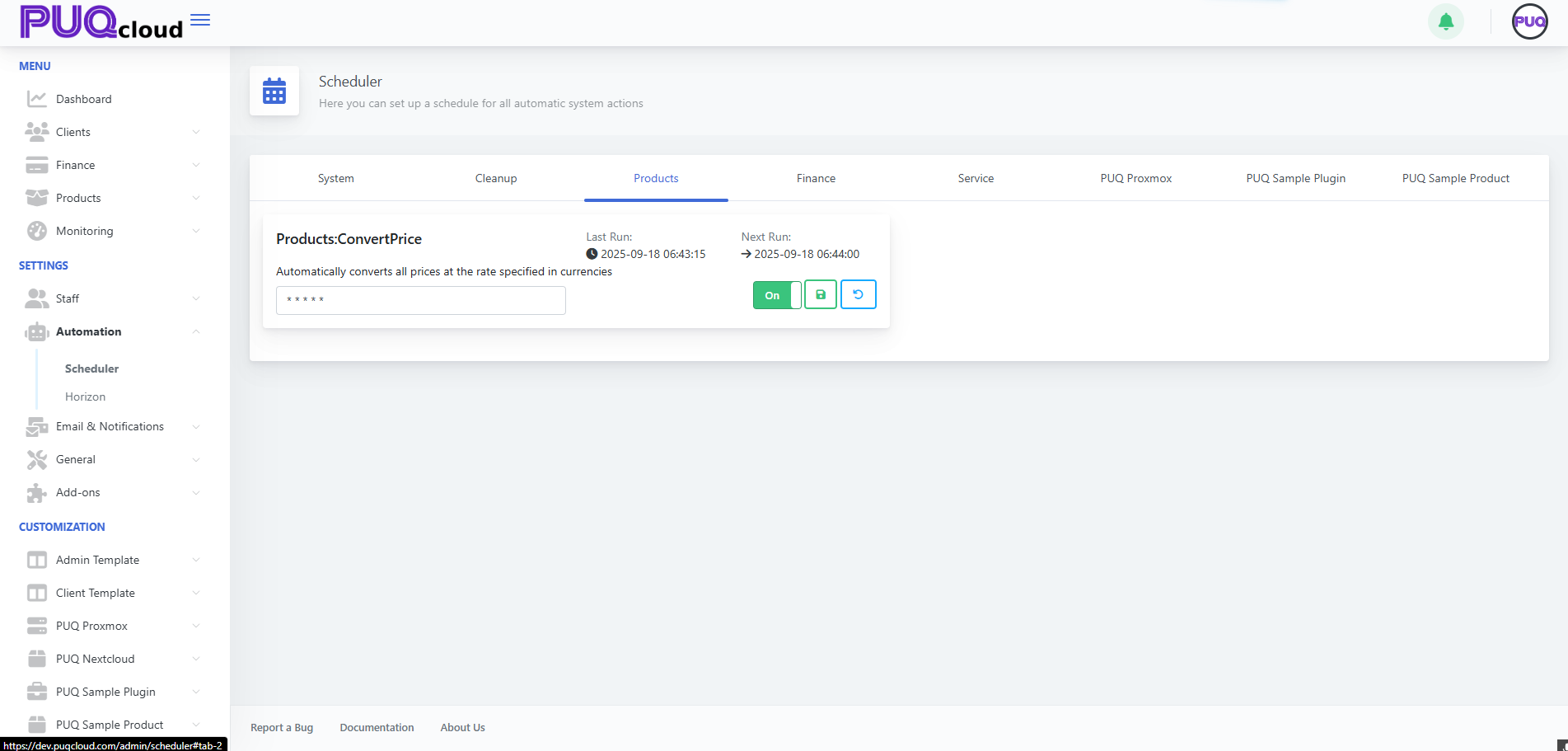](https://doc.puq.info/uploads/images/gallery/2025-09/image-1758198746129.png) Products tab showing “Products:ConvertPrice” enabled with sample cron. - - - - - - ##### 4. Finance The billing heart: charges and transactions. - **Finance:ChargeServices** — charges active services and creates transactions. Balanced options: - `*/10 * * * *` — near-real-time customer experience. - `0 * * * *` — lighter load, OK for hourly charging. [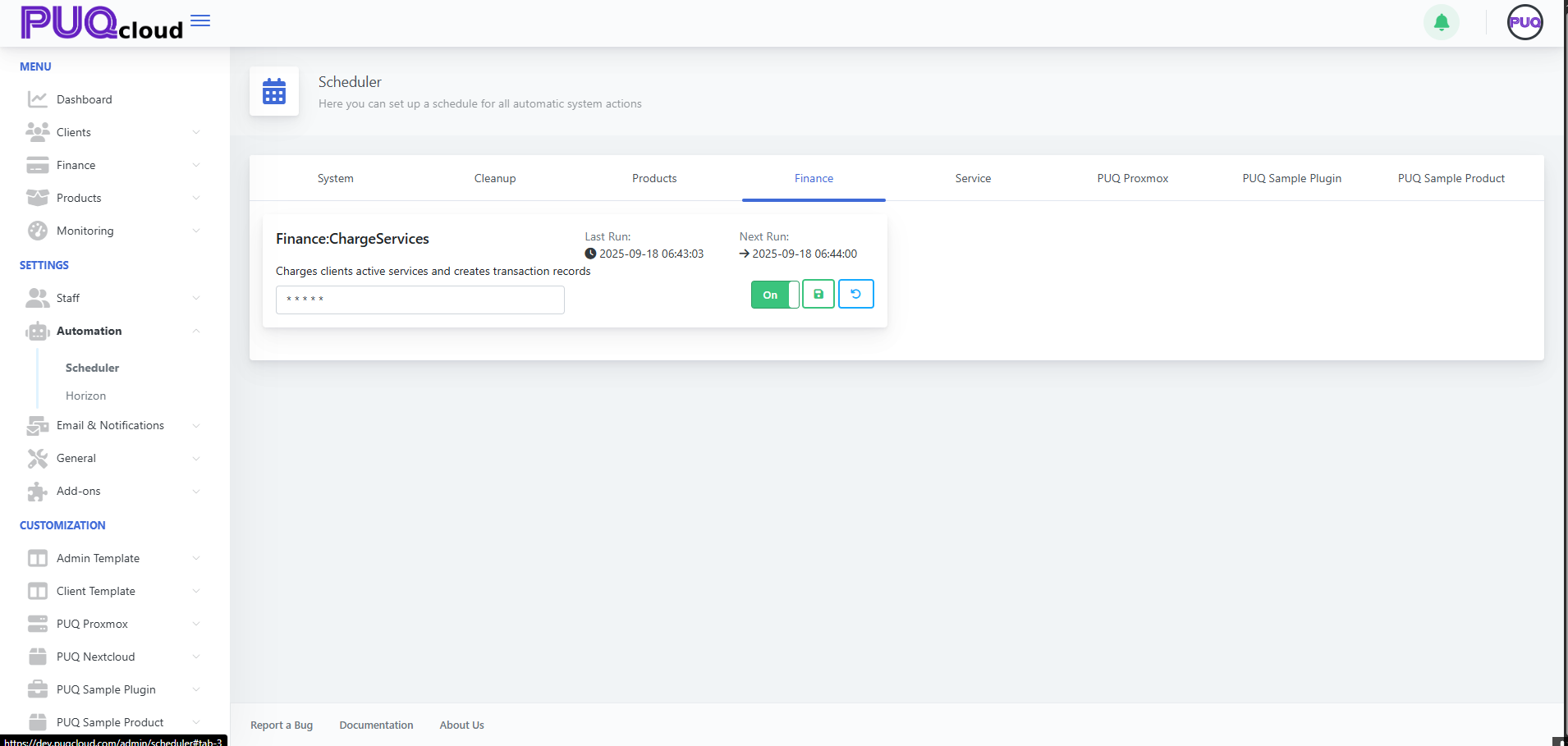](https://doc.puq.info/uploads/images/gallery/2025-09/image-1758198833647.png)Finance tab showing “Finance:ChargeServices” enabled with sample cron.**Pro tip:** do faster cycles by day (`*/10`), slower at night if you manage cron externally with “day/night” profiles.
- - - - - - ##### 5. Service Service lifecycle automation: - **Service:CreateServices** — create on sufficient funds. - **Service:SuspendServices** — suspend on debt. - **Service:TerminationServices** — terminate after grace. - **Service:UnsuspendServices** — restore after top-up. - **Service:CancellationServices** — process cancellations. Recommended starter profile: - Create/Suspend/Unsuspend: `*/10 * * * *` - Cancellation: `*/30 * * * *` - Termination: `0 4 * * *` (nightly) **[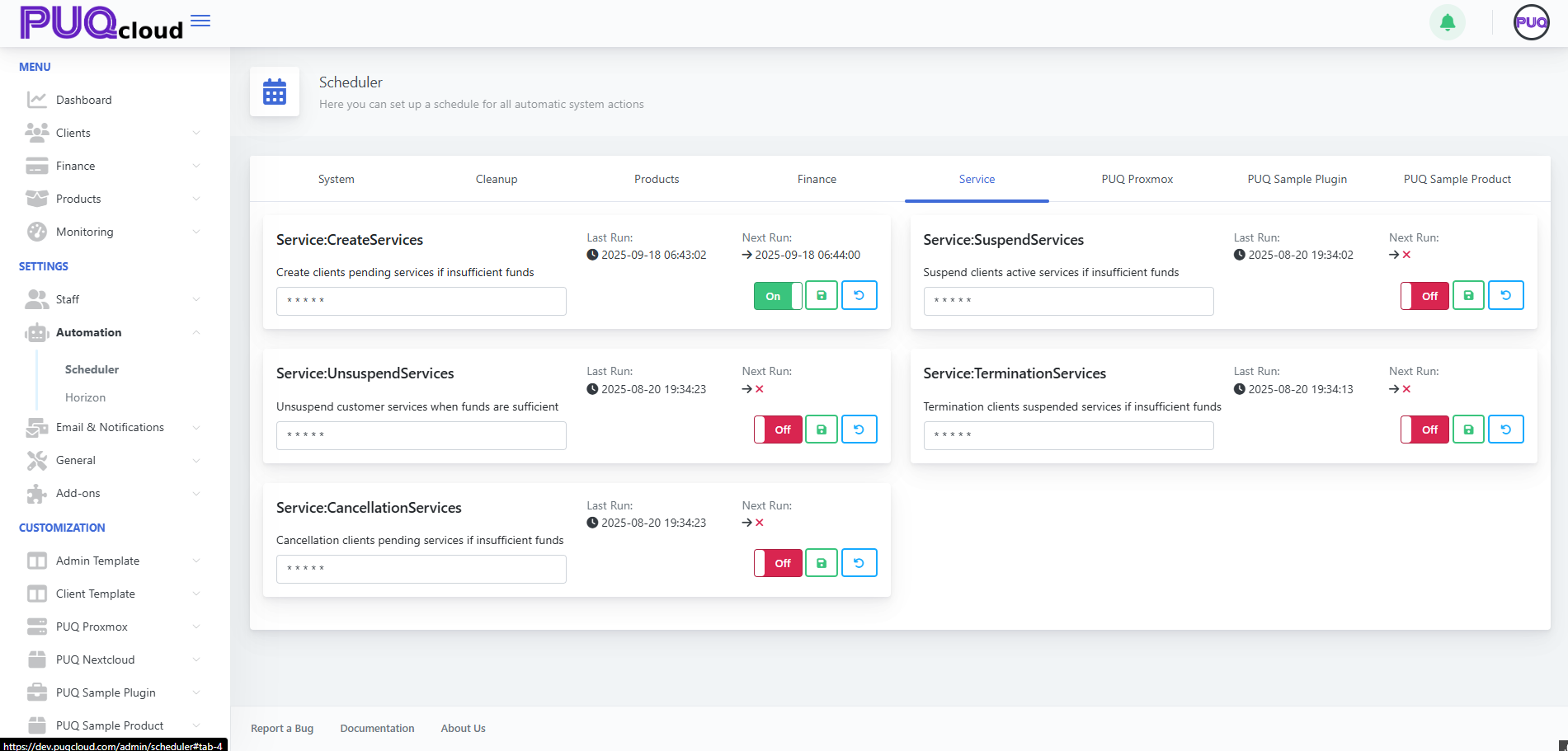](https://doc.puq.info/uploads/images/gallery/2025-09/image-1758198856071.png)**Service tab with lifecycle tasks (Create, Suspend, Unsuspend, Termination, Cancellation) and their toggles.**Safety:** run terminations once per night to avoid heavy daytime I/O.
- - - - - - ##### 6. PUQ Proxmox Cluster sync and backups. - **puqProxmox:SyncClusters** — `*/5 * * * *`. - **puqProxmox:MakeBackups** — `0 2 * * *` (02:00 daily). [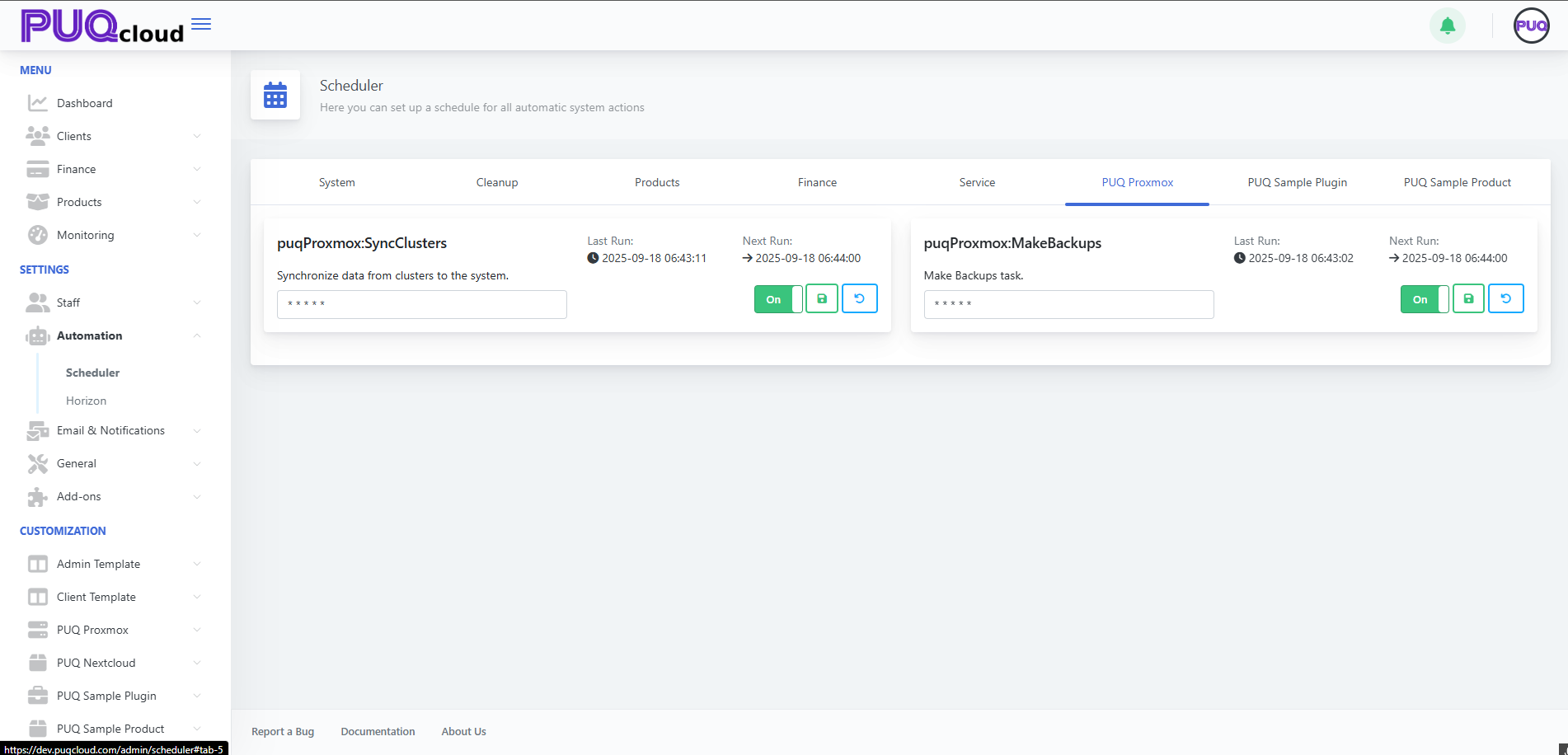](https://doc.puq.info/uploads/images/gallery/2025-09/image-1758198884128.png)PUQ Proxmox tab showing “puqProxmox:SyncClusters” and “puqProxmox:MakeBackups” with recommended schedules.**Practice:** give backups a dedicated quiet window; watch storage I/O.
- - - - - - ##### 7. PUQ Sample Plugin / PUQ Sample Product Demo tasks — keep **Off** in production. [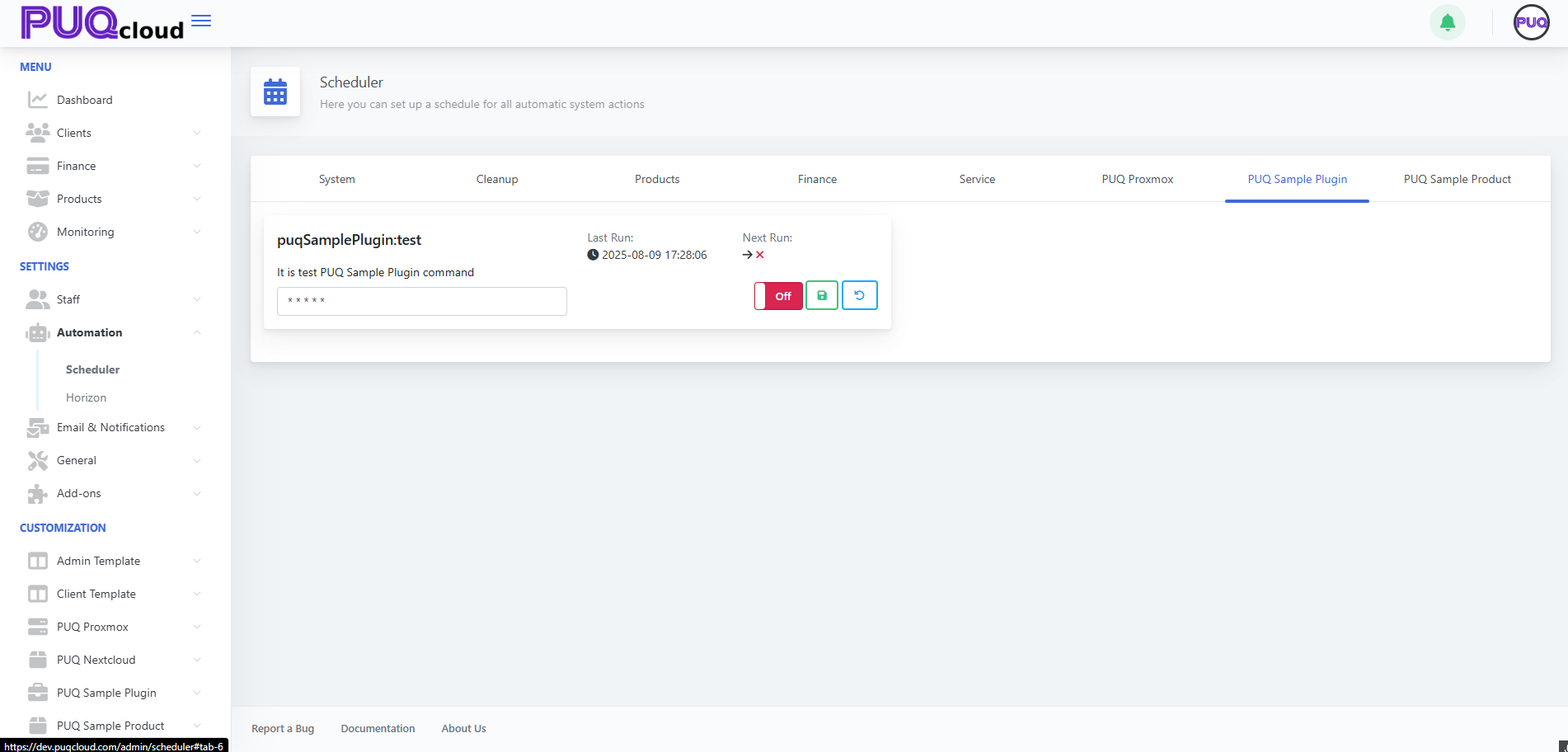](https://doc.puq.info/uploads/images/gallery/2025-09/image-1758198911958.png)PUQ Sample Plugin tab showing “puqSamplePlugin:test” (demo task) in Off state. [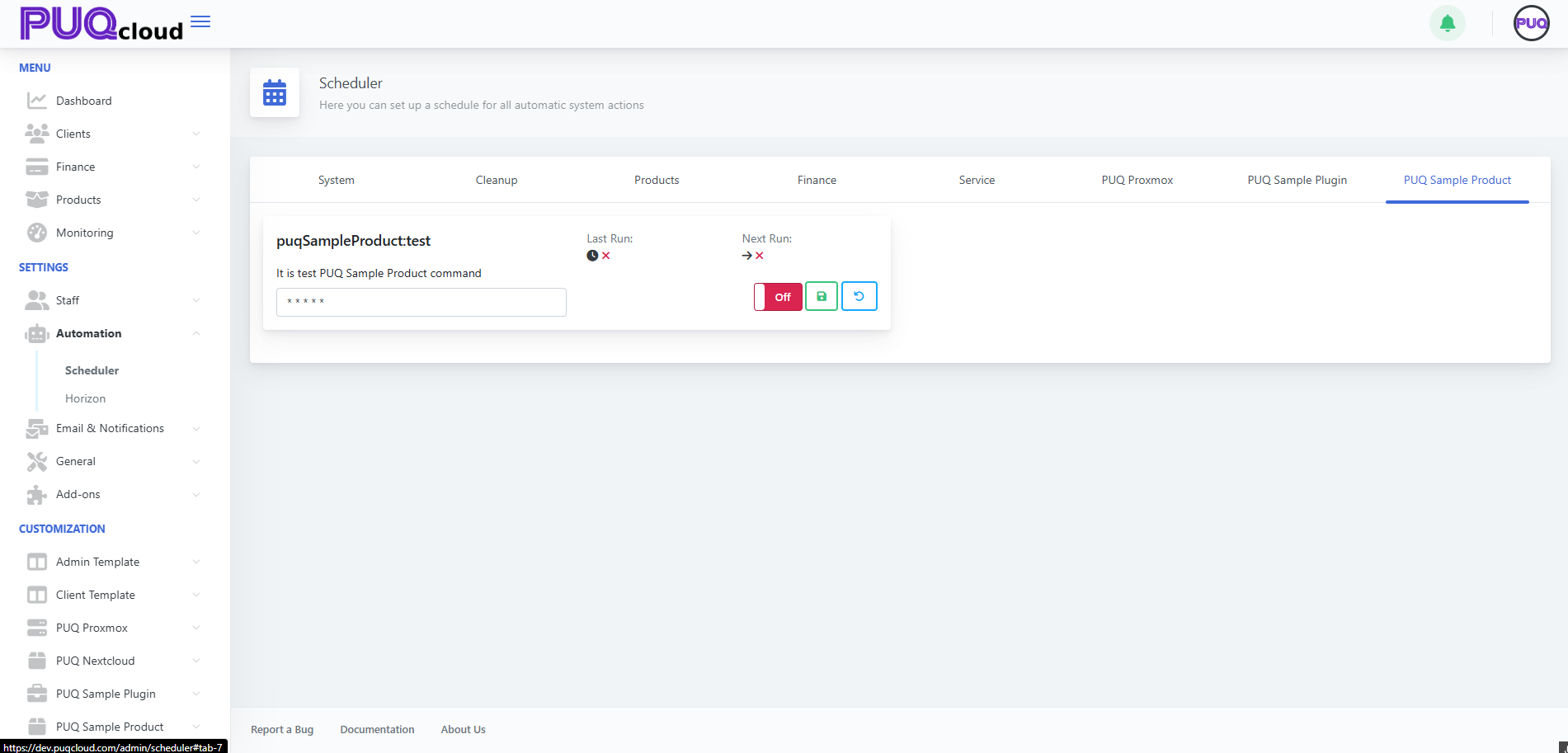](https://doc.puq.info/uploads/images/gallery/2025-09/image-1758198911975.png)PUQ Sample Product tab showing “puqSampleProduct:test” (demo task) in Off state. - - - - - - #### Cron cheat sheet (no pain)| Expression | Meaning |
|---|---|
| `* * * * *` | Every minute |
| `*/5 * * * *` | Every 5 minutes |
| `*/10 * * * *` | Every 10 minutes |
| `0 * * * *` | At the start of every hour |
| `0 2 * * *` | Daily at 02:00 |
| `0 3 * * 1` | Mondays at 03:00 |
| `*/30 8-20 * * 1-5` | Every 30 min 08:00–20:00 on weekdays |
**Note:** Times follow the server’s timezone. If times look odd, verify the host TZ.
- - - - - - #### Ready-made profiles (copy/paste) ##### “Starter” (safe and effective) - Finance: `*/10 * * * *` - Service Create/Suspend/Unsuspend: `*/10 * * * *` - Service Cancellation: `*/30 * * * *` - Service Termination: `0 4 * * *` - Cleanup Lost: `*/30 * * * *` - Cleanup: `0 3 * * *` - Convert Price: `0 * * * *` - SyncClusters: `*/5 * * * *` - MakeBackups: `0 2 * * *` ##### “Nightly heavy-lifting” - All heavy tasks (Termination/Cleanup/Backups) between **02:00–04:00**. - Frequent light tasks during the day (Charge/Status/Sync). - - - - - - #### Safe-change checklist 1. **Environment** — test on **staging** first. 2. **Snapshot current crons** — copy or take a screenshot for rollback. 3. Change cron → **Save** → confirm **Next Run** updated. 4. Monitor 24–48h: **Last Run**, billing effects, backups, system load. 5. If issues appear — **Reset** on the card (or revert cron) and **Save**. - - - - - - #### Troubleshooting quick tree **A. Task doesn’t run** - Toggle is **Off**? → turn **On**. - **Next Run** missing? → fix cron syntax and **Save**. - Workers/cron down? → restart your queue workers/system cron. **B. System load too high** - Move heavy jobs to night (02:00–04:00). - Reduce frequency (`*/10` → `*/30`, `*/30` → `0 * * * *`). **C. Data gets stale (prices/sync/status)** - Increase frequency (hourly → every 15 or 10 minutes). - Check worker logs for task errors. - - - - - - #### Micro-FAQ - **Why is “Next Run” showing an X?** Task is **Off** or cron is invalid. Enable and/or fix cron, then **Save**. - **Can I trigger a task now?** UI focuses on schedules. For ad-hoc runs, temporarily set the cron to the nearest minute, **Save**, then revert. - **How do I know it’s healthy?** Watch **Last Run**, see that service lifecycle events occur on time, finance entries are up-to-date, and backups are fresh. - - - - - - ##### Wrap-up 1. Define “day/night” profiles. 2. Heavy jobs at night; routine jobs every 5–15 minutes. 3. After any change: **Save** → check **Next Run**. 4. Use **Last Run** + worker logs as your health sensors.