Click any card to jump to the filtered services list (where applicable).
- - - - - - #### Recurring Cost Breakdown Below the counters are your **Hourly / Daily / Weekly / Monthly / Yearly** spend estimates and the **Recommended Add Funds** amount. Use it to: - Forecast top-ups before renewals - Spot anomalies (e.g., a spike in Hourly vs. Monthly) - - - - - - #### Account & Security Menu Top-right avatar opens quick actions: - **My Account** (profile & company details) - **Change Password** - **Verification Center** - **Two-Factor Authentication** (enable 2FA) - **Logout** Account dropdown. [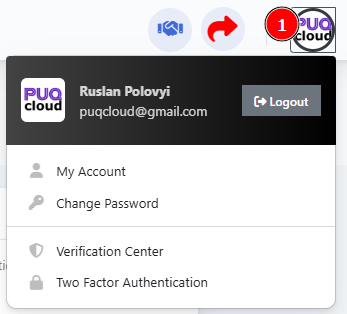](https://doc.puq.info/uploads/images/gallery/2025-09/image-1758026199954.png)**Best practice:** enable **2FA** immediately and complete **Verification Center** to lift payment/security limits.
- - - - - - #### Company Hub (Profile • Invoices • Transactions) From **My Account**, open your company tile to reach: - **Profile** — legal details, addresses, tax IDs - **Invoices** — download/print invoices & credit notes - **Transactions** — all top-ups, payments, refunds Company tile with Profile / Invoices / Transactions. [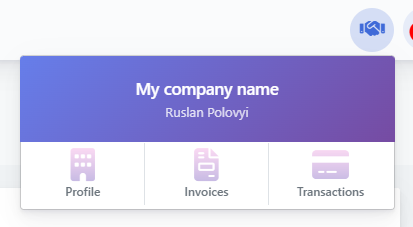](https://doc.puq.info/uploads/images/gallery/2025-09/image-1758026212119.png) - - - - - - #### Add Funds (Top-Up) From the top strip click **Add Funds** to open the payment screen. Steps: 1. Review the **Recommended amount** banner. 2. Enter **net amount** and **currency**. 3. Check **Taxes breakdown** (VAT, etc.). 4. Confirm **Balance after top-up**. 5. Click **Top Up Now**. Add Funds page. [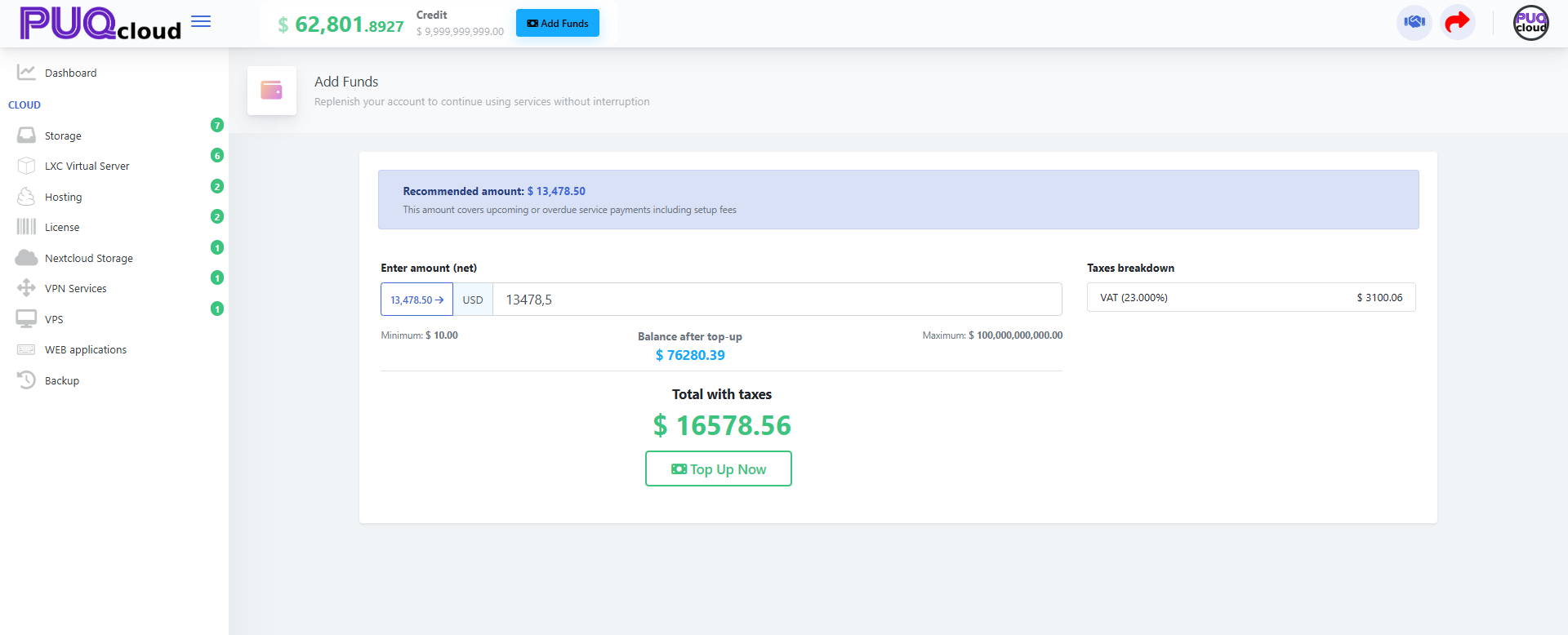](https://doc.puq.info/uploads/images/gallery/2025-09/image-1758026226209.png)Tip: If you sell in multiple currencies, keep one primary currency for predictability; taxes depend on your profile’s country/region.
- - - - - - #### Daily Workflow (5 minutes) 1. Open dashboard → check **Active** vs **Suspended**. 2. Scan **Recurring Cost Breakdown** → compare to yesterday. 3. If **Recommended Add Funds** > your comfort buffer, **Top Up**. 4. Open **Invoices** if any new charges posted. 5. Review **Transactions** for failed/duplicate payments. 6. Security sweep: confirm **2FA** is still active for all users. - - - - - - #### Troubleshooting - **Costs look too high** → open services list and verify no unintended upgrades. - **Top-up rejected** → finish **Verification Center** and confirm billing info. - **Taxes seem wrong** → check company **Tax ID** and country in **Profile**. - **See “Suspended”** → settle outstanding invoices or contact support.