
Manage Your Profile in the Client Area
PUQcloud Panel
Order Now | Download | FAQ
Overview
Keep your Profile correct to ensure proper taxes, legal invoice details, and contact emails. This guide shows how to open the Profile screen, what every field means, and the safest way to update it — with exact places to insert your screenshots.
Open the Profile screen
-
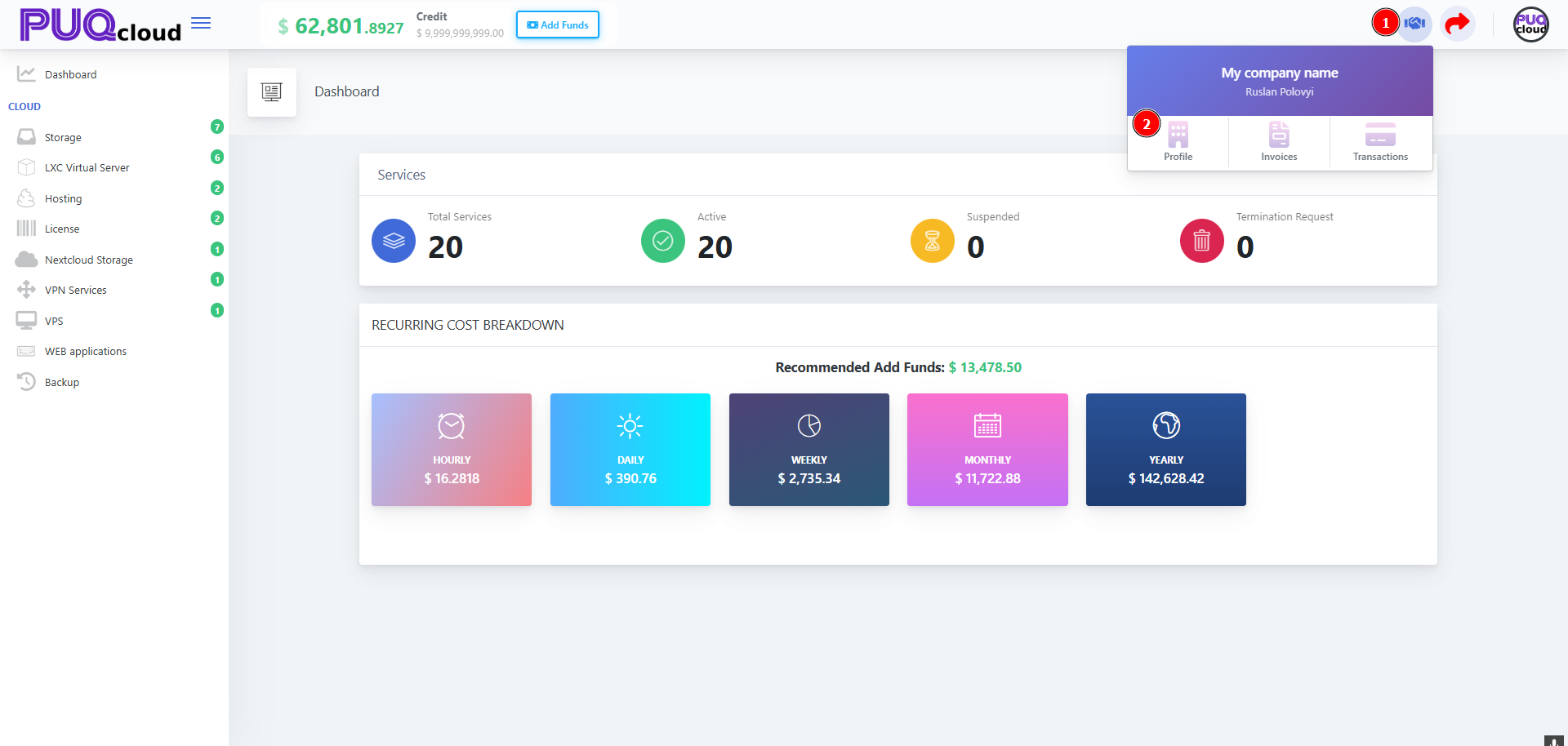
On the Dashboard, click your Company widget in the top-right.
-
Choose Profile.
Company dropdown (marker 1 → open menu, marker 2 → Profile).
Edit your details
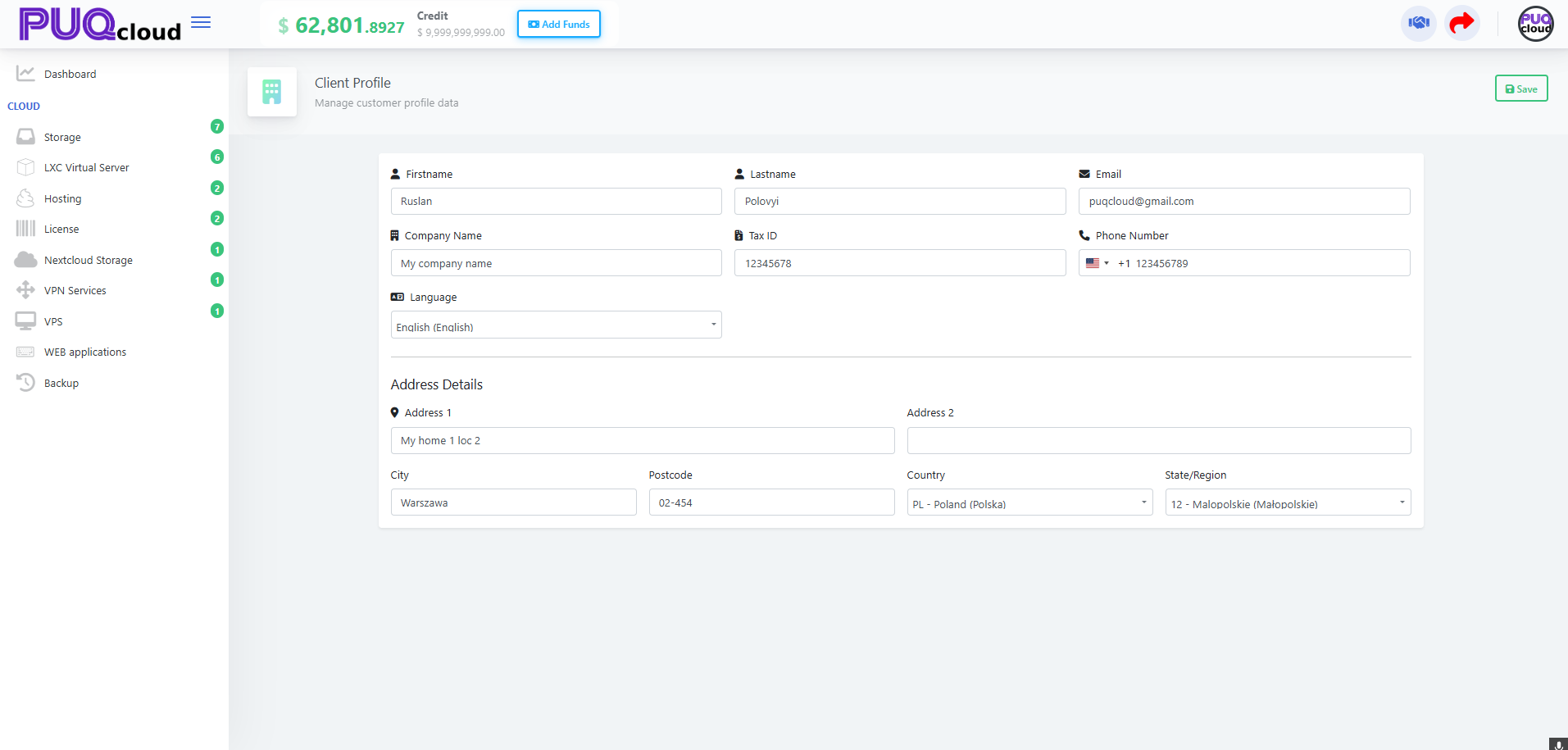
You’ll land on Client Profile. Update the fields below and press Save (top-right).
Client Profile form (full page).
What each field is for
-
Firstname / Lastname — Account owner name shown on invoices/receipts.
-
Email — Where invoices, payment receipts and alerts are sent.
-
Company Name — Legal entity name printed on invoices.
-
Tax ID — VAT/GST/Tax number. Required for correct tax calculation.
-
Phone Number — Include country code (e.g., +1, +48).
-
Language — UI language and (if enabled) document language.
-
Address 1/2, City, Postcode, Country, State/Region — Legal billing address used for taxes.
Tip: If you’re not a company, leave Company Name empty and Tax ID blank — you’ll be treated as a private individual where applicable.
Best practices (1-minute checklist)
-
Company vs Individual: Fill Company Name and Tax ID only if you’re a business.
-
Tax ID format: Use your country’s official format (e.g., PL VAT:
PL1234567890). -
Country & State: Must match your real billing address — taxes depend on it.
-
Phone: Add the country code; avoid spaces/symbols if validation fails.
-
Save: Click Save before leaving, then reload the Invoices page to confirm the header shows your new details.
When to update your profile
-
You see wrong VAT/GST on an invoice
-
Your company renamed, moved address, or changed tax number
-
You want the portal in another Language
-
Your Email for billing changed
Troubleshooting
-
“My invoice has the wrong tax.” → Recheck Country/State and Tax ID in Profile, then regenerate or request a corrected document.
-
Phone won’t save. → Include international format
+<country code><number>. -
Language saved but UI didn’t change. → Refresh the page or log out/in; some sections cache language.
-
Tax ID rejected. → Remove extra spaces, add country prefix if required (e.g.,
PL,DE,CAnumbers vary).