This activity can be simplified by using additional modules for WHMCS that automate the whole process. [More information here.](https://puqcloud.com/whmcs-modules-vpn/)
#### Create VPN account To create a VPN account go to **VPN accounts -> Add VPN account** [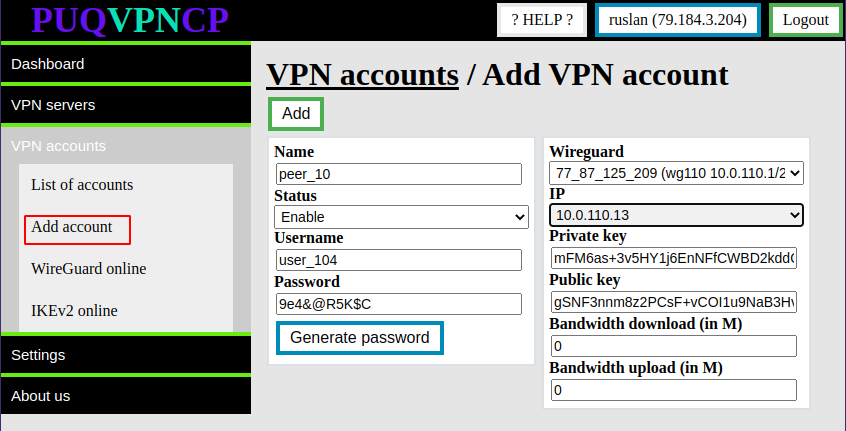](https://doc.puq.info/uploads/images/gallery/2022-12/image-1671012867877.png) The system will automatically fill the form with unique data. It is necessary to change them if there is a need for it. - **Name -** Account name, required to link the account with the WireGuard and IKEv2 servers - **Status -** Account status can be enabled or disabled - **Username/Password -** Authorization data for protocols that require login and password authorization (IKEv2) - **Wireguard -** The Wireguard interface to which the new account will be assigned - **IP -** The IP address that will be allocated to the account and will be assigned when connecting by any protocol. - **Private key/Public key -**Traffic encryption keys in the WireGuard protocol - **Bandwidth download /Bandwidth upload -** If necessary, reassign the bandwidth of the account. Otherwise, a similar parameter of the WireGuard interface will be taken into account After filling in all the fields, click the **Add** button [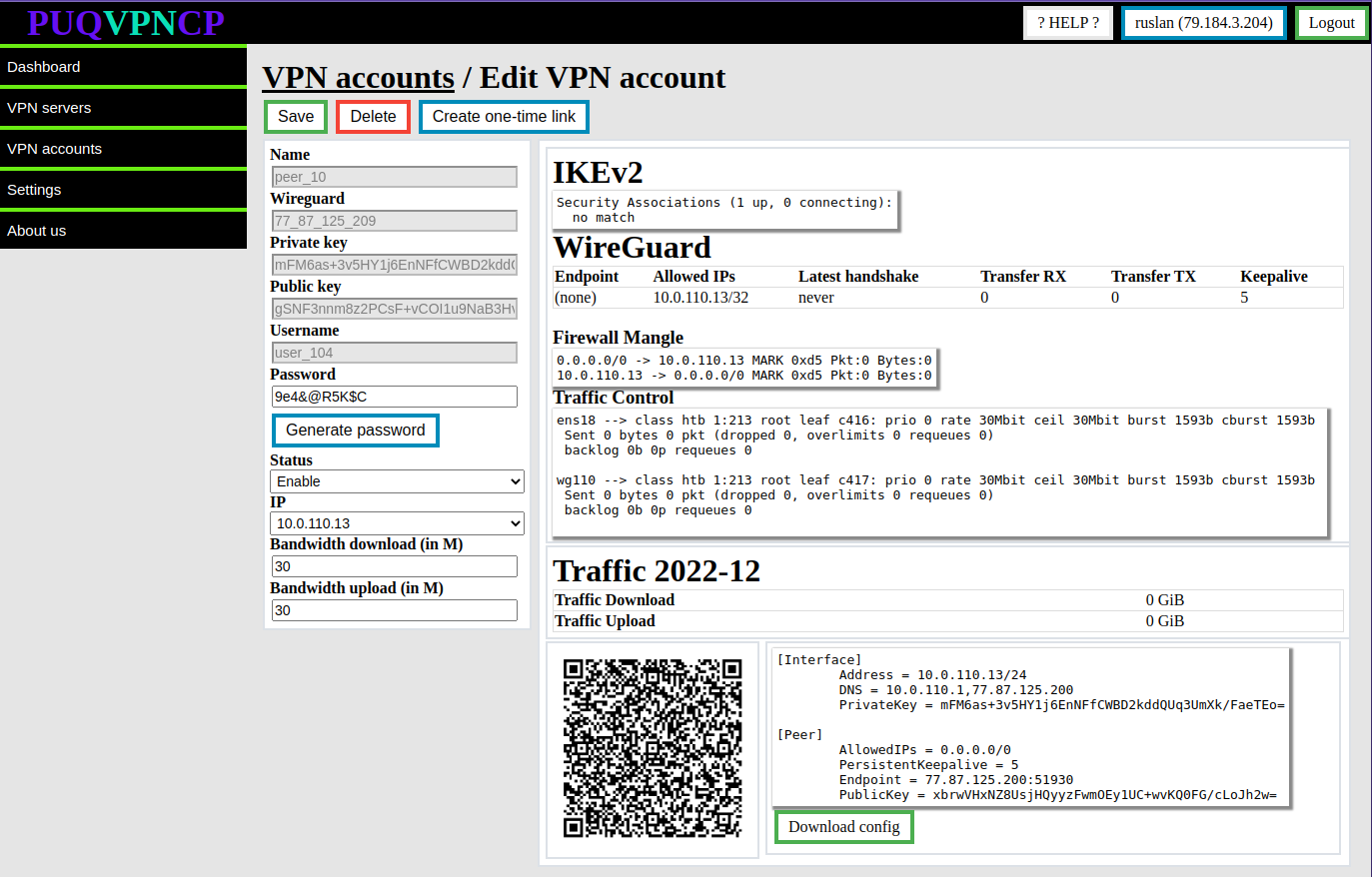](https://doc.puq.info/uploads/images/gallery/2022-12/image-1671013555840.png) # Editing VPN account ##### [Order now](https://puqcloud.com/puqvpncp.php) | [Download](https://download.puqcloud.com/cp/puqvpncp/) | [FAQ](https://faq.puqcloud.com) In this panel tab you can manage VPN accounts.This activity can be simplified by using additional modules for WHMCS that automate the whole process. [More information here.](https://puqcloud.com/whmcs-modules-vpn/)
##### Edit an VPN account To edit an account, go to **VPN accounts -> List accounts** and select the account you want to edit by pressing the **EDIT** button [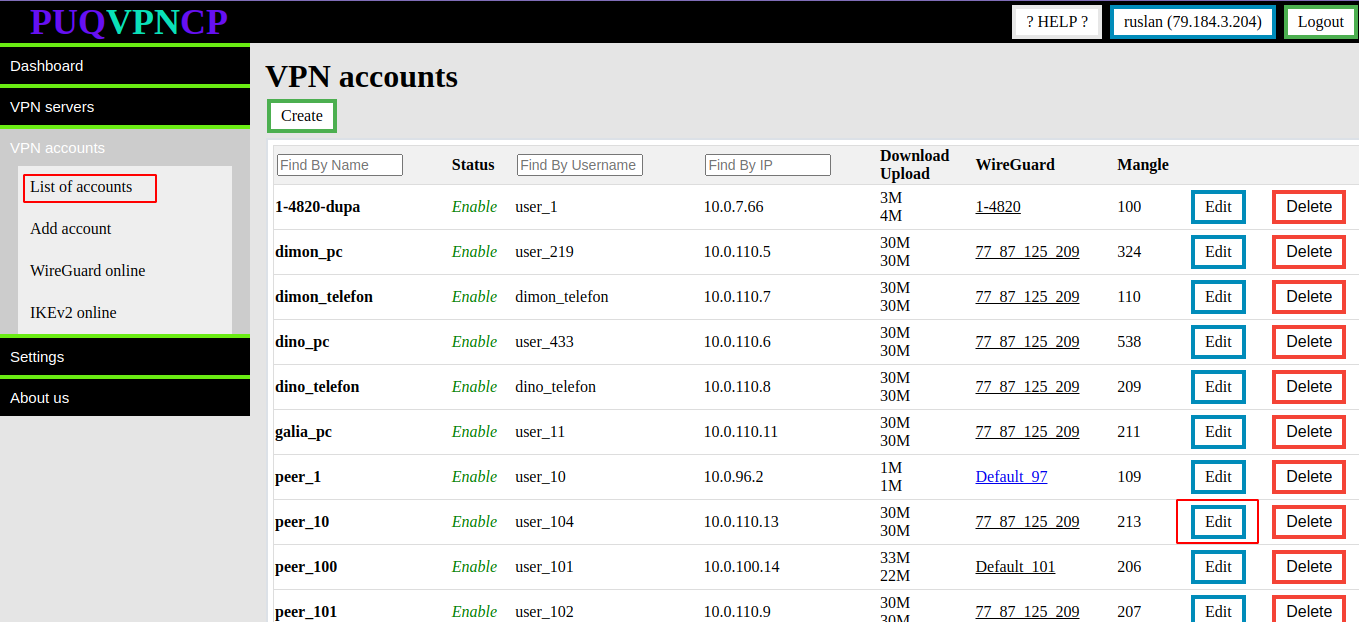](https://doc.puq.info/uploads/images/gallery/2022-12/image-1671013859819.png) [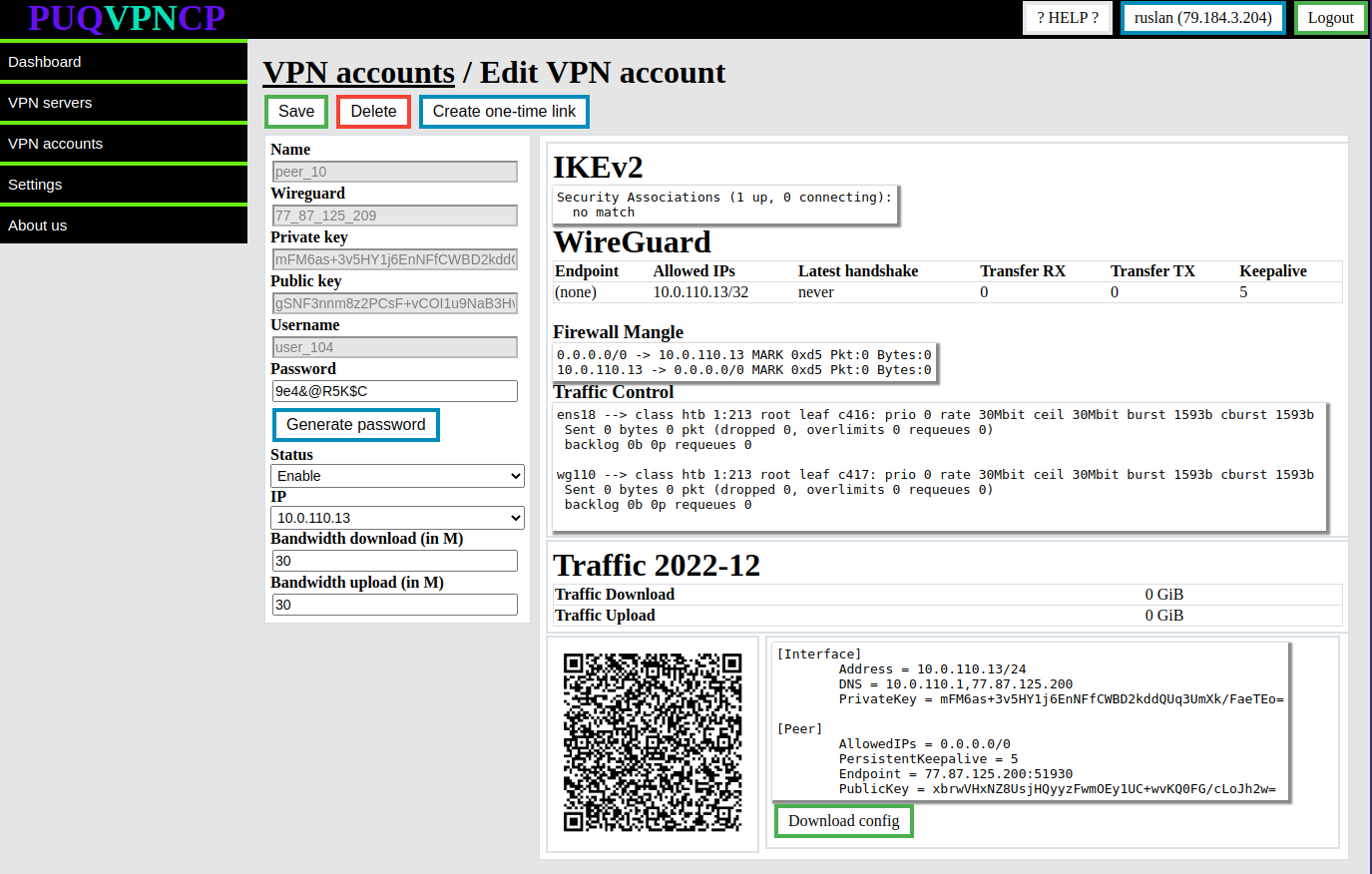](https://doc.puq.info/uploads/images/gallery/2022-12/image-1671013884416.png) ##### It is possible to edit the following parameters - **Password -** User password for connecting through protocols that require login and password authorization - **Status -** To enable or disable an account - **IP -** The IP address that will be allocated to the account and will be assigned when connecting by any protocol (If you change this setting, you must reconfigure the client with the new configuration in the WireGuard protocol) - **Bandwidth download/Bandwidth upload -** Account bandwidth After all the data has been entered, click the **Save** button.Each time the **Save** button is pressed, the client settings will be reconfigured and the connection to the client will be terminated.
# Diagnostic Information ##### [Order now](https://puqcloud.com/puqvpncp.php) | [Download](https://download.puqcloud.com/cp/puqvpncp/) | [FAQ](https://faq.puqcloud.com) ##### Information about VPN account diagnostics is available in the menu item **VPN accounts -> List accounts.** Select the VPN account for which you want to display diagnostic information by clicking the **EDIT** button [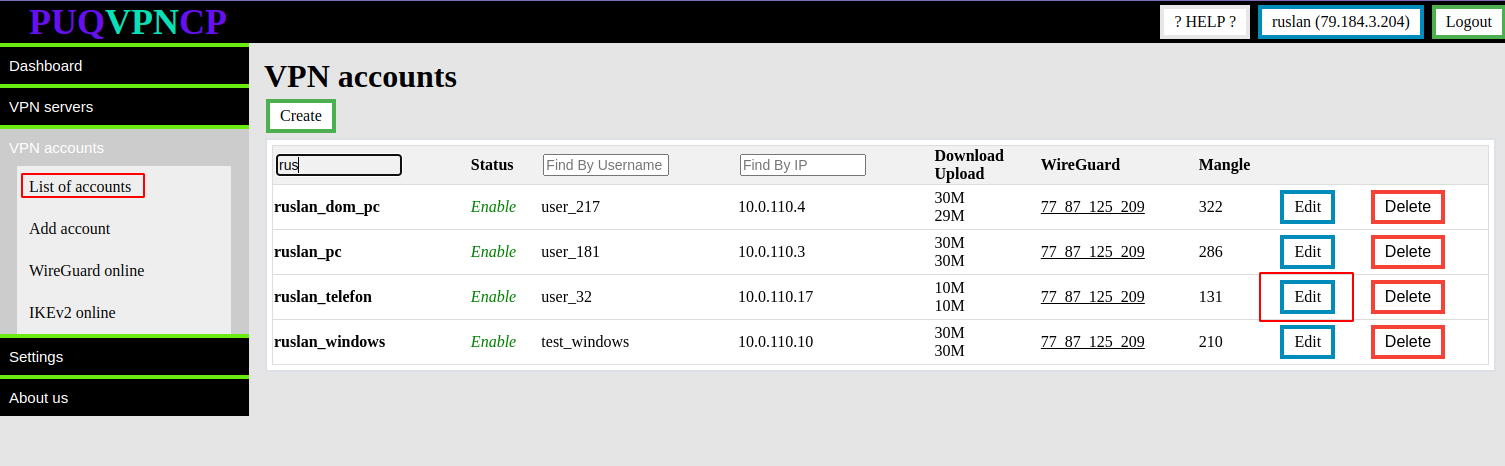](https://doc.puq.info/uploads/images/gallery/2022-12/image-1671016077083.png) [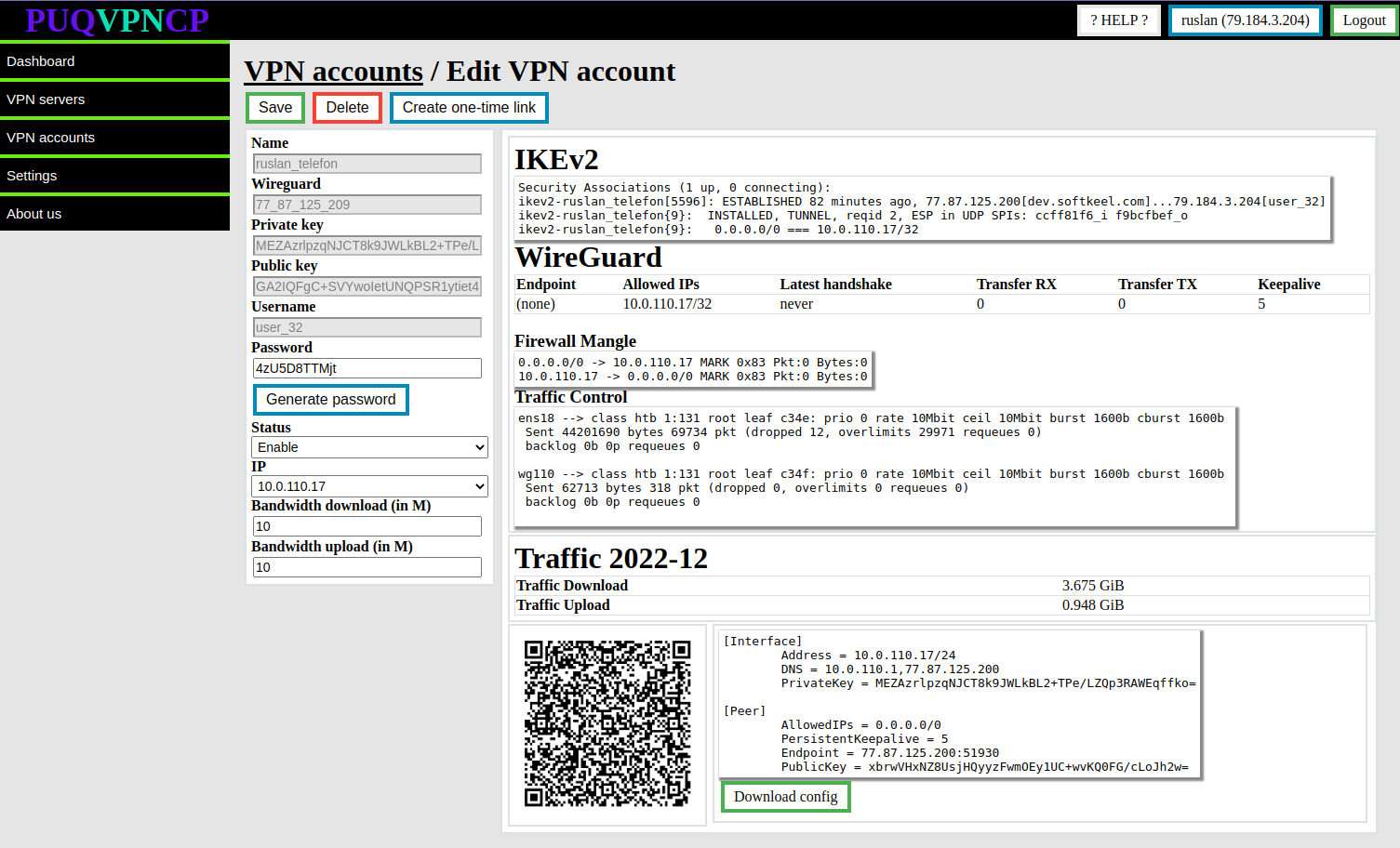](https://doc.puq.info/uploads/images/gallery/2022-12/image-1671016081489.png) ##### IKEv2 section Actual data from the system about the connection in the **IKEv2** protocol ##### WireGuard Actual data from the system about the connection in the **WireGuard** protocol ##### Firewall Mangle The actual data is taken from the system firewall, these are rules that mark traffic from the client and to the client for bandwidth limitation purposes and to collect traffic statistics, with statistics on packet counters and traffic passing through these rules. While the system is reading the brush value, the counter is reset to zero. ##### Traffic control The actual data is taken from the system with the Traffic Control configuration, it shows that the interfaces are involved in traffic filtering in order to limit the rate for clients of this interface. ##### Traffic Actual traffic usage in the current month There is also a section with the configuration of the **WireGuard** client in the form of a QR code and in text form # WireGuard online users list ##### [Order now](https://puqcloud.com/puqvpncp.php) | [Download](https://download.puqcloud.com/cp/puqvpncp/) | [FAQ](https://faq.puqcloud.com) ##### In order to see which VPN accounts are online in the **WireGuard** protocol, you need to go to the menu item **VPN accounts->WireGuard online** [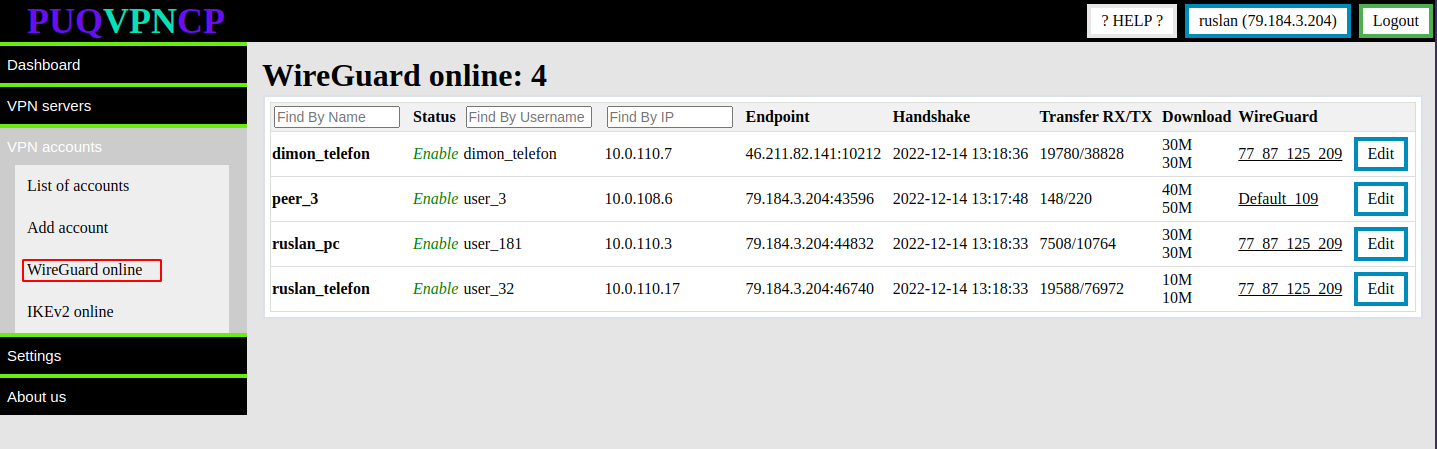](https://doc.puq.info/uploads/images/gallery/2022-12/image-1671020348870.png) # IKEv2 online users list ##### [Order now](https://puqcloud.com/puqvpncp.php) | [Download](https://download.puqcloud.com/cp/puqvpncp/) | [FAQ](https://faq.puqcloud.com) ##### In order to see which VPN accounts are online in the **IKEv2** protocol, you need to go to the menu item **VPN accounts->IKE\_v2 online** [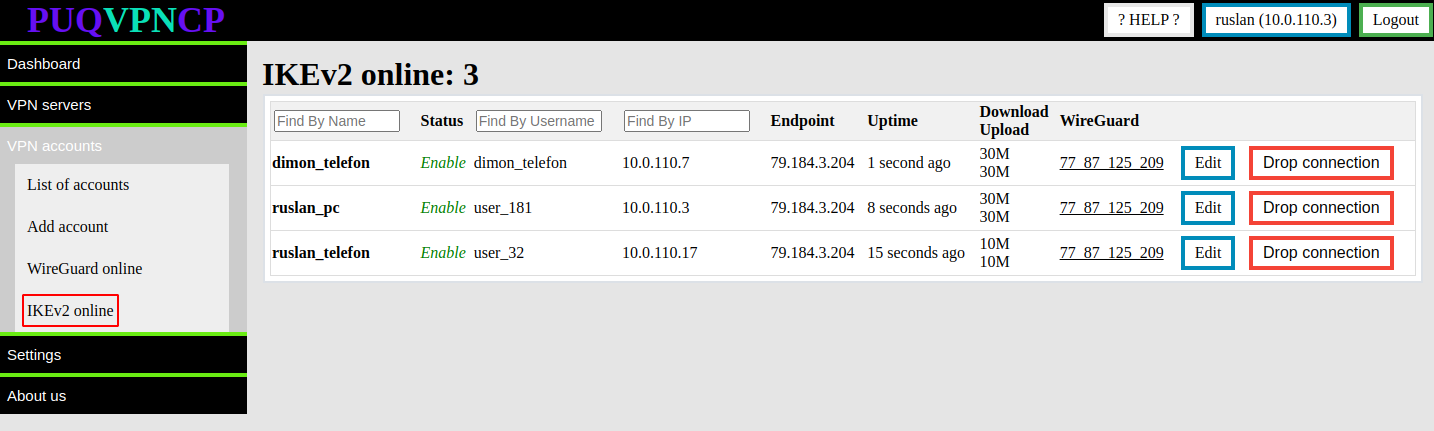](https://doc.puq.info/uploads/images/gallery/2022-12/image-1671020442522.png)