# Add server (PUQVPNCP) in WHMCS

### WireGuard VPN module **[WHMCS](https://puqcloud.com/link.php?id=77)**

#####  [Order now](https://panel.puqcloud.com/index.php?rp=/store/whmcs-module-wireguard-vpn) | [Download](https://download.puqcloud.com/WHMCS/servers/PUQ_WHMCS-WireGuard-VPN/) | [FAQ](https://faq.puqcloud.com/)

##### Add a new server to the system WHMCS.

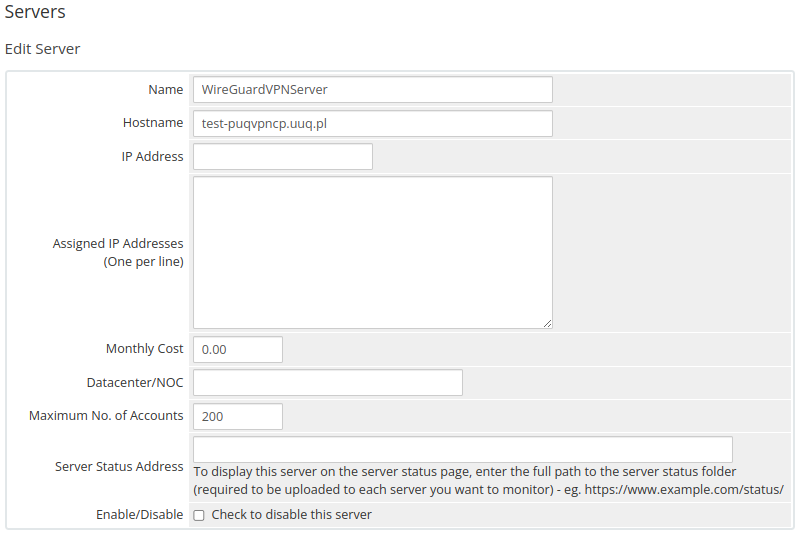
Login to Your WHMCS panel and create new server in WHMCS (*System Settings-&gt;Products/Services-&gt;Servers*)

[![image-1663142713076.png](https://doc.puq.info/uploads/images/gallery/2022-09/scaled-1680-/image-1663142713076.png)](https://doc.puq.info/uploads/images/gallery/2022-09/image-1663142713076.png)

```
System Settings->Servers->Add New Server
```

- Enter the correct **Name** and **Hostname**

**Name is just for Your convenience and You can put there anything You like ie: *Mygreat PUQVPNCP routr***

<p class="callout info">**You can choose whatever hostname You want. Valid entries look similar to: vpn.mydomain.com, ourgreatvpn.mydomain.net. You can also dedicate whole domain ie: myVPNservices.com if You like. The important thing is to resolve the choosen IP address of the [PUQVPNCP](https://doc.puq.info/books/puqvpncp/page/description) in DNS server for Your domain.** </p>

[![image-1669370434236.png](https://doc.puq.info/uploads/images/gallery/2022-11/scaled-1680-/image-1669370434236.png)](https://doc.puq.info/uploads/images/gallery/2022-11/image-1669370434236.png)

##### Enter the correct data in the Access Hash field  


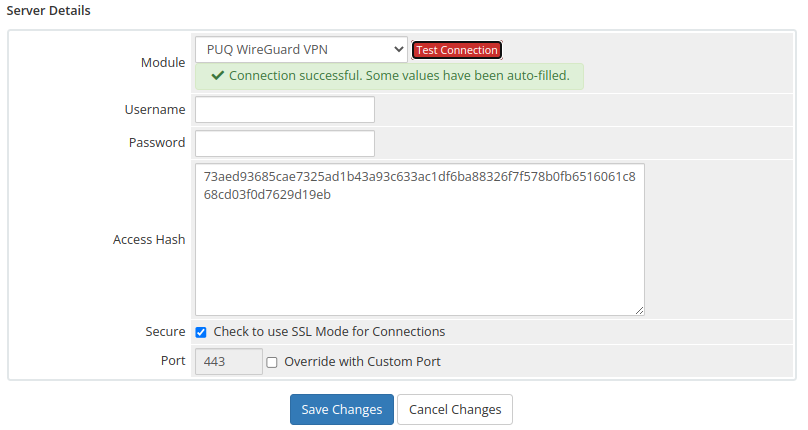
- In the **Server Details** section, select the "**PUQ WireGuard VPN**" module and enter the correct API Access Hash.
- To check, click the **"Test connection"** button

<p class="callout info">If you save the correct login and password for PUQVPNCP in the server settings, then the Login to PUQ VPN Control Panel button will open for you without entering a login and password.</p>

[![image-1669372069538.png](https://doc.puq.info/uploads/images/gallery/2022-11/scaled-1680-/image-1669372069538.png)](https://doc.puq.info/uploads/images/gallery/2022-11/image-1669372069538.png)