 Skip to main content
Installation and Update
Admin Panel Unique addon WHMCS
Order now | Download | FAQ
System Requirements
| Requirement | Minimum |
|---|---|
| WHMCS | 8.x, 9.x |
| PHP | 8.1, 8.2+ |
| ionCube Loader | v13 or newer (v14, v15) |
Download
The module can be ordered and downloaded from PUQ Cloud:
- Order / Download: https://puqcloud.com/store/whmcs-addon-modules
- Documentation: https://doc.puq.info/books/puq-admin-panel-unique
- FAQ / Community: https://community.puqcloud.com/
- Direct download links:
PHP 8.1:
wget https://download.puqcloud.com/WHMCS/addons/PUQ_WHMCS-Admin-Panel-Unique/php81/puq_admin_panel_unique-latest.zip
PHP 8.2+:
wget https://download.puqcloud.com/WHMCS/addons/PUQ_WHMCS-Admin-Panel-Unique/php82/puq_admin_panel_unique-latest.zip
All versions are available at: https://download.puqcloud.com/WHMCS/addons/PUQ_WHMCS-Admin-Panel-Unique/
After downloading, extract the archive:
unzip puq_admin_panel_unique-latest.zip
Installation
Step 1: Upload Files
Extract the module archive and upload the puq_admin_panel_unique directory to the WHMCS addons directory:
/your-whmcs/modules/addons/puq_admin_panel_unique/
Directory structure after upload:
modules/addons/puq_admin_panel_unique/
    puq_admin_panel_unique.php
    hooks.php
    whmcs.json
    version
    logo.png
    lib/
        AdminPanelUniqueCore.php
    lang/
        english.php
        ...
    templates/
        ...
Step 2: Activate the Module
- Log in to the WHMCS admin panel.
- Go to Setup > Addon Modules.
- Find PUQ Admin Panel Unique in the list.
- Click Activate.
During activation, the module creates (if missing):
-
mod_puq_admin_panel_unique_config— module configuration storage -
puq_license— license verification cache table
Step 3: Configure Access and License Key
- Click Configure next to the module.
- Enter your license key in the License key field.
- Select admin role groups that should have access to the module.
- Click Save Changes.
The license verification status appears under the license key field in module settings.
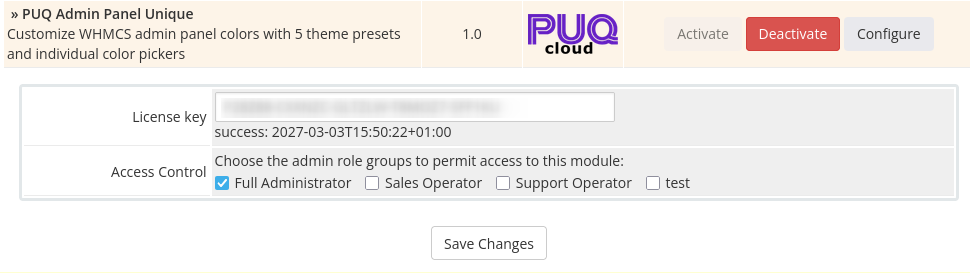 01-addon-config-license.png
Step 4: Open the Module
Go to Addons > PUQ Admin Panel Unique.
You will see:
- Dashboard page (module overview, active preset and current colors)
- Configuration page (enable/disable, dark mode, presets, manual colors, live preview)
Update
Step 1: Backup
Before updating, back up:
- Your WHMCS database
- Module files in
modules/addons/puq_admin_panel_unique/ - Module tables:
mod_puq_admin_panel_unique_config,puq_license
Step 2: Upload New Files
Extract the new version and overwrite all files in:
/your-whmcs/modules/addons/puq_admin_panel_unique/
Step 3: Verify
- Log in to WHMCS admin panel.
- Open Addons > PUQ Admin Panel Unique.
- Check the module version in the top-right of the module navigation bar (for example:
v1.0). - Open Configuration and confirm your saved settings are still present.
Re-activation is not required after update. Overwriting files is enough.
Deactivation
- Go to Setup > Addon Modules.
- Click Deactivate next to PUQ Admin Panel Unique.
- Confirm deactivation.
Deactivation does not remove module configuration data. The table
mod_puq_admin_panel_unique_configis preserved for future re-activation.
License
The module requires an active license for full functionality.
How License Verification Works
- License key is stored in addon module settings.
- Online verification is performed against
https://license.puqcloud.com/api/v1/licenses_verification. - Verification result is cached in
puq_license. - Cache validity window is 5 days (module setting
days = 5). - If cached verification is valid for the current period, the module can continue working without an immediate online request.
Without an Active License
- Dashboard remains accessible.
- Configuration page is locked and shows a license-required screen.
- A license warning appears in module pages and on WHMCS admin homepage.
After Activating a License
- Open Setup > Addon Modules > PUQ Admin Panel Unique > Configure.
- Enter the license key and save.
- Re-open the module page; the warning disappears and full functionality is available.
No Comments