Home screen
Docker MinIO module WHMCS
Client Area Overview — Logical Structure
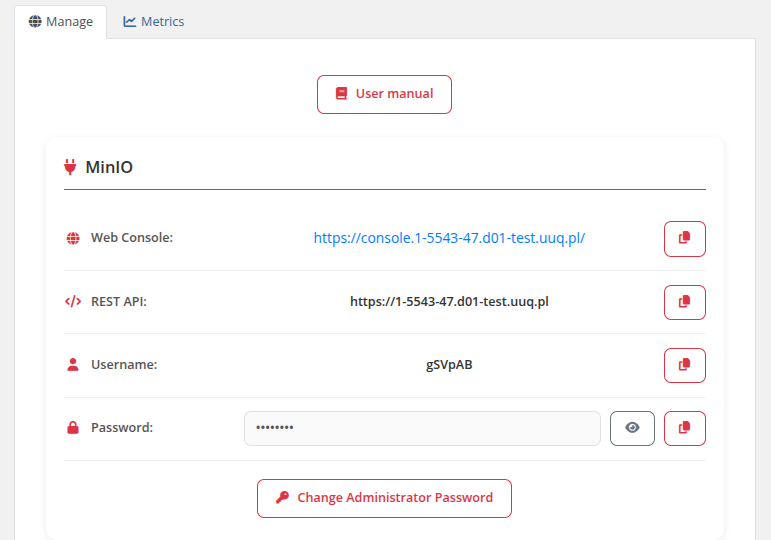
The main screen of the client area is divided into three logical sections:
-
Navigation Block
-
"User Manual": Opens the official documentation or user guide (link configured by administrator).
-
Connection Details Block
-
Web Console: Direct link to access the MinIO web console with copy button.
-
REST API: Link to the MinIO REST API endpoint with copy button.
-
Username: MinIO account username with copy button.
-
Password: MinIO account password with show/hide toggle and copy button.
-
Change Administrator Password: Button to reset the administrator password.
-
Resource Usage Block
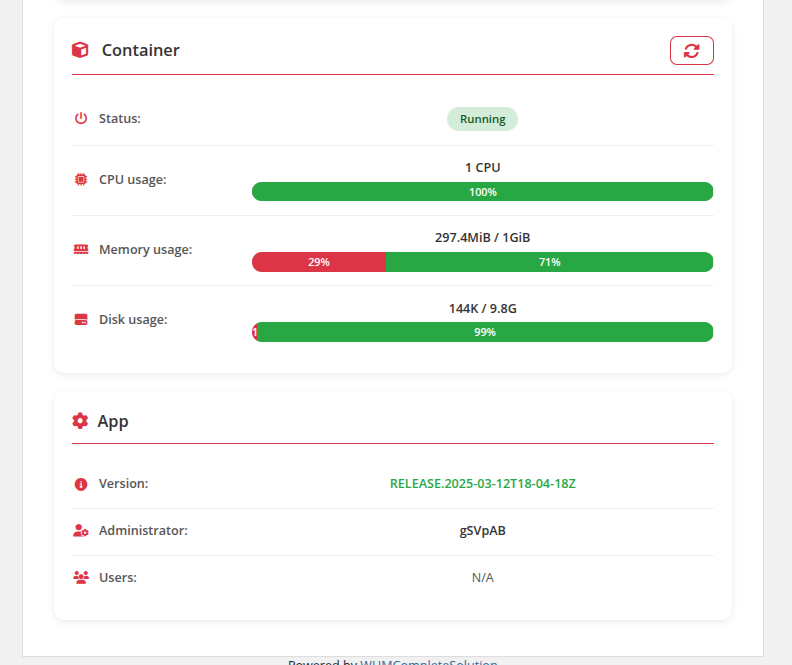
- Displays real-time statistics on container resource usage:
-
Status: Current container state (Running / Stopped / Paused).
-
CPU Usage: Number of allocated CPUs and current load.
-
Memory Usage: RAM consumption with progress bar.
-
Disk Usage: Storage consumption within the container with progress bar.
- This section includes a Refresh button for real-time data updates.
-
Application Information
-
Version: Displays the installed MinIO version.
-
Administrator: Indicates the primary administrator of the application.
-
Users: Shows active users associated with the instance.
This clear structure ensures that users have quick access to their application, real-time monitoring of resource usage, and essential management functions in one place.
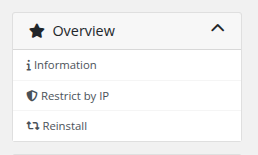
The client area sidebar provides quick access to:
-
Information — Main service page with connection details and resource monitoring
-
Restrict by IP — IP access control page
-
Reinstall — Service reinstallation page
 Skip to main content