 Skip to main content
Settings
Code Snippets addon WHMCS
Order now | Download | FAQ
The Settings page is available at: Addons > PUQ Code Snippets > Settings
Configure module behavior, editor preferences, and emergency controls.
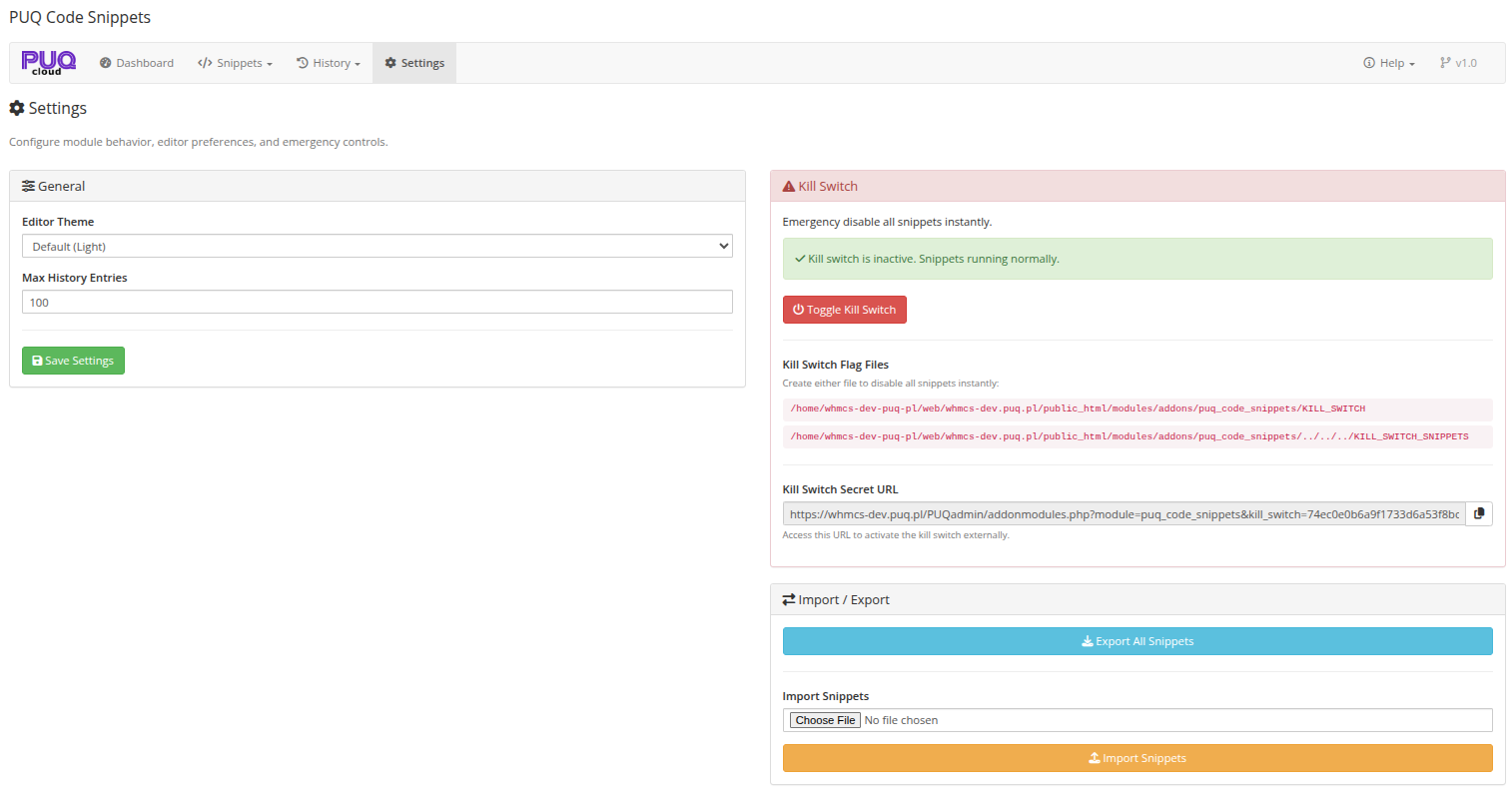 09-settings.png
General
| Setting | Description |
|---|---|
| Editor Theme | CodeMirror color theme for the code editor. Choose from a variety of themes (Default Light, Dracula, Monokai, Material, etc.) |
| Max History Entries | Maximum number of history records to keep. Oldest records are removed when the limit is reached. Default: 100 |
Click Save Settings to apply changes.
Kill Switch
The kill switch is an emergency mechanism to instantly disable all snippets from rendering on any page. This is useful when a snippet breaks your site or causes issues.
How It Works
When the kill switch is active, no snippets are injected into any page — neither client area nor admin area. The snippets remain in the database and can be re-enabled once the issue is resolved.
Three Ways to Activate the Kill Switch
1. Database Toggle (recommended)
Click the Toggle Kill Switch button on the Settings page. This sets a flag in the database that the rendering engine checks on every page load.
- Green indicator — Kill switch is inactive, snippets running normally
- Red indicator — Kill switch is ACTIVE, all snippets disabled
2. Flag File — Module Directory
Create a file named KILL_SWITCH in the module directory:
/your-whmcs/modules/addons/puq_code_snippets/KILL_SWITCH
The file contents don't matter — its mere existence activates the kill switch. This method works even if the database is unreachable.
touch /your-whmcs/modules/addons/puq_code_snippets/KILL_SWITCH
To deactivate, delete the file:
rm /your-whmcs/modules/addons/puq_code_snippets/KILL_SWITCH
3. Flag File — WHMCS Root
Create a file named KILL_SWITCH_SNIPPETS in the WHMCS root directory:
/your-whmcs/KILL_SWITCH_SNIPPETS
This is useful when you don't have easy access to the module directory but can access the WHMCS root.
touch /your-whmcs/KILL_SWITCH_SNIPPETS
Note: The Settings page displays the full server paths for both flag file locations, so you can quickly copy them.
Kill Switch Secret URL
A unique URL is generated that allows you to activate the kill switch externally — for example, from a monitoring system or a bookmark. Access the URL in a browser, and the kill switch toggles on.
Security: The secret URL contains a random hash and does not require authentication. Keep it private.
Import / Export
Export All Snippets
Click the Export All Snippets button to download a JSON file containing all your snippets with their settings, targeting rules, and code (base64-encoded).
The export file includes:
- All snippet data (name, description, code, position, area, status, priority)
- All targeting rules (pages, user targeting, product targeting, client groups)
- Scheduling settings
- Module version and export timestamp
Import Snippets
- Click Choose File and select a previously exported JSON file
- Click Import Snippets
The import will create new snippets from the file. Existing snippets are not modified or deleted — imported snippets are added alongside them.
Tip: Import is useful for migrating snippets between WHMCS instances, sharing snippets between environments (dev/staging/production), or restoring from a backup.
Each imported snippet creates a history record of type "Imported" so you can track what was added.