 Skip to main content
Snippet Editor
Code Snippets addon WHMCS
Order now | Download | FAQ
The Snippet Editor is available at: Addons > PUQ Code Snippets > Snippets > Add New or Edit
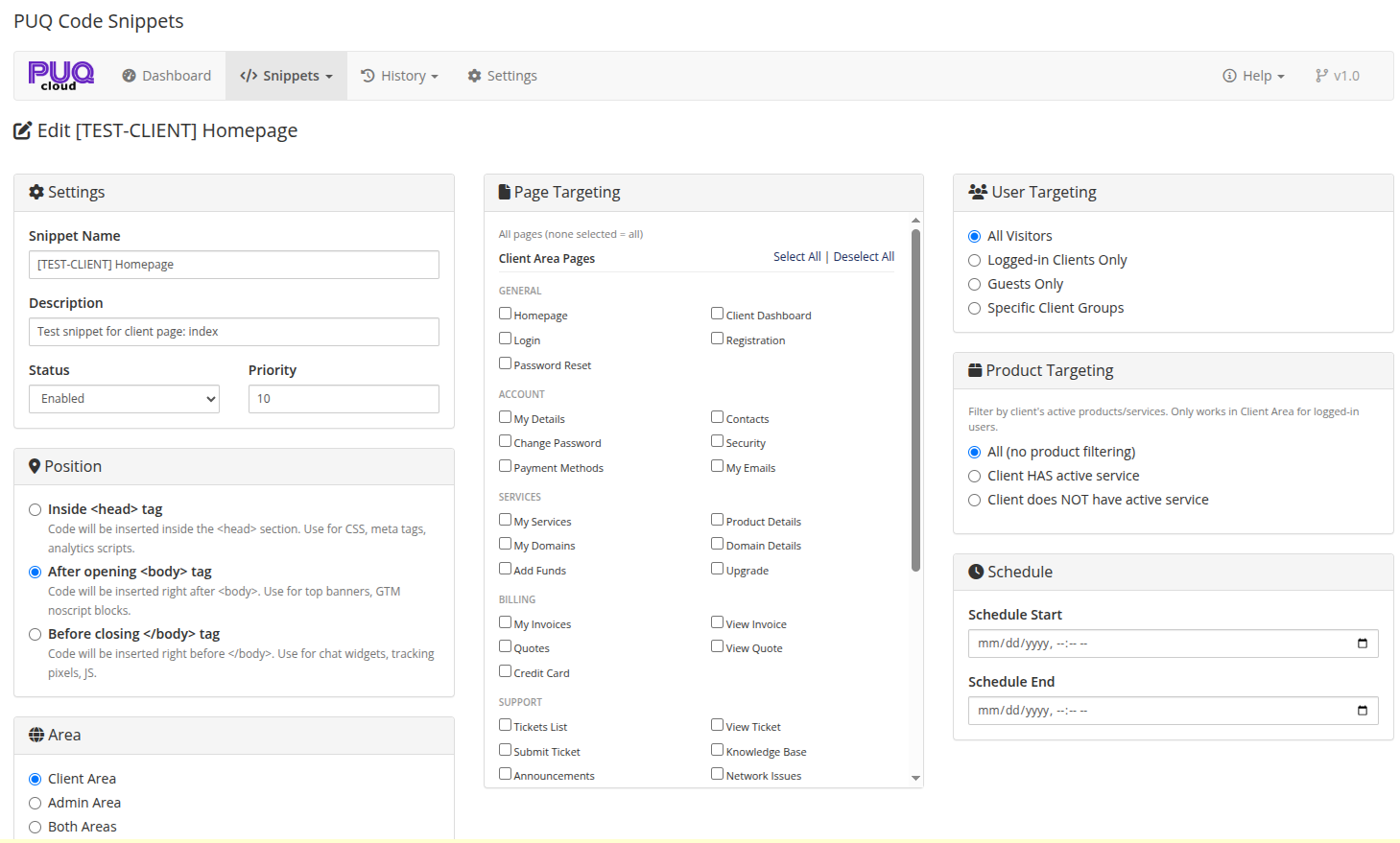
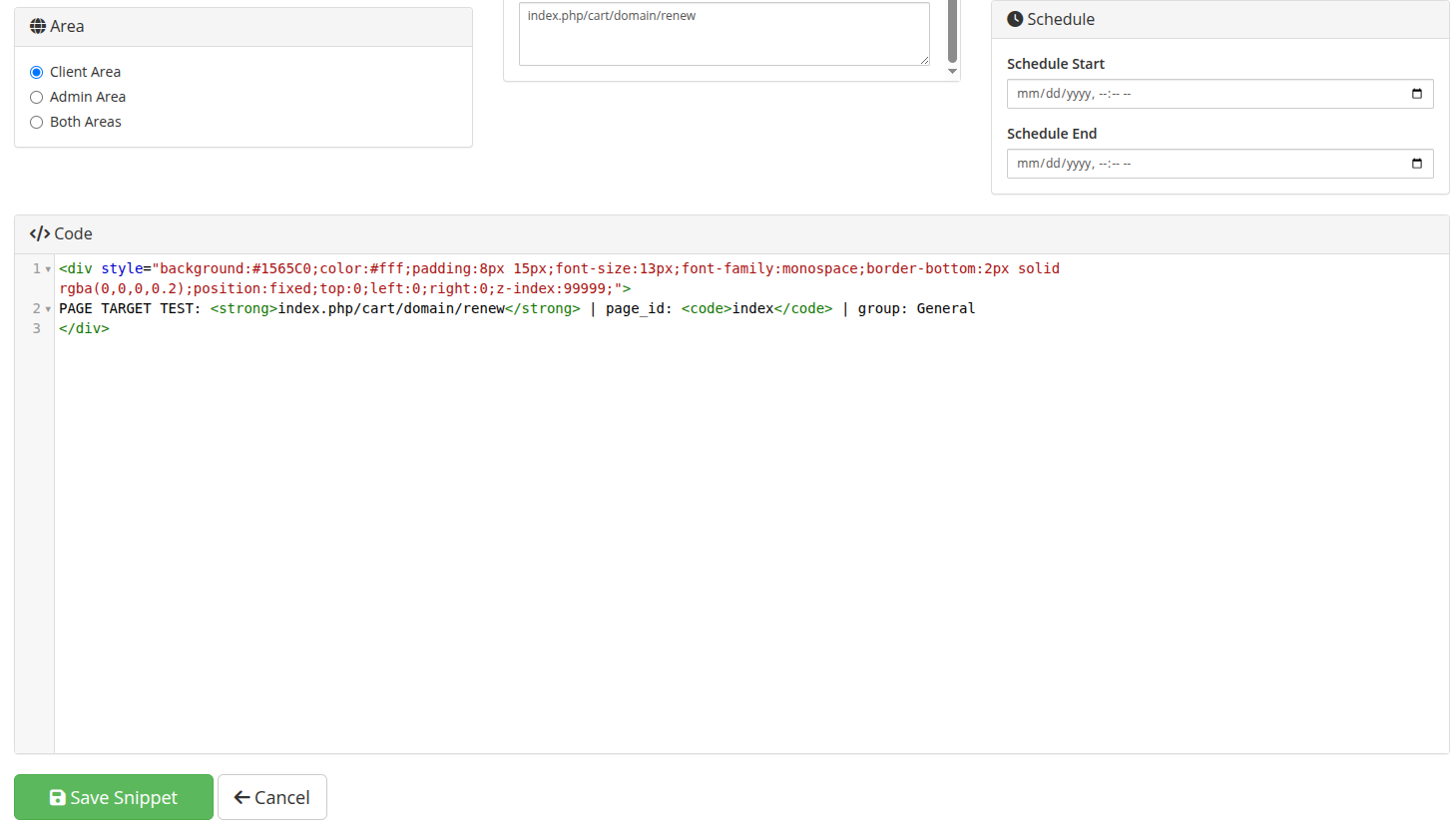
This page is where you create and edit code snippets. It provides a full-featured code editor and all targeting options in a single, organized view.
 04-snippet-editor-top.png
 05-snippet-editor-bottom.png
Page Layout
The editor is organized in three columns with the code editor below:
| Column | Sections |
|---|---|
| Left | Settings, Position, Area |
| Middle | Page Targeting |
| Right | User Targeting, Product Targeting, Schedule |
| Bottom | Code Editor (full width) |
Settings
| Field | Description |
|---|---|
| Snippet Name | A descriptive name for the snippet (required) |
| Description | Optional description for reference |
| Status | Enabled or Disabled |
| Priority | Numeric value — lower numbers are rendered first (default: 0) |
Position
Choose where the code is injected on the page:
| Position | Description | Best For |
|---|---|---|
| Inside <head> tag | Inserted inside the <head> section |
CSS, meta tags, analytics scripts, SEO tags |
| After opening <body> tag | Inserted right after <body> |
Top banners, GTM noscript blocks, cookie consent |
| Before closing </body> tag | Inserted right before </body> |
Chat widgets, tracking pixels, JavaScript |
Area
Choose which WHMCS area the snippet targets:
| Area | Description |
|---|---|
| Client Area | Only visible on client-facing pages (storefront, client portal) |
| Admin Area | Only visible in the admin panel |
| Both Areas | Visible on both client and admin pages |
When Admin Area is selected, the User Targeting and Product Targeting panels are hidden since admin users are always authenticated.
Page Targeting
By default, a snippet is rendered on all pages in the selected area. To restrict it to specific pages, check the pages you want.
Rule: None selected = all pages. Any selection = only those pages.
Client Area Pages
Organized by groups:
| Group | Pages |
|---|---|
| General | Homepage, Client Dashboard, Login, Registration, Password Reset |
| Account | My Details, Contacts, Change Password, Security, Payment Methods, My Emails |
| Services | My Services, Product Details, My Domains, Domain Details, Add Funds, Upgrade |
| Billing | My Invoices, View Invoice, Quotes, View Quote, Credit Card |
| Support | Tickets List, View Ticket, Submit Ticket, Knowledge Base, Announcements, Network Issues |
| Shopping | Cart / Order Form, Cart Checkout, Cart Addons, Domain Checker |
| Other | Contact Us, Server Status, Downloads, Affiliates, Mass Domain Mgmt |
Admin Area Pages
Organized by groups:
| Group | Pages |
|---|---|
| Dashboard | Dashboard, Search, System Health |
| Clients | Clients List, Client Summary, Client Profile, Client Contacts, Client (route) |
| Client Management | Products/Services, Domains, Client Invoices, Client Credits, Client Emails, Client Notes, Activity Log, Billable Items, Client Quotes, Client Transactions |
| Billing | Orders, Invoices, Transactions, Quotes, Billable Items, Billing (route) |
| Support | Support Tickets, View Ticket, Predefined Replies, Escalations |
| Setup / Config | General Settings, Products Setup, Addon Modules, Administrators, Servers, Registrars, Automation, Payment Gateways, Setup (route) |
| Utilities / Logs | Utilities, Module Log, Logs (route) |
Use the Select All / Deselect All links at the top of each section to quickly check or uncheck all pages.
Custom URL Patterns
For pages not covered by the checkboxes, use the Custom URL Patterns textarea at the bottom of the Page Targeting panel.
Enter one pattern per line. The snippet fires if the request URL contains the pattern string.
Examples:
/billing/invoice
configauto.php
/client/1/tickets
/store/web-hosting
This works for both Client Area and Admin Area URLs, including WHMCS friendly URLs and admin route-based URLs.
User Targeting
Control who sees the snippet (only visible when area is Client Area or Both):
| Option | Description |
|---|---|
| All Visitors | Everyone — logged-in clients and guests |
| Logged-in Clients Only | Only authenticated clients |
| Guests Only | Only unauthenticated visitors |
| Specific Client Groups | Only clients belonging to selected WHMCS client groups |
When Specific Client Groups is selected, a multi-select dropdown appears with all client groups from WHMCS. Hold Ctrl/Cmd to select multiple groups.
Product Targeting
Show or hide the snippet based on the client's active products/services (only visible when area is Client Area or Both):
| Option | Description |
|---|---|
| All (no product filtering) | No product-based filtering applied |
| Client HAS active service | Show only to clients who have an active or suspended service for the selected products |
| Client does NOT have active service | Show only to clients who do NOT have the selected products |
When a product filter is selected, a multi-select dropdown appears with all products from WHMCS, organized by product group.
Note: Product targeting only works for logged-in clients in the Client Area. Guests are treated as "not having" any product.
Schedule
Set a time range for the snippet to be active:
| Field | Description |
|---|---|
| Schedule Start | The snippet will not render before this date/time |
| Schedule End | The snippet will stop rendering after this date/time |
Leave both fields empty for the snippet to be active at all times (as long as its status is Enabled).
Use cases:
Code Editor
The code editor uses CodeMirror 5 with full HTML/CSS/JavaScript support.
Editor Features
- Syntax highlighting for HTML, CSS, and JavaScript (htmlmixed mode)
- Line numbers for easy reference
- Code folding — collapse/expand HTML tags and code blocks
- Auto-close tags — automatically closes HTML tags
-
Auto-close brackets — automatically closes
(),[],{} - Tag matching — highlights matching opening/closing tags
- Search & replace — press Ctrl+F to search, Ctrl+H to replace
- Selection highlighting — highlights all occurrences of the selected text
- Configurable theme — change the editor theme in Settings
What Code Can You Inject?
You can inject any valid HTML, including:
<!-- CSS styles -->
<style>
  .my-banner { background: #ff6600; color: white; padding: 10px; text-align: center; }
</style>

<!-- HTML content -->
<div class="my-banner">Special offer! Use code SAVE20 for 20% off.</div>

<!-- JavaScript -->
<script>
  console.log('Snippet loaded!');
</script>

<!-- External scripts -->
<script src="https://example.com/widget.js" async></script>

<!-- Meta tags (for head position) -->
<meta name="description" content="My WHMCS site">
Warning: Be careful with the code you inject. Malicious or broken code can break your WHMCS pages. Always test snippets in a development environment first. Use the kill switch if something goes wrong.