 Skip to main content
Product Configuration
Mikrotik WireGuard VPN module WHMCS
Order now | Download | Community
Add new product to WHMCS
- Log in to your WHMCS Admin Area.
- Navigate to System Settings → Products/Services → Create a New Product.
- Fill in the product details (name, description, pricing).
- Go to the Module Settings tab.
- Select PUQ Mikrotik WireGuard VPN from the Module Name dropdown.
- Enter your License key in the corresponding field.
- Configure the remaining module parameters.
- Click Save Changes.
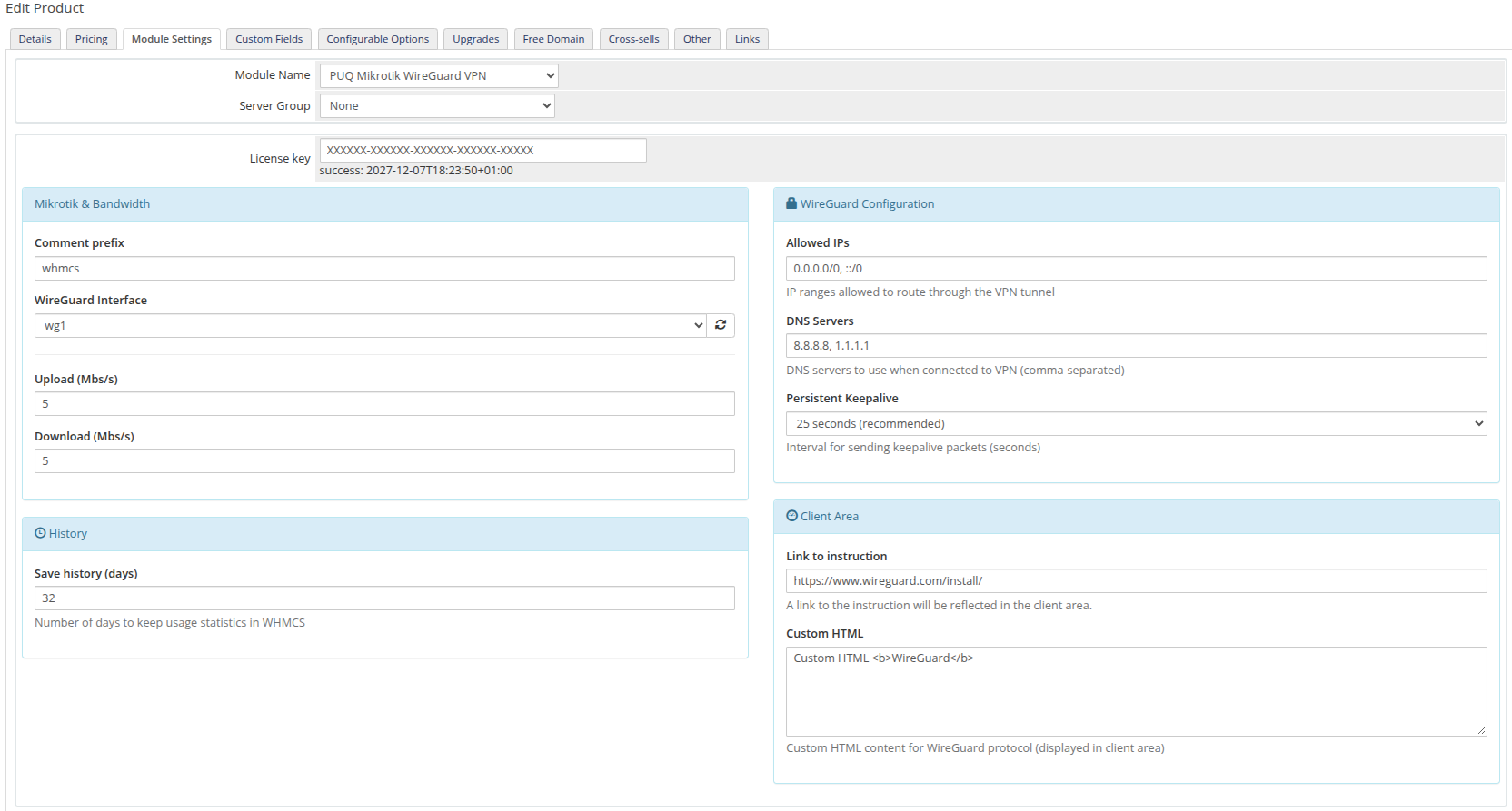 product-configuration.png
Configuration parameters
| Parameter | Description | Default |
|---|---|---|
| License key | Pre-purchased license key for the module. | |
| WireGuard Interface | Name of the WireGuard interface on the Mikrotik router (must be pre-created) | wg1 |
| Comment prefix | Prefix added to VPN peer and queue comments on Mikrotik | whmcs |
| Upload (Mbs/s) | Upload bandwidth speed limit in Mbps | 5 |
| Download (Mbs/s) | Download bandwidth speed limit in Mbps | 5 |
| Allowed IPs | IP ranges allowed to route through the VPN tunnel | 0.0.0.0/0, ::/0 |
| DNS Servers | DNS servers to use when connected to VPN (comma-separated) | 8.8.8.8, 1.1.1.1 |
| Persistent Keepalive | Interval for sending keepalive packets (seconds) | 25 seconds |
| Disable statistics collection | When enabled, traffic statistics will not be collected and the statistics page will be hidden from the client area | Unchecked |
| Save history (days) | Number of days to keep usage statistics in WHMCS (minimum 32 days) | 32 |
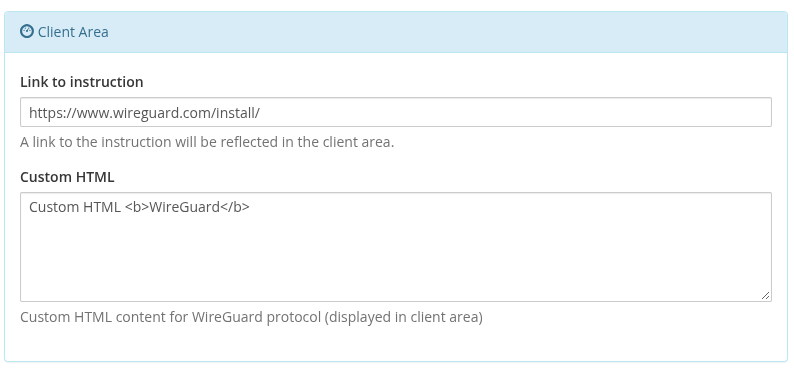
| Link to instruction | URL to setup instructions (displayed in client area as "User manual" button) | Empty |
| Custom HTML | Custom HTML content for WireGuard protocol (displayed in client area) | Empty |
Allowed IPs examples:
-
0.0.0.0/0, ::/0— route all IPv4 and IPv6 traffic through VPN (full tunnel) -
10.0.0.0/8, 192.168.0.0/16— route only specific networks (split tunnel)
Recommended: Set "Link to instruction" to https://www.wireguard.com/install/ — the official WireGuard client downloads page.
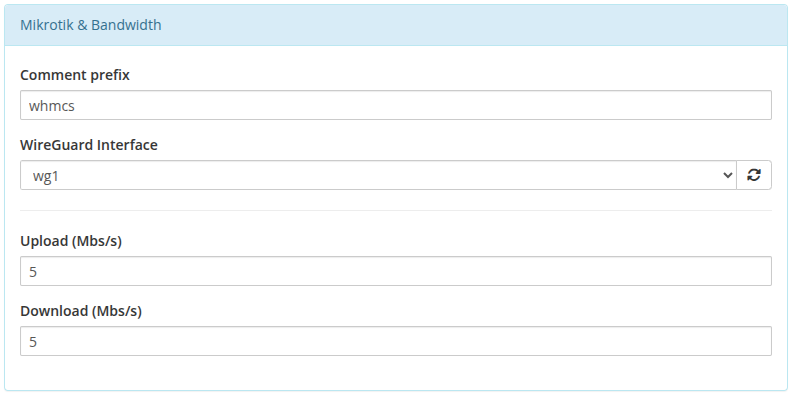 product-config-mikrotik-bandwidth.png
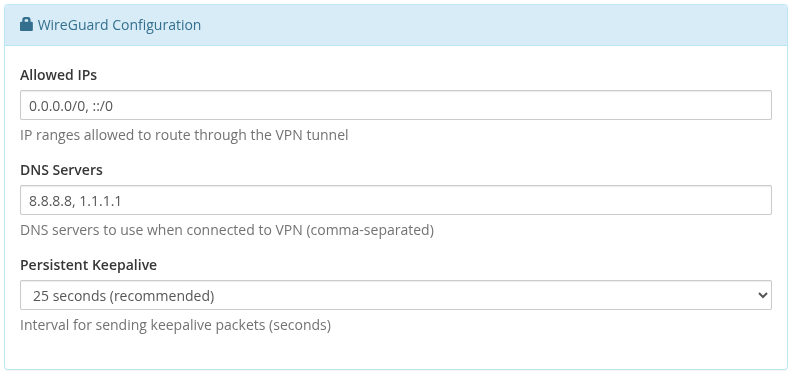 product-config-wireguard.png
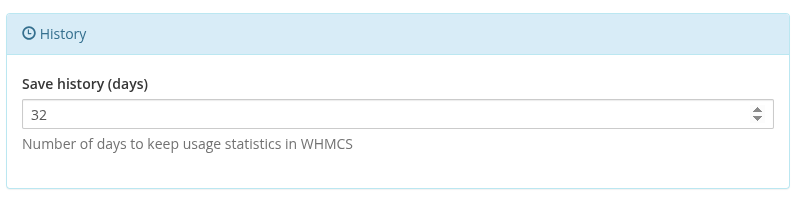 product-config-history.png
 product-config-client-area.png
Metric Billing
The module supports usage-based billing through WHMCS Metric Billing. Two metrics are available:
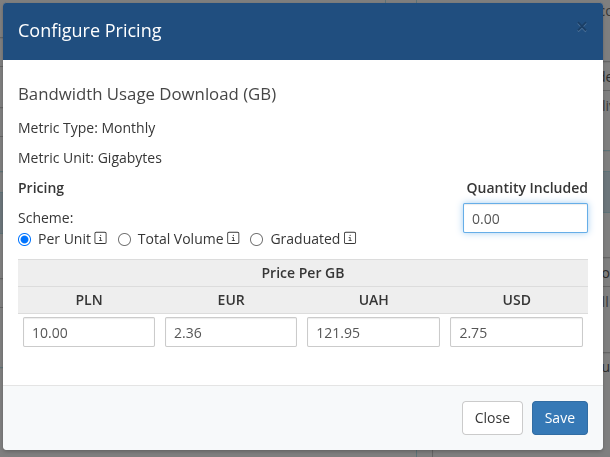
- Bandwidth Usage Download (GB) — monthly download traffic in gigabytes
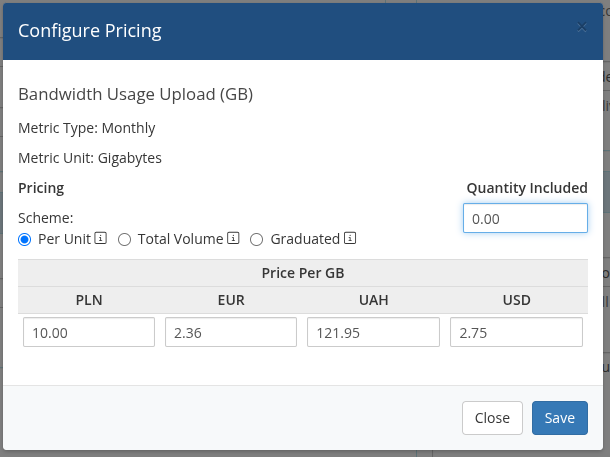
- Bandwidth Usage Upload (GB) — monthly upload traffic in gigabytes
To enable metric billing, go to the product's Metric Billing section and toggle the desired metrics ON, then click Configure Pricing to set the per-GB price.
 metric-billing.png
 metric-billing-download.png
 metric-billing-upload.png