 Skip to main content
Home screen
Nextcloud module WHMCS
Order now | Download | Community
Client area home screen
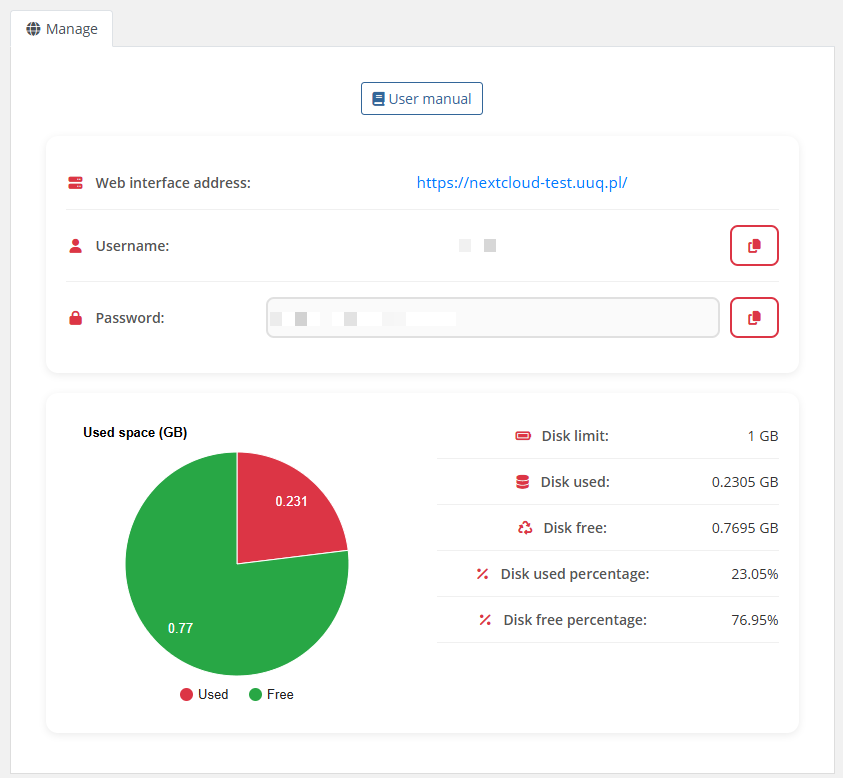
The end customer, after logging in to the client panel, sees the service management page with the following sections:
Service information
- User manual — a button linking to the instruction URL (only displayed if configured by the administrator in product settings, "Link to instruction" field)
- Web interface address — clickable link to the Nextcloud server (automatically handles HTTPS/HTTP and non-standard ports)
- Username — the Nextcloud username with a copy-to-clipboard button
-
Password — displayed according to the "Show password" product setting:
- Show button — password is hidden by default, revealed when the user clicks the show button; copy-to-clipboard button is always available
- Plain text — password is always visible in plain text; copy-to-clipboard button available
- No — password is completely hidden with no option to reveal
Disk usage
- Pie chart — visual representation of used vs. free disk space (powered by Google Charts)
-
Data table with the following fields:
- Disk limit (displays "Unlimited" if quota is set to 0)
- Disk used
- Disk free
- Disk used percentage
- Disk free percentage
Sidebar navigation
The client area sidebar contains two menu items:
- Information — the main service details page (described above)
- Used space statistics — historical disk usage charts (see Disk statistics page)
Note: If the service status is not Active or if the Nextcloud user cannot be found, an error page is displayed instead.
Screenshot
 10-home-screen.png