 Skip to main content
Primary Navbar
Menu Manager addon WHMCS
Order now | Download | FAQ
Overview
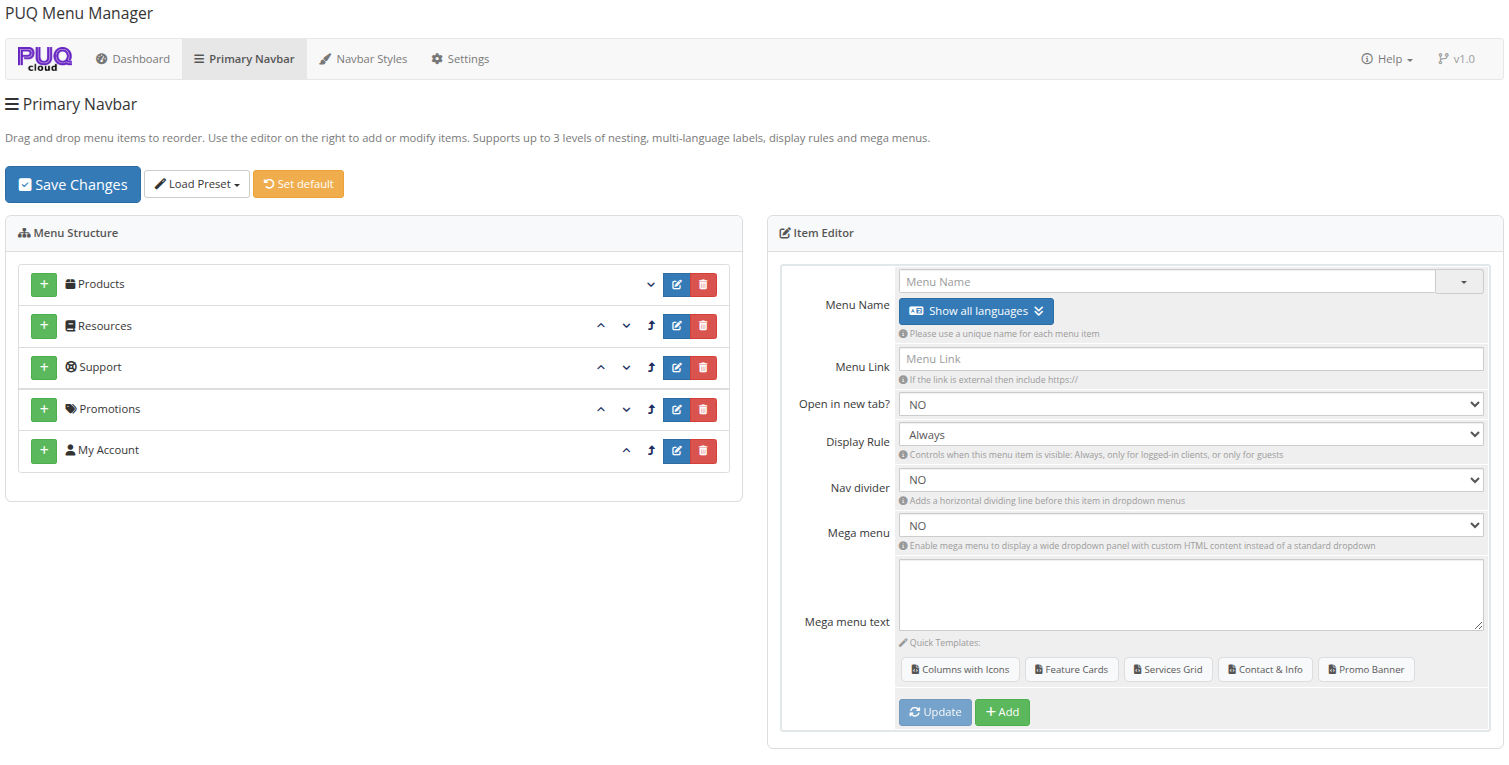 Primary Navbar editor — drag-and-drop menu structure on the left, item editor on the right
Action Buttons
At the top of the page, three action buttons are available:
| Button | Description |
|---|---|
| Save Changes | Saves the current menu structure to the database and applies it to the client area |
| Load Preset | Opens a dropdown with 5 ready-to-use menu presets |
| Set Default | Resets the menu to the original WHMCS default Primary Navbar |
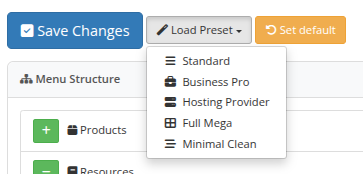 Load Preset dropdown — choose from Standard, Business Pro, Hosting Provider, Full Mega, or Minimal Clean
Menu Structure
The left panel shows the current menu tree. Items can be:
- Dragged and dropped to reorder or change nesting level
- Nested up to 3 levels deep (parent > child > grandchild)
- Expanded/collapsed using the +/- buttons
- Moved up and down using the arrow buttons
- Edited by clicking the edit (pencil) button
- Deleted by clicking the delete (trash) button
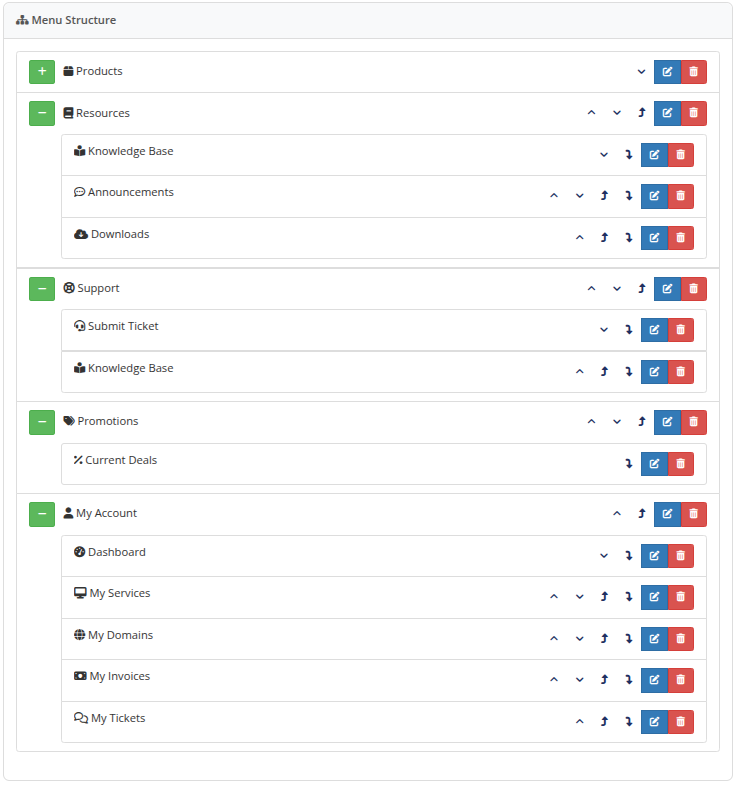 Menu Structure — example with Products, Resources, Support, Promotions, and My Account items with nested children
Item Editor
The right panel contains the form for adding and editing menu items.
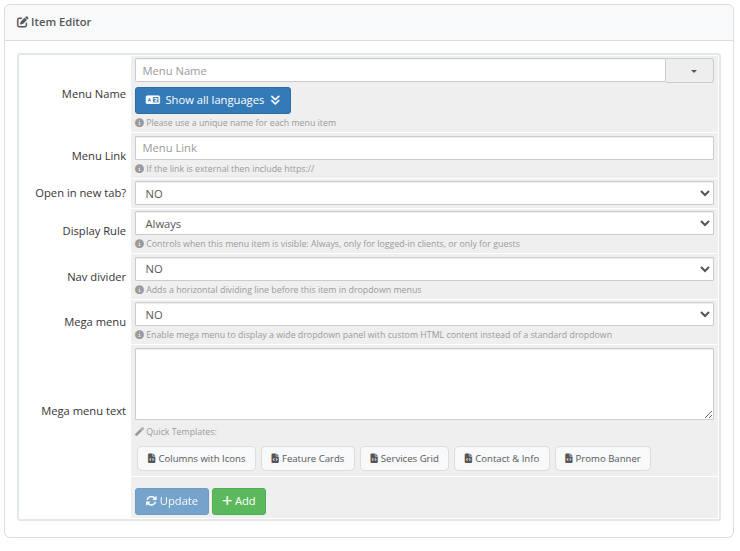 Item Editor — configure menu name, link, target, display rule, divider, and mega menu settings
Fields
| Field | Description |
|---|---|
| Menu Name | The display text for the menu item. Must be unique. Includes an icon picker button for selecting a Font Awesome 5 icon. |
| Menu Link | The URL for the menu item. Use relative paths for internal pages (e.g., cart.php) or full URLs with https:// for external links. |
| Open in new tab? | Whether the link opens in a new browser tab (_blank) or the same tab (_self). |
| Display Rule | Controls when the menu item is visible: Always (all visitors), Existing Client (logged-in clients only), or Guest Client (guests only). |
| Nav divider | Adds a horizontal dividing line before this item in dropdown menus. |
| Mega menu | Enables mega menu mode — displays a wide dropdown panel with custom HTML content instead of a standard dropdown. |
| Mega menu text | The HTML content for the mega menu panel. Supports any valid HTML including columns, images, links, and styled content. |
Buttons
| Button | Description |
|---|---|
| Update | Updates the currently selected menu item with the form values (enabled only when an item is selected for editing) |
| Add | Adds a new menu item using the current form values |
Multi-Language Labels
Click the Show all languages button below the Menu Name field to expand the translations panel. You can enter a translated menu name for each of the 27 supported languages.
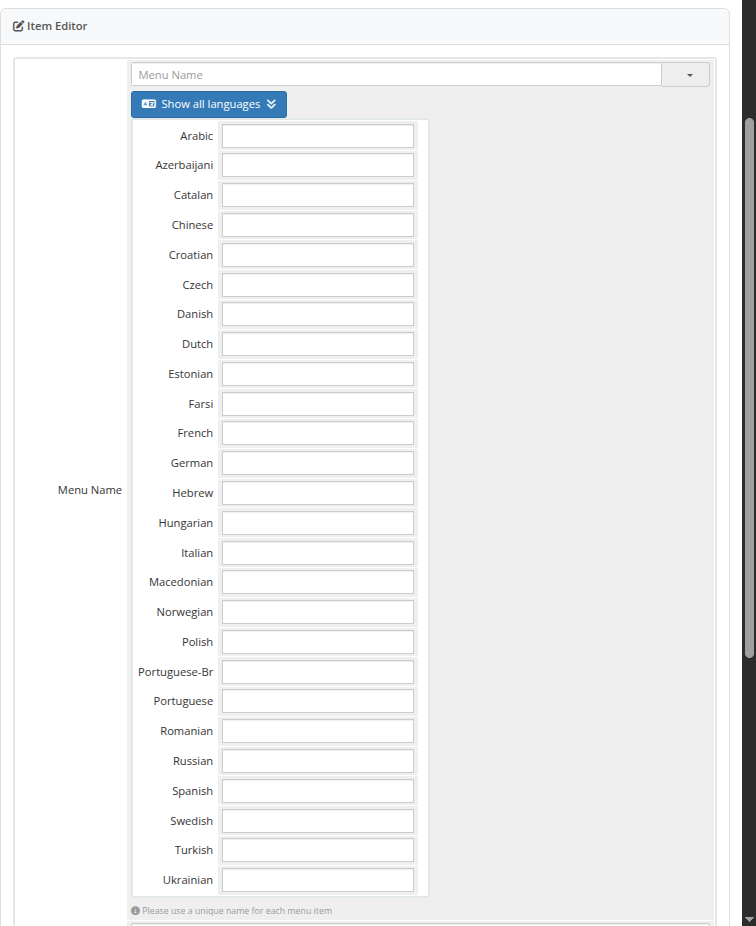 Multi-language labels — enter translated menu names for Arabic, Azerbaijani, Catalan, Chinese, Croatian, Czech, Danish, Dutch, Estonian, Farsi, French, German, Hebrew, Hungarian, Italian, Macedonian, Norwegian, Polish, Portuguese-BR, Portuguese, Romanian, Russian, Spanish, Swedish, Turkish, and Ukrainian
When a client visits the client area with a specific language selected, the matching translated label is displayed instead of the default Menu Name.
Mega Menu Templates
| Template | Description |
|---|---|
| Columns with Icons | Multi-column layout with Font Awesome icons and grouped links |
| Feature Cards | Card-based layout for highlighting features or services |
| Services Grid | Grid layout for displaying service categories |
| Contact & Info | Contact information panel with phone, email, and quick action buttons |
| Promo Banner | Promotional banner with call-to-action |
Click any template button to insert its HTML into the Mega menu text field. You can then customize the content as needed.
Menu Presets
The Load Preset dropdown provides 5 ready-to-use menu configurations:
| Preset | Description |
|---|---|
| Standard | Default WHMCS menu structure with Products, Resources, Support, Promotions, and My Account |
| Business Pro | Professional business-oriented menu with enhanced navigation |
| Hosting Provider | Optimized for web hosting companies with hosting-specific menu items |
| Full Mega | Menu with mega menu panels enabled for rich dropdown content |
| Minimal Clean | Simplified, minimalist menu with essential items only |
Note: Loading a preset replaces the current menu structure. A confirmation dialog is shown before applying. After loading a preset, the page reloads to reflect the changes.