 Skip to main content
Initial Setup and Access Control
Product Analytics addon WHMCS
Order now | Download | Community
After uploading the module files, you need to activate the module and configure roles and permissions inside WHMCS.
1. Activate the Addon
- Log in to your WHMCS admin area.
- Navigate to System Settings > Addon Modules (or Setup > Addon Modules in older versions).
- Find PUQ Product Analytics in the list.
- Click Activate.
2. Configure Settings & Permissions
- Click Configure next to PUQ Product Analytics.
- Enter your license key in the License key field.
- In Access Control, check the administrator role groups that are allowed to access and view the analytics (e.g., Full Administrator, Sales Operator, Support Operator, test).
- Click Save Changes.
3. Verify Activation
Once settings are saved, the license validation status will display directly below the license key field:
-
Success status (e.g.,
success: 2027-02-15T19:41:07+01:00) indicates that the module successfully validated its license and is ready.
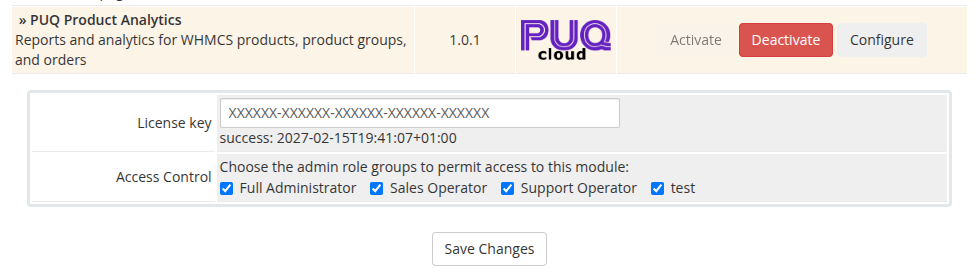 01-addon-config-license.png