 Skip to main content
Home screen
Support by Time module WHMCS
Order now | Download | Community
Client area home screen
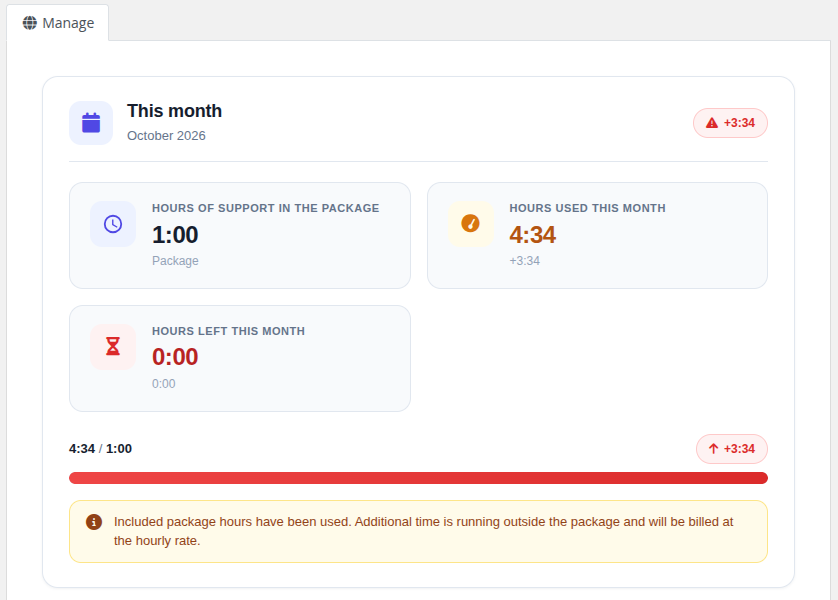
After logging in to the client area and opening their support service, the customer sees a modern card-based layout with the following sections.
 09-client-home.png
This month / Support package
A summary of the current period as three stat cards:
- Hours of support in the package — the hour allocation included in the product
- Hours used this month (or Hours used for One Time) — total hours logged in the current month / bucket
- Hours left this month (or Hours left) — remaining hours in the allocation
A progress bar shows the percentage of the allocation that has been consumed (it turns amber as the package fills and red at 100%).
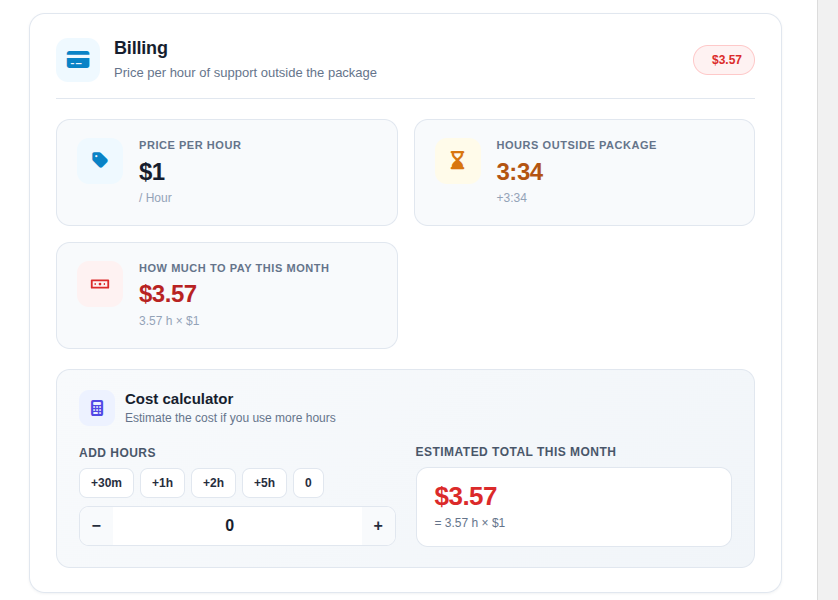
Billing (recurring billing cycle only)
- Price per hour — hourly rate charged for overage hours, in the client's currency
- Hours outside package — hours that have already exceeded the included allocation
-
How much to pay this month — running total of overage cost (
hours outside package × price per hour)
Cost calculator
An interactive predictor: the client enters a number of additional hours (or uses quick preset buttons +30m, +1h, +2h, +5h) and instantly sees the estimated total for the month, with the underlying overage hours × rate calculation shown beneath it.
 09b-client-billing.png
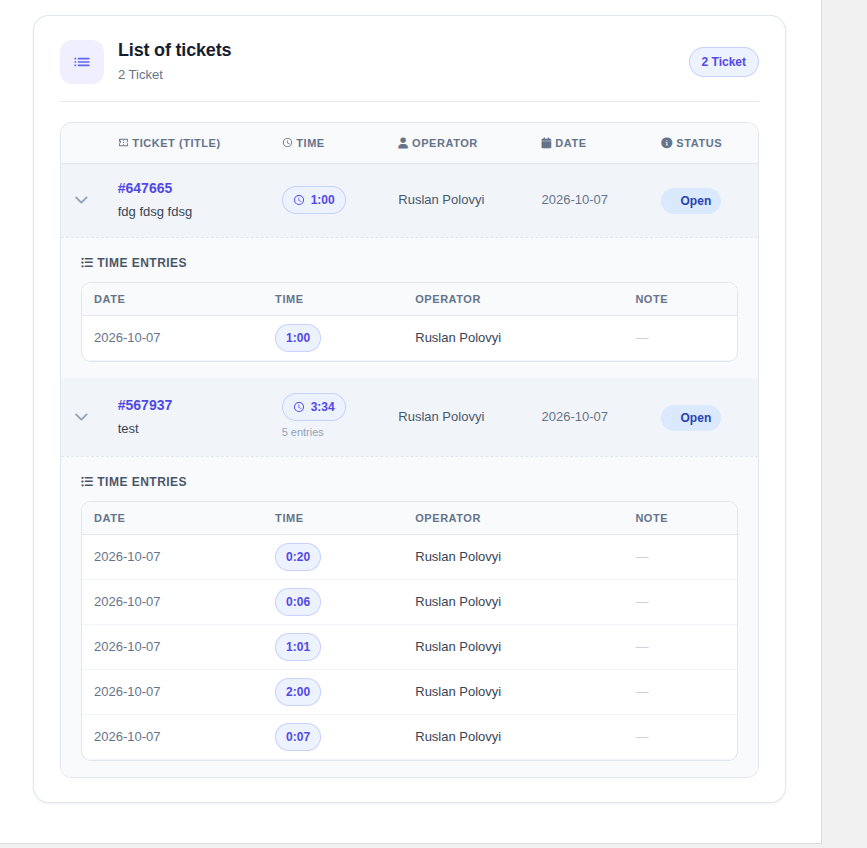
List of tickets
A table with all tickets that have time logged in the current period:
- Ticket number and title (clickable, opens the ticket), with the number of time entries
- Total time spent (human-readable)
- Operator and Note — shown only when Show work log to client is enabled for the product
- Date of the most recent entry
- A status badge (Open / Billed / Paid / Unpaid)
Each ticket row can be expanded to reveal its individual time entries (date, time, operator, note):
 10-client-home-entries.png
Sidebar navigation
The client area sidebar contains two menu items:
- Information — the home screen described above
- History — per-month history view (only for recurring billing cycles, see History)
Note: For One Time services, only the Information tab is shown — there is no per-month history because the service uses a single bucket of hours.