 Skip to main content
Setup guide: WHMCS setup
Mikrotik VPN module WHMCS
Order now | Download | FAQ
System requirements
| Requirement | Minimum version |
|---|---|
| PHP | 8.2 or higher |
| WHMCS | 9.x or higher |
| Mikrotik RouterOS | 7.x or higher |
| ionCube Loader | v13 or newer (v14, v15) |
Note: The module uses ionCube encoding. Make sure ionCube Loader is installed and active on your server.
Older module versions for WHMCS 8 are available in PHP-specific directories:
Step 1: Download the module
wget https://download.puqcloud.com/WHMCS/servers/PUQ_WHMCS-Mikrotik-VPN/php82/PUQ_WHMCS-Mikrotik-VPN-latest.zip
Step 2: Extract the archive
unzip PUQ_WHMCS-Mikrotik-VPN-latest.zip
Step 3: Copy module files
Copy the puqMikrotikVPN directory to:
WHMCS_WEB_DIR/modules/servers/
Step 4: Add server in WHMCS
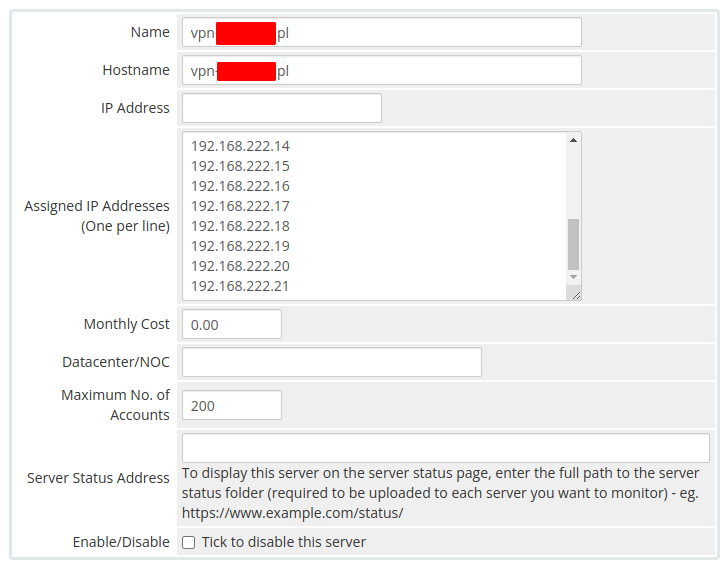
- Enter the correct Name and Hostname
- In Assigned IP Addresses, enter the list of IPs that will be distributed to users
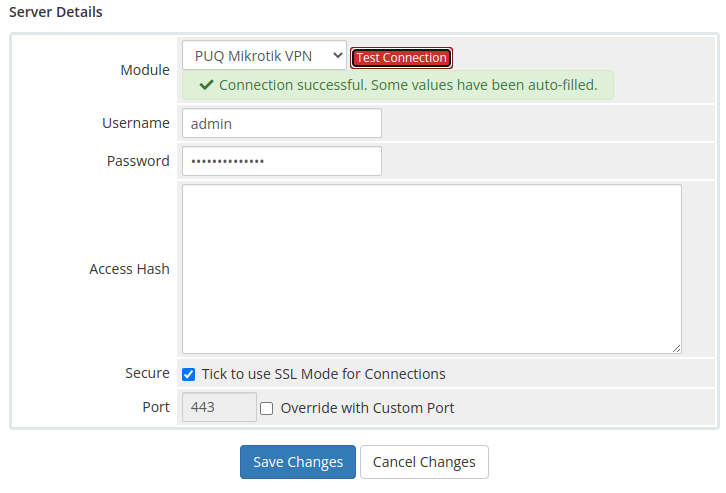
- In the Server Details section, select the PUQ Mikrotik VPN module
- Enter valid Mikrotik router credentials (username and password)
- Click Test connection to verify the connection
 04-add-server-1.png
 05-add-server-2.png
Step 5: Create product in WHMCS
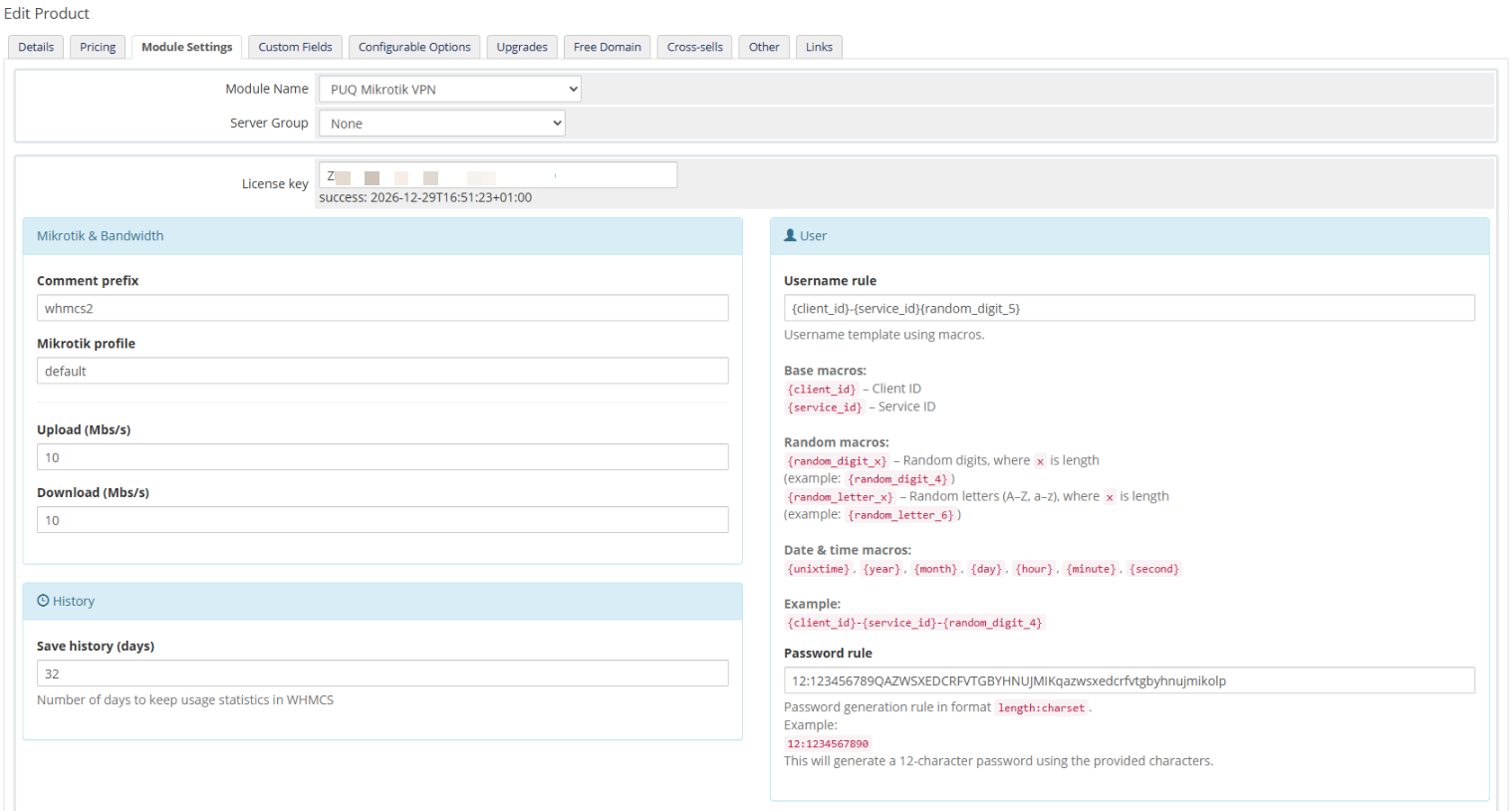
Select the PUQ Mikrotik VPN module in the Module settings section.
 06-whmcs-setup.png