 Skip to main content
How to collect logs (WHMCS + Proxmox)
If you are experiencing any provisioning/deployment error and the deployment does not complete successfully, please collect the logs using this guide.
0) Disable WHMCS cron temporarily (so you have full control)
Provisioning tasks are executed via cron. For troubleshooting, please temporarily disable the WHMCS cron job in the system cron so it does not re-run automatically while you are testing.
1) Run WHMCS cron manually (required for controlled diagnostics)
Run the cron manually and capture the full output.
Command
Replace /WHMCS_DIR with the real path to your WHMCS installation:
/usr/bin/php -q /WHMCS_DIR/crons/cron.phpRecommended: save output to a file
/usr/bin/php -q /WHMCS_DIR/crons/cron.php | tee /root/whmcs-cron-debug.logWhat you should see
You should get step-by-step provisioning output similar to:
VM_id: XXX
Service_id: XXX
User_id: XXX
VMSetDedicatedIp: The local status should be creation
VMDeleteDNSRecords: success
VMSetDNSRecords: success
VMClone: The local status should be set_ip|clone
VMSetCpuRam: The local status should be clone
VMSetSystemDiskSize: The local status should be set_cpu_ram
VMSetSystemDiskBandwidth: The local status should be set_system_disk_size
VMSetCreatedAdditionalDisk: The local status should be set_system_disk_bandwidth
VMSetAdditionalDiskSize: The local status should be set_created_additional_disk
VMSetAdditionalDiskBandwidth: The local status should be set_additional_disk_size
VMSetNetwork: The local status should be set_additional_disk_bandwidth
VMSetFirewall: The local status should be set_network
VMSetCloudinit: HTTP/1.1 500 volume 'local:snippets/user-dnsfix.yaml' does not exist
2) WHMCS logs to provide (supporting evidence)
Even if you run cron manually, please also collect WHMCS logs for the same time window.
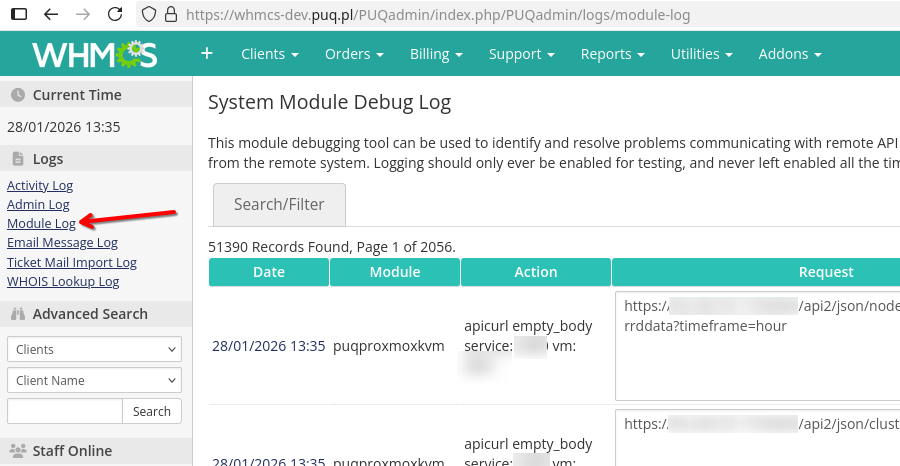
A) Module Log
WHMCS Admin → Utilities → Logs → Module Log
-
Enable it temporarily if it is disabled
-
Re-run provisioning once (or run cron manually once)
-
Copy/export the relevant entries
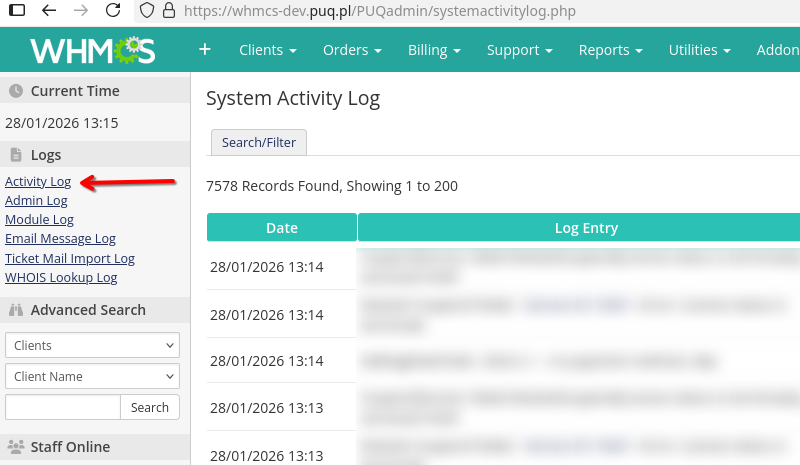
B) Activity Log
WHMCS Admin → Utilities → Logs → Activity Log
-
Filter by the same time window
-
Copy/export the relevant entries
3) Proxmox node logs
Run the commands below on the Proxmox node where provisioning fails.
Collect the last 2 hours (recommended)
journalctl -u pvedaemon -u pveproxy -u pve-firewall --since "2 hours ago" --no-pagerSave to a file (preferred)
journalctl -u pvedaemon -u pveproxy -u pve-firewall --since "2 hours ago" --no-pager > /root/pve-services.log
printf 'Saved: /root/pve-services.log
'
Filter for VMID and typical keywords
Replace <VMID> with the VM ID from the WHMCS output:
journalctl -u pvedaemon -u pveproxy -u pve-firewall --since "2 hours ago" --no-pager \
  | grep -E "<VMID>|ipset|firewall|cloudinit|snippets|user-dnsfix|error|fail"
Provide the VM firewall config file:
cat /etc/pve/firewall/<VMID>.fw4) What to send back to support
Please send:
-
Output from the cron run
-
WHMCS Module Log entries for the same attempt
-
Proxmox logs from the failing node
-
If IPSet/firewall errors exist:
cat /etc/pve/firewall/<VMID>.fw
No Comments