 Skip to main content
PDF Style
PUQ Account Statement module WHMCS
Order now | Download | Community
The PDF Style page is available at: Addons > PUQ Account Statement > Configuration > PDF Style
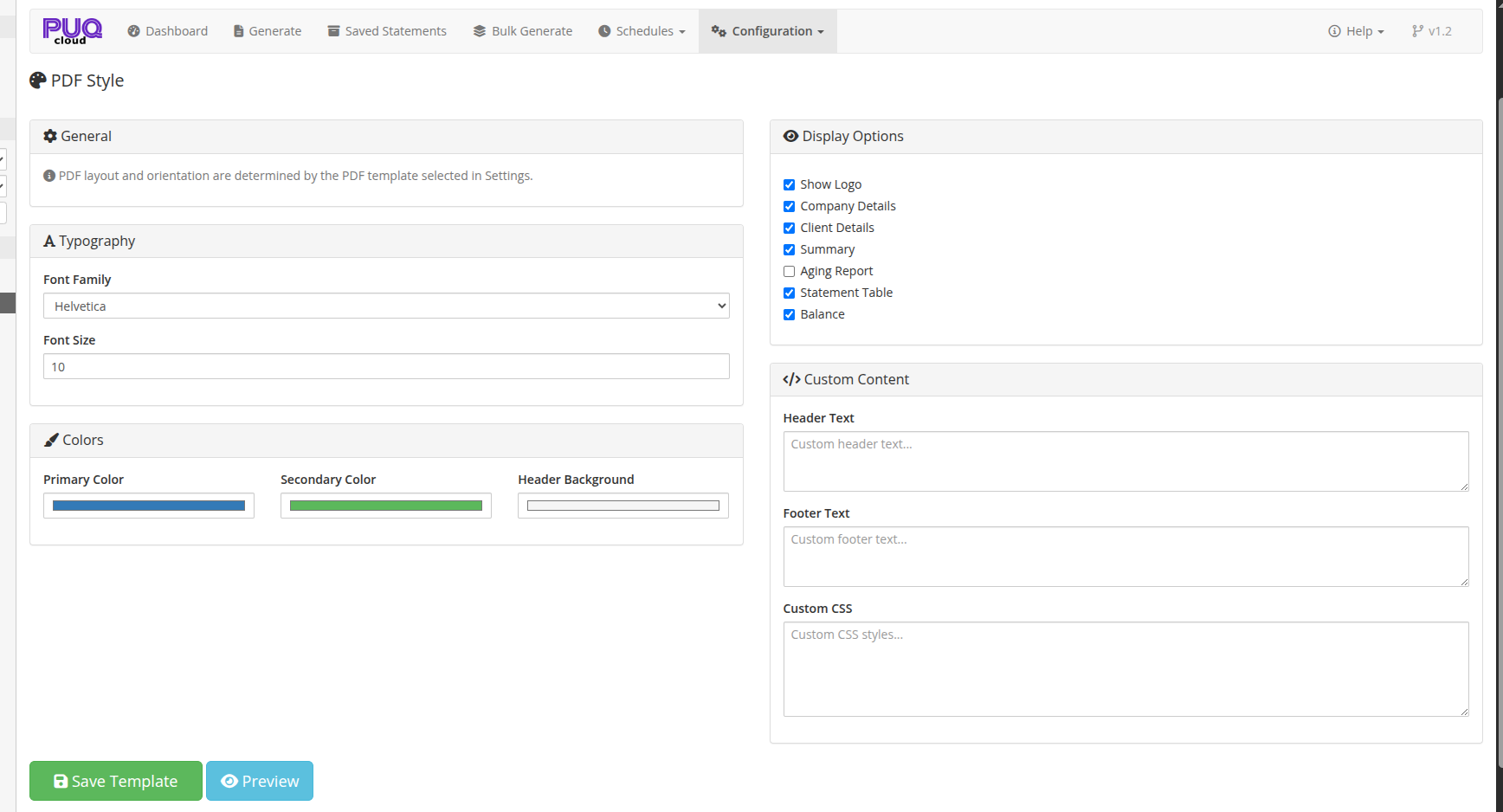
This page allows you to customize the appearance and content of generated PDF statements.
 09-pdf-style.png
General
An informational note that PDF layout and orientation are determined by the PDF template selected in the Settings page. The Style editor controls visual appearance within the selected template.
Typography
| Setting | Description |
|---|---|
| Font Family | Choose the PDF font: Helvetica, Times, Courier, DejaVu Sans, Free Serif |
| Font Size | Base font size in points (6–24, default: 10) |
Tip: Use DejaVu Sans or Free Serif for full Unicode character support (Cyrillic, Asian characters, etc.).
Colors
| Setting | Description |
|---|---|
| Primary Color | Main color used for headings, table headers, and accents (default: #337ab7) |
| Secondary Color | Secondary color for subtitles and less prominent text (default: #555555) |
| Header Background | Background color for table header rows (default: #f5f5f5) |
Display Options
Toggle which sections appear in the generated PDF:
| Option | Description |
|---|---|
| Show Logo | Display the company logo at the top of the statement |
| Company Details | Show company name, address, and contact information |
| Client Details | Show client name, address, and contact information |
| Summary | Show the financial summary section (totals for invoices, transactions, credits) |
| Aging Report | Show the aging report section for overdue invoice analysis |
| Statement Table | Show the detailed statement table with individual line items |
| Balance | Show the running balance and final balance totals |
Custom Content
| Setting | Description |
|---|---|
| Header Text | Custom text displayed at the top of the statement (below the logo/company info) |
| Footer Text | Custom text displayed at the bottom of the statement |
| Custom CSS | Additional CSS styles applied to the PDF. Use for fine-tuning fonts, spacing, borders, etc. |
Preview
Click the Preview button to generate a sample PDF with the current (unsaved) settings. This opens the PDF in a new browser tab so you can review changes before saving.
Note: The preview uses current unsaved settings, allowing you to experiment without affecting live statements.
Saving
Click Save Template to save all style settings. These settings apply globally to all PDF statements generated by the module.
PDF Template Examples
The module includes several built-in PDF templates. The template is selected in Settings > PDF Template.
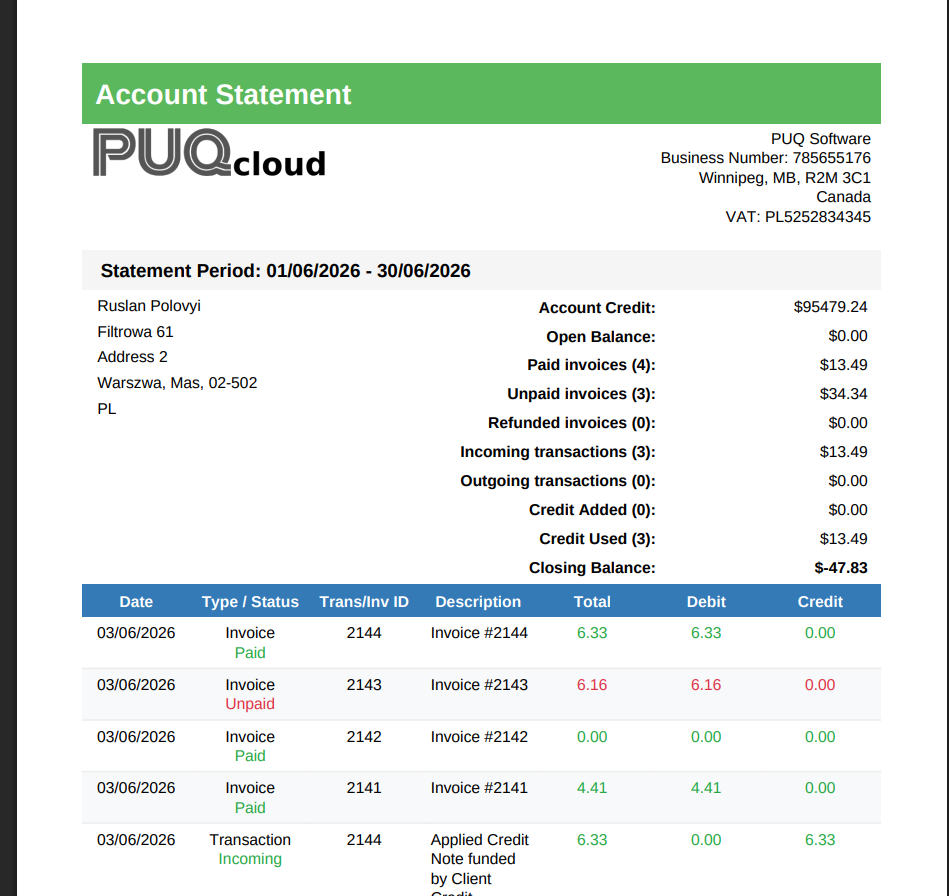
Classic (Portrait)
Traditional bank statement layout with bordered table and alternating rows.
 12-pdf-classic.png
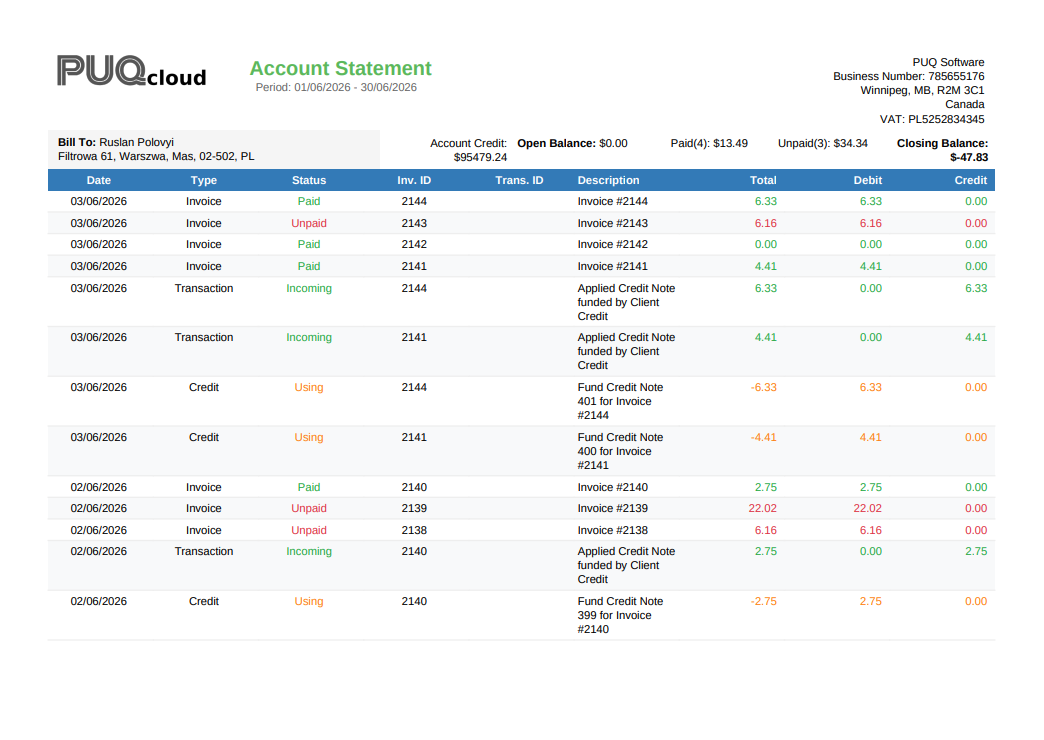
Classic (Landscape)
Same classic layout in landscape orientation, showing more columns.
 13-pdf-classic-landscape.png
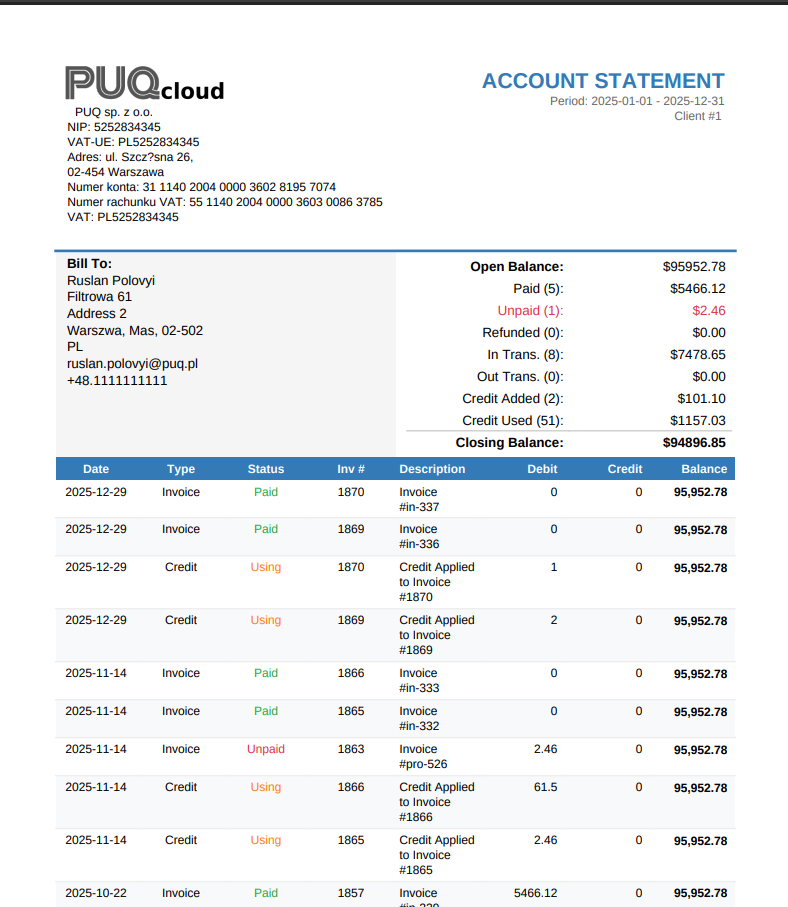
Modern (Portrait)
Clean modern design with color-coded summary cards and running balance column.
 14-pdf-modern.png
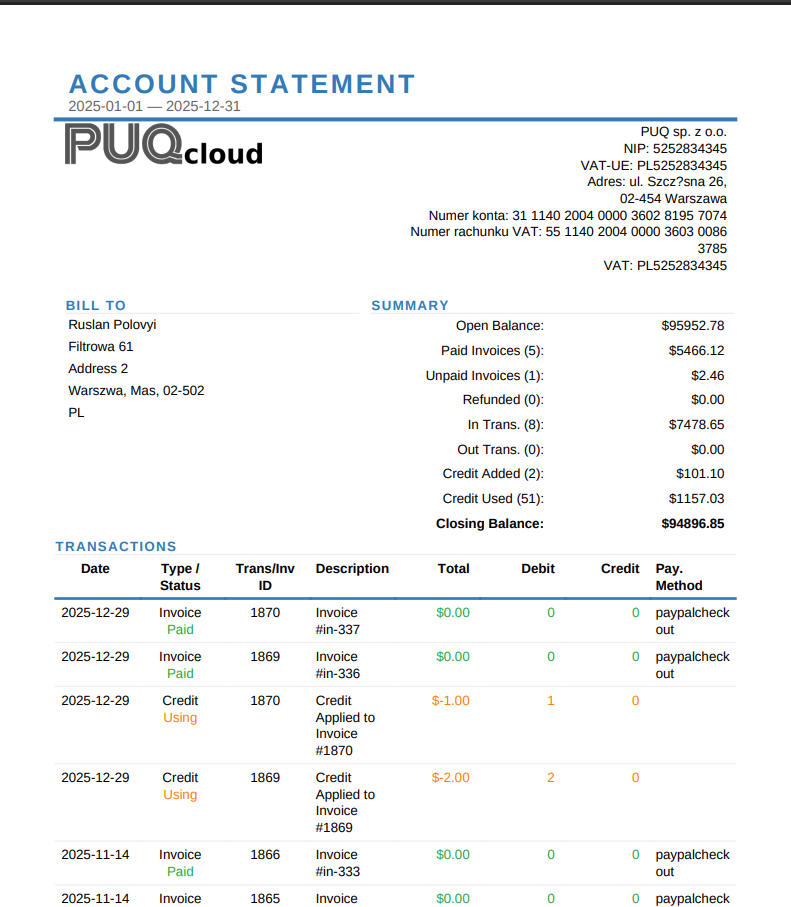
Detailed (Portrait)
Comprehensive layout with full company details, client information, and detailed transaction table.
 15-pdf-detailed.png
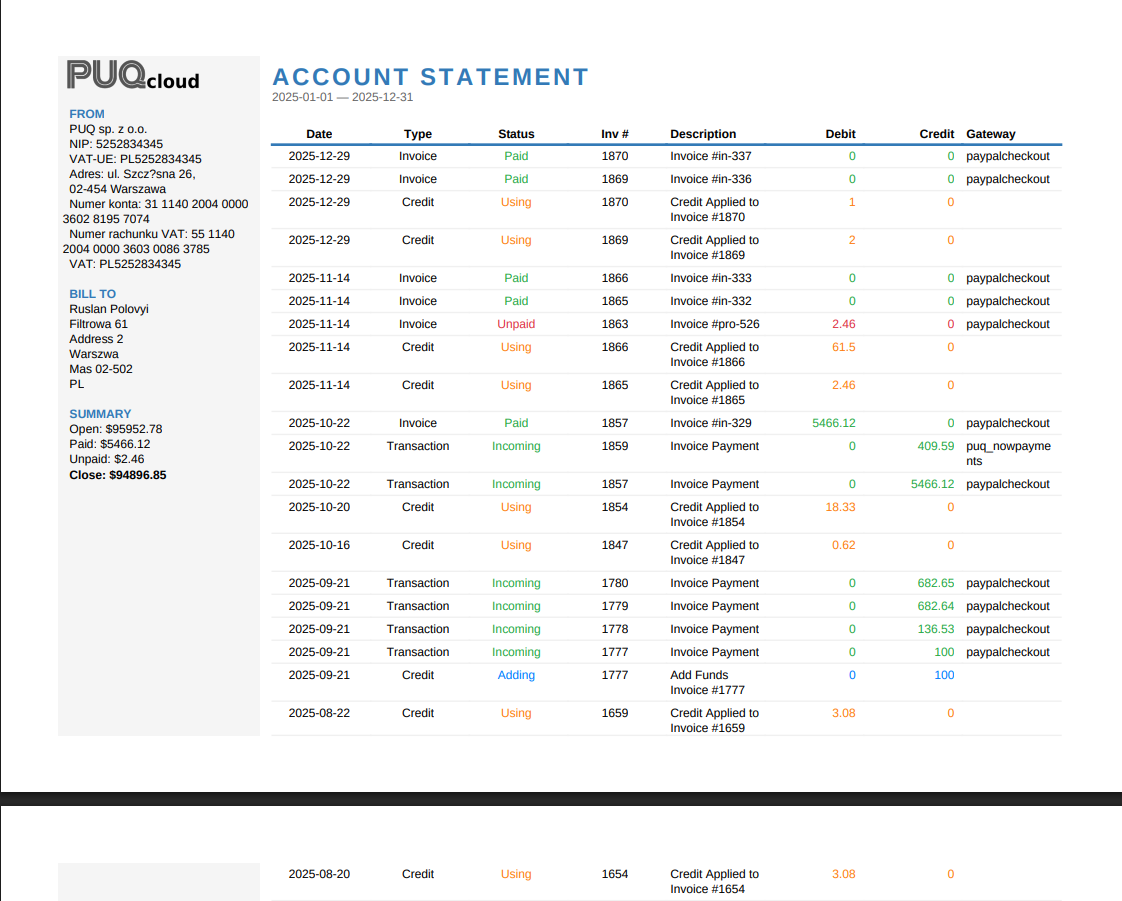
Modern (Landscape)
Modern layout in landscape orientation with expanded column space.
 16-pdf-modern-landscape.png
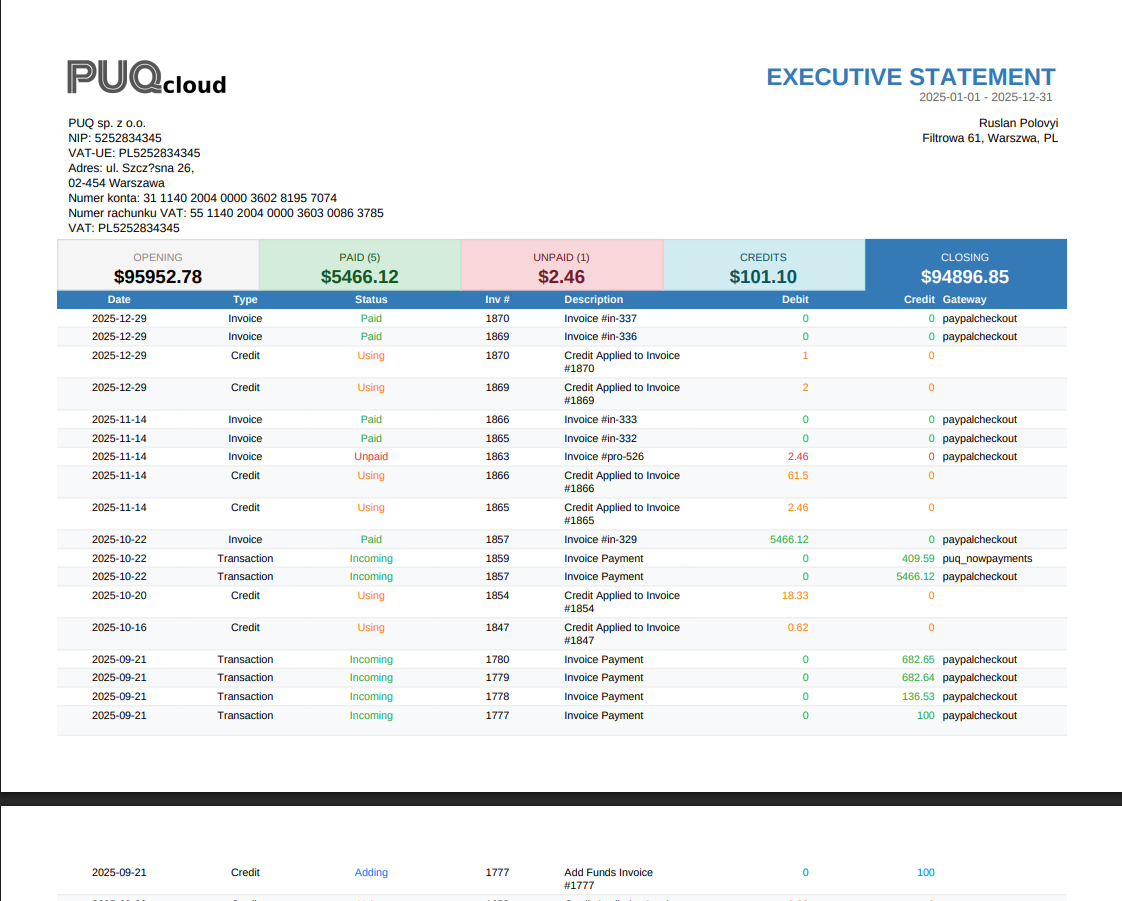
Summary (Landscape)
Executive summary format with color-coded totals and compact transaction table.
 17-pdf-summary-landscape.png
Custom PDF Templates
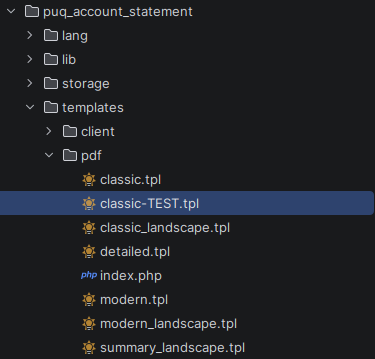
You can create custom PDF templates by adding .tpl files to the templates/pdf/ directory.
 18-pdf-templates-tree.png
Each template file must start with a PHP comment header that defines its metadata:
<?php
// Template: My Custom Template
// Orientation: P
// Paper: A4
// Description: My custom statement layout
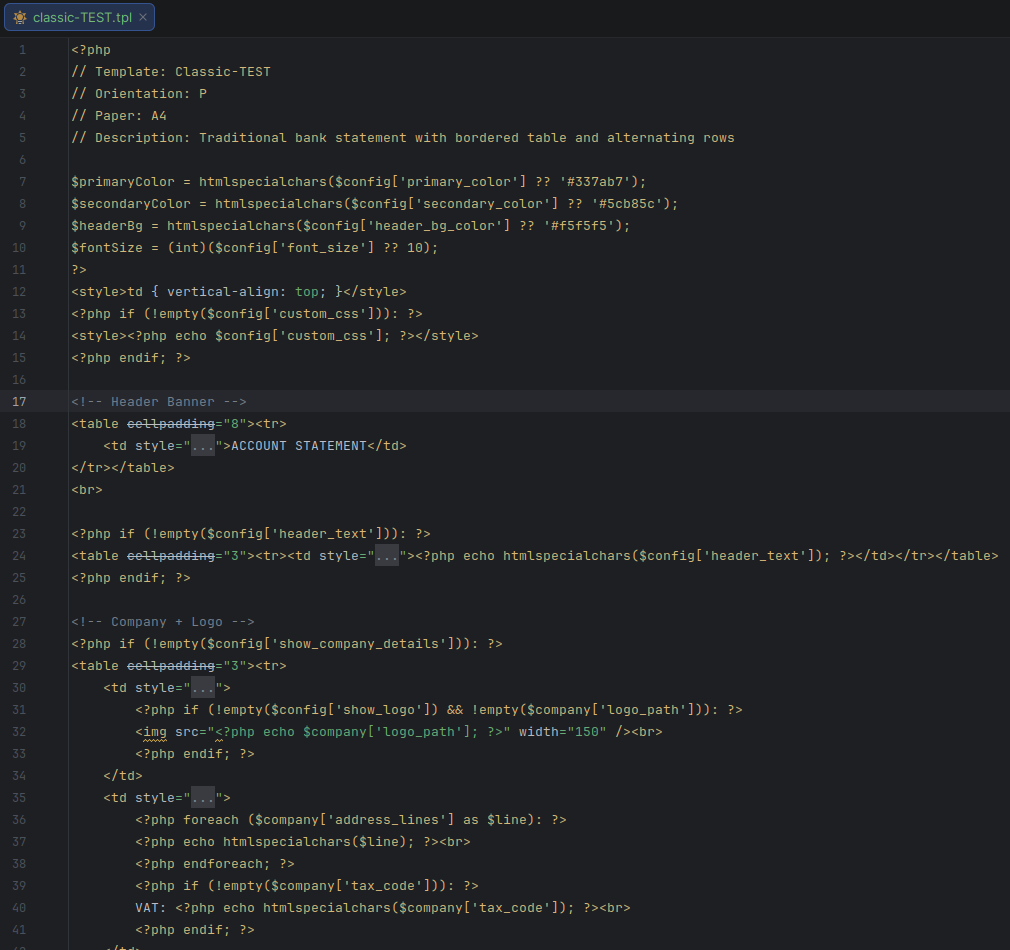 19-pdf-template-code.png
Template Header Fields
| Field | Description |
|---|---|
| Template | Display name shown in the Settings dropdown |
| Orientation | P for Portrait, L for Landscape |
| Paper | Paper size: A4, Letter, etc. |
| Description | Optional description shown as tooltip |
Available Template Variables
Templates receive the following variables:
| Variable | Description |
|---|---|
$config |
Style settings (colors, fonts, display options) from the PDF Style page |
$company |
Company details (name, address, logo, tax info) |
$statement |
Statement data (client info, period, invoices, transactions, credits, summary) |
After adding a new template file, it automatically appears in the Settings > PDF Template dropdown.